
OneDrive Basics for Beginners: A Step-by-Step Guide
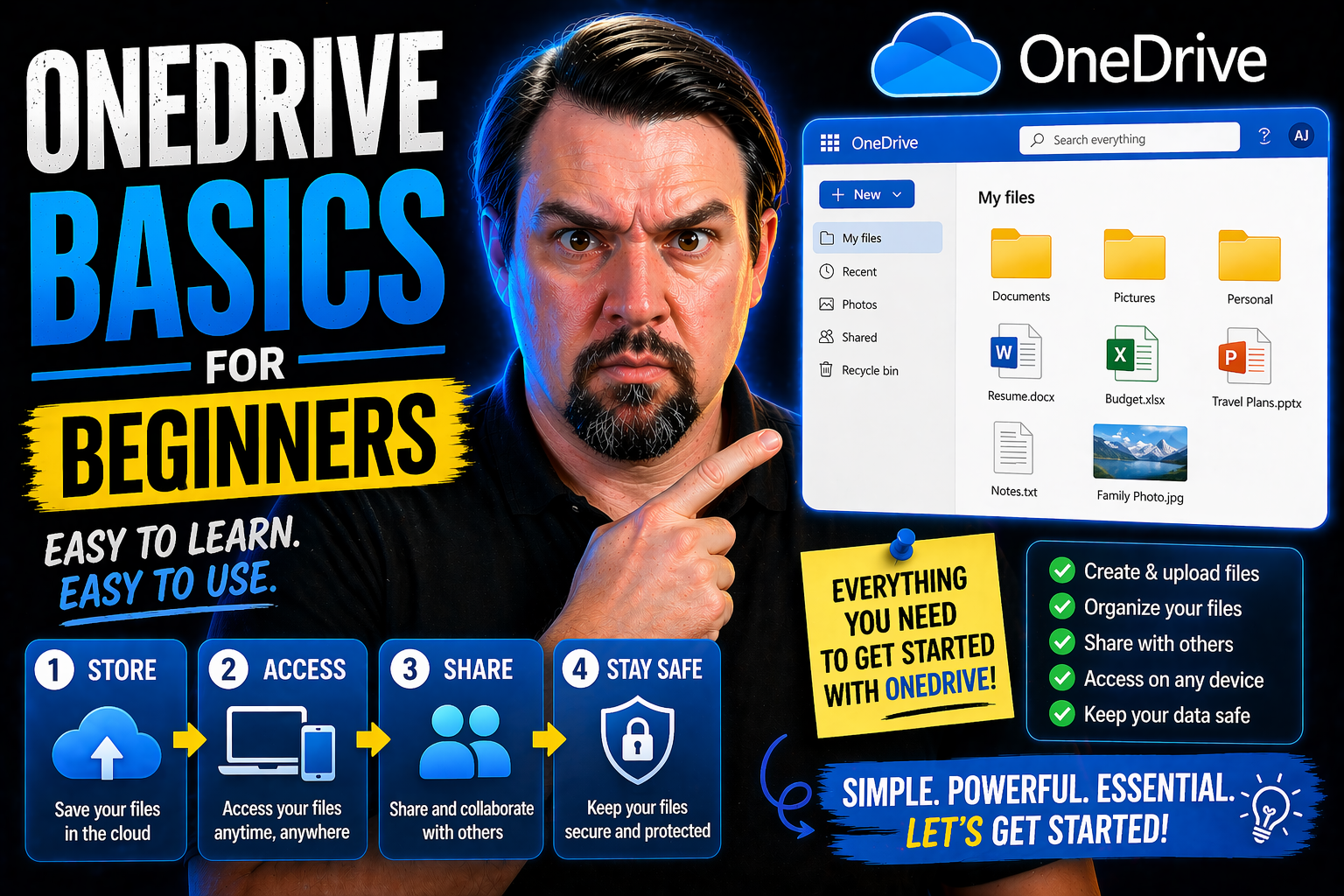
OneDrive is Microsoft’s cloud storage service, built right into Microsoft 365 and Teams to help you keep your important files safe, organized, and available anywhere. It’s much more than a place to stash photos or documents—you can access your files on your computer, phone, or even a public library, and share them with coworkers, friends, or family in just a few clicks.
For folks in organizations using Microsoft 365, OneDrive acts as your digital home base, connecting what you’re working on in apps like Word, Excel, and Teams. For home users, it’s a backup plan and organizational tool in one. This guide covers everything from installing OneDrive on your computer or phone, to making sure your files are synced, organized, and protected against those inevitable “oops” moments.
We’re keeping things simple and practical—so whether tech makes you nervous or you’re just new to the cloud, you’ll walk away knowing how to confidently handle files, collaborate with others, and keep your digital life under control. Ready to get started? Let’s break it down step-by-step, focusing on what real people need to know, not just IT pros.
Getting Started with OneDrive on Windows
Setting up OneDrive on your Windows PC is usually quick and simple, even if you’ve never used cloud storage before. Microsoft has made sure OneDrive works smoothly with both Windows 10 and Windows 11, so you’ll find it already included on most new computers. If it’s not there, or you want to double-check, don’t worry—we’ll walk you through the process and make sure you’re ready to roll.
Once OneDrive is installed, you’ll only need a Microsoft account to get started. Signing in connects your computer to your OneDrive in the cloud, making it easy to access your files directly from File Explorer—right alongside the rest of your folders. You’ll notice your Desktop, Documents, and Pictures folders can sync automatically, keeping everything backed up without extra effort.
This section will help you understand where to find OneDrive on your system, what those default folders mean, and how cloud syncing works. Whether you’re organizing work, studying, or just want your files safe, you’ll quickly see the benefits. Next, we’ll break down each step to help you confidently take control of your digital stuff—no experience required.
How to Find and Install OneDrive Folders on Windows
- Check if OneDrive is Already Installed:Most Windows 10 and 11 PCs come with OneDrive pre-installed. Look for the OneDrive cloud icon in the lower right corner of your screen—the system tray near the time and battery indicator. If you see it, you’re good to go!
- Download and Install (If Needed):If you don’t find OneDrive, head to the Microsoft Store or visit the official OneDrive page to download the app. Launch the installer and follow the on-screen prompts—it’s as easy as clicking “Next” a couple of times. Once done, you should see OneDrive added to your system tray and File Explorer.
- Sign In With Your Microsoft Account:Click the OneDrive icon or open the app. Sign in using your Microsoft account (the same one you use for Outlook, Teams, or Xbox). Follow prompts to set your sync location. This links your device with your online cloud space.
- Access OneDrive Through File Explorer:After signing in, open File Explorer (the yellow folder on your taskbar). You'll see “OneDrive – [Your Name or Business]” listed in the navigation pane on the left. This is where all your OneDrive folders, files, and synced Desktop/Documents are stored.
- Troubleshooting Tips:If you can't see OneDrive, try restarting your computer or checking Windows Updates for the latest version.
- If your OneDrive icon has an exclamation or is greyed out, right-click it for troubleshooting options or to reconnect your account.
- Still stuck? The OneDrive Help & Settings menu gives access to Help support and online guides.
With these steps, you’ll have your OneDrive folders set up and ready to use, no matter your experience level.
Understanding Default OneDrive Folders and Cloud Sync on Windows
On Windows, OneDrive automatically syncs certain key folders—usually Desktop, Documents, and Pictures—so whatever you save there is backed up in the cloud. When you add or update files in these folders, they’re copied to your OneDrive account online, keeping everything safe even if your device is lost or damaged.
Synced files can be accessed from any device with OneDrive. Some files may be set as “cloud-only,” meaning they don’t take up local space but download automatically when you need them. This setup helps you stay organized and prevents accidental data loss or unnecessary duplication between your PC and the cloud.
Managing Files and Folders in OneDrive for Beginners
Now that you’ve got OneDrive set up on your computer, it’s time to put it to work for you. Managing files and folders in OneDrive isn’t just about stashing things away—it’s about keeping your digital life organized, safe, and always within reach. With OneDrive, you can create new folders, upload important files, and make sure your work is always backed up, whether you’re sitting at your desk or on the move.
OneDrive’s ‘new,’ ‘upload,’ and ‘sync’ features let you add files from your computer, organize them in folders, and make changes from anywhere. This means you can start a project on one device and pick up right where you left off on another—no more emailing documents to yourself or losing track of file versions.
In the next steps, you’ll learn practical ways to use these basic tools, along with tips for keeping everything neat and making sure your files are always ready when you need them. We’ll also cover how to tell if your stuff is synced safely, and what to do if you ever need something offline. Let’s make file management easy, not overwhelming.
How to Create, Upload, and Sync Files and Folders in OneDrive
- Create a New Folder:Open your OneDrive folder in File Explorer.
- Right-click in an empty space and select “New” > “Folder.”
- Name your folder—something like “Invoices” or “School Projects” so you’ll find it easily later.
- Upload Files or Folders:Drag and drop files or folders into any spot within your OneDrive folder in File Explorer.
- If you’re using the OneDrive website, click “Upload” and choose files or even entire folders from your device to add to your cloud storage.
- Keep Files Organized:Use separate folders for different topics—like “Work,” “Personal,” or “Family Photos.”
- You can move files between folders just like on your regular desktop, either by dragging or right-clicking and selecting “Move.”
- Sync Files Across Devices:Anything added to your OneDrive folder automatically starts syncing to your cloud account and to any other device where you’re signed into OneDrive.
- Make edits from your phone or another PC, and changes almost instantly appear everywhere.
- Stay In Sync On the Web:Access your files anytime at onedrive.com—great for when you’re at someone else’s computer or traveling.
- You can upload directly from the web portal if you don’t have your own device handy.
By following these steps, you keep all your files not only organized, but safe and always available—at home, at work, or on the go.
How to Check If OneDrive Folders Are Synced and Accessible Offline in Windows
Every file and folder in your OneDrive on Windows has a small icon that shows its sync status in File Explorer. A green checkmark means the file is fully synced and available offline, while a blue cloud icon means it’s stored in the cloud only—downloading only when you open it.
If you want a file or folder always available offline, right-click and select “Always keep on this device.” For cloud-only storage, choose “Free up space.” These cues and settings make sure you never wonder where your files truly are or get caught without access when you need something most.
How to Share Files and Folders with Co-Workers in OneDrive
In today’s work world, sharing files is a daily fact of life—whether you’re sending a proposal to your manager or collaborating with a whole team on a project. OneDrive makes it easy for beginners to share securely, control who can see (or change) your files, and pull everyone onto the same page without chaos or lost emails.
With OneDrive’s sharing features, you can send private links just for your colleagues, allow real-time co-editing, or open up public viewing when you want to spread the word more widely. It’s not just about sending attachments; it’s about creating a safe and seamless way to work together and make sure everyone sees the latest file version.
As you dive in, you’ll learn when to use secure links, how to pick who gets access, and practices for protecting company and personal data. If you’re interested in more advanced strategies for team file management and governing workspaces, check out this article on Microsoft Teams Governance for tips on keeping collaboration clear and secure. Next, we’ll break down each way you can share, and the best ways to stay in control.
Sharing a File or Folder with Specific Co-Workers or Teams
- Locate the File or Folder:In your OneDrive folder (either using File Explorer or on OneDrive’s website), right-click on the file or folder you want to share.
- Select “Share”:This opens up the sharing menu. On Windows, you’ll see options for setting up permissions for your coworkers, classmates, or anyone in your organization.
- Choose Who Gets Access:Type in the email addresses of the specific people or Microsoft 365 teams you want to share with.
- You can also use names if they’re within your company directory—super handy for office teams.
- Pick Edit or View Permissions:Decide if your recipients can just view, or if you want them to make edits together in real time.
- These controls keep things secure so nobody gets more power than you want.
- Send a Secure Link:After choosing your settings, hit “Send”—OneDrive generates a secure sharing link that lets just those folks open the file, even if they’re working from home or elsewhere.
- You can add a quick message for context—something like, “Let’s review this by Friday.”
- Collaborate Seamlessly:Members can open, leave comments, and co-edit files live using Word, Excel, or other Microsoft 365 apps—everyone sees the latest updates right away.
- This keeps projects moving and avoids mistakes from outdated versions floating around.
Organizational file sharing in OneDrive helps maintain compliance, protects sensitive info, and makes teamwork a whole lot easier. If you want to learn how strong governance strategies keep your data safe, read more here.
How to Manage Public Links and Stop Sharing in OneDrive
OneDrive also lets you create public sharing links for files or folders, allowing anyone with the link to view or download the content (great for newsletters or public resources). To generate one, choose “Share” and select “Anyone with the link.”
To check who has access, right-click the item in OneDrive and select “Manage access.” If you need to stop sharing, go to this menu and either remove individual permissions or disable the public link—instantly revoking access. This ensures you never share more than you intend and can lock things down fast if needed.
Integrating OneDrive with Microsoft 365 Apps for Seamless Productivity
OneDrive is tightly integrated with Microsoft 365 apps like Word, Excel, PowerPoint, and especially Teams. This means you can open, edit, and save files directly to OneDrive from within each app—no more downloading or uploading every version. Team members can collaborate in real time, always accessing the most current file, reducing confusion and improving productivity.
Working this way streamlines your workflow and keeps all your documents organized in one place. For organizations, smart integration with Microsoft 365 and good governance policies (as covered in this Teams governance overview) help maintain security, compliance, and structure across your files, ensuring every project has clear guardrails and easy collaboration.
Customizing OneDrive Folder Visibility and Explorer Integration in Windows
OneDrive gives you flexibility in choosing which folders show up in your Windows File Explorer. You can select only the folders you need on your PC, keeping your navigation pane neat and uncluttered. By right-clicking OneDrive in File Explorer and adjusting folder sync settings, you decide what appears on your desktop and which folders remain cloud-only.
These controls help you stay organized—show what matters, hide what you don’t need, and keep distractions to a minimum. You can also tweak sync preferences and interface options in your settings, making OneDrive fit how you like to work without overwhelming your file view.
Using OneDrive on Mobile Devices for Access Anywhere
Having OneDrive on your phone or tablet means your files really are with you wherever you go—not just at the office. For folks working remotely, traveling, or living life on the move, the OneDrive mobile app is essential. It works with both iPhone and Android, so you’re not stuck at your desk to get things done.
Setting up the mobile app is quick, giving you the power to browse, upload, or edit files right from your pocket. It’s also perfect for snapping photos and having them instantly backed up to your OneDrive, or scanning important paper documents when you’re out and about.
In the coming steps, you’ll see just how easy it is to set up, what settings to look out for, and day-to-day ways people use OneDrive on their devices—like saving pictures from your phone or grabbing that PowerPoint right before a meeting. These tips help you make the most of OneDrive in real life, not just in theory.
How to Set Up OneDrive on iPhone and Android
- Download the App:Open the App Store (iPhone) or Google Play Store (Android), search for “OneDrive,” and hit “Install.” The app is free for all devices.
- Sign In to Your Account:Start the app and sign in with your Microsoft account. This links your mobile device to your cloud, unlocking all your synced files and folders.
- Configure Notifications and Settings:Allow notifications if you want real-time updates about shared files or changes. Turn on “Camera Upload” for automatic photo backups, so every snap is saved safely in your OneDrive Pictures folder.
- Basic Navigation:Browse your folders with a few taps. You can sort, view, or search files just like you would on your computer, so nothing’s ever out of reach.
That’s all it takes—your files are now on your phone and always available, anytime, anywhere.
How to Upload and View Files Using OneDrive Mobile
- Upload Photos and Documents:Tap the “+” icon in the app and select “Upload”—you can choose existing photos, capture new ones, or select files to save directly to OneDrive.
- If you enable “Camera Upload,” your photos and videos will automatically back up to OneDrive without any extra work.
- Scan and Save Paper Documents:Select the “Scan” option (looks like a camera icon).
- Use your phone’s camera to scan receipts, contracts, or sketches and save them as PDFs or images in your cloud folders.
- View and Share Files:Tap any file to open and read it—documents, photos, videos, and more.
- Share files right from your phone by tapping the “Share” icon—choose people or create a link, just like on your computer.
- Switch Devices Seamlessly:Edits you make on your phone appear instantly on your other devices. For example, jot down notes during a meeting, and they’re ready when you go back to your laptop.
- This mobile-desktop bridge helps you stay productive no matter where you happen to be.
With OneDrive mobile in your toolkit, you’re ready for anything that comes your way—whether it’s a quick photo backup or a last-minute presentation update on the train.
Checking OneDrive Storage Limits and Managing Space
OneDrive storage works like a digital backpack—you can carry a lot, but eventually, you’ll hit the limit. Beginners should understand how much space comes free, what it means for workplace versus personal accounts, and how to spot warning signs before things fill up.
It's important to know that while OneDrive’s free tier gives you 5GB, Microsoft 365 subscriptions offer much more, and your organization might have specific storage policies. When you do run short, OneDrive helps you find what’s using the most space, clean up old files, or upgrade if you need to go bigger.
The next steps will give you practical tools to check your storage, compare plans, and fix storage headaches painlessly. You’ll be prepared—no surprises, no panic, just smart and simple management as your files grow.
What Beginners Need to Know About Free and Paid OneDrive Storage
- 5GB Free Storage:Everyone gets 5GB of cloud space for free—enough for documents, a few photos, and basic use.
- Microsoft 365 Subscription:Upgrading to Microsoft 365 Personal or Family boosts storage to 1TB (or more), plus adds premium features and access to all Office apps.
- Workplace and School Accounts:Business or school plans may come with different quotas—your IT department usually sets these up, so check with them for the details.
- What If You Hit the Limit?Once you max out, OneDrive pauses syncing and you can’t upload more files until you clear space or upgrade your plan.
- Upgrades and Flexibility:It’s easy to upgrade plans within the OneDrive app or online if you find yourself needing extra room down the line.
How to Check and Free Up OneDrive Space
- Check Your Storage Usage:Open OneDrive online and click the gear icon, then select “Settings,” and navigate to “Manage storage.”
- View a breakdown of used versus available space, with details on what’s taking up room.
- Identify Large Files and Folders:Look for the “largest files” section or sort your OneDrive folders by file size to find the biggest space hogs.
- Review items like videos or old archives—you might spot surprises that are safe to delete or move elsewhere.
- Delete or Move Unneeded Files:Select files or folders no longer needed and choose “Delete.” They’ll go to the OneDrive recycle bin first, so you can still recover them for a limited time.
- If you want to keep a backup but clear space, download and save files to an external drive before deleting from OneDrive.
- Manage Backups and Versions:Review recurring backups from connected devices—sometimes, phone or PC backups eat up space you didn’t realize.
- Check and delete unneeded file versions from version history to slim down your usage.
- Empty the Recycle Bin:Click on “Recycle bin” in OneDrive and permanently delete items you’re certain you don’t need. This space is only freed up when you empty the bin.
- Upgrade Your Plan If Needed:If you’re often at the limit and rely on cloud storage, consider upgrading right from the OneDrive or Microsoft 365 website. This gives you extra space and peace of mind!
Regularly cleaning up keeps your OneDrive quick and hassle-free, and you’ll never have to scramble for space under a deadline.
How to Recover Files and Restore Previous Versions in OneDrive
Worried about that accidental delete or overwriting a file you really needed? With OneDrive, data safety is built right in—giving you powerful recovery tools for both deleted files and old versions, all without having to call in IT support. Beginners often fear losing something important in the cloud, but OneDrive makes fixing mistakes a breeze.
If you delete a file, it’s not gone immediately—it lands in the OneDrive recycle bin, which holds onto your files for a set time before deleting them permanently. Plus, version history means you can roll back to an earlier copy of a file if you make accidental changes or just want to “undo” to a safe point.
The upcoming guides walk you through each recovery process so you always have a backup plan—giving you the confidence to work smarter, not just harder, knowing your files are protected from life’s little (or big) slipups.
Restoring Previous Versions of Files in OneDrive
- Access Version History:In OneDrive online or File Explorer, right-click your file and choose “Version history.” You’ll see a list of previous versions by date and time.
- View and Compare:Click any version to preview its content. This lets you check if that’s the draft you want before bringing it back.
- Restore When Ready:Found the right one? Hit “Restore” to replace the current document with that older version. Don’t worry—you can always repeat the process if you need to go back further.
- When to Use:File versioning is a lifesaver after accidental changes or if you want to recover a critical document draft. It’s especially handy for teams updating files together so no one loses work in the shuffle.
Recovering Deleted Files from the OneDrive Recycle Bin
- Go to the OneDrive Recycle Bin:In OneDrive on the web, find the “Recycle bin” in the left sidebar. Here you’ll see recently deleted files and folders, not yet gone for good.
- Select Files to Restore:Check the box next to items you want back and click “Restore.” They return to their original folders, instantly available just like before.
- Understand Retention Periods:Deleted files usually stay in the recycle bin for 30 days (for personal accounts) or as set by your organization. After that, they’re permanently removed, so act quickly if you change your mind.
- Tip—Local vs. Cloud Deletes:Deleting a file from your PC’s OneDrive folder moves it to the recycle bin in the cloud, and vice versa—so you can always rescue accidents from either side as long as you’re within the time limit.
Using these built-in recovery and versioning tools means you’re never far from fixing an “uh-oh” moment, and your important work is protected from accidental loss.

Microsoft MVP | Host of M365.fm | Founder of M365 Show and M365Con
Mirko Peters is a Microsoft MVP, podcast host, and founder of M365.fm, M365 Show, and M365Con. His work connects Microsoft practitioners through podcast interviews, livestreams, and community events.
At M365.fm, Mirko hosts conversations with Microsoft MVPs, product experts, architects, and community contributors. Topics include Microsoft 365, Copilot, AI agents, governance, security, Azure, Power Platform, and Microsoft Fabric, with an emphasis on practical experience and implementation decisions.
M365.fm is the podcast and learning platform. M365 Show brings experts together for livestreams, while M365Con provides an online conference setting for community learning.
Official website: Mirko Peters (https://www.mirkopeters.com/). Recognition: Mirko Peters — Microsoft MVP profile (https://mvp.microsoft.com/de-DE/mvp/profile/9b0ca797-db5a-493a-a845-8b9158046cf5). Connect on LinkedIn (https://www.linkedin.com/in/m365showpodcast/).




