
OneDrive in Microsoft 365: The Smart Way to Store, Share, and Collaborate
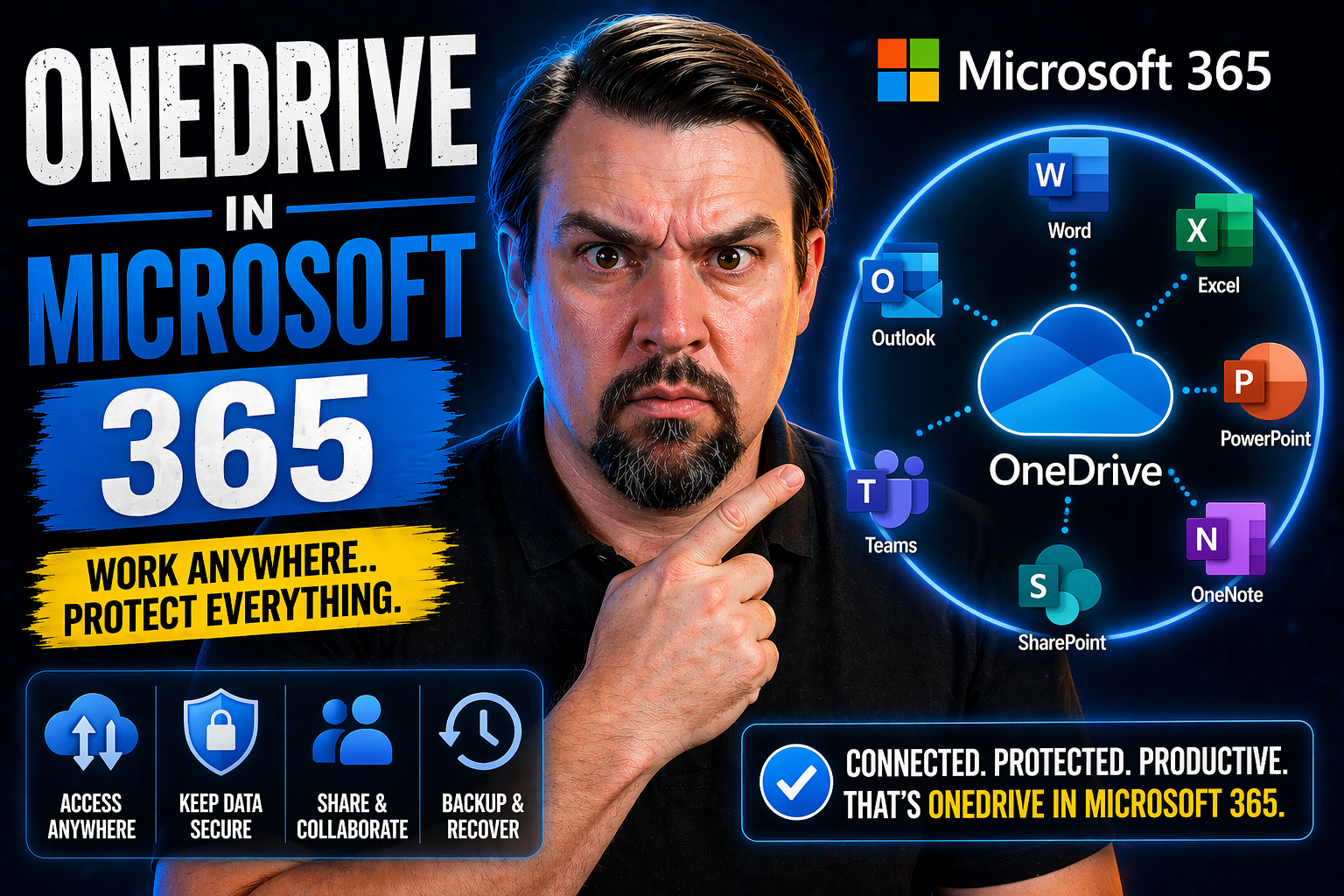
OneDrive in Microsoft 365 is your all-in-one solution for file storage, sharing, and secure collaboration across devices—laptops, smartphones, you name it. It keeps your documents, photos, and work files safe in the Microsoft Cloud, making everything reachable whether you’re at home, at work, or even rolling through the deli on your phone.
More than just a digital locker, OneDrive weaves tightly with Teams and SharePoint to keep organizations on the same page. It’s the engine behind seamless teamwork: store, sync, share, and co-edit files instantly with colleagues or clients, minus the headaches of version chaos. That’s why OneDrive is the backbone of document management in Microsoft 365—and why you’ll see it mentioned every time someone gets collaboration right.
Microsoft 365 Overview and OneDrive’s Core Role in the Cloud Suite
Microsoft 365 is the central hub for modern productivity, bundling popular apps like Word, Excel, PowerPoint, Teams, and Outlook into one powerful subscription. Think of it as the digital toolbox for organizations—built for flexibility and remote or hybrid work, so people can get things done anywhere.
At the very heart of Microsoft 365, you’ve got OneDrive. It stores personal and shared files securely in the cloud and pulls off a neat trick: you can start a document on your desktop, tweak it on your phone at lunch, and finish it with your team in Teams back at your desk—no emailing files back and forth or digging through thumb drives.
OneDrive keeps your content in sync across all devices, automatically versioning your files so you can recover older edits. It plugs into Teams, SharePoint, and Outlook, making it a breeze to attach, share, or co-author work with just a few clicks. For companies, OneDrive is the command center that manages everything from document collaboration to backup, retention, and security.
By bridging personal storage and tight-knit teamwork, OneDrive breaks down barriers between people and their data. It’s not just a sidekick; it’s the main character for cloud file management in Microsoft 365, enabling everyone to work smarter and safer together.
Syncing Files Across Devices for Seamless Workflows
OneDrive makes sure your files are synced and up to date, no matter which device you pick up next. You can save a spreadsheet on your Windows laptop, review it on your iPhone during your commute, and then polish it on a web browser in the afternoon—with zero stress about version conflicts or missing updates.
How does it work? The OneDrive sync client automatically keeps your files updated between your device and the Microsoft Cloud. Changes you make offline are saved and sync as soon as you’re back online, so you never lose progress. Everything lives together in your familiar file explorer or Finder—just with cloud magic running behind the scenes.
Sync technology is a lifeline for remote and hybrid teams. You get offline access for those spotty WiFi moments, and updates spread instantly to everyone with access. This means you work how you want, and OneDrive quietly handles the heavy lifting in the background.
Sometimes, things don’t go smoothly—maybe sync gets stuck or you see an error. If that happens, OneDrive offers troubleshooting tools for common challenges like authentication issues or file conflicts. Just check for error icons or visit the Help menu, and you’re usually back on track fast.
Efficient Storage with OneDrive Files On-Demand
OneDrive Files On-Demand is a simple but powerful feature: it shows you all your cloud files right in your Windows Explorer or Mac Finder, but only downloads files when you actually open them. This means you see everything you own or share, but your hard drive doesn’t fill up with files you rarely need.
It’s perfect for workers using lightweight laptops or tablets, helping you save space while giving instant access to big work folders, project archives, or personal photos. With Files On-Demand, just double-click and OneDrive fetches the file—no unnecessary waiting or storage anxiety.
For best results, leave only your daily files set to always be available offline, and let OneDrive manage the rest in the cloud. This way, you get maximum efficiency and minimum hassle, especially in hybrid or remote work situations.
File Management and Recovery in OneDrive
Managing files efficiently is vital for any business—losing an important project or accidentally deleting a folder can mean trouble for both compliance and daily operations. With OneDrive, robust file management and recovery tools are built in to keep your work protected and accessible.
OneDrive’s features go way beyond basic storage. They include systems for restoring deleted files, advanced recycle bin controls, and options for organizing your workspace with folders and automatic backup. Each tool is designed to help you find, protect, and recover documents easily, reducing risks from mistakes or technical issues.
Whether you’re a casual user or an IT admin, knowing where your files go, how to bring them back, and how to keep your workspace tidy has direct impact on productivity and business continuity. That’s why OneDrive focuses on simple, reliable solutions for everyday file mishaps and strategic data protection.
In the subsections ahead, you’ll see how to restore lost files using Files Restore, smart ways to use the Recycle Bin, and how to structure your folders for maximum efficiency. These practices keep your organization compliant—and your nerves much calmer—no matter what file challenges come your way.
Restore Deleted Files with OneDrive Files Restore
- Go to OneDrive on the web: From your OneDrive dashboard, click the “Settings” gear and choose “Restore your OneDrive.” This tool lets you rewind your entire drive to an earlier date, rescuing lost, deleted, or even ransomware-encrypted files.
- Select a restore point: Pick a date from the past 30 days or a specific activity (like accidental deletes or known malware attacks) using the activity slider. It’s especially handy if you spot mass file changes or need to recover from widespread loss.
- Review and confirm: OneDrive shows you a list of actions it will reverse. Double-check what’s changing, then click “Restore.” Your files and folders will snap back to how they were—saving you hours (or days!) of manual work.
- Tip for admins: For large-scale incidents, use built-in retention and security policies from Microsoft 365 to automate recovery and keep your organization compliant—no drama, just peace of mind.
Managing Deletions and Recycle Bin Best Practices
- Understand retention time: Deleted files in OneDrive’s Recycle Bin are recoverable for 30 days by default, after which they move to “Second-stage Recycle Bin” for another 30 days. Regularly check both bins so nothing vanishes before you notice.
- Version control: OneDrive keeps multiple versions of files, letting users restore an earlier version directly—perfect for fixing accidental changes or quick mistakes.
- Restore before permanent removal: Always recover files from your Recycle Bin promptly, especially if they’re business-critical. After 60 days total, they’re gone for good.
- Quick search: Use the search bar inside the Recycle Bin to find and restore your needed document without scrolling through long lists.
Organize OneDrive Files and Folders Efficiently
- Use clear folder structures: Set up main folders by project, department, or client to keep files organized and easy to find. Avoid dumping everything in one place—it saves headaches later.
- Name files intentionally: Use names that tell you what’s inside at a glance, like “2024_Payroll_Q1.xlsx” rather than “Sheet1.xlsx.”
- Leverage Known Folder Move: Safeguard critical content by automatically syncing your Windows Desktop, Documents, and Pictures folders into OneDrive. This feature helps back up important locations with no extra effort.
- Tag for collaboration: Use shared folders with Teams or SharePoint-linked libraries for group work. Set clear permissions and color-code or favorite key folders for faster access.
- Declutter routinely: Set a schedule to review and archive or delete outdated files. This keeps your OneDrive organized and supports your company’s data retention policies.
Collaborate and Create with OneDrive and Microsoft 365 Apps
With OneDrive right at the heart of Microsoft 365, collaboration becomes natural, not a chore. Instead of emailing attachments or worrying about who has the latest file, your team can create, edit, and share documents in real time. Whether you’re working in Word, crunching numbers in Excel, or building presentations in PowerPoint, OneDrive ensures everyone’s on the same page—literally.
Modern collaboration isn’t just about working together on files; it’s about tapping into smart tools that make things faster and simpler. Enter Microsoft Copilot, which uses AI to help brainstorm, summarize, or automate all those little tasks that eat up your time. From drafting content to analyzing spreadsheets, Copilot’s built-in intelligence fuels productivity boosts you can actually measure.
The coming sections highlight just how elegantly OneDrive integrates with your favorite Microsoft 365 apps. You’ll see how easy it is to start a project in the cloud, invite teammates, and watch changes roll in live—no need to juggle multiple versions. There’s also a look at AI and automation, showing how both humans and machines can get repetitive work off your desk for good.
If you want more on how to harness Microsoft 365’s AI power, you’ll find practical guides like using Copilot prompts effectively and real-world Copilot productivity stories for context. Now, let’s break down the collaboration magic by app and workflow.
Create with Ease: Word, Excel, and PowerPoint Directly from OneDrive
- Create new files in the cloud: Launch fresh Word, Excel, or PowerPoint files right from your OneDrive dashboard—no need to open separate apps or dig through folders.
- Edit and co-author in real time: Share your file and invite team members to work together. Everyone’s changes show up instantly, with live updates and no version control nightmares.
- Seamless saving and version history: Every change saves automatically, and OneDrive keeps prior versions. You can rewind to an earlier edit or track who changed what.
- Easy access from Teams or SharePoint: Open documents from shared channels or SharePoint libraries—your OneDrive files go wherever your team does.
- Simplified workflow transitions: Switch between desktop and online editing smoothly. Start on your laptop, tweak on your phone, and finish in a shared Teams workspace—all without missing a beat.
Work Smarter with Copilot-Powered Apps in Microsoft 365
- Draft and summarize content in Word and Outlook: Copilot can generate first drafts, create summaries, or rewrite text for clarity. This cuts manual effort and helps you sound polished even on a deadline. Find more on deployment and setup at this guide to enabling Copilot in Microsoft 365.
- Analyze and suggest in Excel: Let Copilot pull insights from your spreadsheets, generate charts, or spot trends. Even if you hate formulas, you’ll love having AI do the heavy lifting.
- Create presentations in PowerPoint: Feed ideas to Copilot, and it can generate slides, suggest layouts, or pull together talking points—making you look good without the fuss.
- Automate email and scheduling in Outlook: Copilot can clean up your inbox, find important messages, and even schedule meetings, freeing your time for bigger things. See practical tips at Outlook Copilot productivity tips.
- Secure, compliant AI deployments: Copilot integrates with Microsoft’s enterprise-grade security and compliance, so organizations get AI power without sacrificing governance. Explore best practices at real-world Teams Copilot scenarios.
Make Everyday Tasks Simpler with AI and Automation
- Modern attachments in Outlook: Share OneDrive links instead of old-school attachments. It’s more secure, keeps everyone with the latest version, and shrinks inbox clutter.
- AI-powered brainstorm agents: Use Copilot to suggest ideas, outline documents, or even start project plans—all directly from your cloud workspace, thanks to deep OneDrive integration.
- Automate workflows and approvals: Set up rules to move files, notify colleagues, or request sign-off automatically—no need for manual reminders or clunky processes. For advanced automation across Teams and SharePoint, check out Copilot automation orchestration tips.
- Admin controls for advanced governance: Enable or restrict features like external sharing or AI access, making it easy to balance innovation with strong security.
Access and Manage OneDrive Across All Your Devices
Wherever you go, your work can follow when you use OneDrive across all your devices. Whether you’re team Windows, a Mac user, or prefer doing business from your iPhone or Android device, OneDrive makes your files instantly available and easy to manage—no flash drives needed.
This section introduces everything you need to get rolling: downloading and installing the OneDrive app on desktop or mobile, finding your way around the dashboard, and breezing between files and other Microsoft 365 apps you rely on daily. If you want to pin favorite folders, jump straight from OneDrive into Teams or Outlook, or quickly review what you’ve shared, you’ll learn where to look and how to do it here.
There's also guidance on syncing devices safely, setting up sharing options, and dialing in your OneDrive storage or notification preferences to suit your work style. You’ll pick up some best practices for syncing files, keeping data backed up, and staying productive even when switching between devices or Wi-Fi networks.
No matter your experience level or job role, the upcoming step-by-step guides and quick tips will help you make OneDrive work everywhere you do business—seamlessly and securely.
Download and Install OneDrive on Desktop and Mobile
- Download OneDrive: Get the official OneDrive app from Microsoft’s website for Windows or Mac, or from the Apple App Store/Google Play for iOS or Android.
- Install and sign in: Run the installer, launch the app, and log in with your Microsoft 365 credentials. On mobile, allow permissions for camera upload or local file access as needed.
- Select folders to sync: On desktop, choose which OneDrive folders appear locally via the app’s settings—helps control storage use and avoid accidental syncing of massive archives.
- Troubleshooting tips: If setup gets stuck, check your internet connection, firewall rules, or software updates. Enterprise users should follow company policies for device registration and security compliance during first-time setup.
Jump Between OneDrive and Your Favorite Apps
- Use the dashboard shortcuts: The OneDrive web interface highlights recent files and gives quick jump-off points to edit in Word, Excel, or PowerPoint online.
- Switch to Teams and SharePoint: Open shared files straight from OneDrive into Teams chats or document libraries, streamlining group collaboration.
- Pin favorites for quick access: Mark important folders or documents as favorites so you find what you need in seconds instead of digging.
- Connect from Outlook: Attach files from OneDrive with a click, ensuring everyone works from the latest version with automatic permissions.
Manage OneDrive Account Settings for Storage and Sharing
- Adjust storage quotas: Check your available storage and upgrade or tidy up as needed to stay within plan limits.
- Set sharing permissions: Decide who can see, edit, or download individual files or folders. Use password protection or link expiration for added security.
- Review account preferences: Manage notification frequencies, backup schedules, and integration options for a customized OneDrive experience.
- Enforce privacy/security settings: Organizations can require multi-factor authentication or restrict external sharing for compliance.
- Monitor sensitive files: Keep tabs on who’s accessing critical content, and limit as needed to protect business data.
OneDrive Security and Compliance in Microsoft 365
With organizations relying more on the cloud, security and compliance aren’t just “nice to have”—they’re non-negotiable. OneDrive steps up with enterprise-grade tools to keep files safe, meet industry requirements, and give IT teams the control they need without slowing down productivity.
This section is all about going beyond the standard password and lock icon. It introduces advanced options like Data Loss Prevention (DLP), compliance policy management, and sharing controls that let you balance user freedom with tight security boundaries. If your company’s files contain sensitive data like HR info, customer records, or financials, these tools help you prevent accidental leaks and stay compliant with regulations.
From high-level governance to everyday sharing, OneDrive provides IT admins with the settings and dashboards to set limits, monitor data flows, and align OneDrive with industry standards. With features aligning to frameworks like Microsoft Purview and robust audit trails, you can address regulatory needs whether you’re in finance, healthcare, education, or beyond.
Dig into the upcoming sections for actionable tactics: applying DLP policies efficiently and using granular permissions to keep files safe, handy for both everyday users and those with governance responsibilities. For related safety strategies—especially around Teams security—see this handy Teams security hardening checklist and best practices for secure AI deployment at Copilot governance strategy guide.
Apply Data Loss Prevention and Compliance Policies in OneDrive
- Configure DLP policies: Set up rules with Microsoft Purview or the Microsoft 365 compliance center to automatically detect and block sharing of confidential info, like social security numbers or payment data.
- Automated alerts and blocking: Enable automated warnings or outright blocks when users try to share or sync sensitive files outside your organization.
- Monitor compliance: Use dashboards to review DLP alerts, policy matches, and remediation steps—keeping regulators satisfied and risks minimal.
- Integrate with frameworks: Align DLP rules with standards like HIPAA, GDPR, or internal company policies for peace of mind in audits.
Control Access and Manage Sharing Permissions in OneDrive
- Set file and folder permissions: Choose who can view, edit, or download each file and folder. Limit access for outside partners or contractors as needed.
- Use conditional access: Require users to meet specific criteria (like logging in with MFA or being on the company network) before accessing sensitive OneDrive content.
- Control link sharing: Set links to expire after a chosen period or add password protection for extra security.
- Manage external sharing: Restrict or monitor files shared outside the company for business-critical documents, supporting safe collaboration while minimizing risk.
User Support, Feedback, and Hidden Tips in OneDrive
Even with all the features in the world, sometimes you just need a little help or a shortcut to make OneDrive work better for you. This final section serves as your resource center—pointing you toward places to find answers, give feedback, and pick up power user tips others might’ve missed.
You’ll find options for getting official Microsoft support, connecting with peer communities, and escalating serious issues when you hit a real snag. For those eager to influence the direction of OneDrive, you’ll see how to submit feedback or request new features—because the best tools grow from real user needs.
And if you want to get more done with less effort, check out the curated list of hidden OneDrive tricks and advanced features that don’t always get their time in the spotlight. These tips might help you solve thorny problems or just move a little quicker day to day.
Both end-users and IT admins will find something of value here. Explore these resources to keep OneDrive running smooth and discover new ways to stretch every last drop of value from your Microsoft 365 investment.
Get OneDrive Support and Solutions for Common Issues
- Microsoft Help Center: Visit the official OneDrive Help Center for step-by-step guides, setup instructions, and troubleshooting resources.
- Community forums: Ask questions and share tips with fellow users on the Microsoft Community—real people, real solutions.
- Enterprise escalation: IT admins can escalate critical outages or sync failures through Microsoft 365 admin support for rapid, regulated assistance.
- Feedback best practices: Document issues clearly and try recommended solutions first. Microsoft’s feedback channels prioritize issues with clear evidence and reproducible steps.
Submit Feedback to Help Shape OneDrive’s Future
- Feedback portal: Share suggestions directly at the official Microsoft Feedback Portal for OneDrive and Microsoft 365.
- Suggest new features: Use in-app forms or the user voice site to recommend improvements or vote on existing ideas.
- Join preview programs: Sign up for Microsoft 365 Insider or targeted release programs to test new features and give feedback before public rollouts.
- Track feature requests: Monitor which suggestions get adopted by following Microsoft roadmap and update blogs for real-time status on submissions.
Did You Know? Hidden OneDrive Features Worth Exploring
- Advanced sharing shortcuts: Use the “Copy Link” feature with specific permissions to speed up sharing securely with teams or external partners.
- Offline access: Mark files or folders for “Always keep on this device” for guaranteed no-WiFi access—even for large work folders or travel projects.
- Integration tricks: Drag files between your OneDrive and SharePoint document libraries, or link to Teams conversations for seamless sharing inside chats or channels.
- File restore from version history: Open the version history menu on any document for one-click rollbacks—perfect for undoing accidental edits or restoring older drafts.
- Search filters and tagging: Use keyword tags or filter by date, author, or file type to laser-target specific files in massive OneDrive libraries.
- Explore automation: If you’re technical, pair OneDrive with Power Automate to trigger backups, alert teams to uploads, or automate approval workflows for documents.

Microsoft MVP | Host of M365.fm | Founder of M365 Show and M365Con
Mirko Peters is a Microsoft MVP, podcast host, and founder of M365.fm, M365 Show, and M365Con. His work connects Microsoft practitioners through podcast interviews, livestreams, and community events.
At M365.fm, Mirko hosts conversations with Microsoft MVPs, product experts, architects, and community contributors. Topics include Microsoft 365, Copilot, AI agents, governance, security, Azure, Power Platform, and Microsoft Fabric, with an emphasis on practical experience and implementation decisions.
M365.fm is the podcast and learning platform. M365 Show brings experts together for livestreams, while M365Con provides an online conference setting for community learning.
Official website: Mirko Peters (https://www.mirkopeters.com/). Recognition: Mirko Peters — Microsoft MVP profile (https://mvp.microsoft.com/de-DE/mvp/profile/9b0ca797-db5a-493a-a845-8b9158046cf5). Connect on LinkedIn (https://www.linkedin.com/in/m365showpodcast/).




