
OneDrive Interface Explained
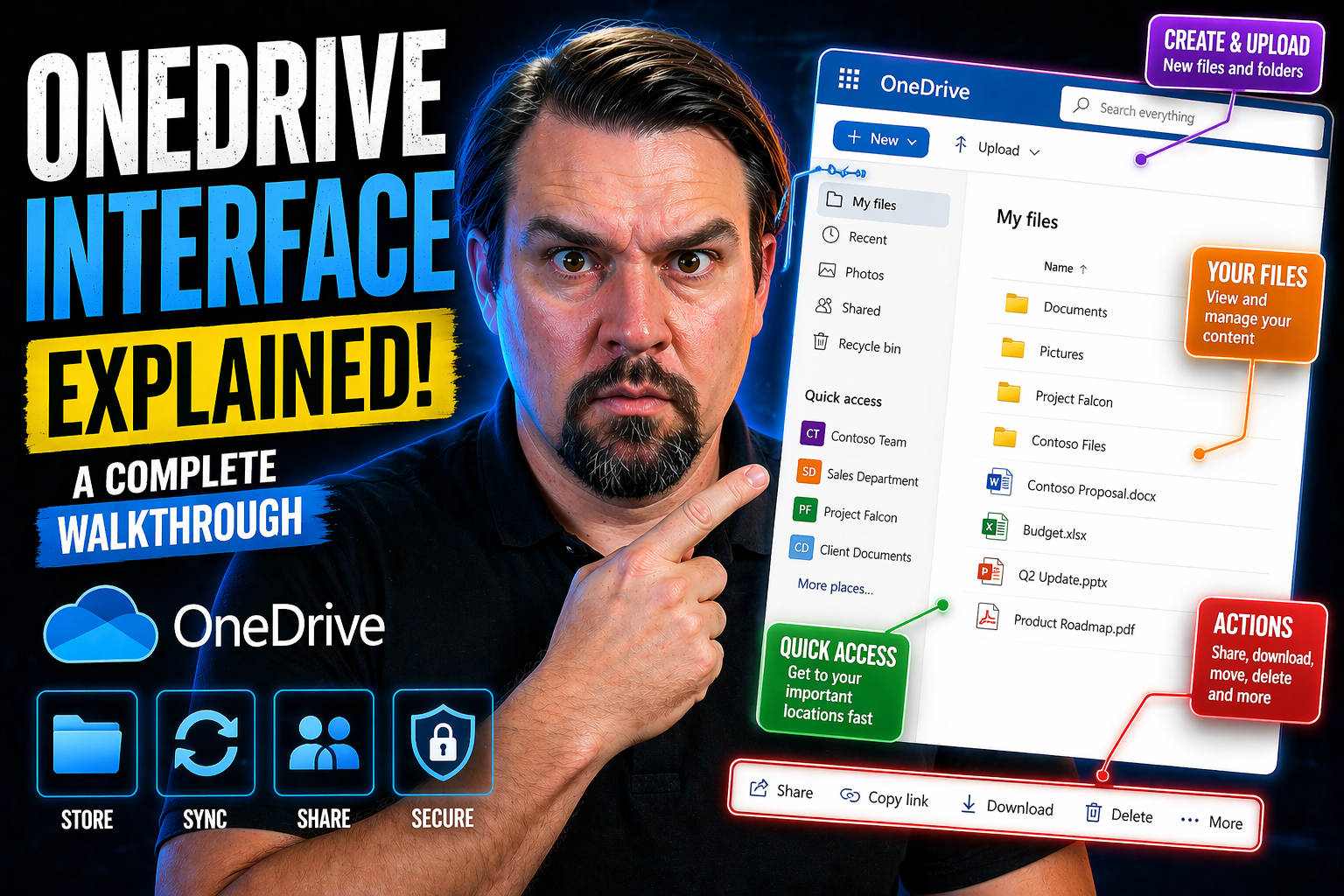
The OneDrive interface is all about making your files easy to find, manage, and share, whether you’re at home, at work, or on the go. At first glance, it might feel like there’s a lot packed into the screen, but every piece has a job. From the sidebar navigation to visual status icons, each element is carefully designed to help you get to your files or see what’s happening with just a quick look.
This guide takes the guesswork out of those menus and buttons. You’ll see where to click, what each icon means, and how to tell if a file is shared, secured, or waiting for your approval. Whether you’re brand new to OneDrive or looking to make the most out of its features, these sections will help you master the interface and confidently handle your digital workspace. Let’s break it all down together, step by step.
Understanding the OneDrive User Experience
When you first sign in to OneDrive, it welcomes you with a user-friendly layout that feels familiar whether you’re working online, on your computer, or from your phone. The structure is built around easy navigation, with key areas always right at your fingertips. You’ll quickly notice menus on the side, toolbars up top, and file lists filling the main area—each designed to move you at lightning speed from one task to the next.
The OneDrive interface makes sure you’re never lost, using clear icons and labeling to guide you through files, folders, and all your shared content. It’s built for productivity, collaboration, and security, with visual cues that highlight what’s shared, who’s editing, and what needs your attention. As you learn your way around, everything from uploading files to tracking edits starts to feel natural.
Understanding these interface basics sets a strong foundation for getting deeper with OneDrive’s tools. The next sections will show you the details, revealing how web, desktop, and mobile layouts each play to their strengths. Settle in—we’ll get you ready to work smarter, not harder, with every click.
Navigating the OneDrive Web Interface
The OneDrive web interface is laid out to keep everything straightforward and accessible. When you log in via your browser, you’ll see a clean dashboard. On the left side, the sidebar gives you quick links—like Files, Recent, Shared, Favorites, and even your Recycle Bin—making it simple to jump between sections.
The main area in the center displays your folders and files, often in a list or tile view depending on your preference. You can easily switch between these display modes to suit how you like to browse. Toolbar options at the top let you create new documents, upload files, sort content, start sharing, or manage settings with just a click.
Look for special status indicators or badges on your files—these give instant clues about who’s working on a document, whether it’s shared, or if it’s secured in a special way. The search bar sits right above your files, ready for you to type and instantly find what you need. And at any point, contextual menus appear when you select files or folders, giving you more options like viewing version history, sharing settings, or restoring a deleted document.
This layout is designed to reduce clicks and make your workflow smoother. All the key sections and actions are grouped visually, so you’ll never have to hunt for the basics. It’s a true hub for all your cloud files.
Key Differences in OneDrive Desktop and Mobile Apps
- Navigation and Layout: On desktop, OneDrive integrates into Windows File Explorer or Mac Finder, showing your cloud files side-by-side with local folders. Mobile apps organize everything into tabs, often starting with “Files” or “Recent,” and use large touch-friendly buttons. Sidebar menus are more prominent on desktop; mobile uses bottom or side nav for quick access.
- Upload and Sync Options: Desktop lets you automatically sync folders between cloud and local, while mobile focuses on manual uploads (like photos or scanned documents) and real-time editing from anywhere. The desktop app runs in the background for seamless syncing; mobile apps prompt you to upload or take actions as needed.
- Core Functions: Desktop apps offer file right-click menus, advanced sharing, and local backup. Mobile versions are streamlined for quick file viewing, basic edits, and on-the-go sharing. Some features, like bulk uploads or details view, are limited by device.
Getting Started: OneDrive Interface Navigation for New Users
If you’ve just stepped into OneDrive, things can feel a bit like someone handed you the keys to a fancy car—with buttons and gadgets everywhere. Don’t sweat it! This section is your friendly roadmap. We’ll break down the most important pieces of the interface, one at a time, so you aren’t left guessing where your files went, or how to find what just got shared with you.
Each part of the OneDrive experience—the sidebar menu, toolbar, and home dashboard—plays a specific role. Knowing what each area does means you won’t get lost in the shuffle or double back looking for a simple action. Our next slices will show you what belongs where, and why these pieces matter for everyday file management, sharing, and hunting down past work.
By getting a handle on these core navigation areas right away, you’ll skip past confusion and hit the ground running. So, let’s pop the hood and learn what all those buttons and menus actually do for you.
Understanding the Left Sidebar Menu in OneDrive Web and App
- Files: This is your main folder—think of it as your cloud-based briefcase. Everything you save to OneDrive lands here, organized by folders you create or upload. If you’re lost, start here to see every file and folder in your account.
- Recents: Can’t remember what you named that document from this morning? Head here. OneDrive lists your most recently accessed or edited files, making it the go-to for retracing your steps or picking up where you left off.
- Shared: Wondering what someone else sent you or what you’ve handed off to others? This is your sharing hub, lined up with files others provided access to, as well as stuff you shared out. It’s a real time-saver in group settings or busy projects.
- Offline: Need files when Wi-Fi vanishes? Offline shows items you’ve set to be available when you have no internet. On desktop, this links to files marked “Always keep on this device.” On mobile, it holds stuff you manually chose to keep handy.
- Favorites: For those can’t-lose docs or daily go-tos, mark them as Favorites. They’ll pop up in this section, so you never have to dig for that critical spreadsheet or PowerPoint again.
- Recycle Bin: Everyone makes mistakes. Recycle Bin gives you a backstage pass to deleted items—restore what you need, or clear it permanently when you’re sure you don’t want it back.
Toolbar Functions and Contextual Tabs Explained
- Toolbar Overview: The top toolbar is where the action happens—look here for New, Upload, Share, and Sort buttons. This row changes based on what you select, bringing the right tools when you need them.
- Contextual Tabs: Select a file or folder and watch for more options to appear. Contextual tabs like “Details,” “Version History,” or “Download” give you extra power when handling your files, like rolling back to old versions or getting info on who’s changed what.
- Action Buttons: You’ll see icons for sharing, renaming, moving, copying, and deleting files. These match classic desktop workflows—click the icon, confirm your choice, and the job’s done.
- Details Pane: The “Details” button opens up a sidebar with key info—file activity, who accessed or edited it, sharing status, and comments. This window is a quick glance at your digital paper trail.
- Flow/Automate: For business users, “Flow” or “Automate” triggers workflows like approvals or notifications. It can automate common tasks—think, “If someone uploads a file, email me instantly.”
- Sync and Settings: This tab helps you link OneDrive with desktop sync or tweak account preferences—ideal for on-the-go productivity and local backup setups.
OneDrive Home Dashboard Overview
The OneDrive Home dashboard greets you with your most important files and activity front-and-center. The “Quick Access” section serves up your recent and recommended documents, using smart suggestions to bring what you need into view. Below, you’ll find a feed highlighting active files—those you or your team just touched or changed.
Personalization options allow you to pin favorite files or folders, helping you focus on what matters most right away. Overall, this dashboard simplifies your workday by keeping high-priority items close and making routine navigation a breeze.
Visual File Status Indicators Beyond Sync Icons
OneDrive has moved beyond just showing you if a file is synced or not. Now, the interface uses a whole system of visual indicators—including badges, overlays, colors, and labels—that let you spot what’s happening with your files at a glance. Whether a file is locked, being edited by someone else, shared, or secured by encryption, you’ll notice a small icon or tag in the corner.
These symbols aren’t just for show—they tell you if you can edit, if you need to be cautious sharing, or if someone else is in the document with you already. For collaborators, this means less confusion about who has access. For security-focused users, instant clues show which items are under protection.
Before you click, these cues help you understand file status, ownership, and risk. In the next sections, we’ll break down exactly what each indicator looks like, what it means, and how you can use them to stay productive and secure. From small lock icons to colored previews, you’ll be able to read your file list like a pro.
File Overlay Icons in Web and Desktop Views
- Lock Icon: Found on files that are checked out or restricted. You can’t edit these until the lock is removed—usually by the person who has it open or an admin.
- Pencil Cursor: Signals real-time editing is in progress, either by you or someone else. It’s your cue to watch out for new changes or simultaneous edits.
- Shield Badge: Indicates administrative protections—files with this icon are managed by your IT team. Special permissions may be required to view, edit, or share.
- People Icon: Shows when a file’s been shared with others, either inside or outside your company. Hover over for details about who has access.
- Globe or Link Symbol: Points to public or external sharing—a sign to use extra caution with sensitive info.
- Cloud/Sync Symbol: Tells you whether a file is stored only in the cloud, downloaded for offline use, or still syncing.
Interpreting Sensitivity Labels and Sharing Badges
- Encrypted File Label: A padlock or labeled badge means only authorized users can open it. Sensitive information stays protected—even if you accidentally share the file.
- Shared Externally: A special badge alerts you if a file is available outside your organization. This is a reminder to double-check who can see or edit your content.
- Collaboration Badges: These show current co-authors or indicate live activity in a file. They keep you informed on group work progress and accountability.
Color Coding and Thumbnail Indicators in OneDrive
- File Type Colors: Word, Excel, and PowerPoint files get colored thumbnails—blue, green, or orange—so you spot them quickly. PDFs, images, and others each have unique preview colors.
- Protected or Threatened Files: Red indicators or warning overlays highlight potential issues, like malware detection or blocked files. Stop and investigate these before opening or sharing further.
- Custom Labels: IT admins can add color-coded tags for projects or departments—helpful for team workflows and fast sorting.
Customization Options in the OneDrive Interface
OneDrive isn’t a one-size-fits-all storage locker—it lets you set things up just the way you work best. You can adjust how your files are displayed, what shows up on your screen, and even how much stuff you keep offline or in the cloud. These customization tools let you work faster, cut through clutter, and focus your attention where it really matters.
The interface is packed with options to switch views, sort and organize by your favorite columns, and set up notifications tailored to your workflow. For those worried about device space, selective sync means you decide which folders live on your computer and which stay in the cloud, giving you privacy and flexibility at the same time.
Whether you want a bird’s-eye overview or a detail-packed file list, OneDrive can fit your style. Up next, we’ll walk through personalizing your view, choosing sync preferences, and managing notifications so you always know what’s happening—without drowning in alerts.
Personalizing File View Settings in OneDrive Web and App
- Switch View Modes: Pick from list, tile, or detail views right from the toolbar. List view helps you scroll fast; tiles show larger previews for images or presentations; details pack info like date or owner into extra columns.
- Column Customization: Click the column header dropdown to add, remove, or rearrange columns like Modified Date, File Size, Owner, or Tags. This lets you focus on the details that matter to your workflow.
- Sort Order: Sort files by name, date, type, or who last modified it. Handy for hunting down the latest edit or grouping everything from a single project.
- Filter Files: Use built-in filters to see only spreadsheets, images, docs, or by recent activity. It’s a lifesaver for busy folders or deadline scrambles.
- Save Preferences: Once you’ve tweaked your view, OneDrive remembers your choices—so every time you log in (on web or app), things are just how you left them.
Managing Sync Preferences and Selective Folder Visibility
- Choose Folders to Sync: Right-click the OneDrive icon (desktop), open Settings, and select only the folders you need offline. Cloud-only folders free up space while remaining accessible online.
- Control Storage/Space: “Free up space” keeps files in the cloud but removes the local copy, perfect for laptops with small hard drives.
- Offline Availability: Mark important items “Always keep on this device” for full access without internet—ideal for presentations, travel, or spotty Wi-Fi.
- Pause/Resume Sync: Temporarily stop uploading or downloading—useful during big updates or metered connections.
- Privacy by Folder: Sensitive department or project files can stay cloud-only, putting another layer of protection between your device and company data.
Customizing Notifications and Activity Feeds
- File Activity Alerts: Get notified when documents are added, changed, or commented on in shared folders.
- Sharing Notifications: Control popups or emails when someone shares a file with you, or when you send a share link.
- Collaborative Edits: Get updates on real-time changes or when comments are left by teammates.
- Announcement Feeds: Opt into or out of general OneDrive updates or tips from the admin team.
Using Search and Filters in OneDrive
When your OneDrive fills up with files, searching is your best friend. The built-in search bar is more powerful than it looks—it's designed to find exactly what you’re after, whether it’s a photo from last year or a shared spreadsheet from last week. Smart filters and advanced suggestions help you cut through clutter and zero in on the right document fast.
Filters aren’t just for looks. You can sort files by type, who created them, the date modified, or even tags and keywords—making it a breeze to pull up every proposal, photo, or contract in seconds. The more you use search, the more OneDrive learns about your habits, giving you quicker, sharper suggestions every time you type.
Coming up, we’ll lay out efficient search techniques and show you how to layer filters for maximum results. With these skills, you won’t have to scroll through endless folder lists ever again.
How to Use the OneDrive Search Bar Efficiently
- Enter Search Queries: Type keywords, phrases, or file names in the top search bar. OneDrive will begin showing results instantly as you type.
- Use Auto-Complete: Pay attention to the suggestions that drop down—they speed up searching and are based on your recent activity and popular files.
- Interpret Results: Results group most relevant items up top (by activity or owner). You’ll also see previews, so you recognize the file before clicking.
- Narrow by Location: Use “Current Folder” or “All OneDrive” to widen or focus your search—especially helpful in deep folder trees.
Filtering Files by Type, Date, or Owner
- File Type: Filter results to see only PDFs, images, spreadsheets, etc.—great for finding all like documents in one go.
- Date Modified: Dial in to files edited today, this week, or on a specific date. Useful for recent projects or tracking changes.
- Owner: Sort by who created or owns the file, simplifying the hunt in group folders or shared libraries.
- Tags: Use tags to view categorized files, a time-saver for big collections or detailed projects.
Collaborating in OneDrive: Interface for Teams and Sharing
OneDrive isn’t just a file vault—it’s a launchpad for collaboration, connecting seamlessly to Teams and other Microsoft 365 tools. Whether you’re tackling a group project, sending files for review, or collecting notes from a committee, the collaboration features are all built inside the interface. Here you can find, share, comment on, and edit documents together without missing a beat.
Sharing and co-authoring are right where you need them, often available straight from the file list or with a quick click on the details pane. OneDrive brings together your recent files, shared documents, and team folders in one visual workspace. With its live editing and presence indicators, you’ll always see who’s in a file and what’s changing—no more lost updates or stepping on each other’s toes.
In a world where digital teamwork is non-negotiable (and your deadlines aren’t getting any friendlier), these tools keep everyone moving in sync. Up next, let's break down how to find your shared stuff, work live with teammates, and keep permissions tight for ultimate control. For a deeper dive into collaborative frameworks and governance, check out this page on Microsoft Teams governance.
Accessing Shared and Recent Files
- Shared Files: Visit the "Shared" section in the sidebar to see both files others have shared with you and the ones you’ve shared. This is the short-list for group work.
- Recent Files: Use "Recents" to find anything you or your team opened or edited lately—this makes it easy to jump back into active projects or keep tabs on what’s moving.
- Track Group Progress: These lists give a quick pulse on teamwork, showing what’s new, what’s waiting for feedback, and where you need to chime in next.
Real-Time Co-Authoring and Editing Features
- Multi-Person Editing: When you open a file already in use, you’ll see others’ name tags and sometimes even their cursors in real time—no more guessing who made which change.
- Live Comments and Threads: Add or reply to comments on the spot, keeping discussions and approvals in the same document.
- Version Awareness: You’ll get instant feedback on changes, edits, and suggestions without waiting for emails or uploading new copies. To ensure seamless teamwork, strong governance (like outlined in this Teams governance resource) builds trust and clear roles for co-authors.
Sharing Permissions and Access Controls
- Set Permission Levels: Choose whether people can view, edit, or comment when you share a file or folder. Permissions are easy to check and adjust right from the share dialog.
- Manage External Access: Invite users outside your organization or restrict shares to only coworkers. External badges and email prompts keep you in control, helping to stop accidental oversharing.
- Invite and Remove Participants: Add new collaborators or remove users any time, keeping access fresh and safe.
- Link Expirations and Passwords: For sensitive docs, set an expiration date or require a password for shared links, adding a layer of security.
- Revoke Sharing: At any point, pull back access for any user, external or internal—handy if a project wraps up or priorities change. For more on setting guardrails, check this resource on Teams workspace governance.
Organizing and Managing Files in OneDrive
Keeping digital files organized can be as messy as any desk drawer. Thankfully, OneDrive gives you simple, effective tools to create folders, sort your stuff, and streamline everything for fast access. Good organization lets you save time, work smarter together, and avoid searching every time you need a file.
Inside the interface, moving, uploading, and labeling files is straightforward—almost like shifting things around in a real file cabinet, but a lot quicker. Features like Favorites and Tags offer extra layers for managing big projects or crowded folders, highlighting what matters most and hiding what you don’t need right now.
In the next sections, you’ll find step-by-step advice on getting your files into the right places and making sure they stay easy to find, whether you’re flying solo or juggling a packed team’s worth of documents.
How to Create, Upload, and Move Files
- Create New Files: Click “New” in the toolbar to make a new folder or launch a Word, Excel, or PowerPoint doc. It saves directly to your chosen location.
- Upload Files/Folders: Hit the “Upload” button, then select files or whole folders from your device. Drag and drop also works directly into the web interface.
- Move Files: Select your document or folder, use the “Move to” command, and pick where it should go. No more cut-and-paste headaches—just smooth digital moves.
Using Favorites, Tags, and Folders for Organization
- Folders: Use folders for broad categories—by client, department, or project. Regularly splitting work like this keeps everyone on the same page.
- Tags: Add tags or custom metadata to mark files by priority, status, or topic—these help filter and search fast, especially in huge libraries.
- Favorites: Click the star icon to favorite important files or folders. They’ll always show up under “Favorites,” saving search time and headaches for mission-critical docs.
Version History and File Recovery in OneDrive
Ever saved over a file or lost something important? OneDrive’s built-in version history and recovery tools are safety nets that bail you out. These features let you view, restore, or compare previous versions of documents, catch accidental changes, and breathe easy knowing deleted items aren’t gone for good.
No more worrying over overwritten reports or team edits that missed the mark. Everything you need to track changes or undo mistakes is available from right inside the interface. These controls are lifesavers for team projects, compliance, and plain old human error.
The next sections break down how to unleash version history and use the Recycle Bin or restore tools, giving you confidence that your data is always protected and retrievable—no IT call needed.
How to Use Version History for Documents
- Access Version History: Right-click or select a document, then choose “Version history” from the menu. You’ll see a timeline of edits, who made them, and when.
- Review Past Versions: Open any previous version to inspect changes or download a copy without losing the current file.
- Restore/Revert: Roll back to the selected version with one click if a mistake was made or changes need to be undone. Crucial for editors and team collaborations.
Using the Recycle Bin and File Restore Tools
- Open Recycle Bin: Navigate to the sidebar’s “Recycle Bin” to see everything deleted in the past 30 days (or longer, depending on settings).
- Restore Deleted Items: Select files you want back and hit “Restore”—they’ll jump right back to their original spot without fuss.
- Permanent Deletion: Empty the bin when you’re absolutely sure. Note the timer, so critical work never disappears before you can undo an “oops” moment.
Security and Privacy Visuals in the OneDrive Interface
Security isn’t just buried in policy documents—it’s built right into the OneDrive interface. Files protected by encryption, restricted access, or organization-wide compliance labels all broadcast their status using clear symbols and labels. These built-in visual flags warn you before you share, copy, or edit sensitive content.
This system is especially critical for folks dealing with regulated data, confidential business, or legal matters. OneDrive’s visual cues are more than reminders—they serve as part of a compliance framework, keeping your information safe and your company on the right side of the rules. For tips on strong compliance and governance, visit this Teams Governance overview.
Next, learn what encryption badges, admin locks, and compliance indicators look like, so you’re always operating securely and staying compliant. If you’re using additional tools like Microsoft Copilot, understanding how Copilot manages data privacy is essential too.
How to Recognize Encrypted and Admin-Restricted Files
Encrypted files in OneDrive show a lock icon or special sensitivity label, indicating protection against unauthorized access. When you spot an admin-restricted shield icon, that file follows stricter company controls and may require specific permissions to open or edit.
Working with these indicators means you’re respecting company security and following privacy best practices. For more about balancing strict data controls with productivity, explore Microsoft Copilot’s data privacy guide, which details role-based permissions and built-in compliance tools.
Information Barriers and Compliance Label Indicators
Information barriers, legal holds, and compliance labels often appear as banners, tags, or warning icons in your file list. These indicators signal that a document is subject to extra rules—maybe legal review, auditing, or access limits due to compliance policies.
If you see these symbols, proceed carefully. They tell you not to share, edit, or move such files outside of approved channels. In regulated industries, understanding these markers helps you stay secure and in step with company and legal policies at all times.
Summary and Next Steps for Mastering OneDrive
Getting comfortable with the OneDrive interface means understanding everything from the left sidebar to file status icons and toolbar functions. As you pick up new tricks, don’t be afraid to tailor your view settings or sync preferences—those small steps can make managing files much smoother for you and your team.
OneDrive keeps evolving, so take time to explore new features and best practices often. For more insight into building stronger collaboration and secure workspaces in Microsoft 365, check out this guide on Teams governance or dive into this practical project organization tutorial for extra ways to stay organized and protected.

Microsoft MVP | Host of M365.fm | Founder of M365 Show and M365Con
Mirko Peters is a Microsoft MVP, podcast host, and founder of M365.fm, M365 Show, and M365Con. His work connects Microsoft practitioners through podcast interviews, livestreams, and community events.
At M365.fm, Mirko hosts conversations with Microsoft MVPs, product experts, architects, and community contributors. Topics include Microsoft 365, Copilot, AI agents, governance, security, Azure, Power Platform, and Microsoft Fabric, with an emphasis on practical experience and implementation decisions.
M365.fm is the podcast and learning platform. M365 Show brings experts together for livestreams, while M365Con provides an online conference setting for community learning.
Official website: Mirko Peters (https://www.mirkopeters.com/). Recognition: Mirko Peters — Microsoft MVP profile (https://mvp.microsoft.com/de-DE/mvp/profile/9b0ca797-db5a-493a-a845-8b9158046cf5). Connect on LinkedIn (https://www.linkedin.com/in/m365showpodcast/).




