
OneDrive Use Cases: From Cloud Storage to Secure Collaboration
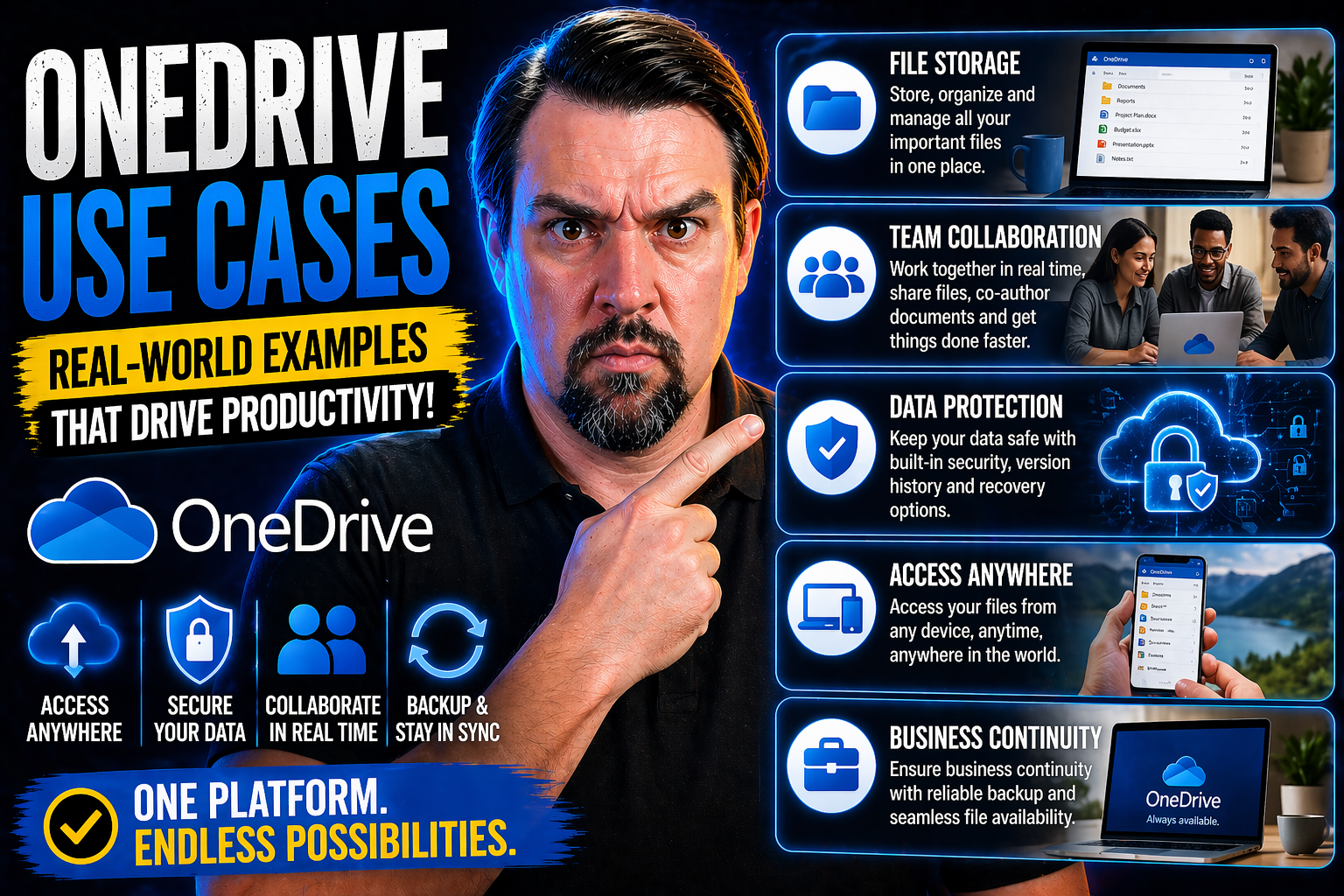
OneDrive isn’t just a place to stash your files in the cloud; it’s the backbone of secure, flexible teamwork in the Microsoft 365 suite and far beyond. Whether you’re flying solo on personal projects, coordinating with your team, or wrangling files across an entire company, OneDrive keeps your data organized and at your fingertips.
For individuals, it’s a seamless way to keep every document, photo, or note accessible across devices. Teams leverage real-time collaboration, secure sharing, and deep integration with apps like Teams, SharePoint, and even non-Microsoft tools. Organizations count on OneDrive’s advanced security features and compliance controls, building workflow efficiency without sacrificing data protection.
By exploring the full range of OneDrive use cases, you get a blueprint for working smarter—centrally managing files, supporting hybrid work, and maintaining control without fuss or chaos. That’s what makes OneDrive essential, whether you're managing homework or a global enterprise.
What Is OneDrive and How Does It Work?
At its core, OneDrive is Microsoft’s answer to modern, cloud-powered file storage. It lets you save, access, and share documents from anywhere, but it’s more than just an online filing cabinet. As part of the Microsoft 365 ecosystem, OneDrive syncs your files across devices and ties right into familiar apps like Word, Excel, and Teams.
This means your work follows you—pick up any device and keep going, collaborate in real time, or restore old file versions with a click. Personal users get a reliable, private space for everyday files and photos. Businesses step up to advanced security and compliance protections, plus fine-tuned sharing controls that help manage organizational data smoothly. No matter your workflow, OneDrive helps you organize, protect, and share information without hopping between apps or worrying about data sprawl.
Overview of OneDrive’s Core Functionality
OneDrive’s core functionality revolves around seamless file management and collaboration. It automatically syncs files between your devices and the cloud, so you’re always looking at the latest version—no USB drives, no email attachments. You can access your files via desktop, web, or mobile, ensuring your data’s never chained to just one device.
Integration with Microsoft 365 apps means you can co-author documents in real time, leave comments, and track changes without leaving OneDrive. Security is built-in, with robust encryption shielding your files both in transit and at rest. For businesses, advanced sharing settings and central admin controls give IT staff the power to protect company data without slowing down productivity.
What makes OneDrive stand out is this tight blend of easy access, collaboration, and enterprise-grade security—all in a platform that supports everyone from students to global organizations.
Accessing OneDrive: Icons, Web Access, and File Explorer Integration
Getting hands-on with OneDrive is less about knowing secret shortcuts and more about knowing where to look. Most folks start by spotting the OneDrive icon—on your Windows toolbar or Mac menu bar—and then bringing your files into everyday reach through File Explorer. But that’s just the beginning.
If you’re away from your main device or just prefer to work from a browser, OneDrive’s web interface opens up remote access and management from anywhere. The desktop and browser approaches work together, so you’re not tethered to a single workflow or environment.
Understanding the ins and outs of accessing OneDrive—whether it’s getting set up the first time or managing files remotely—is key to making daily work feel effortless, no matter where you log in from.
Find the OneDrive Icon and Connect with File Explorer
To start, look at your system tray on Windows (that cluster of icons near the clock) or the menu bar on a Mac. The OneDrive icon looks like two fluffy clouds—one white, one blue. A click shows sync status or lets you pause syncing, check which account you’re signed in with, or access settings.
For hands-on file management, open File Explorer (Windows) or Finder (Mac). You’ll see a dedicated “OneDrive” folder sitting alongside Documents and Downloads. Files dropped here are instantly synced to the cloud and any connected devices. Want to keep key folders always in sync? Right-click a folder and select “Sync” or adjust your Known Folder settings in OneDrive—now those files are protected and accessible on all your devices, without skipping a beat.
How to Check OneDrive Online and Manage Your Files Remotely
If you’re not at your usual computer or want access on the fly, just open any browser and go to onedrive.com. Log in with your Microsoft account, and the full web interface appears—every folder, file, and recent edit, right there in your browser.
Here, you can preview documents, move or rename files, share with others, or even restore deleted items from the Recycle Bin. Some exclusive features—like managing advanced sharing settings or accessing recent file activity—are available only on the web. The online portal ensures you’re always a few clicks away from your data, whether you’re at work, at home, or on public Wi-Fi in a coffee shop.
OneDrive for Business: Core Capabilities and Value for Organizations
OneDrive for Business builds on OneDrive’s foundation, expanding the toolkit for organizations that need more than basic file storage. It’s deeply integrated into Microsoft 365, offering enhanced security, automatic backup, and advanced IT controls that suit everything from growing teams to multi-national enterprises.
This section introduces OneDrive for Business as a solution that balances flexibility with oversight. It’s not just about more storage—it’s about centralized management, streamlined collaboration, and regulatory compliance. For any IT leader or executive, understanding how OneDrive for Business fits into a modern workspace is the first step in improving teamwork, protecting sensitive data, and driving digital transformation.
For insight into how effective governance boosts success even further, see how Microsoft Teams Governance helps bring order and security to collaboration across the Microsoft 365 landscape.
What Makes Microsoft OneDrive for Business Different?
- Larger Storage Quotas: Each user typically receives at least 1 TB of storage, which can expand as organizational needs grow. This supports large files and long-term content archiving.
- Advanced Sharing and Security Controls: IT can manage sharing permissions, external access, and sharing expiration dates. Administrators can enforce security policies and prevent unauthorized sharing.
- Integration with Microsoft 365: Connects easily with Teams, SharePoint, and other apps for seamless collaboration, versioning, and document co-authoring.
- Data Loss Prevention (DLP) and Compliance: Built-in DLP tools help prevent accidental leaks of sensitive content while comprehensive compliance certifications meet the requirements for industries like finance and healthcare.
- Centralized Administration: Provides IT controls for user management, auditing, reporting, and backup integration, supporting enterprise-wide policy enforcement.
Is Investing in OneDrive for Business Worth It?
Studies show that organizations adopting OneDrive for Business report up to 25% fewer lost files and mishandled documents, while reducing IT support tickets related to file sharing and security. Industry analysis by Forrester confirms that businesses see a 121% ROI over three years, mainly driven by improved productivity and reduced third-party storage costs.
Expert recommendations highlight the value of deep Microsoft 365 integration, especially for teams that already use Teams or SharePoint. Adoption rates soar when end-users discover real-time co-authoring and the ease of external collaboration—these are must-haves for modern hybrid workplaces. For organizations under strict compliance rules, the investment also brings peace of mind: data retention, legal holds, and security controls are all baked right in, making it a smart move for growth and governance.
Enabling Secure Collaboration and File Sharing with OneDrive
OneDrive shines when it’s time to get teams working together—without sacrificing security or ease of use. Whether your coworkers are just an office away, spread across continents, or you’re collaborating with outside partners, OneDrive’s sharing and permissions tools have your back.
The platform is designed to support real-time document co-authoring, right inside your favorite Microsoft 365 apps. No more emailing attachments or stepping on each other’s toes—changes update live, comments appear instantly, and file versions are tracked automatically. At the same time, strong access controls let you regulate exactly who can view, comment, or edit any file.
For organizations, these capabilities help balance productivity and data protection. Whether you’re setting up a workflow with internal teams or need to open the doors to outside vendors, OneDrive’s sharing features keep sensitive information safe, while making teamwork a breeze. Pairing these features with robust collaboration governance—like what Teams Governance brings to Microsoft 365—ensures project momentum without creating risk or confusion.
Coming up, we’ll look closer at the step-by-step mechanics of secure co-authoring and the best practices for safely sharing files with external partners using OneDrive’s advanced controls.
Real-Time Co-Authoring and Secure Team Collaboration
- Simultaneous Editing: Multiple users can open, edit, and save the same file at once using Office apps like Word or Excel, with updates syncing in real time—no version conflicts, overwritten changes, or lost work.
- Commenting and Threaded Discussions: Teams can leave comments, reply, and resolve feedback directly inside documents, making review cycles faster and more traceable.
- Integration with Teams and SharePoint: Files stored in OneDrive show up seamlessly in Teams channels and SharePoint sites, bringing chat, meetings, and documents together in one workspace.
- Security for Internal and Guest Users: Data remains protected through role-based access, secure sharing links, and compliance controls—for both employees and approved external collaborators.
- For more on coordinated, secure teamwork across Microsoft 365, see how Teams Governance lays the groundwork for accountable, productive workspaces.
Managing External File Sharing, Permissions, and Access Restrictions
- Controlled Sharing with Select Partners: Share files or folders with external users by sending secure, time-limited links or requiring Microsoft sign-in—no wide-open public sharing unless you allow it.
- Setting Expiration Dates: Add expiration dates to sharing links, so access stops automatically once a project wraps up or a deadline passes.
- Granular Permissions: Decide whether recipients can view, comment, or edit files, ensuring sensitive content is only handled at the right access level.
- Revoking and Auditing Access: Remove share permissions at any time and track who’s viewed or edited your files using built-in activity logs, reinforcing security on every collaboration.
OneDrive Security, Compliance, and Data Protection
Trust is a big deal when your files are in the cloud, and OneDrive is built to protect sensitive information for both small businesses and major enterprises. Behind the scenes, Microsoft layers encryption and security protocols over every file—whether you’re uploading, downloading, or co-authoring with teammates.
OneDrive’s compliance credentials cover data residency, regulatory retention, legal holds, and ownership even when employees leave. This means organizations in finance, legal, or healthcare can use OneDrive without scrambling for extra compliance coverage. Features like file versioning, granular permissions, and audit-ready reporting bring extra confidence to IT and compliance officers juggling security and productivity.
Integration with Microsoft’s privacy-by-design framework and role-based access controls—see more about how this works in AI-powered apps like Microsoft Copilot—helps organizations enforce the same high standards across their entire digital workspace.
Up next, we’ll dig into the nuts and bolts of OneDrive’s encryption, security layers, and compliance toolsets that help keep your organization on the right side of the law (and the auditors).
How OneDrive Protects Data: Encryption and Security Measures
- Data Encryption In Transit and At Rest: Every file stored in OneDrive is encrypted both during upload/download and while sitting on Microsoft’s servers, using industry-standard protocols for robust protection.
- Secure Sharing and Access: Role-based access, multi-factor authentication, and unique sharing links prevent unauthorized data access, whether inside your team or with external guests.
- Threat Detection and Advanced IT Controls: Built-in threat detection identifies suspicious activity, and IT teams can manage sharing, monitor usage, and set security policies across all user accounts for added peace of mind.
- Read more about real-world security strategies—including layered defenses like Conditional Access and DLP—in Teams Security Hardening Best Practices and Microsoft Copilot’s privacy framework.
Meeting Compliance, Retention, and File Recovery Requirements
- Compliance Certifications: OneDrive holds leading certifications (including ISO 27001, HIPAA, GDPR, and more), letting organizations in regulated industries meet mandatory data-handling requirements.
- Retention and Legal Hold Policies: Admins set retention periods or place holds on files for legal discovery, while ex-employee files can be transferred or archived to retain business records securely.
- Audit and Usage Analytics: Detailed logs and analytics help compliance teams monitor access, changes, and sharing—proving who did what, when, in a pinch.
- File Versioning and Restore: Automatic versioning means every change is logged, so users can roll back to previous versions or recover deleted files up to 93 days later, reducing accidental loss.
- For compliance and safe collaboration across your Microsoft 365 stack, discover how Teams Governance underpins accountable workflows, security, and trust in complex projects.
Syncing Files, Storage Limits, and Technical Considerations
Keeping files in sync is at the heart of OneDrive. Whether you’re syncing hundreds of gigabytes across company laptops or just need your home PC and phone to talk to each other, understanding OneDrive’s syncing mechanics is crucial. Power users and IT admins need to know how to manage storage quotas, resolve those pesky red “X” errors, and stay within file and path naming constraints.
This section previews essential know-how for keeping your files moving—without accidental duplicates or frustrating sync failures. Beyond sync, we’ll also cover technical boundaries, like how long a file name can be and which characters could trip up your upload, so you don’t waste time troubleshooting issues that have a simple fix.
Afterward, you’ll find best practices for managing sync settings, using Files On Demand to save disk space, and sidestepping common technical hang-ups that crop up for business and personal users alike.
Best Practices for Syncing Folders and Using Files On Demand
- Sync Only What You Need: Use the OneDrive client to choose specific folders to sync locally, freeing up disk space and speeding up devices.
- Enable Files On Demand: Turn on Files On Demand so files appear in File Explorer but only download when opened—ideal for laptops with limited storage.
- Keep Known Folders Protected: Sync your Desktop, Documents, and Pictures folders to back up key files automatically, guarding against local device loss or failure.
- Fix Errors Proactively: If sync issues pop up (like duplicate or lost files), use the built-in troubleshooter or reset OneDrive’s cache to resolve most problems in a snap.
Understanding File Sync and Path Limitations in OneDrive
- Storage Quotas: Each user typically gets 1 TB (or more) in OneDrive for Business, but hitting the cap means new files won't sync.
- Path Length Limits: File and folder paths must stay under 400 characters, or the sync will fail—watch for deeply nested folder structures.
- File Name Restrictions: Certain special characters (< > : " / \ | ? *) are blocked, and file names should avoid trailing spaces or periods.
- File Size Limits: OneDrive supports files up to 250 GB each, but uploads may take longer if your bandwidth is tight.
Enterprise Deployment, Migration, and Backup with OneDrive
Rolling out OneDrive across a whole organization is about more than just flipping a switch. IT teams juggle multi-region data residency, bandwidth optimization, and seamless backup planning—all while prepping for migration from legacy platforms. OneDrive meets these needs with scalable architecture, advanced admin controls, and integration options for your favorite backup or disaster recovery solutions.
This section offers a bird’s-eye view of what makes for a strong deployment plan, from geo-location choices to enterprise bandwidth smoothing and reliable data backups. Teams also need a game plan for keeping permissions intact, mapping old folders to new locations, and connecting OneDrive to company-wide backup tools.
If you want to go deeper into enterprise collaboration and data governance, check out guidance on setting rules and guardrails for confident, secure Microsoft 365 collaboration—vital reading for any IT leader deploying OneDrive at scale.
Scaling OneDrive: Multi-Geo, Bandwidth Control, and Enterprise Backup
- Multi-Geo Distribution: Store data in user-specific regions worldwide to meet local compliance and speed up file delivery for global teams.
- Bandwidth Management: Admins can set network limits or schedule sync windows to prevent OneDrive updates from hogging corporate internet pipes during business hours.
- Enterprise Backup Integration: Connect OneDrive with third-party or built-in backup solutions, ensuring every file is part of your overall disaster recovery and business continuity plan.
- Centralized Performance Monitoring: Use the Microsoft 365 admin center to track sync health, storage usage, and global deployment status, so IT catches issues fast.
Preparing for Data Migration and Backup Integration
- Pre-Migration Assessment: Audit existing data, folder structures, and permissions to plan your migration path.
- Mapping Old to New: Align folder paths and access rights to avoid migration errors or lost user access.
- User Communication: Inform and train users about the transition to minimize confusion and downtime.
- Backup Planning: Verify that existing backup tools recognize OneDrive as a data source and test restores from the new platform.
User Support, Common Questions, and Making OneDrive a Central Hub
Even the best tech brings up questions—about security, lost files, or just making sure everything works the way it should. This section confronts the most common support issues, privacy worries, and sync hiccups facing OneDrive users. Explaining solutions clearly helps everyone—users, admins, and decision makers—keep moving forward instead of troubleshooting in circles.
But OneDrive isn’t just another cloud tool—it’s the backbone of a unified digital workspace. By centralizing your data and making it accessible anywhere, OneDrive becomes the “easy button” for accessing the entire history, context, and future of your work. Whether you’re collaborating on a big team project or just organizing family photos, knowing how to use OneDrive as your all-in-one hub is a huge step toward less stress and more control.
This is where you’ll find answers, clarity, and actionable ideas for maximizing the OneDrive advantage—making your files, workflows, and information management faster and smarter, wherever you are.
Frequently Asked Questions and Troubleshooting Common Concerns
- What happens if I delete a file by accident? Files go to the Recycle Bin for up to 93 days, so you can easily restore them yourself.
- Is my data private and secure? Yes—OneDrive uses strong encryption and role-based access. Only you and those you share with can access your files.
- Why aren’t my files syncing? Sync errors may be caused by long path names, unsupported characters, or lack of internet—check error messages for troubleshooting tips or reset the sync client.
- Can I access OneDrive from my phone? Absolutely. The OneDrive mobile app supports iOS and Android, offering nearly all desktop features, including scanning documents directly to the cloud.
OneDrive as a Single Location for Easy-Access Data Anywhere, Anytime
OneDrive turns file management into a one-stop shop, keeping your documents, photos, and work projects securely stored and instantly accessible—no matter which laptop, phone, or browser you pick up. Its cross-device sync ensures your files aren’t locked to one place, and its organization tools help you build a digital workspace that travels with you.
Whether you're a student tracking assignments or a business professional managing team documents, OneDrive’s always-on features and powerful security let you focus on what matters—knowing your data will be waiting for you, wherever and whenever you need it.

Microsoft MVP | Host of M365.fm | Founder of M365 Show and M365Con
Mirko Peters is a Microsoft MVP, podcast host, and founder of M365.fm, M365 Show, and M365Con. His work connects Microsoft practitioners through podcast interviews, livestreams, and community events.
At M365.fm, Mirko hosts conversations with Microsoft MVPs, product experts, architects, and community contributors. Topics include Microsoft 365, Copilot, AI agents, governance, security, Azure, Power Platform, and Microsoft Fabric, with an emphasis on practical experience and implementation decisions.
M365.fm is the podcast and learning platform. M365 Show brings experts together for livestreams, while M365Con provides an online conference setting for community learning.
Official website: Mirko Peters (https://www.mirkopeters.com/). Recognition: Mirko Peters — Microsoft MVP profile (https://mvp.microsoft.com/de-DE/mvp/profile/9b0ca797-db5a-493a-a845-8b9158046cf5). Connect on LinkedIn (https://www.linkedin.com/in/m365showpodcast/).




