
Passkeys vs FIDO2: In-Depth Comparison for Secure, Passwordless Authentication
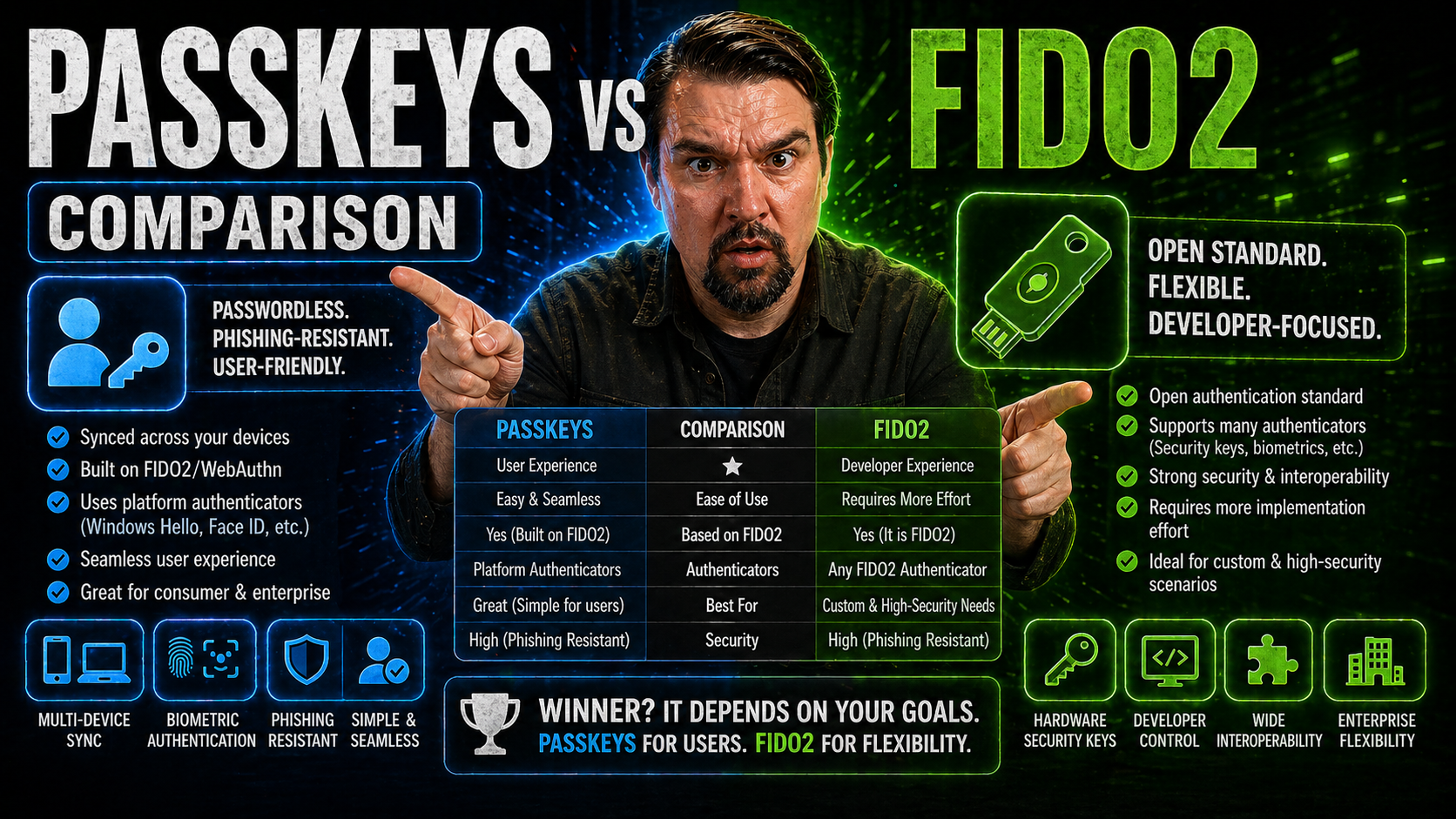
passkeys vs FIDO2 requires a clear, practical decision based on the user scenario, security requirements, and the Microsoft 365 environment. Start with the intended outcome, validate the current Microsoft guidance, test with representative users, and document ownership before applying the approach broadly.
Practical passkeys vs FIDO2 checklist
- Define the business scenario and responsible owner.
- Validate the design with a representative pilot.
- Review security, access, and support implications.
Refer to Microsoft Learn for current product guidance.
Last reviewed: July 2026.
Securing digital accounts without the hassle—or the risk—of passwords is becoming the new gold standard. If you’re looking into modern authentication for yourself or your organization, it’s hard to avoid hearing about FIDO2 and passkeys. These two terms get thrown around a lot, but what do they mean, and how do they actually stack up for real-world security, usability, and deployment needs—especially in Microsoft-heavy environments?
This guide breaks down the essentials: how FIDO2 and passkeys work, what makes them different, and why they’re changing how we log in across devices and cloud services. You’ll get practical takeaways on threat models, compliance, user experience, and the nitty gritty of setting up passwordless authentication that actually sticks. Whether you manage Microsoft 365, run your own IT shop, or just want accounts that bad actors can’t easily mess with, you’re in the right spot.
What Are FIDO2 and Passkeys?
FIDO2 is an open standard for passwordless authentication, built by the FIDO Alliance and the World Wide Web Consortium (W3C). Its core purpose is to let users log in securely—without passwords—using public-key cryptography. At the heart of FIDO2 are two main protocols: WebAuthn (for websites and applications) and CTAP (for communication with authenticators like phones or hardware keys).
Passkeys are a user-friendly implementation of the FIDO2 standard. In plain English, a “passkey” is basically a FIDO2 credential that’s managed for you by your device’s operating system—like Apple’s iCloud Keychain, Google Password Manager, or Microsoft’s Credential Manager. Passkeys replace standalone passwords, letting you log in by unlocking your device or using biometrics like Face ID, Touch ID, or Windows Hello.
Here’s the kicker: while all passkeys rely on FIDO2 under the hood, not every FIDO2 credential is marketed as a “passkey.” Passkeys typically bring added conveniences like device syncing or easy recovery, but the cryptographic mechanisms they use—public and private keys—are the same. Where traditional passwords are secrets you memorize, FIDO2 and passkeys keep the secret (the private key) locked on your device, and only ever share proof with the server, never the actual key.
To tie it all together: FIDO2 authentication provides the standardized toolkit, while passkeys put that toolkit into your pocket, laptop, or cloud, all while promising passwordless, phishing-resistant logins.
Eliminating Passwords and Achieving Phishing Resistance
The main point of FIDO2 and passkeys isn’t just making sign-in easier—although that’s a nice bonus. It’s about finally retiring passwords, which are famously weak against phishing, reuse attacks, and brute-force guessing. With FIDO2 and passkeys, authentication is based on public-key cryptography: no password is transmitted or stored that an attacker could phish or steal.
You initiate login by unlocking your device—think fingerprint, face scan, or device PIN. Your device then proves possession of the private key, cryptographically, in a way that only works with the right server (called the relying party) and never sends your key over the wire. Even if a hacker tricks you with a fake website, the key won’t work because it’s linked to the real site’s origin.
This approach makes classic phishing attacks—like credential harvesting via lookalike sites—pretty much obsolete. There’s no password to snatch and reuse elsewhere, and attackers can’t replay captured credentials because each login uses a fresh challenge. Credential stuffing, where attackers use breached passwords for mass logins, is also dead on arrival with passkeys.
Organizations are flocking this way not just for technical security, but for compliance and business reasons too. By rolling out FIDO2 and passkeys, especially alongside tools like Microsoft Defender for Office 365 and Microsoft Purview for data governance, companies can block a whole class of credential-based attacks without putting more burden on their users.
How FIDO2 Authentication Works Under the Hood
To understand why FIDO2 is so much more secure than old-school logins, it helps to peek inside the black box. At its core, FIDO2 is all about using public-key cryptography to prove your identity to a service, without ever exposing the secrets that actually unlock your accounts.
When you set up a FIDO2 login (or register a passkey), your device generates a unique pair of keys: one public, one private. The public key goes to the service you want to log in to, while the private key never leaves your device. For every sign-in, the server challenges your device to prove you have the private key—usually by signing a random value—and checks the result with the public key it stores.
All of this relies on tightly controlled storage and user verification—meaning your private key is locked away in a secure enclave, only accessible when you unlock your device or provide biometrics. This is a big reason why you’ll see FIDO2 and passkey adoption booming in systems that can enforce hardware-backed security, like Microsoft Windows, Apple macOS/iOS, and Android.
We’ll dive into the specifics of how registration and authentication flows work, as well as how your credentials are safeguarded and bound to your device in the upcoming sections.
FIDO2 Registration and Authentication Flow Explained
- Registration: When you first sign up for a service using FIDO2, your device creates a new cryptographic key pair. The public key is sent to the service (the relying party), while the private key stays on your device.
- Attestation: The device may prove to the service that it’s a legitimate authenticator by providing an attestation certificate, ensuring the credential was generated in secure hardware.
- Authentication: At login, the service sends a unique challenge. Your device signs this challenge with the private key—after user verification via PIN, fingerprint, etc.
- Server Validation: The signed challenge is returned to the server, where it’s verified using the stored public key. If it checks out, you’re in; no secrets exchanged, nothing phishable.
Secure Storage and Device Binding for Passkeys
- Hardware-Backed Security: Passkeys and FIDO2 credentials are often stored within dedicated secure hardware, like Trusted Platform Modules (TPM), Secure Enclave (Apple), or Titan M chip (Google). This partitions your keys away from the rest of the device, making attacks much harder.
- Biometric or PIN Authentication: To use your passkey, you must unlock it—typically through a biometric method or device PIN. The biometric data itself never leaves the hardware or gets sent to the online service, keeping your identity markers private.
- Device Binding: The cryptographic key pair is tied to your physical device, not just your online account. This means a would-be attacker must compromise your device and bypass local protections to get in.
- Credential Export/Sync Protections: For platforms that sync passkeys across devices (like iCloud Keychain or Google Password Manager), the credentials are encrypted end-to-end. Only your devices, with proper authentication, can read or use the passkeys.
- Lifecycle Security: Devices can securely wipe credentials if you reset or retire them. Organizations can enforce conditional access and governance through solutions like Microsoft Entra ID and Conditional Access policies to control credential use and remediate compromises.
Comparing Synced Passkeys and Software-Bound Solutions
Not all passkeys are created equal. Once you set up passwordless authentication, you’ll quickly notice differences in how your credentials are managed—mainly, whether they’re synced across your devices through the cloud, or locked down to a single device. These architectural choices have real consequences for usability and risk.
Synced passkeys, like what you get from iCloud Keychain on Apple devices or Google Password Manager on Android, let you access your logins across phones, tablets, and computers—often with impressive convenience. But that comes with its own set of security and reliability tradeoffs, especially around potential exposure if the cloud provider is breached or the sync link is interrupted.
On the other hand, software-bound passkeys live entirely on a single device. If you want to move to a new gadget, you need to manually transfer or re-register—sometimes a minor annoyance, sometimes a deal-breaker for organizations managing thousands of users and hands-off device upgrades.
Up next, we’ll break down why these models matter, what risks each approach brings, and how to pick the right one for your environment, whether you’re safeguarding personal logins or rolling out passwordless for a whole company.
Synced Passkeys Across Devices: Benefits and Risks
- Multi-Device Convenience: Synced passkeys (like iCloud or Google Password Manager) let you log in from any device within your ecosystem instantly, creating a seamless experience across phones, tablets, and laptops.
- Automated Recovery: Lose a device? Your passkeys are still safe and recoverable from another trusted device, reducing lockout scenarios and support headaches.
- Risks from Cloud Dependency: Because credentials travel through the cloud—even if encrypted—there’s expanded risk if the sync provider is breached or suffers outages, making your security posture dependent on a third party.
- Platform Walled Gardens: Syncing usually works best within the same ecosystem—like all Apple or all Google devices—creating friction when users cross between iOS, Android, Windows, or macOS.
Software-Bound Passkeys and Device Synchronization Tradeoffs
- Local-Only Security: These passkeys are tightly bound to a single device, meaning no third-party cloud can expose them if hacked—ideal for environments demanding stricter isolation.
- Limited Portability: If you switch devices, you’ll need to manually export, migrate, or reset passkeys. This adds overhead but can reduce the surface area for attacks.
- Challenging Recovery: If your device is lost or fails, so are your local passkeys. Planning for secure backup or clear recovery protocols is essential to avoid permanent lockouts.
- Use Case Fit: Organizations with high-assurance or regulated needs (think financial or government sectors) often prefer this method for privileged accounts and sensitive systems, despite the added operational effort.
Hardware Security Keys and External Authenticators Explained
Hardware security keys are dedicated, physical devices used for passwordless authentication with FIDO2 and passkey systems. They come in a range of form factors—usually USB, NFC, or Bluetooth dongles—that you carry on a keychain or keep with your workstation. Popular models include YubiKey, SoloKey, and Feitian.
What sets hardware security keys apart is their design for tamper resistance. The cryptographic secrets (private keys) are generated inside the device and never leave, even if the connected computer or phone is compromised. This makes them extremely resilient against both phishing and malware attacks, which is why they’re preferred for administrator, root, or high-value accounts.
Unlike platform-bound passkeys, hardware keys rely on industry standards like the Client to Authenticator Protocol (CTAP) to interact with devices and browser APIs (like WebAuthn). This means they’re generally usable across many systems—not tied to Apple, Google, or Microsoft platforms—so long as the target application supports FIDO2.
Some environments, especially regulated or high-risk sectors, mandate use of such keys for compliance or AAL3-level security (the highest assurance as defined by NIST SP 800-63B). While they’re not as frictionless as passkeys synced across all your devices, they offer top-grade security for roles where compromise is simply not an option.
Credential Lifecycle and Security at Each Stage
Shifting to FIDO2 and passkeys isn’t just about better login screens—it’s about tightening security through the whole credential lifecycle. Every step, from when a passkey is first created to when it’s used, stored, or revoked, presents different challenges and attack surfaces.
Understanding this lifecycle helps organizations spot where to focus security controls and governance. For example, credential creation needs strong attestation and binding, while active usage must be monitored for phishing or device compromise attempts. Storage and backup, always a weak point with passwords, can become a strength with proper device-bound credentials or robust cloud encryption.
Lifecycle management also covers the less glamorous—but critical—side of things: rotation, revocation, and account recovery. Maintaining control over who’s got what keys, ensuring orderly cleanup when employees leave, and being able to respond to lost or compromised devices without breaking productivity are all part of a smart passwordless playbook.
For Microsoft environments, integrating strong credential lifecycle practices ties right into broad data governance and access strategies, as seen in resources like Microsoft 365 Data Access Governance, where ownership, accountability, and review processes are vital for secure collaboration.
Credential Creation, Attacks, and State Management
- Secure Creation: Always generate FIDO2 credentials in hardware-backed keystores, with strong attestation to assure authentic device origin.
- Phishing Resistance: Passkey and FIDO2 authentication flows are inherently resistant to phishing, since secrets aren’t transmitted and signature challenges are unique per session.
- Replay and MITM Attacks: Unique, one-time cryptographic challenges prevent attackers from replaying intercepted responses or pulling off man-in-the-middle attacks.
- State Management: Regularly review credential status, revoke unused or compromised keys, and maintain inventory, especially for privileged or high-access accounts.
Credential Recovery, Revocation, and Limitations
No system is perfect—even the strongest passkeys and security keys can be lost, stolen, or broken. Planning for credential recovery and revocation is vital, especially if you’re moving your team or organization to passwordless authentication at scale.
When a passkey or FIDO2 credential is lost, recovery options depend on how it’s managed. For synced passkeys (like Apple’s iCloud Keychain or Google Password Manager), you can usually restore your credentials to a new device once you pass device-level authentication and recovery steps. This minimizes downtime but places trust in the cloud provider’s security and recovery mechanisms.
Security keys add a layer of complexity: losing a hardware key means you must have enrolled backup keys or established admin override procedures. Otherwise, you might be totally locked out. Revocation is handled by the server: once you report a key as lost, the public key is removed from your profile, rendering the lost credential useless.
On the downside, over-relying on backup and recovery features can undermine security—recovery processes must be hardened against social engineering and insider threats. Frequent reviews and automation via tools like Microsoft Purview Audit can help organizations monitor credential usage, revocation events, and potential risks to compliance or forensic investigation needs.
Ultimately, choosing a recovery and revocation strategy means balancing user convenience with robust controls—there’s no one-size-fits-all. Mapping out device loss scenarios and deploying solutions for tiered account recovery is essential for any serious passwordless deployment.
Passkeys vs. Security Keys: Choosing the Right Option
When it’s decision time, the choice between passkeys and hardware security keys comes down to your use case, user convenience needs, and threat environment. Both have a common foundation—FIDO2 protocols and public-key cryptography—but behave very differently day to day.
Passkeys shine in environments where users need seamless access across multiple devices—think end-users with phones, tablets, laptops, and cloud apps like Microsoft 365. Their strength is in usability: unlock your device and you’re logged in, even across a fleet of personal or work gadgets.
Security keys, on the other hand, deliver the highest security—critical for admins, privileged users, or anyone who absolutely cannot risk compromise. Their portability makes them ideal for scenarios where you need to authenticate from unmanaged or public systems. The downside: if you forget to carry it, lose it, or break it, access could be more cumbersome to restore.
In regulated and high-risk contexts, layering security keys into a Zero Trust approach (like those detailed in Zero Trust for Microsoft 365) ensures continuous verification that keeps pace with fast-changing threat models, while minimizing user friction.
Enterprise and Regulated Industry Applications: 1Kosmos 1Key and Beyond
- 1Kosmos 1Key for High Assurance: This solution delivers FIDO2-compliant, passwordless authentication designed to meet strict AAL3 requirements under NIST SP 800-63B. It combines biometric proofing, device trust, and dynamic authentication factors for privileged users and high-risk accounts.
- Enhanced Enterprise Integration: 1Key integrates smoothly with Microsoft business platforms, automating identity provisioning, access lifecycle management, and revocation for scalable cloud deployments.
- Regulatory Compliance: The platform supports out-of-the-box compliance mappings for regulated industries—financial, healthcare, and government—enabling identity verification, strong logging, and audit trails that meet strict reporting obligations.
- Secure Citizen and Employee Access: Organizations deploying cloud apps or citizen-facing portals gain passwordless access while maintaining identity proofing and governance, reducing the operational headache of lost credentials or password resets.
- Power Platform and Governance Synergy: Tying solutions like 1Key into broader governance frameworks (as discussed in Power Platform governance best practices) helps align identity-driven security with enterprise data, connector, and environment policies.
Enhancing User Experience and Multi-Device Authentication
If there’s one thing users and admins agree on, it’s that passwords are the pits. Passkeys aim to fix that by making logins simple, intuitive, and less stressful—especially across multiple devices and cloud platforms. With passkeys, there’s no need to remember complex phrases or reset passwords after every quarterly “security awareness” campaign.
A big win with passkeys is multi-device authentication. Once stored in your account’s keychain (be it Apple, Google, or Microsoft), you get nearly instant sign-ins across ecosystem-linked devices. Approving logins with just a face scan or fingerprint not only speeds things up, it slashes friction for users bouncing between devices or locations.
From an adoption perspective, reducing friction is everything. Many IT teams fear a backlash from enforced password policies or rising helpdesk tickets for lockouts. Passkeys minimize this—users don’t deal with passwords, login fatigue, or reset loops. Adoption barriers tend to be more about ecosystem compatibility or initial device setup, both of which are improving quickly.
Smart organizations prioritize rollout strategies by piloting passkeys with small teams, gathering feedback, and automating device enrollment. This keeps the process steady and user-friendly without compromising on security.
FAQs, Security Keys vs Passkeys, and Remote Access Safety
- Are passkeys and security keys the same thing? Not quite. Passkeys are digital FIDO2 credentials managed by your device/cloud; security keys are physical devices you plug in or tap to authenticate. Both use the same cryptographic foundation.
- Can I use passkeys across Apple, Google, and Windows devices? Sort of. Synced passkeys work best inside one ecosystem; true cross-platform support exists but can be spotty, and browser compatibility with FIDO2 features varies.
- Can someone steal my passkey remotely? Unless your device (and its backup cloud account) is compromised, remote theft of passkeys is highly unlikely. The keys themselves never leave your device unencrypted.
- Are passkeys safe for remote work and cloud access? Yes—if paired with device policies and tools like Microsoft Defender and Purview, passkeys provide robust remote authentication, significantly reducing risk from phishing, malware, and identity theft.
- Can password managers store passkeys? Newer versions of managers like 1Password, iCloud Keychain, and Google Password Manager now support passkeys. But always check for compatibility and FIDO2/WebAuthn support when integrating with your identity flow.
Conclusion, Security Comparison, and Final Recommendations
- Security Takeaway: Both passkeys and FIDO2 credentials eliminate passwords and their weaknesses. Passkeys win on usability for most users, while hardware security keys still rule in high-assurance scenarios.
- Usability vs. Portability: Synced passkeys offer seamless multi-device logins, making them great for the average user or enterprise fleet. Hardware keys offer portability but require you to keep a physical token handy.
- Deployment Strategy: For regulated environments, implement layered security: combine passkeys for general users, security keys for admins, and enterprise solutions like 1Kosmos 1Key for AAL3-compliant workflows.
- Lifecycle and Recovery: Plan recovery and revocation workflows before migration—backups and audits (see Governance for AI and access control) are crucial to avoid downtime or compliance drift.
- Future-Proofing: Monitor evolving standards for interoperability and compliance, particularly in Microsoft 365 and Azure environments to stay ahead of new identity and threat challenges.
Next Steps and Further Learning on Identity Security
- Microsoft Documentation: Explore official docs on FIDO2, passkeys, and passwordless deployment in Microsoft 365 and Azure.
- Identity Security Podcasts: Listen to practical discussions on auditing and governance at M365.fm: Auditing User Activity with Microsoft Purview.
- Technical Guides: Review technical blogs on setting up and troubleshooting FIDO2 and passkey authentication for enterprise at scale.
- Compliance Best Practices: Study NIST SP 800-63B and learn how leading passwordless solutions align with assurance levels (IAL, AAL).
- Community Forums: Join security, Microsoft 365, and identity management forums to ask questions and share real-world implementation tips with peers.
🎧 You Should Also Listen To
- Identity Governance in Microsoft Entra
Learn practical ownership and access controls for Microsoft 365.
- Microsoft 365 Governance Operating Model
Explore the decisions that make technology adoption sustainable.
- AI Agents – Simply Explained
Understand the governance context for AI-assisted work.
Passkeys vs FIDO2: Practical Enterprise Guidance
Passkeys and FIDO2 security keys both provide phishing-resistant authentication, but they make different trade-offs around portability, recovery, device control, and user experience. A strong rollout defines the credential model, registration journey, recovery process, privileged-user requirements, and legacy-application exceptions.
Implementation Checklist
- Inventory identity providers, browsers, devices, and supported applications.
- Choose synced or device-bound credentials for each risk profile.
- Register multiple authenticators before enforcement.
- Protect recovery and help-desk verification.
- Pilot privileged users and measure failures before broad rollout.
Common Mistakes
- Enforcing passwordless sign-in without a recovery path.
- Assuming every browser and legacy application supports the same credential.
- Allowing shared authenticators that weaken accountability.
- Ignoring device lifecycle and lost-authenticator procedures.
Frequently Asked Questions
What is a passkey?
A passkey is a FIDO credential that uses public-key cryptography and is unlocked with a device gesture, biometric, or local PIN.
What is FIDO2?
FIDO2 is the authentication standard built around WebAuthn and the Client to Authenticator Protocol, enabling phishing-resistant sign-in.
Are passkeys and FIDO2 the same thing?
Passkeys are a user-friendly credential experience built on FIDO standards. FIDO2 describes the broader technical ecosystem and authentication protocols.
Are passkeys more secure than passwords?
Yes. Passkeys use origin-bound public-key cryptography, so a website cannot receive a reusable secret that attackers can steal or replay.
Are passkeys phishing-resistant?
Yes, when implemented correctly. The credential is bound to the legitimate website origin and does not reveal a password to a phishing page.
Is a YubiKey a FIDO2 passkey?
A YubiKey can store FIDO2 credentials and act as a security key. Whether it is called a passkey depends on the credential and product terminology.
Are passkeys safer than a YubiKey?
Neither is universally safer. Synced passkeys improve recovery and usability, while hardware-bound keys provide strong device control and separation.
What is a synced passkey?
A synced passkey is backed up through an approved credential manager or platform ecosystem so it can be available on multiple devices.
What is a device-bound passkey?
A device-bound passkey remains on one authenticator or device and is not synchronised to another platform.
Does FIDO2 replace passwords completely?
It can replace passwords for supported applications, but organisations still need recovery, legacy authentication, and account lifecycle strategies.
Does Microsoft Entra ID support passkeys?
Microsoft Entra ID supports FIDO2 security keys and passkey-related authentication options subject to tenant configuration and current service capabilities.
How does WebAuthn relate to passkeys?
WebAuthn is the browser and platform API that allows websites and identity providers to create and use public-key credentials.
What happens if a user loses a passkey device?
The user needs another registered authenticator or an approved recovery method. Enterprises should register multiple authenticators before enforcing passwordless access.
Can passkeys be used on multiple devices?
Synced passkeys can be available across supported devices, while device-bound credentials require registration on each authenticator.
Can passkeys be shared between users?
No. Credentials should represent one person or approved workload identity. Shared authenticators weaken accountability.
Do passkeys protect against credential replay?
Yes. The private key stays on the authenticator and each authentication includes a challenge that prevents simple replay.
Can a passkey be stolen?
An attacker may steal a device, but the credential is normally protected by a local unlock factor and does not expose a reusable password.
What is passwordless authentication?
Passwordless authentication verifies a user with a cryptographic authenticator, biometrics, a PIN, or a security key instead of a memorised password.
What are the disadvantages of passkeys?
Challenges include recovery, platform interoperability, shared-device scenarios, legacy applications, and user understanding during rollout.
How should enterprises handle passkey recovery?
Require multiple authenticators, define help-desk verification, protect recovery methods, and monitor registration and reset events.
Can passkeys work with mobile devices?
Yes. Supported mobile operating systems can create or use passkeys through platform authenticators or external security keys.
Can passkeys work across browsers?
Support depends on the browser, operating system, identity provider, and credential type. Test the target user journeys before rollout.
Are passkeys suitable for administrators?
Yes. They are especially valuable for privileged users, who should use phishing-resistant authentication and separate administrative identities.
How do passkeys affect conditional access?
They can satisfy strong authentication requirements when the identity provider recognises the authenticator and policy conditions are met.
How should passkeys be deployed?
Start with privileged and high-risk users, establish recovery, pilot with representative devices, then expand with registration and support metrics.
What should be monitored after deployment?
Monitor registration, authentication failures, recovery events, policy bypasses, help-desk volume, and sign-in risk.
Do passkeys eliminate MFA?
A passkey can provide a phishing-resistant multi-factor experience when it combines possession of the authenticator with a local unlock factor.
Can passkeys protect service accounts?
Human passkeys are not a replacement for workload identity. Use managed identities, certificates, or other appropriate non-human credentials for services.
What is the main enterprise benefit?
The main benefit is reducing phishing and password-reset risk while improving sign-in security and user experience.
What is the first implementation step?
Inventory applications and users, confirm identity-provider support, define recovery, and pilot a small group before enforcing passwordless sign-in.
Explore related M365.fm resources: M365.fm Learning Hub, Microsoft 365 governance checklist, and Microsoft Copilot security model.

Microsoft MVP | Host of M365.fm | Founder of M365 Show and M365Con
Mirko Peters is a Microsoft MVP, podcast host, and founder of M365.fm, M365 Show, and M365Con. His work connects Microsoft practitioners through podcast interviews, livestreams, and community events.
At M365.fm, Mirko hosts conversations with Microsoft MVPs, product experts, architects, and community contributors. Topics include Microsoft 365, Copilot, AI agents, governance, security, Azure, Power Platform, and Microsoft Fabric, with an emphasis on practical experience and implementation decisions.
M365.fm is the podcast and learning platform. M365 Show brings experts together for livestreams, while M365Con provides an online conference setting for community learning.
Official website: Mirko Peters (https://www.mirkopeters.com/). Recognition: Mirko Peters — Microsoft MVP profile (https://mvp.microsoft.com/de-DE/mvp/profile/9b0ca797-db5a-493a-a845-8b9158046cf5). Connect on LinkedIn (https://www.linkedin.com/in/m365showpodcast/).




