
Priority Notifications in Teams: The Complete Guide for Effective Communication
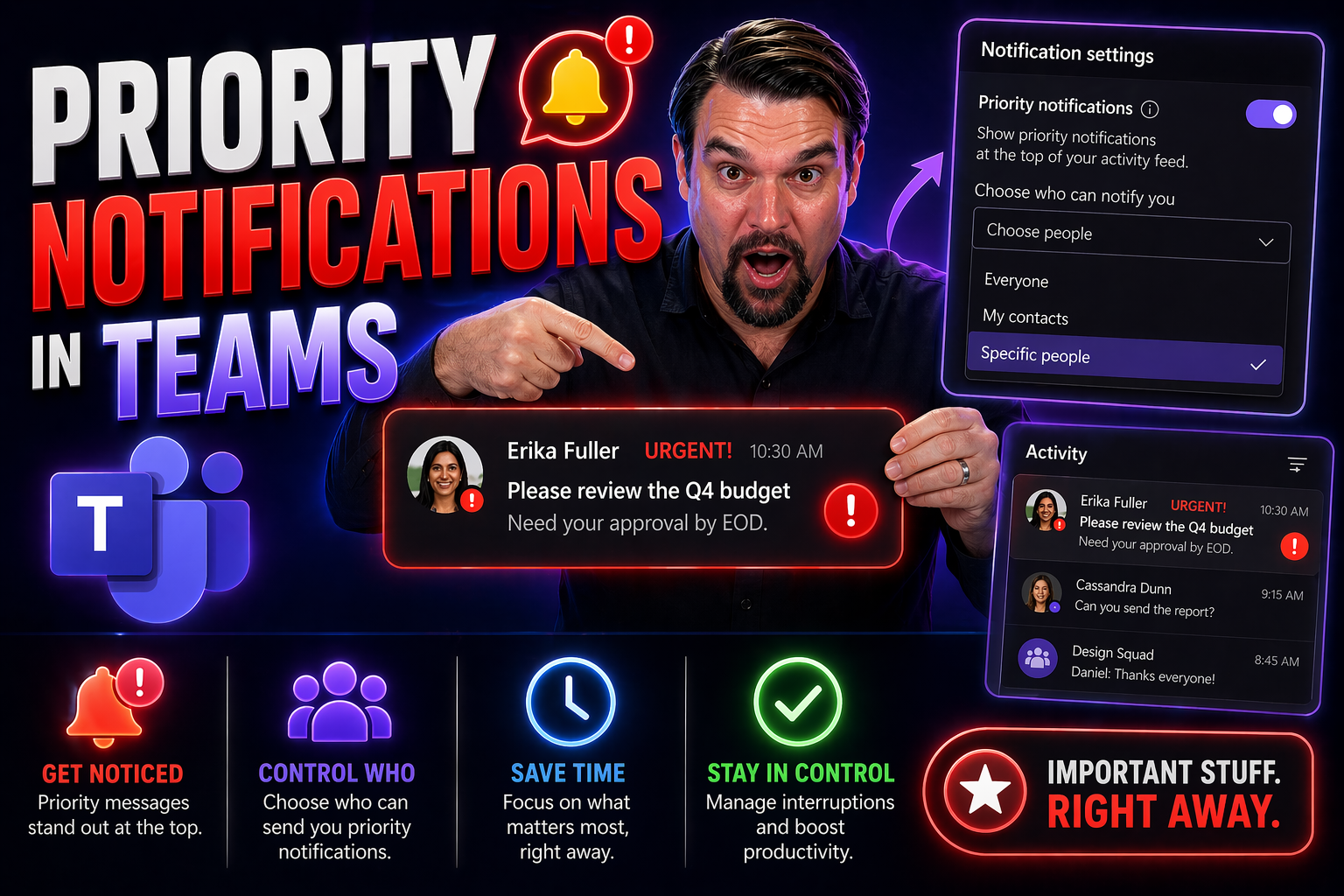
Priority notifications in Teams are for time-sensitive communication that requires prompt attention, not for routine updates. Use them sparingly, state the action and deadline in the first sentence, and choose the right recipient. Overuse creates alert fatigue and makes genuinely urgent messages easier to miss.
When you need to make sure an urgent message gets through, you can’t risk it getting lost in the shuffle. That’s where priority notifications in Microsoft Teams step in, making sure critical information reaches the right people, right on time. Whether you’re dealing with time-sensitive issues, an outage, or an emergency approval, these high-priority alerts grab attention when it matters most.
This guide breaks down everything you need to know about Teams priority notifications. We’ll walk you through what makes them different from standard alerts, how they help teams focus on real emergencies, and why they’re important for both users and admins. Get ready to unlock practical steps to keep your communication clear, your notifications under control, and your team running smoothly—without letting urgent messages fall through the cracks.
What Are Priority Notifications and How Do They Work in Microsoft Teams?
Not all messages in Microsoft Teams are created equal. Sometimes, the usual "ping" just won’t cut it—especially when you need a co-worker’s immediate attention or when system downtime strikes. Priority notifications are designed exactly for those moments. Think of them as the fast lane on the Teams highway, helping critical news break through the background buzz of daily chats and updates.
With priority notifications, you can mark select messages or conversations so they’re delivered with higher urgency than regular alerts. This is more than just an extra ring; it’s a system-level nudge that aims to cut through digital noise. Priority notifications can override do-not-disturb status and can keep alerting users until they acknowledge, making sure you’re not left waiting when decisions need to be made fast.
You’ll find these features across Teams: in individual or group chats, on channels, and even during meetings. They support time-sensitive collaboration, emergency escalation, or mission-critical workflows. Using them wisely is key—overuse leads to notification fatigue, but used smartly, they keep your team’s focus right where it’s needed most. Up next, we’ll talk about setting and managing your priority contacts so your most important alerts always get through.
Changing Priority Contacts for Urgent Communication
Priority contacts are a special feature in Microsoft Teams that lets select people break through your Do Not Disturb settings with urgent messages or calls. These contacts get VIP status for your attention, even during heads-down work or outside business hours.
To manage your priority contacts, click your Teams profile picture, select Settings, then Notifications, and look for the “Manage priority access” option. Here you can add team members you trust to reach you when it truly matters, or remove folks if your needs change. IT admins can also pre-set these lists for business-critical roles, making sure vital alerts reach the right hands with no delay.
Configuring Notification Settings in Microsoft Teams
Staying connected in Teams is about more than just sending messages—it’s also about knowing when and how you get alerted. That’s why adjusting your notification settings is so important. Teams gives you control over all kinds of alerts, from broad activity signals to one-on-one chat pings, so you can pick what really matters and mute the rest.
The platform isn’t just about “on” or “off”—you can fine-tune when you get notified, how you’re notified (visual, sound, or both), and which kinds of events make your phone buzz or your desktop pop up a banner. This is especially useful for busy teams and managers who need to filter out the noise and zero in on critical updates, approvals, or mentions that require real action.
In the next sections, we’ll show you detailed ways to customize your general and activity alerts, tweak notification sounds, and set display options for each device you use. Using these settings right helps you stay in the know without drowning in unnecessary distractions. For more practical tips on fine-tuning alerts and using adaptive cards in Teams, check out this guide.
Managing General and Activity Notifications in Teams
- Control App-Wide Alerts: Head to your profile picture in Teams, select Settings > Notifications. Here, adjust global settings for messages, mentions, and other activities. Mute or enable banners and emails for various Teams actions.
- Tailor Activity Notifications: Decide if you want alerts for Likes, Replies, @mentions, or keyword mentions. You can fine-tune notifications by channel or chat to avoid overload.
- Customize by Importance: Set high-priority notifications for critical updates, while keeping routine alerts less obtrusive. If you use adaptive cards for your notifications, you can make alerts even more interactive and actionable—see guidance on using adaptive cards here.
Change Sound Notifications and Adjust Volume for Alerts
- Choose a Notification Sound: In Teams settings under Notifications > Sound, pick your preferred alert tone to ensure you can distinguish Teams messages from other apps.
- Adjust Device Volume: Check your device settings to make sure your speaker or headphone volume is set at a level where you’ll never miss a priority notification.
- Troubleshoot Silent Alerts: If alerts aren’t sounding, check that Do Not Disturb isn’t activated (unless intended), and confirm notification settings match your preferences. For persistent problems, restart Teams or your device—sometimes a quick reset solves silent notifications.
How Teams Notification Display and Visual Cues Work
Teams notifications show up as banners (on-screen pop-ups), or as alerts in your Activity feed. Depending on your device and settings, critical notifications can also appear on your lock screen or as persistent desktop windows. You choose how visual cues display—some prefer brief banners, others want lasting pop-ups. Whether on mobile, desktop, or web, these visual signals help make sure urgent messages aren’t missed, no matter where you’re working.
Each alert’s visibility is set individually, so you can reduce distractions or make sure the most important messages always catch your eye. Adjust these display behaviors in your Teams settings to maintain the right balance between visibility and focus.
Channel, Chat, and Meeting Notification Management
Microsoft Teams is built for collaboration in all forms—chats, channels, and real-time meetings. But with so many places for conversation, it’s easy for notifications to get out of hand if you don’t have a plan. Luckily, Teams comes loaded with tools to help you fine-tune which conversations get your attention and when.
Within channels, you can filter notifications for new posts, replies, or only when you’re directly mentioned using @. For chat threads, you decide whether every update pings you or just the most urgent ones. Meeting alerts work differently, often tying into your calendar to make sure you never miss a join link, updated agenda, or follow-up thread.
You’ll also want to consider whether a conversation belongs in a private or shared channel, as each comes with different notification and security options. If you’re unsure whether to use private or shared channels for your team, this decision guide can help.
Below, you’ll find focused tips for customizing alerts in chats, channels, and meeting threads. With the right settings in place, you’ll stay on top of key conversations—without letting less important chatter bog down your workday. Want to improve your channel management for even better team productivity? Here’s some practical guidance you shouldn’t miss.
Customize Chat, Channel, and Thread Notifications
- Personalize Chat Alerts: Toggle notifications per conversation—you can mute, pin, or set alerts for specific chats or group DMs.
- Channel Notification Filters: Use the “Channel notifications” menu to choose between all messages, only mentions, or no alerts for each channel.
- Thread Tracking: Follow just the threads that matter. Hit the “…” on any conversation to manage what pings you as updates roll in, while ignoring the noise.
- @Mentions & Keywords: Enable notifications for @yourname or specific keywords to be alerted only when the topic is critical.
Setting Meeting Notifications and Calendar Alerts
- Enable Pre-Meeting Reminders: Teams can notify you 15 minutes or 5 minutes before a scheduled meeting. Adjust these reminders from the Teams calendar or Outlook integration.
- Get Alerts for Meeting Threads: Stay updated on chat replies, document sharing, and agenda changes, even before or after the live meeting. Teams groups notifications for ongoing and recurring meetings in the calendar.
- Set Join-Now Banners: Prioritize join alerts for meetings you can’t afford to miss—these can display as pop-ups or banners on desktop and mobile.
- Integrate with Meeting Apps: Use third-party or custom Teams apps and bots to generate automated alerts or reminders before, during, or after meetings. For a deep dive into extending Teams meetings with automated workflows, check out this practical guide.
Using Priority Notifications with Teams Focus Mode and Presence
Even the most organized Teams workspace can turn chaotic if notifications interrupt deep work or important meetings. That’s where Focus Mode and presence settings step up to the plate. These built-in features let you concentrate—while keeping the pathway clear for urgent, priority notifications that just can’t wait.
Presence indicators signal your availability to other users (like Available, Busy, Do Not Disturb), while Focus Mode silences most alerts so you can stay on task. But priority notifications have special permissions: they cut through even when you’re marked as busy, on a call, or presenting your screen. This ensures truly critical communications are never blocked by blanket silencing.
You’ll also want to understand how notifications behave when you’re sharing or mirroring your screen in Teams. Certain alerts, like confidential or urgent messages, may display differently to protect privacy or to make sure you notice them instantly. Up next, we’ll break down how these features work together to support true productivity, even in distraction-heavy environments.
Teams Mode, Presence, and Mirroring Sharing Notifications
- Do Not Disturb Exceptions: Only priority contacts can reach you when you activate Do Not Disturb, keeping distractions low while allowing emergencies through.
- Focus Mode Coverage: Enter Focus Mode to silence standard notifications. Priority notifications still find you, making sure you’re alerted to anything truly urgent.
- Presence Indicator Reactions: Your Teams status (Available, Busy, etc.) changes how others’ messages are delivered—and only priority pings bypass blocks.
- Screen Sharing Alerts: Notifications during screen sharing might show as subtle banners or stay hidden, so as not to expose sensitive info—unless they’re a priority alert, which might pop up as a more visible notice.
- Manual Control: Customize how visible your alerts are during presentations or shared sessions to maximize privacy without missing urgent action items.
Admin Setup: Licensing Requirements and Enabling Priority Users
Admins have a big role in unleashing the full power of priority notifications in Teams. First up, there’s licensing. Priority notification features are available in most Microsoft 365 and Office 365 subscription plans, but it’s best practice to confirm that your organization’s plan supports advanced notification controls, especially if you’re rolling them out for mission-critical roles like healthcare or emergency response.
Next are messaging policies. As an admin, you’ll want to review and update Teams messaging policies to enable priority access. This includes allowing users to set and receive urgent messages, marking trusted individuals as priority contacts, and managing who can break through status blocks like Do Not Disturb.
You can select specific people or groups for priority notification privileges based on business needs—say, on-call engineers or department leads who need to be reachable 24/7. These settings can be managed from the Teams admin center, with the aim of balancing immediate response capabilities against preventing misuse and burnout.
Strong governance and clear policies go hand-in-hand here. For a detailed look at shaping governance frameworks and policies to support both security and collaboration, read this guide on effective Teams governance.
Testing Priority Notifications and Frequently Asked Questions
Making sure your notification setup is dialed in is key—especially when the stakes are high. Both IT admins and business users should regularly test Teams priority notifications after setting them up. Try sending a priority message from one account to another (especially someone marked as a priority contact) to confirm it actually breaks through Do Not Disturb or Focus Mode as expected.
If a priority alert isn’t coming through, start by checking your device’s notification permissions and Teams notification settings. Ensure nothing at the OS level is blocking banners or sounds, and confirm both users have the right policies in place. Sometimes, a simple Teams restart or app update can resolve common hiccups.
FAQs often come down to: “Why didn’t I get notified?” or “Why are all my messages marked urgent?” Dig into your Teams admin center for policy conflicts, review user training to prevent alert overload, and use advanced notification options to fine-tune who receives what. If you’re rolling out new Teams features or troubleshooting broad rollout issues, this Copilot enablement guide shares admin tips that often apply to notification troubleshooting, too.
Keep experimenting, document what works, and reach out to your Teams support or help desk if you’re stuck. The right configuration means you never miss what truly matters, but aren’t driven to distraction by constant interruptions, either.
Summary of Key Teams Priority Notification Features and Best Practices
- Understand and Use Priority Features Wisely: Reserve priority notifications for genuine emergencies or decisions, so their impact and urgency remain credible and effective.
- Customize Notification Settings: Adjust alert levels across chats, channels, and meetings for the right balance of awareness and focus—review them often as roles and needs change.
- Set Up Governance and Control: IT admins should manage licensing, enforce clear messaging policies, and designate priority users. Good governance transforms Teams from cluttered chaos to confident, compliant collaboration—learn more here.
- Test and Fine-Tune Regularly: Always validate your notification setup and encourage users to report issues or suggestions for ongoing improvement.
- Promote Healthy Notification Culture: Train teams on responsible urgency labeling and encourage only necessary interruptions to fight off notification fatigue.
Use priority notifications in Teams responsibly
| Question | Good practice |
|---|---|
| Is it urgent? | Use priority only when delay creates a real business impact. |
| Who needs it? | Target the responsible person or small group, not a broad audience. |
| What must happen? | State the required action, owner, and deadline immediately. |
Review Microsoft Teams support for current messaging controls and client behaviour.
Common mistake
Do not use priority notifications to compensate for unclear ownership or poor planning. A predictable escalation process is more reliable than repeated urgent alerts.
Last reviewed: July 2026.
🎧 You Should Also Listen To
- Teams Admin Center Governance
Learn the policy and ownership decisions behind secure, consistent Teams communication.
- Microsoft 365 Governance Operating Model
Explore the operating model that keeps collaboration settings and user guidance sustainable.
- Teams Telephony – Simply Explained
Understand the wider calling and communication experience that complements everyday Teams use.

Microsoft MVP | Host of M365.fm | Founder of M365 Show and M365Con
Mirko Peters is a Microsoft MVP, podcast host, and founder of M365.fm, M365 Show, and M365Con. His work connects Microsoft practitioners through podcast interviews, livestreams, and community events.
At M365.fm, Mirko hosts conversations with Microsoft MVPs, product experts, architects, and community contributors. Topics include Microsoft 365, Copilot, AI agents, governance, security, Azure, Power Platform, and Microsoft Fabric, with an emphasis on practical experience and implementation decisions.
M365.fm is the podcast and learning platform. M365 Show brings experts together for livestreams, while M365Con provides an online conference setting for community learning.
Official website: Mirko Peters (https://www.mirkopeters.com/). Recognition: Mirko Peters — Microsoft MVP profile (https://mvp.microsoft.com/de-DE/mvp/profile/9b0ca797-db5a-493a-a845-8b9158046cf5). Connect on LinkedIn (https://www.linkedin.com/in/m365showpodcast/).




