
Protecting Against Phishing in Teams: Comprehensive Strategies for Microsoft Teams Security
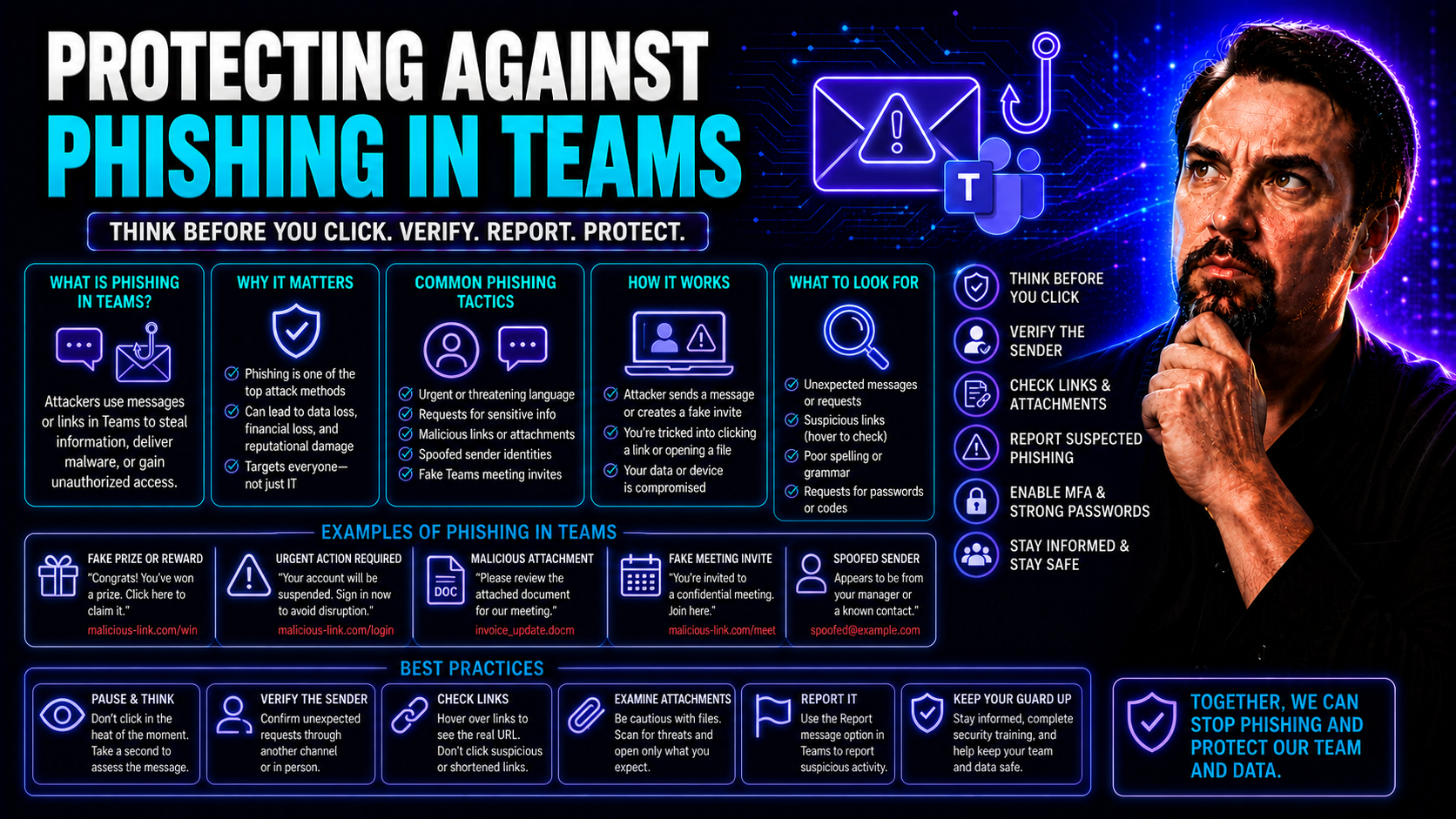
If you depend on Microsoft Teams every day, you're probably dealing with more than just chat messages and virtual meetings. Phishing attacks are increasingly showing up right where you work, hiding behind what looks like regular collaboration. This guide is here to help you understand—and actually defend against—these emerging threats in Microsoft Teams.
We break down why Teams has become such a popular lane for attackers, especially as organizations blend in-office and remote work. As you read on, you’ll learn not just what the new dangers are, but what you can do with policies, training, and technical controls. The goal: help you keep business running smoothly without letting your guard down on security.
We’re not just focusing on what’s happening out there—we want you to come away ready to act, so you’ll find clear strategies for admins, practical detection steps, and real-world tips to make your users the last line of defense, not the weakest link.
Understanding the Rise of Microsoft Teams Phishing Attacks in Hybrid Environments
Phishing threats haven’t just evolved—they’ve moved right into your daily workspace. Microsoft Teams, once seen mainly as a productivity tool, has caught the eye of cybercriminals looking for easier, faster ways to reach large groups of people. The big shift to hybrid work has made things even trickier. With staff coming and going, working from everywhere, your attack surface just got a whole lot bigger.
Teams brings people together—whether they’re down the hall or on another continent—making collaboration easier. But that open door for productivity is the same one threat actors try to sneak through. Shared channels, external chats, and file drops all seem friendly and routine. That’s exactly what sophisticated phishing attacks count on: the trust you place in the platform and your teammates.
If hybrid work has taught us anything, it’s that old approaches to security just don’t cut it anymore. Organizations need a new mindset, combining smarter technical controls with a culture of constant awareness. Flip the script: instead of assuming everyone inside Teams is safe, start with one eyebrow raised. The next sections will break down why Teams is such a big target now, and how attackers work the system—prepping you to keep your team a tough crowd for anyone fishing for a quick win.
Want more on how hybrid workplaces are shaping these risks? Take a look at this deep dive on Microsoft Places for a closer look at hybrid work coordination and exposure.
Hybrid Work and the Growth of Phishing in Microsoft Teams
The hybrid work shift has blown the doors wide open for Teams-based phishing attacks. When your colleagues are scattered across locations, the usual cues you’d spot in an office—like a quick desk chat or a verbal confirmation—disappear. That makes it easier for attackers to join conversations and trick users into trusting fake messages or sharing sensitive info.
With Teams deeply embedded in hybrid setups, organizations partner with more vendors and external users, pushing digital transformation hard. Each new connection, integration, or guest user represents a potential weak spot. Hybrid work means more moving parts, which translates to more ways attackers can sneak into the perimeter by blending in with legitimate collaboration traffic. Solutions like Microsoft Places show just how essential—yet complex—managing hybrid environments has become for security teams.
How Attackers Exploit Microsoft Platforms for Initial Access
Attackers are drawn to Microsoft Teams because the platform offers a fast track to users through trusted communications. The most common way in is social engineering—posing as a coworker, support staff, or an external partner to get you to lower your guard. Phishers send messages with seemingly harmless links or attachments that are, in fact, malicious traps.
Impersonation remains a favorite trick, as attackers use lookalike accounts and realistic message styles to fool users. Once someone clicks a bad link or shares their credentials, the attacker gets a foothold, often spreading further across the organization. Teams’ integration with Microsoft 365 means that a single compromise can open doors to emails, files, and even broader company data, making vigilance absolutely critical in a hybrid setup.
Common Phishing Attack Vectors Within Microsoft Teams
The reality for organizations today is that phishing isn’t just in your inbox—it’s right in your Teams channels too. Cybercriminals are getting creative, looking for any route that gets them past your defenses. If it’s a Teams message, a file share, or even a voice call, attackers find ways to make their play seem as routine and harmless as possible.
These attack vectors take advantage of habits—your trust in direct messages, the informality of voice calls, or the focus on efficiency during meetings. The push for faster collaboration sometimes comes at the expense of double-checking who’s on the other end or what exactly is being shared.
This section preps you for the specific ways phishing creeps into Teams: whether that’s sneaky one-on-one chats, voice scams, weaponized files, or someone dropping a malicious link in a meeting. We'll walk you through what makes each vector dangerous and set you up with the right knowledge to spot—and stop—these tactics before they cost your business.
One-on-One Chat Phishing and Suspicious External Communications
Attackers love one-on-one Teams chats because users naturally trust direct messages, especially if they appear to come from someone inside the organization. By impersonating managers, IT, or trusted colleagues, phishers can slip in requests for credentials, payments, or sensitive files. The threat ramps up when external users are allowed to chat freely, making it harder to spot fakes from legitimate partners.
This is where strong Teams governance comes into play. By defining clear rules, permissions, and roles—as explained in this Teams Governance resource—organizations build both trust and accountability. The more chaotic or open your workspace, the easier it is for attackers to exploit communication gaps and masquerade as someone trustworthy.
Voice Phishing (Vishing) Through Teams Voice Calls
Voice phishing, or vishing, takes social engineering up a notch by adding a real-time, personal touch. Attackers make Teams voice calls, pretending to be technical support, HR, or even a company executive. This puts pressure on targets to act quickly, bypassing their usual caution since voice interactions feel authentic and urgent.
During these calls, the phisher might ask for passwords, convince staff to install remote tools, or direct them to malicious websites. Because the call comes through a familiar Teams interface, users are more likely to trust the request and act without checking, putting credentials and company data at risk.
Malware Delivery Methods in Teams File Sharing
Phishers have learned that Teams’ file sharing is a goldmine for spreading malware—including ransomware—by embedding harmful code in common file types. Attackers upload compromised documents or links in chat or channel conversations, counting on users’ trust and routine to open them without question.
Signs of compromise appear quickly—strange system behavior, file encryption, or sudden access issues. That’s why it’s critical for organizations to integrate real-time malware scanning and restrict file-sharing permissions, making it harder for infected attachments to bring down the wider Teams environment.
Meetings as a Potential Bypass for Teams Security Controls
Teams meetings are fertile ground for phishing because real-time collaboration creates a sense of urgency and trust. Attackers may crash meetings as external guests or use chat features to drop malicious links or files, hoping users will click without thinking. The dynamic, fast-paced nature of meetings reduces scrutiny, especially when multiple users are involved and distractions run high.
Extending Teams meetings with custom apps or bots can complicate things further. Like this resource on Teams meeting extensibility explains, it’s critical to implement privilege controls, role-based access, and data security to prevent these innovative meeting tools from becoming new attack vectors.
Technical Controls and Platform Hardening for Teams Security
Securing Microsoft Teams against phishing isn’t just about employee training—admins play a major role by configuring the platform to block threats before they even hit users’ screens. Modern Teams deployments must be hardened from the inside out, layering security tools and policies to cover every angle cybercriminals might exploit.
From enabling automatic threat blocking in messages to managing who can use remote access features like Quick Assist, there’s a wealth of options for locking things down. Not only do these controls help prevent phishing, but they also protect sensitive business data and reduce risks from accidental or careless data sharing.
Integration with Microsoft 365 and identity solutions like Entra ID allows you to unify security controls across your collaboration environment, so a weak spot in Teams doesn’t lead to trouble elsewhere. For a deeper dive on how to put this into practice, check out this guide to Teams security hardening—it breaks down multi-layered strategies for safeguarding your organization from the inside out.
Implement Automatic Blocking to Stop Threats in Teams Messaging
- Enable Spoofed Message Detection in Teams Admin Center: Turn on spoof detection to block messages from users who attempt to impersonate trusted contacts, helping to prevent credential harvesting through fake chats.
- Deploy Safe Links and Safe Attachments: Integrate Microsoft Defender for Office 365 to automatically scan and detonate links and attachments in Teams messages, blocking malicious content before it reaches end users.
- Set Anti-Phishing Policies: Customize anti-phishing and anti-malware policies within Teams to block known threats, limit file types, and review sender reputation, tightening messaging security throughout your deployment.
- Regularly Audit Permissions and Guest Access: Follow best practices, like those described in this Teams security podcast, to ensure only approved users and guests have access, reducing the chance for external phishing attempts.
Disable or Harden Quick Assist to Prevent Remote Screen Sharing Abuse
- Disable Quick Assist for Non-IT Staff: Remove Quick Assist from user profiles unless their role requires remote support access, preventing attackers from asking users to unknowingly hand over control.
- Restrict Access through Entra ID Policies: Set strict identity and authentication rules for remote support apps, ensuring only trusted IT can initiate screen sharing or remote control sessions via Teams.
- Educate Users about Social Engineering Tactics: Teach staff to verify any remote session requests—no matter how urgent—before accepting, cutting off a common vector for phishing and malware deployment.
- Monitor and Log Remote Support Actions: Use Teams audit logs to track all screen sharing and support tool usage, which helps identify unusual activity and respond quickly to potential abuse.
Leverage Integrated Protection Across Office 365 and Entra ID
Microsoft 365 comes equipped with integrated threat protection features that extend directly to Teams. By deploying Microsoft Defender for Office 365, you gain tools like real-time phishing and malware detection, Safe Attachments, and automated incident response workflows. Entra ID, formerly Azure AD, enables identity governance and Conditional Access, ensuring only trusted users can access sensitive resources and that risky sign-ins are flagged or blocked.
Unified security policies across Office 365 mean that suspicious activity in Teams doesn’t slip through the cracks, creating a layered defense that protects your organization from the edges to the core.
Detection, Threat Hunting, and Response Strategies in Microsoft Teams
Catching fishing expeditions before they land a big one means getting proactive—Teams leaves digital footprints, and security teams can use those cues to spot, investigate, and stop suspicious activity. This section prepares you to outmaneuver cybercriminals by looking beyond basic alerts and digging into patterns: strange file shares, sudden communication from unknown users, or odd meeting activity.
Modern threat hunting in Teams isn’t a set-it-and-forget-it deal. You need advanced monitoring and a willingness to chase down anomalies wherever they pop up—even if that means tracking across other parts of Microsoft 365. When accounts do get compromised, knowing exactly how to isolate, recover, and lock down users is vital to limiting damage and kicking attackers out fast.
If you’re looking to future-proof your playbooks, this is where you build real muscle: using logs, analytics, and guided steps not just to spot trouble, but to guide your team through recovery with confidence. Think of this as your no-excuses toolkit for Teams-specific security response, whether you’re a seasoned threat hunter or just starting out.
Detection Hunting Strategies for Suspicious Teams Activity
- Monitor Audit Logs for Anomalies: Regularly review Teams log data for spikes in file sharing, especially to or from external users, and note access attempts outside normal business hours.
- Flag Unusual External Communications: Set alerts for direct chats from new or unexpected external contacts, as these are common signs of spear phishing and initial compromise.
- Correlate Behavioral Analytics: Use security tools that baseline normal user activity and flag deviations—like sudden admin privilege use, mass downloads, or meeting invites with embedded links.
- Run Targeted Threat Hunts: Periodically conduct deep-dives into Teams channels and one-on-one chats, looking for phishing indicators like lookalike domains, privilege escalation, or automated bot activity.
Entra Restoration: Recovery Steps for Compromised Teams Accounts
- Isolate the Affected Account: Immediately block sign-in for the compromised user in Entra ID (Azure AD), halting ongoing access to all Microsoft 365 services.
- Reset Credentials and Revoke Sessions: Force password resets and invalidate all open sessions for the user across devices, locking out attackers who may still have access tokens.
- Investigate and Remediate Lateral Movement: Review Teams and Office 365 logs to check if the attacker spread further, compromised other accounts, or exfiltrated sensitive data.
- Restore Access Safely: After cleanup, re-enable the account using multi-factor authentication (MFA) and review the user’s group memberships and app permissions.
- Update Security Policies: Apply stronger anti-phishing rules and train involved users to recognize how the phishing attempt occurred so future incidents can be avoided.
User Awareness and Behavioral Defenses Against Phishing in Teams
All the technology in the world won’t shield you if users aren’t paying attention. That’s why building sharp instincts for spotting phishing—and a culture where double-checking is the norm—might be your best defense in Teams. Raising awareness isn’t about scaring folks; it’s about giving them real tools to stay a step ahead.
This section highlights how organizations can teach users to spot the top warning signs—like suspicious links or unexpected urgency—and respond wisely when something feels off. You’ll also see what it takes to cement trust and mutual verification as the heartbeat of your Teams collaboration, so no one has to go it alone in sniffing out scams.
By empowering everyone, from the intern to the exec, your organization builds not only resilience but a united front against attackers trying to sneak through your digital community. From signals in messages and meetings to gut-checking before sharing sensitive data, these skills help you turn everyday habits into powerful security tools.
Training Teams Users to Watch for Phishing Red Flags
- Unusual Urgency: Watch for messages that demand quick action or try to make you panic—classic phishing tactics rely on rushing you to click.
- Impersonation Attempts: Be suspicious of messages from contacts whose details or communication style seem slightly off; always confirm unexpected requests.
- Strange Links and Attachments: Hover over any link before clicking, and avoid opening files from unknown or unexpected sources—even if the message comes from a known user.
- Unexpected Meeting Invites with Links: Double check meeting details and embedded links, especially if the invite includes unfamiliar names or attachments.
Building Trust and Verification Practices in Teams Collaboration
- Always Verify Sensitive Requests: Confirm via a second channel or direct call before sending money, passwords, or confidential info—even if the request appears internal.
- Encourage Reporting of Suspicious Content: Normalize reporting odd messages or files to IT, making it routine rather than an afterthought.
- Establish Clear Communication Protocols: Set rules for how sensitive actions are initiated in Teams (e.g., all password resets require phone confirmation), reducing ambiguity.
- Practice Collaborative Guardrails: Promote an open environment where users feel comfortable pausing to double-check anything that doesn’t feel right during collaborative work.
Advanced Threats: AI, Teams Federation, and the Future of Microsoft Teams Phishing
If you think attackers have pulled out all their tricks, get ready for another wave—AI-powered attacks and broader federation are changing the game on Microsoft Teams. Generative AI isn’t just a tool for your team; it’s increasingly being used to craft sophisticated, believable phishing content at scale. Tools like Microsoft Copilot have great potential, but without proper guardrails, they add new risks to watch.
Teams federation, which lets you connect and collaborate across different organizations, can also become a double-edged sword. Attackers may spoof or compromise trusted external tenants, launching scams that look like they’re coming from partners or vendors. The growing complexity of integrated platforms and intelligent agents means security strategies have to keep adapting.
If you want to stay ahead, keeping a close eye on evolving AI risks—as highlighted in resources like this analysis of Copilot risks—and building strong cross-tenant controls will help your organization meet future threats head-on, rather than chasing after them.
You can also explore how AI-driven automation and its security model are shaping the security landscape for business, especially when integrating with platforms like Teams and SharePoint, by visiting this Microsoft Copilot security explanation.
AI and Enterprise Risk: Prompt Security Reveals New Phishing Kinds
Generative AI and intelligent agents—like Microsoft Copilot—are being used not just for productivity, but also by attackers to create hyper-realistic phishing lures in Teams chats and meetings. Insecure or manipulative prompt inputs can result in convincing requests for sensitive data, disguised as legitimate workflow automations or personal outreach.
Securing Copilot and prompt-driven integrations involves strict identity and access controls, encryption, and continuous monitoring. As detailed in this Copilot security overview, enforcing principles like least privilege and stringent prompt validation is crucial to defending against these next-gen threats.
Teams Federation Trials and Cross-Tenant Trust Risks
Teams federation lets you open collaboration to external tenants—partner companies, vendors, or contractors—simplifying projects but also giving attackers a new road in. Once an attacker compromises a federated tenant or spoofs its identity, they can easily launch phishing attacks that seem to come from trusted sources, bypassing many traditional controls.
The key risk with cross-tenant communication is that it erodes the boundaries your security controls rely on. Without strict verification and governance between tenants, phishing payloads, malicious apps, or fraudulent meeting invites may slip through, especially in environments where external interactions are the norm.
What You Should Do Now: Organizations Protect Teams Against Phishing
- Enable Threat Protection and Safe Links in Teams: Make sure Microsoft Defender for Office 365 is active and configured to scan links and attachments in Teams messages, blocking known phishing attempts before they reach users.
- Review and Limit Third-Party App Permissions: Audit your Teams app store for any unnecessary or high-privilege apps. Remove suspicious integrations and use least-privilege permissions for bots and workflow tools to reduce hidden avenues for credential theft and data exfiltration.
- Strengthen Identity Controls with Entra ID: Apply Conditional Access, multi-factor authentication, and strict guest access rules. Require re-authentication for risky actions like admin logins or sensitive file shares.
- Standardize Internal Communication Protocols: Set clear, organization-wide standards for how sensitive requests are handled, escalating anything unusual using a secondary channel or role-based escalation paths.
- Deliver Regular Teams-Specific User Training: Conduct practical phishing simulations and scenario-based awareness sessions specific to Teams’ chat, meetings, and file sharing features.
- Continuously Monitor and Alert for Anomalies: Use behavioral analytics and Teams audit logs to detect suspicious patterns like excessive file sharing, unexpected meeting invites, or new external contacts.
- Establish Fast, Role-Based Reporting Workflows: Provide every department with clear instructions for reporting phishing attempts, so IT and security can respond swiftly—without requiring technical knowledge from all staff.
Overview and Conclusions: Microsoft Teams Phishing Protection for Modern Business
Phishing in Microsoft Teams has surged, mirroring the platform’s own meteoric rise. A 2023 survey by CyberArk reported that 56% of organizations using Teams experienced at least one phishing or social engineering incident directly in the platform. Attackers are shifting to Teams for its blend of trust, immediacy, and wide reach—plus the complexity added by hybrid work and multi-tenant collaboration.
Protecting your organization means blending strong technical controls, smart admin practices, and a culture of attentive collaboration. Automated tools catch the bulk of threats, but user vigilance and clear communication standards remain crucial for catching what slips through. Role-based response playbooks and continuous behavioral training help make security everyone’s job, not just IT’s.
Expert opinion keeps pointing to a layered, adaptive defense. Organizations that run regular phishing simulations tailored to Teams, enforce rigorous app governance, and leverage unified Office 365 protection see up to a 70% drop in successful phishing incidents, according to Microsoft’s own data.
Looking ahead, as AI and cross-tenant integrations expand, the attack surface will keep shifting. The organizations that thrive will be those investing in ongoing awareness and platform hardening, backed by strong measurement and feedback. In a world where business moves fast, the best protection for Teams is staying a step ahead—by making security as seamless, trusted, and routine as your day-to-day collaboration.

Microsoft MVP | Host of M365.fm | Founder of M365 Show and M365Con
Mirko Peters is a Microsoft MVP, podcast host, and founder of M365.fm, M365 Show, and M365Con. His work connects Microsoft practitioners through podcast interviews, livestreams, and community events.
At M365.fm, Mirko hosts conversations with Microsoft MVPs, product experts, architects, and community contributors. Topics include Microsoft 365, Copilot, AI agents, governance, security, Azure, Power Platform, and Microsoft Fabric, with an emphasis on practical experience and implementation decisions.
M365.fm is the podcast and learning platform. M365 Show brings experts together for livestreams, while M365Con provides an online conference setting for community learning.
Official website: Mirko Peters (https://www.mirkopeters.com/). Recognition: Mirko Peters — Microsoft MVP profile (https://mvp.microsoft.com/de-DE/mvp/profile/9b0ca797-db5a-493a-a845-8b9158046cf5). Connect on LinkedIn (https://www.linkedin.com/in/m365showpodcast/).




