
Retention Label Not Working
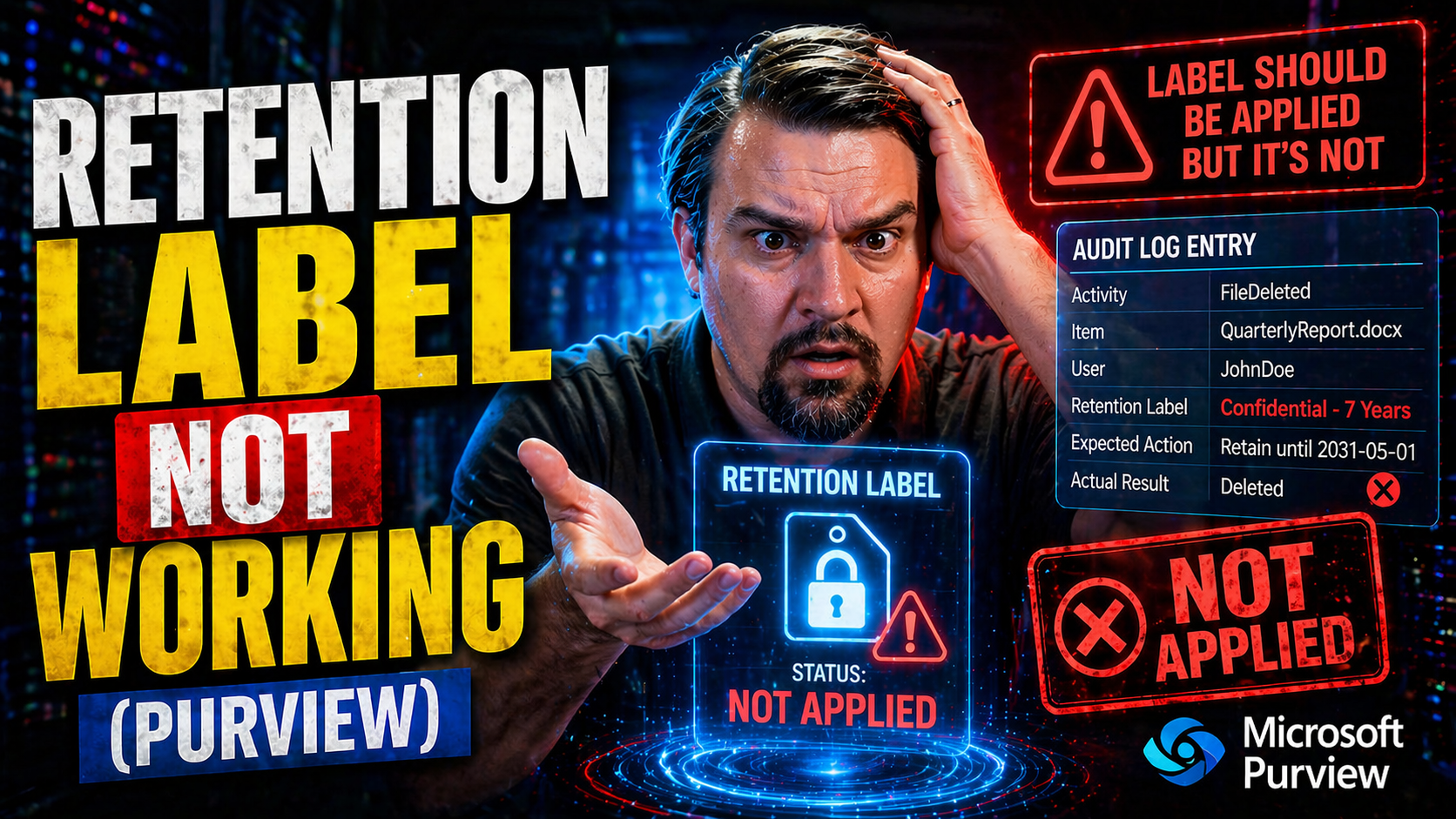
If you’re banging your head against the wall because retention labels in Microsoft 365 aren’t working, you’re not alone. Whether it’s documents not getting tagged, or policies not doing what they promised, these issues can trip up compliance, recordkeeping, and even your next audit. This guide breaks down why retention labels might not work the way they should, who’s affected, and, most importantly, what you can do about it. You’ll find straightforward steps for spotting the problem, fixing it, and keeping your Microsoft 365 data governance running smooth. Let’s put out those fires and save your organization some headaches.
Introduction to Retention Problems in Microsoft 365
Retention labels and policies play a huge part in Microsoft 365’s data lifecycle management. They help organizations meet regulatory requirements, protect sensitive information, and put guardrails around how long content sticks around. When these controls don’t work, it doesn’t take long before frustration sets in—especially for admins on the compliance front line.
Problems in Office 365 and Microsoft 365 can feel particularly infuriating because so much is riding on these policies. If your retention labels aren’t behaving, you’re looking at a compliance nightmare—potentially missing records, legal hold failures, or data that disappears too early. These failures create real roadblocks for businesses trying to stay audit-ready or manage records properly.
Common issues range from missing or wrongly-applied labels to policies failing to trigger when expected. Sometimes, the culprit is configuration drift—where changes slip in that break your carefully crafted rules. Other times, a meltdown in the Security & Compliance Center (SCC) or a backend outage is the villain. To go deeper into these hidden compliance risks, check out this episode explaining why compliance tools sometimes just mask deeper problems.
Microsoft 365 governance is not automatic, either. Just because there are controls in place doesn’t mean you get free, foolproof data management. There are layers—people, process, and technology all matter, as explored in this overview debunking the governance ‘illusion’ in M365. So, as we go through troubleshooting and fixes, remember: retention problems aren’t always straightforward, but they can be solved with a mix of the right tools and a disciplined approach.
Common Symptoms of Retention Label Issues
- Labels Not Showing or Disappearing: Sometimes retention labels vanish from the user interface, or users report not seeing expected choices when saving files or emails. This often points to deployment, sync, or permission glitches.
- Content Not Auto-Tagged: Documents, emails, or chat messages that should be automatically labeled remain untagged, breaking compliance promises and making audits harder.
- Retention Actions Not Triggered: Items that should have been deleted or protected after their retention period just hang around, or users can delete content that’s supposed to be retained/locked.
- Error Pop-Ups When Applying Labels: Users may hit vague errors, like “something went wrong” or “access denied” when they try to assign or change labels.
- Audit and Reports Out of Sync: Admin reports or compliance center dashboards show labeling status that doesn’t match what’s in the actual workspace, site, or mailbox.
Troubleshooting Common Retention Policy Errors
When you’re dealing with Microsoft 365 retention problems, it’s not just about spotting that something’s off—it’s often about untangling a mess of error messages and backend quirks. Retention policy errors tend to pop up at three key stress points: when you’re configuring a policy, when it’s trying to stick to data, and when you go to check or audit what happened.
This section will walk you through the most common errors you’ll see in the Microsoft Purview Portal or during administration. Each one points to a different underlying snag—maybe a broken connection, an ambiguous site, or just a backend process crawling to a halt. Some errors are practically built into the cloud: a “Something went wrong” message is pretty much a rite of passage for anyone managing retention at scale.
As you read through the subsections, you’ll get an idea not just of what these errors mean, but also how to approach them systematically. Some fixes will be quick, like correcting a location or unlocking a site. Others will involve a little more digging, from permissions to policy propagation delays. While each error looks different, they all need attention to make sure your compliance and governance goals don’t miss their mark.
Let’s break down each scenario so you can spot, diagnose, and resolve these policy headaches before they become bigger problems for your business or compliance team.
Diagnosing the Something Went Wrong Error
- What Triggers It: You’ll often see “Something went wrong” when trying to create, modify, or publish a retention policy in Purview or the Microsoft 365 compliance center. Sometimes, it’s just the system’s way of saying it can’t or won’t tell you what really happened.
- Main Causes:Backend service glitches—could be an outage in Microsoft’s cloud, or a compliance center hiccup.
- Policy misconfigurations—like missing required settings or conflicting retention rules.
- Insufficient permissions—your account might be missing required admin roles or compliance access.
- Service health issues—check if a recent advisory is affecting retention, especially around the Security & Compliance Center.
- Identity drift or broken group assignments, which trip up system permissions (this breakdown of governance failures dives deeper into those issues).
- Resolution Steps:Check the Service Health Dashboard for any active issues or advisories.
- Double-check policy settings, especially scoping, and required fields.
- Make sure you have Compliance Administrator, Records Management, or equivalent access.
- If you belong to multiple admin groups, confirm no conflicting role assignments are muddying the waters.
- Try your action again in an incognito window or after logging out and back in—session or token issues can sometimes trigger this vague error.
- If nothing works, open a support ticket with logs and screenshots so Microsoft can dig into the backend logs.
Fixing Location Ambiguous or Not Found Errors
- When This Happens: You see an error stating that the “location is ambiguous or not found” when targeting a site, mailbox, or group for retention or when running compliance searches.
- Main Causes:The targeted location (like a SharePoint site or Exchange mailbox) no longer exists or moved.
- Account ownership or permissions have changed—admin lost access, or group membership shifted.
- Policy references a renamed, deleted, or migrated object.
- How to Fix:Double-check the location exists and is active in the admin center.
- Update or remove broken references from the retention policy.
- Restore deleted sites/mailboxes if recently removed and needed for policy coverage.
- Verify user permissions and account status, especially for non-standard or hybrid accounts.
Resolving Site Locked or Pending Deletion Policy Issues
- Symptoms to Watch For: “Site is locked” or “policy is stuck in pending deletion” pops up in Purview or the SharePoint admin center, especially when applying or deleting retention policies.
- Causes:SharePoint sites were deleted or are in a locked state pending permanent deletion.
- There are orphaned references—policies are still pointing to those soon-to-be-gone sites.
- Sometimes, governance sprawl from overusing SharePoint lists (as outlined in this governance episode) complicates cleanup.
- Resolutions:Unlock the affected site from the SharePoint admin center if it’s locked but still needed.
- Remove or correct any retention policy targeting deleted or orphaned locations.
- Wait for site deletion processes to finish, then reattempt applying or deleting your retention policy.
- Clear any dependencies or try policy reassignment after syncing changes in Microsoft 365 admin center.
Troubleshooting Processing Failures in Retention Policies
- Symptoms: Errors like “We can’t process your policy” or policies sit forever in “still processing” states.
- Possible Causes:Backend processing delays—sometimes it’s just Microsoft’s servers taking a breather, especially after big changes or lots of content to process.
- Indexing or sync lag between workloads (mailboxes, SharePoint, Teams) and Purview’s backend.
- Action Steps:Wait a reasonable amount of time—some changes take from a few hours up to a day to propagate fully.
- Monitor the policy’s progress from the Purview compliance portal.
- If stuck beyond 48 hours, consider raising a support request to investigate failed jobs or backend throttling.
- Check the Service Health Dashboard for known backend issues or throttling notices.
Addressing Hold Application and Other Access Errors
- What’s Going Wrong: Messages like “You can’t apply a hold here” or “We ran into a problem” usually mean the hold or retention settings won’t stick, often due to access or eligibility.
- Underlying Causes:Lack of compliance administrator or records manager roles for the user.
- Trying to assign retention to an unsupported or misconfigured workload.
- Conditional Access or MFA policies interfering with automated hold/job processing, especially in secured environments.
- Resource eligibility—target data types or mailboxes may not be covered by your subscription or retention SKU.
- How to Resolve:Confirm your account has all necessary roles in Microsoft Purview and related services.
- Review Conditional Access and MFA configurations to avoid breaking required background processing (see continuous compliance monitoring for tips).
- Double-check that the mailbox, site, or group supports retention/hold policies under your licensing tier.
- If all looks fine, escalate with logs to Microsoft support for deeper investigation.
Root Causes and Resolutions for Retention Label Failures
Behind every retention label failure is a root cause—sometimes it’s technical, sometimes it’s all about process slippage, and sometimes it’s external factors like Microsoft service reliability. Before jumping to solutions, it’s important to take a step back and systematically analyze what’s really breaking down. Is it something you set up, a permission problem, or a weird backend event?
The next two sections will help you dig into both sides of the coin. First is a rundown of potential breakpoints—where setup goes off the rails, how outages or Azure AD issues creep in, or how a mismatch between data locations and retention policy scopes causes chaos. You’ll also see how things like tenant-level geo-replication, system availability, or new configuration drifts set traps for even the best-prepped admins.
Then, we'll walk through a practical step-by-step checklist to get you back in business. Think of this as your baseline—something to work through before escalating the issue to Microsoft. Whether it’s realigning configurations, reapplying labels, validating permissions, or just plain old patience waiting for background jobs to catch up, these steps are designed to take your root cause and match it with real fixes. Let's break down the problem and start patching up your retention reliability.
Analyzing the Root Cause of Retention Label Failures
- Incomplete or Incorrect Configurations: Retention labels often fail due to unfinished setup—maybe a scope is missing, a rule is misconfigured, or required conditions are incomplete. Double-check every policy’s foundation before diving deeper.
- Azure AD or Entra Outages: When identity services go down, label assignment and enforcement often stop. Authentication drift or consent issues (as explained in this attack chain breakdown) can also lock out systems responsible for labels.
- Propagation or Sync Delays: Microsoft 365 is made of many moving parts, so delays between Exchange, SharePoint, Teams, and Purview are common. Sometimes what looks like a failure is just a slow backend catching up.
- Policy Conflicts: Overlapping or contradictory policies can cancel each other out. If items are covered by two or more policies with different outcomes, expect confusion and unreliable retention.
- Permissions and Access: Missing compliance roles, security group changes, or excessive Conditional Access/MFA requirements can block policy execution or automated labeling.
- External Factors: Microsoft-wide service health outages, geo-replication constraints in multi-geo tenants, or system maintenance windows often impact processing and can break what was working just fine yesterday.
Step-by-Step Solutions to Restore Retention Policies
- Review Policy Configuration: Revisit every retention label and policy in the Purview portal. Make sure scopes, target locations, and criteria are crystal clear and do not conflict with existing policies.
- Validate User Permissions: Check that your admin account has at least Compliance Administrator or Records Management roles. Update security group memberships if needed, especially for newly created policies.
- Examine Service Health: Open the Microsoft 365 Service Health Dashboard to confirm there are no current outages, especially ones affecting compliance, Entra ID, or cross-region services.
- Force Sync and Reapply Labels: In stubborn cases, manually trigger a sync in Purview or use PowerShell scripts to reapply or redeploy retention labels. Cross-check in Exchange and SharePoint admin centers for full coverage.
- Check Policy Processing Logs: Dive into the compliance center or Purview activity logs for stuck jobs or errors. These logs can reveal processing problems or incomplete actions needing attention.
- Address Propagation Delays: Give backend services enough time to finish syncing—rushing can make things look worse. If it’s been over 48 hours, escalate the issue.
- Test Affected Workloads: Attempt to apply and remove labels on sample items in Exchange, SharePoint, or Teams. If errors persist, pinpoint the affected workload and troubleshoot directly in that environment.
- Document and Escalate: If issues remain unresolved, gather evidence—screenshots, logs, specific error messages—and open a ticket with Microsoft support. While you’re waiting for help, stay up to date with the latest fixes and updates; some cases resolve on their own after a backend patch or system update. (If you’re into automation, see this podcast landing page for episode links on operationalizing governance—even if the original content is missing!)
Auto-Apply and Discovery Issues in Microsoft 365 Retention
Auto-apply retention labels are supposed to make life easier—they automatically tag content in SharePoint, Teams, or Exchange based on rules you set. But when these policies break down, it can quietly unravel your compliance strategy in the background. You may not even realize your content isn’t being tagged or is being mislabeled until it’s time for an audit or a records check.
This section covers two common pain points: when auto-apply policies just don’t seem to kick in, and when labels wind up on the wrong documents or mailboxes. Each scenario has its own triggers—maybe your rule criteria are too tight, or the system just hasn’t finished crawling your content. Propagation lag, incomplete indexing, or even Shadow IT risks (unmanaged or rogue apps detailed at this resource), can all block or confuse labeling automation.
We’ll also look at how to audit your environment for labeling misses and what you can do to fix them. Things like report tools, manual re-application, or adjusting auto-apply rules help keep discovery and data management on track. The key is catching these issues early before small problems balloon into compliance headaches.
When Auto-Apply Retention Policies Fail in Microsoft 365
- Unmatched or Overly Narrow Rules: Auto-apply can miss content if the logic set is too specific or doesn’t account for exceptions in SharePoint, Teams, or Exchange.
- Overly Broad Scopes: Applying to every site, mailbox, or chat channel can overwhelm background jobs and slow down propagation.
- Backend Processing Delays: Sometimes changes take hours (or longer) to fully process, especially across workloads.
- Indexing or Crawl Failures: If the content source is not being indexed properly, auto-apply rules will skip items.
- Policy Conflicts: Competing retention rules can cancel each other out or cause only one to apply erratically, leading to unexpected gaps in coverage.
- For more on governance mistakes and SharePoint list sprawl, see this deep dive into the Dataverse vs. SharePoint debate.
Discovering and Fixing Incorrectly Applied Labels
- Run Content Reports: Use the built-in dashboards and export tools in Microsoft Purview to review where labels have been automatically applied and spot anomalies.
- Audit Activity: Leverage audit logs (audit user activity tools in Purview explained here) to track label application, uncover skipped or erroneous labeling, and pinpoint misfiring automation.
- Manual Remediation: For items with the wrong label, override or reapply the correct retention label directly in SharePoint, Exchange, or Teams.
- Update and Refine Rules: Adjust auto-apply conditions to include or exclude content as needed, and rerun policies after major configuration updates.
- Reindex Content Libraries: In SharePoint, force a re-crawl of problem libraries to ensure newly added or missed files are picked up by auto-apply rules.
Advanced Tools for Microsoft 365 Retention Management
For admins and compliance professionals who live in the weeds of Microsoft 365, the platform offers some advanced tools to make retention label management a little less painful. The Microsoft Purview Portal is your control room—here you can monitor, tweak, and see a holistic view of your retention setup across Exchange, SharePoint, and Teams.
Don’t overlook PowerShell, either. Using specialized cmdlets, you can adjust policies in bulk, audit where things went off course, or even automate recurring fixes. These scripts are essential for scale or where the web portal just isn’t giving you the control you need. When coupled with the reporting tools, automation can surface issues before they snowball and keep your retention processes humming over time.
Of course, with all these moving parts, staying current is crucial. Leverage Microsoft’s feedback channels for reporting bugs or requesting new features. You’ll also want to tap into product documentation or trusted community guides to keep pace with changes, new quirks, or emerging best practices—especially for major updates or compliance deadlines. For tips on leveraging Purview for content management and advanced governance, you can peek at these resources: advanced Copilot governance strategies and Purview for audit-ready content management.
Using Microsoft Purview Portal and PowerShell for Retention
- Centralized Monitoring: Use the Microsoft Purview Portal to visualize and monitor all your retention labels and policies in one place, checking for misconfigurations at a glance.
- Bulk Updates with PowerShell: When the portal isn’t enough, PowerShell enables you to script changes across thousands of mailboxes, sites, or groups, making it a lifesaver for larger tenants.
- Troubleshooting and Reporting: Run PowerShell scripts to pull detailed logs, run policy reports, and validate label application status across Microsoft 365 workloads.
- Automating Routine Fixes: Schedule scripts to reapply labels, enforce policy drift correction, or clean up exceptions—helpful for recurring issues that pop up with system updates.
- Staying Agile: When official guidance is missing or slow to update, podcasts and community forums (like the governance automation episode directory) can help fill the gap, even if a page is temporarily offline.
Getting More Information and Providing Feedback
- Microsoft Documentation: Always start with the official docs for the latest guidance on retention labels, troubleshooting, and best practices.
- Support Channels: If you hit a dead end, contact Microsoft support directly from the admin portal—attach logs and error screenshots for faster help.
- User Communities: Tap into user forums and trusted groups to find workaround and real-world advice when things get weird.
- Audit Logs and Reporting: Use Microsoft Purview’s audit features (details here) to trace issues back to their root and document compliance for auditors or regulators.
- Product Feedback: Submit ideas or report bugs from within the Purview or Compliance Center—Microsoft does monitor this input, especially for recurring errors or missing features.
Conclusion and Ongoing Retention Strategy
Wrapping up, reliable retention label management in Microsoft 365 isn’t just about fixing errors as they pop up—it’s about staying ahead with regular monitoring and consistent audits. From permission mix-ups to sync delays, there’s always more than one reason a label can go rogue. That’s why frequently reviewing your permission sets, workload syncs, and policy configurations keeps things running smooth throughout the data lifecycle.
As your business grows or compliance rules change, your retention policies should shift with them. Don’t set them and forget them. For a broader look at keeping your Microsoft 365 data house in order—including strategies for data access, ownership accountability, and secure collaboration—check out this guide on access and governance. Staying proactive is the best strategy for keeping your retention labels—and your compliance—reliable.
You Should Also Listen To
If you are exploring retention label not working, these episodes add practical context for governance, security, audit, and reliable Microsoft 365 operations.
- Microsoft Purview – Simply Explained — Connect retention, compliance, audit, and data governance.
- Microsoft Defender XDR – Simply Explained — Relate operational signals to detection and response.
- Conditional Access – Simply Explained — Understand identity and risk controls behind secure access.
These episodes help turn the article’s topic into practical implementation decisions.

Microsoft MVP | Host of M365.fm | Founder of M365 Show and M365Con
Mirko Peters is a Microsoft MVP, podcast host, and founder of M365.fm, M365 Show, and M365Con. His work connects Microsoft practitioners through podcast interviews, livestreams, and community events.
At M365.fm, Mirko hosts conversations with Microsoft MVPs, product experts, architects, and community contributors. Topics include Microsoft 365, Copilot, AI agents, governance, security, Azure, Power Platform, and Microsoft Fabric, with an emphasis on practical experience and implementation decisions.
M365.fm is the podcast and learning platform. M365 Show brings experts together for livestreams, while M365Con provides an online conference setting for community learning.
Official website: Mirko Peters (https://www.mirkopeters.com/). Recognition: Mirko Peters — Microsoft MVP profile (https://mvp.microsoft.com/de-DE/mvp/profile/9b0ca797-db5a-493a-a845-8b9158046cf5). Connect on LinkedIn (https://www.linkedin.com/in/m365showpodcast/).





