
Secure Device Usage: Essential Guide for Safer Work and Home Technology
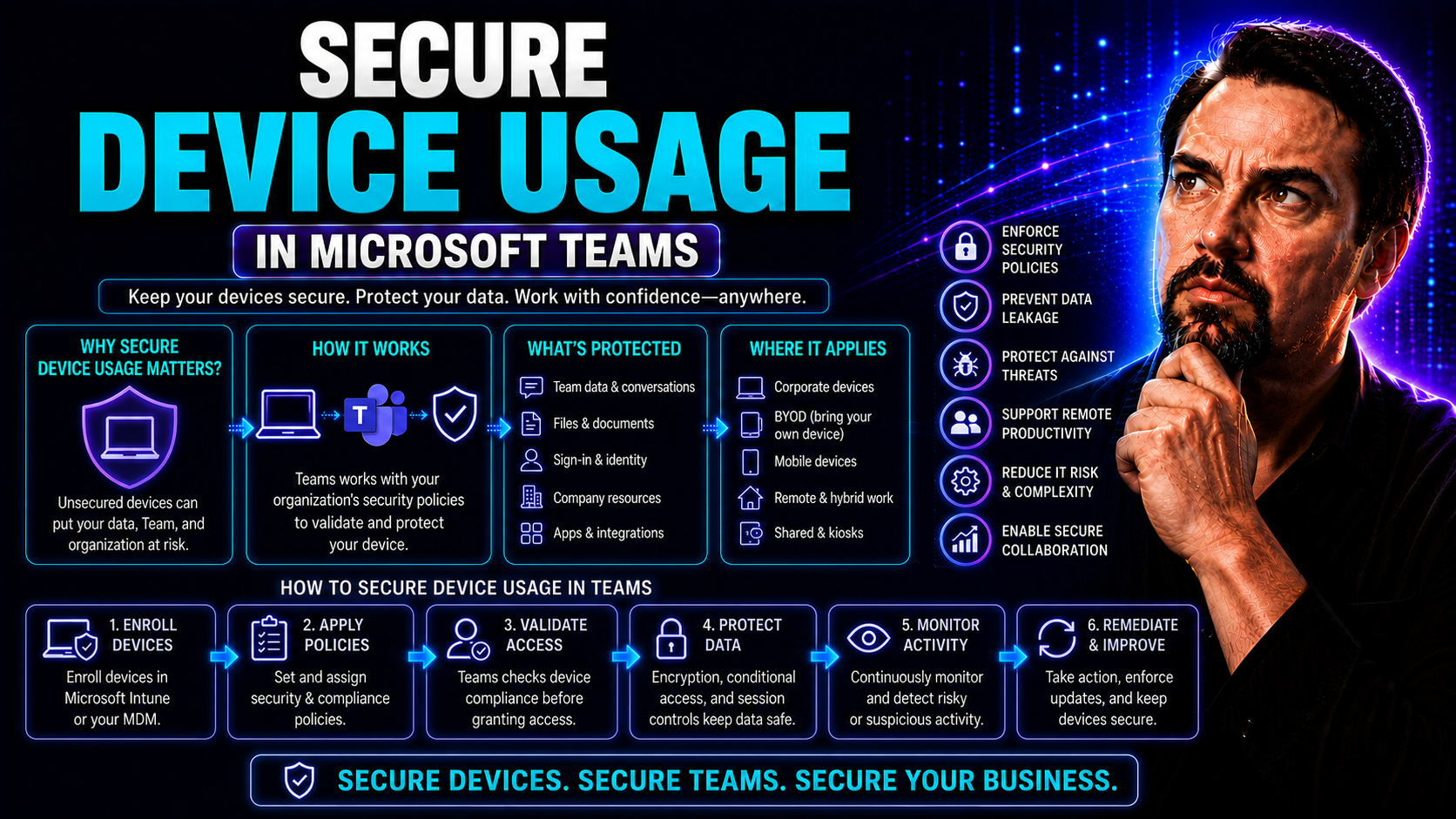
In a world where every device seems to buzz, ping, or glow at you, securing your tech is more than just a good habit—it’s a basic requirement. From smart thermostats in your living room to the laptop you use for Microsoft Teams meetings at work, every gadget in your circle is a target for threats big and small.
This guide is packed with practical ways to secure your devices, whether you’re an individual, part of a busy family, or collaborating with coworkers online. You’ll find clear steps for keeping information safe, suggestions for building cyber habits that stick, and advice you can put to use no matter your tech comfort level. With so much of daily life—work chats, homework, even home security—relying on connected tech, learning to protect your devices is no longer optional. Think of this as your starting point for safety, wherever technology takes you.
If you’re in a Microsoft Teams meeting or sharing a family tablet, you’ll want easy solutions that actually work. Let’s walk through what you need to know, one step at a time, so your digital life stays in your control—and not up for grabs.
Understanding Device Security Fundamentals
Before you jump into passwords and apps, it helps to step back and understand what device security really means—and why it matters for just about everyone these days. Device security covers all the ways we keep computers, phones, tablets, and connected gadgets safe from unwanted eyes and hands. It’s about making sure your data, personal information, and workplace files don’t end up where they shouldn’t.
The terms can be a mouthful, but here’s a high-level picture: cybersecurity is all about defending your digital world from crooks and troublemakers, while data security zeros in on safeguarding your sensitive information. With more homes filling up with smart technology, and offices relying on collaboration tools like Microsoft Teams, the ways things can go sideways have grown fast. Cyber risks don’t just knock on your door—they waltz right onto your Wi-Fi and try out the back window, too.
Understanding the risks tied to everyday device use is the first step toward building a safer space, whether that’s at home, on-the-go, or at work. You’re not just dealing with software bugs or nosy hackers anymore; IoT devices, accidental leaks, and plain old human slip-ups add plenty to the mix. This section lays the groundwork for why you should care, setting the stage for the real-world solutions covered in the next parts of this guide.
Device Security Basics and Everyday Risks
- Data Breaches and Leaks:Personal details, work files, and even your saved passwords can be swept up in a data leak if your device or apps aren’t properly secured. Just one compromised login can open the door to identity theft, financial loss, or embarrassing exposures—especially on platforms like Microsoft Teams where sensitive info is shared daily.
- Unauthorized Access:When devices are left unprotected—no lock screen, weak passwords, or open accounts—anyone can poke around and grab your files. This is a common risk in families sharing computers or when devices get misplaced in public places.
- Physical Device Theft or Loss:A stolen phone or laptop is a goldmine for a thief if it isn’t locked down. If your device isn’t secured, someone could get into your photos, emails, or even workplace apps, putting personal and business data at risk.
- IoT Device Vulnerabilities:Smart home gadgets like thermostats or security cameras can offer hackers a side door into your network. Many people never change default passwords or update the software, leaving these devices exposed to remote attacks.
- Malware and Phishing Attacks:Unsuspecting downloads, shady links, and convincing “urgent” messages can infect your gadgets with malicious software. These threats can steal data, spy on you, or even hijack your device entirely.
Getting a grip on these everyday risks gives you the foundation to make smart choices. It’s tough to fix what you don’t recognize, so knowing where threats lurk is half the battle. Before you invest in fancy tools, solid basics can go a long way in protecting your digital life from slips, mistakes, and outright attacks.
Essential Steps to Secure Your Device
Now that you have the lay of the land, let’s look at the fundamental steps you can take to lock down any device—whether it’s the family PC, your smartphone, or that shiny new IoT gadget. Device security isn’t just a checklist for big companies; it’s daily life for everyone who wants to keep their information (and their family) safe from prying eyes.
At the core, this means using strong locks (think passcodes, fingerprint scans, or facial recognition), adding trusted security software, and checking in regularly to make sure nothing’s out of the ordinary. The upcoming sections highlight straightforward actions anyone can take to add serious layers of protection in minutes—not hours.
The focus is on balancing quick wins with foundational habits that stick, and it applies whether you’re setting up a laptop for remote work, sharing a tablet among your kids, or cautiously adding smart home gear to your Wi-Fi. So, let’s roll up our sleeves and get into the practical—and proven—essentials for safeguarding your valuable stuff from the ground up.
How to Lock Down and Protect Devices
- Enable Screen Locks:Set up a secure passcode, pattern, or password on every device you use—including phones, tablets, and computers. Quick and simple, but it keeps nosy hands out if your gadgets are misplaced or left unattended.
- Turn On Biometrics Where Possible:Modern devices offer fingerprint or facial recognition. Using biometrics makes unauthorized access way harder, and it’s often faster for you than typing in a password every time.
- Activate Data Encryption:Encryption scrambles your data so only someone with the right passcode or key can read it. Many devices let you turn on encryption with a quick setting change, keeping files safe even if the device is stolen.
- Secure Devices Physically:Don’t underestimate old-school solutions. Lock laptops in drawers when you’re away, and never leave phones, tablets, or work hardware unattended in public areas—even on a desk at a coffee shop.
- Schedule Device Lockouts and Timeout Settings:Set your devices to automatically lock after a short period of inactivity. This protects your information if you walk away or get distracted mid-task.
Installing Security Software and Safety Checks
- Install Reputable Antivirus or Security Suites:Choose software from well-known brands. These tools catch malware early and help block suspicious downloads or links before they cause trouble.
- Run Security Scans Regularly:Get in the habit of running health checks on your system—preferably once a week. These checks can spot hidden threats, outdated software, or other issues needing quick fixes.
- Monitor Security Status Indicators:Look for green checkmarks or “Secure” signs in your device’s dashboard or app tray. These signals show your device protection is active; warnings deserve your attention.
- Avoid Free or Unknown Security Apps:Stick to trusted sources. Free apps may come with hidden costs—like selling your data or loading even more threats onto your device.
Mobile Device Security Best Practices
Mobile devices are a double-edged sword—they’re always with you, but that means they’re also easier to lose or hack. From texting friends to answering work emails in Microsoft Teams, your phone or tablet holds a mountain of sensitive information. With all the convenience, though, comes unique risks you don’t see on desktops or office-bound workstations.
This section zooms in on how to protect your smartphones and tablets specifically. Mobile risks include sketchy app downloads, risky Wi-Fi hotspots, and clever attacks that prey on quick taps or distracted scrolling. We’ll lay out the principles that keep your device secure, whether you’re managing your own phone or overseeing a fleet for work using mobile device management.
You’ll get clear, concrete tips for both individual users and IT teams: think endpoint protection, configuring devices the smart way, and learning which behaviors to ditch before they turn into disasters. Let’s cut out the confusion and make mobile safety second nature—because a phone that isn’t secure is a problem waiting to happen.
Key Principles for Secure Mobile Devices
- Keep Your Operating System and Apps Up to Date:Updates don’t just bring new features—they patch up holes that attackers love. Regularly update your mobile OS and apps (especially work ones like Microsoft Teams) to close off vulnerabilities hackers might exploit.
- Enable Device Encryption:Encryption makes your data unreadable without a password or biometrics. Look for the option in your device settings to protect everything stored on your phone or tablet, so even if it’s lost, nobody gets in.
- Use Mobile Device Management (MDM) for Work Devices:Companies should set up MDM solutions, which help manage security settings, update devices remotely, and wipe data if a device is lost or stolen. This is crucial for organizations using Microsoft Teams—where sensitive company info is everywhere. For a deep dive into hardening Teams security, check out guidance like this five-layer strategy for Teams.
- Install Endpoint Security Apps:Choose a reputable mobile security app that catches malware, phishing attempts, and suspicious network activity. A good app will block bad sites and warn about risky links before you make a mistake.
- Set Strong Device Locks and Enable Biometrics:Choose a complex passcode or pattern—no “1234” or birthdays—and enable fingerprint or facial recognition if your device supports it. Quick and hassle-free for you, hard work for anyone else trying to break in.
Avoiding Common Mobile Security Mistakes
- Never Jailbreak or Root Your Device:Unlocking your phone for extra features can open the floodgates to malware and remove core security protections. It’s a quick way to let hackers in and void your warranty.
- Don’t Auto-Connect to Public Wi-Fi:When your device automatically connects to every open hotspot, it’s easy for attackers to intercept your data. Always choose Wi-Fi networks carefully and consider using a VPN for extra safety.
- Avoid Downloading Untrusted Apps:Stick to apps from official stores like Google Play or Apple’s App Store. Apps from unknown sources often sneak in malware or snoop on your personal and work data—watch out especially when an app asks for more permissions than it needs.
- Beware Phishing Texts and Suspicious Links:Phishing isn’t just for email anymore—it hits your texts and push notifications, too. Never click on links from unknown senders or messages claiming urgent account issues. Even savvy users have been fooled by smart-looking scams.
- Don’t Ignore Updates:It’s easy to snooze update reminders, but every missed patch is an open door for attackers. Prioritize updates for your OS and apps to keep your mobile device ahead of new threats targeting the latest vulnerabilities.
Protecting Data Across Devices and Networks
Even the strongest password doesn’t mean much if your data is left unguarded or sent through a leaky network. Now more than ever, data flies from phones to laptops to the cloud, especially for teams working together with Microsoft Teams or keeping family photos safe in the cloud.
This section looks at how to keep your information secure—wherever it lives or travels. It’s about protecting your files with a safety net (through regular backups and encryption), and making sure your data doesn’t get hijacked somewhere between your device and its destination. Safe network habits matter too: a weak Wi-Fi connection is a thief’s favorite entry point, whether you’re at home or logging in from a coffee shop.
If you’re storing sensitive work files, family photos, or just don’t want strangers peeking at your data, the best defense is being proactive. The next subsections will break down how regular backups and smarter network habits can turn data loss or theft into “no big deal” instead of disaster.
Backup Again! How to Protect Data and Privacy
- Set Automatic Backups on All Devices:Don’t trust yourself to remember—automate it. Laptop, phone, or tablet, your devices should back up to the cloud or an external drive on a regular schedule. This covers you if a device dies, gets lost, or hits by ransomware.
- Use Encrypted Backup Solutions:Choose backup options that use strong encryption to scramble your data. This is especially key for devices you use at work or for Microsoft Teams, since work documents and private conversations need extra protection.
- Test Your Backups Regularly:Don’t wait until disaster strikes to find out your backup is broken. Restore a file every so often just to make sure everything works as expected.
- Keep Multiple Copies:Follow the 3-2-1 rule: three copies of your data, two local but different devices, and one offsite or in the cloud. That way, hardware failures or thefts don’t mean you lose all your important info.
- Back Up Sensitive Work Data Separately:Business files or anything related to Microsoft Teams should go in a separate, secure backup from your family photos or home videos. This makes recovery faster if only one set of data is at risk.
Using Secure Internet Connections and Wi-Fi Networks
- Stick to Trusted Networks:Use your own secure Wi-Fi whenever possible—at home or work. Public hotspots at airports or coffee shops may look inviting, but attackers often lurk on open networks to intercept your data.
- Turn On Wi-Fi Encryption and Change Default Passwords:Make sure your home router uses WPA3 or, at the very least, WPA2 encryption. Change that basic factory password, because hackers know the defaults for every brand out there.
- Use a VPN (Virtual Private Network):When you have to use a public network for work—maybe to log into Microsoft Teams—connect through a VPN. It creates a private tunnel for your data, even on risky Wi-Fi, so prying eyes can’t see what you’re doing.
- Disable Auto-Connect on Mobile Devices:Turn off the setting that automatically connects your device to open networks. That keeps your laptop or phone from latching on to fakes or insecure hotspots when you’re not paying attention.
- Check for “Secure” Indicators:Glance at the padlock in your browser bar or double-check your Teams login screen says HTTPS. If it doesn’t, your data might be at risk—always look before you click or type.
Securing Internet of Things Devices in Your Home and Office
The smart devices aren’t just for wowing your guests or setting the thermostat from the couch. Every new IoT gadget—like cameras, doorbells, or voice assistants—adds a fresh target for cyber crooks. Unlike obvious computers or phones, these tools often go unprotected, making them a soft point of entry for attackers who want into your larger network.
This section lays out the unique risks smart tech brings, especially when you connect more devices at home or work. Protecting these means more than just plugging them in and forgetting about them. We’re talking about changing the default settings, checking for updates, and separating them from your core work or family files wherever possible.
If you work from home or just want to keep your family safe, paying attention to your IoT security is essential—not just a techy extra. Next, we’ll lay out smart, simple steps so you can enjoy the convenience of connected tech without the baggage of hidden threats.
Security Guidance for IoT Devices and Smart Technology
- Change Default Logins and Passwords Right Away:The password that came in the box? Everyone knows it—including hackers. Create strong, unique passwords for each smart device you own.
- Update Device Firmware Regularly:Check for updates from the manufacturer and apply them as soon as they’re available. Outdated firmware can leave backdoors open long after a new threat is discovered.
- Segment IoT Devices on Their Own Wi-Fi Network:Keep smart home gadgets on a different Wi-Fi network than your computers and phones. This way, if a camera or thermostat is compromised, attackers can’t easily jump over to your personal files or work data.
- Turn Off Features You Don’t Use:If your device offers remote access or audio streaming, disable these features unless you need them. Each option you don’t use is one less opening for an attacker.
- Monitor Activity and Review Device Logs:Many smart devices log when they’re accessed. Take a peek every so often to catch unusual activity before it turns into a problem.
Device Security for Remote Work and Enterprise Teams
Work doesn’t always stay in the office these days—in fact, the office might just be wherever you plug in your laptop or connect to Teams. That brings freedom but also a new bundle of risks, especially when sensitive files float between home networks, shared devices, and cloud services like SharePoint.
This section highlights what organizations and remote workers should do to secure devices and data outside traditional walls. For those collaborating through Microsoft Teams, it’s not just about protecting your own device, but about keeping the whole team’s work safe from accidental slip-ups or targeted attacks.
Look ahead for practical lists: what to do when you’re traveling with work gear, how to keep prying eyes off your screen in public, and the IT controls (like allowlisting or EDR) that tie it all together. If you want more on how rules and roles in Teams lead to safer, better collaboration, resources such as this Teams Governance overview are worth a look. Team security isn’t a checkbox—it’s a way to work smarter and safer every day.
Keeping Devices Safe While Traveling and Working Remotely
- Adopt a Clean Desk and Secure Workspace:Before walking away—hotel lobby, coworking space, or coffee shop—clear confidential papers and lock up your devices.
- Use Privacy Screens in Public:Install a privacy filter on your laptop to keep shoulder-surfers and strangers from peeking at sensitive info.
- Always Lock Devices When Not in Use:Even a quick rest break is enough for someone else to grab info if your computer or phone is unlocked.
- Prepare for Device Loss or Theft:Set up remote wipe and location tracking ahead of time, so if your device goes missing, your data doesn’t go with it.
- Connect to Work Resources with a VPN:Bypass prying public Wi-Fi by using a secure connection for all business activity, especially accessing cloud services like SharePoint or Teams.
Organizational Controls, Endpoint Protection, and Device Visibility
- Application Allowlisting:Only approved, trusted apps can run on your company’s devices. This simple measure blocks a huge number of threats by stopping unknown programs from sneaking onto employee machines.
- Deploy Endpoint Detection and Response (EDR):EDR tools watch for unusual device behavior and quickly isolate anything suspicious. It’s like a security guard that never blinks—ideal for protecting large Teams or SharePoint deployments.
- Enable Cloud Access Security Brokers (CASB):CASBs monitor how data travels to and from your cloud apps. They help spot leaks, unauthorized access, or risky file sharing before they spiral into expensive problems.
- Prioritize Device Trust and Visibility:Implement solutions that give your IT team a clear view of what’s happening across all managed devices. Visibility makes it simple to spot policy violations or fast-spreading attacks.
- Use Multifactor Authentication (MFA):Adding a second layer to logins massively reduces the chance of an intruder getting in, even if a password gets stolen. For a step-by-step look at deploying advanced tools safely, guides like this Microsoft Copilot rollout guide explain how to balance convenience with strong security controls.
Leveraging Security Tools and Building Sustainable Cyber Habits
No matter how good your setup, device security isn’t a “set it and forget it” job. Hackers and scammers rely on you getting comfortable (maybe even a little lazy). That’s why this section focuses on building smart habits, using built-in tools, and keeping your guard up all year round—because vigilance is what separates long-term safety from a slip that makes headlines.
This isn’t just for techies; everyone can benefit from knowing how to find, lock, or even wipe a lost phone, and by sticking to a few simple rules about managing apps and dodging scams. The goal is to turn secure habits into second nature so you’re always a step ahead of threats—whether it’s a suspicious email, a push notification, or just a forgotten update.
By learning the tools and committing to small, regular habits, you protect not just a device, but your entire digital world—from group chats on Microsoft Teams to family favorite photos and more. We’ll lay out what you need to know to make security a part of your everyday routine, with zero drama and lots of peace of mind.
Using Phone Tools and Secure Device Features
- Turn on “Find My Device” Features:Built-in tools from Apple and Google let you track your phone, lock it remotely, or even erase all data if it’s lost or stolen.
- Enable Automatic Lock and Wipe:Set your phone to auto-lock quickly, and set up remote wipe capabilities—especially for business phones with sensitive data.
- Activate Two-Factor Authentication Across All Accounts:MFA makes sure your digital identity is protected, even if someone gets your password. Most phone, email, and Teams accounts now support it.
- Install Endpoint Protection Apps:Choose a reputable security app to provide real-time scanning, blocking dangerous sites and sending alerts if problems pop up.
Cyber Habits: Staying Ahead of Applications and Phishing Threats
- Update Software and Apps Promptly:Don’t put off those nagging update reminders—they patch up holes that hackers use. Make a habit of checking for updates weekly and applying them as soon as possible.
- Review and Remove Unneeded Applications:Unused apps take up space and can introduce new vulnerabilities. Regularly audit what’s installed and delete what you no longer use, keeping only what you trust.
- Be Cautious with Unknown Links and Attachments:Never click on links from unknown sources, whether in text, email, or within collaboration tools like Microsoft Teams. Phishing attacks are clever and increasingly targeted—stay suspicious until you’re sure it’s safe.
- Practice Mindful Device Usage:Avoid impulse-tapping notifications, especially those that look urgent but come from unfamiliar apps or senders. Take an extra breath before acting, especially on your phone.
- Report Phishing and Suspicious Activity:Most platforms—including Teams and your email provider—offer reporting tools for phishing. Help protect everyone by flagging suspicious texts, pop-ups, and emails as soon as you spot them.
- Do Regular Device and Account Health Checks:Review security settings, run antivirus scans, and check for account breaches with online tools at least monthly. Take action on any warnings or unexpected activity immediately.
- Educate Friends, Family, and Coworkers:Stay safe together—share tips, point out scam attempts, and keep others in the loop about the latest threats. The more eyes looking out, the safer everyone will be.

Microsoft MVP | Host of M365.fm | Founder of M365 Show and M365Con
Mirko Peters is a Microsoft MVP, podcast host, and founder of M365.fm, M365 Show, and M365Con. His work connects Microsoft practitioners through podcast interviews, livestreams, and community events.
At M365.fm, Mirko hosts conversations with Microsoft MVPs, product experts, architects, and community contributors. Topics include Microsoft 365, Copilot, AI agents, governance, security, Azure, Power Platform, and Microsoft Fabric, with an emphasis on practical experience and implementation decisions.
M365.fm is the podcast and learning platform. M365 Show brings experts together for livestreams, while M365Con provides an online conference setting for community learning.
Official website: Mirko Peters (https://www.mirkopeters.com/). Recognition: Mirko Peters — Microsoft MVP profile (https://mvp.microsoft.com/de-DE/mvp/profile/9b0ca797-db5a-493a-a845-8b9158046cf5). Connect on LinkedIn (https://www.linkedin.com/in/m365showpodcast/).




