
Secure External Collaboration: Strategies for Today’s Digital Workplace
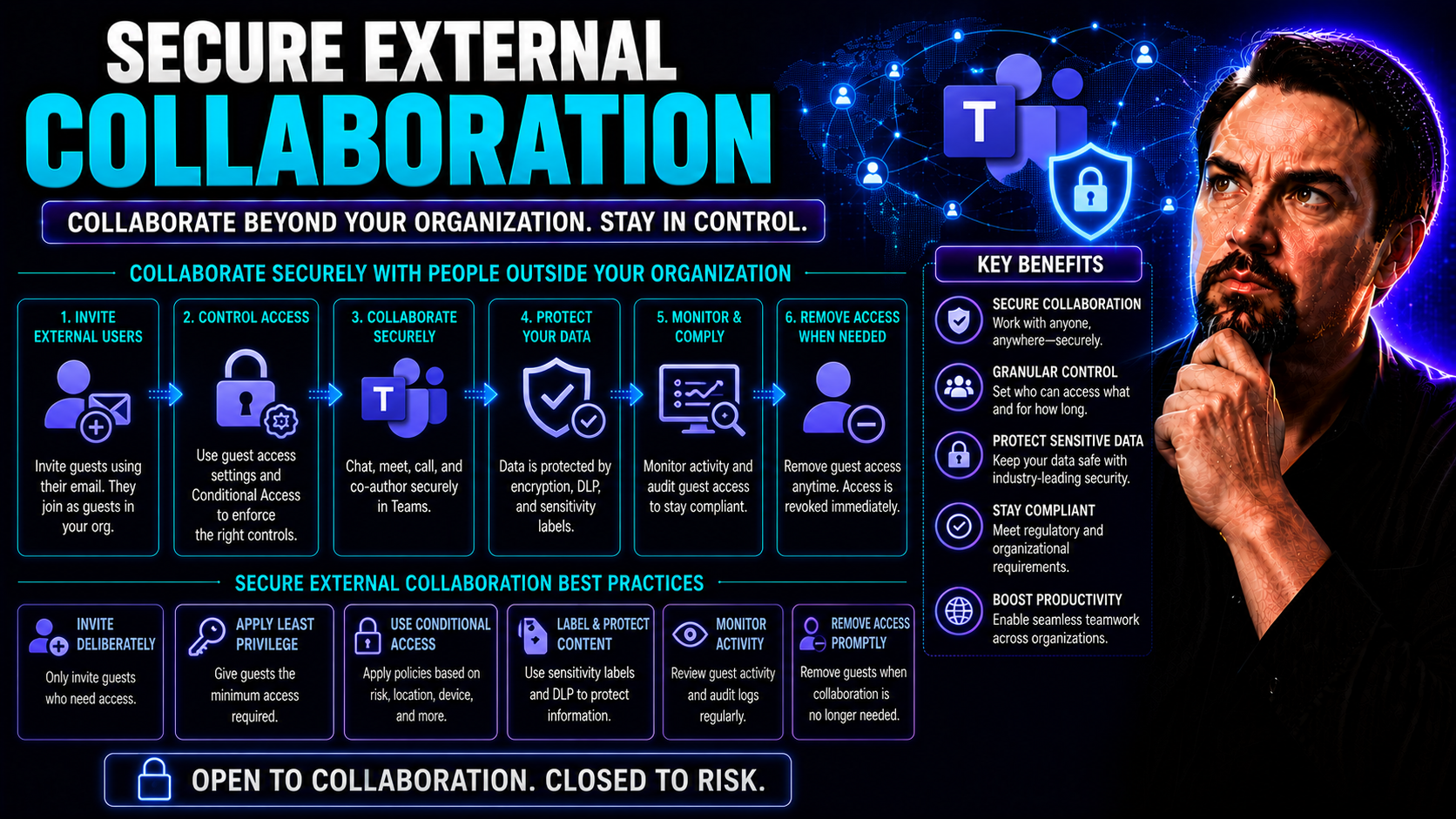
Securing external collaboration is no longer just an IT problem—it’s a frontline business need. Modern organizations have to work hand-in-hand with partners, vendors, and clients, but they can’t afford to gamble with sensitive data. That’s why tools like Microsoft Teams and SharePoint are more than just apps—they’re the backbone of secure, trackable workflow between companies.
This guide gets real about what works (and what doesn’t) in external collaboration. We’ll break down the common gaps in security, where legacy tools drop the ball, and how Microsoft 365’s built-in guardrails can close those cracks. Expect actionable steps for IT, a peek at the nuts and bolts of secure access, and proven strategies for keeping the auditors—and your business partners—happy. If you're looking to enable trusted B2B connections without sacrificing control or compliance, you’re in the right place.
Understanding Secure External Collaboration in Modern Business
The world of business has changed. Participation in sprawling partner networks, working with endless vendors, and building digital-first client relationships is just part of a regular Tuesday. But this web of connections also means organizations have to rethink what it really takes to collaborate—and stay secure—outside the four “walls” of the company.
Secure external collaboration is now about more than simply sending an email or sharing a file. It’s about carefully managing how information, files, and conversations are accessed by everyone who sits outside your organization’s directory—without letting security slip through the cracks. The digital workplace, powered by platforms like Microsoft Teams and SharePoint, has raised the bar. Today, business leaders don’t just expect productivity; they demand airtight data protection, real-time compliance, and the ability to track every click, download, and share with external parties.
As we unpack this, you’ll see why the stakes are so high. Customer trust, regulatory standing, and even your reputation can ride on how well you address emerging threats in partner and client collaboration. Stick around as we dive into what secure external collaboration actually means, why it matters, and the hurdles facing every modern business.
Introduction to Secure External Collaboration
Secure external collaboration is the deliberate, controlled process of sharing and working on information, files, and resources with organizations or individuals who aren’t your employees. It’s not just “sending stuff out”—it’s about guaranteeing only the right people get the right access, no matter where they’re connecting from or what company logo sits on their badge.
With remote work, cloud services, and the explosion of B2B partnerships, external collaboration has stretched well beyond the boundaries of the company firewall. Microsoft Teams and SharePoint make it easy to invite business partners and clients into shared projects, but this convenience also exposes organizations to new vulnerabilities. The challenge? Striking that sweet spot—making collaboration smooth and productive while still locking down data, tracking actions, and staying in line with policy and regulation.
Why Security Matters in Partner Collaboration
When you open your digital doors to external collaborators, you’re also opening the door to potential risks. Sensitive reports, sales contracts, and confidential discussions can easily leak if controls aren’t air-tight. Unauthorized access, data leaks, and even accidental exposure are all too easy with poorly managed tools.
That’s why security isn't just a “nice-to-have” for external partnerships—it’s essential. Features like secure SharePoint sharing and granular permission management ensure confidential materials don’t end up in the wild. And by putting enterprise-grade safeguards in place, you help protect both your brand and your business relationships, building trust on all sides.
Limitations of Traditional Tools in External Collaboration
For years, organizations relied heavily on emails, file shares, and unapproved consumer apps like Dropbox and WhatsApp for external collaboration. But times have changed—and so have the threats, complexity, and demands from regulators. These older tools now struggle to measure up against the serious requirements of today’s security-conscious enterprises.
Without the right checks and balances, legacy platforms can leave you wide open. There’s often little insight into who actually accessed a file, how long it stayed available, or what happened if it got forwarded to someone outside the approved circle. Audit trails are patchy at best, and maintaining consistent control as your team works across multiple systems is a juggling act even pros struggle with.
The result? A big gap between the haphazard security old-school tools provide and the bulletproof, compliance-ready collaboration your organization—and your legal team—expects. In this section, we’ll unpack the most common pitfalls with legacy tools and the real risks of using everyday consumer apps for critical business projects.
Pitfalls of Traditional Tools for Secure Collaboration
- Lack of Centralized Access Control: Traditional collaboration tools—like email attachments or basic network drives—don’t offer unified ways to manage who can access shared files. Permissions are set individually, and revoking access means chasing down files scattered across inboxes and folders.
- Unencrypted or Poorly Encrypted Channels: Many legacy tools don’t encrypt data sufficiently, leaving information exposed to interception during transit or storage. Old-fashioned email is especially vulnerable if not paired with advanced encryption.
- Difficulty Tracking External Activities: Once a document leaves your hands via email or traditional file share, you lose visibility. There are no reliable logs showing if it was forwarded, copied, or accessed by unauthorized parties.
- Inconsistent User Experience and Workflow Complexity: Juggling multiple tools—each with unique logins and sharing features—confuses both users and admins. Mistakes happen, especially under tight deadlines, increasing the risk of unintentional exposure.
- Compliance Headaches: Meeting regulatory requirements like GDPR or HIPAA is nearly impossible without comprehensive logs and strong, enforceable permissions. Legacy platforms rarely meet these standards, placing businesses at risk of costly violations.
- No Recourse for Remote File Revocation: If a file or email is accidentally shared or a partner leaves the project, traditional tools don’t let you claw back access, forcing you to trust that outside parties will delete sensitive data on your say-so.
Risks in Using Consumer-Grade Platforms for External Collaboration
- Accidental Oversharing: Consumer tools, such as unapproved Google Workspace or personal OneDrive, often make it too easy to share broadly. One mistaken click, and sensitive data can land in the wrong hands.
- Limited Auditing and Monitoring: Unlike enterprise solutions, many consumer-grade platforms don’t offer organization-wide audit logs or detailed access reports, making it hard to spot suspicious activity or prove compliance during an audit.
- Poor Integration with Enterprise Identity: It’s difficult to enforce single sign-on, multifactor authentication, or strict access policies for external users in unmanaged consumer tools. This leaves a significant hole in your security perimeter.
- Elevated Regulatory Risk: Without proper logging or permission controls, using these platforms can breach data privacy regulations. It’s a shortcut that could end up costing your business more in fines and credibility than any convenience is worth.
If you want to see how smart governance transforms chaotic workspaces into secure, efficient environments, check out this overview of Microsoft Teams Governance for real-world examples and insights.
Secure File Sharing and Access Control in Microsoft 365
Getting external collaboration right is a balancing act—unlock productivity, but don’t throw open the doors. That’s where Microsoft 365, especially SharePoint and OneDrive, steps in. These tools help organizations enforce detailed policies, set strict controls on downloads, keep tabs on who sees what, and automate the repetitive stuff so nothing falls through the cracks.
This section is your playbook for tightening up file sharing when working with outsiders. We’ll show step-by-step configurations to fit your security posture, how to prevent files from floating around longer than necessary, and ways to keep everything neatly logged for both IT and compliance teams. Ready to see what robust, scalable, and compliant collaboration really looks like in a Microsoft 365 environment? Dive on in.
Configuring Secure Sharing in SharePoint and OneDrive
- Set Organization-Wide External Sharing Policies: In the Microsoft 365 admin center, define global sharing policies for SharePoint and OneDrive that match your organization’s risk appetite. You can allow or restrict sharing to authenticated users, specific domains, or block anonymous sharing altogether.
- Adjust Site-Level and Library-Level Settings: Move beyond “one-size-fits-all” by tailoring settings at the site or document library level to limit external access where higher sensitivity is involved. This minimizes exposure even if upper-level sharing is enabled.
- Leverage Secure Sharing Links: Use “People you specify can access” links—which require authentication—when sharing content with external collaborators. This ensures traceability and lets you revoke access at any time.
- Utilize Expiration and Permission Controls: Set links to expire after a set period and limit external users to view-only rights by default, unless editing is absolutely necessary. This prevents files sticking around past their useful lifetime.
- Monitor and Govern with Automation: Regularly review shared files and folders using Microsoft 365’s sharing reports. Automation via PowerShell or third-party solutions helps scale reviews and enforce compliance.
For a deeper dive into hardening Microsoft Teams and SharePoint security at every layer, check out this detailed podcast episode on Teams security best practices.
Managing Expiration and Download Restrictions
- Apply Expiration to Sharing Links: Configure SharePoint and OneDrive to automatically expire external sharing links. You can set organization-wide policies or customize periods based on the sensitivity of the data. This cuts off lingering access when project phases or contracts wrap up.
- Block Downloads for External Users: For files or folders containing confidential materials, enforce a “block download” policy. This ensures external users can only view the content in-browser—no local copies to leak or get lost if a device is compromised.
- Restrict Download in Specific Site Collections: In SharePoint, you can limit download permissions for high-risk site collections. Administrators control who can download, and external users get only the bare minimum they need to get the job done.
- Audit and Adjust Regularly: It’s not set-it-and-forget-it. Make it a habit to review who still has access, which links are active, and how expiration settings align with ongoing projects. Regular reviews keep data flows tight, even as external relationships change.
- Balance User Experience with Security: While restrictions keep your data safe, it’s wise to adapt policies if they begin to frustrate partners or grind productivity. Communicate changes and use the full range of conditional controls offered by Microsoft 365 to keep things smooth for everyone involved.
Automating External Sharing Security with PowerShell
- Configure Sharing Settings at Scale: Use PowerShell cmdlets to apply or modify sharing permissions across multiple SharePoint sites. This is ideal for large organizations that can’t afford to tweak settings one-by-one.
- Enforce Download Restrictions and Link Expirations: Create PowerShell scripts to enable or disable download permissions and set expiration dates on sharing links automatically, ensuring policies stay consistent and up to date.
- Automate Recurring Security Audits: Set up scripts to pull regular reports on external sharing activities, flagging anomalies or unauthorized access quickly. Automation keeps IT ahead of threats without heavy manual review.
This approach empowers IT to not only protect sensitive data but also keep external sharing manageable as your business grows.
Achieving Trusted Collaboration with Unified Digital Workplaces
The days of scattered emails and endless file versions are gone—or at least, they should be. Today, organizations are embracing unified digital workplaces that blend AI, smart permissions, and built-in security to enable seamless, encrypted sharing with partners, vendors, and clients around the globe.
With these all-in-one platforms, you don’t have to piece together a puzzle of separate apps or worry about data slipping out the back door. By breaking down silos, these systems put everyone on one secure playing field, where workflows are smooth, compliance is built-in, and you get full visibility into who’s sharing what and with whom.
This section looks ahead at how trusted B2B collaboration is moving beyond patchwork solutions. You’ll see why choosing a holistic, security-first platform—rather than cobbling together a bunch of tools—is the strategy forward-thinking organizations are betting on for both productivity and risk reduction.
Turning Digital Workplaces into Secure B2B Bridges
Modern digital workplaces are rapidly shifting from isolated, piecemeal tools to unified platforms purpose-built for secure, encrypted B2B collaboration. With trends like zero-trust architecture and seamless integration of applications, organizations can now create “bridges” that let trusted external partners collaborate directly—without ever relinquishing control.
These new solutions layer enterprise-grade encryption, granular permissioning, and always-on compliance right into the platform, giving you confidence to connect cross-company teams while still maintaining razor-sharp oversight. Want to see how governance transforms those bridges from risky “freeways” into trusted thoroughfares? Check out this Teams governance success story.
Benefits of All-in-One Collaboration Platforms
- Streamlined Governance and Compliance: Integrated platforms consolidate permissions and tracking, reducing the odds of something slipping through the cracks. This makes compliance reviews and audits less stressful for your IT and legal teams.
- Simplified External User Management: Instead of juggling accounts spread over multiple services, you get central management for provisioning, monitoring, and revoking access to external collaborators—from one dashboard.
- Reduced Tool Sprawl (and Duo Headache): With everything in a single system—messaging, files, meetings—you minimize the confusion and risk that comes from bouncing between too many apps. Less duplication, lower costs, and much easier training for new employees or partners.
- Improved Visibility and Control: All-in-one solutions make it possible to track who accessed what and when, across all shared workspaces. That enhanced oversight lowers the chances of accidental exposure and lets admins react fast to any issues.
- Lower Risk Profile and Higher Productivity: Unified platforms mean fewer holes for attackers to exploit, and less time wasted on clunky workarounds. Teams can focus on actually collaborating, not battling the tech or worrying about shadow IT.
For a look at how clear governance propels collaboration and sharply reduces risk, see how Microsoft Teams governance strengthens organizations.
Evaluating and Choosing the Right Secure Collaboration Tool
When it comes to picking a secure B2B collaboration platform, there’s a real skill to separating hype from the features that matter most. You’re not just looking for a pretty interface—you need something that locks down your business info, integrates with the rest of your IT stack, and is easy for users to adopt across departments and borders.
In this section, we’ll walk through what to look for in a solution, comparing industry leaders and showing where Microsoft 365, Google Workspace, and others land. If you’re also mulling over alternatives for secure scheduling, or want to know exactly how to tailor your M365 tenant to fit your unique security needs, read on.
You’ll leave this section able to build a solid shortlist—with all the details your IT, compliance, and user teams need to make the right call.
Top Brands for Secure B2B Collaboration
- Microsoft Teams: A go-to for many organizations, Teams offers robust controls for user provisioning, enterprise-level encryption, and deep integration with SharePoint, Outlook, and a host of Microsoft 365 services. Guest access, shared channels, and granular permissioning make it a top choice for secure B2B projects.
- SharePoint: The backbone for document sharing, SharePoint brings advanced versioning, workflow management, and automated compliance tools. It excels where tight governance and custom collaboration spaces for third parties are a must.
- Google Workspace: Google’s platform offers streamlined sharing and real-time co-editing, but be aware of its integration and compliance limits compared to Microsoft—especially for regulated industries.
- Box and Dropbox Business: Recognized for secure external file sharing with strong encryption and centralized admin controls. Excellent auditing and external collaborator management tools keep compliance in check.
- Slack Enterprise Grid: Suitable for large organizations that need scalable messaging and file sharing, Slack’s enterprise edition provides secure APIs and integration options, though file governance can be more complicated than in Teams or SharePoint.
Curious about getting the best out of your dashboards inside Teams or SharePoint? See this practical comparison for insights on security, interactivity, and adoption.
Calendly Alternatives for Secure Business Scheduling
- Microsoft Bookings: Directly integrated with Microsoft 365, Bookings lets you manage external appointments while retaining enterprise security, auditing, and role-based access controls.
- Zoho Bookings: Suitable for businesses prioritizing granular control over staff and partners, Zoho logs all booking changes and supports SSO integration for better audit trails.
- Calendly for Teams (Enterprise): Offers additional controls over personal accounts, including SSO, group scheduling, and domain-based restrictions, but organizations should confirm all data residency options fit their risk profile.
- TimeTrade Scheduler: Focused on regulated environments, TimeTrade brings customizable security policies and deep reporting for business-critical schedules.
Customizing Microsoft 365 Tenant Settings for Security
- Restrict Sharing by Site Owners: Modify tenant settings to limit who can create and manage external sharing links. This prevents unauthorized expansion of external access by overzealous owners or oversight.
- Set Default Sharing Levels: For each new SharePoint site and Teams workspace, enforce your organization’s sharing baseline (e.g., restrict to authenticated external users only). Automate these defaults using M365 PowerShell scripts where possible.
- Enforce Security Baselines with DLP and Conditional Access: Configure DLP (Data Loss Prevention) policies and Conditional Access rules in Microsoft 365 to automatically prevent sharing of sensitive info and trigger MFA or access blocks if risk is detected.
- Centralized Logging and Alerting: Turn on unified audit logs and configure alerts for abnormal sharing activities. This enables IT to detect suspicious patterns early, before they turn into data breaches.
- Use Automated Lifecycle Management: Integrate automations such as Power Automate and Graph API to control Teams and SharePoint lifecycles, reducing idle or orphaned sites that can become security liabilities. For more, see this guide on taming Teams sprawl.
Compliance and Regulatory Alignment in Cross-Border Collaboration
For organizations operating globally—or even just dealing with clients whose data is subject to regional privacy laws—compliance can be a make-or-break factor in choosing any collaboration system. Secure external collaboration isn’t just about keeping hackers out. It’s about proving, to regulators and partners alike, that you truly control where data goes, how it’s managed, and who touches it along the way.
This section brings to light practical ways to keep your external workflows both productive and aligned to deep legal standards. Whether you’re dealing with GDPR, CCPA, HIPAA, or industry-specific audits, it’s crucial to have data residency controls, strong auditing, and processes designed to handle regulator requests on short notice.
Looking for an example of how privacy is baked into modern Microsoft platforms? See how Microsoft Copilot addresses privacy and compliance for Microsoft 365 collaboration.
Managing Data Residency and Sovereignty in External Workflows
- Configure Data Storage Regions in Microsoft 365: Specify where user and site data lives—such as within the US or EU—to comply with legal data residency requirements. This geofencing minimizes cross-border transfers that might trigger regulatory scrutiny.
- Restrict External User Access by Region: Limit invites based on country, ensuring only partners within approved jurisdictions can view or edit content. This can be managed through Azure Active Directory conditional access policies tied to user location.
- Use Cloud App Security and DLP: Employ Microsoft 365’s Cloud App Security and custom DLP policies to flag or block sensitive content from crossing prohibited borders or being accessed by unauthorized countries.
Audit Readiness and Regulatory Reporting for External Sharing
Audit readiness means having a detailed record of every external sharing event. Set up Microsoft 365’s unified audit log to track document access, sharing link creation, user invitations, and deletion. Monitoring tools can surface suspicious activities for immediate review or flag noncompliant behaviors before they grow into violations.
Exportable compliance reports are critical, especially for industries under strict regulations. Microsoft 365’s compliance center and audit solutions allow organizations to generate detailed reports for regulators, proving due diligence and robust governance over all external collaboration activities.
Identity and Access Governance for External Users
External users can become a security weak link if their identities and access aren’t governed with rigor. It’s about more than “just inviting”—modern collaboration means designing who gets access, when, and for how long, using tools embedded in Microsoft Teams, SharePoint, and other unified workspaces.
By moving to advanced access models like just-in-time permissions and automating both onboarding and offboarding, organizations can sharply reduce the risks of account overprovisioning, orphaned identities, or privilege creep. When you nail this down, you lock out threats while making collaboration easy for real partners and clients.
If you want to see how chaos turns to confident, compliant teamwork (especially in Teams), check out this real-world governance story. For tips on preparing your tenant for smart automation, see enabling Microsoft Copilot in secure environments.
Implementing Least Privilege Access for External Collaborators
- Apply Role-Based Access Controls (RBAC): Assign external users only the permissions needed for their role or project. Avoid giving broad read or edit rights unless necessary.
- Enforce Just-in-Time Access: Provision access for external users only during active projects or specific initiatives, disabling or limiting permissions after contract end or inactivity.
- Review Permissions Regularly: Schedule routine access reviews to verify that external users still need their granted permissions. Remove or downgrade access if it no longer aligns with their current engagement.
- Restrict Sensitive Content: Keep more sensitive files or discussions inside tightly controlled libraries or private channels, accessible only to the barest necessary group of externals.
Automated Lifecycle Management of External Identities
- Automated Onboarding via Identity Providers: Integrate with federated identity services (like Azure AD B2B) to quickly and securely onboard external partners, ensuring proper classification from the jump.
- Ongoing Activity Monitoring: Use Microsoft 365 analytics to monitor external user behavior, flagging inactivity or anomalous access that could signal risk or an unused account.
- Workflow Automation for Deprovisioning: Set up Power Automate or other workflow engines to trigger account removal when external contracts end or inactivity thresholds are reached.
- Regular Cleanup to Prevent Orphaned Accounts: Periodically scan for external identities that no longer align with open projects, scrubbing them from access lists to avoid compliance gaps or security exposures. For a walk-through, see this Teams lifecycle automation guide.
Real-World Applications and Next Steps
Theory and best practices are great, but nothing beats seeing how secure external collaboration actually plays out in the wild. As you reach the end of this guide, we’ll bring the strategies home with a practical case study, distill the most important takeaways, and leave you with a stack of resources and helpful answers to keep moving forward.
This section spotlights the journey of a real company, Brookline Supply Co., showing what works and what to avoid when switching to a secure, modern collaboration setup. You’ll get a checklist for assessing your own environment, plus a one-stop FAQ on all things secure collaboration—so you’re not stuck hunting for answers when decisions need to be made fast.
Business Story: Brookline’s Secure Collaboration Journey
Brookline Supply Co. needed to collaborate with dozens of vendors and customers—sending specs, updating timelines, and managing contracts. Their old mix of emails and shared drives led to security gaps and embarrassing data leaks. By rolling out Microsoft Teams and SharePoint, they got centralized access controls, audit trails, and custom permissions for every external party. This upgrade led to fewer risks, faster partner onboarding, and a big uptick in client trust. Brookline’s team now spends less time chasing files and more time delivering value—while leadership sleeps better at night, too.
Key Takeaways and Next Steps
- Assess Your Current Collaboration Landscape: Start with a review—who has external access, and where are files being shared? Knowing your weak spots comes before fixing them.
- Implement Secure Microsoft 365 Features: Enable critical controls like guest access governance, secure sharing links, DLP, and audit logging across Teams and SharePoint.
- Customize Tenant Settings for Your Needs: Restrict sharing, automate access reviews, and enforce lifecycle management to prevent “creeping” permissions and orphaned accounts.
- Prioritize Ongoing Governance and Training: Build a routine for reviewing permissions, updating policies, and educating both employees and partners on your secure collaboration protocols.
Resources and Frequently Asked Questions
- Explore More on Teams Governance: For additional strategies on organizing and securing workspaces, visit how Teams Governance transforms chaos into collaboration.
- Understand Channel Types for External Collaboration: Unsure whether to use private or shared channels in Teams? This decision guide clarifies the pros and cons for security and privacy.
- Learn the Best Fit for Collaboration Needs: For comparison of private channels, shared channels, or completely separate Teams structures, check out this practical guide.
- FAQs:How do I securely invite external users to Microsoft Teams? Only use official guest access invitation processes and avoid sharing user credentials—set granular permissions and limit each guest to what’s essential.
- What’s the best way to track who’s accessing shared files? Leverage audit logs in Microsoft 365 and regularly review sharing activity reports.
- Are shared channels or private channels better for external collaboration? Generally, shared channels are preferred for B2B work due to better app support and security, but always review your organization’s unique needs.
- How do we handle compliance requirements? Use built-in compliance center features to set DLP, auditing, and automated retention. Always verify your platform settings meet your industry’s standards.
- Keep Improving: Download platform comparison datasheets, stay up to date with official blog posts, and leverage continuous learning to keep your collaboration practices resilient and compliant.

Microsoft MVP | Host of M365.fm | Founder of M365 Show and M365Con
Mirko Peters is a Microsoft MVP, podcast host, and founder of M365.fm, M365 Show, and M365Con. His work connects Microsoft practitioners through podcast interviews, livestreams, and community events.
At M365.fm, Mirko hosts conversations with Microsoft MVPs, product experts, architects, and community contributors. Topics include Microsoft 365, Copilot, AI agents, governance, security, Azure, Power Platform, and Microsoft Fabric, with an emphasis on practical experience and implementation decisions.
M365.fm is the podcast and learning platform. M365 Show brings experts together for livestreams, while M365Con provides an online conference setting for community learning.
Official website: Mirko Peters (https://www.mirkopeters.com/). Recognition: Mirko Peters — Microsoft MVP profile (https://mvp.microsoft.com/de-DE/mvp/profile/9b0ca797-db5a-493a-a845-8b9158046cf5). Connect on LinkedIn (https://www.linkedin.com/in/m365showpodcast/).




