
Secure Guest Access: Best Practices and Strategies for Microsoft Teams and SharePoint
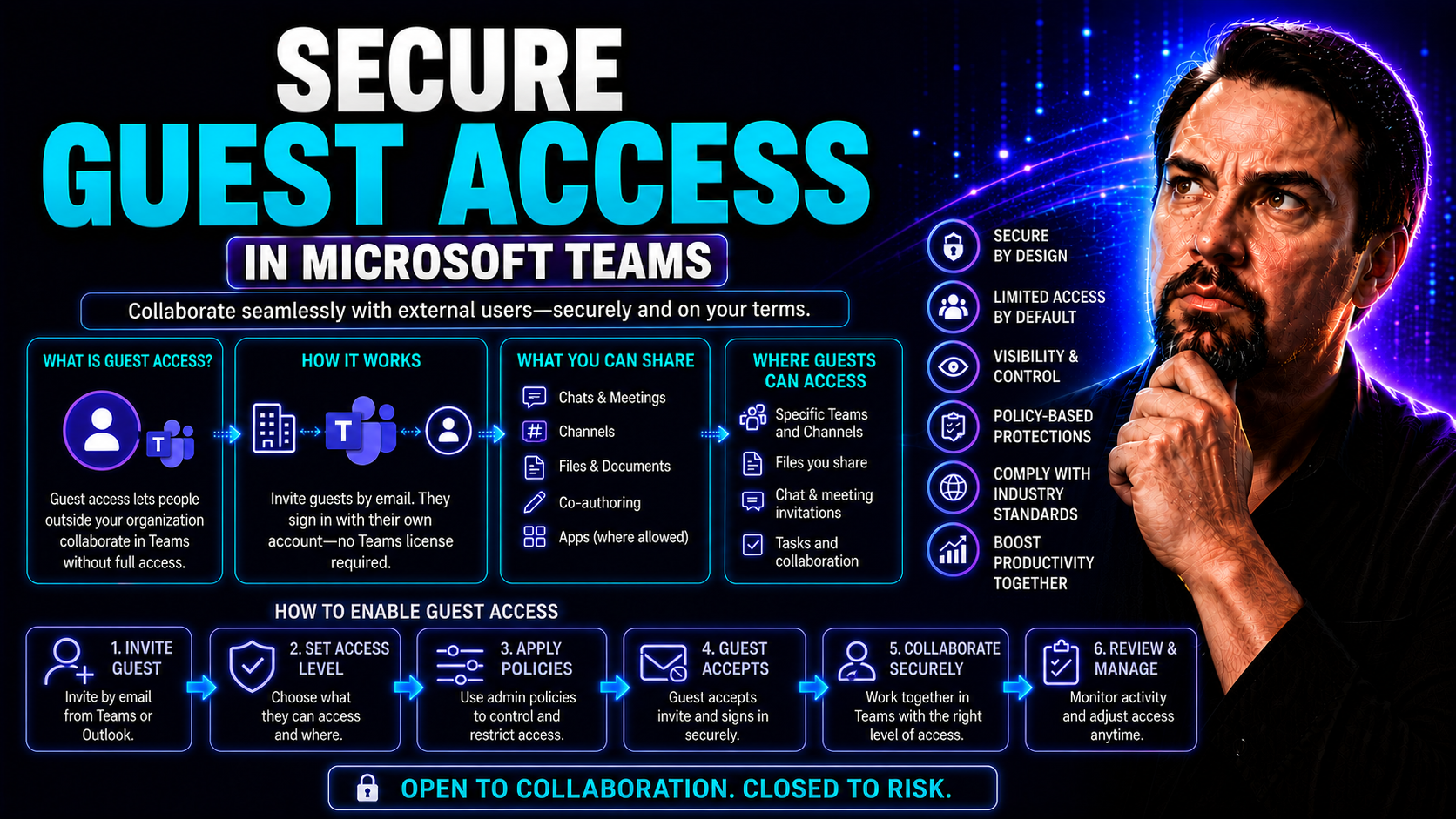
Secure guest access means opening your digital doors—without leaving the back window wide open. In Microsoft Teams and SharePoint environments, letting guests in isn’t just about convenience; it’s about protecting your organization’s data, reputation, and compliance standing. Whether you’re collaborating with external partners, contractors, or clients, enforcing robust access controls is critical to keeping valuable files and chats out of the wrong hands.
This guide is aimed at IT admins, security leads, and anyone managing external access in Microsoft 365. You’ll get hands-on strategies to build strong guest access policies, understand the real risks involved, and keep compliance auditors happy—without locking down so tightly you grind teamwork to a halt. Buckle up as we cover everything from Wi-Fi to the cloud, onboarding to offboarding, and scalable enterprise solutions that actually work.
Understanding Security Risks from Unsecured Guest Networks
Guest access can be a blessing for business collaboration, but if you don’t keep tight control, it quickly turns into a security minefield. The risks start the moment you let someone or some device connect that isn’t managed by your organization. Every open network port or poorly locked-down Wi-Fi, and every overshared document in the cloud, can end up being a direct line to your mission-critical data.
Organizations face a patchwork of attack vectors when guest access is handled carelessly—whether that’s from a visitor plugging into a lobby Ethernet port or a contractor joining your Teams meeting from an unknown device. The threats aren’t just hypothetical: data leaks, malware outbreaks, and compliance fails all become far more likely when guest boundaries are porous.
This section gives you the big picture on why prioritizing guest access security isn’t optional. You’ll see why clear network segmentation, careful access policies, and a habit of regular security checks are essentials. What follows are the key categories of threats, from data theft and malware to unintended data exposure—and why plugging these holes matters for operational continuity and your bottom line.
Data Theft and Malware Attacks from Exposed Systems
- Unencrypted Guest Networks. Open, unprotected Wi-Fi or ethernet points are easy pickings for attackers. An eavesdropper can intercept sensitive emails, authentication credentials, or confidential files just by sitting nearby—if traffic isn’t encrypted or networks aren’t segregated, your private business becomes public knowledge in no time.
- Spread of Malware and Ransomware. When guests connect through unsecured networks, their unmanaged devices can introduce malware—sometimes without the guest even knowing it. Once malware is inside, it can jump to other devices or central servers, potentially leading to full-on ransomware attacks.
- Man-in-the-Middle (MitM) Attacks. Attackers leveraging exposed networks can launch MitM attacks—sitting silently between guest devices and your systems, intercepting traffic, injecting malware, or manipulating data. Suddenly, that friendly-looking guest could be an adversary with wide network visibility.
- Session Hijacking and Credential Theft. If your guest network offers no isolation or session protection, attackers could steal session cookies or authentication tokens—giving them unauthorized access to systems that believe the attacker is a legitimate guest or even an internal user.
- Real-World Example: Conference Room Chaos. Consider the vendor visiting for an onsite meeting. They join your open guest Wi-Fi, but their device is infected. That threat propagates over the improperly segmented network, and by lunch, multiple internal PCs are compromised—costing hours and potentially thousands in damages.
How Unauthorized Access Leads to Data Breaches
- Lateral Movement. Attackers leverage weak guest access controls to move sideways across the network—exploring systems and data they weren’t meant to touch. If guest and internal networks aren’t properly segmented, one compromised guest device can open doors all over your digital environment.
- Privilege Escalation. With minimal restrictions, attackers can exploit software bugs or default settings to gain higher privileges, escalating their footprint from guest to admin. Suddenly, what started as “just” guest access leads straight to sensitive databases or executive inboxes.
- Data Exfiltration. Gaining access through unsecured guest credentials allows adversaries to locate, copy, and steal confidential company data. Whether it’s client lists or intellectual property, breaches can go unnoticed if guest activity isn’t closely monitored and reviewed.
Guest Wi-Fi Security and Its Role in Network Integrity
Guest Wi-Fi networks are intended to give visitors internet connectivity without opening the floodgates to internal resources. When these networks lack strong security controls or proper segmentation, they become potential attack highways—making it easy for threats to spill over into your core operations. Properly managed guest Wi-Fi acts as a critical safeguard, ensuring that external devices never mix with sensitive business systems and data.
Without measures like encryption, access isolation, and captive portals, a simple Wi-Fi password isn’t enough. Misconfigured guest wireless can offer attackers stealthy entry points, undermine your overall network integrity, and increase the chances of malware or data theft affecting the entire organization.
Best Practices for Guest Wi-Fi Security and Access Control
Now that you’ve seen why guest networks can be risky business, let’s talk about sealing off those cracks before they turn into real problems. Creating a secure guest experience—whether it’s for folks visiting your lobby or partners logging in remotely—demands more than a basic password. It means weaving together technical controls and smart policies that cover every angle: who gets in, what they can do, and how you keep an eye on their footprints.
This section introduces the core strategies you need to protect your organization and keep operations smooth. Think network segmentation, effective authentication, clear compliance rules, and regular audits—all forming the backbone of a robust layered security approach. Ready to put best practices in action? The next sections map out the exact steps and considerations to implement bulletproof guest Wi-Fi and access controls across your systems.
Implementing Guest Wi-Fi Security: Checklist for Protection
- Enforce Network Segmentation. Isolate guest traffic from your main business network so that visitors can only access internet resources, not internal systems. Use VLANs or separate SSIDs to make sure guests never get a backstage pass to sensitive data.
- Deploy Captive Portals. Utilize a customizable captive portal that forces visitors to agree to acceptable use policies, register their identity, or obtain a sponsor’s approval before granting access. This not only deters casual snooping but makes tracking and accountability easier.
- Mandate Secure Encryption. Always require WPA3 (or at least WPA2) encryption on guest Wi-Fi networks. Open or WEP-secured Wi-Fi is an open invitation to attackers, making interception or hijacking all too simple.
- Set Bandwidth Limits and Usage Policies. Control how much network resource each guest can use, preventing a single visitor—or an attacker—from gobbling up your IT capacity or using your network for unauthorized activity.
- Enable Guest Device Isolation. Prevent devices on the guest network from seeing or interacting with each other. That way, a compromised device can’t attack other visitors or attempt lateral movement.
- Schedule Regular Network Audits. Periodically review guest network configurations, usage logs, and policies. Look for unauthorized devices, traffic spikes, or signs of suspicious behavior so you can catch issues before they escalate.
Guest Access Control: Managing Identity, Context, and Permissions
- Verify Guest Identity. Before granting access, require effective verification—whether it’s an email confirmation, phone number validation, or federated authentication using trusted external identity providers. This keeps random or malicious actors out.
- Context-Aware Access Policies. Access decisions shouldn’t just be yes or no—consider where the guest is connecting from, device health, time of access, and business need. Contextual controls let you tighten access for riskier scenarios and ease off when it’s legitimate business as usual.
- Role-Based and Granular Permissions. Only give guests access to exactly what they need—nothing more. Assign permissions based on user roles and purpose, restricting shared folders, channels, or applications to the minimum business requirement.
- Continuous Policy Evaluation. Re-evaluate guest permissions regularly, especially after changes in relationship or project scope. Remove or reduce access as soon as their business need disappears or their context shifts.
- Transparent Access Logs and Audit Trails. Keep detailed logs of guest activity for quick review and compliance needs. These logs help spot suspicious behavior and show auditors exactly how you secured access if questioned later.
Securing Guest Access in Microsoft 365 and the Cloud
As more organizations turn to Microsoft 365, securing guest access is no longer limited to the four walls of your office—it’s a cloud challenge, too. Letting external partners, consultants, or vendors into your Teams or SharePoint sites can supercharge productivity, but also opens new doors for data leaks or compliance violations if controls are weak.
Cloud environments like M365 require thoughtful policies to balance collaboration with security. You need strong onboarding processes, consistent permission reviews, and advanced risk management to ensure your files don’t end up in the wrong inbox or get overshared with people who have no business seeing them. The stakes? Everything from regulatory fines to reputation loss.
In the next sections, you’ll get actionable guidance on how to govern guest users in M365, tackle file sharing risks head on, and use Microsoft’s own tools—like Conditional Access—to make your cloud collaboration as secure as your physical office. For practical examples of tightening up Teams security, check out the approach detailed in this podcast on Microsoft Teams security hardening.
Managing Guest User Access in Microsoft 365
- Set Up Secure Guest Invitations. Use the Microsoft Entra admin center to send guest invitations directly from Teams, SharePoint, or OneDrive. Require external users to verify their identity with their own email or federated credentials before access is granted.
- Enforce Multi-Factor Authentication (MFA). Make MFA mandatory for all guest accounts. Even if your guest’s home organization lacks strong security, MFA on your side ensures another hurdle before attackers can access your data.
- Define and Limit Permissions by Default. Don’t hand out full membership rights. Instead, leverage M365’s least-privilege guest roles. Restrict sharing and group membership unless there’s a genuine business reason.
- Regularly Review Guest Access. Schedule access reviews to identify stale or suspicious accounts. Remove unnecessary permissions and keep a close watch on audit logs for compliance and incident detection.
- Centralize Governance. Use Microsoft Entra ID and audit logs to track all guest access points and activities. Align your governance model with best practices like those highlighted in Teams Security Hardening Best Practices—combining conditional access, DLP, and strict auditing for a multi-layered defense.
Mitigating Risks of Oversharing and Unintended Access in M365
- Limit Broad Sharing Permissions. Don’t allow users to share Teams, SharePoint, or OneDrive files with “Anyone with the link.” Prefer sharing with named individuals or organizations. This helps keep external guests from stumbling onto confidential files by accident.
- Use Private and Shared Channels Wisely. Private channels in Teams are best for sensitive discussions; they allow strict access control and a separate SharePoint for secure collaboration. For external partners, shared channels may be appropriate, but be mindful of their app limitations and scope. For more details, see Private vs. Shared Channels in Microsoft Teams.
- Monitor External Sharing Activity. Configure alerts for when files or folders are shared externally. Use Microsoft Purview DLP (Data Loss Prevention) rules to prevent guests from downloading or re-sharing sensitive documents.
- Review Shared Content Regularly. Conduct routine audits of externally shared data in Teams, SharePoint, and OneDrive. Remove or adjust access if a file or folder has drifted from its original sharing intent or business purpose.
- Educate Users on Sharing Best Practices. Make sure internal staff knows how to use the right sharing settings for external collaboration—and why using a secure process keeps everyone safer and more compliant.
Conditional Access Policies and Entitlement Management for Guests
- Implement Conditional Access Policies. Set conditions for when and how guests can access your M365 workspace. Factors could include location, device health, or time of day. Require extra authentication, like MFA, for risky sign-ins.
- Configure Time-Limited Access. Don’t let guests hang around forever. Use automated entitlement management tools to grant access for a specific period—removing permissions automatically when a project ends or contract expires.
- Schedule Regular Access Reviews. Automate periodic reviews of guest access with reminders for sponsors or managers. Prompt action on any accounts that no longer need access.
- Require Step-Up Authentication for Sensitive Data. When a guest tries to access highly confidential files, policies should require them to pass extra verification or restrict downloads. This ties into a broader security model, as explained in Microsoft Copilot's Security Model, where strict, least-privilege access and ongoing monitoring are essential.
- Leverage Microsoft Entra and Purview. Govern identities and sensitive data centrally with Entra ID and Purview DLP policies. Ensure audit logs and incident detection are consistent across Teams, SharePoint, and guest accounts.
Guest Onboarding, Offboarding, and Lifecycle Management
Letting guests in isn’t just about rolling out a welcome mat—it’s about keeping track of who’s in, who’s out, and making sure nobody overstays their digital welcome. Guest access should always be treated as temporary, with controls built in to avoid forgotten accounts that become ticking time bombs for your security.
Lifecycle management is the backbone of good guest access. From the moment a partner signs up to the day they’re offboarded, you need methods to provision, track, review, and revoke access promptly—especially if a project ends, a contract changes, or an incident occurs. This not only keeps your attack surface small, but it helps with compliance, too.
In the next sections, you’ll discover the main onboarding options, effective ways to spot and cull inactive users, and how to enforce expiration dates or emergency revocations when necessary. Nailing this process is key to keeping your network both friendly and locked down.
Guest Onboarding Options: Self-Service, Sponsors, and Pre-Provisioned Accounts
- Self-Service Registration. This method lets guests sign themselves up, often through a web portal. It’s convenient for large groups or one-off visitors, but risks letting in unverified users if not paired with strict identity checks or approvals.
- Sponsor Approval. In this approach, a full-time staff member vouches for the guest. The sponsor reviews the guest’s need, verifies their identity, and submits their request. It’s slower but adds a solid human gatekeeper for sensitive environments.
- Pre-Provisioned Accounts. IT admins or HR create guest accounts ahead of time, often used for contractors or long-term partners. This allows tight control over roles, expiration, and what resources each guest can reach—but does require heavy admin involvement.
- Choosing the Right Mix. Use self-service for events or routine visitors, sponsor approvals for high-risk areas, and pre-provisioned for ongoing or regulated access. Mixing methods provides flexibility without giving up security.
Managing Inactive Guests and Conducting Regular Security Reviews
- Monitor for Inactivity. Use audit logs, access histories, or Microsoft Entra tools to identify guest accounts that haven’t logged in for set periods—say, 30 or 90 days. Unused accounts are often overlooked entry points for attackers.
- Automate Inactive User Detection. Modern platforms can flag or even automatically suspend guest accounts after periods of inactivity. This reduces reliance on manual oversight while quickly plugging gaps.
- Schedule and Document Regular Reviews. IT teams should conduct periodic reviews (monthly or quarterly) to check guest access across all platforms. Document reviews in audit logs to show compliance and due diligence.
- Deprovision Quickly After Completion or Change. As soon as a project ends or a relationship changes, revoke guest access immediately. Don’t wait for the next scheduled review; automation helps here, too.
- Maintain a Clean Audit Trail. Keep accurate records of all guest additions, changes, and removals. This not only helps investigate incidents but also meets regulatory and audit requirements.
How to Revoke Guest Credentials and Enforce Expiration Policies
- Set Automated Expiration Dates. Configure guest access so every account has a built-in time-to-live. After the specified period, access is automatically revoked unless re-verified. This prevents long-lost guests from hanging around indefinitely.
- Enable On-Demand Revocation. For urgent situations—think contract terminations, compromised accounts, or policy violations—IT teams should have the power to revoke access instantly through admin consoles or via emergency scripts.
- Require MFA for Sensitive Actions. Enforce multi-factor authentication for all high-risk actions, such as changing access levels, adjusting expiration, or performing emergency revocations. This adds an extra layer of protection against unauthorized changes.
- Audit and Confirm Revocation. When access is revoked, verify through audit logs that no outstanding sessions or credentials remain active. Schedule periodic spot-checks, especially after incidents.
- Train Staff on Emergency Procedures. Equip your team with clear guides for rapid guest removal in case of threats or compliance findings. The faster the response, the less likely a breach or regulatory fine.
Enterprise-Grade Guest Access: Scalability and Security Stack Integration
Managing guest access at scale—like in sprawling campuses, multi-building offices, or packed conference centers—takes more than basic policies. You need systems that can handle hundreds or even thousands of guests without falling apart, while keeping your security posture tight as ever.
Enterprise solutions for guest management must seamlessly integrate with your existing identity providers, SIEM tools, and endpoint managers. This ensures everyone—no matter where or how they’re connecting—faces the same level of oversight, compliance, and rapid response to incidents.
Up next, you’ll see how to streamline onboarding for throngs of visitors and make your existing security controls work hand-in-hand with guest access solutions. It’s all about keeping costs down and operations smooth, even with a revolving door of external users.
Scaling Guest Access for Visitors and Event Attendees
- Use Pre-Provisioned or Bulk-Created Accounts. For big events or frequent visitors, set up guest accounts ahead of time in batches. This speeds up check-in and ensures that everyone has unique credentials—no password sharing or weak links.
- Deploy Temporary Access Credentials. Roll out time-bound visitor passes that auto-expire after a day or week. This minimizes risk from forgetful guests and stops unused accounts from piling up.
- Streamline Onboarding Processes. Use self-serve registration kiosks or QR code sign-ups to reduce wait-times. Combine with sponsor approvals for sensitive spaces, so only authorized visitors advance past the lobby.
- Support Multiple Device Types. Make sure your onboarding process works seamlessly across laptops, tablets, and smartphones—regardless of operating system or management status.
- Leverage Automation for Tracking and Reporting. Automate logs of who entered, what time, and what they accessed. This makes post-event audits easy and helps spot any suspicious activity quickly.
Integrating Guest Access Seamlessly with Your Security Stack
- Tie Guest Access to Central Identity Providers. Integrate with platforms like Azure AD or Okta so all access—internal and external—uses one source of truth. This makes permission changes, account removal, and auditing far simpler.
- Centralize Logging and Monitoring with SIEMs. Feed guest access logs into your SIEM (like Splunk or Sentinel). This ensures every event—login, file share, or abnormal action—shows up on your existing dashboards and triggers the same response workflows.
- Unify Policy Enforcement and DLP Measures. Align your guest controls with enterprise-wide security policies like Purview DLP (Data Loss Prevention) in Microsoft 365. This prevents sensitive information from leaking—even in complex collaboration scenarios. For more depth on layered security, check out Teams Security Hardening Best Practices.
- Integrate with Endpoint Protection and Device Compliance Tools. Use endpoint management solutions to assess risk based on device posture before granting access. Block guests on compromised, jailbroken, or non-compliant devices by default.
- Ensure Fast Incident Response Coordination. Built-in integrations let you automate alerts and custom responses—like session termination or access quarantines—whenever suspicious activity shows up in guest accounts.
Unified Access Policies for Hybrid Work and Guest Security
Hybrid work has changed the meaning of “guest”—sometimes they’re in your building for a week, other times they’re collaborating from across the globe. As folks bounce from physical guest Wi-Fi to cloud-based Teams or SharePoint, having a patchwork of different rules creates security gaps and user headaches.
Unified access policies bridge that gap, setting consistent expectations no matter where or how a guest connects. Whether it’s on-site visitors using public Wi-Fi or remote contractors joining through Microsoft 365, a unified framework ensures every guest faces the same level of identity verification, access control, and compliance checks.
This approach is especially crucial as organizations juggle hybrid work, multiple locations, and a mix of devices—managed and unmanaged alike. For inspiration on coordinating hybrid environments, tools like Microsoft Places showcase how technology can streamline access and collaboration across both digital and physical workplaces.
Device-Agnostic Authentication Methods for Guest Users
- Federated Identity (SSO). Allow guests to authenticate using their own organization’s credentials, supporting a seamless and secure sign-in flow without extra device setup.
- Adaptive Multi-Factor Authentication (MFA). Require step-up authentication based on risk, location, or device type—protecting sensitive accesses regardless of the guest’s device.
- One-Time Passcodes and Magic Links. Use email- or SMS-based single-use codes that don’t require device enrollment for quick but secure authentication.
- Passwordless Sign-In Methods. Leverage biometrics or authentication apps for fast, user-friendly login across varying hardware, with minimal friction for guests.

Microsoft MVP | Host of M365.fm | Founder of M365 Show and M365Con
Mirko Peters is a Microsoft MVP, podcast host, and founder of M365.fm, M365 Show, and M365Con. His work connects Microsoft practitioners through podcast interviews, livestreams, and community events.
At M365.fm, Mirko hosts conversations with Microsoft MVPs, product experts, architects, and community contributors. Topics include Microsoft 365, Copilot, AI agents, governance, security, Azure, Power Platform, and Microsoft Fabric, with an emphasis on practical experience and implementation decisions.
M365.fm is the podcast and learning platform. M365 Show brings experts together for livestreams, while M365Con provides an online conference setting for community learning.
Official website: Mirko Peters (https://www.mirkopeters.com/). Recognition: Mirko Peters — Microsoft MVP profile (https://mvp.microsoft.com/de-DE/mvp/profile/9b0ca797-db5a-493a-a845-8b9158046cf5). Connect on LinkedIn (https://www.linkedin.com/in/m365showpodcast/).




