
Secure Teams Configurations: Complete Guide for Microsoft Teams Governance
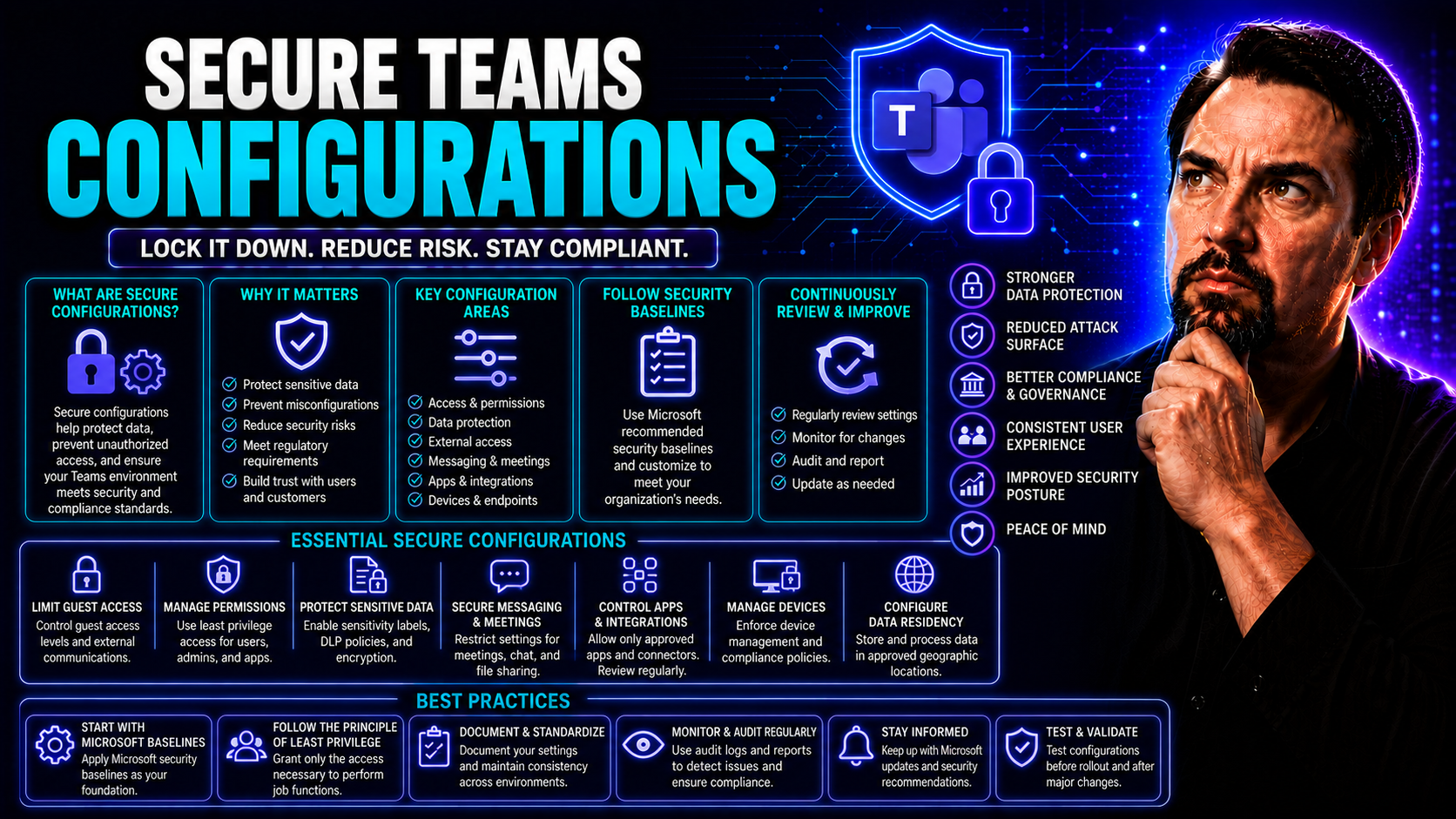
If you want to keep your organization's data safe, smooth out your workflows, and meet all those pesky compliance rules, then securing your Microsoft Teams setup is the bedrock. Getting the configurations just right isn’t about locking things down and throwing away the key; it’s about giving the right people the right access while keeping the rest locked up tight. With Microsoft Teams deeply woven into Microsoft 365 and SharePoint, any cracks in your security can quickly widen. In this guide, you’ll get the nuts and bolts — everything from managing identities to wrangling those wild guest users, protecting sensitive info, and making sure your Teams environment runs exactly how you want it. Think of it as your playbook to making Teams work safely for everyone, every day.
Understanding Microsoft Teams Security Fundamentals
Security in Microsoft Teams isn’t something you tack on after the fact — it’s the engine running under the hood. If your foundation is solid, you’re already halfway to winning the security game. That starts by understanding how Teams ties into your broader Microsoft 365 landscape, especially with identity and access controls done right.
Every chat, file, and meeting in Teams carries your organization’s data. So the baseline protection needs to be tight. You’re looking at managing who can get in, what they can see, and what they’re allowed to do. Features like multi-factor authentication, data encryption, and secure sharing come into play to shield not just your business but also your partners and clients.
But don’t stop at just the basics. Threats aren’t sitting still, and neither should your security posture. Microsoft has built-in controls — from single sign-on to advanced malware detection — that can close the door on bad actors before they even find the welcome mat. Laying a strong groundwork here means fewer headaches down the road, especially once you start juggling more users, devices, and apps.
Next, we’ll break out the core security elements: starting with identity management, and rolling right into encryption and link protection. This is where Teams security goes from a good idea to real-world, daily protection.
Identity Access Management With Entra ID, Single Sign-On, and MFA
- Leverage Entra ID (Azure Active Directory) for Centralized Access Control: Entra ID (formerly Azure AD) acts as your master gatekeeper for Microsoft Teams. Set up user accounts, assign roles, and determine who gets access to which Teams and channels. Integrate with your organizational directory for efficient user provisioning and de-provisioning.
- Enable Single Sign-On (SSO) Across Microsoft 365 Apps: With SSO enabled, users log in once and gain seamless, secure access to Teams and other Microsoft 365 services. That cuts down on password fatigue and helps reduce risky password habits, like sticky notes or “password123.”
- Require Multi-Factor Authentication (MFA): MFA is your best friend against credential theft. After users enter a password, they’ll need a second proof — like a phone app code — to get in. This blocks most phishing attacks dead in their tracks and greatly improves your odds against brute-force attacks.
- Apply Conditional Access Policies: Bolster access control with location, device compliance, and risk-based policies. For example, you can let employees sign in only from corporate-approved devices, or block logins from outside your country. Tight integration with Entra ID makes it easy to automate these restrictions.
- Regularly Audit and Manage Credentials: Don’t let dormant accounts linger. Review user access often and immediately remove access when users leave or change roles. Automate user lifecycle management where possible—especially handy if you’re deploying Copilot for Microsoft 365 or any other AI tools that tap into Teams data.
Taken together, these steps make Teams access something you control—not something you’re left worrying about late at night. Seamless integrations and strict policies give you that peace of mind and keep bad actors at bay.
Comprehensive Encryption in Transit and Safe Links Protection
- End-to-End Data Encryption for Teams Content: Microsoft Teams encrypts messages and files, both when they’re sitting at rest and when they’re moving across the wire. This means even if someone grabs your network traffic, it’s all just digital gibberish to them.
- Set Up Safe Links to Guard Against Malicious URLs: Safe Links, a feature of Microsoft Defender for Office 365, automatically checks every link shared in Teams chats and channels. If a user clicks a nasty site, Defender steps in and blocks them before any harm is done.
- Enable Safe Attachments for Malware Protection: Attachments get scanned in real time for viruses, ransomware, and other beasts. If a threat is detected, the file never even makes it to your end users.
- Activate Microsoft Defender Threat Protection: Defender works in the background, using machine learning to spot threats, stop phishing attempts, and keep malware on the other side of the door. It’s critical for organizations that need an always-on safety net.
- Monitor and Harden Security Settings Continually: Encryption and threat protections can only save you if they’re turned on and tuned correctly. Regularly review and update your settings — guidance like the Teams Security Hardening Best Practices podcast can help you go beyond defaults and close real-world security gaps.
By putting these protections in place, you’re not just relying on hope. You’re actively shutting down some of the most common attack vectors — phishing, malware, and simple snooping. Security here doesn’t have to mean slow or complicated; it just means nobody’s getting to your data without jumping through all the right hoops.
Implementing Teams Creation and Naming Governance
When anyone can create a new team anytime they want, chaos is right around the corner. You end up with duplicate Teams, random naming schemes, and “ownerless” workspaces that no one touches until data is lost or leaked. That’s not just messy — it’s risky.
Implementing structured governance brings order to the wild west. By deciding who can create Teams, keeping track of which ones exist, and who’s responsible for them, you’re putting guardrails around collaboration. Assigning clear permissions for team creation also helps prevent the kind of sprawl that can make finding anything—let alone keeping things secure—a nightmare.
But good governance isn’t only about control. Naming conventions and taxonomy strategies mean users can actually find the Teams, channels, and files they need, fast. Consistent naming, proper use of sensitivity labels, and tagging keep everything organized and compliant. Small changes here can make a world of difference in both productivity and peace of mind.
If you want to dive deeper, you can check out practical guidance on organized collaboration in resources like this guide on how Teams Governance brings calm to the chaos or how to fix Teams sprawl with smart lifecycle management.
Rule 1: Decide Who Can Create a Team and Restrict Ownerless Groups
- Restrict Team Creation Rights: Don’t let just anyone create a new Team. Assign this privilege to designated users or groups, like department heads or IT admins. This controls workspace sprawl and maintains oversight of new Teams.
- Establish Owner Accountability: Require at least two owners per Team. If one owner leaves, the responsibility doesn’t fall through the cracks. Microsoft Teams offers prompts and reminders to encourage multiple owners, helping prevent abandoned Teams.
- Automate Team Requests and Approvals: Use tools like Power Automate and Microsoft Graph API to set up a request-approval process for new Teams. This ensures only legitimate, justified Teams are created and helps enforce proper metadata tagging from day one.
- Detect and Remediate Ownerless Teams: Regularly review Teams for orphaned groups using built-in reports or scripts. If a Team becomes ownerless (say someone leaves the org), jump in fast to reassign ownership or archive as needed. Automated lifecycle management—like the solutions shown at this lifecycle governance guide—will keep your tenant clean.
- Set and Review Governance Policies Frequently: Teams usage and needs change over time. Revisit your creation, onboarding, and lifecycle rules regularly. Use analytics to identify trends, spot weaknesses, and adjust policies accordingly.
With this approach, you’re not just keeping clutter down. You’re stopping sensitive data from disappearing into forgotten corners and making sure every Team has someone watching its back.
Apply Naming Policies and Develop Taxonomies for Sensitivity Labels
- Set Up Standard Naming Policies: Define and enforce naming conventions—think department prefixes, project codes, or location tags. This makes Teams easy to identify, search, and sort.
- Develop Taxonomies with Sensitivity Labels: Integrate sensitivity labels into naming rules for built-in compliance. For example, label HR Teams as “Confidential” automatically and apply stricter security controls to those Teams.
- Prevent Duplicate or Misleading Names: Use built-in duplication checks and restrict certain “reserved” names to avoid confusion, chaos, or accidental exposure.
This structured approach keeps your directories tidy and your sensitive info right where it belongs—never mistaken or misplaced.
Managing Guest and External Access in Teams
Letting guests and external partners into your Teams environment can open doors for business, but it also brings new risks. Every time you allow someone from outside your organization to collaborate or share information, you introduce another potential way for sensitive data to walk out.
Managing this type of access means more than flipping a switch. You need thoughtful policies that balance collaboration with security. This starts by understanding who your guests and external users are, what they actually need to do in Teams, and how you’ll monitor their activity.
Conditional access policies, fine-tuned controls, and clear rules about which domains can connect are essential. It's not just about stopping unwanted guests—it's about giving your trusted partners what they need, and nothing more. Restricting communication to only those on your allowlist means fewer surprises and better audit trails.
Up next, we’ll get into the practical steps for configuring picky guest access policies, and how allowlist-only messaging ensures outside voices don’t turn into inside risks.
Configure Guest and External Access With Conditional Policies
- Enable Guest Access Thoughtfully: Before turning on guest access, determine your business use cases. Only allow access for vetted external partners or projects that truly require it—never just by default.
- Set Up Conditional Access Policies for Guests: Leverage Entra ID to create policies based on device compliance, location, or risk profile. For example, block access from unmanaged devices or require guest users to pass multi-factor authentication.
- Control Invitations and Access Points: Decide who can invite external users and for which Teams or channels. Restrict general invitations to a set group of trusted employees and automate approval for new requests.
- Expiration and Lifecycle Management for Guests: Implement automatic expiration for guest access after a set period. Schedule regular reviews and remove guests who no longer have a business need, reducing the risk of lingering, forgotten accounts.
- Limit Guest Permissions: Fine-tune what guests can do: restrict file uploads, hide private channels, and block meeting recordings. Always give the least access necessary for external users to get the job done.
Careful controls let you collaborate securely with outside partners—without giving up control of your house keys.
Switch to Allowlist-Only External Communication for Approved Domains
Allowlisting approved domains in Microsoft Teams means restricting external chats, file sharing, and meeting invitations to only partners you trust (like strategic vendors or clients). With allowlist policies, any domain not pre-approved is automatically blocked, preventing accidental or malicious sharing with unknown organizations. Administrators manage these domains centrally, updating the list as relationships change. This setup gives your organization predictable, secured cross-company collaboration and sharply cuts the odds of data escaping to untrusted parties.
Application Control and Data Integration Security
Microsoft Teams gives you endless ways to extend its power with third-party apps and cloud storage options. Sounds handy—until you realize one poorly vetted app or random file-storage integration could open a backdoor into your sensitive business information.
To lock things down, IT admins need tools and policies that put clear boundaries between what’s approved and what’s not. That means blocking connections to unauthorized cloud storage providers, carefully reviewing what apps are in play, and setting strict ground rules for what each app is allowed to see or do inside Teams.
You can shape your Teams into a secure, focused collaboration tool by allowing only thoroughly vetted productivity apps and turning off anything with a risky reputation or unnecessary permissions. App permission policies can automate this process, so security keeps pace with rapid change—no manual chasing required.
By prepping your Teams environment this way, you shrink your threat surface and boost user productivity at the same time. Now, let’s get hands-on with the steps IT leaders need to keep app chaos at bay.
Disable Third-Party File Storage and Select Approved Integrated Apps
- Turn Off Access to Unapproved Cloud Storage: Disable connections to external file storage solutions like Google Drive, Dropbox, or Box for your Teams environment. Stick to Microsoft’s native storage options unless you’ve properly vetted a provider.
- Curate an Approved List of Integrated Apps: Use the Teams admin center to allow only apps that are aligned with your organization’s security policies and work needs. This makes sure users can only install and use tools that have passed your checks.
- Review App Permissions before Deployment: Always investigate what permissions each app asks for—especially when developing or deploying custom apps, like the scenarios discussed in building Teams custom bots and message extensions. Be wary of any app requesting broad data access or device permissions.
- Use Permission Policies for Third-Party Apps: Set granular rules that restrict what data each approved app can interact with. Prohibit “run as admin” rights unless absolutely necessary, and run regular reviews to spot over-permissive or useless apps.
- Continuously Monitor and Clean Up App Usage: Use reporting tools and admin dashboards to keep track of deployed apps and storage links. Remove apps that are unused, unapproved, or have changed their behaviors.
Doing this turns your Teams from a “grab bag” of unknown apps into a purposeful, safe collaboration hub for everyone involved.
Implement App Permission Policies for Third-Party Applications
App permission policies in Teams allow IT to limit each app’s access to only what’s needed. By configuring these policies, you restrict unnecessary permissions, keeping sensitive data out of reach for most third-party tools. Regular reviews and automated monitoring ensure that as new apps show up or permissions drift, your settings remain tight and compliant. Scalable permission management means you stop trouble before it starts—even as your Teams environment grows.
Data Protection and Compliance Strategies for Teams
Data protection in Microsoft Teams is way more than simply telling people what not to share. You need proactive, policy-driven controls that act automatically, so sensitive information isn’t left exposed—no matter how good your intentions or wild your day gets. This is where DLP, sensitivity labels, and retention policies come in.
Your aim is to detect, block, and log risky sharing behaviors in real time, whether in chat messages, file uploads, or meeting notes. Compliance Center integration lets you outfit Teams with powerful monitoring tools, aligning your organization with regulations like GDPR, HIPAA, or ISO 27001 without constant hand-holding from IT.
By using sensitivity labels and retention rules, you’re not only protecting the content now, you’re also setting up smart archiving (or clean-up) later. This ensures critical records aren’t deleted too soon, and unnecessary clutter isn’t left to create risk years down the line.
Stronger Teams compliance isn’t just a box to check—it’s a daily line of defense that shields your organization, your employees, and your business reputation. Coming up: the essential steps for rolling out compliance controls and meaningful data labeling inside your Teams ecosystem.
Compliance Center Integration and DLP for Teams Data
- Connect Teams to Microsoft Compliance Center: Start by integrating Teams with Compliance Center, enabling a central console for policy management, monitoring, and reporting. This gives admins a “mission control” view over sensitive Teams data, chats, and meetings and links policies directly to Microsoft 365 compliance tools.
- Establish Data Loss Prevention (DLP) Policies: Set up DLP rules to automatically detect and protect sensitive data—like credit card numbers, social security info, or proprietary blueprints—in chats and files. As soon as risky content pops up, DLP can block the action, warn the user, or send alerts to IT for review.
- Customize Policy Templates by Department or Project: Not every team works with the same kind of sensitive stuff. Tune your DLP templates to match real business needs, and apply extra restrictions where necessary, like HR or finance channels.
- Monitor Alerts and Remediate Risks in Real Time: Use Compliance Center dashboards to quickly spot risky behaviors. Automated triggers and alerting mean nothing sneaks by unnoticed, especially handy if you’re dealing with AI-powered tools like Microsoft Copilot (explained further here on Copilot data privacy and compliance).
- Keep Auditing and Reporting Rolling: Schedule regular compliance reviews and export reports for legal or audit teams. This ongoing loop keeps your controls sharp and lets you prove regulatory compliance—no scrambling at audit time.
When Teams data is covered by DLP and Compliance Center, leaks become rare, and you’ve got proof ready for any compliance check that comes your way.
Sensitivity Labels for Invites and Configure Data Retention Policies
- Apply Sensitivity Labels to Meetings and Files: Automatically tag meeting invites and shared content with the right confidentiality level—like “Internal Use Only” or “Restricted”—so everyone knows the ground rules and controls are enforced behind the scenes.
- Configure Data Retention and Expiration Policies: Set up Teams retention policies to archive, keep, or delete content based on compliance rules or business needs. This keeps you safe from both accidental deletion and unwanted data hoarding, ensuring compliance and good housekeeping at the same time.
This combo keeps sensitive stuff safe and makes accidental leaks much harder to pull off, even on a busy day.
Securing Meetings, Monitoring Activity, and Ongoing Teams Auditing
Meetings are where a lot of your critical business happens—and where mistakes or mischief can cause the most damage fast. That’s why putting robust controls in place for Teams meetings is about more than just keeping out party crashers; it’s about protecting the flow of your organization’s ideas and data every single time the camera comes on.
Using lobby controls and tight access policies, you make sure only invited, authorized folks get in. These policies don’t just keep your meetings safe from uninvited guests and accidental exposure—they also help you support regulatory requirements for confidentiality and participant management.
But meetings alone aren’t where security stops. Ongoing activity monitoring, audit logs, and alerts for suspicious behavior allow you to see—at a glance—if anything unusual is unfolding in your Teams environment. Regular reporting and analytics don’t just tick compliance boxes; they put you in control for quick response if weirdness ever strikes.
If you’re looking for strategies to improve real-time collaboration and manage access, don’t miss insights on succeeding with Teams governance and security. Let’s see how to lay down the ground rules and keep meetings—and every action inside Teams—locked tight.
Enable Lobby Controls and Strengthen Teams Microsoft Security
- Turn On Meeting Lobby Features: Require guests and external users to wait in the lobby until admitted by a meeting organizer or trusted participant. This allows a real-time screening of who gets in and when.
- Control Presenter and Attendee Roles: Clearly set roles in each meeting to control who can share screens, mute others, or admit participants from the lobby. Prevent accidental data exposure by making guests attendees by default, only elevating when necessary.
- Apply Guest and Anonymous Restrictions: Block anonymous users from joining critical meetings, or apply stricter entry rules for specific types of discussions. These best practices—echoed in the context of meeting extensibility and custom apps at this Teams advanced security guide—let you balance access and control for every event.
With these controls in place, Teams meetings become focused, secure spaces—no surprises, no eavesdroppers, just the people you want, on the topics you need.
Audit Logs Usage and Reporting for Teams Security
- Enable Audit Logging and Review Settings Regularly: Turn on auditing in Teams and Microsoft 365 Admin Center. This will track user logins, file sharing, policy changes, and other important actions. Review the settings often to make sure you’re capturing the events you need.
- Run Targeted Audit Log Searches: Use the Teams and Microsoft 365 audit portal to look up specific activities. Want to know who shared a sensitive file or changed a guest policy? Quick search, instant answers.
- Schedule Automatic Reports: Set up recurring reports that go straight to IT, security, or compliance officers. These reports show trends, spot unusual activity, and help with early threat detection—especially critical for rapid response teams.
- Use Custom Reporting and Analytics Tools: Integrate logs into Power BI or third-party SIEM solutions for richer analysis. Visual dashboards and alerts make it easy to spot risks and measure policy effectiveness at a glance.
- Respond and Remediate Incidents Quickly: If something looks off—a mass file deletion, new unauthorized access, or odd login times—investigate right away. Use logs as your timeline for what happened, when, and who did it, so you can take action before small problems grow big.
Regular audits and real-time monitoring provide peace of mind and a digital paper trail for every security review or compliance demand you’ll ever face.
Microsoft Teams Security Best Practices and Organizational Alignment
Securing Microsoft Teams isn’t a “set it and forget it” job. It takes constant attention, willingness to tweak old habits, and strong alignment with the rest of your organization’s IT and compliance strategies. The goal is more than just locking down your data; it’s about empowering people to work freely—without risky shortcuts or fear of stepping over imaginary lines.
Best practices here mean more than following checklists. They require regular policy reviews, upgrades in line with new threats, and making sure your controls keep pace with business changes—like expansion to new countries or integrating new business apps.
Success in Teams security is measured by how quietly it disappears into the background—letting your employees get things done while data stays protected, compliance gets ticked, and business risks are kept low. All these strategies fit hand-in-glove with your broader Microsoft 365, Azure, and IT governance frameworks.
To dig deeper into real-world lessons for practical Teams security, check out these Teams security hardening best practices for a multi-layered strategy that works in the trenches, not just on paper.
Security Goals and Taking Proactive Steps Toward a Secured Microsoft Environment
- Minimize Unnecessary Access: Regularly review who has access to Teams, channels, and sensitive files, and remove access for those who no longer need it.
- Enforce Policy Hygiene: Schedule consistent checks for configuration drift—ensure policies haven’t changed unintentionally or due to admin error.
- Stay Ahead of Threats: Monitor alerts, keep up with threat intelligence, and update controls as attackers find new tricks and vulnerabilities emerge.
- Integrate Security with Organizational Goals: Make sure all Teams security efforts tie in with company-wide compliance, risk management, and digital transformation objectives.
- Promote Ongoing Education: Train employees on secure collaboration habits in Teams—security is only as strong as the people using it every day.
Staying proactive, aligned, and informed is the best defense when it comes to keeping your Teams environment secure, compliant, and ready for whatever comes next.

Microsoft MVP | Host of M365.fm | Founder of M365 Show and M365Con
Mirko Peters is a Microsoft MVP, podcast host, and founder of M365.fm, M365 Show, and M365Con. His work connects Microsoft practitioners through podcast interviews, livestreams, and community events.
At M365.fm, Mirko hosts conversations with Microsoft MVPs, product experts, architects, and community contributors. Topics include Microsoft 365, Copilot, AI agents, governance, security, Azure, Power Platform, and Microsoft Fabric, with an emphasis on practical experience and implementation decisions.
M365.fm is the podcast and learning platform. M365 Show brings experts together for livestreams, while M365Con provides an online conference setting for community learning.
Official website: Mirko Peters (https://www.mirkopeters.com/). Recognition: Mirko Peters — Microsoft MVP profile (https://mvp.microsoft.com/de-DE/mvp/profile/9b0ca797-db5a-493a-a845-8b9158046cf5). Connect on LinkedIn (https://www.linkedin.com/in/m365showpodcast/).




