
Security Checklist for Teams: A Complete Framework for Microsoft 365 and SharePoint Environments
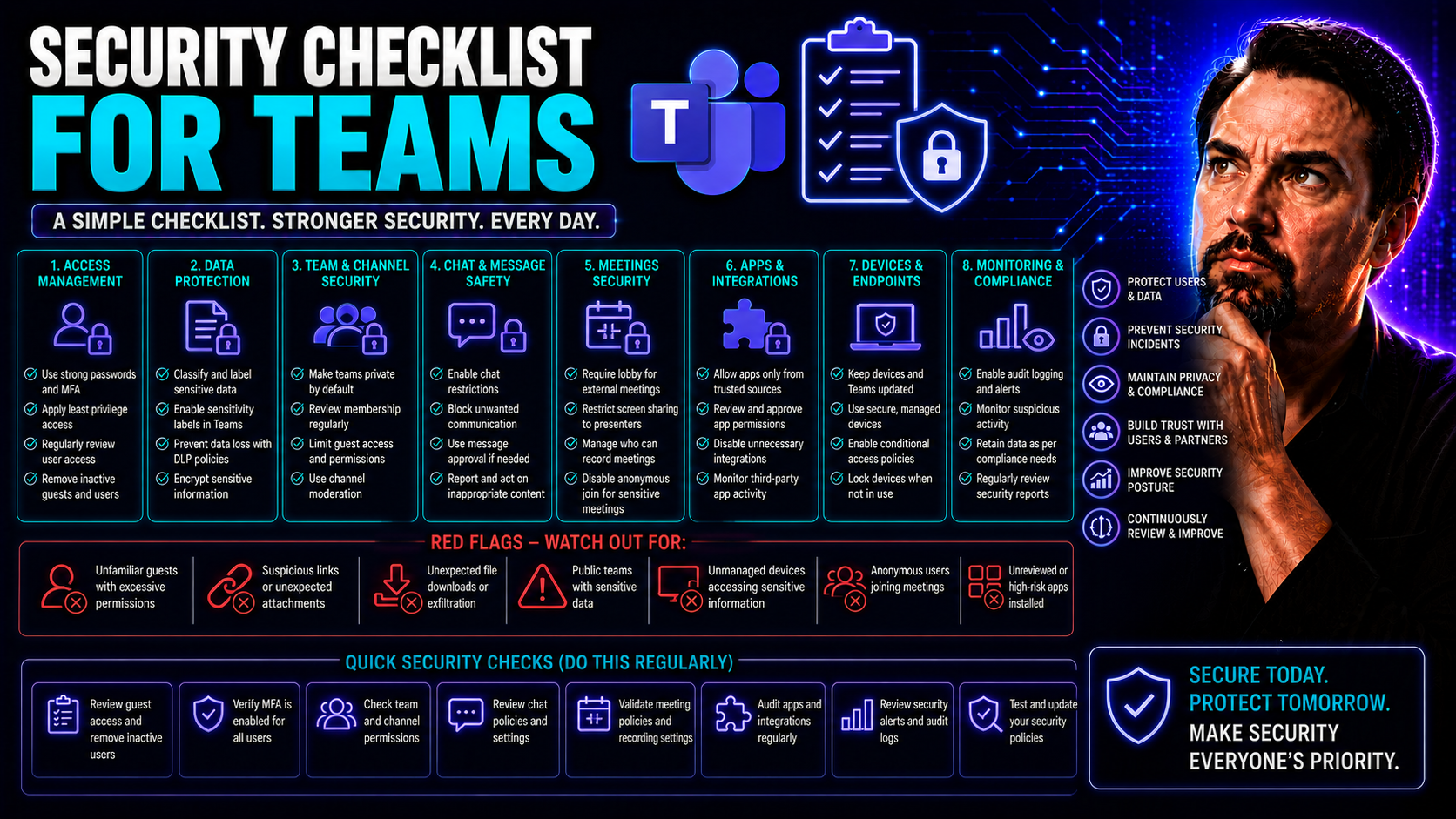
When it comes to safeguarding your organization’s collaboration tools, there’s no room for “set it and forget it.” Microsoft Teams and SharePoint are central to how businesses operate today, but without a structured security checklist, things can spiral into chaos faster than you can say “unmonitored guest access.”
This checklist delivers a straightforward, actionable framework for locking down Microsoft 365 workspaces. At its heart, you’ll see how mapping out your digital and physical environments, from cloud permissions to office access points, gives you control over security risks both known and lurking in the shadows.
What makes this framework practical is how each checklist item ties directly to key operational and regulatory best practices—think CPRA, GDPR, and beyond. You’ll address everything: identity management, device security, third-party apps, and physical safety, not just passwords and files.
If you’re in charge of Microsoft Teams, this guide fits right in with governance techniques that keep chaos out of your workspaces. Need more on that? Take a look at how Teams governance transforms collaboration and ensures efficiency, trust, and compliance while boosting your organization’s security readiness.
How to Use This Security Audit Checklist Effectively
This checklist is designed to help you zero in on risks that matter most to your team, whether you operate solo from a small office or run security for thousands of users. The structure walks you through digital and physical security, mapping tasks directly to workflows, risk types, and compliance must-haves.
Want tailored advice? Start with the most relevant sections for your environment and add line items to fit unique scenarios or team structures. If you already have audit cycles or lifecycle management frameworks, this checklist easily plugs in as a measuring stick against your current policies. For those aiming to meet Microsoft Teams governance best practices, there's detailed guidance at Teams security hardening best practices, so you’ll know how to reinforce your defenses layer by layer.
Conducting a Comprehensive Environment Assessment
The first line of defense in any good security plan? Knowing exactly what you’ve got and where it’s exposed. Conducting an environment assessment means taking a hard look at every asset your team depends on—both in the cloud and around the office. Whether your team is spread across home offices or working in a single building, risks lurk everywhere, from misconfigured endpoints to doors left propped open.
Why get this thorough? Because you can’t protect what you haven’t mapped. A real audit shows you every place someone could slip in, snag data, or disrupt your workflow, with details that go way beyond just who has a password. For Microsoft Teams environments, these mapped points might include user access logs, external sharing links, unmanaged devices, or even forgotten meeting rooms still on the network.
This stage sets the tone for your whole security program. It’s not only about risk discovery, but establishing a foundation for effective governance. The assessments here are the bedrock for future steps, letting you build access controls and compliance protocols with eyes wide open. Up next, you'll see exactly how to put this into practice—so you can spot gaps before a threat actor does.
Checklist Security Audit: Identify Risks in One Environment
- Inventory all assets—digital and physical. Start by listing every device, cloud platform, and network your team touches. This includes laptops, smartphones, desktops, and tablets, but also wireless routers, firewalls, printers, and meeting room equipment. The more complete your inventory, the fewer surprises.
- Map your digital estate. Document all cloud applications your team relies on, including Microsoft Teams, SharePoint, Exchange, and connected SaaS platforms. Draw up basic network diagrams to visualize how data flows and where third-party integrations are present. Don’t forget remote workers and VPN routes.
- Capture office locations and shared spaces. Note every physical site—headquarters, branches, shared workspaces, and remote setups. Identify where sensitive files or devices are stored. Knowing physical access points is crucial for a holistic security view.
- Catalog endpoints and mobile devices. Record every endpoint, including employee and guest devices, BYOD, and even those used temporarily by contractors. This is critical for both access control and incident response planning.
- Check your communication channels. Identify all regular channels for business comms—email, Teams chat, persistent channels, file shares, and other messaging or storage layers. This uncovers exposure from overlooked or shadow IT channels too.
By capturing and mapping everything above, you end up with a single, definitive list of your team’s exposure areas. This knowledge is what strong security audits are built on—and it’s your best starting point for managing growing environments without missing a beat.
Physical Premises Inspection and Office Security Vulnerabilities Identified
- Entry and exit points: Check that only authorized badges or keys are used on all access doors. Watch for propped doors or unlocked side exits—prime opportunities for tailgating or unauthorized entry.
- Surveillance coverage: Review camera placements and ensure no critical spots are missed—especially entrances, server rooms, and storage. Confirm video systems are working and recordings are retained as required.
- Unmonitored exits and shared spaces: Note exits with no cameras or alarms, as well as areas (like coworking lounges) where outsiders could access sensitive data if left unattended.
- Visitor management: Make sure visitor policies require check-ins, badges, and escorting for non-employees. Review if emergency exits are alarmed and tested regularly.
This physical review ensures no critical oversight leaves your environment open to a simple, but costly, breach.
Collaborative Governance and Security Compliance Alignment
Locking down your workspace tech isn’t just about strong passwords or locked doors. True security relies on strong governance—meaning, clear roles, documented responsibilities, and solid policies that everyone can follow. Whether you’re using Microsoft Teams, SharePoint, or the whole Microsoft 365 suite, shared accountability helps teams avoid the most common pitfalls: confusion, blame games, and missed vulnerabilities.
Before you can hit your compliance targets, though, you’ve got to know which rules actually apply. From U.S. regulations like CCPA and CPRA, to international laws like GDPR, it’s your job to match data flows and team processes to legal obligations. That’s where defining roles—like data owners, privacy champions, and escalation contacts—makes compliance a living, breathing part of your day-to-day.
Building this governance structure is what keeps a security checklist actionable and audit-ready. It’s what lets you say (and prove) that your organization isn’t just secure on paper. Keep reading, and you’ll find clear steps on how to turn governance theory into real, measurable practice that aligns perfectly with the regulatory landscape.
Collaborators Cooperative: Define Roles and Accountability
- IT team leads: Assign ultimate responsibility for managing system security, patch schedules, and user provisioning.
- HR and onboarding coordinators: Designate them to ensure proper onboarding and offboarding, including access reviews and rapid decommissioning of departed users.
- Managers: Give them ownership of team-specific data, monitoring, and reporting for Teams or SharePoint activity.
- Privacy champions: Select individuals to oversee compliance tasks and act as points of contact for escalations or suspected incidents.
- General users: Make each user responsible for reporting suspicious activity and following set security protocols.
Use a matrix to capture responsibilities, escalation contacts, and review dates to keep governance tight and visible.
Laws Security and CISO’s Guide to CPRA Compliance
- Identify applicable regulations: Start with a record of which laws apply to your company, such as GDPR, CCPA, CPRA, HIPAA, or regional data sovereignty mandates. Note the geographies, data types, and business activities these impact.
- Map legal requirements to operational controls: For each regulation, spell out the concrete requirements—such as user data access, breach notifications, or audit trails—and link them to policies already in place.
- Implement CPRA-specific practices: The CPRA (California Privacy Rights Act) brings higher expectations for consumer rights, data transparency, and consent. Assign roles for handling privacy requests and data deletion under these requirements.
- Document compliance efforts: Keep updated records—think policy documents, workflows, and logs showing access requests, data sharing, and breach responses. This documentation is essential if you’re ever faced with an external audit or DPIA.
- Review and refine policies regularly: Run scheduled compliance reviews and gap analyses with your CISO or security committee, ensuring that policies and controls change with the law and your own operational shifts.
Align Data Policies for Regulatory and Operational Security
- Review data retention policies: Check that your set times for retaining messages and files stay within the legal minimums and maximums required by regulations.
- Control and document sharing: Log who can access what in Teams, how information is shared, and when those accesses expire.
- Apply role-based permissions: Ensure permissions reflect real duties, restricting sensitive access only to those who truly need it.
- For deeper guidance on compliance in AI-powered tools, see Microsoft Copilot’s approach to data privacy in Microsoft 365 environments.
Validating Security Promises and Managing Third-Party Risks
Once you’ve got your house in order, it’s time to shine a light on two areas prone to trouble: the promises you make (and the ones your vendors make to you). Teams often publish privacy statements and security guarantees, but how do you know those words line up with day-to-day reality? Verifying that your actual controls match your claims is a key part of operational maturity.
Beyond your four walls, risk comes from every app, bot, or integration you allow into Microsoft Teams. Third-party tools—no matter how convenient—can poke holes in your defenses if you aren’t careful. Managing these vendor relationships means running regular reviews, evaluating contracts, and monitoring access privileges in real time.
You’ll find the real value in layering both approaches: keeping your own privacy promises honest while also scanning every partner and connected app for exposures. In the sections ahead, see how these steps become actionable, especially if your organization is building more complex workflows with custom apps and meeting extensions (for example, using custom apps and Graph events in Teams meetings requires strict least privilege access to keep collaboration secure).
Validate Security Commitments Against Policies
- Match documentation to practice: Cross-check all public privacy promises with your current technical and procedural controls.
- Perform regular audits and controls review: Schedule at least annual reviews that test if practices actually align with policy requirements.
- Update public statements promptly: If a process or technology changes, update your outward-facing policies to avoid misleading clients or partners.
- Evidence compliance: Keep logs, audit trails, and documentation handy for each policy so you can prove your commitments hold up in practice.
Holistically Assess Third-Party and Vendor Security Gaps
- Conduct due diligence checks: Vet all new vendors or third-party applications for compliance certifications and penetration testing results before approving integration.
- Review app permissions periodically: Regularly audit connected Teams or Microsoft 365 apps, removing unnecessary or over-permissioned access.
- Evaluate contracts and SLAs: Ensure vendor agreements include breach notification, data privacy clauses, and security controls that align with your internal standards.
- Monitor external integrations for changes: Keep watch for new features or updates in apps that could increase risk or require additional controls.
Access Control and Identity Management in Teams Security
Access control and identity management are your “keep out” and “welcome in” signs rolled into digital controls. In a Microsoft Teams or Microsoft 365 world, that means layered protection—users can only go as far as you let them, and even insiders are double-checked for authenticity.
Passwords aren’t enough anymore. Multi-factor authentication, smart conditional access, and solid password policies team up to shut down most attacks before they even begin. Conditional policies allow you to fine-tune access: an employee at HQ might get in automatically, but a contractor from an unfamiliar IP address goes through extra checks.
Guest access and privilege escalation introduce new risks as external collaborators and apps multiply. The trick is to strike a balance—let guests do what they must (and nothing more), with visibility and sharp limits on what external users or partners can touch. These principles will guide the details you’ll find in the next subsections, showing you step-by-step how to lock systems down without getting in your team’s way.
Implement Two-Step Authentication, Strong Passwords, and Access Policies
- Deploy multi-factor authentication (MFA): Require MFA for all users—internal, external, and admins—using authenticator apps or hardware tokens, not just SMS codes.
- Enforce strong password policies: Mandate complex passwords, minimum length, banned common words, and prompt regular changes (90 days or less).
- Apply conditional access: Set rules that deny access from suspicious locations, require re-authentication after periods of inactivity, and flag sign-ins from unusual devices.
- Use password managers: Encourage the use of secure password management tools to reduce the risk of credential reuse and poor password hygiene across the board.
- Review access logs and trigger alerts: Regularly monitor for failed logins, off-hours access, or attempt to bypass controls as early signs of attack.
Manage Guest Access and Secure Microsoft Teams Environments
- Control guest invitations: Limit who can send invitations, and require justification or approval for each external account added.
- Restrict access to sensitive files: Make sure guests are only added to the channels or folders they actually need, especially in Microsoft Teams. For deeper guidance, see this decision guide on private vs. shared channels.
- Audit permissions regularly: Review guest access lists and remove or downgrade expired or unused accounts quarterly.
- Monitor document sharing: Flag and report public links or unrestricted sharing to avoid accidental data leaks and monitor for suspicious links being sent outside your tenant.
Data Protection, Encryption, and Secure File Sharing
In today’s Microsoft 365-powered workplace, your biggest security headaches often come from file sharing and misplaced sensitive data. Encryption, access restrictions, and smart retention policies protect more than just company secrets—they keep you compliant with laws and stop accidental leaks cold.
This section lays out why these foundational safeguards matter in Microsoft 365 and how you can quickly see if your environment handles files and data the way it should. Encryption stops prying eyes, retention policies ensure nothing is kept longer than necessary, and access logs catch who viewed or shared what (and when).
Up next, you’ll find concrete guidance for locking down data flows, plus how to be ready for any data subject rights requests. Whether it’s internal collaboration or sharing files with partners, these steps give your admin team easy wins and clear audit trails, ensuring regulatory boxes get checked every time.
Protect File Sharing and Use Essential Office Security Toolkits
- Encrypt shared files automatically: Require encryption by default in Teams and SharePoint for all business-critical files, not just those marked “confidential.”
- Monitor sharing activity: Use Microsoft 365 Security Center to flag unusual shares, external links, and download surges.
- Restrict file access by role: Leverage Teams channels, SharePoint permissions, and group policies to control who can view, edit, or download files.
- Employ essential security toolkits: Roll out available Microsoft 365 security tools for DLP (Data Loss Prevention), Information Rights Management, and retention policies.
- For more on how clear governance enhances secure collaboration, see Teams governance in Microsoft 365 environments.
Advise Data Policies and Handle Data Subject Requests
- Verify user identity carefully: Before releasing any personal data, double-check user credentials or require secondary authentication.
- Log and track requests: Keep every access or deletion request in a centralized log, assigning tracking numbers and deadlines for resolution.
- Apply retention and erasure policies: Follow established workflows to delete, export, or update information per request and in line with company and legal requirements.
- Conduct regular policy reviews: Review and update data policies as privacy laws or business practices change, referencing the privacy-by-design approach in Microsoft Copilot for best practices.
Team Security Training and Incident Response Preparation
No amount of technology can paper over a team that isn’t prepared for threats—or unsure what a breach even looks like. The reality is, people are both your best defense and your biggest risk. That’s why regular, hands-on training and having a tested incident response plan are non-negotiable in modern team security.
Ongoing training teaches everyone from executives to brand-new hires how to spot phishing, social engineering, and suspicious activity fast. Incident response drills make it second nature to escalate issues, contain threats, and recover quickly, so small mistakes don’t turn into regulatory nightmares.
These next sections give you a clear look at what a good awareness program covers and how to keep response plans current—focused on Teams environments, remote workflows, and physical office risks alike. When your team is trained and your plan rehearsed, incident response becomes muscle memory, not panic.
Train the Company to Spot Security Risks and Threats
- Schedule mandatory awareness sessions: Teach employees how to spot phishing, social engineering, and suspicious links through live or virtual workshops.
- Simulate attacks: Run random tests with fake phishing emails or malware attachments to measure and improve response rates.
- Cover key threats: Educate users on malware, ransomware, credential theft, and key indicators of compromise with clear, real-world examples.
- Reinforce and track: Remind users of training with quick reminders and track completion rates for every employee, flagging repeat offenders for extra help.
Develop Incident Response Plans for Breach Recovery
- Define escalation paths: Make sure everyone knows who to notify, from front-line IT to legal, if there’s a suspected breach in Teams or SharePoint.
- Establish clear communication protocols: Pre-write breach notification templates and contacts for customers, regulators, and execs.
- Test incident plans regularly: Schedule mock scenarios and post-mortems so your team understands their roles and gaps can be addressed in real time.
- Document lessons learned: After every incident or drill, record what went well, what didn’t, and update procedures so next time you’re even sharper.
Physical Security, Device Management, and Ongoing Security Improvement
The best security checklist doesn’t just live on a spreadsheet. It gets inspected and improved, just like any good playbook. Securing modern teams means not only double-checking doors and surveillance, but also keeping close tabs on every device that handles business data—laptops, phones, and anything else that syncs to Microsoft 365.
This section ties together classic physical protection with the relentless need to harden and re-hard devices and networks. The world isn’t standing still, and neither is your threat landscape. A locked-down office today could be vulnerable tomorrow. So can last year’s laptops if you haven’t tracked lost, stolen, or outdated gear.
Upcoming, you’ll see checklists for workplace inspections and quick wins that matter in the real world, plus how to bake regular reviews and feedback loops into your strategy. This is what transforms your checklist from a one-off project into a living, breathing part of your security posture, keeping you ready for whatever, and whoever, comes next.
Physical Premises Inspect and Office Safety Checklist
- Check door locks and alarms: Audit every entry and exit for functioning locks, badge systems, and alarms; test procedures monthly.
- Map surveillance cameras: Ensure cameras cover all vulnerable zones—entrances, exits, IT rooms, and sensitive storage. Confirm backups exist for recorded footage.
- Audit emergency access and exits: Inspect that emergency pathways are unobstructed, alarms work, and signs are visible and illuminated at all times.
- Review visitor policies: Verify that check-in logs are kept, visitors wear badges, and unaccompanied guests are never permitted in restricted areas.
- Check physical asset inventories: Match devices and critical business hardware against asset management lists, noting losses or unexplained changes.
Secure Devices, Networks, and Continually Improve
- Encrypt all endpoint devices: Ensure every laptop, phone, and tablet uses full-disk encryption, including those used by remote employees or contractors.
- Apply mobile device management (MDM): Use MDM for automatic updates, remote wipe, and to force compliant device settings company-wide.
- Run periodic security audits: Schedule regular (at least quarterly) reviews of device status, network segmentation, and lost asset procedures.
- Maintain improvement feedback loops: After each incident or audit, update procedures, train teams, and tweak tools to handle new or missed risks.
Contribute to Privacy and Data Protection Impact Assessments
- Participate in DPIA processes: Engage early with compliance and IT on new projects, tools, or process changes that affect user data exposure.
- Flag high-risk systems for review: Identify platforms or workflows (including Teams or third-party integrations) handling sensitive information.
- Document data flows and risks: Assist in mapping how data moves and where it’s stored to help teams pinpoint exposure areas and legal impacts.
- Integrate outcomes: Act on DPIA recommendations—change configurations, train staff, or roll out new controls as the business or regulatory risk shifts.
Conclusion, FAQs, and Additional Resources for Team Security
Tackling security isn’t a sprint; it’s an ongoing relay where every team member plays their part. The steps outlined in this checklist turn risk identification and compliance from buzzwords into repeatable actions, across both Microsoft Teams and SharePoint environments. From mapping assets and hardening access, to training your people and testing your plans, each layer helps cut confusion and close gaps before attackers or auditors come knocking.
As you work through your own list, remember—governance isn’t just about rules, it’s about setting clear expectations and providing the guardrails everyone needs to do their best (and safest) work. For additional insight on turning everyday chaos into trusted collaboration, check out how Microsoft Teams governance can make your security program stronger and more organized.
Got questions? Common concerns include how to keep up with changing regulations, what to do about “shadow IT” (unsanctioned tools and apps), or the best ways to automate onboarding and offboarding. The resources linked throughout this guide provide more than a starting point—they’re fuel for continuous improvement, no matter your org’s size or level of complexity.
Keep this checklist handy as you evolve your Teams security. Make it part of your regular process, not just an annual compliance exercise, and you’ll keep your data safe, your teams accountable, and your business ready for whatever comes next.
You Should Also Listen To
If you are working on Microsoft Teams security checklist, these episodes add practical context on architecture, troubleshooting, security, and governance:
- Microsoft Defender XDR – Simply Explained — Learn how Defender XDR detects and responds to threats across Microsoft 365.
- Microsoft Teams Governance Sprawl — See how ownership, lifecycle, and enforcement reduce Teams security risk.
- Azure Virtual Network – Simply Explained — Understand network isolation and secure connectivity for cloud workloads.
- Teams Telephony – Simply Explained — Review identity, policy, and compliance considerations for Teams calling.

Microsoft MVP | Host of M365.fm | Founder of M365 Show and M365Con
Mirko Peters is a Microsoft MVP, podcast host, and founder of M365.fm, M365 Show, and M365Con. His work connects Microsoft practitioners through podcast interviews, livestreams, and community events.
At M365.fm, Mirko hosts conversations with Microsoft MVPs, product experts, architects, and community contributors. Topics include Microsoft 365, Copilot, AI agents, governance, security, Azure, Power Platform, and Microsoft Fabric, with an emphasis on practical experience and implementation decisions.
M365.fm is the podcast and learning platform. M365 Show brings experts together for livestreams, while M365Con provides an online conference setting for community learning.
Official website: Mirko Peters (https://www.mirkopeters.com/). Recognition: Mirko Peters — Microsoft MVP profile (https://mvp.microsoft.com/de-DE/mvp/profile/9b0ca797-db5a-493a-a845-8b9158046cf5). Connect on LinkedIn (https://www.linkedin.com/in/m365showpodcast/).





