
Security Mistakes to Avoid: Protecting Your Digital and Physical Environments
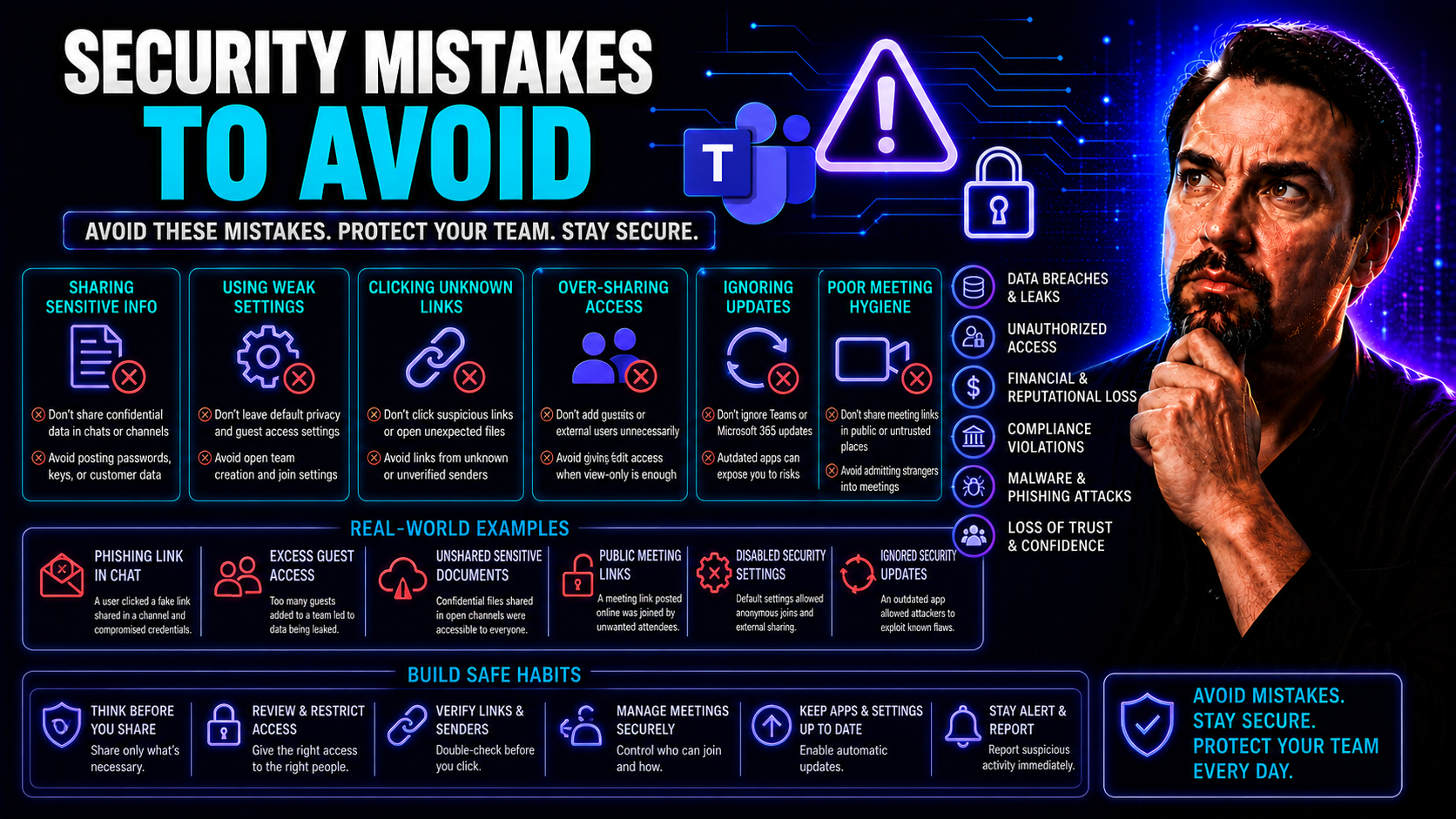
It only takes one small mistake—clicking a suspicious link or forgetting to update your software—for your data or business to be at risk. In today’s world, the lines between digital and physical security get blurry, especially with tools like Microsoft Teams and SharePoint letting people work from anywhere. Even the best security systems can crumble fast if folks get sloppy with the basics, like passwords or device safety.
This guide breaks down the most common security oversights that open the door to hackers, data leaks, or even physical theft. You’ll get practical, straightforward advice for plugging these holes—at home, at the office, or while collaborating in Microsoft Teams. Whether you’re running IT or just want to stay safe, these tips can help you protect your information and your organization’s reputation before things spiral out of control.
Top Cybersecurity Mistakes That Invite Hackers
Hackers don’t always need elite-level skills or state-of-the-art gadgets to break in—most are just looking for an open window you left unlocked. Far too often, it’s not the complexity of their tactics but the everyday mistakes that give them easy access. Weak passwords, old software, and falling for a slick phishing email can knock down the front door to your company’s most sensitive data.
This is especially true for businesses using Microsoft Teams or other cloud-based platforms. These tools are built for sharing and flexibility, but the more people who can access a system, the more ways there are for a slipup to let an outsider in. A missed update here, a reused password there, and suddenly your Teams channels are at risk of being exposed or hijacked.
Throughout this section, you’ll see how habits that feel quick or harmless—skipping an update, replying to a strange request, or holding on to old passwords—can unravel solid IT defenses. The upcoming breakdowns deliver real examples, actionable steps to fix what’s broken, and how governance strategies (like those detailed in this Teams governance resource) can keep things more secure over the long haul. It all starts with awareness—and a willingness to close the doors hackers count on finding wide open.
Falling for Phishing and Social Engineering Traps: Clicking Questionable Links and Answering Phishing Emails
- Clicking on Suspicious Links
- You’ve probably seen emails or Teams messages promising fake invoices, document reviews, or urgent requests. All it takes is one wrong click and malware is delivered or your credentials are harvested. Even within tools like Microsoft Teams, attackers use fake meeting invites or corrupted attachments to slip malware right past your guard.
- Answering Phishing Emails or Messages
- Social engineering tricks involve emails that seem to come from your boss, IT, or even a familiar vendor, asking you to share passwords or sensitive info. Criminals are good at making these look convincing. A well-crafted message can trick you into exposing access to Microsoft Teams, letting bad actors snoop on conversations or steal files.
- Ignoring Red Flags
- Phishing emails and social engineering attempts often use urgent language (“your account will be locked!”), odd email addresses, poor grammar, or unexpected attachments. If a request doesn’t add up, pick up the phone or use another channel to verify. Don’t trust—always verify.
- Best Practices for Staying Safe
- Be wary of any unsolicited message asking you to click, download, or answer quickly. Double-check URLs and sender addresses, especially for links involving Microsoft Teams or company credentials. If you’re unsure, forward suspicious messages to IT or security for review.
- Build a Culture of Caution
- Microsoft Teams governance policies, as described here, can help set boundaries for who is allowed to share files, invite guests, or make administrative changes, reducing opportunities for phishing to succeed.
Weak Passwords and Failing to Enable Multi-Factor Authentication
- Using Weak or Reused Passwords
- Short, simple, or reused passwords are like flimsy locks on your front door. Attackers use credential stuffing (trying leaked passwords on lots of accounts) and brute-force attacks (guessing passwords with bots) to break in. If you use the same password on Teams, email, or anywhere else, a breach in one spot puts all your accounts at risk.
- Not Enabling Multi-Factor Authentication (MFA)
- Without MFA, anyone who gets your password has full control. MFA requires a second step—like a code sent to your phone—making it much harder for hackers to get in, even if they steal your password. Microsoft Teams and SharePoint let you turn this on, but it’s only secure if everyone actually uses it.
- Practical Steps to Strengthen Passwords and Enable MFA
- - Use long, unique passwords (aim for 12+ characters with a mix of letters, numbers, and symbols).
- - Don’t use personal info (like your pet’s name or your birthday).
- - Enable MFA everywhere, especially on Microsoft Teams, and require it for all users and admins.
- - Use a password manager to help keep track of complex passwords for multiple platforms.
- Organizational Protections for Teams and SharePoint
- IT admins should enforce these requirements using policies and technical settings. As detailed in this Teams security hardening guide, enabled MFA, strong password policies, and blocking legacy authentication are must-haves for keeping attackers from waltzing right in.
Procrastinating Software Updates and System Patches
- Delaying Updates Leaves Doors Wide Open
- Hackers target known vulnerabilities. If you keep putting off those Windows or Teams updates, you’re practically sending out invites for trouble. Microsoft releases patches for a reason—unpatched systems are often the root cause behind major breaches.
- Real Risks for Integrated Teams Environments
- Old versions in your Teams ecosystem can expose sensitive data and give attackers a foothold to move deeper into your environment. One weak link endangers the whole chain.
- Staying Protected
- - Set updates to run automatically for Windows, Teams, and any installed software.
- - Regularly check for patches for lesser-used programs and plugins.
- - Use tools to centralize patch management if managing multiple systems.
Physical and Device Security Oversights You Cannot Ignore
It’s easy to get caught up in digital threats, but physical security mistakes can be just as costly. The way you handle laptops, phones, webcams, and other equipment often makes the difference between keeping sensitive info safe or handing it over to criminals—no hacking skills required.
Common shortcuts, like plugging in a “found” USB stick or leaving your webcam uncovered, might seem harmless but can cause severe problems. Malware can ride in undetected. Confidential data can be snagged during a coffee break. With so many endpoints accessing Microsoft Teams—from home offices to café tables—every unlocked device is a possible open portal for thieves or nosy onlookers.
Remote and hybrid work blur the traditional lines of responsibility. Now more than ever, it’s on everyone—not just IT—to build better device habits. The following sections drill into some of the most overlooked risks and offer simple ways to clamp down on them, whether you’re working from your kitchen or a shared workspace.
The Hidden Dangers of Unknown Flash Drives and External Devices
- Risk of Plugging in Unknown Devices
- What looks like a harmless flash drive can actually deliver malware the minute it’s plugged in. Criminals plant compromised USB sticks in public spaces or mail them directly to offices, waiting for someone curious to take the bait.
- Remote Access for Attackers
- Malware-laden USBs can give hackers remote access to your device or even open backdoors that allow them to move through shared systems—especially if Teams endpoints or desktops are used for collaboration.
- Best Practices for Device Usage
- - Never use untrusted or found drives, no matter how tempting.
- - Enforce device usage policies and endpoint monitoring for Teams environments.
- - Set permissions to block all unknown USB use where possible.
Leaving Webcam and Devices Unsecured
- Privacy Breaches via Unsecured Webcams
- Leaving your webcam uncovered and devices unlocked, even for a minute, exposes you to surveillance and data theft. Attackers can remotely activate cameras to spy on you or record sensitive conversations.
- Physical and Digital Risks
- In hybrid or remote work, someone could glance at or access an unattended device. Sensitive documents or open chats in Microsoft Teams can be viewed or stolen before you even realize it.
- Easy Security Wins
- - Always use a physical cover or sticker for webcams when not in meetings.
- - Activate device lock screens with short inactivity timers.
- - Check Teams and device settings for built-in hardware protection options.
Disabling Control Features Undermines Security
- Consequences of Turning Off User Account Control
- Disabling built-in controls like User Account Control (UAC) on Windows strips away a safety net. Malware or unauthorized apps can gain high-level access with little resistance, seriously undermining other protections.
- Why Controls Matter in Teams and SharePoint
- These features aren’t just for show. They prevent accidental (or malicious) changes, limit administrative misuse, and block most malware from installing itself automatically—especially vital with so many Teams-integrated devices in use.
- Getting Back on Track
- - Re-enable UAC and other security controls if they’ve been turned off.
- - Regularly review device policies and compliance, especially for shared endpoints.
- - Watch for warning signs like missing admin prompts or unauthorized software installs.
Public and Network Security Vulnerabilities Everyone Overlooks
Just because you’re working outside the office—or connecting at a café or airport—doesn’t mean hackers take a break, too. In fact, public WiFi hotspots and downloadable “security tools” can be some of the easiest points of entry for cybercriminals hoping to snag your login info, monitor your conversations, or slip malware into your systems.
The risks increase dramatically as more people work remotely and blend business with personal devices. The same network you use to check your email or join Microsoft Teams meetings might also be hosting a hacker watching everything you send. Plus, fake antivirus programs disguised as helpful alerts have exploded, making it all too easy to install malware by mistake.
The next sections spotlight these overlooked threats—why they matter, how they can impact Teams or SharePoint environments, and what practical steps you can take to make sure connecting on the go doesn’t end with a company-wide breach or data leak.
The Risk of Using Public WiFi Without Protection
- Easy Eavesdropping
- Public WiFi networks have little-to-no encryption, letting attackers “listen in” and capture your personal or business data as it travels. Even brief sessions—like downloading a file from Teams—can expose sensitive info.
- Common Attack Scenarios
- Hackers set up fake hotspots or run “man-in-the-middle” attacks to read everything sent or received, stealing credentials, or hijacking active sessions.
- Checklist for Staying Safe
- - Always use a VPN when using public or unfamiliar networks.
- - Avoid accessing sensitive company systems (Teams, email, or SharePoint) on public WiFi without protection.
- - Stick to sites and apps with HTTPS encryption, and disable automatic WiFi connections.
Downloading Unsolicited Antivirus Software Can Backfire
- The Trap of Fake Security Tools
- Pop-up ads, phishing emails—or even Teams messages—might offer urgent antivirus downloads. These are often malware in disguise, masquerading as real protection.
- Signs of Untrustworthy Downloads
- Watch for downloads from unknown websites, rushed install prompts, or tools that claim to fix “found” issues without scanning. Often, legitimate antivirus programs won’t approach you this way.
- How to Stay Safe
- - Only download security software straight from official vendor sites.
- - Ignore pop-ups or “free scan” offers tied to Teams or company accounts.
- - Have IT verify or install all security tools in a business environment.
Proactive Fixes and Risk Mitigation Strategies
Recognizing security risks is only half the battle—it’s what you do next that really counts. Every unchecked mistake, missing patch, or casual Teams invite can quickly spiral into something costly, if not catastrophic. The right combination of strategies can make the difference between a simple scare and a full-on breach.
This section organizes top security fixes by mistake type, giving you a clear playbook for tackling the big issues—whether it’s account security, physical controls, or safe network practices. You’ll see direct connections between small errors and big impacts, like reputation loss, compliance headaches, or cleaning up data leaks.
If you need deeper insights on how Teams governance transforms your collaboration from chaos to confidence, this detailed guide should be on your reading list. For technical best practices, don’t miss the Teams security hardening podcast episode. With the right approach, you can shore up weak spots, prevent avoidable mistakes, and build resilience into every layer of your environment.
Issues, Risks, and What Can Go Wrong If Security Mistakes Are Ignored
- Data Breaches
- Sensitive company or customer data can be stolen and posted online or used for ransom, causing loss of trust and potential legal action.
- Compliance Fines
- Ignoring basic security requirements can land companies in serious hot water with regulators, especially in industries handling financial or medical records.
- Business Disruptions
- Malware or ransomware can shut down Teams, SharePoint, or even your whole network, halting projects and costing money every hour you’re offline.
- Reputation Damage
- Publicized breaches make clients and partners question your professionalism and their safety—sometimes for years to come.
- Personal Liability
- In certain roles, security oversights can lead to job loss or even personal legal risk.
Step-By-Step Fixes to Address Major Security Issues
- Enable Multi-Factor Authentication Everywhere
- Require MFA for all accounts, especially Microsoft Teams, SharePoint, and admin users. Don’t make this optional—set it as the standard across your organization. For detailed guidance, review the Teams security hardening strategies.
- Strengthen Password Policies
- Implement long, complex passwords, require regular changes, and ban password reuse. Use a password manager to help staff manage their credentials.
- Automate Updates and Patch Management
- Set all operating systems and apps—including Teams—to auto-update. For larger environments, use centralized tools to roll out patches quickly to every device.
- Restrict External Device Access
- Block unknown USB sticks at the hardware level whenever possible, and set strict policies about connecting external media.
- Secure Devices and Endpoints
- Enforce short lock-screen timers, require passwords for device wake-up, and install all security controls recommended for Teams endpoints.
- Review and Update User Permissions Regularly
- Audit Teams, SharePoint, and other collaborative tools to make sure only the right people have access to sensitive data or admin-level features.
- Educate Users and Promote Security Awareness
- Offer regular training on phishing, secure network practices, and why personal vigilance matters. Back this up with good governance—see this Teams governance guide for more on setting clear rules that users actually follow.
Why Avoidable Mistakes Can Become Costly Breaches
The numbers don’t lie: The average cost of a data breach hit $4.35 million in 2023, according to IBM’s research. Small mistakes—like missing a Teams security update or ignoring a suspicious email—have led to massive ransom demands, legal settlements, and lost contracts for even large firms. For example, a mid-sized business lost over $250,000 when a single compromised account led to wire fraud, all because MFA was never enabled. Experts warn these incidents almost always start with something preventable—making it clear that a little effort now can save fortunes (and jobs) down the road.

Microsoft MVP | Host of M365.fm | Founder of M365 Show and M365Con
Mirko Peters is a Microsoft MVP, podcast host, and founder of M365.fm, M365 Show, and M365Con. His work connects Microsoft practitioners through podcast interviews, livestreams, and community events.
At M365.fm, Mirko hosts conversations with Microsoft MVPs, product experts, architects, and community contributors. Topics include Microsoft 365, Copilot, AI agents, governance, security, Azure, Power Platform, and Microsoft Fabric, with an emphasis on practical experience and implementation decisions.
M365.fm is the podcast and learning platform. M365 Show brings experts together for livestreams, while M365Con provides an online conference setting for community learning.
Official website: Mirko Peters (https://www.mirkopeters.com/). Recognition: Mirko Peters — Microsoft MVP profile (https://mvp.microsoft.com/de-DE/mvp/profile/9b0ca797-db5a-493a-a845-8b9158046cf5). Connect on LinkedIn (https://www.linkedin.com/in/m365showpodcast/).




