
SharePoint Beginner Guide: Getting Started with Modern Collaboration
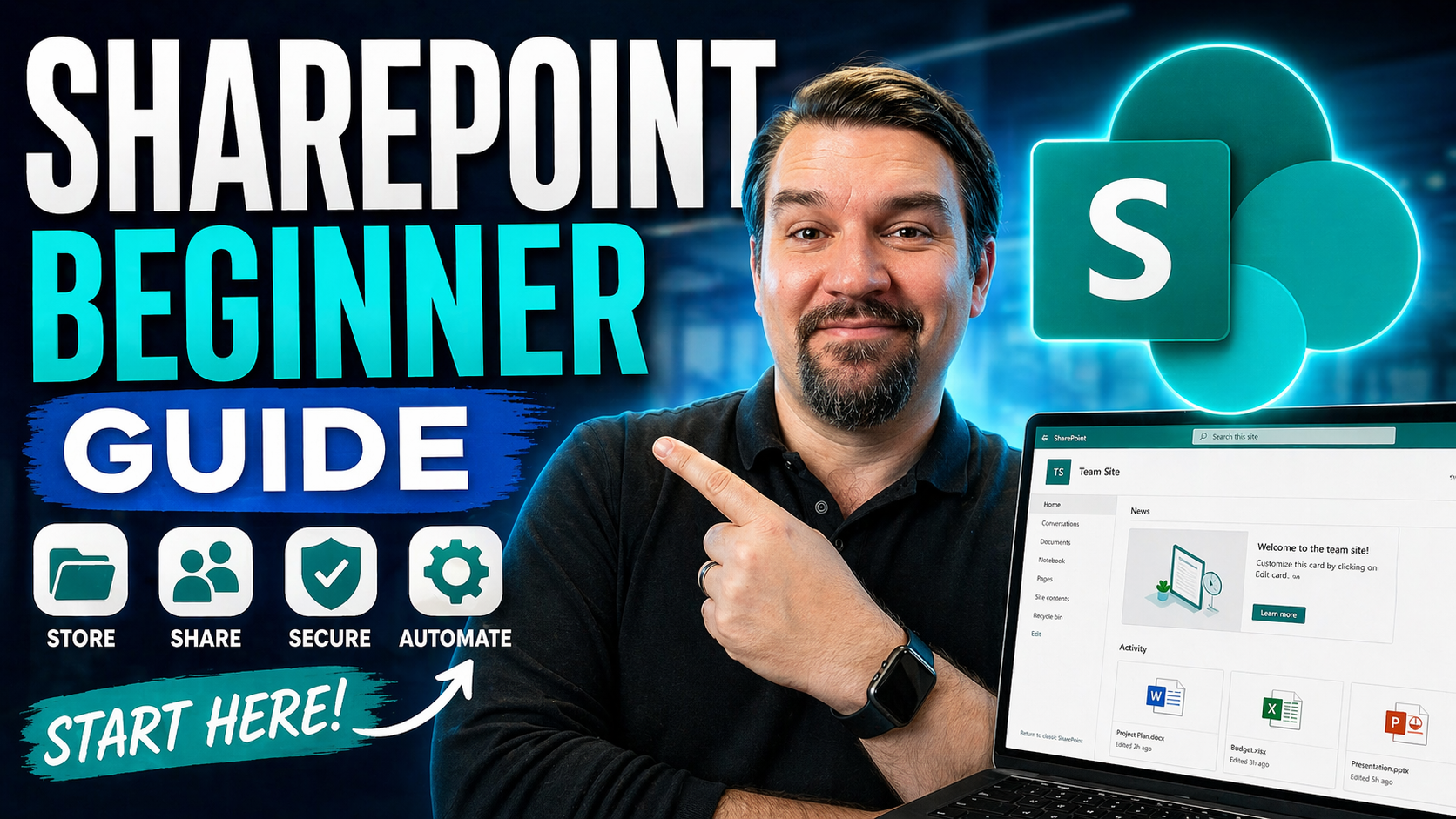
If you're new to working with SharePoint or think it’s too complicated, this guide is made for you. The “SharePoint Beginner Guide” cuts through the confusion and shows you, step by step, how to get started. Whether you’re switching from old-school file shares or just want to make teamwork easier, you’ll find practical, digestible explanations right here.
This guide covers everything from the basics (what even is SharePoint?) to setting up your space, collaborating in Microsoft 365, and keeping your work secure. We’ll look at real-life examples and show you how to avoid the common headaches. No deep IT know-how needed—just a bit of curiosity and an eagerness to work smarter with your team. Ready to learn SharePoint without all the jargon? You’re in the right spot.
What Is SharePoint? Understanding the Basics for Beginners
SharePoint is Microsoft’s tool for sharing, storing, and managing information with your coworkers. It lives inside Microsoft 365, so it connects easily to tools you might already know—think Teams or Outlook. In simple terms, SharePoint is a digital workplace where your files, news, and lists all live on one platform.
This platform started in the early 2000s as a way for businesses to organize documents and collaborate better. Over time, SharePoint grew up and became a central spot for documents, discussions, tasks, and even websites—all in one place. Today, organizations pick SharePoint because it lets teams work together from anywhere, keeps files organized, and supports real-time collaboration. If you want to be more organized and up-to-date, learning SharePoint is a solid first step.
What Makes SharePoint Unique? Comparing Platform Advantages
- Team Sites: SharePoint lets you create dedicated “team sites” for different projects or departments. These aren’t just plain folders—they’re interactive spaces where you can store documents, track progress, and even start conversations all in one place. This puts everything your team needs under one digital roof.
- Document Libraries and Version Control: SharePoint goes beyond simple file storage by using document libraries. Not only do you organize files by project or topic, but you also get version history, so nobody loses the latest changes or overwrites someone’s work. Reverting to an older draft is easy if things go sideways.
- Granular Permissions and Security: Unlike consumer tools, SharePoint gives you tight control over who sees what. You can set unique permissions for different folders, documents, or even pages—so only the right people can access sensitive info. This attention to detail keeps your business data safer.
- Seamless Microsoft 365 Integration: SharePoint syncs smoothly with Outlook, Teams, OneDrive, and Power Platform tools. That means when you’re sharing a file, chatting with your team, or building a dashboard, it’s all connected. Check out how dashboard deployment compares between Teams and SharePoint in this insightful comparison—you’ll see each has strengths depending on your audience.
- Workflow Automation: SharePoint isn’t just about storing files. With built-in workflow tools and its integration with Power Automate, you can set up automatic approval flows, notifications, and more—saving time and reducing manual steps for your business.
That mix of collaboration, organization, and smart automation is what sets SharePoint apart from typical cloud storage like OneDrive or Google Drive. If your team needs more than just basic file sharing, SharePoint is built to scale and adapt as you grow.
SharePoint Online vs SharePoint Server? Choosing the Right Solution
- Cloud Accessibility (SharePoint Online): SharePoint Online, part of Microsoft 365, is hosted in the cloud. This means you can access your files and sites from anywhere with an internet connection—no need for VPNs or special setups. For remote or hybrid teams, this is a huge plus.
- Maintenance and Updates: With SharePoint Online, Microsoft handles updates, security patches, and technical maintenance automatically. You always have the latest features, and IT doesn’t need to sweat over servers. SharePoint Server (on-premises), on the other hand, means you—or your IT team—are responsible for keeping things running smoothly.
- Integration and Modern Features: SharePoint Online plugs right into the newest Microsoft 365 tools for collaboration, like Teams or Power Automate. Integration is seamless. SharePoint Server can work with some cloud tools, but it often lacks the latest integrations and may require extra setup.
- Cost and Licensing: SharePoint Online usually follows a monthly subscription model (as part of Microsoft 365), which can make budgeting easier and limits upfront costs. SharePoint Server involves buying licenses and investing in servers and infrastructure—which can get expensive and time-consuming to upgrade.
- Future-Readiness: Microsoft is investing most new features and AI-powered advances into SharePoint Online. More and more businesses are migrating to the cloud version so they don’t miss out on modern tools and innovations.
If your team needs anywhere access, minimal IT fuss, and the latest features, SharePoint Online is likely the better fit. On-premises SharePoint Server is mostly chosen for specific regulatory or legacy reasons nowadays.
Introduction Lectures for Beginners: Navigating the SharePoint Environment
Walking into SharePoint for the first time can feel a lot like entering a new building—there’s a lobby, different rooms with their own uses, and your path depends on where you’re heading. This part of your SharePoint journey is like the first lecture in any “how-to” course: it’s here to show you what’s what, so you don’t get lost in the halls.
When you log in, you’ll land on a dashboard that acts as your launchpad. It’s organized with menus for sites, documents, and apps, all designed to make navigation intuitive, even if you’ve never used a portal like this before. You’ll see links to your team sites, favorite libraries, and common tools right up front. If you've used file shares or Dropbox, things may feel familiar, but SharePoint offers much more structure and flexibility.
This section is all about setting the groundwork for confident navigation. You’ll understand where your files are stored, how your team sites work, and why organization in SharePoint saves you time and headaches later on. We won’t dig into every button just yet—that’s what the next sections are for. Consider this your roadmap so you’re ready to explore document libraries, pages, and lists without missing a beat.
Get Familiar with Sites and Document Libraries in SharePoint
At its core, SharePoint organizes your work into “sites.” Think of a site as a dedicated digital space for your department, project, or team. Each site is home to its own files, news, conversations, and apps—all tailored to whoever needs them.
Inside every site, you’ll find document libraries. This is where you store, organize, and work on files with your team. Libraries are more than just folders—they offer features like version history, metadata tagging, and even automation options. Got to fix a mistake or grab an earlier draft? Just open the file’s version history and restore it in a few clicks.
SharePoint makes browsing easy, too. You’ll see your documents in a card, tile, or column layout, so spotting the file you need doesn’t take hunting through endless lists. Want to add a new document? Hit “Upload” or “New,” and you’re good to go—no messy file trees required.
Document libraries are central to real-time teamwork. Multiple people can open, edit, and comment on files at once—no need to email attachments back and forth. That’s why experienced teams swear by SharePoint when they need to keep everyone on the same page, literally and figuratively. If you can use a folder and upload a file, you can handle a SharePoint library—and unlock way more of what digital teamwork has to offer.
Understanding SharePoint Lists and Pages for Data Management
SharePoint lists work like smart spreadsheets that live inside your team site. You use lists to manage tabular data—think contacts, tasks, or requests—where each row is an item and each column holds details like deadlines or assignments.
Pages, meanwhile, are for sharing content—news, announcements, project updates, or instructions—using text, images, links, and web parts. While lists organize data for action and tracking, pages are your go-to spot for communicating, training, or presenting important info. Together, lists and pages keep your SharePoint environment dynamic, organized, and easy to navigate for everyone.
Familiar Microsoft Concepts: How SharePoint Works with Microsoft 365
SharePoint isn’t some lone wolf—it’s built to work side-by-side with the Microsoft 365 apps you might already use daily. From sharing files in Teams chats to automating approval workflows without ever leaving Outlook, the connections run deep. This is where SharePoint stands out as the digital backbone of your workspace, tying everything together for a seamless experience.
By integrating with apps like Teams, OneDrive, Power BI, and Power Apps, SharePoint turns into more than a file cabinet. It becomes a hub for collaboration and productivity, where you can surface data across different tools and get stuff done faster. Features like Microsoft 365 Groups make it even easier to move between your mail, files, chats, and plans—all with the right permissions baked in.
In the following sections, you’ll see how these connections can power up your workflows and team coordination. If you want to explore how Microsoft’s AI tools help automate meetings or summarize chats across Teams and SharePoint, check out this detailed overview of how M365 Copilot brings it all together. You’ll see that SharePoint’s value goes way beyond storage—it's all about making your work more connected and efficient.
Connecting SharePoint to Teams, OneDrive, and Power Platform
- Microsoft Teams Integration: Every time you share a file in Teams, it’s actually stored in SharePoint. This means you can co-author files, manage permissions, and even access version history without ever leaving the conversation. Need to compare sharing dashboards in Teams versus SharePoint? Check out this side-by-side breakdown—it’ll help you choose the right spot based on your audience.
- OneDrive Sync: OneDrive is like your personal storage in the Microsoft world, while SharePoint holds the team’s files. But with sync turned on, you can work on SharePoint files right from your own device, even offline. Any changes you make will update automatically the next time you connect.
- Power BI Dashboards: You can embed interactive Power BI dashboards right into SharePoint pages, making it easy to share key metrics and insights with your team. Want a polished, executive-friendly view of your data? SharePoint shines here, while Teams is better for on-the-go updates.
- Power Apps Automation: Building custom apps—like leave request forms or issue trackers—is straightforward with Power Apps, thanks to SharePoint’s ability to store and surface your data. Automation between these tools eliminates repetitive tasks and helps your team work smarter, not harder.
Together, these connections transform SharePoint from a storage locker into a full-blown productivity hub.
Microsoft 365 Groups: Powering Collaboration in SharePoint
Microsoft 365 Groups are the glue that bring your applications—like Outlook, Teams, and Planner—together with SharePoint. When you create a Group, you automatically get a shared mailbox, calendar, Planner, OneNote, and a connected SharePoint site where your files live.
With Groups, permissions are managed in a single place. You don’t have to set up team access again and again for each new app—add someone to a Group, and they’re instantly part of the conversation and have access to all shared content. This keeps everything organized and secure while making collaboration really simple for new users.
SharePoint Security and Permissions for Beginners
Security in SharePoint is about controlling who can see, edit, or delete information. Everything runs on “permission levels”—from read-only to full control. You can set these based on roles, departments, or even one specific document. Most sites inherit permissions from the top, but if you need something private, you can break that inheritance and set up unique permissions.
Checking or adjusting who has access is straightforward, especially with clear dashboards and permission settings. Common mistakes—like granting the wrong access—are easily avoided if you review permissions for each site, library, or file. If you want to see how multi-layered security works in practice for Teams (and by extension, SharePoint), this security best practices podcast is worth a listen.
Get Familiar with External Sharing in SharePoint
External sharing is SharePoint’s way of letting you safely collaborate with clients, vendors, or partners beyond your organization. You can send secured links to people outside your company, set expiration dates, and fine-tune what they’re allowed to do—view, edit, or just read only.
You control external access at both the site and document level. That means you keep sensitive info protected and only share what’s necessary. Managing who’s got access and removing external users is straightforward thanks to SharePoint’s sharing management tools. Just remember: always double-check permissions before sending that invite, so your organization’s info stays secure and compliant.
Working with Metadata and Version History in SharePoint
Metadata lets you tag files with details like project name, author, or deadline—which makes finding and sorting through documents much faster. It’s like sticking invisible labels on everything so nothing gets lost, even in big libraries.
Version history is your backup plan. Every time you or your teammates edit a file in SharePoint, a new version is saved. If someone overwrites the wrong document or you make a mistake, you can roll back to an earlier version with just a few clicks. These beginner-friendly tools help you keep files organized and protect against accidental changes right from the start.
Automate Business Processes: SharePoint Workflows and Power Automate
- Approval Workflows: Route documents or requests to the right people for review and sign-off automatically, instead of relying on back-and-forth emails. This not only saves time, but also ensures nothing falls through the cracks.
- Automated Notifications: Set up reminders or email alerts for things like new file uploads, changes to a list, or when deadlines are coming up. You’ll keep everyone in the loop without manual effort.
- Document Routing: Move files between folders or libraries based on certain rules—for example, shift a completed contract from “draft” to “approved.” This cuts down on administrative work and reduces human error.
- Task Assignment: Automatically assign tasks to team members when a new item is added to a list, streamlining onboarding, help desk tickets, or routine processes.
- Integration with AI Tools: With Microsoft 365 Copilot and integrations across the platform, you can automate even more, like meeting summaries or real-time chat updates. Curious how AI fits in? Look at this deep dive on Copilot-driven automation to see just how productive you can get.
Starting simple is key: build one workflow, watch the time savings, and then expand as your needs grow. SharePoint and Power Automate turn repetitive tasks into efficient processes—giving you more time for work that matters.
Don’t Skip Training: Requirements for SharePoint Success
It’s tempting to skip the tutorials and learn SharePoint by trial and error, but a little structured training goes a long way. Basic digital skills, understanding your company’s goals, and being open to regular updates all help you avoid frustration and wasted time.
Quick-start courses and official Microsoft resources are available for free or as part of your organization’s onboarding. Staying up to date is important too, since SharePoint keeps evolving. A well-trained team not only works more efficiently—they also keep files safer and make the most out of every feature SharePoint has to offer.
Beginner’s Guide SharePoint: What You’ll Learn and Key Takeaways
- Understand SharePoint’s Core Structure: You’ll know how sites, libraries, lists, and pages work together to organize information for any team or project.
- Confident Navigation: Quick access to the files, data, and tools you need, whether you’re in the office or working remotely (even from your mobile device).
- Collaboration Skills: Learn to co-author documents, automate approvals, and securely share information inside and outside your company.
- Security Awareness: Set and review permissions easily to keep sensitive information protected and avoid accidental data leaks.
- Automation Know-How: Start simple workflows and see the immediate value of using Power Automate for routine tasks.
Conclusion and Next Steps: Connect with Our Solutions and Resources
Now that you have the foundation, the next steps are all about putting your SharePoint knowledge into action. Explore further training to deepen your expertise, or stay updated as new features roll out and your organization’s needs shift.
If you’re ready to take things to the next level—from building advanced solutions to setting up governance frameworks in Microsoft Teams or SharePoint—our team is here for you. Don’t hesitate to reach out for tailored support, hands-on workshops, or expert guidance. Curious about how solid governance policies can transform chaotic collaboration into a secure, efficient environment? Dive into our detailed guide on Teams governance best practices to see what smart structure can do for your workplace.
Remember: with the right resources and a little practice, SharePoint can be the backbone of your digital workplace—making teamwork, security, and automation second nature. Stay connected and keep exploring!

Microsoft MVP | Host of M365.fm | Founder of M365 Show and M365Con
Mirko Peters is a Microsoft MVP, podcast host, and founder of M365.fm, M365 Show, and M365Con. His work connects Microsoft practitioners through podcast interviews, livestreams, and community events.
At M365.fm, Mirko hosts conversations with Microsoft MVPs, product experts, architects, and community contributors. Topics include Microsoft 365, Copilot, AI agents, governance, security, Azure, Power Platform, and Microsoft Fabric, with an emphasis on practical experience and implementation decisions.
M365.fm is the podcast and learning platform. M365 Show brings experts together for livestreams, while M365Con provides an online conference setting for community learning.
Official website: Mirko Peters (https://www.mirkopeters.com/). Recognition: Mirko Peters — Microsoft MVP profile (https://mvp.microsoft.com/de-DE/mvp/profile/9b0ca797-db5a-493a-a845-8b9158046cf5). Connect on LinkedIn (https://www.linkedin.com/in/m365showpodcast/).




