
SharePoint Interface Explained: A Complete Guide
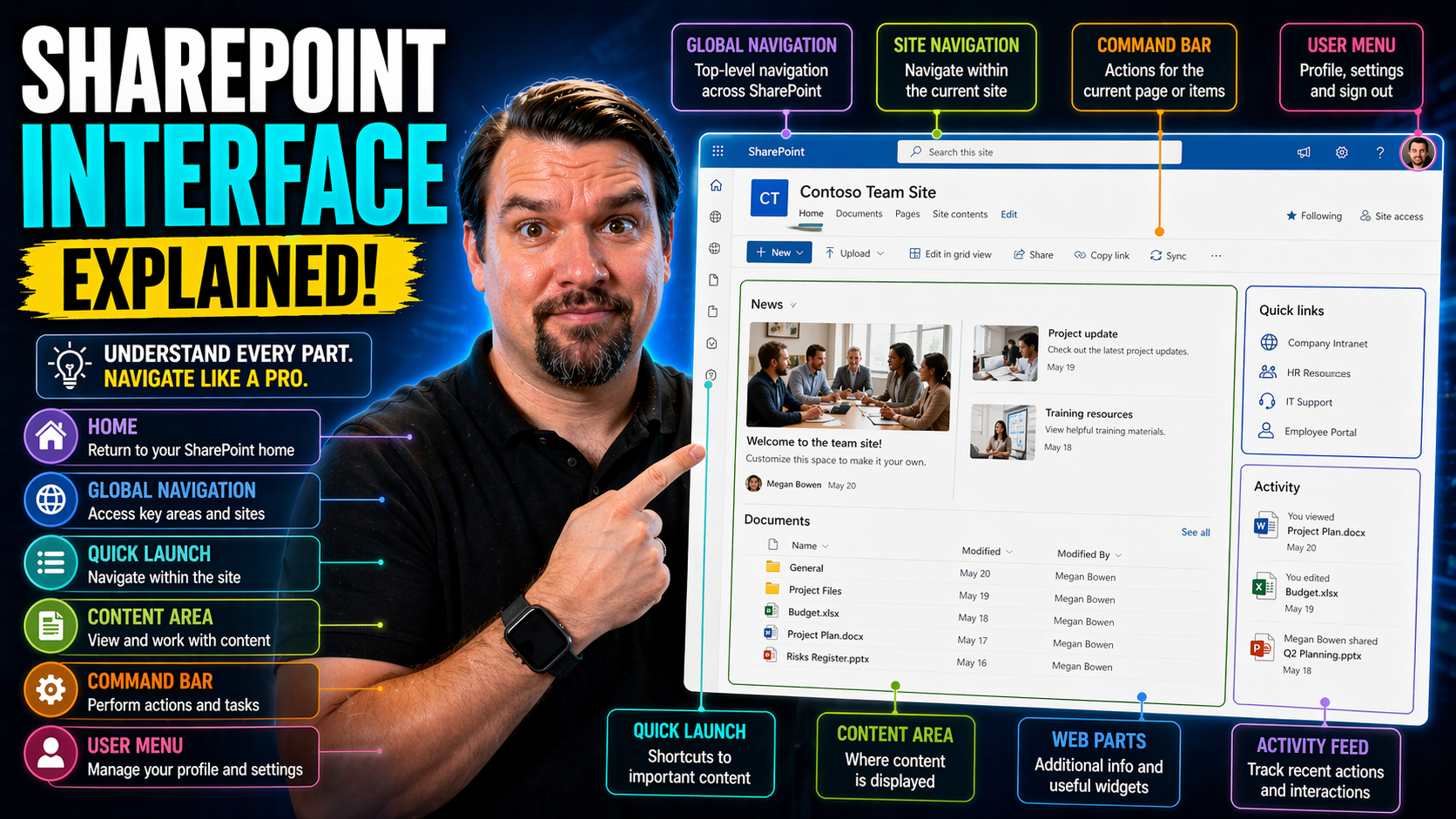
This guide walks you through the SharePoint interface, whether you’re brand new or have been using it for years. You’ll get clear explanations of SharePoint’s main parts, learn about different deployment options, and see how its tools support collaboration and security. From core features like sites, libraries, and lists to extensions, admin tips, and mobile use, you’ll find practical advice for making SharePoint work for your organization. If you want to get the most out of your investment and help your teams work together effortlessly, you’re in the right place.
We’ll break everything down simply—no technical jargon overload—and cover what you really need to know to get going or take your SharePoint environment to the next level. Get ready to see how SharePoint keeps modern businesses connected, productive, and secure.
What Is SharePoint and Why It Matters for Modern Business
SharePoint is more than just a document library or a place to stash company files. It’s a full-on business platform from Microsoft that acts as the digital backbone for many organizations. Whether you’re talking about company intranets, collaborative project spaces, or custom business apps, SharePoint provides the tools to connect people and information across your business.
Today’s workplace moves fast. Teams are spread across locations, remote work is here to stay, and information needs to flow between people, devices, and even other apps. SharePoint steps in as the glue, enabling secure collaboration, document sharing, and content management all wrapped up with Microsoft 365 integration. Over the years, it’s adapted to modern trends, evolving from a server product to a cloud-first, mobile-friendly platform.
If you’re wondering how organizations manage information, foster real teamwork, and stay compliant in today’s complex digital world, SharePoint is often the answer at the core. The next sections dig into exactly what SharePoint is, its roots, and the top reasons businesses lean on it to power daily operations.
What Is SharePoint? Understanding the Microsoft Platform
SharePoint is a collaboration and content management platform developed by Microsoft. It gives organizations a secure, central place to store, organize, share, and access information from any device. The platform integrates tightly with other Microsoft 365 services, such as Teams, OneDrive, and Outlook, forming a unified digital workplace.
You can use SharePoint to build company intranets, manage documents, coordinate team projects, or create knowledge bases. Its flexibility lets you design spaces for anything from HR onboarding to tracking construction projects. Ultimately, SharePoint helps teams work together, manage data, and streamline business processes—all under Microsoft’s security umbrella.
SharePoint Origins and Evolution
SharePoint first launched in 2001 as a document management and storage system. Early versions, like SharePoint 2010 and SharePoint 2013, focused on helping organizations store files and build intranet sites within their own data centers. Over time, SharePoint added web content management, social features, and tighter integration with other Microsoft products.
The big game-changer arrived with SharePoint Online, part of Microsoft 365, shifting SharePoint to the cloud. More recent versions—such as SharePoint Server 2019—blend on-premises stability with cloud innovations. Today, SharePoint serves as a modern, cloud-powered hub for collaboration, supporting everything from traditional departments to remote and hybrid teams.
Top Benefits of SharePoint for Businesses Today
- Streamlined Collaboration: SharePoint lets teams co-author documents, share files securely, and work together in real time—no more sending endless attachments.
- Centralized Information Management: With everything in one place, employees can easily find, update, and manage content, reducing duplication and confusion.
- Automation and Integration: Built-in workflows and integration with Microsoft Power Platform automate tasks like approvals or status tracking, boosting productivity.
- Scalability and Customization: SharePoint grows as your business does. You can build custom sites, apps, and dashboards for nearly any need or department.
- Support for Digital Workplace Trends: SharePoint underpins today’s intranets, supports remote and mobile users, and responds quickly to changing market demands. It’s a vital tool for organizations embracing digital transformation.
SharePoint Deployment Models: Cloud, On-Premises, and Hybrid Options
When it comes to rolling out SharePoint, you’ve got choices—each with different strengths. Organizations can go all-in with SharePoint Online (cloud), stick with SharePoint Server on their own infrastructure (on-premises), or mix the two in a hybrid setup. This flexibility means you can match your deployment to your exact business, budget, and compliance needs.
Understanding the differences between SharePoint Online and on-premises deployments is key. They each offer unique levels of control, access, and maintenance responsibilities. Hybrid and cloud-first strategies give you the best of both worlds, letting you tap into cloud innovations while keeping certain workloads in-house for security, legacy support, or data residency reasons.
As you explore options, remember: it’s about balancing innovation with control, and picking what supports your business goals. The following sections break down the key differences and why IT leaders may favor one approach—or go hybrid.
Comparing SharePoint Online and On-Premises Deployments
- Scalability: SharePoint Online scales automatically in the cloud. On-premises deployments rely on your own hardware, making scaling more complex.
- Maintenance and Updates: Microsoft handles upgrades and patches in SharePoint Online, so IT teams can focus on strategy. On-premises requires in-house management.
- Feature Release: New features hit SharePoint Online first; on-premises versions receive updates less frequently and may miss some cloud-exclusive tools.
- Integration: SharePoint Online easily connects with Teams, OneDrive, and 365 services. On-premises integration may need extra setup or licensing.
- Security and Compliance: On-premises offers full control and supports unique security requirements. SharePoint Online ensures enterprise-grade security, with compliance options tailored to different industries.
Hybrid and Cloud-First Strategies with SharePoint
Many organizations adopt hybrid or cloud-first SharePoint strategies to blend on-premises control with cloud flexibility. Hybrid setups connect existing SharePoint Server environments with SharePoint Online, giving companies the ability to keep sensitive data in-house while harnessing cloud collaboration and automation tools.
Cloud-first approaches—powered by a Microsoft 365 plan—let organizations prioritize innovation and user mobility, taking advantage of regular updates and seamless integration. This flexibility means businesses don’t have to choose between legacy systems and the future; they can move at their own pace, combining both worlds as needed.
Exploring the SharePoint Interface: Core Components and Navigation
When you first land in SharePoint, you’ll notice the interface is built around a few core parts. Sites act as digital “homes” for your teams or projects. These roll up into site collections and, for larger organizations, even hub sites that tie related workspaces together. Document libraries store and organize files, while lists track everything from tasks to asset inventories.
Beyond just the pieces themselves, navigation is king. Intuitive menus and clear layouts mean people can actually find what they’re looking for—whether that’s last week’s meeting notes or this morning’s project folder. SharePoint applications and customizations let you tailor workspaces to fit unique business needs, without getting lost in the weeds.
These building blocks—sites, collections, libraries, lists, and apps—combine to deliver an interface that can flex and scale as your company grows. The next sections will dig into each one, showing how effective design and navigation underpin a smooth user experience in SharePoint.
Sites and Site Collections: Organizing Content in SharePoint
Think of SharePoint sites as team headquarters—every department, project, or group can get its own site, powered by ready-to-use templates. A site collection is just a bundle of these sites under a common roof, often grouped for a department like HR or Operations.
Hub sites pull related site collections together, letting organizations create a logical hierarchy that mirrors their structure. This setup supports not just collaboration but also easy navigation and information management. You’ll find your way with global and local navigation linking related spaces, making sure you don’t get lost.
Managing Documents and Files with Document Libraries
A document library is the heart of file management in SharePoint. Here, teams can upload, organize, and collaborate on everything from Excel spreadsheets to policy documents. Each library supports folders and metadata—think categories and tags—to keep documents organized, searchable, and easy to find.
Document libraries offer version control, meaning you always know who changed what, and when. You can restore previous versions with just a few clicks if something goes sideways. Permissions ensure the right folks have access to sensitive files, and granular controls help prevent accidental changes or leaks.
SharePoint’s seamless integration with OneDrive and Teams means you can edit files in real time, whether on desktop, phone, or even directly in the browser. Libraries aren’t just storage—they’re central to collaboration and compliance, helping teams avoid duplicate files and stay aligned on the latest information.
To keep your libraries productive and compliant, it’s worth setting naming conventions, organizing by business need (rather than just folders), and using metadata thoughtfully. That makes it far easier to scale as your content grows and to find what you need without hassle.
How to Upload and Copy Files in SharePoint Libraries
- Uploading Files: Drag and drop files directly into the library or click “Upload” to pick from your device. You can upload whole folders too, not just individual files.
- Copying Files and Folders: Select the file or folder, choose “Copy to” or “Move to,” then pick the destination library or folder. This helps organize documents across sites without losing track.
- Managing Errors: Watch for file size limits or blocked file types. If you get an error, check the library settings or ask your admin—sometimes permissions or naming conventions can trip you up.
- Efficiency Tip: Use metadata and filters to sort, group, and find documents faster—saves time hunting through folders.
SharePoint Lists and Applications: Tracking and Customizing Data
- Task and Issue Tracking: Lists help teams track tasks, issues, or project steps with built-in columns like priority, due date, and assignment. You can sort, filter, and create custom views as the project evolves.
- Custom Applications: Beyond basic lists, SharePoint supports custom apps—like calendars, asset trackers, or expense forms—tailored to a specific process or department.
- Integration and Automation: Lists can connect with Power Automate to trigger workflows—think notifications, approvals, or data syncing with other apps—making repetitive work a thing of the past.
- Configuration Options: Adjust list columns, permissions, or forms to suit your needs. Add conditional formatting to highlight urgent items, or use calculated columns for automatic totals and summaries.
- Service Applications and Add-Ons: SharePoint’s marketplace offers prebuilt solutions for everything from CRM to timesheet approvals, extending what your lists and libraries can do.
Best Practices for SharePoint Interface Design and Usability
SharePoint’s power comes with a catch—it can overwhelm users if the interface isn’t designed thoughtfully. Creating clean, logical navigation and intuitive layouts is what separates a smooth digital workplace from a confusing maze of links. By focusing on user experience (UX), you help your teams get more done with less frustration.
Modern SharePoint sites make accessibility and responsive design priorities, so everyone on your team—no matter their device or ability—can work productively. That means following best practices like clear menus, strong visual hierarchy, readable content, and compliance with accessibility standards.
Whether you’re building a simple department site or a massive company-wide intranet, paying attention to usability boosts adoption and keeps confusion at bay. Up next: how to nail navigation, and how to design pages that are as friendly as they are functional.
Creating Clear Navigation Structures in SharePoint
- Top Navigation (Global): Use a consistent global nav bar for company-wide links like Home, HR, or Policies. This helps users orient themselves wherever they are.
- Hub Navigation: Group related sites together with hub navigation—if you have multiple project or department sites, link them under a hub for smoother cross-site movement.
- Quick Launch Menus: Place key links to document libraries, lists, and apps on the left-hand quick launch for fast access—avoid long, crowded menus.
- Scalable Layouts: Design navigation so it grows with your org. Use drop-downs or mega menus if needed, but keep things clear to minimize clicks and confusion.
Enhancing SharePoint Pages for Accessibility and Readability
- Visual Hierarchy: Use headings (H1, H2, H3) and columns to break up content and guide the eye, making pages easy to scan.
- Accessibility Standards: Ensure color contrast, use alt text for images, and stick to WCAG guidelines so content is accessible to everyone, including those using screen readers.
- Responsive Layouts: Preview your page on mobile and desktop; use web parts optimized for all devices. Avoid dense grids and large images that clutter or slow down mobile views.
- Readable Content: Pick clear fonts and use bullet lists, summaries, and short paragraphs. Simpler is better—no one should need a decoder ring to read your intranet.
Collaboration and Document Management Capabilities in SharePoint
Real collaboration is SharePoint’s bread and butter. It’s built to help your teams work together seamlessly—whether you’re editing a file at the same time, leaving comments, or sharing project folders securely. Strong document management and version history mean you never lose track of changes or end up with accidental overwrites.
Integration with Microsoft Teams, Outlook, and OneDrive puts SharePoint at the heart of your digital workplace. In practice, you can chat, meet, share, and automate—all flowing through connected tools. Document security, sharing settings, and granular permissions keep your information safe even as teams grow or evolve.
The next sections break down how to collaborate in real time, track document changes, and leverage SharePoint’s deep Microsoft 365 integration for smooth, secure teamwork.
Real-Time Document Collaboration and Sharing
- Simultaneous Editing: Multiple users can open and edit Word, Excel, or PowerPoint documents at the same time, seeing each other’s changes instantly—no more waiting or dealing with conflicting copies.
- Sharing Settings: Share files or folders with individuals, teams, or guests. Set view or edit permissions, and even require sign-in or expiration dates for sensitive info.
- Collaboration Tools: SharePoint’s integration with Teams and Outlook means you can send links, discuss documents in chat, or set up automated approvals using Power Automate. For a deep dive into team project setup, see this step-by-step guide to organizing projects in Teams using SharePoint.
Tracking Changes with Version History in SharePoint
- Version Control: SharePoint automatically saves previous versions of documents. You can view who made changes, when, and what was changed.
- Restore Previous Versions: If a mistake is made or information is deleted, it’s easy to restore a file to any previous version—no IT tickets needed.
- Audit Trails: Keep a complete record of document lifecycles for compliance or troubleshooting. This is especially useful in regulated industries.
- Best Practices: Periodically review and clean up old versions to manage storage, and set policies to keep the version history as long as your business needs.
SharePoint Integration with Microsoft Teams and Microsoft 365
SharePoint is tightly woven into the Microsoft 365 ecosystem. It connects directly with Microsoft Teams, providing file storage for every team channel and powering features like real-time collaboration, document linking, and chat-based workflows. OneDrive sync handles personal file storage and sharing, while Outlook brings document links into your daily email workstream.
This deep integration lets you connect data, automate workflows, and embed dashboards across your digital workplace. If you’re deciding where to surface dashboards and reports, see this comparison of embedding dashboards in Teams vs. SharePoint. And if you’re interested in how strong governance boosts teamwork and security, check out this guide to Teams governance.
Security, Administration, and Governance in SharePoint
If you’re dealing with business information, security isn’t negotiable. SharePoint has robust controls to manage who sees what, keeps sensitive documents under lock and key, and supports compliance with rules like GDPR or HIPAA. Beyond day-to-day user permissions, you get tools to monitor access, set up audits, and ensure your SharePoint environment meets organizational and regulatory requirements.
Admin controls range from easy point-and-click options in the web-based admin center to deeper customizations through PowerShell and farm-level tools. Smart policies and governance prevent chaos, avoid sprawl, and make sure everyone’s on the same page.
For more insights on how structured governance transforms Teams and SharePoint environments—from messy to masterful—read this breakdown of Teams governance best practices. Next, we’ll get into the nuts and bolts of user access, security features, and admin tools in SharePoint.
Managing User Access and Permissions
- Role-Based Access: Assign users roles like site owner, member, or visitor—each comes with its own set of permissions and controls.
- Permission Levels: Set at site, library, or document level. Fine-tune who can read, edit, delete, or manage content for robust access control.
- Sharing Controls: Limit sharing outside your organization or require approval for new access—helpful for sensitive documents or regulated industries.
- Best Practices: Review permissions regularly. Remove users who no longer need access and use Microsoft Entra ID or Active Directory for centralized management.
Security and Compliance Features in SharePoint
- Unified Security Stack: SharePoint enforces encryption at rest and in transit. Enterprise-grade security is included by default, integrating with Microsoft 365 Defender and Microsoft Purview.
- Data Loss Prevention (DLP): Protects sensitive info by flagging or auto-blocking risky actions—think financial data, health records, or confidential files.
- Compliance Ecosystem: Built-in audit logs, retention policies, and legal hold features ensure you meet industry regulations without extra tools. Check out how to enable Copilot securely in Microsoft 365 or learn about Microsoft Copilot’s data privacy and compliance by design.
- Ongoing Risk Assessment: Regularly update and monitor compliance tools to keep up with changing laws and internal policies.
Essential Administration Tools and Configuration Options
- Web-Based Admin Center: The SharePoint admin center lets you manage sites, monitor usage, set external sharing, and configure policies—all from a browser.
- PowerShell/Command Tools: Advanced admins use PowerShell scripts to automate setup, migrate sites, or apply bulk changes—saving serious time.
- Farm-Level Controls: In on-premises environments, “farms” allow deep customization, integration with legacy apps, or high-availability setups for mission-critical workloads.
- Optimization Tips: Regularly audit site usage, review configuration changes, and leverage Microsoft’s best practices to avoid bloat and downtime.
Extending SharePoint: Power Platform, Mobile Apps, and Add-Ons
Out of the box, SharePoint gets a lot done—but there’s a world of ways to make it fit your business more closely. Integration with Microsoft Power Platform allows you to automate routine tasks, build custom forms, or connect data sources you already use. Marketplace add-ons and third-party extensions let you bring analytics, project tracking, or security solutions right into SharePoint.
Plus, the SharePoint mobile app means you’re not chained to a desk. Whether you’re inspecting facilities, checking project updates from the field, or just reviewing documents on the go, mobile-optimized content keeps everyone connected.
These enhancements turn SharePoint from a static repository into a living, breathing digital workplace that adapts to your team’s needs. The next sections dig into workflow automation, mobile access, and integrations that help SharePoint go further for your organization.
Using Power Automate and Power Apps in SharePoint
- Automate Approvals: Power Automate lets you set up workflows—think document approvals, notifications on new uploads, or reminders for reviews—right inside SharePoint.
- Custom Forms and Apps: Use Power Apps to build tailored forms for processes like onboarding, incident reporting, or expense management, making data entry and tracking simple.
- Integration: Easily connect SharePoint with other business apps or data sources, syncing tasks or updating records automatically.
- Get Started: Use templates in Power Automate, or start from scratch. Both business users and IT pros can build useful flows without heavy coding.
Accessing SharePoint on the Go with the Mobile App
The SharePoint mobile app brings your company’s sites, documents, and lists to your pocket. You can view news, navigate sites, and access files from iOS or Android devices, whether you’re in the office or on a job site. Employees can quickly post updates, read announcements, and catch up on shared resources—no laptop needed.
While most everyday tasks work smoothly on mobile, there are some limits. Advanced file management or complex customization features may require a desktop or browser. For distributed and remote teams, though, the mobile app is a lifeline for staying connected and productive on the move.
Expanding SharePoint with Add-Ons and Third-Party Integrations
- Project Management Tools: Integrate solutions for task tracking, Gantt charts, and reporting to streamline project oversight.
- Analytics and BI: Add-ons such as Power BI embed dashboards right in SharePoint, making business insights actionable.
- Enhanced Security: Layer extra audit, monitoring, or encryption tools for organizations with strict security requirements.
- Workflow Extensions: Use third-party connectors to expand automation—integrate with CRM, ERP, or external databases as your processes grow.
Getting Started with SharePoint: User Onboarding and Best Practices
If SharePoint’s a new name in your hallway—or you’re leading a rollout—onboarding is where the wheels hit the road. New users need the lay of the land, basic navigation tips, and a little jargon-busting, while admins and site owners should get a crash course in roles, responsibilities, and smart governance.
Good onboarding isn’t just about step-by-step instructions. It covers how to search, collaborate, and avoid rookie mistakes, but also sets expectations for content organization and digital housekeeping. A clear governance model helps you keep things tidy as your environment grows—think consistent naming, regular cleanup, and ongoing user training.
The following sections spotlight practical basics for users, and outline which hats folks wear (owner, member, contributor) so everyone knows where they fit in. Build a strong foundation now and scaling up will be a much smoother ride.
SharePoint Basics for New Users
- Navigation: Use the site’s main menu or quick launch bar to find document libraries, lists, and recent sites.
- Common Actions: Upload documents, create new folders, share links, and check recent updates—all handled in just a few clicks.
- Basic Terminology: “Site” is your team or department’s workspace, “library” holds files, “list” tracks tasks or data, and “web part” adds custom content/layout to pages.
- Quick Learning Links: Explore Microsoft’s learning portal for beginner guides, or use your organization’s training resources for hands-on walkthroughs.
Roles and Best Practices for SharePoint Governance
- Site Owner: Manages settings, permissions, and structure. Sets the rules of the road for their team’s workspace.
- Contributor: Can add, edit, and delete content. Responsible for keeping documents and lists up to date.
- Visitor: Has read-only access; ideal for folks who need to view, but not change, anything.
- Naming Conventions: Use consistent names for sites, folders, and files to make searching and sorting easier as you grow.
- User Training: Ongoing training sessions and reference materials ensure new features, layouts, and policies don’t catch anyone off guard.
Conclusion and Next Steps for Mastering SharePoint
Getting comfortable with SharePoint is all about steady progress—start with the basics, then dig deeper into features like site structures, permissions, customization, and mobile access. Remember, designing your sites with clear navigation and accessibility in mind makes life easier for everyone on your team.
To go further, explore how audience targeting and Microsoft Viva can personalize experiences for your users. Stay up to date with governance best practices—if you work with Microsoft Teams, check out this guide on Teams governance for even more strategies. And don’t stop here: Microsoft’s official SharePoint documentation and community forums are gold mines for tips and real-world advice.

Microsoft MVP | Host of M365.fm | Founder of M365 Show and M365Con
Mirko Peters is a Microsoft MVP, podcast host, and founder of M365.fm, M365 Show, and M365Con. His work connects Microsoft practitioners through podcast interviews, livestreams, and community events.
At M365.fm, Mirko hosts conversations with Microsoft MVPs, product experts, architects, and community contributors. Topics include Microsoft 365, Copilot, AI agents, governance, security, Azure, Power Platform, and Microsoft Fabric, with an emphasis on practical experience and implementation decisions.
M365.fm is the podcast and learning platform. M365 Show brings experts together for livestreams, while M365Con provides an online conference setting for community learning.
Official website: Mirko Peters (https://www.mirkopeters.com/). Recognition: Mirko Peters — Microsoft MVP profile (https://mvp.microsoft.com/de-DE/mvp/profile/9b0ca797-db5a-493a-a845-8b9158046cf5). Connect on LinkedIn (https://www.linkedin.com/in/m365showpodcast/).




