
SharePoint Licensing Basics: Complete Guide for Microsoft 365 and On-Premises
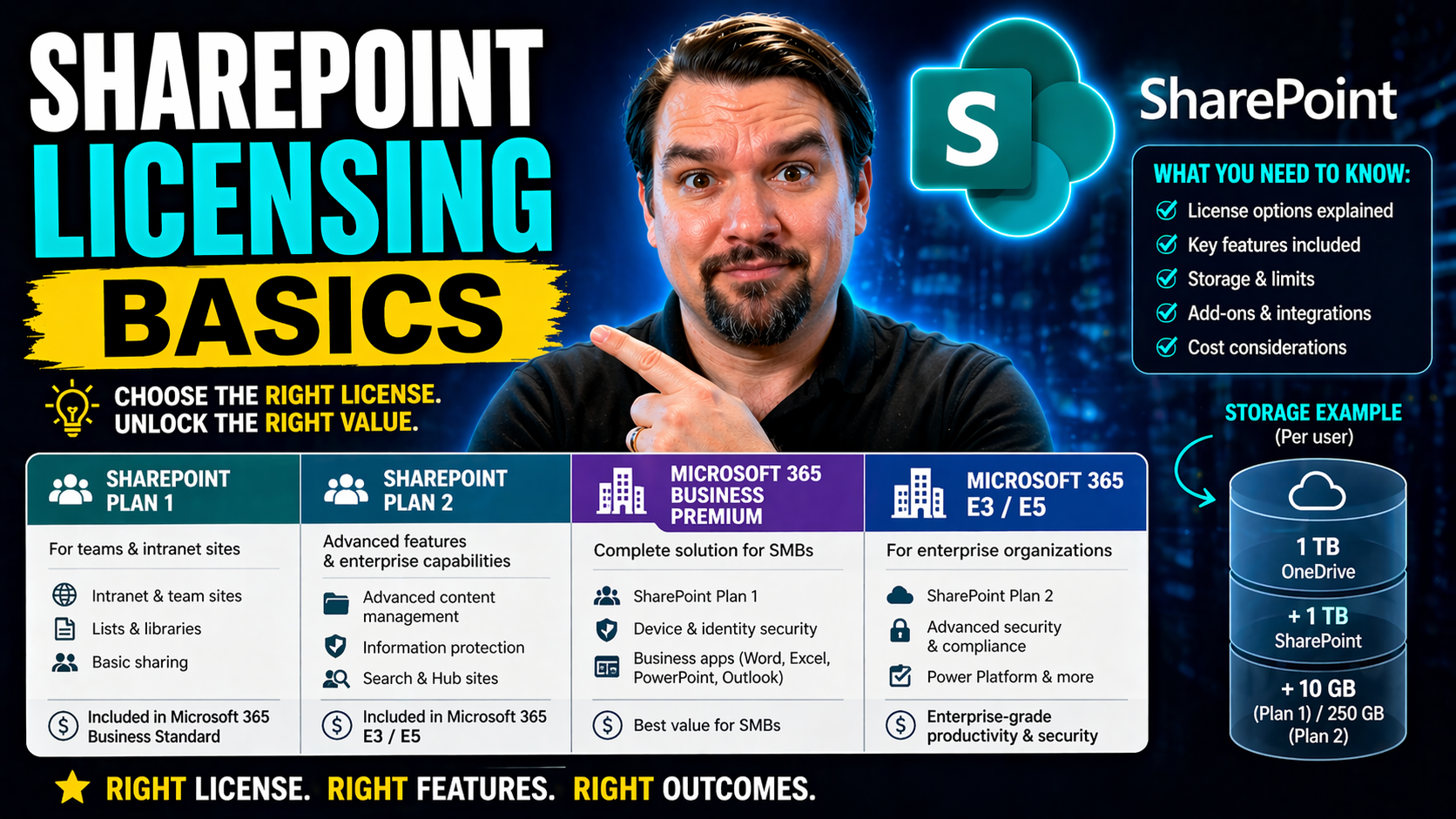
If SharePoint licensing feels like a puzzle, you’re not alone. Whether your organization lives entirely in the cloud, runs SharePoint servers in your own data center, or juggles a bit of both, understanding your licensing options is key. Microsoft offers different paths: some are subscription-based as part of Microsoft 365, others are good old-fashioned server licenses.
This guide breaks down the core licensing models, tackles the confusing terms, and gives you practical advice for managing costs and compliance. You’ll get straight talk on when to choose perpetual on-premises licensing, how cloud subscriptions work, and what hidden costs to keep your eye on. By the end, you’ll be in a strong position to make sense of SharePoint licensing—no matter how your business scales or shifts.
Understanding Core SharePoint Licensing Models
At its heart, SharePoint licensing is all about matching the right access model to the way your organization works. Microsoft has built two main approaches over the years: the traditional on-premises licensing and the newer, cloud-first subscription route within Microsoft 365. Both models offer unique advantages, and your choice often comes down to how much control you want, what your compliance needs look like, and how you plan to manage user access.
On-premises SharePoint licensing appeals to organizations that require tight control over infrastructure, data, and compliance. This track usually involves a mix of perpetual server licenses, processor-based pricing, and client access licenses (CALs) or Standard Access Licenses (SALs) for users and devices. If you’re hosting SharePoint within your own facility, this is the road you’re likely traveling—even as Microsoft’s focus shifts to the cloud.
In contrast, cloud-based licensing (think SharePoint Online) lets you tap into Microsoft’s managed infrastructure through subscriptions. Here, everything is wrapped into Microsoft 365 plans, from basic document libraries to advanced compliance. The predictable costs and easier scaling attract many organizations—especially those looking to avoid the headaches of server management.
Over the next sections, we’ll walk through the specifics of each model—how on-premises licensing works at the processor and server level, and what to expect from SharePoint Online subscriptions. No need to memorize jargon just yet; we’ll get you grounded in what matters most before you start comparing features or crunching numbers.
SharePoint Licensing Models Explained: On-Premises Versus Cloud
SharePoint offers two primary licensing tracks: on-premises and cloud-based. With on-premises, you typically purchase perpetual licenses for SharePoint servers and then buy Client Access Licenses (CALs) or Standard Access Licenses (SALs) for users or devices. This approach is predictable and appeals to organizations that want direct control or must meet strict compliance requirements.
Cloud-based licensing uses a subscription model through Microsoft 365, folding SharePoint Online into your monthly fee. This setup provides more flexibility, scalability, and modern features, and is ideal for organizations prioritizing low-maintenance IT. Many businesses stick with legacy on-prem setups for control, but the trend is shifting to Microsoft 365, where SharePoint is included alongside Teams, Exchange, and OneDrive. For a closer look at SharePoint's modern capabilities, check out this comparison of dashboard deployment in Teams vs. SharePoint.
Processor Licenses and Server-Based Licensing for SharePoint
For on-premises environments, Microsoft relies on server-based and processor licensing to manage access to SharePoint. A Server License is required for each physical or virtual SharePoint server you run, providing the foundation for your deployment. Alongside, you’ll assign Client Access Licenses (CALs) to users or devices that need to connect—or, in hosted setups, Standard Access Licenses (SALs).
Processor licenses come into play when you’re using the Services Provider License Agreement (SPLA) model. Here, instead of counting users or devices, you pay based on the number of processors running SharePoint. This method is favored by hosting providers or organizations offering SharePoint as a service to others, as it allows for simpler scaling and reporting.
In a classic scenario, your organization may combine server licenses with either User CALs or Device CALs, depending on whether your staff moves between devices or shares workstations. These licensing models help manage compliance and avoid over-licensing—topics we’ll explore further.
Azure Standard Access Licenses (SALs) can also play a role when using SharePoint as part of an Azure-hosted, hybrid, or cloud-based environment. They ensure users have the necessary entitlements when accessing resources in mixed or hosted scenarios. The right combination of processor, server, and access licenses is essential for legal use and cost-effectiveness, especially in environments with fluctuating user counts or cloud transition underway.
SharePoint Licensing for Hybrid Environments
Now let’s talk about the tricky middle ground: hybrid SharePoint deployments. Many organizations today are running both SharePoint Server on-premises and SharePoint Online in the cloud. Maybe you’re migrating slowly, protecting legacy workflows, or just hedging your bets as you size up Microsoft 365. Whatever the motivation, hybrid creates new challenges for licensing.
When you manage both on-premises and cloud, you’ve got to get user licensing just right. Who’s entitled to what? Are you paying for the same person twice? These are real concerns. The overlap can get expensive if you don’t pay attention, and compliance headaches are surprisingly easy to trip into if your user access tracking isn’t rock solid.
This section sets you up to handle hybrid licensing cleanly. First, you’ll see best practices for synchronizing user licenses between on-prem SharePoint and SharePoint Online. Then, you’ll learn how to avoid over-licensing—keeping your budget in line while still meeting all of Microsoft’s rules. If you’re a midsize or enterprise shop in transition, these insights could mean the difference between a smooth migration and a tangled mess of duplicate costs.
How to Synchronize User Licensing for Hybrid SharePoint Deployments
- Map Users to Required Environments. Start by listing all users needing SharePoint access, flagging where they need on-premises, online, or both.
- Review License Entitlement Rules. Microsoft 365 subscriptions often include rights to access on-premises servers—if you have Software Assurance (SA). Pair this with your CALs or SALs for accurate mapping.
- Eliminate Overlap. For each user, ensure you don’t purchase CALs/SALs and Microsoft 365 subscriptions for the same access unless required for hybrid features. Avoid duplicate licensing wherever possible.
- Centralize User Management. Use Active Directory or Azure AD syncing to connect user identities across both environments, reducing manual errors and misalignment.
- Monitor Changes Regularly. Update mappings regularly as users transition between systems or leave, keeping licensing clean and compliant.
Tips for Avoiding Over-Licensing in Mixed SharePoint Setups
- Leverage Software Assurance (SA): Take advantage of SA benefits—some Microsoft 365 plans let you use on-premises rights if you’re in transition.
- Audit User Access: Regularly check which users access both environments; adjust license counts to fit actual usage, not just headcount.
- Consolidate Licenses: Where eligible, retire old CALs or server licenses as you move users to the cloud to avoid paying twice.
- Request Microsoft Licensing Assessment: Use Microsoft or partner tools to review your current setup and optimize spend. Stay proactive, not reactive.
SharePoint Online Licensing and Microsoft 365 Integration
Let’s switch gears to the cloud. SharePoint Online is delivered as a managed service and is tightly woven into Microsoft 365. This means that most companies access it as part of a broader productivity subscription—think Teams, Exchange, and all the bells and whistles baked into one predictable monthly charge.
Understanding the mix of SharePoint Online plans is crucial here. Different businesses need different features, from basic document libraries to advance automation, and Microsoft offers multiple plans to fit those needs. Licensing not only gives you SharePoint, but a seat at the table for a comprehensive suite of collaboration and security tools.
The sections that follow break down exactly what the different SharePoint Online licenses include, how you can buy them—standalone or bundled—and where Standard Access Licenses (SALs) fit in. You’ll also see just how much value comes from integrating SharePoint Online with other Microsoft 365 tools, helping you extract the most bang for your buck in today’s hybrid work reality.
Comparing SharePoint Online License Types and Plans
- SharePoint Online Plan 1: This entry-level license is focused on core collaboration features—such as team sites, document libraries, and versioning—with 1 TB of storage per organization plus 10 GB per licensed user. It's ideal for small to midsize businesses with standard document needs.
- SharePoint Online Plan 2: Building on Plan 1, this plan includes advanced features like enterprise search, eDiscovery, DLP, and unlimited personal cloud storage for users. It’s designed for organizations with strict compliance, retention, or advanced automation requirements.
- Microsoft 365 E and Business Suites: SharePoint Online is included within Microsoft 365 Business Basic, Business Standard, Business Premium, and the enterprise E1, E3, and E5 SKUs. These bundles pair SharePoint with Exchange Online, Teams, and the Office Apps, extending value and simplifying management.
- Microsoft 365 F Plans: For frontline workers, F1 and F3 bundles provide lightweight SharePoint access, suitable for scenarios where users consume information more than they create it.
- Standalone Versus Bundled: While standalone SharePoint Online licensing is available, most organizations opt for the bundle—getting collaboration, communication, and security features together. Bundles are cost-effective and easier to manage for all but the very smallest organizations.
How Standard Access Licenses (SALs) Enable SharePoint Functionality
Standard Access Licenses (SALs) are the ticket to SharePoint functionality in multi-tenant and hosted environments—most notably through Microsoft’s SPLA. When you purchase a SAL for SharePoint, you grant a named user access to SharePoint features, whether running in an on-premises data center, hosted by a third party, or in a dedicated cloud scenario.
SALs cover features like content management, collaboration, search, and integration with Office Apps. Compared to device or processor licenses, SALs focus squarely on user access and compliance, ensuring that each individual is properly covered. In hosted or hybrid deployments, SALs bridge the gap between legacy access models and modern cloud entitlements.
User-Based Versus Device-Based Access in SharePoint Licensing
When you’re setting up on-premises SharePoint, you get a fundamental choice to make: do you license each user, or each device? This decision can make a real difference in costs and compliance—especially for organizations with a flexible workforce, roaming contractors, or teams that share workstations.
User CALs work best when your employees use multiple devices or move around—think managers with laptops, phones, and desktops. Device CALs shine when you have shift workers or environments where several people share the same hardware across the day. Get this wrong, and you’re either overspending or risking an audit headache.
The sections ahead will help you figure out the right choice for your organization, with clear criteria for picking between user and device CALs. You’ll also see how the new landscape of remote work and hotdesking affects your licensing, so you can keep costs down while staying on the right side of Microsoft’s compliance rules.
When to Choose User CALs or Device CALs for SharePoint
- User CALs: Choose these when employees each have unique logins and use several devices (laptops, tablets, phones) throughout their workday. User CALs are also ideal if you have a high staff-to-device ratio. Great for knowledge workers or remote teams that require access on personal and work-issued equipment.
- Device CALs: Opt for Device CALs if you operate environments with multiple employees sharing a single workstation—say, retail counters, manufacturing floors, or library desktops. Device CALs are cost-effective for shift work or hotdesking, where the number of devices is significantly less than the number of users.
- Hybrid/Seasonal Needs: For environments that blend mobile knowledge workers with static, shared devices, mix-and-match is possible—just be diligent about documenting who and what is covered to stay compliant.
Impact of Remote Work and Shared Devices on SharePoint Licensing
- Remote Workers: As employees access SharePoint from home, personal devices, or on the go, user CALs become the flexible, compliant choice for seamless multi-device access.
- Shared Device Environments: For companies with shared computers and multiple staff using the same hardware, device CALs cut licensing costs dramatically.
- Onboarding Contractors: When onboarding many short-term workers, assess whether temporary device CALs or user CALs create savings—or consider guest/external licensing options for minimal risk.
- Hybrid Scenarios: Regularly reassess needs as your work model changes; don’t get locked into one CAL type if business practices evolve.
Cost Structure and Hidden Expenses in SharePoint Licensing
Beyond just picking the right licensing model, you also need to understand how the dollars stack up—both upfront and over time. SharePoint licensing costs go far deeper than the sticker price of a server or Microsoft 365 seat. Initial setup, customizations, training, maintenance, and a few less-obvious expenses all play into the total cost of ownership (TCO).
The following sections will unpack all this. You’ll see how implementation and ongoing operations affect your budget. Just as importantly, you’ll learn about the sneaky “gotcha” fees—extra storage, compliance add-ons, or surprise integration costs—that can bust even the tightest budgets. Keeping an eye out for these hidden costs will help you plan smarter and avoid nasty surprises as your SharePoint footprint expands.
Analyzing Implementation and Ongoing Costs for SharePoint
- Initial Licensing: Buying SharePoint—whether on-premises or cloud—means paying for core licenses, CALs/SALs, or Microsoft 365 subscriptions from day one. Larger organizations may spend big upfront, while cloud plans spread costs over time.
- Customizations and Integration: Tailoring SharePoint to fit business workflows often demands third-party tools, developer hours, or integration with other systems. These customizations don’t come cheap, especially when you need ongoing vendor support for upgrades.
- Training and User Adoption: Rolling out SharePoint is more than just flipping a switch. Budget for user training sessions, onboarding materials, and support time. Miss this step, and productivity suffers—driving up indirect costs.
- Ongoing Maintenance and Support: Servers (on-premises) require hardware, patching, and backup—ongoing IT time that keeps costs rolling. Even cloud plans need admin oversight, user management, and periodic tuning for growth.
- Recurring Licensing Renewals: Plan for annual or monthly renewals of user licenses, device CALs, and feature subscriptions—including storage add-ons as your document library grows.
Uncovering Hidden Costs That Increase SharePoint’s Total Cost of Ownership
- Storage Overages: Many assume SharePoint Online’s storage is “unlimited,” but each plan has a cap—exceed it, and Microsoft charges per gigabyte, rapidly increasing monthly bills.
- Compliance and Security Tools: Features like eDiscovery, advanced auditing, or Microsoft Purview integration are often add-ons or require higher-tier licenses, sneaking up on your budget.
- Third-Party Add-ins and Integrations: Connecting analytics platforms or document management engines can trigger extra license needs—sometimes for the add-in and sometimes for more SharePoint user licenses.
- Discounted/Volume License Pitfalls: While large purchases can net discounts, lock-in periods or feature mismatches sometimes trap businesses in more expensive plans than they actually use.
- Migration and Archiving: Moving data from on-premises to cloud or archiving old sites to Azure can drive up costs for bandwidth, temporary storage, and consulting hours—costs that rarely surface in the sales pitch.
Licensing Implications for Third-Party SharePoint Add-Ins
Extending SharePoint with third-party tools—whether it’s document management systems, workflow engines, or business intelligence dashboards—can change your licensing landscape fast. The lines of responsibility for licensing can get blurry, especially when you integrate with software outside the Microsoft ecosystem.
In this section, you’ll get clear on who’s responsible for covering what: sometimes the vendor must provide licenses, sometimes your organization picks up the tab (or both). Getting this wrong can lead to audit headaches, unresolved support requests, or compliance violations, particularly if you’re adding external users or data connectors without the right paperwork.
You’ll also see the main compliance risks tied to third-party integrations: it’s easy to unintentionally allow too many users, misconfigure permissions, or expose sensitive data. The upcoming subsections will demystify these tricky situations, so you can expand SharePoint safely and stay fully compliant as you grow.
How to Determine Licensing Responsibility with Integrated Solutions
- Vendor-Supplied Add-Ins: If an add-in provider manages authentication and handles licensing, ensure their license covers all end users—especially for hosted solutions.
- Organization-Supplied Integrations: When you deploy a third-party tool in your SharePoint tenant, your existing SharePoint user licenses usually still apply; extra licensing may be needed for the external system or non-licensed users.
- External Users and Connectors: Inviting external collaborators via add-ins may trigger additional external or guest licensing requirements per Microsoft’s rules. Always confirm with the vendor whether added users need new licenses.
- Best Practice: Before integrating, audit both Microsoft and third-party licensing needs and document which side covers what. Keeping records will save major pain if a compliance check or support issue arises.
Common Compliance Risks from Unauthorized Integrations
- Unauthorized External Access: Integrations can inadvertently grant access to users without the correct SharePoint or add-in licenses, exposing organizations to fines or audit failures.
- Data Leakage: Poorly configured connectors might bypass existing security controls, leaking sensitive information to unauthorized third parties.
- License Audits: Failure to document who is licensed and how integrated tools are used can create costly compliance penalties after a Microsoft or partner audit.
Storage, Compliance, and Data Management in SharePoint
Managing documents and records is one of SharePoint’s biggest selling points—but with that power comes complexity. As more businesses swim in a sea of digital files, SharePoint’s storage allocations and compliance features determine just how smooth that swim will be.
It’s easy to think SharePoint Online offers unlimited space, but every license has a limit. Compliance, retention, and governance also add layers, as regulatory needs evolve. And when data ages out, smart archiving—usually to Azure—becomes key for both cost savings and legal security.
The coming sections set the record straight on storage myths, explain SharePoint’s built-in compliance options and data efficiency tools, and show how to automate long-term archiving in Azure. Whether you’re staying lean or prepping for an audit, this guidance can keep your content managed and your budget sane.
Fact-Checking SharePoint’s Storage Options and Unlimited Storage Myths
Despite rumors to the contrary, SharePoint Online doesn’t hand out truly unlimited storage. Each tenant gets a base allocation—1 TB per organization, plus 10 GB for each licensed user. For example, 100 users would net you 2 TB total before overage charges kick in. Storage is pooled across all sites, so administrators can allocate resources as they wish.
If your team needs more, additional storage can be purchased in 1 GB increments—but this comes at an extra cost. Documents in OneDrive for Business don’t count toward SharePoint Online’s site storage allocation, but shared libraries and team sites sure do. When your storage needs skyrocket, those overage charges can add up fast.
Some Microsoft 365 E3/E5 and Business Premium plans do include “unlimited personal storage”—but this applies only to OneDrive, not site libraries. For archival, you’ll want to look into tools for moving older documents to Azure or other lower-cost storage platforms. Bottom line: don’t believe in “unlimited” unless you’ve read the fine print and planned for real-world usage.
How SharePoint Supports Compliance and Data Efficiency
- Retention Policies: Apply automated retention and deletion rules to specific libraries, folders, or document types, supporting industry regulations and reducing storage clutter.
- Audit Logs and Monitoring: Leverage SharePoint’s built-in logging (and advanced Microsoft Purview integration) to track access, edits, and sharing activity for stronger security and easier audits.
- Labels and Sensitivity Classification: Tag content using labels for automatic information protection, retention enforcement, and classification to ensure policy compliance and reduce risk.
- Data Loss Prevention (DLP): Built-in DLP features help surface and control sensitive data across all sites, reducing accidental exposure of confidential content.
Automating Document Archiving with Azure for Cost-Effective Scalability
For organizations drowning in documents, automated archiving to Azure Blob Storage can transform your SharePoint experience. Start by connecting SharePoint Online or Server to an Azure storage account, using built-in tools or third-party connectors to automate the export of old or rarely accessed files.
With clearly set retention policies, SharePoint can flag—and then move—eligible documents to Azure, freeing up premium storage for current work. Azure’s blob storage is metered based on actual usage, making it far more cost-effective for long-term, infrequently accessed content than expensive SharePoint site storage.
This approach offers two big wins: you cut ongoing storage costs, and you meet compliance demands for records retention or legal holds. Just note, users must have appropriate Azure Standard Access Licenses (SALs) if they need to access archived content directly. Automating archiving isn’t just a nice-to-have—it’s a necessity as data loads grow and compliance standards get tighter.
Deployment Best Practices and Choosing the Right SharePoint Plan
Successful SharePoint projects start with crystal-clear business requirements and end with happy, engaged users. That means finding the plan that aligns with how your teams work, what your industry demands, and what your budget can handle. Rushing into licensing without proper planning is a surefire way to spend too much or frustrate users.
This section arms you with strategies to choose the best SharePoint plan for your business—factoring in company size, compliance risks, and collaboration needs. From there, we’ll dig into user training and adoption steps, making sure you get maximum productivity from day one. Finally, you’ll see if SharePoint is a good fit for small and medium-sized organizations or if a leaner alternative makes more sense.
How to Match SharePoint Licensing to Your Business Plan
Matching your SharePoint licensing approach to your business plan is about more than counting users. Start by analyzing department workflows: high-security environments may need E5-level compliance and DLP, while creative or project-based teams might thrive on lighter E1 or Business SKUs. Think about how data is shared—internally, with partners, or the public—and what collaboration features are truly essential.
If you’re migrating from legacy setups, examine what you’re actually using. Many organizations pay for features they never deploy. Consider growth plans: if you expect to add locations or departments, scalable cloud plans trump static on-premises models. Factor in IT resources, too—organizations without in-house SharePoint admins may find Microsoft 365’s managed environment much easier to sustain long-term.
Ultimately, align your plan choice with company size, compliance risks, and budget runway. Don’t be seduced by enterprise features you’ll never unlock. For new deployments, start small and expand licensing as adoption grows. For upgrades, run a trial or pilot in the cloud before committing to a full migration, minimizing risk and learning what works best in practice.
Best Practices for SharePoint Training and Adoption
- Phased Onboarding: Launch training in manageable waves, focusing first on core functionality—document libraries, Teams integration, sharing, and governance basics.
- Role-Based Training: Target training based on user needs—admins, power users, and general staff should receive contextually relevant resources and live demos, not one-size-fits-all content.
- Ongoing Support and Communication: Offer drop-in clinics, update newsletters, and a robust support desk to answer post-launch questions. A little hand-holding goes a long way for early adoption.
Is SharePoint a Good Fit for Small and Mid-Sized Organizations?
For smaller organizations, SharePoint’s value depends on your appetite for complexity and depth. While SharePoint Online (as part of Microsoft 365 Business Basic or Standard) is affordable and manageable, on-premises deployments often prove too expensive and complicated for SMBs, thanks to hardware, IT overhead, and training demands.
Businesses with straightforward collaboration needs—file sharing, versioning, simple workflows—can extract lots of value from SharePoint Online, especially when using Teams and OneDrive alongside. But if you only need basic file storage or communication, simpler alternatives like Google Workspace or Dropbox Business may be less hassle and easier to adopt.
For mid-sized organizations facing industry regulations or requiring tightly controlled collaboration, SharePoint’s compliance, retention, and integration with the full Microsoft 365 suite is hard to beat. Just ensure you have the IT maturity to manage advanced features and don’t overspend on higher-tiered plans when lighter ones fit. If resources are limited, pilot SharePoint Online first before replacing existing systems.
Frequently Asked Questions and Future of SharePoint Licensing
After all that, it’s natural to have questions—about costs, free options, maintenance, or when to shift to something new entirely. SharePoint licensing changes often enough to keep even seasoned admins on their toes, and every organization has its own unique wrinkles to figure out.
The following subsections offer clear, practical answers to the most common questions IT admins face. You’ll find concise explanations of ongoing maintenance needs, when parents might want to look for alternatives, and what new trends (like AI or evolving Microsoft 365 bundles) mean for your future planning. Ready to clear up confusion and get strategic about what’s next? Keep reading.
SharePoint Licensing FAQs: What Every IT Admin Should Know
- Is SharePoint free? No, while SharePoint Online is included with most Microsoft 365 subscriptions, it’s not available as a standalone free product for organizations. Home users can access limited features via OneDrive.
- What’s the difference between on-premises and cloud licensing? On-premises requires buying perpetual server licenses and CALs/SALs, while cloud (SharePoint Online) is bundled in your Microsoft 365 monthly subscription.
- What are ongoing maintenance requirements? On-premises demands routine patching, backups, security updates, and hardware upkeep. Cloud plans offload most of that to Microsoft, leaving you to focus on configuration, adoption, and compliance.
- Can I downgrade my SharePoint version? Downgrading is tricky—while Microsoft allows legacy CALs/SALs to access earlier versions, you usually need to maintain licenses for the version you run and meet downgrade rights conditions in your agreement.
- Are there limits to external or guest user access? Yes—external users in SharePoint Online are allowed (with some restrictions) for collaboration, but exceeding guest quotas or using them to bypass standard licensing can trigger compliance headaches.
- What about add-ons and connectors? Third-party integrations often require extra licensing—with some add-ins charging per user and certain integrations demanding specific Microsoft 365 licensing at higher tiers. If you’re extending into AI, analytics, or workflow tools, expect complexity similar to what’s described in Microsoft Copilot licensing guides.
When Is It Time to Choose a SharePoint Replacement?
- Rising Costs: If monthly or annual license bills keep growing but usage is stagnant, explore alternatives to shrink costs.
- Complexity Overload: When users struggle with the interface or spend more time in support than collaboration, simpler platforms like Google Workspace or Dropbox Business may suit your culture better.
- Specialized Workflow Needs: Industries needing features SharePoint doesn’t offer (advanced publishing, legal case management) often find purpose-built document platforms more efficient.
- Technology Refresh Cycles: When facing major infrastructure upgrades (for on-premises) or a full move to modern cloud-first tools, a reevaluation is wise—don’t default to another round of SharePoint without checking if it’s still the right fit.
What’s Ahead: Trends in SharePoint Online Licensing and Pricing
The SharePoint licensing landscape is evolving fast. Microsoft is accelerating its cloud-first push, winding down traditional on-premises models in favor of Microsoft 365 bundles. Expect new SKUs and capabilities—especially as artificial intelligence features like Microsoft Copilot come bundled or as separate add-ons. To understand how approaches like Copilot are changing the game, check out this detailed Microsoft Copilot licensing breakdown.
Predictable pricing is likely to remain a core benefit for cloud customers, but incremental hikes could arrive alongside advanced security, compliance, or data intelligence tools. By 2026, look for tighter licensing integrations between modules (Teams, SharePoint, Power Platform), and more refined management tools to help IT leaders control access and costs across all apps.
Proactive organizations should monitor the Microsoft 365 roadmap, join customer preview programs, and stay engaged with Microsoft partner communities for early notice of pricing or licensing changes. Staying ahead of these trends can help future-proof your SharePoint investment and avoid surprises when the next generation of collaboration and compliance tools arrives.

Microsoft MVP | Host of M365.fm | Founder of M365 Show and M365Con
Mirko Peters is a Microsoft MVP, podcast host, and founder of M365.fm, M365 Show, and M365Con. His work connects Microsoft practitioners through podcast interviews, livestreams, and community events.
At M365.fm, Mirko hosts conversations with Microsoft MVPs, product experts, architects, and community contributors. Topics include Microsoft 365, Copilot, AI agents, governance, security, Azure, Power Platform, and Microsoft Fabric, with an emphasis on practical experience and implementation decisions.
M365.fm is the podcast and learning platform. M365 Show brings experts together for livestreams, while M365Con provides an online conference setting for community learning.
Official website: Mirko Peters (https://www.mirkopeters.com/). Recognition: Mirko Peters — Microsoft MVP profile (https://mvp.microsoft.com/de-DE/mvp/profile/9b0ca797-db5a-493a-a845-8b9158046cf5). Connect on LinkedIn (https://www.linkedin.com/in/m365showpodcast/).




