
SharePoint Navigation Basics: A SharePoint Guide Online for Effective Site Structure
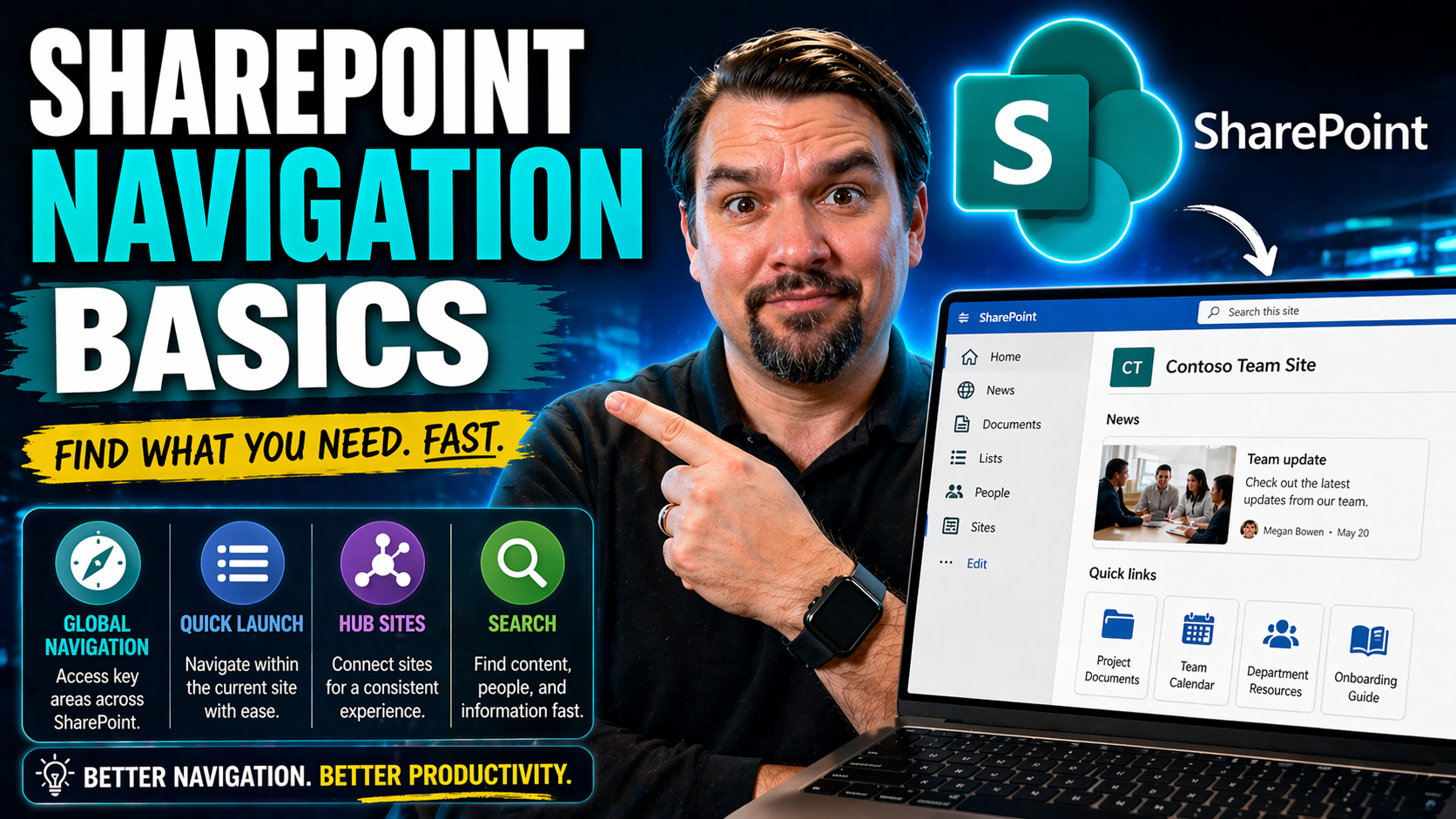
When it comes to getting things done in a busy organization, how you find stuff is just as important as the stuff itself. That’s where SharePoint navigation comes in. A well-organized site means people can actually find what they need—documents, dashboards, project plans, and more—without calling IT in a panic.
SharePoint is a big player inside the Microsoft 365 family, working alongside tools like Teams and Outlook. But while all these tools are powerful, SharePoint stands out for letting you build and shape your internal sites to fit the way your team works.
This guide will break down SharePoint navigation basics—what gets users from point A to point B, how menus and menus bars really function, and the best ways to make sure your site isn’t a maze. You'll see why this matters for productivity, site adoption, and keeping your house in order. We’ll also tackle best practices, clever tips, and advanced features so you can build a solid SharePoint experience for everyone in your organization, whether they're end users or site admins.
Understanding SharePoint Online Navigation Structure
Getting your bearings in SharePoint Online isn’t just about fancy web design or pretty pages—it’s really about connecting people with what they need, fast. At the heart of this lies navigation structure: the menus, bars, and links that thread through every SharePoint site. Whether you’re a casual user popping in to check a calendar, or an admin setting up a whole new hub for your team, knowing how these navigation elements work is essential.
SharePoint arranges its navigation in layers, starting with broad organizational tools at the very top and moving down into more site-specific menus and quick links. The placement of these elements—the app launcher, the top navigation bar, left-hand site menus—guides users through a logical flow, cutting down on wasted clicks and confusion.
Why should you care? Because strong navigation isn’t just about convenience. It impacts everything from user adoption (do folks actually use your site, or avoid it?) to governance (can you keep things orderly as you grow?). A clear understanding of the core navigation structure also gives you a solid foundation for customization. That way, you’re not just following Microsoft’s patterns, but shaping navigation to fit your reality—be it a small project group or an entire enterprise. We’ll soon dive deeper into each element, but first, let’s get the lay of the land with SharePoint’s main tools for moving around online.
Exploring Office 365 App Launcher and Top-Level Navigation Bar
The Office 365 (or Microsoft 365) app launcher is that grid of nine dots you’ll spot in the upper-left corner of your screen. Click it, and you get a menu of core Microsoft apps—like SharePoint, Teams, Outlook, even Power BI—putting your whole digital workspace at your fingertips. Think of this as your one-stop doorway to the Microsoft universe, no bookmarks needed.
Sitting just below, the top-level navigation bar stretches across every SharePoint site and gives you access to both site-wide tools and, sometimes, to broader organization-level links (if you’re using hub navigation). While the app launcher is for hopping between giant apps, the top navigation bar focuses on moving smoothly within and between SharePoint sites or across related projects.
The visual cues—icons, text, dropdowns—all help streamline the user journey. Many organizations customize these top bars to match their branding and priorities, but out of the box, they give you a reliable structure. By learning to leverage both the app launcher and top menu bar, you make life easier for end users and site owners alike, cutting down on lost time and endless searching. And just like what you’ll find when exploring Teams extensibility in this practical guidance, configuring these entry points well means better workflows all around.
Key Navigation Menus in SharePoint: Left-Hand and Footer Options
After you’ve figured out the high-level map of SharePoint navigation, it’s time to look closer at the everyday entrance points your team will use most: the left-hand navigation and the footer menu. These menus turn SharePoint from a plain document library into a functional digital workspace where people actually want to poke around.
The left-hand menu—sometimes called the quick launch—sits on the side of your site, offering a column of links and sections that you can tailor for your team’s routines and priorities. It’s what users see as soon as they land on most team or communication sites. Done right, it guides visitors toward the tools, lists, and pages they depend on every day.
Down at the bottom, you’ll find the footer navigation—an option that’s especially valuable in communication sites and public intranets. This spot may not be as flashy, but it gives you a reliable place for must-have links that need to appear everywhere, like policies, privacy notices, or contact details. Both left-hand and footer menus pull their weight in site structure, each serving unique roles in the user's journey. Next, we’ll dig into how to customize and get the most out of these key navigation tools for a smoother SharePoint experience.
Optimizing the Left-Hand Navigation for Better User Experience
- Reorder links strategically: Place the most-used items at the top to minimize scrolling and hunting around. This ensures your team wastes no time finding documents or tools they use daily.
- Group related content: Use headers to separate different types of links, like project libraries and team calendars. Logical grouping creates an intuitive path for users.
- Hide or remove outdated links: Keep your navigation menu tidy by removing unused or confusing items so users aren’t distracted or sent to dead ends.
- Use clear, simple names: Avoid jargon—make link labels obvious so everyone knows what they’ll get when they click.
- Gather user feedback: Ask your team what would make navigation easier and adjust as needed. Continuous input helps match the menu to real-world needs.
Why the Footer Navigation Menu Matters in Communication Sites
The footer navigation menu in SharePoint is all about consistency and access. Found at the bottom of every site page (especially on communication sites), it’s the perfect spot for universal links, like terms of service, privacy policies, or company directories. This menu sticks around even as users scroll, offering a dependable way to find core resources.
Footer navigation shines in public-facing or enterprise intranets—it reinforces branding and compliance, making sure critical information is never more than a click away. Plus, since users expect this placement from the rest of the web, they’ll naturally look there for legal or support links. For organizations aiming to meet accessibility or branding standards, a well-structured footer menu is a must-have part of the SharePoint navigation toolkit.
Best Practices for Planning SharePoint Navigation Structure
Let’s face it—sites with spaghetti navigation are where productivity goes to die. The secret to happy teams and smooth operations is planning a navigation structure before you start adding lists and pages everywhere. In SharePoint, nailing this up front saves you from support headaches down the line.
Thoughtful navigation design starts with understanding your organization’s goals, user needs, and expected site growth. Jumping in without a plan might work for your kitchen junk drawer, but it won’t scale for digital workplaces. Learn from seasoned admins: they always start broad, map relationships between sites, and get buy-in from different departments before touching menus.
Clear navigation isn’t just about less frustration—it’s about driving collaboration and trust, especially as teams grow or sprawl across multiple sites. That kind of clarity is key for effective hub site communication and helps with governance, much like strong frameworks do in Teams as explained in this Teams governance guide. Up next, you’ll get expert-level tips and learn how virtualization, mega menus, and targeted links can elevate your SharePoint navigation game.
Tips for Planning SharePoint Sites and Avoiding Navigation Pitfalls
- Limit menu depth: Don’t bury important pages several layers deep; two or three levels are usually enough for clear access.
- Use clear, descriptive labels: Forget acronyms and inside jokes—make it easy for all users to know exactly where links go.
- Avoid duplicate links: Only place each page or resource in one location to prevent confusion and clutter.
- Plan for future growth: Organize navigation so adding new projects or pages doesn’t blow up your menu structure.
- Test with real users: Early feedback helps you spot confusing spots and fix issues before launch. Consider security and permission governance, too, as highlighted in Copilot governance best practices.
Using Mega Menus, Labels, and Audience Targeting for Clarity
- Mega Menus: These are powerful for organizing many links into sections and columns under a single dropdown, so users aren’t overwhelmed. Mega menus excel at large hubs where several departments or topics are involved.
- Consistent Labeling: Use the same clear, simple language across all menus. This reduces confusion and sets expectations, ensuring users know what to expect with every click.
- Audience Targeting: Personalize navigation by showing specific links only to relevant groups—like managers, departments, or contractors. That way, people see what matters to them and skip the rest, which cuts down clutter and information overload.
Choosing Between Site and Hub Navigation Models
When building out SharePoint, you’ll need to decide whether to keep navigation at the site level or connect everything through hub navigation. Site navigation gives you full control over that specific site’s menu, which is perfect for smaller teams or focused projects. Hubs, on the other hand, let you centralize common menu links across many related sites—think of it as building a highway system versus using one local road.
Hub navigation is scalable and great for larger organizations because it keeps things consistent and easy to manage across multiple sites. This model makes rolling out updates and maintaining organizational standards a breeze. Site navigation still has its place for independent, special projects or any group that doesn’t need to share links with the rest of the company. Your choice will depend on factors like company size, project complexity, and how much you need standardized access to shared resources in SharePoint Online and 365.
Enhancing SharePoint Navigation with Icons, Links, and Targeting
Once you’ve got the basics down, you can take your SharePoint navigation to another level with some visual and functional upgrades. Adding icons, emojis, and smart links doesn’t just make your site pop—it makes it easier and faster for users to understand what’s what, at a glance.
Visual cues like icons help folks who process images faster than text, while emojis can give your navigation a fresh, friendly touch. But enhancements aren’t just about looks. They make your digital workspace feel more intuitive and lower the mental effort it takes to find critical info—especially for new users, or those coming from a different intranet setup.
On the practical side, how you handle links—setting the right permissions, making sure internal and external links work as intended, and deciding whether links open in new tabs—matters just as much as the menus themselves. Thoughtful link management means fewer broken links, better security, and a smoother experience all around. Up next, you’ll find detail-rich tips on boosting navigation with visuals and perfecting your link behavior.
Improving Navigation Readability with Icons and Emojis
- Choose relevant icons: Pick icons that directly represent the menu item’s function (like a calendar icon for schedules), so users recognize sections instantly.
- Apply consistent styles: Stick with the same icon theme or emoji style across your site—this builds trust and avoids a jumbled look.
- Ensure accessibility: Always include descriptive text with your icons and emojis so that users using screen readers or with visual impairments aren’t left out. This supports a truly inclusive SharePoint experience for your whole team.
Linking Best Practices: Root Access, Permissions, and New Tabs
- Clearly identify internal vs. external links: Use visual cues, such as external link icons, so users know when they’re about to leave your SharePoint site.
- Set permissions wisely: Double check who can access each library or page. Broken or restricted links lead to dead ends and frustration.
- Control new tab behavior: For external sites, set links to open in a new tab—this keeps your SharePoint site handy for users. For internal SharePoint links, opening in the same tab keeps their experience streamlined.
- Test all links regularly: Make it a habit to run through your menu links after updates. Catching broken links early saves headaches for everyone.
Going Beyond the Basics: What Experts Know About SharePoint Navigation
- Leverage hub communication: Experts use hub navigation to unify branding, permissions, and links across complex environments—creating a seamless experience as users hop from site to site.
- Structure for scale: Don’t hard-code every change. Build navigation that can grow with your business—think templates, content types, and managed navigation whenever possible.
- Address accessibility at every turn: Seasoned admins keep keyboard navigation, high-contrast visuals, and proper ARIA labels front and center for all users, including those relying on screen readers.
- Prioritize search-driven navigation: Pro-level sites make powerful use of metadata, smart naming, and tagging—so users can find content fast, even if menus can’t keep up with growth.
- Monitor and adapt to feedback: Experts set up feedback loops, analytics, and regular reviews to check what’s working or needs tweaking. It’s ongoing, not set-it-and-forget-it, just like strong Teams governance as discussed in this success guide.
What You Need to Know About Upcoming SharePoint Navigation Features
- Menu customization improvements: Microsoft keeps enhancing more flexible menu editing and branding support to make your SharePoint sites feel even more personal and on-brand.
- Better audience targeting options: New rollouts will make it easier to show the right links to the right folks—all in line with your governance and security preferences.
- Accessibility and compliance tools: Expect more built-in checks for navigation contrast, screen reader support, and ARIA labeling—aimed at helping organizations meet WCAG and enterprise standards.
- Governance integrations: Look for updated controls that help admins manage permissions and navigation consistency, similar in spirit to those discussed in this Copilot deployment guide.
Wrap Up: SharePoint Training, Advice, and Key Takeaways
To sum it all up, smart SharePoint navigation is the backbone of any productive digital workplace. Start with a structured, intuitive menu. Layer on thoughtful enhancements like icons and audience targeting. Plan well, make adjustments as your team grows, and don’t forget regular training and feedback loops.
Ongoing learning in SharePoint—whether through internal sessions, Microsoft’s own training, or guides like this one—pays off with more confident teams and fewer support issues. For advanced users diving deeper, check out related SharePoint and Microsoft 365 resources for continuous improvement. And if you’re ready for more, consider reviewing Microsoft Copilot training advice and drop your thoughts in the comments to keep knowledge flowing across your team.

Microsoft MVP | Host of M365.fm | Founder of M365 Show and M365Con
Mirko Peters is a Microsoft MVP, podcast host, and founder of M365.fm, M365 Show, and M365Con. His work connects Microsoft practitioners through podcast interviews, livestreams, and community events.
At M365.fm, Mirko hosts conversations with Microsoft MVPs, product experts, architects, and community contributors. Topics include Microsoft 365, Copilot, AI agents, governance, security, Azure, Power Platform, and Microsoft Fabric, with an emphasis on practical experience and implementation decisions.
M365.fm is the podcast and learning platform. M365 Show brings experts together for livestreams, while M365Con provides an online conference setting for community learning.
Official website: Mirko Peters (https://www.mirkopeters.com/). Recognition: Mirko Peters — Microsoft MVP profile (https://mvp.microsoft.com/de-DE/mvp/profile/9b0ca797-db5a-493a-a845-8b9158046cf5). Connect on LinkedIn (https://www.linkedin.com/in/m365showpodcast/).




