
SharePoint Online vs On-Premises
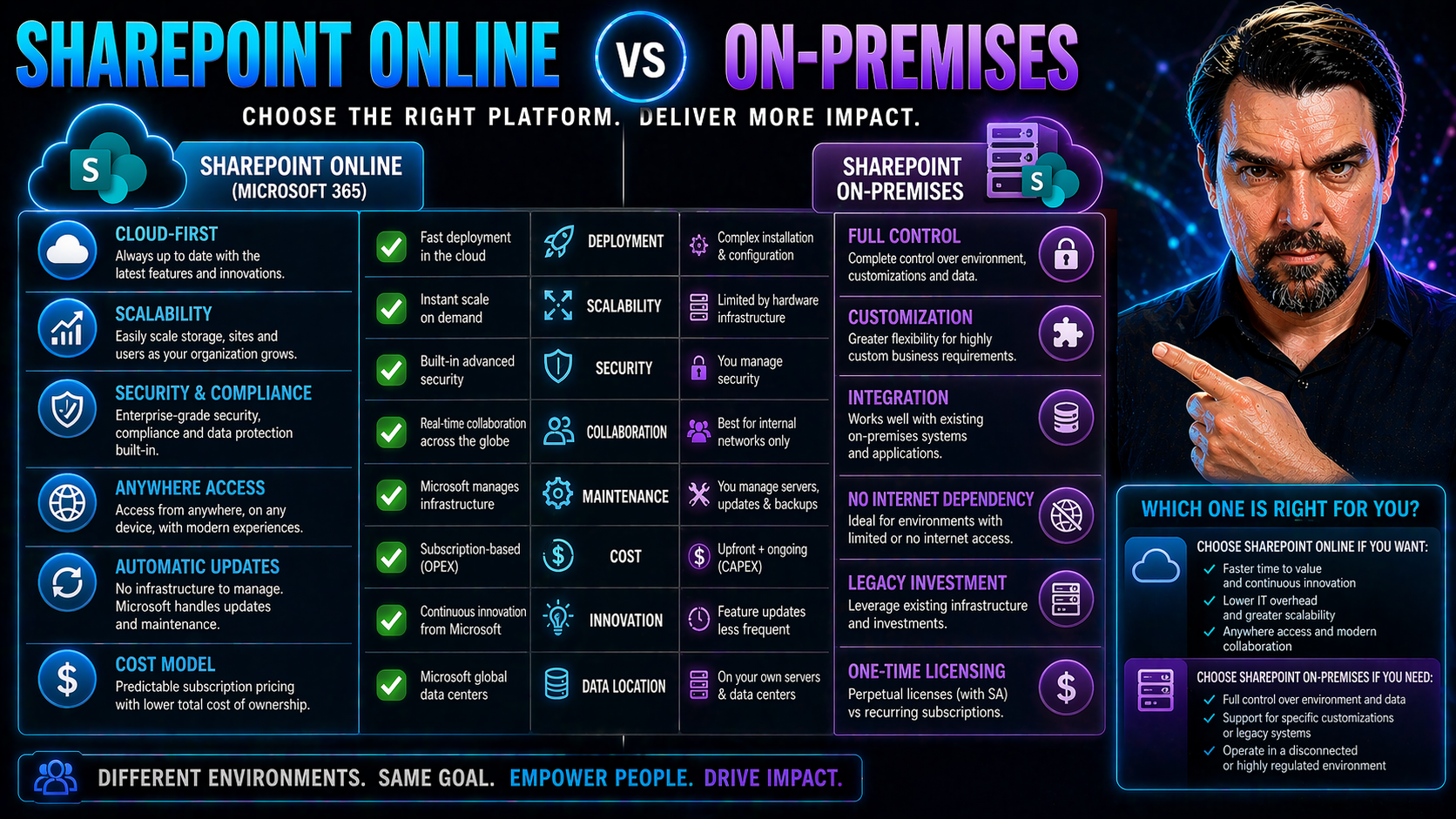
When you're choosing between SharePoint Online and SharePoint On-Premises, you’re really looking at two very different beasts. SharePoint Online is Microsoft’s cloud-first, always-updated solution that handles the heavy lifting for you. On the flip side, SharePoint On-Premises keeps everything under your own roof—your data, your hardware, your rules. This guide will break down all the ins and outs, from how these systems are built and maintained to what you can expect for costs, upgrades, compliance headaches, and the long-term future as we approach 2026. Whether you’re steered by regulatory concerns, cost pressures, or the need to modernize, you’ll find clear-cut answers and practical strategies to help your organization pick its best SharePoint path.
Core Differences Between SharePoint Online and On-Premises
At the heart of the SharePoint Online vs. On-Premises decision lies a choice between leveraging Microsoft's cloud or keeping your content close to home. These two options aren’t just different in location—they represent fundamentally distinct approaches to IT strategy, risk tolerance, and how much responsibility you want (or don’t want) on your plate.
Think of SharePoint Online as a “hand it over to Microsoft” model: you subscribe, log in, and let Microsoft carry the burden of uptime, security updates, and scaling. Going on-premises? That means rolling up your sleeves for server management, direct control, and, yes, all the blessings and headaches that come with running your own infrastructure.
The following sections break down these differences across deployment, ongoing management, and maintenance rhythms, giving you a head start as you size up the tradeoffs and decide which model matches up with your organization’s vision, control needs, and technical capacity.
Cloud-Based or Self-Hosted: Comparing Deployment Models
SharePoint Online is delivered through the Microsoft 365 cloud, accessed via the web, and hosted on Microsoft’s global data center network. You get remote access from anywhere, high-speed disaster recovery options, and minimal IT overhead. Meanwhile, SharePoint On-Premises means the platform’s installed on your own servers, inside your data center, under your roof. This classic self-hosted approach offers deeper control and custom network layouts but requires hands-on maintenance and staff for everything from hardware upgrades to system backups.
Infrastructure Ownership and Management Responsibilities
With SharePoint Online, Microsoft owns and operates the backend hardware, manages uptime, applies updates, and handles server security. Customers focus on configuring sites, content, and user permissions, sharing responsibility for security with Microsoft. On the other hand, SharePoint On-Premises puts the ball in your court—your IT team manages server health, software patches, storage expansions, and disaster recovery, leading to more control but also a bigger operational burden.
Update Frequency and Maintenance Model: What to Expect
- SharePoint Online: Automatic updates delivered by Microsoft, including new features and security patches, with little or no user disruption.
- On-Premises: Manual upgrades and patching cycles managed by internal IT, often requiring planned downtime and change processes.
- Feature Rollout: Online customers get new features faster, while on-premises may trail or require a new product release to catch up.
- Reliability Risks: Online benefits from Microsoft’s global uptime SLAs, while on-premises risks depends on internal infrastructure.
Cost, Licensing, and Budget Considerations
Let’s talk dollars and sense—because picking between cloud and on-prem isn’t just about tech. Your budget, cash flow, and appetite for surprise costs are front and center. SharePoint Online operates on a subscription model that smooths out expenses over time, rolls updates and support into your monthly fee, and puts Microsoft in charge of scaling and hardware.
SharePoint On-Premises, however, is more of a pay-up-front investment. You buy servers, licenses, and ongoing maintenance—costs can spike unexpectedly with hardware upgrades or emergency fixes. Both models come with their own flavors of licenses, tiered plans, and hidden gotchas. How much storage you’ll need (and how fast it grows) also shapes your long-term budget, so it’s not just the initial outlay or fee that matters.
In the next sections, you’ll see clear breakouts of the core cost structures, licensing nuances, and how expanding storage and users can throw curveballs into your financial planning—helping you avoid sticker shock and future-proof your investment.
Understanding Cost Models and Ongoing Licenses
- Subscription Costs (SharePoint Online): Predictable monthly or annual payments cover software, hosting, and updates.
- Capital Investment (On-Premises): Upfront spending on servers, storage, and perpetual software licenses, plus ongoing hardware refresh cycles.
- Hidden Costs: Watch out for backup infrastructure, support contracts, and third-party tools that may not be obvious at first glance.
- Financial Planning: Online is gentler on cash flow but accumulates over time; on-premises requires lump-sum approval and future budget for upgrades.
SharePoint Licensing Updates and Plan Tiers
- SharePoint Online (as part of Microsoft 365): Available in Business Basic, Business Standard, and Enterprise plans, bundling SharePoint with Teams, Exchange, and other apps. Standalone SharePoint Online Plan 1 and Plan 2 add specific document management and compliance features.
- On-Premises Licensing: Requires both server and CAL (Client Access License) purchases, plus Software Assurance for upgrades. No “bundled” cloud tools included—each license is focused on self-hosted deployment.
- Plan Differences: Higher tiers add compliance, advanced search, and automation features, aligning with needs for larger or more regulated organizations. See this guide on Microsoft Copilot licensing for broader Microsoft 365 plan nuances.
Storage and Scalability Cost Implications
SharePoint Online includes a baseline amount of storage, with extra capacity easily purchased as needed—scaling is on-demand and managed by Microsoft. Costs are transparent, and there’s no need to worry about running out of server space or shuffling hardware schedules. In contrast, with SharePoint On-Premises, every bump in data means buying more disks, swapping hardware, or managing storage arrays in-house—expenses can jump quickly as your needs grow, and scaling can mean downtime or surprise bills.
Security, Compliance, and Data Control
Security and compliance are make-or-break for any IT leader, and SharePoint’s deployment model can tip the balance. SharePoint Online runs under Microsoft’s stringent, multi-layered security and privacy standards, but control is shared—meaning some critical responsibilities (like patching platform vulnerabilities) are handled for you. With On-Premises, every compliance requirement, regulatory standard, and access rule lands on your internal policies and processes.
The cloud model brings built-in redundancy and the comfort of Microsoft’s investment in up-to-date protection, but it might not fit organizations needing full “eyes on” oversight of their infrastructure. Regulatory frameworks—like HIPAA or GDPR—add another layer to consider. For more on cloud security, take a look at Microsoft Copilot’s security model which covers encryption, monitoring, and data minimization that extend to Microsoft 365, including SharePoint.
Up next, you’ll see how the cloud and on-prem approaches divide compliance responsibilities and what that means for risk, regulatory audits, and the ability to customize your data governance practices—a key distinction for organizations handling sensitive or regulated information.
Compliance Responsibilities and Scaling Controls
SharePoint Online operates on a shared responsibility model: Microsoft manages the core infrastructure, physical security, baseline encryption, and major compliance certifications. Your team handles access, permissions, and content-level policies. Conversely, SharePoint On-Premises delivers full control—everything from patch cycles to forensic logging stays in your hands, offering superior granularity for unique or strict governance needs. For frameworks like HIPAA and GDPR, organizations should reference these Copilot governance strategies for recommendations on balancing data classification, access policies, and audit readiness.
Customization, Integration, and Functional Capabilities
No two organizations run SharePoint the same way. The real question isn’t just what SharePoint can do, but how much you can make it yours—and how seamlessly it plugs into the rest of your Microsoft world. SharePoint Online is built for quick integrations and up-to-date features, optimized for use with Teams, Power Platform, and the broader Microsoft 365 cloud suite.
On-premises, the customization doors swing wider: deep branding, custom code, and advanced workflow tweaks are in reach, though you’ll carry the weight of managing and maintaining those customizations. But there’s a catch—feature parity isn’t guaranteed, and Microsoft’s innovation focus is clearly leaning toward the cloud. That means some cutting-edge tools or updates simply never make it back to on-prem releases.
In the coming sections, we’ll dive into practical customization scenarios, the depth of integration with Power BI and Teams, and what the future looks like based on Microsoft’s official roadmap—so you can decide which platform offers the best fit, both for today and tomorrow. For more on collaboration environments, see the discussion of Teams governance here.
Customization Options and Control Requirements
- UI and Branding: On-premises allows extensive customization of themes, page layouts, and navigation. Online is more limited, favoring consistency for cloud updates.
- Workflow Automation: Both support Power Automate, but on-premises can also run custom server-side code for deep process automation.
- App Development: On-premises unlocks full access to SharePoint’s backend, letting IT teams build and deploy custom business logic where needed.
- When Deep Control Matters: Heavily regulated, process-driven industries might favor on-premises for maximum flexibility—even if it means extra effort to maintain.
Integration with Microsoft 365 and the Power Platform
- SharePoint Online: Seamlessly connects with Microsoft Teams, Office, Power Automate, and Power BI for cloud-based collaboration and data analytics. Built-in connectors and APIs offer plug-and-play integration. For how tools like M365 Copilot weave workflows together, see this article on Copilot orchestration.
- On-Premises Limitations: Only partial integration with cloud apps—certain connectors and automations may require hybrid or third-party solutions; some cloud features are unavailable or require complex networking.
- Governance Considerations: Online centralizes security and compliance policies, while on-premises requires careful alignment of on-prem policies with Microsoft 365 for hybrid setups.
- Practical Scenarios: Dashboards in SharePoint Online offer real-time insights via Power BI and Teams; see the nuances of dashboard deployment in this comparison of Teams vs SharePoint dashboards.
Feature Parity and Microsoft's Roadmap: Online vs On-Premises
- Exclusive Cloud Features: AI-driven search, quick updates, and tight Power Platform integration roll out first (and sometimes only) to SharePoint Online.
- On-Premises Gaps: Delayed access to new features and cloud-only enhancements, especially for modern collaboration or automation rollouts.
- Roadmap Emphasis: Microsoft’s innovation focus is clearly shifting to Online, meaning long-term feature gaps for on-prem users. Explore top Copilot use cases to see what's new in the cloud productivity toolkit.
Migration Strategy and Implementation Path
Ready to move from SharePoint On-Premises to Online? You’re in for a transformation, not just a lift-and-shift. Getting this right means discovering what you have, determining what needs to migrate, and picking the right tools to get there without chaos, confusion, or unnecessary downtime. The payoff: a modern collaboration environment that feels seamless—if you handle the details.
Migration isn’t a one-and-done affair. You’ll want to assess your current state, prepare users, and create a clear step-by-step plan. Tools like ShareGate can be game-changers for phased migrations—letting you monitor, report, and resolve issues as you go. And don’t forget: support doesn’t stop once the last file is moved. User training, governance tweaks, and ongoing optimization are all part of the picture if you want lasting success.
Coming up, we’ll break down assessment prerequisites, phased migration tips using ShareGate, and the must-have steps after migration to ensure true adoption and continued performance in your new SharePoint Online world.
Discovery, Assessment, and Prerequisites for Migration
- Inventory Your Content: Catalog all SharePoint sites, lists, libraries, and custom solutions. Identify what needs migration and potential blockers.
- Technical Assessment: Review infrastructure dependencies, customizations, and third-party integrations to gauge compatibility with SharePoint Online.
- Risk Analysis: Evaluate business impact of downtime, data loss scenarios, and necessary compliance measures for a safe, auditable migration.
- SMAT and Readiness: Use the SharePoint Migration Assessment Tool (SMAT) or similar to highlight technical gaps and areas needing remediation before migration.
- Preparation Steps: Clean up unused content, map permissions, and communicate plans with business stakeholders—early buy-in reduces surprises.
Making Migration a Breeze with ShareGate and Phased Execution
- Configure ShareGate for Your Environment: Set up connections to both your on-premises and SharePoint Online sites. Tailor migration rules to respect your organization’s structure and security needs.
- Break the Migration into Phases: Divide the process into manageable “waves,” starting with low-risk or less critical sites. Validate each migration phase before scaling up to sensitive or complex content.
- Monitor and Report Progress: Use ShareGate’s built-in dashboards and reports to track which content migrated successfully, flag errors, and provide stakeholders with progress updates in real time.
- Resolve Issues as They Arise: Leverage ShareGate’s remediation features to address failed items or permission mismatches, minimizing business disruption and reducing potential migration backlogs.
- Governance During Migration: Maintain oversight on site architecture, permissions, and usage to prevent new issues from cropping up as users shift to Online.
Post-Migration Optimization and User Support
- User Training: Prepare staff for new interfaces and features to drive adoption and reduce support tickets.
- Ongoing Optimization: Fine-tune search configurations, site structures, and performance settings for smoother collaboration.
- Continuous Governance: Refresh policies, usage monitoring, and compliance controls for evolving business needs.
- Feedback Loops: Establish channels for user feedback and rapid issue resolution to keep post-migration momentum high.
Decision Framework and SharePoint Online vs On-Premises in 2026
The world of SharePoint isn’t standing still, and as 2026 approaches, organizations need a forward-thinking plan—not just a reaction to what’s trending today. Choosing between Online, On-Premises, or a mix (hybrid) rests on a matrix of size, complexity, compliance mandates, staffing, and how fast your business wants or needs to move.
Emerging security, industry regulations, and cloud innovations have pushed more organizations to consider hybrid or cloud-first models, but there’s still no universal fit. Some will need regulatory comfort of on-premises, full-on cloud perks, or even a blend to accommodate diverse teams and legacy systems. Planning today means staying competitive, staying compliant, and not getting locked into a dead-end tech path.
In the next sections, you’ll get a practical rundown to help you match your business profile to a SharePoint deployment, insights on when hybrid makes sense, and a checklist of tips to make your transformation straightforward as you map out the road to 2026.
Making the Right Choice for Your Organization
- Small Businesses: Prioritize SharePoint Online for cost savings, minimal IT burden, and simple scalability as you grow.
- Mid-Sized Organizations: Assess your governance, compliance, and integration requirements—cloud’s flexibility often wins unless you need deeper custom control.
- Enterprises: Factor in IT resources, custom integrations, and regulatory landscape. Consider hybrid for a phased, controlled migration.
- Compliance-Heavy Industries: Lean toward on-premises or hybrid for full data oversight and custom audit trails.
- Growth Planning: Review long-term scalability and support needs—cloud makes it easier to turn on new features and accommodate spikes in data or users.
Hybrid SharePoint Strategies and the Path to 2026
- Bridging Legacy and Modern Needs: Hybrid deployments help organizations run critical legacy workloads on-premises while exploring new features in the cloud.
- Incremental Cloud Adoption: Move non-sensitive data to Online first, building user comfort and IT governance capability in stages.
- Long-Term Flexibility: Hybrid lets you control data residency, while activating AI and Microsoft 365 innovations as they become justified by business needs.
Final Thoughts and Practical Tips for Transformation
- Start with Discovery: Inventory sites and gauge business needs before picking your migration path.
- Prioritize Governance: Put compliance and security policies in place from day one—not as an afterthought.
- Phase Your Migration: Don’t rush it. Tackle in logical chunks and check for success after each wave.
- Training Never Ends: Invest in user training, change management, and feedback channels for smoother adoption—share wins to celebrate momentum.
Vendor and Partner Ecosystem for SharePoint Governance and Migration
You don’t have to go it alone. The SharePoint ecosystem is packed with specialized partners, migration tools, and consultants who can make navigating the road from old-school to modern collaboration platforms much easier. Market leaders like ShareGate are continually tracking trends, gathering user insights, and updating tools to smooth complex, risky migrations.
Consulting experts such as Abel Solutions and thought leaders like Giuseppe Marchi provide the tailored support, workshops, and planning needed to ensure your migration succeeds—not just in lifting documents but in changing habits, boosting user adoption, and setting sustainable governance in motion.
Read on for highlights of the best migration tools, annual market insights from ShareGate, and a taste of what you can expect from experienced consulting partners that specialize in making SharePoint transformations painless and productive.
ShareGate Snapshot 2026: Migration and Governance Tool Insights
- Latest ShareGate Tools: Advanced automation for phased migration, permissions mapping, and post-move content cleanup.
- Annual Market Reports: Insights on industry migration trends, common pain points, and real-world case studies.
- Risk Reduction: ShareGate dashboards and alerts highlight issues early, lowering the chances of data loss or business interruptions.
- Cost Optimization Features: Built-in reporting to help right-size online storage and avoid paying for unused licenses or services during migration waves.
Consulting and Workshop Support: Abel Solutions and More
- Strategy and Roadmap Sessions: Establish a tailored migration and adoption plan with experts like Abel Solutions, based on your business context and future goals.
- SharePoint-in-a-Day Workshops: Short, intensive programs led by pros such as Giuseppe Marchi to upskill your IT team and power users, accelerating adoption.
- Custom Governance Planning: Design effective permission, compliance, and site usage policies for your new SharePoint environment.
- Post-Migration Coaching: Ongoing support, troubleshooting, and user engagement to ensure your migration investment pays off—now and years ahead.
User Experience and End-User Adoption Differences
All the talk about tech specs, costs, and migration maps misses this: if your people don’t like using the new SharePoint, all that investment could amount to nothing. End-user adoption is the foundation for real business value. SharePoint Online and On-Premises often look the same on paper—but in daily life, user workflows, training needs, and interface consistency vary more than you might expect.
Modern online deployments offer a unified look and feel across desktops, tablets, and phones, keeping users productive no matter where they are or what device they’re using. On-premises, especially older versions, may leave employees frustrated by outdated UIs or patchy cross-device support. And don’t sleep on search—cloud AI means faster, more relevant results online, while on-prem relies on classic indexing that can slow people down.
Below, you’ll get a closer look at how interface fragmentation, search experiences, and the real change-management lift of going to the cloud affect everything—from helpdesk calls to how quickly your organization can realize ROI from a SharePoint investment.
Interface Consistency Across Devices and Platforms
SharePoint Online offers a unified interface regardless of device or platform: users get web and mobile experiences designed for consistency, whether they’re using Windows, Mac, or a smartphone. On-premises SharePoint, especially legacy versions, may display differently across devices and browsers. This fragmentation can complicate training and slow down adoption, as users face inconsistent layouts and missing features depending on where they log in.
Search Relevance, Performance, and Personalization
SharePoint Online leverages Microsoft’s cloud-powered AI and global indexing to deliver fast, relevant search results—often personalized by role, recent activity, and user behavior. This boosts content discovery and saves time for employees. On-premises deployments, by contrast, often rely on static search indexing and have fewer configuration options, which can lead to slower, less accurate results and a less tailored user experience.
Training Needs and Change Management Complexity
- Migration Requires Retraining: Employees used to classic on-premises layouts often need structured onboarding to master cloud tools and modern features.
- Change Management Overhead: Moving to the cloud brings not just new features, but cultural shifts—expect hidden costs in communication, process redesign, and ongoing support.
- Adoption Timeline: Don’t expect immediate ROI; allow time for users to adjust, ask questions, and develop confidence.
- Champion Networks Help: Identify and empower early adopters to model best practices and answer peer questions, as highlighted in this guide on Microsoft Copilot adoption.
You Should Also Listen To
If you are exploring SharePoint Online vs on-premises, these episodes add practical context for Microsoft 365 collaboration, employee experience, governance, and secure AI adoption.
- Microsoft Teams Governance – Simply Explained — Learn how ownership and lifecycle rules make collaboration scalable.
- Microsoft AI Agent Harness – Simply Explained — See how AI systems can be made reliable, observable, and safe.
- Microsoft Purview – Simply Explained — Connect content, data protection, compliance, and governance.
- Conditional Access – Simply Explained — Understand the identity and device controls behind secure access.
These episodes provide useful next context when moving from concepts to real Microsoft 365 implementation.

Microsoft MVP | Host of M365.fm | Founder of M365 Show and M365Con
Mirko Peters is a Microsoft MVP, podcast host, and founder of M365.fm, M365 Show, and M365Con. His work connects Microsoft practitioners through podcast interviews, livestreams, and community events.
At M365.fm, Mirko hosts conversations with Microsoft MVPs, product experts, architects, and community contributors. Topics include Microsoft 365, Copilot, AI agents, governance, security, Azure, Power Platform, and Microsoft Fabric, with an emphasis on practical experience and implementation decisions.
M365.fm is the podcast and learning platform. M365 Show brings experts together for livestreams, while M365Con provides an online conference setting for community learning.
Official website: Mirko Peters (https://www.mirkopeters.com/). Recognition: Mirko Peters — Microsoft MVP profile (https://mvp.microsoft.com/de-DE/mvp/profile/9b0ca797-db5a-493a-a845-8b9158046cf5). Connect on LinkedIn (https://www.linkedin.com/in/m365showpodcast/).





