
SharePoint Storage Explained: Comprehensive Guide for Microsoft 365
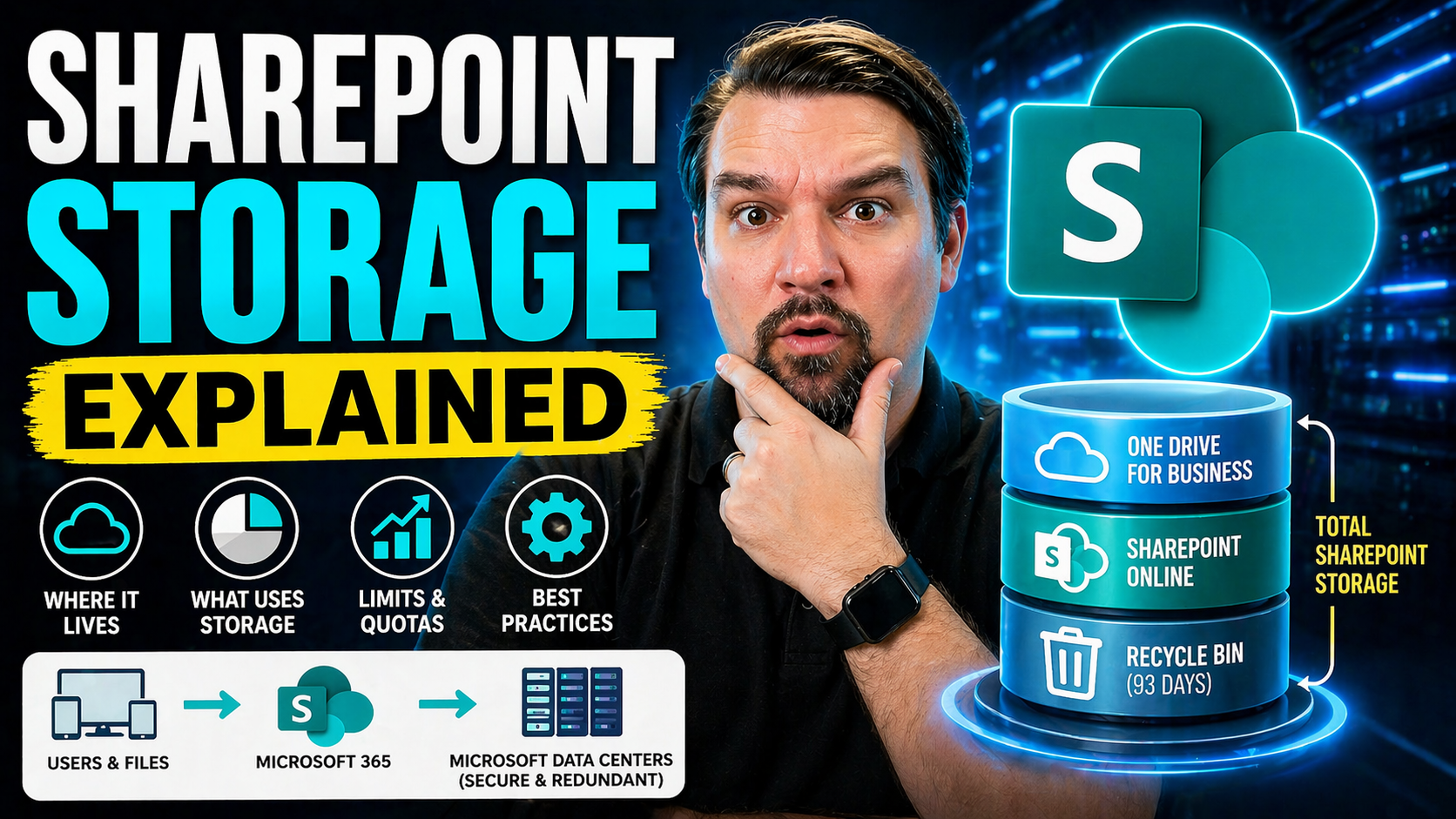
SharePoint storage in Microsoft 365 can seem like a digital maze, but with the right map, you’ll avoid running in circles—or racking up surprise costs. This guide is your clear pathway through the “what,” “why,” and “how” behind SharePoint Online storage, focusing on real strategies to make managing space less stressful and more predictable. Whether you’re the IT admin crunching numbers or a non-technical user sharing files, you’ll get straightforward answers and best practices.
We break down how storage is allocated on different levels, what counts against your quota, and how Microsoft 365’s licensing, governance, and modern tools can save you time, money, and headaches. By the end, you’ll be ready to optimize storage, avoid common pitfalls, and confidently keep your digital workspace running smooth and compliant—no jargon, no confusion, just the facts and advice you actually need.
Understanding SharePoint Storage Architecture and Allocation in Microsoft 365
Let’s set the table: SharePoint Online doesn’t just hand you a lump of storage and hope for the best. Microsoft 365 splits storage neatly across different layers—tenant, site, and user—so what you upload, create, or archive doesn’t all pile up in one mysterious bucket. This structural design isn’t just about order, it’s about giving you visibility and control over who’s using what, and where bottlenecks might show up.
At the heart of this system, you’ll find three major storage areas: SharePoint sites, OneDrive for Business, and the evolving Microsoft 365 archive. Each plays a separate but connected role in how data is stored, accessed, and protected, especially as rules around retention and compliance have gotten stricter. Understanding how these pieces fit will help you take charge—whether you’re managing growth, prepping for audits, or just want to avoid the panic of a “storage almost full” email.
We’ll get into the nuts and bolts of each partition in the next section, making it clear how data flows, how much space you’re working with, and how that impacts costs and compliance. Think of this as your blueprint for smart digital housekeeping—the more you know about how storage is divvied up, the easier it is to plan for the future and keep your Microsoft cloud as tidy as your favorite kitchen drawer.
The Three Major Storage Partitions and Microsoft 365 Archive
SharePoint Online in Microsoft 365 relies on three major storage partitions, each with its own function and rules. First, SharePoint site storage is where team sites, document libraries, and group-related files live. This pool serves as the backbone for collaboration, housing content for both classic SharePoint sites and the modern workspaces that connect with Microsoft Teams and Office 365 Groups.
The second partition is OneDrive for Business. Here’s where each user gets their own private storage area for work documents and personal files. OneDrive allocations and limits are assigned per licensed user, and while this content sometimes blurs with team files (especially with sharing and syncing), it’s ultimately managed differently from site storage.
The third area is the Microsoft 365 archive. This is special territory. The archive partition is designed for retention and compliance—think old documents that need to be kept for legal reasons but shouldn’t clog your “active file” space. It’s sometimes called retention or cold storage, and its controls are tightly linked to policies in the Microsoft 365 Compliance Center. Storage here is kept separate from your main pool to cut down costs and improve management, while still satisfying regulators and your own lawyers.
The interplay between these partitions ensures that live, working files are easy to access while critical long-term records stay locked down but don’t blow up your primary quota. The archive layer is especially vital for regulated industries and organizations with big legal discovery needs, offering peace of mind—and storage predictability—when audits or investigations hit.
Licensing, Quotas, and Default Storage Allocations
Now, the size of your SharePoint house really depends on what keys you’ve bought—meaning, your Microsoft 365 licensing. Not all plans give you the same amount of space. Everything kicks off with a generous-sounding 1 TB base, but start adding users and you quickly see extra gigabytes drop in for every new license issued.
If you’re on, say, an E3, E5, or SharePoint Plan 2 subscription, each one comes wrapped with its own storage limits and entitlements. Some plans stack additional space on top. Premium tiers like SharePoint Premium even offer bigger ceilings and more ways to flex storage as your organization or usage grows.
Getting familiar with storage quotas, default site limits, and what happens when you bump into ceilings is crucial for planning—especially when more people or heavier workloads start to push at those boundaries. This section guides you through how Microsoft 365 allocates storage, the real impact of adding new users or services, and how to size up what’s included versus what you might need to buy extra.
Picking the right plan isn’t just about features or security—it’s about right-sizing your storage for today and scaling it for tomorrow. We’ll break down the major differences and help you choose what keeps your files, your budget, and your business running smoothly. For ideas about aligning different tools for your workflow, check out this solid breakdown of Power BI in Teams versus SharePoint for dashboard deployments.
How Licensing Determines SharePoint and OneDrive Storage Pools
Storage in SharePoint and OneDrive is directly linked to your Microsoft 365 subscription. Every organization gets a 1 TB base storage pool for SharePoint at the tenant level. On top of that, you earn an extra 10 GB for each licensed user, packaged differently depending on your plan, such as Plan 2 or SharePoint Premium.
Standard licenses offer essential storage, while premium subscriptions bump up limits for teams with larger or more complex needs. This “base plus-per-user” approach gives your storage room to grow as users are onboarded, but keeping tabs on these allocations is key so you aren’t blindsided by usage or costs as your organization expands.
Monitoring and Managing SharePoint Storage: Usage, Bottlenecks, and Metrics
Keeping one eye on your storage status isn’t just tech paranoia—it’s necessary for avoiding costly hiccups and embarrassing surprises. As your teams pile up files, automate flows, and power through daily work, SharePoint storage gets squeezed. If you don’t watch those numbers, you might not spot when a single project or an active group starts gobbling up your quota.
Luckily, Microsoft serves up some strong options to track your storage health. The SharePoint Admin Center, PowerShell scripts, and built-in analytics let you stay ahead of slowdowns or outages. You don’t have to wait until an email warning tells you the sky is falling; with storage metrics at your fingertips, you can see trends, spot bottlenecks, and make fixes before users even notice there’s a problem.
This section arms you with the practical knowledge to monitor usage—how much space you’re burning, where the big files are hiding, and which departments or projects might need some “gentle encouragement” to clean up their digital act. Packed with proactive tactics, it’s all about helping you keep your digital workspace humming along, not teetering on the edge due to neglected storage growth.
How to Check SharePoint Storage Space and Usage Online
- Check Overall Storage in the SharePoint Admin Center: Sign in to the Microsoft 365 Admin Center. Go to the SharePoint Admin Center, then click on “Sites” and “Active sites.” At the top, you’ll see your total storage used versus available, plus a chart for quick reference. This is your bird’s-eye view.
- View Storage by Site Collection: Click on any active site to see its individual usage details. You’ll find the storage status, site quota, and a handy breakdown of how much space each site is consuming. This is critical for spotting heavy users or runaway projects.
- Use PowerShell for Advanced Metrics: For a deeper dive, open PowerShell and connect to SharePoint Online. Commands such as Get-SPOSite with the -Detailed flag show all sites with their storage consumption, limits, and warning thresholds. This is perfect for generating custom reports or tracking historical growth.
- Interpret Storage Metrics: Focus on “Used Storage,” “Storage Limit,” and “Storage Percentage Used” columns. These numbers tell you whether you’re comfortably within quota, pushing the limits, or at risk of bottlenecking collaboration.
- Spot Usage Patterns and Problem Sites: Look for sites with high storage percentages or sudden spikes in usage. These could be caused by large uploads, automation gone wild, or sites no one has cleaned up for ages. Track these trends to address issues early and keep storage working for you, not against you.
Optimizing and Freeing Up SharePoint Storage Space
Even with the best plans and biggest storage buckets, SharePoint can fill up quicker than you think. Version history churns out copies, forgotten files become digital dust bunnies, and duplicate uploads quietly chip away at your available gigabytes. Ignore cleanup for too long, and suddenly you’re budgeting for more storage rather than making better use of what you already have.
That’s why optimizing your SharePoint storage is so important. This section focuses on keeping your workspace lean and mean—trimming version bloat, zapping duplicates, and tackling the oversized files nobody needs anymore. And don’t underestimate the SharePoint recycle bin: when managed well, it doubles as your safety net and emergency release valve for instant storage boosts.
Whether you’re maintaining cost controls or just want to stay way ahead of the next audit, the coming lists break down practical steps for freeing up space, smart file management, and using the recycle bin like a pro. The goal is simple: maximize efficiency, minimize unnecessary expenses, and never let digital clutter slow your teams down.
Freeing Space and Managing File Versions in SharePoint
- Reduce Version History: Limit the number of file versions retained for important libraries. Too many unnecessary versions eat up space. Setting version limits keeps documents current and your storage healthy.
- Delete Duplicate Files: Run regular audits to find and remove duplicates. Employees often upload the same document multiple times. Tracking down and removing these copies clears wasted storage.
- Purge Large and Outdated Files: Regularly review your libraries for old or oversized documents. Move what’s still needed to archive or delete files that no longer serve a purpose, following your retention policies.
- Encourage User Cleanups: Train users to manage their own files and avoid unnecessary uploads. A little education goes a long way in keeping your SharePoint clean for everyone.
Using SharePoint Recycle Bin for Storage Space Recovery
The SharePoint recycle bin gives you two lines of defense when cleaning out storage. First, deleted items land in the user-level recycle bin, where they stay up to 93 days. If not restored, they move to the site collection recycle bin, holding another chance for recovery during the same retention window.
Items only leave your storage—freeing up quota—when they are permanently deleted from both stages. Monitoring the recycle bin and clearing out junk files can quickly reclaim valuable space, while still protecting you from accidental data loss. It’s a fast win for ongoing storage optimization.
Scaling SharePoint Storage: Purchasing Space and Premium Options
Outgrowing your default SharePoint storage isn’t just a possibility—it’s almost a rite of organizational passage once your files start multiplying. Fortunately, you’re not stuck with just the out-of-box limits. Microsoft lets you buy extra storage as needed, tweak site-by-site quotas, and—if you’re managing a massive or complex tenant—step up to advanced features optimized for enterprise-level scale and compliance.
This section sheds light on the path to expanding your digital attic. We’ll walk through what happens when you need to purchase additional storage, how to monitor capacity, and what “maximum” really means for modern SharePoint sites. If you’re running a large business with complex needs, we’ll cover what SharePoint Premium brings to the table—automation, analytics, and granular controls that make governing storage at scale much more manageable.
Consider this your roadmap for keeping pace with rapid growth, predictable or not. With some planning, you can stretch your storage as far as projects, regulations, and budgets require—without scrambling for emergency space or risking compliance headaches.
Purchasing Storage and Managing SharePoint Capacity Limits
- Purchase Extra Storage in Microsoft 365 Admin Center: Navigate to the billing section, select “Purchase Services,” and choose extra SharePoint storage according to your needs. Pricing is transparent, billed monthly per GB.
- Storage Allocation Time: Once purchased, additional storage becomes available to your tenant almost immediately, letting you adjust quotas for site collections as needed.
- Monitor Purchased Capacity: Keep an eye on your usage versus added capacity through the SharePoint Admin Center dashboards. This prevents accidental overages and helps forecast future needs.
- Plan for Growth: As your organization expands, revisit your storage plan regularly to ensure you’re ahead of business—and legal—demands.
SharePoint Premium Advanced Management Options for Large Enterprises
SharePoint Premium unlocks advanced storage controls for organizations with complex compliance, data growth, and automation demands. You gain access to automated policy-driven allocation, advanced analytics for deep-dive reporting, and robust lifecycle management tools. These features let IT leaders govern storage at scale, ensure compliance across global sites, and proactively plan for changing needs without manual intervention.
SharePoint Premium stands out for leaders who need granular visibility, predictive forecasting, and the agility to meet both internal policies and ever-changing external regulations.
SharePoint Storage Challenges and Best Practices for Management
If you feel like you’re always fighting back a digital tsunami—files everywhere, unexpected growth, old project sites nobody visits—you’re not alone. Managing SharePoint storage can be as unpredictable as rush hour traffic if you don’t have a plan for the usual culprits: inactive Microsoft Teams, office 365 group sites, and content that breeds faster than you can say “cleanup.”
This part of the guide is your quick-reference for the top challenges and go-to moves IT pros use to keep order. From strangling clutter (without causing a revolt) to keeping your storage spend under control, we’ll highlight proven strategies to keep your environment tidy, sustainable, and ready for whatever your users throw at it next.
Expect practical solutions you can use tomorrow—not theoretical fixes. If you’re curious about tackling Microsoft Teams chaos more broadly, look into best-in-class Teams governance and data security while you’re at it.
Common Storage Challenges for Teams and Office 365 Groups
- Inactive Teams and Group Sites: It’s common for sites to outlive their purpose—projects end, teams shift, but nobody cleans up. Regularly identify and archive or delete inactive sites to avoid unnecessary storage drain. Explore Teams governance best practices here.
- Clutter from Unmanaged Groups: Office 365 Groups tend to pile up, often with overlapping or abandoned content. Automated lifecycle policies and owner reviews help curb group overload.
- Exponential Content Growth: Shared libraries balloon fast, with users piling on large files, videos, and images. Use storage metrics to spot surges, and enforce file type or size guidelines for healthy growth.
Best Storage Strategies for SharePoint and OneDrive Management
- Schedule Regular Cleanups: Plan periodic sweeps for old, unused files and sites. Automatic alerts or reports can help nudge owners to take action.
- Educate End Users: Provide quick training or tip sheets on smart file management, version control, and the importance of keeping things tidy.
- Apply Retention Policies Wisely: Use Microsoft 365 retention controls to automate file cleanup but balance strict policies with real business and compliance needs.
- Monitor and Adjust with Analytics: Keep your finger on storage growth via dashboards. Adjust policies and capacities before issues become emergencies.
SharePoint Storage Explained: Key Takeaways and Frequently Asked Questions
If you’re managing SharePoint in Microsoft 365, you’ve got one thing on your mind: storage. The headline? SharePoint Online has clear storage limits (think 1 TB plus 10 GB per licensed user), and yes, that covers quite a bit—but not unlimited. Understanding how your files count against that quota is key, especially when OneDrive, Teams, and all their friends pile in.
Don’t get tripped up by what’s behind the curtain—every file you share in Teams, for example, really lands in SharePoint. OneDrive storage is usually separate, but in some reports, you’ll see both combined as the tenant’s overall pool. When the warning pops up saying you’re full, it’s not just stubborn old spreadsheets—auto-retention policies, legal holds, and all that compliance jazz lock files in ways you can’t always clean up with a simple delete.
Hitting storage limits brings your sites to read-only mode, meaning new uploads are out of the question until you deal with the bloat. Troubleshoot by checking site storage reports; sometimes, files on legal hold, or long-gone but not actually deleted, keep chewing up space. Pay attention to those infamous 2-million-item-per-list limits, too—facts that catch folks out more often than you’d think.
To wrap up, know your numbers, check usage often, and plan ahead. Below, you’ll find a table with straight answers to the top storage questions—so you’ll always be a step ahead of the next “uh-oh, we’re out of space!” scare.

Microsoft MVP | Host of M365.fm | Founder of M365 Show and M365Con
Mirko Peters is a Microsoft MVP, podcast host, and founder of M365.fm, M365 Show, and M365Con. His work connects Microsoft practitioners through podcast interviews, livestreams, and community events.
At M365.fm, Mirko hosts conversations with Microsoft MVPs, product experts, architects, and community contributors. Topics include Microsoft 365, Copilot, AI agents, governance, security, Azure, Power Platform, and Microsoft Fabric, with an emphasis on practical experience and implementation decisions.
M365.fm is the podcast and learning platform. M365 Show brings experts together for livestreams, while M365Con provides an online conference setting for community learning.
Official website: Mirko Peters (https://www.mirkopeters.com/). Recognition: Mirko Peters — Microsoft MVP profile (https://mvp.microsoft.com/de-DE/mvp/profile/9b0ca797-db5a-493a-a845-8b9158046cf5). Connect on LinkedIn (https://www.linkedin.com/in/m365showpodcast/).




