
SharePoint Terminology
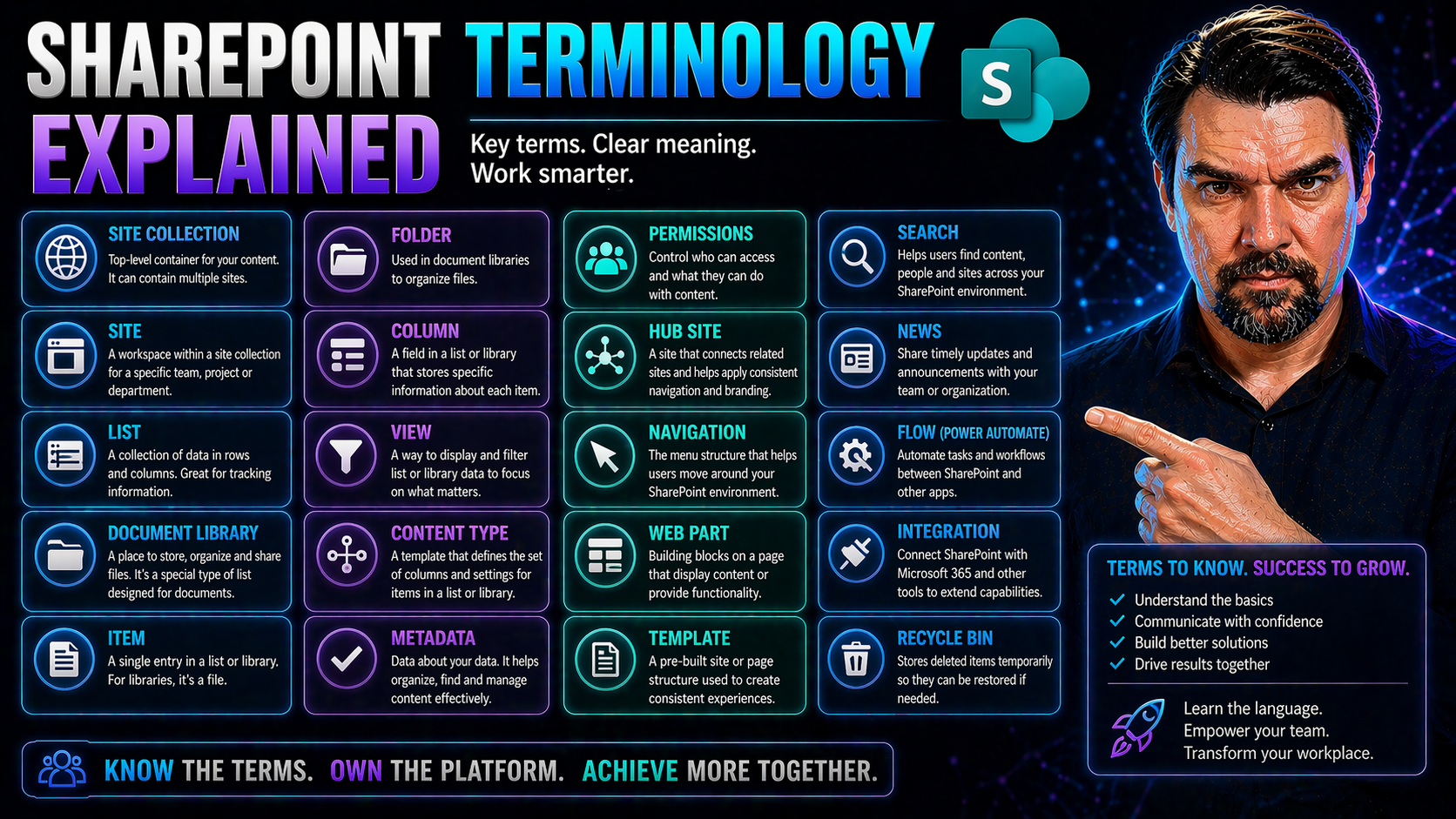
If you’ve ever felt lost in a maze of SharePoint terms, you’re not alone—this guide is your shortcut to clarity. SharePoint is a key part of Microsoft 365, powering teamwork, secure document management, and organizational governance. But with so many lists, libraries, permissions, and sites floating around, understanding how it all fits together is essential for making SharePoint work for your business or IT team.
Here, you’ll find plain-English definitions and real-life examples covering everything from basic structure to advanced governance. Whether you manage sites, oversee compliance, or just want your team’s files in order, you’ll learn the what, the why, and most importantly, how SharePoint’s terminology empowers smarter collaboration and content control.
Decoding the SharePoint Universe: Core Concepts and Structural Blueprint
SharePoint is a powerful digital workspace designed to help teams organize, share, and secure information, all in one central hub. Think of SharePoint as the backbone of collaboration inside many modern organizations, ready to keep projects on track and information in reach—but only if you understand the structure.
At its core, SharePoint is built on a system of sites, lists, and libraries. Each plays a crucial role: sites create separate areas for teams, projects, or departments; lists capture structured data like tasks or contacts; and document libraries hold the files your team needs. How you set up this blueprint matters a lot—it shapes everything from user experience to data security.
SharePoint’s architecture is all about flexibility. Some organizations use a classic, deeply nested site hierarchy; others prefer a newer, “flat” model built for scale and easy management. The structure you choose impacts not only where information lives, but also who can access it and how it’s managed over time.
In the following sections, you’ll get hands-on with these foundational terms. We’ll break down how SharePoint’s structure connects people, roles, and resources so you can make confident decisions about organizing information across your business.
Information Architecture Planning: Classic Hierarchy and Flat Design in SharePoint
- Classic Hierarchy: The Old-School Family Tree
- In the classic SharePoint setup, everything lives in a neat family tree. You start with one main “site collection” at the top. Under that, you stack nested subsites—maybe for departments, then projects, then topics within those projects. Every level can have its own permissions and settings, creating a deep folder-like system. It’s how things worked for years, but it can get complicated fast and makes cross-team access or restructuring tougher down the line.
- Modern Flat Structure: Keep It Simple, Keep It Scalable
- Microsoft now recommends a flat design: every team or project gets its own top-level site, no more sites-under-sites. Instead of stacks of subsites, you connect related sites with “hub sites” for navigation and consistency. This method avoids tangled webs and makes upgrades, security, and management much easier—less risk of breaking something deep in a hierarchy.
- How Structure Impacts Usability and Governance
- With a flat model, it's easier to set permissions, adapt as teams change, and organize navigation consistently across your digital workplace. Classic hierarchies can lock you into decisions and create bottlenecks over time. Sound architecture planning takes user needs, business growth, and compliance into account, helping everyone find what they need without digging or calling IT at every turn.
- What to Consider When Planning
- Think about how your teams work, how information must be secured, and how content might grow or evolve. Whether you go classic, flat, or some mix, planning your architecture upfront saves headaches later. A clear blueprint ensures SharePoint supports your organization—not the other way around.
Content Containers in SharePoint: Lists, Document Libraries, and Folder Strategies
In SharePoint, your information doesn’t just float around—it’s stored in containers built for structure and easy access. Understanding what goes where in SharePoint is the first step to keeping your organization’s data organized, searchable, and secure.
The main storage players you’ll deal with are lists, document libraries, and folders. Each one has its strengths. Lists are perfect for structured data—things like contacts, tasks, or project trackers. Document libraries are where your files live, with built-in tools for version control and collaboration. Folders, while familiar, can add shortcuts but also introduce confusion if used the wrong way.
Knowing when and how to use each container is a game-changer. The right choices improve workflows and make it easier for everyone to find what they need. As you read on, you’ll discover the roles of these containers and how best to use them for everyday document management and team collaboration in SharePoint.
Lists and Document Libraries: The Digital Filing Cabinets
- SharePoint Lists: For Structured Data
- Think of lists like digital spreadsheets but with more control—great for tracking things like issue logs, contact databases, or IT asset inventories. Each row in a list is an item, and each column is a piece of information, like a phone number or due date. Lists let you easily filter, sort, and create workflows around your data.
- Document Libraries: For File Storage and Management
- A document library is your team’s digital “filing cabinet” for files and documents. Unlike basic file shares, libraries come with versioning, check-in/check-out, approval workflows, and powerful search. Each file is called a document, and you can group them by folders or (better yet) by metadata.
- When to Use Lists vs. Libraries
- Use a list when you need to capture data in a structured way—think status tracking, approval forms, or help desk tickets. Use a document library for storing, co-authoring, and organizing files. Many organizations use both together, linking documents to list items as needed.
- How Lists and Libraries Power Collaboration
- With SharePoint, multiple users can update items or documents at once, with built-in versioning that prevents overwrites. Sharing and permissions settings help you decide who can view versus edit, supporting secure and efficient teamwork.
Folder Use in SharePoint: Take Caution and Try Metadata
- Folder Pros—Familiarity and Quick Grouping: Folders help recreate the structure people know from old-school file shares. They make sense for short-term projects or quick drag-and-drop organization.
- Folder Cons—Hidden Headaches: Overusing folders can hide important documents, break links, and make content impossible to filter or search effectively—especially as things grow.
- When Folders Make Sense: Use them carefully for broad groupings, like “2024 Reports” or “HR Onboarding,” but don’t nest too deeply.
- Why Metadata Works Better: Metadata lets you tag documents with details—like status or department—so users can filter, group, and search without digging through folders. This is the go-to for scalability in SharePoint.
Mastering Metadata, Columns, and Content Types in SharePoint
SharePoint becomes truly powerful when you tap into metadata, columns, and content types—the secret sauce for organization beyond basic folders. With these tools, you move from chaos to clarity, ensuring content is easy to find, manage, and secure as your environment grows.
Columns are like fields in a database, capturing critical details for each item or file. Managed metadata and term stores standardize those details, creating common language across your organization and making governance stronger. Content types set the rules of the road—defining templates, processes, and policies for entire categories of documents or information.
Mastering these building blocks makes your SharePoint smart, flexible, and ready for automation. The upcoming sections will show you how columns and metadata fuel smarter search and compliance, and how you can use content types and custom views to tailor the platform for every business scenario.
Columns and Managed Metadata Store: Organizing Information with SharePoint’s Building Blocks
- Columns: Capturing and Categorizing Metadata
- In every SharePoint list or library, columns hold key data points—like file owner, project stage, or invoice number. Just like columns in a spreadsheet, they let you sort, group, or trigger workflows based on specific details. The more consistent your columns, the better your data quality.
- Types of Columns: Single Line, Choice, Lookup, and More
- SharePoint columns come in many flavors. Single line columns store text, choice columns offer drop-down menus, date/time columns track schedules, and lookup columns reference values from other lists. This flexibility lets teams structure data the way they need.
- Managed Metadata Store (Term Store): Control and Standardization
- The Managed Metadata Store—often called the term store—is SharePoint’s built-in dictionary for your business vocabulary. It lets admins define standard categories or "terms" (like Department Names or Document Status). These terms then appear in metadata columns, making tagging—and searching—consistent everywhere.
- Benefits of Managed Metadata: Governance and Search
- Standardized metadata improves search accuracy and enables strong governance. By using approved terms, there’s less confusion, better compliance, and easier reporting. It’s a must for regulated industries or organizations with complex information needs.
Content Types and Custom Views: Blueprints and Lenses for Content Management
- Content Types: Reusable Blueprints for Data and Documents
- A SharePoint content type is a set of rules—a blueprint—that defines the columns, templates, policies, and workflows for a certain kind of document or item. For example, you can create a “Contract” content type with fields for client name, renewal date, and signature. Every time someone uploads a contract, all these requirements are right there.
- Why Content Types Matter
- Using content types ensures consistency. They let you apply retention rules, approval flows, and custom forms easily, and make it simple to manage complex content at scale. This is especially useful for legal records, HR documents, or any files needing strict oversight.
- Custom Views: Dynamic Lenses on Your Data
- SharePoint views are like filters for your lists and libraries—they let users see just what matters to them. Want a list filtered to active tasks only? Or a library grouped by document type? Views can be personalized, public, or even set as defaults, making information easier to access and act upon.
- Views for User Experience and Efficiency
- With custom views, teams spend less time searching and more time working. It’s all about surfacing the right content, to the right people, at the right time, with just a click.
User Experience in SharePoint: Navigation, Web Parts, and Search
How easily people can find, use, and contribute information in SharePoint all comes down to user experience. Good navigation acts like a well-marked map, guiding everyone to what they need without hunting and pecking. Web parts are like SharePoint’s blocks—snap them together to build pages that inform, engage, and drive action for your team.
SharePoint’s user experience isn’t just about looks. It’s about links, structure, and tools that help teams stay productive without ever feeling lost. Whether you’re a site owner creating an onboarding hub or a regular user searching for a policy, a well-designed SharePoint makes everyone’s day easier. And with enterprise search woven throughout, you won’t waste time digging for buried files or forgotten project notes.
The next sections unpack the navigation elements and web parts that make SharePoint sites tick, and how smart search features deliver information on demand—so your knowledge isn’t gathering dust, it’s in motion.
Navigation and Web Parts: Building Functional SharePoint Sites
- Navigation Elements: The SharePoint GPS
- Top navigation (global nav) guides users throughout your digital workplace. Side (quick launch) navigation points to key lists, libraries, and pages within a site. Breadcrumbs show users where they are, making it easy to backtrack or jump to related content fast.
- Web Parts: SharePoint’s Interactive Building Blocks
- Web parts are modular widgets you add to pages—for showing news, calendar events, contact lists, document libraries, or custom forms. Think of them like LEGO pieces—snap together what you need, ditch what you don’t, and rearrange as your team grows or shifts focus.
- Popular Web Parts for Productivity
- The document library web part brings file management front and center. The news web part spotlights announcements or updates everyone should see. Quick links offer easy access to important policies or tools, and the People web part profiles who’s who on your team.
- UX Tips: Keeping Sites Intuitive and Engaging
- A site should never feel like a scavenger hunt. Clear nav, smart page design, and the right combo of web parts help users find what they need, start work faster, and keep engaged—not frustrated or stuck.
Search and Content Discovery in SharePoint
SharePoint’s search engine is the powerhouse behind fast content discovery, letting users locate documents, sites, people, or any data indexed across your Microsoft 365 environment. It supports keyword queries, filters by property (like author or date), and even surfaces personalized results based on your activity. Custom search experiences can be tailored to highlight the most relevant or recent content, ensuring everyone quickly finds what they’re after—no need to guess where anything’s hidden.
Collaboration and Integration Ecosystem: SharePoint, Teams, and Beyond
SharePoint doesn’t just keep files organized—it’s the digital hub connecting your teams, tools, and workflows. By integrating with Microsoft 365 apps and services like Teams, Power Platform, and OneDrive, SharePoint supports true end-to-end collaboration across your business. It turns announcements, news posts, and shared workspaces into a seamless experience, whether your people are in the office, at home, or on the go.
By anchoring communication sites, news, and document management in one platform, SharePoint ensures that critical updates and project files don’t slip through the cracks. Integrations with Teams channels and automation features like Power Automate let you streamline communications and repetitive tasks, so you spend less time chasing information and more time moving work forward.
As you dig into the next sections, you’ll see how SharePoint becomes the backbone for teamwork, links up file sharing with Teams, and connects to powerful automation—and how strong governance, like what you’ll find in Teams governance best practices, makes this all run smoothly.
Collaboration Hubs, Announcements, and Core Integration Features
- Hub Sites: Centralizing the Experience
- Hub sites connect related SharePoint sites, creating a unified navigation and visual identity. This “hub and spoke” model helps keep departments, projects, and regional teams aligned—everyone finds the right resources and updates in fewer clicks.
- Communication Sites and News Posts
- Communication sites are designed for broadcast—ideal for organization-wide announcements, executive updates, or HR policies. News posts push time-sensitive updates to everyone, reducing reliance on endless email threads or missed messages.
- Collaboration Sites: Working Together in Real Time
- Team sites (often connected with Microsoft Teams) are made for work—document sharing, joint editing, and chat happen in one secure space. SharePoint underpins Teams’ file and content sharing, so everyone stays on the same page, whether they’re chatting or co-authoring documents.
- Announcements and Alerts
- Announcements web parts, alerts, and notifications ensure users get important updates—like system maintenance or new corporate policies—directly within their daily workflows.
- Core Integration: Teams, Power Platform, and Beyond
- SharePoint’s integration with Teams creates a bridge between chat, meetings, and files. With Power Automate and Power Apps, you can get rid of repetitive tasks, automate document approvals, and build custom solutions—just like what’s laid out in automated lifecycle governance frameworks.
Extending SharePoint with Microsoft 365, Teams, and Power Platform
SharePoint is more than just a document store—it’s deeply woven into the Microsoft 365 ecosystem. By connecting with Teams, you get streamlined chat, meetings, and file sharing in one spot. Power Platform tools like Power Automate and Power Apps let you automate routine workflows and build custom business solutions without heavy IT lift. These integrations help centralize data, enforce governance, and reduce manual errors—just as described in strategies for Teams governance and taming Teams sprawl.
Security, Permissions, and Governance: The Backbone of SharePoint Control
Security isn’t just a setting in SharePoint—it’s the foundation that keeps your organization’s information safe, organized, and compliant. SharePoint’s security model works through permissions, inheritance, and governance—all helping ensure that only the right people can access or modify what matters, when it matters.
Understanding the difference between SharePoint groups (who gets access) and permission levels (what they can do) is crucial for all admins and site owners. Inheritance spreads permissions down from parent to child sites and libraries, but you can break inheritance to get as granular as you like, supporting both convenience and strict control.
Savvy organizations tie these features into broader compliance strategies, minimizing data leaks and building trust. Good governance—like what’s outlined in Teams governance best practices or Copilot governance approaches—ensures that SharePoint environments don’t become Wild West file dumps, but secure, controlled spaces ready for business growth and regulatory demands.
Understanding the SharePoint Security Model, Permission Inheritance, and Groups
- SharePoint Groups: The “Who” of Access
- Groups bundle users by role or function—think HR staff, sales reps, or all department managers. Assigning permissions to groups (instead of individuals) streamlines security and keeps things organized even as roles change.
- Permission Levels: The “What” of Access
- SharePoint uses defined permission levels—like Read, Contribute, or Full Control—that determine what each group or user can actually do. For example, Read lets you view documents, while Contribute allows for editing and uploading.
- Permission Inheritance: Sharing Down the Line
- By default, permissions flow down from parent to child—if you grant a team access to a site, they’ll usually have the same access to its libraries and lists. This inheritance simplifies management but can be broken if you need tighter control on sensitive folders or files.
- Breaking Inheritance: Carving Out Exceptions
- Sometimes you’ll need to restrict a library or list—say, confidential HR files—without walling off the whole site. Breaking inheritance locks down that area, allowing only specially approved users or groups in.
- Governance Best Practices: Compliance and Security
- Strong SharePoint governance means knowing when to use groups versus individual permissions, documenting your decisions, and regularly reviewing access. For advanced needs, pairing SharePoint security with strategies like Copilot governance adds another layer of compliance and data protection, especially in AI-powered or regulated environments.
Glossary and Path Forward: Mastering SharePoint Terminology for Modern Business
Let’s wrap this up with a cheat sheet—here are some of SharePoint’s must-know terms for anyone looking to get serious about business collaboration and document control:
- Document Library: Your main “filing cabinet”—store, organize, and share files with versioning and exclusive editing when needed.
- Metadata: Tags and info that describe your content, making it easier to sort, search, and manage rather than relying on folders alone.
- Content Type: A blueprint for documents or items that standardizes fields, workflows, and behaviors across SharePoint.
- Version History: Tracks every update—major and minor—on documents, so you can roll back changes, manage drafts, and keep compliance teams happy.
- Retention Policy: Rules that decide how long files stay, when they're deleted, and when they’re locked for records management or legal holds.
Mastering these terms isn’t just for impressing the IT crowd. It’s the foundation to transforming your business—whether you’re worried about audits, compliance, or just making sure the right document doesn’t disappear in a sea of folders.
To keep moving forward, explore Microsoft’s SharePoint documentation, play around in a test site, and talk with your governance folks. Understanding the lingo puts you squarely in control of your data, whether you’re syncing files, exploring cloud storage, or managing collaboration behind the scenes.
Stay curious. The more you know about SharePoint’s terminology and lifecycle, the more confidently you’ll steer your team through each new challenge—with your documents, your business, and your peace of mind intact.
You Should Also Listen To
If you are exploring SharePoint terminology, these episodes add practical context for Microsoft 365 collaboration, employee experience, governance, and secure AI adoption.
- Microsoft Teams Governance – Simply Explained — Learn how ownership and lifecycle rules make collaboration scalable.
- Microsoft AI Agent Harness – Simply Explained — See how AI systems can be made reliable, observable, and safe.
- Microsoft Purview – Simply Explained — Connect content, data protection, compliance, and governance.
- Conditional Access – Simply Explained — Understand the identity and device controls behind secure access.
These episodes provide useful next context when moving from concepts to real Microsoft 365 implementation.

Microsoft MVP | Host of M365.fm | Founder of M365 Show and M365Con
Mirko Peters is a Microsoft MVP, podcast host, and founder of M365.fm, M365 Show, and M365Con. His work connects Microsoft practitioners through podcast interviews, livestreams, and community events.
At M365.fm, Mirko hosts conversations with Microsoft MVPs, product experts, architects, and community contributors. Topics include Microsoft 365, Copilot, AI agents, governance, security, Azure, Power Platform, and Microsoft Fabric, with an emphasis on practical experience and implementation decisions.
M365.fm is the podcast and learning platform. M365 Show brings experts together for livestreams, while M365Con provides an online conference setting for community learning.
Official website: Mirko Peters (https://www.mirkopeters.com/). Recognition: Mirko Peters — Microsoft MVP profile (https://mvp.microsoft.com/de-DE/mvp/profile/9b0ca797-db5a-493a-a845-8b9158046cf5). Connect on LinkedIn (https://www.linkedin.com/in/m365showpodcast/).





