
SharePoint Updates Explained: What Every Admin Should Know
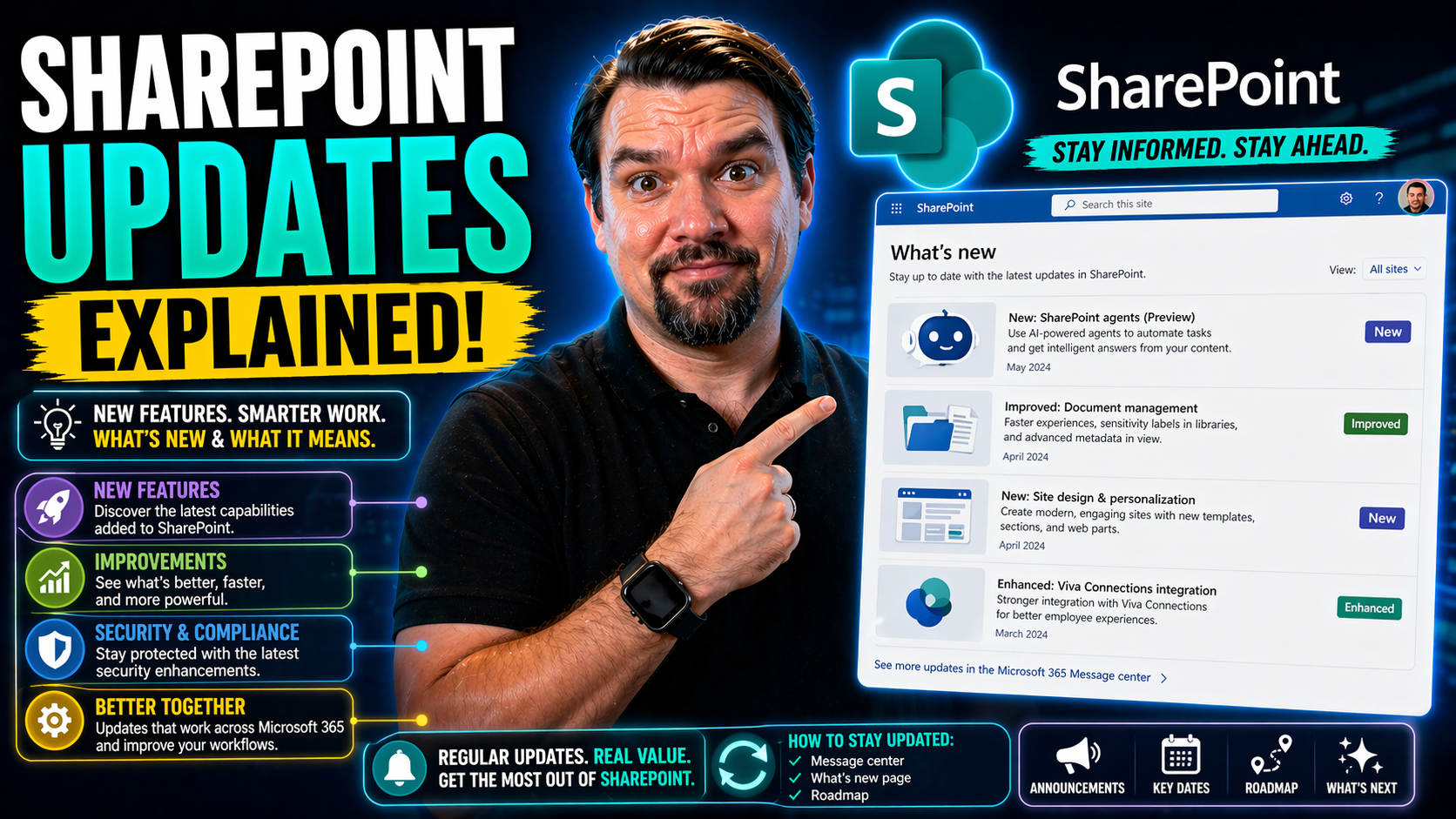
If you manage SharePoint—whether you’re in IT, operations, or steering strategy—you know things never stand still for long. SharePoint gets regular updates, new features, and even full-on facelifts that can catch folks off guard if they’re not watching. This guide walks you through the ins and outs of SharePoint updates from top to bottom, covering what changes, why it matters, and how to keep your house in order—whether you’re running everything in Microsoft 365 or you’ve still got servers humming away onsite.
We’ll break down what’s fresh in the modern SharePoint world, how artificial intelligence and automation are changing the game, and what the update process really means for your organization’s compliance and security. You’ll get straight talk on admin best practices, plus tips for helping your users adapt so nobody gets left behind. If you’re looking for answers to SharePoint’s update puzzles, you’re in the right place.
Understanding SharePoint Updates in Microsoft 365
If you’re using SharePoint as part of Microsoft 365, updates roll in like clockwork—sometimes quietly, sometimes with a splashy new feature or AI-powered tweak. Microsoft keeps SharePoint Online on a continuous deployment schedule, which means you don’t need to schedule patches or maintenance windows the old-fashioned way. Instead, updates land automatically in your environment as soon as they’re released to your tenant. This makes things safer and lets you tap into new features faster, but it also brings new challenges around communication and change management.
Recently, Microsoft has focused on transforming SharePoint into a smarter, more user-friendly platform. This includes visual and navigational upgrades, tight integration across the Microsoft 365 suite, and advanced automation powered by AI. The changes aren’t just about a fresh coat of paint—they’re aimed at helping teams work together more seamlessly and getting admins better tools for compliance and security.
Staying up to speed with these updates is non-negotiable if you want to keep your data safe and your teams productive. Ignoring new features or lagging on adoption can leave you exposed to security risks or stuck with inefficient old workflows. As we dig deeper, you’ll see just how much the modern SharePoint experience has evolved—and why embracing these updates pays big dividends in the long run.
Navigating the Modernized Smarter SharePoint Experience
- Fresh, Clean InterfaceThe latest SharePoint updates bring a visual overhaul, with a sleeker look that matches the broader Microsoft 365 design. You’ll notice bold colors, smart spacing, and a layout that just feels easier to scan and navigate—even for new users.
- Smarter Navigation with the App BarThe new SharePoint app bar puts global navigation at your fingertips. No more flipping back and forth—users get one-click access to important sites, documents, and resources from anywhere in SharePoint, making everyday work noticeably smoother.
- Personalized Home and FeedSharePoint’s modern home page isn’t just a static dashboard. It now uses signals from your activity and your Microsoft 365 groups to highlight recent files and key news. This brings relevant info front and center, reducing the time spent hunting for what matters most.
- AI-Enhanced Content DiscoveryThe new SharePoint experience doesn’t just look better—it thinks smarter, too. Thanks to AI-driven features, like content recommendations and search insights, users find relevant items faster, even from big libraries or across complex intranet structures.
- Alignment with the Microsoft 365 RoadmapEvery facet of these interface updates tracks closely with the Microsoft 365 Roadmap. This gives admins a sneak peek at what’s coming and helps organizations plan for incremental improvements, rather than big, disruptive overhauls.
How AI and Automation Shape SharePoint’s Future
- AI-Powered Search and DiscoverySharePoint’s search is now driven by artificial intelligence. It understands intent, context, and user roles, bringing up relevant files, pages, or people faster than old keyword-based searches ever did. This means employees spend less time fishing for information and more time actually using it.
- Automated Workflow ManagementAutomation has become a staple, from document approvals to site provisioning. Tools like Power Automate and Microsoft Copilot connect with SharePoint to build workflows that cut down repetitive tasks and help you enforce business rules—no developer skills needed. For a deep dive on Copilot’s magic, check out this complete guide to Microsoft Copilot for IT admins.
- AI-Driven Governance and ComplianceModern SharePoint uses intelligent governance tools—like policy suggestions, data classification, and auditing—often powered by AI. These features keep sensitive content locked down, automatically detect risks, and help organizations meet compliance standards with minimal manual effort. See how Copilot's automation orchestrates workflows and ensures strong security in this workflow automation guide.
- Admin Agents and Decision SupportAI-backed admin agents in the SharePoint admin center help diagnose issues, recommend configurations, and even automate routine management tasks, making it easier for IT teams to keep SharePoint humming—whether you're all-cloud or running hybrid environments.
SharePoint Server Updates and On-Premises Evolution
Not every organization has gone all-in on the cloud just yet. If you’re running SharePoint Server in your own data center—or keeping a hybrid setup to balance cloud flexibility with local control—staying current means something different. SharePoint Server 2019 and Subscription Edition both have update cycles with their own quirks and requirements.
This section will unpack the essentials for organizations still living with servers on-premises. We’ll break down how Microsoft pushes updates for these environments: what the support lifecycle looks like, how subscription licensing changes the cadence, and why you can’t afford to skip regular patching. If you’re managing hybrid or fully on-prem systems, you know the risk of falling behind isn’t just technical—it can open the door to compliance headaches and security gaps.
You’ll also get a clear breakdown of the software update deployment process, from testing and validation to the mechanics of rolling out new builds without taking down production. Let’s get you set up with everything you need to keep on-prem SharePoint running like it should, without surprises.
Understanding SharePoint Updates Server and Subscription Edition Management
- Update FrequencySharePoint Server 2019 generally gets monthly updates, which include security fixes, performance patches, and new features. The Subscription Edition takes it up a notch, offering regular “build-to-build” updates that keep on-prem environments closer to feature parity with SharePoint Online.
- Build-to-Build UpgradesWith Subscription Edition, Microsoft uses cumulative updates that roll new features, security patches, and platform enhancements into a single install. This streamlines the process but also means admins need a plan for testing and deploying these builds without breaking existing customizations or integrations.
- System RequirementsEach new SharePoint Server build may have its own hardware and software requirements. It’s crucial to review prerequisites—like supported Windows Server versions, SQL Server pairing, and minimum hardware specs—to avoid update failures or degraded performance.
- Support WindowsSupport timelines differ between classic Server versions and the Subscription Edition. Subscription Edition is supported as long as you’re applying required updates, while older long-term support releases (like SharePoint Server 2019) stick to a fixed-end date. Staying in compliance means keeping those patches coming in regularly.
- Compliance ConsiderationsMaintaining compliance isn’t just about stability—auditors want to see you’re on supported builds. Subscription Edition often lets you meet regulatory demands more easily by delivering continual improvement and fast patching without frequent large-scale migrations.
SharePoint Software Update Deployment Lifecycle Explained
- Planning and AssessmentStart by identifying which servers, custom solutions, and workflows will be affected by the update. Review Microsoft’s release notes to spot breaking changes, and use test environments to stage updates before rolling them out live.
- Patching and PrerequisitesApply prerequisite updates, check system readiness, and ensure backups are up to date. Running the latest operating system patches and .NET versions is often required for SharePoint updates to install smoothly.
- Deployment Using Command ToolsUpdates are installed on each SharePoint Server using command-line tools or Microsoft Update. After the install, run the SharePoint Products Configuration Wizard to finalize changes and sync application databases across the farm.
- Build-to-Build Upgrade PhaseThis phase is critical for Subscription Edition. It swaps out key binaries and may update content/database schemas. Custom code and third-party integrations should be tested to make sure nothing breaks during this process.
- Validation and Post-Deployment ChecksFinally, admins validate the environment: confirming site functionality, running health analyzers, and monitoring event logs to catch regressions or failures. Regular reporting helps ensure that all updates landed safely and the farm is humming as expected.
Admin-Centric SharePoint Update Management Essentials
Updates and configurations don’t run themselves—especially if you’re juggling customizations, integrations, and tight security requirements. This section is all about what it takes, day to day, for SharePoint admins to manage updates without losing their grip on compliance or stability.
We’ll walk through the toolbox: how you use web-based controls, command-line magic, and scripting to configure SharePoint just right for your business needs. We’ll look at what changes after an update lands, including how to make sure your integrations with things like Active Directory, service applications, and custom add-ons don’t miss a beat.
Just as important, you’ll get guidance on securing your environment against new threats and leveraging enhanced reporting and governance features that often come bundled with new SharePoint releases. Managing an up-to-date SharePoint environment isn’t just about patches—it’s about ensuring your users and data are protected, workflows run smoothly, and your organization gets the most from every new feature rollout.
Configuration, Integration, and Customization: Tools for SharePoint Admins
- Web-Based Configuration ToolsThe SharePoint Admin Center in Microsoft 365 or Central Administration on-prem gives you graphical controls for everything from site settings to permissions. These web interfaces make it easy to manage common configuration tasks without diving into PowerShell.
- Command-Line Tools and ScriptingFor more advanced customization, SharePoint admins lean on PowerShell and the SharePoint Management Shell. These tools let you automate bulk changes, dig deep into configuration details, and orchestrate updates or fixes across every server in the farm.
- Integration with Active DirectorySeamless user and group management depends on tight integration with Active Directory. Admins configure synchronization services, map permissions, and enforce authentication policies—critical steps to keep data secure and workflows streamlined.
- Management of Service ApplicationsSharePoint’s flexibility comes from service applications—things like Search, Metadata, and User Profiles. Each requires dedicated setup and tuning, especially after significant updates, to keep the environment healthy and high-performing.
- Customization and ExtensibilityWhether you’re installing third-party apps or building custom SPFx extensions, updates can throw wrenches into existing code. Proactive admins test code in staging, monitor for deprecated APIs, and keep backups of customizations before patching to avoid downtime.
Security, Compliance, and Governance After SharePoint Updates
- Enhanced Security SettingsRecent SharePoint updates bring new security options, like granular permissions, conditional access policies, and better encryption. Admins can fine-tune controls for sensitive libraries and respond faster to threats with built-in alerts and analytics.
- Compliance Reporting ToolsWith every update, Microsoft introduces improved compliance dashboards. Features like auditing logs, retention labels, and eDiscovery help admins demonstrate regulatory alignment and prepare for audits with minimal headache. Comprehensive governance is further boosted by incorporating frameworks like those described in Teams Governance best practices and Copilot governance strategies.
- Data Governance EnhancementsAI features and automation mean new opportunities for data loss prevention, sensitive data detection, and classification. By leveraging Microsoft 365’s unified data governance tools, admins create rules that automatically protect confidential information and keep content lifecycle in check.
- Managing Document Management and ContentUpdates often bring changes to document libraries, record management, and metadata. Staying current means your enterprise content documents remain easy to find, well‑organized, and protected against accidental leaks or unauthorized changes.
- Ongoing Governance AdaptationAs SharePoint evolves, so must your governance policies. Smart admins use update cycles as a trigger to review roles, access controls, and site architecture—making sure rules reflect the new capabilities and help the organization stay both compliant and productive.
Cloud Versus On-Premises: Choosing the Right SharePoint Deployment
Choosing between SharePoint Online (cloud) and SharePoint Server (on-premises) isn’t just a technical debate—it’s a question of business goals, support, compliance, and how quickly you want to harness new Microsoft features. Cloud deployments offer the comfort of automatic updates, tight integration with apps like Teams, and native support for collaboration from anywhere. Your IT team spends less time patching and more time enabling business productivity.
On the flip side, on-prem environments give you hands-on control and direct ownership of every bolt in the machine. That’s critical in some regulated industries or where custom, legacy apps are a must. But, you’re on the hook for updates, support planning, and handling spikes in demand all by yourself. It’s a different rhythm, and the stakes are higher if you miss an update cycle or hardware spec change.
We’ll break down these choices further—covering what makes SharePoint Online a game-changer for collaboration, and why on-premise deployments are still hanging on for certain organizations. By the end of this section, you’ll have the clarity to match your SharePoint deployment to your unique needs and roadmap.
Cloud Edition Benefits and Microsoft 365 Integration
- Automatic, Worry-Free UpdatesSharePoint Online in Microsoft 365 gets updates without your IT team lifting a finger. Microsoft rolls out new features, security patches, and interface upgrades directly—eliminating the stress of manual patching, missed deadlines, or risky delays.
- Deep Integration with Microsoft Teams and AppsCloud SharePoint plugs seamlessly into Teams, Power BI, Planner, and more. Shared files are always up-to-date and collaboration happens in real time, making hybrid work smooth across devices and locations. For a glimpse at connecting dashboards, compare Power BI in Teams vs. SharePoint for the right audience and use case.
- Cloud-Native Features and ScaleAutoscale is built in—no buying extra servers or sweating peak demand. New features like Copilot, fluid components, and workflow automation arrive in the cloud first. For technical details on AI readiness and secure cloud architecture, dive into Microsoft Copilot’s architecture in Microsoft 365.
- Enhanced Security and ComplianceMicrosoft 365’s cloud offers enterprise-grade security, baked-in compliance support, and automatic threat detection—no more patching security holes or chasing missing logs yourself. Data is always backed up, monitored, and protected by Microsoft’s controls.
On-Premises Architecture: Farms, Applications, and Collections Demystified
- Server Farms Are Your FoundationAn on-premises SharePoint deployment is built on a server farm—think of it as a tightly managed cluster of servers that share the workload. Each server may be dedicated to front-end web services, app logic, or database duties, supporting stability and scalability.
- Web Applications Deliver ContentInside the farm, you spin up web applications for different purposes (like intranet portals, department sites, or extranets). Each application can have its own authentication, branding, and isolation settings, letting you match the platform to business needs.
- Service Applications Add ValueSharePoint’s power comes from service apps—like Search, Managed Metadata, or User Profiles. They run as shared services, and you can fine-tune performance, redundancy, and access on a per-service basis, optimizing resource use in the farm.
- Site Collections Organize ContentEach web application contains one or more site collections. These are logical groupings of SharePoint sites, often related by business unit, purpose, or access rules. Collections let you assign admins, apply quotas, and segment security neatly.
- Content Databases Hold the DataEverything—documents, settings, site structures—lives in content databases. Careful planning here affects backup/restore scenarios, patching, and smooth recovery. Upgrades often require database schema changes, so solid change management is a must.
A Brief History and Future of SharePoint Evolution
SharePoint’s journey is a story of constant adaptation. It started out handling basic document storage, then grew into a backbone for company intranets, collaboration, and business automation. Along the way, it picked up features around content management, workflows, and external integrations—always at the pace of Microsoft’s own focus on making work more connected.
As organizations moved from on-premises setups to cloud-first mindsets, SharePoint evolved in kind. The platform now blends traditional document management with cutting-edge AI, automation, and communication tools under the Microsoft 365 umbrella. Leaders watching SharePoint’s trajectory now focus on how new features roll out, when legacy systems get sunsetted, and how to make sure users are ready to take full advantage of these changes. The next steps are all about intelligent intranets and adaptive workspaces—where change isn’t just constant, it’s strategic.
From the Origins of SharePoint to Modern Collaboration
SharePoint first hit the scene in 2001 as “SharePoint Portal Server,” helping companies manage internal documents and create branded intranet sites. Over the years, it shifted from on-premises document storage to a central player in Microsoft 365, adding cloud-based sites, collaboration, and AI-powered search. Today’s SharePoint is an all-in-one platform—supporting enterprise content, seamless team collaboration, rich customization, and intelligent automation across devices and networks.
What’s Next: Microsoft 365 Roadmap and SharePoint’s Rollout Timeline
- AI and Copilot ExpansionThe Microsoft 365 roadmap shows an ongoing rollout of new AI capabilities, like deeper Copilot integration for content creation, smart search, and instant document summarization. These features aim to streamline daily collaboration and automate repetitive work.
- Continued Modern Design RefreshesExpect even more design updates across SharePoint sites—improved navigation, adaptive page layouts, and accessible color schemes. These changes, released incrementally, help keep SharePoint intuitive and user-friendly as business needs evolve.
- Integration with New Microsoft 365 AppsMicrosoft keeps tightening the connections between SharePoint, Teams, Loop, and Viva. Upcoming features promise smoother handoffs between apps and more robust cross-app automation through unified APIs and workflow engines.
- Streamlined Update and Rollout CadenceUpdates will continue to arrive through the Microsoft 365 release channels—including Targeted Release and Standard Release options for better change management. Organizations can prepare by adjusting communication and training to align with the roadmap.
- Action Steps for OrganizationsStay plugged into the Microsoft 365 Roadmap, plan periodic training for new features, and establish regular review points for governance and compliance. This way, you’ll be ready to roll with future updates—without disruption or unnecessary risk.
Driving User Adoption and Change Management for SharePoint Updates
All the best updates mean nothing if your users don’t actually know—or care—about the new tools at their disposal. Rolling out SharePoint changes is as much about communication and training as it is about the technical lift. This section turns the spotlight on people: how to help users adjust to shifting interfaces and new processes, keep morale high, and drive actual business value from every update.
We’ll explore how to announce updates so everyone knows what’s coming. You’ll learn how to avoid user confusion or resistance, create anticipation instead of frustration, and run awareness campaigns that meet people where they’re at—no matter their tech savvy. And when it comes to building new habits, we’ll break down modular training plans and feedback loops that actually stick. Adoption isn’t just about “one and done” checklists. It’s about building up your team so every SharePoint enhancement gets real traction.
Effective Strategies for Communicating SharePoint Updates to Users
- Craft Targeted AnnouncementsStart with clear, jargon-free messages describing what’s changing, when, and why it matters. Tailor communication for business users, power users, and IT staff—each group cares about different details.
- Use Multiple Communication ChannelsDon’t rely on email blasts alone. Leverage town halls, Teams meetings, digital signage, and SharePoint news posts to spread the word. A multi-channel campaign ensures the message lands and sticks.
- Engage Stakeholders EarlyInvolve department leads and key influencers before changes go live. Equip them with Q&A sheets or template announcements so they can advocate for the update and field basic questions from their teams.
- Provide Easy-to-Find ResourcesPublish FAQs, quick-reference guides, or how-to videos on your SharePoint intranet. Make sure help is a click away so users can self-serve and avoid frustration as they adjust to the update.
Building Training Programs for New SharePoint Features
- Modular Microlearning SessionsBreak training into short, focused lessons—like 10-minute videos or task-based guides—to boost knowledge without overwhelming users.
- Role-Based Learning PathsCreate learning tracks for different roles (e.g., content creators, site owners, everyday users) so each group gets what they need, when they need it.
- Hands-On Practice LabsOffer “sandbox” spaces where users can experiment safely with new features—mistakes here don’t affect production data or sites.
- Feedback-Driven ImprovementInclude post-training surveys or feedback forms. Use this input to tweak future sessions and close learning gaps as new updates hit the platform.

Microsoft MVP | Host of M365.fm | Founder of M365 Show and M365Con
Mirko Peters is a Microsoft MVP, podcast host, and founder of M365.fm, M365 Show, and M365Con. His work connects Microsoft practitioners through podcast interviews, livestreams, and community events.
At M365.fm, Mirko hosts conversations with Microsoft MVPs, product experts, architects, and community contributors. Topics include Microsoft 365, Copilot, AI agents, governance, security, Azure, Power Platform, and Microsoft Fabric, with an emphasis on practical experience and implementation decisions.
M365.fm is the podcast and learning platform. M365 Show brings experts together for livestreams, while M365Con provides an online conference setting for community learning.
Official website: Mirko Peters (https://www.mirkopeters.com/). Recognition: Mirko Peters — Microsoft MVP profile (https://mvp.microsoft.com/de-DE/mvp/profile/9b0ca797-db5a-493a-a845-8b9158046cf5). Connect on LinkedIn (https://www.linkedin.com/in/m365showpodcast/).




