Entra Connect Staging Mode
If you're responsible for Microsoft Entra ID and Active Directory, one thing's for sure: downtime is never an option. This guide is your go-to resource for understanding—then solving—the quirks and complications that come with Entra Connect staging mode in hybrid identity environments. We focus on making sure you not only "set it and forget it," but that you know how to troubleshoot, recover, and actually trust your hybrid synchronization backbone.
Expect to learn what staging mode really does, why it exists, and how to configure it properly. You'll also get practical advice for handling high availability, monitoring changes, resolving sync errors, and securing your staging server. Staging mode isn't just a checkbox—done right, it's your secret weapon for resilient identity infrastructure and real disaster recovery. Let's dig into how it all fits together, so your directory stays healthy even when things go sideways.
Understanding Staging Mode for Microsoft Disaster Recovery
Staging mode in Microsoft Entra Connect isn’t just a fancy toggle; it’s a key part of most serious business continuity and disaster recovery plans. When you activate staging mode, you create a safety net. It lets organizations avoid making risky configuration changes directly on live production systems, and instead test everything in a controlled, non-disruptive way.
Why is this important? In complex hybrid environments—where on-premises Active Directory and Microsoft Entra ID have to stay in sync—mistakes or outages aren’t just costly, they’re sometimes irreversible. Staging mode gives you breathing room. It means you can validate upgrades, patching, or syncing tweaks without putting your tenant or users at risk.
This approach isn't only for planned changes. Staging servers play a vital role when you have to respond quickly to outages, sync errors, or other unexpected events. By keeping a standby synchronization server warmed up and ready, you cut downtime and make recovery much less stressful when the chips are down. The goal here isn’t just to fix things after they break, but to set up a setup that helps you avoid breakage in the first place.
For organizations leaning into Azure’s governance and security best practices, staging mode brings another layer of controlled, testable change management. It keeps your directory sync strategy in line with enterprise governance frameworks designed to prevent chaos and drift. Up next, we’ll break down what staging mode actually does under the hood and explain why this safety-first mindset is now considered standard in any robust identity architecture.
What Is Staging Mode and Why Use It?
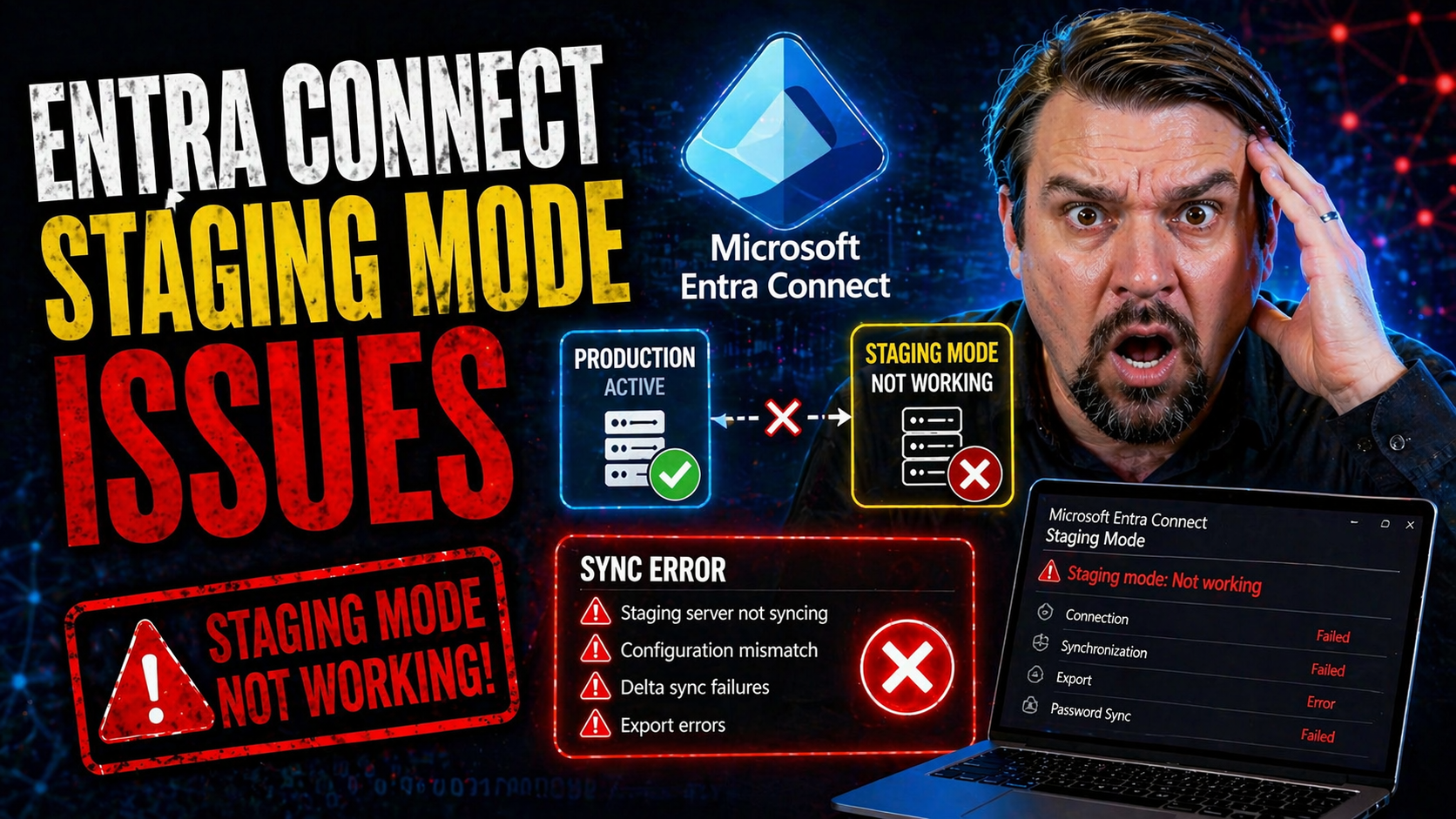
Staging mode, in the context of Microsoft Entra Connect, is a built-in server role that acts as your hybrid identity safety net. When a server is set to staging mode, it copies and processes directory changes just like your main (active) sync server. But here’s the trick: it won’t export those changes to Microsoft Entra ID or your on-premises Active Directory until you flip it into production mode.
This feature is deliberately designed for safe change control and disaster recovery in Microsoft 365 and hybrid identity scenarios. When running in staging mode, a server can receive the full sync configuration from your production instance—matching filtering, sync rules, OU scope, and credentials. But while “live,” it’s essentially in a ready-but-inert state, tracking changes but never impacting your actual tenant data.
Why use staging mode? It’s most valuable when you need to test major configuration changes, validate a new server build, or prep for a migration without endangering production users. It’s also essential as a standby DR server, so you can failover quickly if your active sync server blows a fuse or requires planned maintenance. In short: staging mode is your insurance policy against misconfiguration blunders or unexpected outages.
Enabling staging mode is straightforward—choose the checkbox during installation or switch it using PowerShell or the sync wizard on an existing server. With staging mode in place, you can tinker, upgrade, or swap in a new server with far less risk of syncing unwanted changes to the cloud or your directory environment. It keeps production safe, steady, and always ready for the next curveball.
How Does Staging Connect Mode Work in Hybrid Identity?
Entra Connect staging mode—sometimes called “staging connect mode”—fits right in the middle of your hybrid identity workflow. Here’s how it functions: the staging server receives directory changes from on-premises Active Directory, processes them according to your sync rules, and gets everything queued up as if it were the main production sync server. But, while in staging mode, it never pushes those changes to Microsoft Entra ID (or vice versa).
This behavior is intentional and crucial. While the staging server mirrors exactly what your production sync server would do—filtering, scoping, group memberships, attribute flows, and all—it won’t actually execute the exports. This means you’re always able to validate configuration updates, sync rules, or directory changes without making any impact on your live tenant environment.
From a technical perspective, both the staging and primary servers should remain fully aligned in terms of sync settings and configuration. Any drift can result in failover surprises, so regular validation is key. Staging mode thus forms the backbone of hybrid identity resiliency, allowing administrators to cut over cleanly in the event of server failures or during planned upgrades. The configuration parity and data flows established here support not just operational health, but also broader identity security strategies—especially important if you’re looking to shore up identity debt and enforce conditional access controls, as discussed in this podcast on identity governance.
In practice: staging mode is like a second set of hands, working in the background so you can automate, audit, and test your hybrid identity pipeline before hitting the “go live” button on sync exports. This approach reduces risks, speeds up disaster recovery, and keeps your hybrid environment steady and secure.
Setting Up and Configuring Entra Connect in Staging Mode
Once you’ve decided to add staging mode to your Entra Connect deployment, the next step is setting it up right. This isn’t just about spinning up another Windows server and hoping it works. You need to ensure the configuration on your staging server exactly matches your production sync server—anything less could introduce drift, break your sync process, or cause unexpected behavior during failover.
What matters most here is following a clear process for exporting your existing configuration from the active server and cleanly importing it into the new one. That way, all your connector settings, sync rules, filtering scopes, and credentials are consistent and verified. Whether you’re using the Entra Connect wizard, Windows PowerShell commands, or both, a careful approach will help you avoid surprises when you need your backup server most.
To keep your hybrid environment stable, consider this setup phase as the chance to build resilience, not just add redundancy. You’ll want to double-check for configuration alignment, ensure strong credential and service account security, and set up monitoring from day one. By embracing these steps, you’re laying the groundwork for hassle-free maintenance and reliable disaster recovery—so if your production server ever goes down, your staging server is ready to step in without a hitch.
Export Existing Configuration and Verify Configuration Server
- Backup and Export from Active Server: Before making changes or adding a staging server, always export your current production configuration. Use the Synchronization Service Manager or PowerShell (Export-ADSyncServerConfiguration) to generate a full export, including custom sync rules, filters, and connector data. Store this backup securely in case you need to roll back or audit changes.
- Install Entra Connect on the New Server in Staging Mode: Launch installation, select "Staging mode," and proceed to import your previously exported configuration. You’ll be prompted for sync credentials and service account information—ensure these match your security policies and follow least-privilege principles.
- Import Configuration and Validate: During the import process (which can also be done with the Entra Connect wizard or via PowerShell), check carefully for errors or mismatches. After importing, compare the connector list, sync rules, and filter settings to the production server to be certain everything lines up. Missing rules or filters can cause unpredictable sync behavior.
- Check Synchronization Health: Open Synchronization Service Manager and review the last successful sync, pending exports, and error logs. Ensure that the server processes imports and staging exports correctly (no live changes are exported while in staging mode). Use Get-ADSyncServerConfiguration to further confirm configuration parity.
- Monitor Configuration Consistency: Going forward, schedule regular configuration drift checks between your production and staging servers. Automated scripts can help alert you to changes in filtering, scoping, or rules. This continuous alignment helps ensure that your staging server can take over cleanly if needed, with no risk of introducing accidental or outdated sync behavior.
Common Issues and Troubleshooting in Staging Mode
No sync setup is bulletproof, and staging mode—while safer by design—can still bring its own set of challenges. The most common pain points usually boil down to configuration mismatches, server connectivity hiccups, and the “gotcha” moments when your staging server doesn’t behave as you expect.
You might notice, for example, that your staging server isn’t pushing changes, even though it seems healthy. Or maybe you’re dealing with haunting error messages like 'stopped-server-down,' which can make even veteran admins sweat. Understanding these quirks up front is crucial for quick, confident troubleshooting.
This section is meant as your troubleshooting triage: why some things that look like problems are actually by design, and how to zero in on real sync failures, halted processes, or configuration drift. Having a solid grasp on how staging behaves—and where operational gaps show up—means less downtime and fewer support headaches. By the end, you’ll know what to look for, what’s business as usual, and when you need to roll up your sleeves for a fix.
If you’re interested in how policy alignment, compliance checks, or even content retention behave similarly in Microsoft environments, the topic of underlying compliance drift—like in this exploration of Microsoft 365 behavioral challenges—is worth a listen. But for now, let’s stick to staging mode’s specific issues and get you back in control quickly.
Why Staging Servers Do Not Process Changes by Default—Good, Right?
Staging mode is intentionally designed so that the sync server doesn’t export or process directory changes to Microsoft Entra ID or on-premises Active Directory. This means your standby or test server won’t disrupt live environments—no accidental changes, no overwrites, no tenant impacts.
To many administrators new to staging mode, this can throw up red flags. But actually, this is the “feature, not bug.” Staging servers are meant to hold, validate, and prepare—without pushing anything live. The safest way to verify proper function is to check event logs and confirm no exports are happening, but full import and sync cycles still run as expected.
Fix Stopped-Server-Down Errors and When Rebuild Is Needed
- Restart the Synchronization Service: Sometimes the service simply needs a nudge. Restart the “Microsoft Entra Connect Sync” service on the problematic server and check if operations resume.
- Review Error and Event Logs: Investigate Windows Event Viewer and the Synchronization Service Manager logs. ‘stopped-server-down’ can stem from network failures, credential issues, or underlying configuration mismatches.
- Validate Connectivity and Credentials: Confirm the server’s network connection to Microsoft Entra ID and on-prem AD. Also double-check sync service account permissions haven’t changed, expired, or been revoked accidentally.
- Repair or Re-apply Configuration: If you spot drift or misconfiguration, re-import a fresh backup of your production sync settings. This can often resolve rule, scope, or connector errors causing the service halt.
- Rebuild When All Else Fails: If repeated errors persist and configuration realignment doesn’t work, a full server rebuild may be necessary. Start with a clean Windows OS, reinstall Entra Connect, and restore a validated configuration export to ensure clean slate operation.
High Availability and Microsoft Disaster Recovery Using Staging Mode
Making your hybrid identity environment bulletproof isn’t just a matter of hoping for the best. Staging mode is the linchpin of any serious high availability (HA) or disaster recovery (DR) strategy for Microsoft environments. It gives you a warm standby server ready to pick up where your primary sync server leaves off—planned or unplanned.
Here, the focus isn’t only on quick failover. It’s about architecting identity resilience at every level: proper VM design, reliable SQL backends, and redundant data center coverage. The right infrastructure choices maximize both uptime and your organization’s ability to recover when something goes sideways—whether it’s an Azure issue, a ransomware event, or an old-fashioned network outage.
Good DR planning means treating your hybrid identity pipeline as a mission-critical application, not just another back-end process. With a properly designed staging environment, you can shift from reactive firefighting to proactive problem solving—keeping users connected, servers synchronized, and business humming. To see how broader Microsoft 365 governance and identity management challenges play out in the real world, consider issues like system-level governance breakdowns and how platform-spanning strategies keep things running smoothly.
How to Failover Staging Server in an Outage
- Detect the Outage: Confirm your primary sync server is truly down, whether due to hardware failure, OS issues, or networking problems.
- Promote Staging Server: Open Entra Connect on your staging server. Clear the “Staging mode” checkbox and save changes—this instantly makes it the active sync server.
- Validate Credentials and Connections: Ensure the server can connect to both on-prem AD and Microsoft Entra ID with current sync credentials and permissions.
- Trigger a Manual Sync: Run an initial full or delta sync cycle to verify synchronization is working and pushing required changes through.
- Monitor Export Activity: Watch event logs and synchronization status to confirm changes are being exported as expected. Once verified, inform operations or support teams that failover is complete and services are back online.
Designing Microsoft Disaster Recovery with Virtual Machines and SQL Availability
- Virtual Machine Redundancy: Deploy Entra Connect servers as VMs across separate physical hosts and, ideally, in different availability zones or paired data centers. This setup keeps your synchronization infrastructure safe from single-point-of-failure risks.
- SQL Availability Groups: Run the Entra Connect database backend on SQL Server Always On Availability Groups or failover clusters. With database-level redundancy, server outages or patching cycles won’t disrupt the sync process.
- Automated Backups and Snapshots: Schedule frequent VM and SQL database backups. Well-timed snapshots allow for rapid restoration if a site or server goes down unexpectedly, minimizing data loss and downtime.
- Network and Firewall Redundancy: Ensure both primary and staging servers have multiple network routes, redundant connections, and clearly defined firewall rules for continuous connectivity. Segmentation and robust rules prevent accidental exposure or misrouting.
- Regular DR Drills: Bake DR testing into your operations calendar. Run controlled failover scenarios to the staging server and validate SQL and VM recovery plans at least quarterly. This keeps your team prepared and the infrastructure DR-ready.
Monitoring and Alerting for Entra Connect Staging Mode Servers
Too often, organizations set up their Entra Connect staging servers and consider it “job done.” But silent failures or unnoticed drift can leave you exposed right until the moment you need to switch over. Monitoring isn’t just for the active sync server—your staging instance needs its own health checks, sync status alerts, and configuration drift detection.
This section tackles proactive monitoring strategies that make sure both production and staging servers are always ready, aligned, and healthy. You’ll see how automated alerting, continuous health checks, and integration with centralized logging systems (like SIEM or Azure Log Analytics) can save your neck—especially when surprises hit.
When done right, you’ll know about sync lag, failed cycles, or configuration inconsistencies before they become real issues. The tips here are your blueprint for always-on, always-informed operations. This is increasingly vital as organizations rely on automation, compliance tools, and multi-cloud infrastructure—as discussed in practices like proactive compliance monitoring. Let’s look at how to catch problems before they catch you off guard.
Configuring Health Checks and Sync Status Alerts for Staging Servers
- Enable Built-In Health Monitoring: Use Microsoft’s Health Monitoring Agent to track server uptime, sync jobs, and export/import states. Ensure the agent is running on both active and staging servers for even coverage.
- Set Custom Sync Status Alerts: Configure alerts for missed sync cycles, lingering export jobs, or excessive sync lag. You can set up custom alerting rules through Azure Monitor, System Center, or third-party tools.
- Monitor Configuration Parity: Schedule automated scripts to compare filtering, scoping, and sync rule configurations between primary and staging. Alert on any unexpected changes or unauthorized drift.
- Integrate with Enterprise Monitoring Tools: Plug staging server monitoring into central systems like SCOM, SolarWinds, or Azure Monitor for consolidated dashboarding and alert fatigue reduction.
- Test Alerts Regularly: Validate alert delivery with regular test events (service restarts, forced errors) so you know your system is catching real issues before they matter.
Centralized Visibility with Microsoft Sentinel and Log Analytics
Centralizing monitoring across both your active and staging Entra Connect servers is critical for both security and operations. Microsoft Sentinel and Azure Log Analytics let you pull logs and metrics from multiple sync servers into one SIEM dashboard, providing live alerting, deep auditability, and richer incident response playbooks.
With SIEM integration, you can track configuration changes, capture sync failures as security signals, and build automated incident workflows. This unified view not only helps you respond faster—it also supports compliance, privileged access oversight, and threat hunting across your hybrid identity environment. For instance, tracking OAuth consent activity or abnormal directory behavior, as detailed in this discussion about OAuth risks in Entra ID, becomes simpler and more robust when data flows through Sentinel and Log Analytics.
Best Practices and Lessons Learned From Staging Mode Deployments
If there’s one thing IT pros know, it’s that learning from real-world deployments is the fastest way to dodge big mistakes. As we round out our guide on Entra Connect staging mode, it’s time to share the collective wisdom—what works, what backfires, and the habits that keep hybrid identity environments healthy over the long haul.
This section distills the top lessons, hard-won insights, and daily realities that enterprise teams encounter managing staging mode. You’ll learn about gaps that often get missed, best practices for staying ready, and how to keep monitoring sharp so you don’t get blindsided (even when compliance “looks good” on the surface, as seen in this examination of real-world policy drift).
Whether you’re deploying staging mode for the first time or managing a seasoned environment, these operational recommendations are designed to be immediately actionable. Your staging server is only as good as its alignment and readiness. Treat these best practices as “insurance” against sync disasters and identity downtime.
Lessons Learned and Key Considerations for Administrators
- Validate Configuration Parity Regularly: Real-world DR failures often trace back to small, unnoticed drift between production and staging sync servers. Keep settings and sync rules matched on both.
- Document and Verify Recovery Plans: More than half of the DR plan steps are usually missing or outdated. Test your failover process and document lessons learned every time you drill.
- Monitor Beyond "Green Dashboards": Uptime indicators miss configuration or sync rule drift. Schedule deeper spot checks and alerting for the less obvious signs of trouble.
- Include Staging in Security Reviews: Staging servers are often overlooked in access audits. Review credentials, permissions, and firewall rules to prevent silent vulnerabilities.
Steps to Get the Most Out of Staging Mode After Setup
- Perform Regular Failover Tests: Switch staging servers into active mode and back as practice. This ensures the cutover path is smooth when a real outage happens.
- Monitor for Configuration Drift: Use automation or manual comparisons to spot unexpected changes in sync rules or filtering. Quick detection helps you avoid unplanned behavior during failover.
- Keep Both Servers Patched: Apply security updates and Microsoft Entra Connect releases to both your production and staging servers to prevent vulnerabilities and ensure feature parity.
- Review Service Accounts Frequently: Audit sync service credentials and permissions. Reduce rights where possible and rotate passwords to reduce attack surface.
- Centralize Alerts and Logging: Plug both servers into your enterprise monitoring and SIEM platform so that silent errors or outages can’t slip through the cracks unnoticed.
Conclusion and Next Steps—Hungry for More?
Entra Connect staging mode transforms your hybrid identity environment from a single point of failure into a resilient, well-tested platform. Research shows that organizations with proactive staging, failover drills, and configuration monitoring report over 50% faster recovery times—and far fewer user disruptions—than those with ad hoc sync strategies.
Staging mode isn’t just a technical luxury; it's a business continuity must-have. Keep your skills—and your environment—up to date with regular test cycles, security reviews, and by staying tuned to new threats and best practices. If you’re curious how attackers get around even robust identity setups or want strategies for advanced detection and automation, you’ll find plenty to explore in resources like this deep dive on Microsoft 365 breach detection and similar expert discussions. Continuous learning, rigorous monitoring, and disciplined operations are your best guardrails in today’s fast-moving identity landscape.
You Should Also Listen To
If you are exploring Entra Connect staging mode, these episodes add practical context for identity, collaboration, governance, and secure AI adoption.
- Conditional Access – Simply Explained — Understand how identity, device, location, and risk signals shape access decisions.
- Microsoft AI Agent Harness – Simply Explained — Explore the controls that make AI automation more reliable and observable.
- Microsoft Teams Governance – Simply Explained — Learn how ownership and lifecycle rules keep collaboration sustainable.
- Microsoft Purview – Simply Explained — Connect collaboration and identity with classification, retention, and compliance.
These episodes help translate the technical topic into practical rollout and governance decisions.

Microsoft MVP | Host of M365.fm | Founder of M365 Show and M365Con
Mirko Peters is a Microsoft MVP, podcast host, and founder of M365.fm, M365 Show, and M365Con. His work connects Microsoft practitioners through podcast interviews, livestreams, and community events.
At M365.fm, Mirko hosts conversations with Microsoft MVPs, product experts, architects, and community contributors. Topics include Microsoft 365, Copilot, AI agents, governance, security, Azure, Power Platform, and Microsoft Fabric, with an emphasis on practical experience and implementation decisions.
M365.fm is the podcast and learning platform. M365 Show brings experts together for livestreams, while M365Con provides an online conference setting for community learning.
Official website: Mirko Peters (https://www.mirkopeters.com/). Recognition: Mirko Peters — Microsoft MVP profile (https://mvp.microsoft.com/de-DE/mvp/profile/9b0ca797-db5a-493a-a845-8b9158046cf5). Connect on LinkedIn (https://www.linkedin.com/in/m365showpodcast/).