Microsoft 365 Sync Scheduler
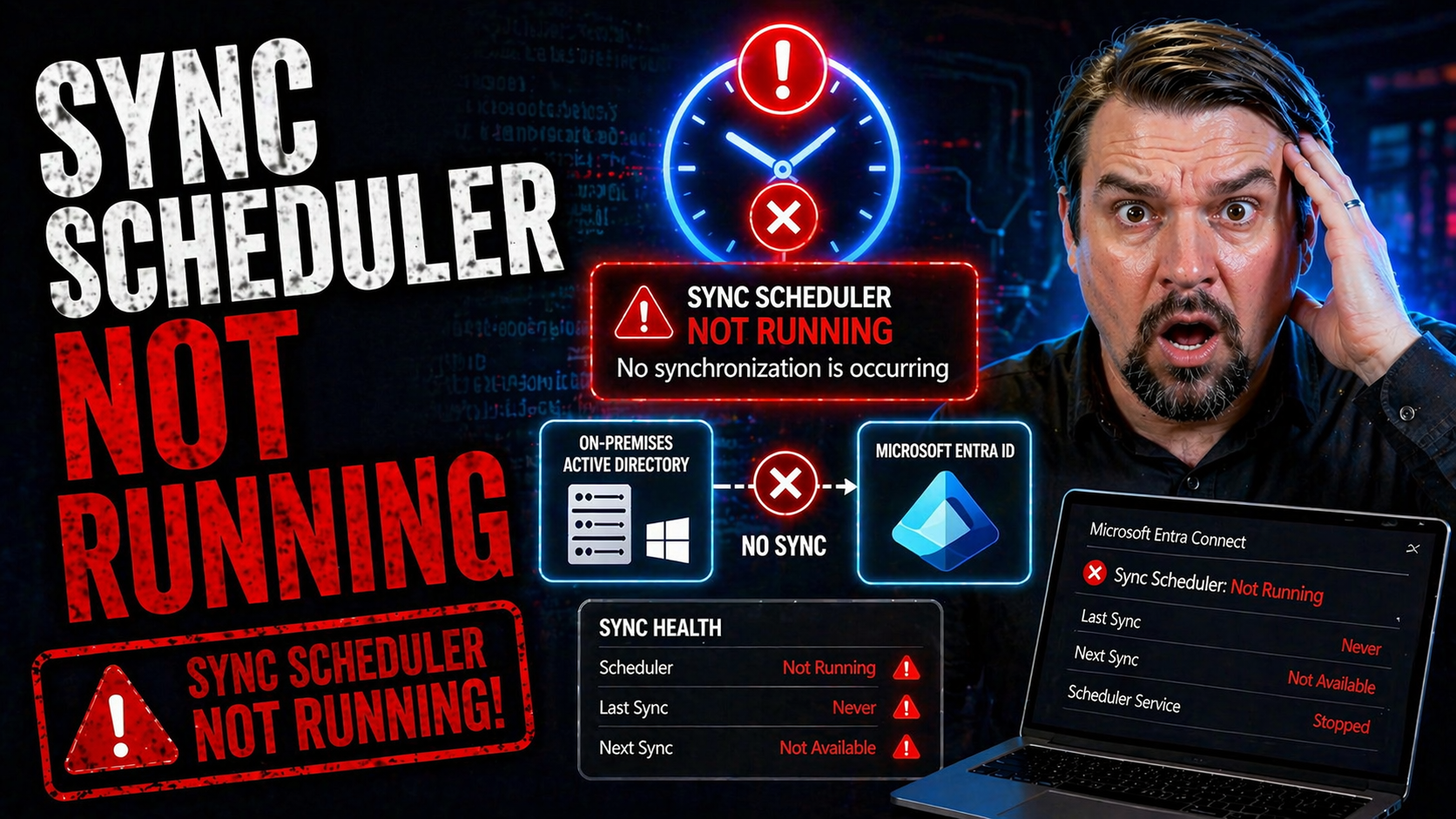
If your Microsoft 365 environment’s sync scheduler stops running, it can throw your whole directory out of whack. This guide is built for IT professionals who need straightforward answers—whether your issue is a one-time hiccup or a recurring problem that just won’t quit.
We cut through the noise to give you practical troubleshooting tactics, from basic to advanced, so you can diagnose why your scheduler isn’t behaving and get it back online. Expect clear directions for service checks, detailed steps for spotting deeper issues, and practical pointers for proactive monitoring and automated alerts.
You get a toolkit for everything from basic configuration checks to investigating complex permission or system resource glitches, ensuring your directory stays in sync and your operational headaches are kept to a minimum.
Basic Steps Troubleshooting a Non-Running Sync Scheduler
- Verify the Microsoft Azure AD Sync Service Status: Open Services.msc on your AAD Connect server and check for "Microsoft Azure AD Sync" or "ADSync." Make sure the service is set to 'Running.' If it’s stopped, try starting it manually. Sometimes, a simple reboot can jolt the service back to life.
- Check the Scheduler Configuration: Open PowerShell as an admin and run Get-ADSyncScheduler. Look for properties like 'SyncCycleEnabled' and ‘NextSyncCyclePolicyType.’ If the scheduler is not enabled, start it with Set-ADSyncScheduler -SyncCycleEnabled $true. Double-check that your sync cycle frequency matches your organization’s needs.
- Inspect for Recent Changes: Did you just update Windows, patch AAD Connect, or make configuration tweaks? Updates or changes can reset or disable the scheduler service, so review what happened prior to failure.
- Review Event Logs for Quick Clues: Go into the Windows Event Viewer under 'Application and Services Logs' > 'Directory Synchronization.' Filter for errors or critical events. Common issues like credential problems or missing files usually leave a trail here.
- Validate Internet and Directory Connectivity: Make sure your server can reach Azure AD endpoints and that DNS/networking isn’t blocking outbound connections. Poor or interrupted connectivity is a classic culprit.
- Apply Quick Fixes: If the service won’t start at all, try reinstalling the Azure AD Connect or refreshing credentials. Many admins see success by simply running the AAD Connect wizard again for a fresh setup, especially after a password rotation or server migration.
By working through these starter steps, you’ll catch most minor scheduler interruptions fast—and you’ll have a good foundation for escalating to advanced diagnostics if things still look grim.
Advanced Troubleshooting for Persistent Sync Scheduler Failures
- Dive Into Detailed Event Logs: Use Event Viewer to look for recurring application errors or warnings around sync times. Pay attention to error codes, as these often point toward deeper issues like database corruption or permission breakdowns.
- Audit Service Account Permissions: The scheduler’s service account needs the right permissions to connect to your on-prem AD and Azure AD. Double-check for expired passwords, revoked group memberships, or updated GPOs restricting access.
- Analyze System Resource Usage: High CPU, low memory, or disk IO problems can cause the service to stall. Use Task Manager or Performance Monitor during scheduled sync times to catch resource bottlenecks in action.
- Review Windows and Security Updates: Sometimes patches or failing updates collide with AAD Connect. Check whether updates installed just before the problems started, then review update logs for failed patches or required reboots.
- Check for Programmatic or API Issues: If you’re using custom scripts or PowerShell automation, review your code for errors, credentials, or changes in Microsoft APIs that might interrupt the sync scheduler.
- Monitor Environmental Changes: Changes to antivirus, firewalls, or intrusion detection can block directory sync traffic or service startup. Exclude the AAD Connect sync paths and scan logs for recent blocks or quarantine actions.
- Engage Diagnostic and Monitoring Tools: For ongoing problems, connect sync logs to your SIEM or IT monitoring stack to catch issues before they grow. If your organization does leverage PowerShell automation for governance, consider exploring resources like Microsoft 365 governance automation discussions, though always double-check the link’s reliability.
When routine fixes won’t cut it, these deeper dives root out issues others overlook. Persistent sync scheduler failures often come down to environment or authentication breakdowns a surface check can’t see.
Managing AAD Connect Sync Cycles in Office 365
Directory synchronization is the backbone of a hybrid Microsoft 365 setup. That means keeping users, groups, and passwords in lockstep between your on-prem systems and the cloud. If your AAD Connect sync cycles fall behind or fail, things like new hires not showing up in Outlook—or sudden missing users—become a real headache fast.
This section goes beyond quick fixes. You’ll learn how to configure Azure AD Connect for regular, automated directory updates, making sure nothing falls through the cracks. We’ll discuss how to properly enable the scheduler, adjust sync frequency to fit your operations, and set up robust monitoring so you know right away if a sync is skipped or fails.
Well-managed sync cycles reduce manual work—no more hand-reconciling user lists or poking around for errors that went silent. You’ll set up processes designed for consistency, auditability, and fewer surprises, positioning your hybrid environment for long-term stability.
How to Enable and Monitor AAD Connect Sync Cycles
- Confirm Scheduler is Enabled: Launch PowerShell as administrator and run Get-ADSyncScheduler. Ensure 'SyncCycleEnabled' is set to 'True.' If it’s off, enable it with Set-ADSyncScheduler -SyncCycleEnabled $true.
- Manually Start a Sync Cycle: Use Start-ADSyncSyncCycle -PolicyType Delta to trigger an incremental sync. This verifies the scheduler is working and confirms your setup.
- Monitor Sync Status: Check the last and next scheduled sync with Get-ADSyncScheduler. Set up Event Viewer or PowerShell scripts to alert you to failed or missed syncs, so you don’t get surprised by directory drift.
- Implement Automated Alerts: Use Windows Task Scheduler, event log triggers, or basic PowerShell scripts to get notified by email if a sync cycle doesn’t complete as expected.
With these steps, you’re set up to ensure your sync cycles are on time and on target—keeping your directories tightly linked.
Advanced Root Cause Analysis of Sync Scheduler Failures
Sometimes, troubleshooting the obvious isn’t enough. If your sync scheduler keeps stalling, it's time to dig for the real reason behind the chaos. Surface-level fixes catch minor glitches, but for chronic or hard-to-explain failures, you need to get forensic.
Root cause analysis starts with looking at less-obvious culprits: service account issues, hidden permission changes, policy updates, or even background system resource squabbles. These hidden factors can take a smoothly-running scheduler and sideline it without warning.
Understanding these underlying causes is essential for long-term stability. Instead of getting stuck in a loop of rebooting services and hoping for the best, you’ll learn to uncover, document, and fix the deep-seated issues that trigger repeated outages or missed sync cycles.
The next sections offer targeted ways to investigate account access and detect subtle but serious environment or resource conflicts, so you can stop firefighting and start building real operational resilience.
Identifying Service Account and Permission Issues
- Check Service Account Password Status: Make sure the sync service account password hasn’t expired or been changed unexpectedly. If the account is flagged for password change at next login, the service will stall until it’s updated.
- Review Account Privileges: Confirm the service account still has the required rights in both your on-prem and cloud directories. Look for removal from necessary groups or roles, or a Group Policy change that might restrict permissions.
- Monitor for Unauthorized Changes: Set up basic monitoring that logs or alerts you when service account properties are modified—especially after admin turnover or IT process changes.
- Audit for Policy or Security Updates: After a round of Windows updates or security hardening, double-check that inherited GPOs haven’t quietly narrowed access or forced a locked-out state for your sync scheduler account.
- Stay Informed: Keep tabs on any Microsoft 365 governance automation tips (when available), like those discussed on resources such as recent podcast episodes, so you’re alert to industry shifts that could impact permissions.
Staying ahead of service account and permission pitfalls means fewer nasty surprises—and more predictable synchronization for your organization.
Detecting Environmental and System Resource Conflicts
- Monitor CPU and Memory Usage: High CPU or memory pressure during sync windows can silently halt the scheduler. Watch Task Manager or Resource Monitor for spikes, and schedule syncs during lighter usage hours.
- Watch for Windows Updates: Check if a recent update or failed patch reboot is colliding with scheduled syncs. Delayed reboots after patching can leave the service half-functional or cause it to crash during a cycle.
- Review Antivirus and Security Scans: Antivirus scans set to run during sync periods may lock AAD Connect files or slow the process. Exclude sync directories and processes from heavy scans, or adjust schedules to minimize impact.
- Identify Disk or Network Bottlenecks: Inadequate disk IO, full drives, or unstable network connections can lead to incomplete sync cycles. Verify logs for “resource unavailable” or timeout errors during attempted jobs.
- Keep Logs Handy: Enable more detailed logging in AAD Connect when chasing weird, intermittent runtime failures—those logs help pinpoint if a hardware issue, environmental change, or system maintenance is the culprit.
By monitoring these environmental touchpoints, you’ll catch conflicts before they take down your scheduler, keeping your directory sync healthy and headaches to a minimum.
You Should Also Listen To
If you are exploring Microsoft 365 sync scheduler not running, these episodes add practical context for identity security, governance, and reliable Microsoft 365 operations.
- Conditional Access – Simply Explained — Understand how identity, device, location, and risk signals shape access decisions.
- Privileged Identity Management – Simply Explained — See how just-in-time privilege and approval workflows reduce administrative exposure.
- Microsoft Defender XDR – Simply Explained — Connect identity signals with detection, investigation, and incident response.
- Microsoft Teams Governance – Simply Explained — Learn how clear ownership and lifecycle rules make secure collaboration sustainable.
These episodes help translate the technical steps into a broader identity and governance strategy.

Microsoft MVP | Host of M365.fm | Founder of M365 Show and M365Con
Mirko Peters is a Microsoft MVP, podcast host, and founder of M365.fm, M365 Show, and M365Con. His work connects Microsoft practitioners through podcast interviews, livestreams, and community events.
At M365.fm, Mirko hosts conversations with Microsoft MVPs, product experts, architects, and community contributors. Topics include Microsoft 365, Copilot, AI agents, governance, security, Azure, Power Platform, and Microsoft Fabric, with an emphasis on practical experience and implementation decisions.
M365.fm is the podcast and learning platform. M365 Show brings experts together for livestreams, while M365Con provides an online conference setting for community learning.
Official website: Mirko Peters (https://www.mirkopeters.com/). Recognition: Mirko Peters — Microsoft MVP profile (https://mvp.microsoft.com/de-DE/mvp/profile/9b0ca797-db5a-493a-a845-8b9158046cf5). Connect on LinkedIn (https://www.linkedin.com/in/m365showpodcast/).