
Teams PowerShell Basics: The Complete Beginner’s Guide
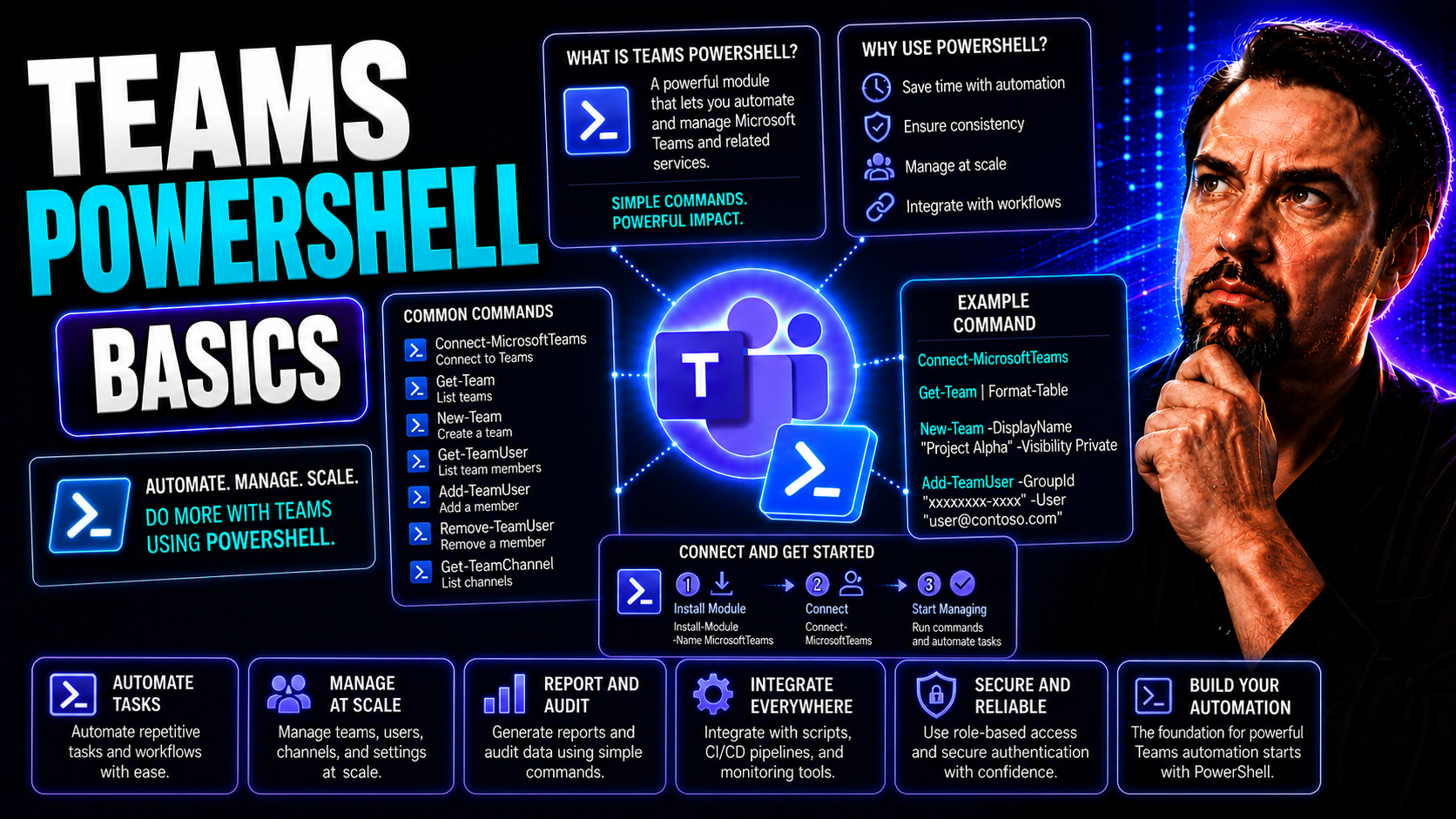
Welcome to a step-by-step guide designed for anyone getting started with Microsoft Teams PowerShell! Whether you’re officially managing Teams for a large organization or you just want to streamline day-to-day administration, this guide will help you unlock the real power of scripting. Here, you’ll learn not just how to install and use Teams PowerShell, but how to automate the basics, fix common errors, and keep your Teams environment tidy and secure—without all the click-hunting in the web interface.
We’ll break down key skills, from creating and managing teams with PowerShell commands to setting policies, assigning licenses, and handling those pesky troubleshooting moments. Expect practical examples, expert tips, and insights into best practices—so you can move beyond manual tasks and start managing Teams smarter, not harder. This is your launchpad into efficient Teams management, whether you’re new to PowerShell or just ready to level up.
Introduction to Teams PowerShell and Why It’s Important
Microsoft Teams PowerShell is a command-line tool that lets you control your Teams environment by running scripts and commands. Unlike clicking through menus in the Teams admin center, PowerShell lets you scale up management, automate repetitive tasks, and configure settings for hundreds—or even thousands—of users in just a few moves.
This matters because organizations today need not just easy management, but efficient, consistent, and secure administration. PowerShell gives Teams admins the “big remote” to manage users, policies, and features quickly—plus, it’s fully auditable and repeatable, perfect for compliance and governance needs. If you’re serious about organized, secure collaboration, PowerShell is the key to turning chaos into confidence. For more about transforming messy workspaces into organized collaboration, see this overview of Teams governance.
Getting Started with Teams PowerShell: Installation and User Access
Jumping into Microsoft Teams PowerShell starts with a little setup, but don’t let that scare you off—it’s a quick process. First things first, you need the Teams PowerShell module, which is the package of tools and commands that talks to your organization’s Teams setup. You’ll grab this from the official PowerShell Gallery, not some sketchy download link, and you’ll want to make sure you’re on the latest version for all the new features and bug fixes.
Before you get started, make sure you’re running Windows PowerShell 5.1 or newer (or PowerShell Core if you’re cross-platform). You might need to open your console as an admin the first time. To install the Teams module, run this command: Install-Module -Name PowerShellGet -Force (if you’re missing PowerShellGet), then Install-Module -Name MicrosoftTeams.
Once installed, it’s time to connect to your Teams environment. Type Connect-MicrosoftTeams. You’ll be prompted to sign in using your Microsoft 365 credentials. If your organization uses Multi-Factor Authentication, you may need to approve the sign-in via your phone or app—this can trip people up if the session times out, so keep an eye out for those pop-ups.
Admins get the most power here, but delegated users with the right roles (like helpdesk or power users) can also run certain read-only or team-specific commands. If you run into an error—authentication fails, or you get permission denied—double-check your account roles and try again. Remember, Teams PowerShell is as much about secure access as it is about speed. Getting these basics set up smooths the way for all the cool stuff you’ll build later.
Understanding Microsoft Teams PowerShell Commands
Teams PowerShell is built around “cmdlets”—psst, that’s pronounced “command-lets”—which are specialized commands for managing Teams. These cmdlets follow a verb-noun format, like Get-Team (shows your teams), New-Team (creates a team), or Add-TeamUser (adds a user to a team). They work as part of the Microsoft 365 PowerShell family, so if you’re used to scripting for Exchange or SharePoint, the patterns will feel familiar.
Each Teams cmdlet is designed for a specific task, from updating team settings to bulk-managing users. This helps you automate repetitive work and orchestrate changes across multiple teams at scale—far faster than clicking through the admin portal. Want to explore? Run Get-Command -Module MicrosoftTeams to list all available Teams cmdlets, and check Microsoft’s documentation for examples and parameters. Command structure is consistent, so once you learn one, you’ll find the rest easier to follow.
Creating and Managing Teams with PowerShell
Ready to build some Teams from the ground up? PowerShell makes it possible to create, configure, and wrangle teams without ever opening your browser. With the New-Team cmdlet, you can spin up a team in one command—no wizards or menus needed. Specify a Team name, description, privacy setting (public or private), and even a template if you want a repeatable structure.
For example: New-Team -DisplayName "Marketing" -Description "All things marketing" -Visibility Private creates a private team right away. You can also script out dozens or hundreds of teams in a loop for fast rollout in bigger organizations. Need to tweak settings afterward? Use Set-Team to update properties like team picture, member permissions, or guest settings on the fly.
This scripting approach pays off big, especially for project-based work. Bulk creation is easy using CSV files—a lifesaver for onboarding mergers or reorganizations. Real-world teams aren’t one-and-done, so PowerShell lets you add channels, adjust options, or archive teams when a project wraps up. For more on structured team setup and collaboration efficiency, check out this step-by-step project organization guide.
Don’t forget governance. Setting up well-organized teams with the right permissions from day one saves everyone confusion and keeps information secure. Add guardrails now to prevent chaos later—see this primer on how Teams governance builds order and confidence. Scripted setups make all that possible, and copying settings is as simple as copying code.
Licensing Users and Managing Team Membership
Adding users to Microsoft Teams starts with making sure they’re properly licensed. With PowerShell, you can automate this process for individuals or in bulk, saving real time—no more clicking through Microsoft 365 admin pages for each person. Using cmdlets like Set-MsolUserLicense or Set-AzureADUserLicense, you can assign Teams licenses to one or hundreds of users quickly and consistently.
Once licensing is handled, PowerShell shines for managing who’s in each Team and what roles they have. The Add-TeamUser and Remove-TeamUser cmdlets let you add members or owners in bulk or via script, perfect for large departments or when new projects spin up overnight. You can assign admin roles or tweak permissions so only authorized folks can manage critical teams or sensitive information.
This method boosts accuracy and compliance, especially in industries with strict audit or security requirements. Using scripts to onboard and offboard users also helps maintain active, up-to-date team lists, so ex-staff aren’t hanging around in old channels. For deep dives into securing Teams access and what happens if you skip these steps, check out this resource on Teams security best practices covering layered defenses and audit controls.
Keeping a handle on who belongs where and who has which rights is essential—for both workflow and data safety. With PowerShell, you manage this at scale, with audit trails that help you prove compliance when the auditors come knocking. It’s efficient, accountable, and ties in neatly to your broader Microsoft 365 security strategies.
Setting Policies and Configurations with PowerShell
One of the strongest PowerShell advantages is how it lets you control Teams policies—think messaging, meeting, and calling rules—across your entire organization with just a few lines of code. Instead of updating settings one team or user at a time, you can apply policy changes in bulk, making sure everyone gets the same standardized experience (and helping you sleep easier at night).
With cmdlets like Grant-CsTeamsMessagingPolicy or Set-CsTeamsMeetingPolicy, you can assign default chat, meeting, and calling parameters organization-wide or to specific groups. This is critical for organizations that have compliance needs or just want to avoid chaos. Imagine setting chat permissions, file sharing limits, or who can schedule meetings for hundreds of users—all in one swoop.
Enforcing consistent settings not only helps with regulatory requirements, but also reduces confusion and opportunities for user error. As business needs change, scripts make it simple to update configurations—just edit and re-run, rather than start from scratch. Good policy scripting forms the backbone of sound Teams governance. If you want to see how governance turns workspaces from wild west to well-oiled machine, read this guide to building confident collaboration.
Remember, bulk assignment and configuration aren’t just about speed—they’re about control and traceability. You always know who got which settings, and you’ve got an audit path if you need to review changes for security or compliance reasons. PowerShell lets you set standards and stick to them, even as new users join or Teams grow.
Automating Teams Cleanup, Data Governance, and Holiday Schedules
After a while, Teams can get messy—old projects linger, unused channels pile up, and clutter turns to security risk. PowerShell gives you the muscle to automate cleanup and ensure your environment stays organized and compliant. Scripts can flag or archive inactive teams, remove unused guest accounts, or enforce retention policies to make sure sensitive data doesn’t outstay its welcome.
For data governance, leveraging PowerShell helps maintain strong controls over who accesses what, and for how long. Archiving inactive data, exporting logs, or searching chat histories is all possible with the right commands. This keeps your digital workspace efficient, helps you reclaim unused licenses, and supports compliance for audits or legal holds.
Adding in holiday schedules, you can even automate things like out-of-office replies or set organization-wide calendar events. This smooths communication over public holidays or planned downtime and can be scripted to apply changes company-wide instead of repeating steps for each team.
The real value? You’re not just cleaning house—you’re putting lifecycle management on autopilot. For organizations struggling with Teams sprawl or wanting to tame the Wild West of collaborative platforms, PowerShell combined with good governance is an unbeatable team. For more advanced lifecycle automation, see how folks are leveraging Graph, Power Platform, and Power BI in this resource on automating Teams sprawl.
Extending Teams PowerShell with Microsoft Graph and Azure Integration
To really take your Teams automation up a notch, you can connect Teams PowerShell scripts to Microsoft Graph and Azure services. Microsoft Graph is the backbone API for Microsoft 365, enabling you to reach beyond what’s built into Teams PowerShell. This opens the door to cross-service automations, in-depth reporting, and unified controls that span Teams, SharePoint, Exchange, and more.
With Graph integration, admins can script lifecycle events (like automatically archiving teams when projects end), gather comprehensive usage stats, or build organization-wide access reviews—basically, automation with a bird’s-eye view. You’ll need the right permissions and may want to use certificate-based authentication or app registrations for secure, non-interactive logins. To see how this fits into fully automated lifecycle governance alongside Power Platform and Power BI, visit this deep-dive resource.
Troubleshooting and Error Handling in Teams PowerShell
Running into errors with Teams PowerShell? Don’t worry—it’s common, and there’s always a fix. The most frequent headaches come from authentication problems (like failed logins, especially if your account uses MFA), expired sessions, or being in the wrong directory when you run a command. Always double-check that your PowerShell session is connected with the right account and that you’re not being blocked by role-based permissions.
If your Connect-MicrosoftTeams session won’t cooperate, look for expired tokens or missed MFA approvals—sometimes you just need to reconnect or close a stale session. For additional insight, use the -Verbose flag with any cmdlet to get more details, or -Debug if you want the nitty gritty. These options show what’s happening under the hood and often reveal the snag.
Cmdlet-specific errors like “operation not allowed” usually mean the user isn’t an owner, admin, or is trying an action outside their permissions. Double-check that you’re running as an admin or have at least the right delegated permissions for the team or setting. If you see strange error messages, reviewing the official cmdlet reference can help you decipher what’s going wrong—or whether you just fat-fingered a parameter.
For robust scripts, wrap your commands in try/catch blocks to gracefully handle errors, and use input validation to cut down on mistakes before they happen. This not only keeps your automation humming, but also boosts your confidence when running commands in live environments. Knowledge is power, and even the pros hit the occasional roadblock—so don’t sweat the errors, just learn to read and respond to them. This way, your Teams scripts will work reliably for admins and non-admins alike.

Microsoft MVP | Host of M365.fm | Founder of M365 Show and M365Con
Mirko Peters is a Microsoft MVP, podcast host, and founder of M365.fm, M365 Show, and M365Con. His work connects Microsoft practitioners through podcast interviews, livestreams, and community events.
At M365.fm, Mirko hosts conversations with Microsoft MVPs, product experts, architects, and community contributors. Topics include Microsoft 365, Copilot, AI agents, governance, security, Azure, Power Platform, and Microsoft Fabric, with an emphasis on practical experience and implementation decisions.
M365.fm is the podcast and learning platform. M365 Show brings experts together for livestreams, while M365Con provides an online conference setting for community learning.
Official website: Mirko Peters (https://www.mirkopeters.com/). Recognition: Mirko Peters — Microsoft MVP profile (https://mvp.microsoft.com/de-DE/mvp/profile/9b0ca797-db5a-493a-a845-8b9158046cf5). Connect on LinkedIn (https://www.linkedin.com/in/m365showpodcast/).




