
Teams Service Health Monitoring: A Complete Guide for Microsoft 365
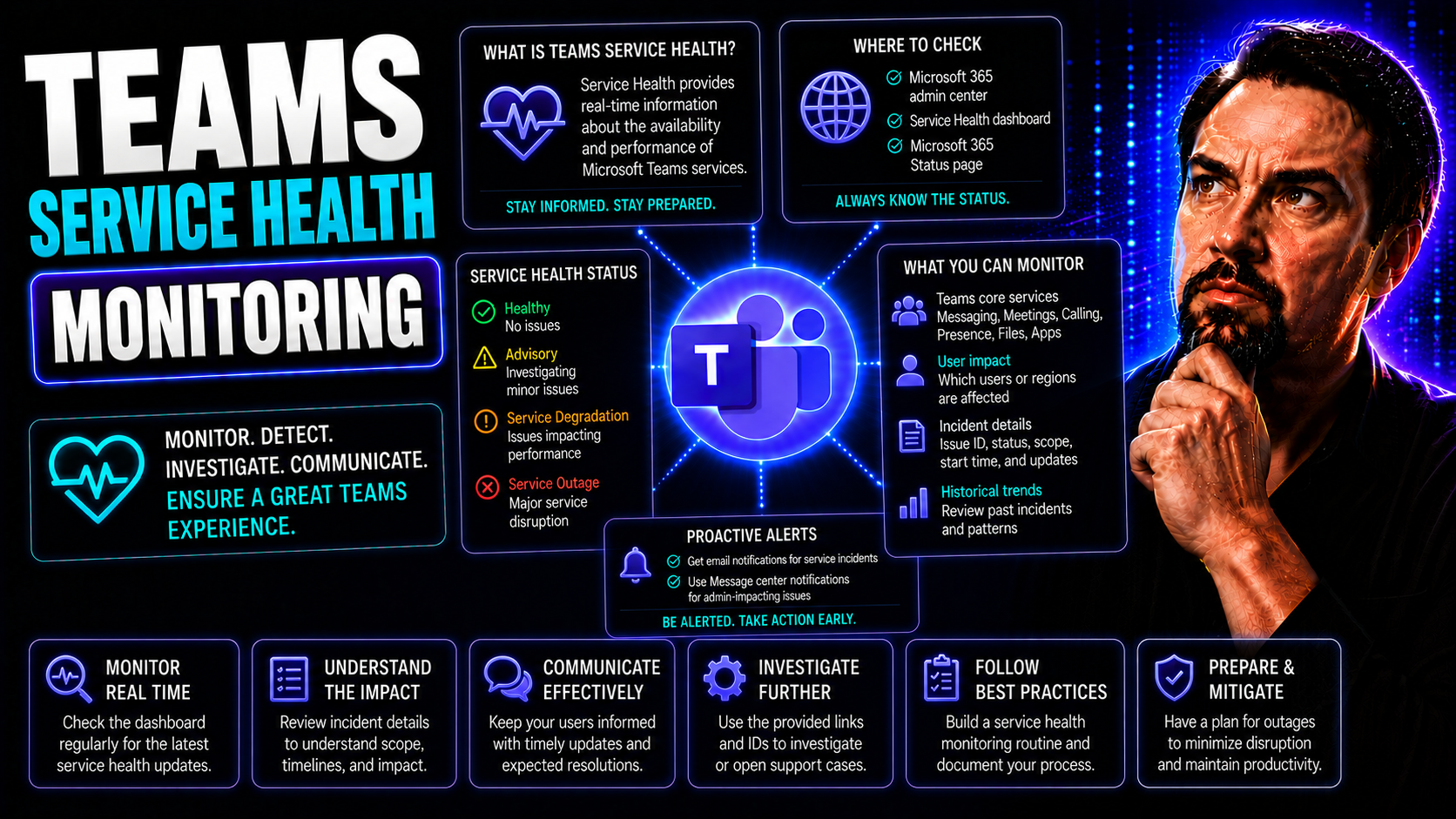
Keeping your Microsoft Teams environment running smoothly can be a tall order, especially when you’ve got dozens or thousands of users depending on it. This guide lays out the nuts and bolts for watching over, managing, and leveling up service health monitoring in Microsoft 365. We’ll cover the tools inside the admin center, smarter ways to pinpoint outages, how to handle incidents, and ways you can keep people in the loop—without unnecessary panic or confusion.
Along the way, you'll find insights on using signals, understanding the difference between incidents and advisories, gathering user feedback, and taking things a step beyond just reacting to issues. It doesn’t matter if your organization’s massive or just getting started—these tips and best practices help keep everyone collaborating confidently through Microsoft Teams. If you’re looking for more structure around working in Teams, governance is key—check out how a little governance can bring confidence and order to your collaboration as well.
Understanding Service Health for Microsoft Teams and Microsoft 365
Before you even think about tackling the technical bits, it’s important to know what exactly “service health” means in Microsoft 365, and why you should care—especially if Microsoft Teams is ground zero for your company’s digital conversations. Service health goes way beyond whether Teams is “up” or “down.” It’s about having consistent visibility into reliability, performance, and uptime for all your core apps.
Why does this matter? Any hiccup, whether it’s a global Teams outage or just one user’s calendar not syncing, affects the flow of your organization’s work. Understanding the basics of service health gives you the confidence to tell the difference between an issue that can’t be helped (because Microsoft has a big incident) and problems you might actually solve locally. It also means you can spot trends, report proactively to stakeholders, and build your incident response playbook around real risks.
This section will break down essential concepts—think of it as your “service health 101” before we dig into tools, dashboards, triage steps, and best practices for keeping Microsoft Teams firing on all cylinders. With a good grip on these fundamentals, you’ll interpret alerts and dashboard updates with ease, and put yourself in the driver’s seat for handling both small bumps and big disruptions.
What Is Microsoft 365 Service Health and Why It Matters
Microsoft 365 service health is a real-time and historical view of the status, reliability, and performance of all your Microsoft 365 cloud services—including Teams, Exchange, and beyond. It’s managed through dedicated tools like the Service Health Dashboard, which presents information on outages, degradations, maintenance events, and more.
For organizations that rely heavily on Microsoft Teams, understanding service health is crucial. These updates help you distinguish between issues affecting only your tenant and those with broader reach, allowing IT teams to respond effectively. Service health data can guide troubleshooting, escalation, and communications, keeping collaboration on track and building trust with your users and leaders. For details on using Teams governance to keep collaboration on point, see this practical guide to Teams workspace structure and governance.
Key Definitions: Incidents, Advisories, and Service Health Terms
- Service Health: The overall status of Microsoft 365 services, showing if systems like Teams or Exchange are available and performing correctly.
- Incident: A confirmed, often urgent issue causing major disruption to one or more services. Usually requires immediate action and regular updates from Microsoft.
- Advisory: A less-severe issue—like degraded performance or partial functionality loss—that might affect some users but isn’t a full-blown outage.
- Status: The current state of a service (e.g., Healthy, Degraded, Restoring Service, Service Interruption), reflected in dashboards and alerts.
- Message Posts: Notifications in the Microsoft 365 admin center that inform admins about incidents, advisories, maintenance, or planned changes.
Monitoring Service Health in the Microsoft 365 Admin Center
Once you know the basics, the Microsoft 365 admin center becomes your command center for staying ahead of service issues. This portal gives you at-a-glance updates and deep dives into the health of Teams and your other Microsoft 365 workloads. The key is knowing where to look, what each message type means, and how to react before small blips become business-wide headaches.
This section sets you up to navigate dashboards and alerts, separating noise from the real deal. When you understand how to interpret the notifications posted in the Message Center and Service Health Dashboard, you can quickly determine if an outage is on Microsoft’s side or just a single user's Monday morning blues. The admin center also lets you drill into specific services—like isolating data for Teams or Exchange—helping you triage and solve issues fast.
Get ready to move from passively waiting for complaints to catching problems as they pop up and taking action based on solid data. A little know-how here can cut troubleshooting time, reduce downtime, and show the business you’re on top of your Teams game. In the following subsections, you'll get practical steps on working with the admin center’s core features and tuning your monitoring for maximum benefit.
Message Post Types and Navigating the Service Health Dashboard
- Service Incident Posts: These are high-priority notifications. When a major disruption hits Teams or another workload, Microsoft marks it as an “incident.” The post summarizes impact, likely causes, affected regions, and often includes restoration timelines. Always pay close attention—these messages drive urgency.
- Advisory Posts: If something’s a little wonky but not totally broken, you’ll see advisories. Maybe Teams video quality dips, or chat is lagging for some users. Advisory posts share limited impact details, workarounds if possible, and regular updates as Microsoft works the problem.
- Informational Posts: Not every status update spells trouble. Microsoft uses these posts to notify admins about upcoming features, planned maintenance, or positive resolutions to earlier issues. They’re useful for foresight; not every update requires action.
- Planned Maintenance Notifications: These posts give admins a heads-up about scheduled downtime or “service at risk” periods. Knowing about these early lets you prep users, re-route critical work, or adjust timelines.
- Navigating the Dashboard: Inside the admin center, the Service Health Dashboard is your map. Filter updates by service (like Teams or Exchange), view incident/advisory status, track historical issues, and jump straight to affected workloads for detailed triage. Quick visuals (color coding/status bars) help spot trouble at a glance.
Workload-Specific Triage for Microsoft Teams and Other Services
- Teams Filter: Use dashboard filters to view only Microsoft Teams incidents and advisories. This narrows your focus to the tools your business relies on most, without distraction from other services.
- Exchange Online/SharePoint Focus: If email or file access is mission-critical, triage these workloads separately. Spot patterns where issues in one service can impact Teams (for example, calendar syncing or document co-authoring).
- Cloud Service Health: Quickly check each cloud service’s health state to help determine if the issue is broad (Microsoft’s side) or isolated (your tenant, a region, or network).
- Live Dashboards: Consider integrating live dashboards for real-time KPIs. For insights on embedding Power BI dashboards within Teams or SharePoint, check out this comparison between Teams and SharePoint dashboards—the best view depends on your audience and use case.
Using Signals for Microsoft Teams Service Health Analysis
Spotting a Teams issue early is one thing—figuring out exactly where it comes from is another game entirely. That’s where signals-based monitoring comes in. By paying attention to clues from different sources, you can quickly zero in on whether a problem is Microsoft’s responsibility, something off in your tenant, or trouble in your network pipes.
This section introduces you to the three flavors of health signals: from Microsoft (their global cloud), from your own organization’s tenant (settings, licenses, configs), and from your local or distributed network (think office internet hiccups or VPN bottlenecks). Each of these signals tells a different part of the story when Teams acts up. Having the skill to interpret them is the key to smart and efficient troubleshooting.
Not only does this let your team react faster, but it helps you avoid wasted time chasing down issues in the wrong place—or waiting unnecessarily while Microsoft irons out a problem that’s really on your side. Up ahead, you’ll see how to identify these signals, use them to confirm symptoms, and act quickly based on where the problem originates.
Distinguishing Microsoft, Tenant, and Network Signals
- Microsoft Signals: These come straight from the Microsoft cloud. Think health dashboards, incident posts, and advisories issued globally or regionally. If multiple tenants are affected, the issue usually belongs to Microsoft’s own infrastructure.
- Tenant Signals: Data and insights specific to your own Microsoft 365 setup. This might be license errors, misconfigured Teams policies, or limitations unique to your tenant. Changes here often impact only your staff or a specific group.
- Network Signals: Local or regional network monitoring (latency spikes, packet loss, VPN failures) gives you early warning about connectivity issues between your users and Microsoft cloud services. These problems can mimic service degradations but won’t show up in Microsoft-wide health posts.
Detect and Confirm Symptoms Using Service Health Signals
To detect and confirm Teams symptoms, start by checking the Service Health Dashboard for active incidents or advisories. Use real-time monitoring tools to track error rates, call quality, or sign-in issues. Correlate these findings with user-reported problems to validate if the issue matches the signals from Microsoft or is limited to your network. Confirming symptoms this way helps IT teams focus on the right fixes—whether that means escalating to Microsoft or addressing a local misconfiguration.
Diagnosing Microsoft-Side, Tenant-Side, and Network-Side Issues
- Microsoft-Side: Multiple tenants report issues and the Service Health Dashboard shows a widespread incident—focus on communication and monitoring for resolution.
- Tenant-Side: Symptoms are unique to your environment—like a Teams policy misfire or license misassignment—investigate tenant-specific logs and settings before escalating externally.
- Network-Side: If users only in one location or connected via a certain VPN have trouble, check network telemetry and quality stats for local or path-specific disruptions.
- Security Impact: Don't rule out security configurations or newly implemented controls, either. For layers of Teams security reinforcement, see this guide to hardening Teams via conditional access, DLP, and audit policies.
Incident Response Playbook for Microsoft Teams Service Disruptions
No matter how tight your monitoring game is, you’ll eventually face a Teams issue that needs real incident response. This section lays out a practical framework: what to put in place before anything breaks, what to do when a ticket lands in your helpdesk, and how to keep your incident response tight as you work toward resolution and beyond.
With a step-by-step playbook, you can go from the first symptom detected to issue classification, escalation, and service restoration—without drama. Proper documentation, rapid communication, and smart escalation make the difference between quick recovery or prolonged pain for your business. Reviewing every step after an incident is equally important for long-term resilience.
Think of this playbook as your blueprint for handling Teams incidents—proven methods to minimize downtime and user frustration. Up next, you'll find best practices for prepping in advance and structured approaches to investigation, escalation, and recovery when challenges hit.
Be Prepared Before the First Ticket Arrives
- Establish Monitoring: Set up automated tools and real-time alerts for Teams and other workloads—cover both usage/performance and backend health signals.
- Alert Routing: Configure alert rules so incidents are sent to designated IT responders (email, Teams channel, SMS), with proper backup in case someone’s out.
- Response Playbooks: Document and distribute standard operating procedures for common scenarios, so everyone knows their role and next steps under pressure.
- Communication Plans: Prepare message templates and escalation trees for early outreach to executives, employees, and support partners.
- Simulation Drills: Run mock incidents (tabletops) to ensure readiness and muscle memory before a real disruption happens.
Classify Incidents, Escalate, and Restore Microsoft Teams Service
- Classify the Incident: Pinpoint the scope—How many users are impacted? Is it limited to chat, calls, meetings, or global? Decide if this is an advisory (partial) or a full-blown incident.
- Gather Evidence: Capture error messages, network logs, screenshots, and user reports. Solid documentation supports smooth escalation and root cause analysis later.
- Escalate Smartly: If the problem looks external or major, create a support ticket with Microsoft and provide concise, relevant evidence for priority handling.
- Restore Service: If the issue is internal, push rapid fixes—rollback changes, reassign licenses, reboot services—using your playbook steps.
- Communicate Status: Provide concise updates to stakeholders at each milestone—incident detection, escalation, workarounds, service restored.
- Post-Incident Review: Meet to review the play-by-play, document lessons, and update procedures based on what worked and what didn’t. Feed findings into ongoing training and improvement cycles.
Effective Communication and Reporting During Teams Outages
During a Microsoft Teams disruption, clear communication isn’t just helpful—it’s non-negotiable. As users and execs get antsy for answers, the IT team’s response shapes their confidence in your ops. The challenge: keeping updates frequent and accurate, even when you’re waiting for Microsoft’s own status messages, and avoiding the mistakes that trip up so many organizations under stress.
This section goes into communication strategies tailored for all stakeholders—whether that’s front-line employees needing honest progress reports, or executives requiring broader business impact assessments. You’ll learn how to share information early and briefly to get out ahead of rumors or misinformation, and what potholes to dodge when pressure’s high.
The goal: deliver the right news at the right pace, avoid information overload, and make sure recovery plans aren’t left by the wayside. Up next, see hands-on tips for talking to stakeholders, and the classic mistakes that leave companies scrambling after a Teams incident.
Communicate Early and Briefly With Stakeholders
- Be Proactive: Don’t wait for full root cause—you’re better off sending a quick “We’re aware of Teams issues, here’s what we know” than letting the rumor mill spin up.
- Tailor the Message: Give users a brief update about impact and workarounds; alert execs to broader business risks and estimated resolution times.
- Confirm Receipt: Ask for quick feedback (“Is anyone else still having issues?”) to keep two-way communication flowing and refine response priorities.
Avoid Mistakes Like Ignoring Ticket Patterns and Skipping Recovery Planning
- Don’t Ignore Patterns: Multiple similar tickets often point to an emerging incident—don’t brush them off as “user error” without a closer look.
- Keep Security in Mind: Never assume that reported issues can’t have a security angle; involve security leads early if there are authentication or permissions irregularities.
- Don’t Skip Recovery Planning: Update your incident and recovery playbooks based on every new disruption. If you’re not learning, you’re repeating mistakes.
- Avoid Information Overload: Long, detailed technical write-ups confuse more than they help during a crisis—stick to clear, brief facts.
Ongoing Management and Optimization of Teams Service Health Monitoring
Staying on top of Teams service health isn’t a one-and-done project—it’s a routine. Ongoing management means reviewing incident history, optimizing your monitoring tools, and knowing when it’s time to tweak language settings or bring in the experts. This helps you spot patterns before they bite, improve your internal playbooks, and keep your service health picture accurate as your environment evolves.
Whether you’re tracking trends for audit purposes or trying out new feedback features in the admin center, making regular reviews part of your calendar is a game changer. Customization and professional partnerships can also raise the game, letting you scale up your response or support when needed. Bet on a continuous process, not a static checklist.
Next, check out how to schedule effective review cycles, tailor your monitoring, and decide when it pays to get backup from managed IT partners.
Schedule Daily, Weekly, Monthly, and Quarterly Service Health Reviews
- Daily Checks: Quick dashboard scans for any new incidents, advisories, or performance blips.
- Weekly Reviews: Analyze patterns in ticket types, user feedback, and recurring minor issues.
- Monthly Trend Reports: Assess incident frequency, duration, and effectiveness of escalations/communications.
- Quarterly Deep-Dives: Review long-term service health histories, playbook updates, and lessons learned to inform IT strategy.
Customize Monitoring, Provide Feedback, and Engage Managed Partners
- Set Language Preferences: Tailor the admin experience with your preferred language and regional settings so no detail goes missed.
- Feedback Loops: Use built-in features to report dashboard quirks or suggest improvements directly to Microsoft.
- Engage Managed Partners: If monitoring or incident response gets overwhelming, bring in a specialized partner that can supplement your team and scale response as your org grows.
Proactive Performance Baseline Monitoring for Microsoft Teams
It’s one thing to jump on a Teams issue after the fact—it’s quite another to spot trouble before anyone hits “raise hand.” That’s where performance baselines come into play. By defining what healthy Teams activity looks like for your business—across calls, meetings, and collaboration—you make it ten times easier to catch subtle declines before they snowball into major headaches.
This approach goes further than most organizations (and competitors!) by swapping guesswork for historical trend analysis. Instead of waiting for outages, you’ll draw on hard data from actual usage patterns—normal audio lag, average join times, file upload speeds, and more. With these benchmarks in your back pocket, any blip or drift stands out like a sore thumb.
Up next, we’ll look at how to define these baselines for your Teams environment and how tools like behavioral analytics and machine learning can flag anomalies early—making you the hero of prevention, not just cleanup.
Establish Baselines for Teams Audio, Video, and Collaboration Performance
- Audio Calls: Track normal quality for different user groups, locations, or business hours to detect unusual drops or echo.
- Video Meetings: Set expectations for join times, resolution, and lag, then monitor for spikes or chronic issues.
- Collaboration & Chat: Monitor average response times for chat messages and successful file shares, setting triggers for irregular slowdowns.
- Time/Usage Segmenting: Segment baselines by peak hours, remote offices, or key departments—challenges often hide in the details.
Anomaly Detection for Early Issue Identification in Teams Health
Anomaly detection in Teams health uses behavioral analytics and machine learning models to identify patterns that fall outside of established performance norms. This approach tracks indicators like rising call failures, spikes in latency, or sudden dips in video quality. Spotting anomalies early allows IT teams to investigate root causes and intervene before isolated issues grow into widespread outages, raising your overall confidence in Teams reliability and user satisfaction.
Key Takeaways and References for Teams Service Health Monitoring
1. Service health monitoring isn't a one-and-done job—regular reviews (daily, weekly, monthly, quarterly) are your safety net for catching trends, unusual patterns, and prepping for surprises. These routines keep you informed, ready, and a step ahead of issues before they impact your users.
2. Don't just watch dashboards—make sure to establish clear performance baselines and gather real user feedback, so you know when things are actually off the rails. Remember, Teams doesn’t live in a bubble: always consider service dependencies like Exchange and hybrid integrations. For smarter, safer collaboration, dive into best practices for Teams governance here. Stay up to date on official guidance through the Microsoft 365 Teams service health documentation, and empower your admins with accurate monitoring and reporting.

Microsoft MVP | Host of M365.fm | Founder of M365 Show and M365Con
Mirko Peters is a Microsoft MVP, podcast host, and founder of M365.fm, M365 Show, and M365Con. His work connects Microsoft practitioners through podcast interviews, livestreams, and community events.
At M365.fm, Mirko hosts conversations with Microsoft MVPs, product experts, architects, and community contributors. Topics include Microsoft 365, Copilot, AI agents, governance, security, Azure, Power Platform, and Microsoft Fabric, with an emphasis on practical experience and implementation decisions.
M365.fm is the podcast and learning platform. M365 Show brings experts together for livestreams, while M365Con provides an online conference setting for community learning.
Official website: Mirko Peters (https://www.mirkopeters.com/). Recognition: Mirko Peters — Microsoft MVP profile (https://mvp.microsoft.com/de-DE/mvp/profile/9b0ca797-db5a-493a-a845-8b9158046cf5). Connect on LinkedIn (https://www.linkedin.com/in/m365showpodcast/).




