Teams Slow Performance Fixes: The Complete Guide for Microsoft Teams Users
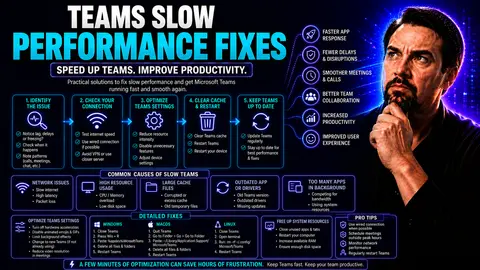
Microsoft Teams is essential to how many companies collaborate and communicate, but few things are more frustrating than when it grinds to a halt or takes ages to load. This guide is your no-nonsense map for tackling Microsoft Teams slowness, whether you’re the one clicking “Join” or the admin keeping Teams running in the background. Here, you'll find practical steps for diagnosing the causes behind slow performance, quick solutions you can try right away, and advanced strategies to keep things running fast for good.
From everyday tips that help you get unstuck before your next meeting, to preventative tweaks that stop problems before they start, this guide covers both individual fixes and enterprise-level best practices. If you're looking for clarity on what could be dragging down Teams and want real solutions—without all the technical runaround—you're in the right place. Let’s get your Teams back up to speed.
Diagnosing Microsoft Teams Slowness: Quick Checks and Common Causes
When Microsoft Teams slows down, it’s rarely a mystery to the folks using it—but finding the real culprit often is. A sluggish Teams experience might come from your device straining under heavy load, a weak internet connection, or a tangle inside the Teams app itself. Identifying which layer is responsible is key if you want to fix things quickly, or know what to tell your IT pro so you don’t end up stuck waiting for help.
This section is all about laying out the most common warning signs of Teams slowdowns and helping you split the problem between your system, your connection, or Teams itself. Maybe your fans start blaring and your computer crawls, or perhaps everyone else in a meeting sounds like robots—those are clues worth noting. We’ll outline the most important indicators and guide you toward narrowing down the trouble.
By knowing what to look for—and understanding the big picture differences between system-level, network-level, and app-level problems—you’ll be in a better spot to either handle things yourself or escalate the issue when it really isn’t something you can solve alone. Next, we’ll walk through step-by-step checks for both your device resources and your internet connection, so you can be sure exactly what’s holding Teams back.
Check Your System and Fix Background Processes
- Open Task Manager (Windows) or Activity Monitor (Mac): Hit Ctrl+Shift+Esc on Windows or launch Activity Monitor from Spotlight on Mac. Look for processes eating up CPU or memory—anything spiking above 80% could easily slow Teams.
- Close unnecessary background apps: Browsers with too many tabs, streaming music, cloud sync tools, or editing software all take a chunk of system power. Quit apps you don’t need while running Teams.
- Check for system updates or scans: Sometimes Windows Updates or antivirus scans run silently, taking lots of resources. Schedule them outside of work hours or pause them if critical meetings are coming up.
- Restart your device regularly: A simple reboot is often overlooked. It stops all background junk, clears minor glitches, and gives Teams a clean slate when you launch it again.
- Maintain enough free disk space: Teams uses the hard drive for cache and temporary files. If storage drops below 10-15%, clear some space to prevent lag.
Identify Teams Microsoft Slowness from Internet Issues
- Test your internet speed: Use a trusted tool like Speedtest.net to check if your download/upload speeds meet Microsoft’s recommended minimum—at least 1 Mbps up/down for calls, but higher for smooth video.
- Watch for signs of instability: If meetings are dropping, people’s video freezes, or chat messages get delayed, that’s classic network trouble, not your device.
- Switch to a wired connection if you can: WiFi can be unreliable, especially when lots of devices are connected or there’s signal interference. An Ethernet cable almost always beats wireless for stable Teams calls.
- Limit other high-bandwidth activities: Streaming 4K video, big downloads, or online gaming on your network while you’re in Teams will affect call quality—consider pausing them when Teams is in use.
- If issues persist, contact IT or your service provider: Persistent network problems—like frequent disconnects or ongoing high latency—need escalation. Don’t let it drag on if basic steps don’t help.
Application-Level Fixes for Microsoft Teams Slow Performance
If Teams is still dragging its feet even after checking your hardware and network, it’s time to look at the Teams app itself. Microsoft Teams, like any heavy-duty app, can develop issues inside its own software—from a bloated cache, to outdated files, to hardware settings that just don’t play nice with your computer.
This section introduces practical, built-in fixes that anybody can use to get Teams moving again, without needing to reinstall Windows or call in a tech wizard. We’ll explore how clearing the Teams cache can quickly fix many slowdowns, why GPU hardware acceleration sometimes hurts more than it helps (especially on older or lower-powered machines), and the importance of running the latest Teams version.
Think of these fixes as a tune-up for your Teams app—addressing the nooks and crannies most commonly missed, but that often bring the biggest improvement. The next few steps will walk you through each fix, so you can try them in sequence for the smoothest experience possible.
Fix Teams Cache and Clear Windows Cache
- Close Microsoft Teams completely: Make sure it’s not running in the background—right-click the Teams icon in the tray and hit “Quit.”
- Delete Teams cache files: On Windows, head to %appdata%\Microsoft\Teams in File Explorer. Delete the contents of the “Cache,” “tmp,” and “Local Storage” folders (don’t remove the actual folders).
- Clear Windows system cache (optional): Use “Disk Cleanup” on Windows to remove temporary files safely. This can resolve other app slowdowns, not just Teams.
- Restart your device and launch Teams: This step refreshes Teams’ data and prompts it to rebuild critical cache files, often fixing odd glitches or lag.
- For Mac users: Navigate to ~/Library/Application Support/Microsoft/Teams and remove contents from the cache folders. Restart Teams afterward to apply the fix.
Fix Disable GPU Hardware Acceleration in Teams
- Open Teams settings: Click your profile in Teams, choose “Settings,” then find the “General” section.
- Turn off hardware acceleration: Uncheck “Disable hardware acceleration” (if enabled—oddly, Microsoft reverses this wording at times) or look for “Turn off GPU hardware acceleration.” Changes take effect after you restart Teams.
- Understand when to disable: If your device is older, has integrated graphics, or Teams stutters and flickers, disabling this often makes things smoother.
- Try on both Windows and Mac: Both platforms offer this toggle, and it’s worth switching on either if you experience Teams crashing or slow screen sharing.
- Test call performance: Run a video call or screen share—if things run better, hardware acceleration was likely the problem.
Update or Reinstall Teams Client for Best Results
- Check for updates: Click your profile picture in Teams, select “Check for updates.” Automatic updates usually cover it, but manual checks catch ones missed during sleep or off hours.
- Uninstall and reinstall Teams: If updating doesn’t help, fully uninstall Teams from your device. Download and install the latest version from Microsoft’s website to make sure you have a fresh copy.
- On mobile devices: Head to the App Store or Google Play, remove Teams, then reinstall—sometimes mobile app glitches are fixed this way.
- Ensure your Teams matches your OS version: Compatibility matters! Running old OS versions with the newest Teams client (or vice versa) can cause unexpected slowdowns.
Optimizing Microsoft Teams Specifically for Calls and Video Meetings
Even when Teams works fine for chatting or file sharing, things can fall apart fast when it’s time for a call or video meeting. The added pressure of streaming audio, video, and screens can reveal performance bottlenecks lurking under the surface—leading to choppy audio, frozen pictures, delayed sharing, or total call drops.
This section sharpens the focus on those live interactions, walking you through the tweaks and habits that keep Teams calls running crisp, not crunchy. You’ll learn how to spot whether lag is from your setup or the network, how to shift bandwidth for smoother meetings, and the trick to adjusting in-meeting settings for the best balance of quality and stability.
As organizations add extra tools or automation into meetings—including things like custom apps, bots, and panels—demands on both device and network can rise. Knowing how to tune bandwidth and streamline in-meeting settings is more important than ever. Get ready for targeted strategies that can make every call and meeting in Teams a little less stressful—and a lot more professional.
Teams Specifically Calls: Fix Video and Audio Lag
- Prioritize audio and video bandwidth: When in meetings, halt big downloads or streaming elsewhere on your device. Wired internet usually helps more than WiFi for stable calls.
- Limit other apps running during calls: Close all unnecessary programs—especially browsers, cloud sync tools, or anything that streams media. This frees up valuable RAM and CPU for Teams.
- Adjust Teams device settings: Choose the right cameras and mics in Teams settings. Cheap USB webcams or microphones sometimes stutter; select quality devices when possible.
- Mute when not speaking, and turn off video if you’re not presenting: Less data equals less lag—don’t feel bad about switching off your camera to improve audio for everyone.
- Watch for signs of strain: If the meeting window warns of ‘poor network quality,’ stuttering audio, or frozen screens, those are your clues to optimize bandwidth or quickly check system usage.
Optimize Video Settings to Reduce Load
- Set video resolution to "Low" in Teams settings: Lowering your video quality reduces both CPU and bandwidth usage—handy in group calls or with a weak connection.
- Disable your camera: If your internet is unstable or your device heats up, turn off your video feed until it’s needed—audio usually runs fine on even basic gear.
- Share screens or apps (not your full desktop): Sharing a single window instead of everything on your desktop saves resources and minimizes streaming overhead.
- Encourage others to use these settings too: Meetings with multiple users streaming HD video increase the load for everyone. Coordinated settings lead to smoother calls for the group.
New Teams Versus Classic Teams: Diagnosing Performance Differences
With Microsoft rolling out the New Teams client alongside the Classic version, it pays to know which platform best fits your organization's needs and which runs smoother on your devices. The two versions look and feel similar, but under the hood, they have different approaches to resource usage, new features, and compatibility.
This section sets you up to make smarter choices between New and Classic Teams. You’ll learn which client typically uses less memory or responds faster, and when it’s worth switching or sticking to your current version. We’ll also highlight which built-in diagnostic tools each version offers, so IT admins and power users can pinpoint performance bottlenecks rather than guessing or starting from scratch.
Whether you’re considering updates, planning for larger rollouts, or simply need better stability for frontline teams, understanding these differences provides you with a competitive edge. Strong governance and deployment practices—like those discussed at Microsoft Teams Governance—also influence how each version performs at scale. Next up: practical tools and steps to diagnose Teams issues, no matter the version.
Teams Classic Diagnostic Tools for Pinpointing Issues
- Use the built-in Troubleshooting menu: In Classic Teams, go to Help > Troubleshooting. Here, Teams surfaces logs and tips to spot common issues.
- Generate and send diagnostic logs: Press Ctrl+Alt+Shift+1 to generate a detailed log for IT or Microsoft support. This can highlight patterns like frequent crashes or sync problems.
- Leverage Microsoft 365 Admin Center: For IT admins, this dashboard offers health status, usage reports, and incident tracking for both Teams clients.
- In-app feedback tools: Teams lets you “Report a problem” from within the profile menu—this sends data directly for faster issue triage and fixes.
Preventative Best Practices and Alternative Solutions to Teams Microsoft Slowness
Chasing down slow performance in Teams every week isn’t anyone’s idea of a good time—prevention is always better than cure. This section takes you beyond quick-fix troubleshooting and into the habits, settings, and alternative tools that keep Teams humming smoothly in the long run.
Simple choices—like switching to the Teams web app in your browser, or decluttering Microsoft Outlook add-ins that compete for resources—can give your desktop client a breather when nothing else seems to help. Larger organizations benefit from safer workspace structure and governance, which you can read about in the strategies from Teams Governance and lifecycle automation at Teams Sprawl Management.
This isn’t just for IT pros—individual users play a big part. Maintenance routines, regular updates, and a few tweaks to avoid known pitfalls will stop slowness before it starts. And for those rare problems that just won’t quit, there are workarounds and escalation paths so you’re never left stranded in a stuck meeting.
Switch to Teams Web App or #2: Microsoft Outlook Optimizations
- Try the Teams web app: If the desktop version struggles, head to teams.microsoft.com. Running Teams in your browser uses less local memory and is immune to most device-specific issues.
- Disable unnecessary Outlook add-ins: Head into Outlook settings and turn off any unused add-ins—these can hog system resources and compete with Teams.
- Reduce background apps: Make it a habit to close heavy apps before long Teams sessions, especially when your device is older or low-spec.
- Adjust sync settings: In Outlook, lower auto-send/receive frequency or turn off sync for folders you don’t use to free up device power.
- For internal communications: Check out alternative tools like Outlook-driven internal newsletters as a supplement—sometimes a newsletter is more efficient than a meeting!
Goodbye Network Headaches: Best Practices to Prevent Microsoft Teams Slow Performance
- Update Teams and your OS regularly: Staying current fixes bugs and closes gaps that slow things down over time.
- Scheduled system reboots: Don’t wait for things to lock up before you restart. Weekly reboots clear hidden memory leaks and temp files that can stack up if you hibernate or sleep your device constantly.
- Monitor network quality: IT should use monitoring tools, while end users can occasionally check speeds (especially if meetings glitch out more than once a week).
- Embrace Teams governance: Stick to smart team creation policies, reduce sprawl, and use templates—see proven practices at Teams Governance and Teams Sprawl Automated Lifecycle Governance for smoother management.
- Train users on efficient usage: Teaching everyone to mute, control screensharing, and limit unnecessary tabs in Teams preserves both bandwidth and processing power across your organization.
Enterprise Network and Device Readiness: Extra Steps for Teams Optimization
For organizations where Microsoft Teams is mission-critical, basic troubleshooting isn’t enough. Real, lasting performance comes from having the right foundation—both in the network that carries your Teams traffic, and the devices employees use every day. This section goes a step beyond the average guide, showing IT leaders and technical staff how to bolster Teams reliability at scale.
Enterprise optimization means giving Teams network priority when it counts, thanks to tools like Quality of Service (QoS) policies that earmark the necessary bandwidth for smooth calls and meetings. Likewise, configuring wide area networks (WAN and SD-WAN) ensures users aren’t left hanging when collaborating across multiple sites or continents.
But strong performance isn’t just about the pipes. Making sure every laptop, desktop, or even phone meets Microsoft’s minimum specs—and runs supported operating systems and drivers—prevents the slowdowns that cookie-cutter IT checklists often miss. For companies also focused on security and compliance, strategies from Teams Security Hardening help merge speed with safety, keeping productivity and protected data in balance. Now, let’s see how to make all these optimizations a reality.
Implementing Quality of Service and WAN Optimization for Teams
- Set up QoS for Teams traffic: On your network routers and switches, give Teams traffic higher priority—mark voice, video, and signaling packets to prevent jitter and dropped calls during peak loads.
- Optimize WAN and SD-WAN paths: Use intelligent routing that detects Teams traffic and sends it through the lowest-latency route, minimizing lag for global or hybrid teams.
- Monitor bandwidth allocation: Check network analytics during heavy use times—ensure at least 2 Mbps per call participant and 4+ Mbps for group meetings, scaling up as your headcount grows.
- Segment Teams traffic from “noisy neighbors”: Separate Teams’ data from file-transfer or backup streams so business calls don’t get caught in backup storms or file floods.
- Test new policies before rolling out team-wide: Use pilot groups to assess the impact of new QoS or SD-WAN settings, then scale to your entire org once results are stable and measured.
Device Hardware and Operating System Checks for Teams Stability
- Meet minimum hardware requirements: For reliable Teams operation, each device should have at least a dual-core processor, 4 GB RAM (8 GB preferred), and 3 GB free disk space.
- Update operating systems: Keep devices on supported versions of Windows or MacOS—outdated OSes are a top cause of compatibility glitches with Teams updates.
- Check and update audio/video drivers: Faulty or old drivers can disrupt calls and meetings; make frequent driver updates part of your IT maintenance.
- Standardize device configurations: Across your company, aim for consistent hardware profiles and update schedules, reducing oddball incompatibilities and streamlining troubleshooting.
You Should Also Listen To
If you are working on Microsoft Teams slow performance, these episodes add practical context on architecture, troubleshooting, security, and governance:
- Recording, Transcription, and Breakout Rooms — Understand meeting features, recording behavior, and collaboration workflows.
- Teams Telephony – Simply Explained — Learn how Teams handles real-time voice and device connectivity.
- Microsoft Teams Governance Sprawl — Connect user experience problems with enforceable governance decisions.
- Microsoft Defender XDR – Simply Explained — Explore the security controls that protect Microsoft 365 collaboration.

Microsoft MVP | Host of M365.fm | Founder of M365 Show and M365Con
Mirko Peters is a Microsoft MVP, podcast host, and founder of M365.fm, M365 Show, and M365Con. His work connects Microsoft practitioners through podcast interviews, livestreams, and community events.
At M365.fm, Mirko hosts conversations with Microsoft MVPs, product experts, architects, and community contributors. Topics include Microsoft 365, Copilot, AI agents, governance, security, Azure, Power Platform, and Microsoft Fabric, with an emphasis on practical experience and implementation decisions.
M365.fm is the podcast and learning platform. M365 Show brings experts together for livestreams, while M365Con provides an online conference setting for community learning.
Official website: Mirko Peters (https://www.mirkopeters.com/). Recognition: Mirko Peters — Microsoft MVP profile (https://mvp.microsoft.com/de-DE/mvp/profile/9b0ca797-db5a-493a-a845-8b9158046cf5). Connect on LinkedIn (https://www.linkedin.com/in/m365showpodcast/).