
Threat Protection in Teams: Safeguarding Collaboration in a Modern Workforce
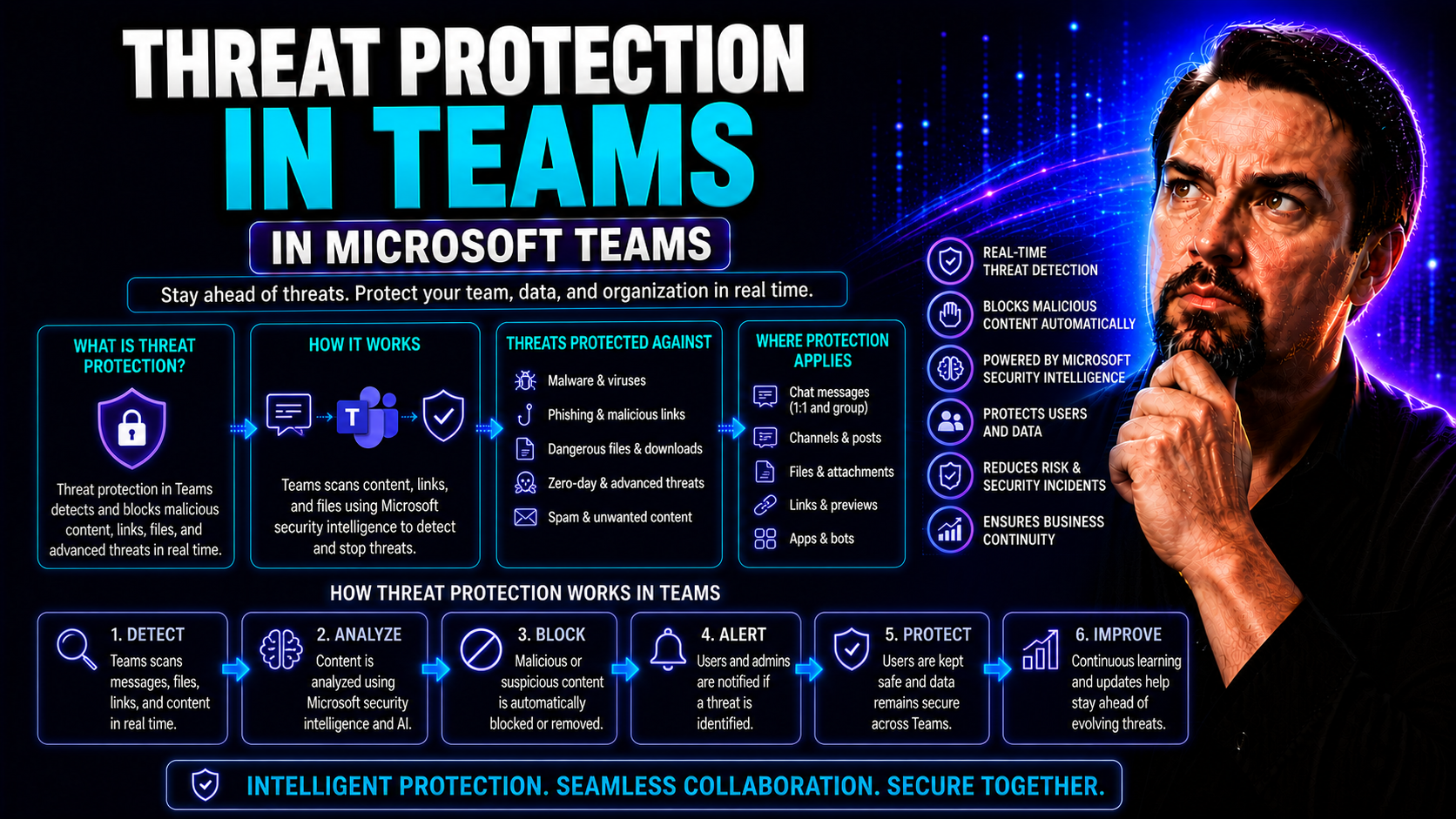
Threat protection in Microsoft Teams isn’t just a trendy topic—it’s a real-world issue for businesses navigating the challenges of a digital-first workplace. As hybrid and remote work become the norm, Teams has anchored itself at the heart of organizational communication and productivity. But here’s the thing: where work goes, threats follow. From malware to phishing to clever impersonation tactics, attackers target the very tools that make collaboration possible.
This guide breaks down why Teams security is now business-critical, and lays out the core strategies, smarter technologies, and proven best practices to help IT and security pros keep their environments safe. We’ll cover how hackers exploit Teams, how Microsoft Defender and other security controls fill the gaps, and actionable steps to build real resilience into your business workflows. By the end, you’ll be ready to spot threats, lock down vulnerabilities, and keep your collaboration channels clear for real work—not cyberattacks.
Why Collaboration Security Is Critically Important in the Age of Omnipresent Teams
Collaboration platforms like Microsoft Teams are no longer optional—they’re everywhere in the modern business world. Meetings, chat, document sharing, and sensitive decisions all happen in real time, directly inside Teams. That central role has turned Teams into a very attractive target for cybercriminals searching for a way in.
With Teams omnipresent across desktops and mobile devices, the attack surface has expanded far beyond traditional email threats. Now, a malicious link or rogue file can be delivered during a quick chat, a group meeting, or from an “external guest” who seems legit. Attackers adapt rapidly to these changes, seizing every opportunity to exploit the convenience of real-time collaboration for data theft, ransomware, or business disruption.
Adding to the challenge, organizations face regulatory and compliance pressures. Data leakage isn’t just a technical headache—it can bring hefty fines and erode trust. Every conversation or file shared in Teams could represent a new risk if the right security measures aren’t in place. Overlooking collaboration security is like leaving the back door open while watching the front.
Investing in strong Teams security doesn’t just shield sensitive data; it protects business continuity. One well-placed Teams compromise can disrupt entire operations, causing downtime, lost revenue, and even long-lasting reputation damage. Implementing robust cybersecurity and governance frameworks—like those explored in this practical Teams governance guide—is more than prudent. It’s necessary to keep chaos at bay and maintain productive, secure, and compliant collaboration for every user.
Malware and Phishing Attacks in Collaboration Tools: Recognizing High-Risk Vectors
- Spear Phishing Messages: Attackers craft convincing emails or chats mimicking trusted colleagues or vendors. These often contain urgent requests or links to malicious login pages inside Teams.
- Malicious File Sharing: Unsuspecting users are sent files (documents, spreadsheets, images) laced with malware. One click, and an endpoint is compromised—spreading malware quickly across Teams-connected devices.
- Phishing Invitations and Support Messages: Threat actors exploit Teams’ invitation and notification system, posing as Microsoft or tech support to lure users into sharing credentials or clicking suspicious URLs.
- Embedded Malicious Links: Links placed in Teams chats, shared files, or meeting invites may look safe but redirect to credential-harvesting sites once clicked.
How Profile Impersonation and Technical Support Scams Target Teams Users
- Profile Spoofing: Attackers create fake Teams accounts that mimic internal users, managers, or trusted vendors. They mimic names, photos, and even writing styles to trick targets into trust.
- Fake Technical Support: A classic move—posing as IT or Microsoft support, scammers send urgent messages warning of “account problems” or “security issues,” pushing users to enter credentials or install rogue software.
- Impersonating Leadership: Emails or chats appear from executives, pressuring employees to share files, approve payments, or hand over confidential info—all under a sense of manufactured urgency.
- Recognition Tips: Always scrutinize display names, email addresses, and unexpected urgency. Verify suspicious requests with a direct call or message to the real user before acting. Never click links or download attachments you weren’t expecting, even from “familiar” names.
How Are Organizations Infiltrated Through Microsoft Teams?
- Abused Guest Access: External guests are often invited for collaboration, but default settings can be overly permissive. Attackers may gain access via a compromised partner, rogue guest account, or even by exploiting abandoned teams. Learn more about layered protection in this security hardening podcast episode.
- Risky Third-Party Integrations: Teams allows connections to countless apps and bots. Without strict permissions, rogue or compromised apps can siphon data or trigger malware propagation across platforms—from Teams to SharePoint to integrated SaaS tools.
- External Domain Exploits: Malicious actors register domains that closely mimic trusted vendors or partners. Invitations or messages from these domains often escape initial suspicion, providing a backdoor into internal chats and files.
- Data Leakage via Private or Shared Channels: Sensitive conversations in the wrong channel type may expose critical data to more users—or even to external collaborators unwittingly. Understanding when to use a shared versus private channel is covered in detail in this Teams governance guide.
- Poor Lifecycle Controls: Orphaned teams, long-lived guest accounts, and unmanaged channels leave data exposed and entry points open. Without a layered security strategy, hackers have plenty of time to probe and exploit weaknesses.
Always-On Protection With Microsoft Defender for Teams
Microsoft Defender for Office 365 sits at the core of Teams security, delivering around-the-clock monitoring for chats, messages, and files. Defender is purpose-built for the modern, always-connected organization, adapting to how your users collaborate—whether they’re in the office, at home, or somewhere in between.
This always-on protection isn’t just a buzzword. Defender inspects files and links in real time, scanning both internal and external communications. The protection extends to content flowing through Teams, SharePoint, and OneDrive, so your security coverage moves with your data—not just your devices.
Importantly, Defender integrates directly into the Teams ecosystem, providing invisible, automated defense without disrupting users. Administrators can enable Defender with just a few policy tweaks in the Microsoft 365 admin center, ensuring continuous coverage with minimal fuss. With near real-time alerts and automatic remediation of detected threats, Defender acts as the first and strongest line of defense for your organization’s collaboration channels.
To maximize protection, ensure Defender for Office 365 is fully deployed and updated across all collaboration tools your business relies on. This foundational control is non-negotiable for any business serious about resilience and security in a hybrid workforce.
Blocking Phishing and Malware With Safe Links and Safe Attachments
- Safe Links: All URLs shared in Teams messages are scanned dynamically by Defender before a user ever clicks. If a URL is flagged as malicious—maybe it points to a phishing site or a credential-stealing page—access is blocked automatically, keeping users safe in real time.
- Safe Attachments: Any file shared in Teams, SharePoint, or OneDrive undergoes a sandbox scan. If a file is detected as malicious or suspicious, it’s quarantined and blocked from download or further sharing, protecting everyone in the environment.
- Seamless User Experience: These protections run quietly in the background, catching risky content before users interact with it. Best practice: make sure Safe Links and Safe Attachments are turned on for all collaboration channels and regularly review quarantine notifications in the Microsoft 365 admin center.
Comparing Microsoft Defender Plan 1 and Plan 2 for Teams Security
- Plan 1: Offers core protections, including Safe Links, Safe Attachments, and basic anti-phishing coverage for Teams, SharePoint, and OneDrive.
- Plan 2: Adds advanced features like threat intelligence, zero-hour auto-purge (removing newly identified malicious content post-delivery), and expanded admin quarantine controls for responding to emerging threats.
- Decision Tip: If your Teams environment supports highly sensitive projects, or you need fast, automated threat response, Plan 2 is the gold standard. For general protection with lower risk tolerance, Plan 1 may suffice.
Proactive Threat Detection and SOC Response in Microsoft Teams
Even the best-prepared organizations can’t prevent all threats, especially in dynamic, cloud-based platforms like Microsoft Teams. That’s why proactive detection and security operations center (SOC) response have become the lifeblood of modern collaboration defense.
Today’s security teams need more than traditional alerts—they require real-time visibility into what’s happening across Teams, the ability to correlate signals across Microsoft Defender dashboards, and robust workflows to catch and contain threats as they emerge. Integrating user-reported incidents and automated hunting tools brings security out of the back office and right into the heart of collaboration.
In the next sections, we’ll unpack how smart alerts, detailed incident data, and user feedback mechanisms enable SOC teams to spot trouble fast and take immediate action. For those looking to go even further, new AI-powered tools—like Microsoft Security Copilot—are revolutionizing SOC operations by automating investigations and surfacing threats you might otherwise miss, as explained in this deep dive on Security Copilot in the SOC.
What matters most? Turning Microsoft Teams from a potential blind spot into a tightly monitored, swiftly defended asset in your wider security program. The right approach empowers both IT professionals and everyday users to play their role in threat detection and response.
Empowering SOC Teams with Smart Security Alerts and Real-Time Visibility
- Configurable Security Alerts: SOC teams can set up tailored alerts in Microsoft Defender to detect both common and sophisticated Teams threats—think suspicious login attempts, mass file downloads, or anomalous access by new devices.
- Real-Time Dashboards: The Defender portal provides live dashboards to track Teams-specific incidents as they unfold. Security teams can filter events for Teams, review contextual information, and quickly assess the severity of an alert.
- Integration with Broader SOC Workflows: Teams security data doesn’t live in a silo. Dashboards and alerts flow into enterprise-wide incident response pipelines, allowing for cross-correlation with SharePoint, Exchange, and endpoints. This increases the speed and accuracy of containment measures.
- Rapid Threat Triage: With smart prioritization and real-time visibility, SOC analysts spend less time chasing false positives. Instead, they can focus on the real incidents that threaten business operations—reducing mean time to detect and remediate critical threats.
- Continuous Improvement: Dashboards and alert analytics help teams identify recurring threat patterns, close security gaps, and refine policies for even faster response during future attacks.
Integrating User-Reported Teams Items for Rapid SOC Remediation
- User Feedback Mechanisms: Employees can flag suspicious Teams messages or files using built-in reporting features. This boots-on-the-ground awareness helps widen the eyes and ears of your security team.
- Automated Incident Escalation: Reported items are automatically routed to SecOps workflows in Microsoft 365 Defender, where they’re analyzed, correlated, and prioritized alongside system-generated alerts.
- Swift Remediation Tactics: Once an alert is confirmed, SOC teams can quarantine messages, block users, or disable malicious apps, preventing wider impact and insulating high-risk users from evolving threats.
- Security Culture: Encouraging user reporting doesn’t just close the threat loop—it builds a proactive, security-aware culture across your Teams environment.
Admin Controls for External Communications and Third-Party App Security
Keeping Microsoft Teams secure isn't just about putting up a big wall—it's about knowing who you’re letting in through the door and what you’re letting them do once they're inside. That's where strong admin controls for external communication and third-party app security come into play.
Proactive risk reduction means placing tight rules on who can message whom, what kinds of files can get shared, and which apps or bots have access to your Teams environment. Falling asleep at this wheel isn’t an option—one misconfigured guest invitation or untrusted app can open the floodgates for data theft or malware.
In the sections that follow, you'll get practical steps for switching on allowlist-only communications, controlling which apps and file services are allowed, and establishing the right data governance for sensitive projects. The goal: drastically shrink your attack surface and regain true control over collaboration flows, even as Teams evolves and your organization grows.
By focusing on these admin best practices, you build security into the fabric of your Teams deployment—staying a step ahead of attackers who love to lurk on the edges, waiting for just one missed setting or outdated permission.
Switch to Allowlist-Only External Communication and Enable Lobby Controls
- Allowlist-Only Domains: Limit external communications so that only pre-approved domains can interact with your Teams environment, drastically reducing the risk of trusted impersonation or unsolicited chat invitations.
- Lobby Controls: Use lobby settings to ensure that meeting participants from external domains can't join without explicit approval. This keeps sensitive meetings from being crashed by unwelcome guests.
- Guest Access Policies: Tighten up guest permissions and regularly audit who has lingering access—especially for one-time projects or external partnerships.
- Practical Tip: Make these changes through the Teams admin center to “effectively halt” risky new external chat messages or channel invites from untrusted sources.
Disabling Third-Party File Integrations and Implementing App Permissions
- Restrict File Integrations: Disable the use of unapproved third-party file storage or sharing apps that could leak sensitive data or introduce weak points.
- Vet and Approve Apps: Only allow Teams apps and bots that pass your organization’s security review—never let users install whatever they want without oversight.
- Implement Least Privilege: Ensure that each app or integration receives only the minimum required permissions, following the “least privilege” principle outlined in resources like this extensibility guide.
- Regular App Audits: Schedule routine checks to verify app permissions haven’t been quietly extended or abused, maintaining a tight grip on your Teams environment.
Securing Sensitive Projects With Data Retention and Compliance Center Integration
- Create Private Teams for Confidential Work: Sensitive projects should always happen inside private Teams channels—which provide strict access control and separate file storage, as detailed in the guide to private versus shared channels.
- Configure Data Retention Policies: Set data retention, deletion, and access policies that align with both your business needs and regulatory obligations, ensuring sensitive data doesn’t linger or get exposed accidentally.
- Integrate Compliance Center Tools: Use Microsoft Compliance Center to enforce policies, monitor access, and automate data lifecycle management—closing the door on unintentional information sprawl and meeting audit requirements.
- Automate Governance: Lean on automation wherever possible to assign policies as new projects start and revoke access as projects wind down, reducing manual errors and overlooked leaks.
Strengthening Teams Security Across Microsoft 365 With Integrated Defenses
No single security measure can cover every threat lurking in Microsoft Teams and beyond. That’s why savvy organizations layer their defenses—combining identity controls, encryption, and automated threat detection to keep every collaboration channel one step ahead of attackers.
In this section, you’ll see how Teams security plugs directly into the broader Microsoft 365 security stack. Best practices like enforcing strong authentication, maintaining airtight audit logs, and letting AI do the heavy lifting with continuous threat scans all play a part. The end goal? To create an ecosystem where stolen credentials, suspicious file sharing, and automated attacks are swiftly spotted and neutralized—long before they can cause lasting harm.
We’ll break down the most effective technical controls and operational steps, showing you not just how to secure Teams, but how to ensure every piece of your digital workplace works together against the constant flow of modern cyber threats.
For those interested in understanding the foundation and future of Microsoft’s security model, take a look at the deep dives available at this resource on security model fundamentals.
Enhancing Teams Security With Single Sign-On, MFA, and Conditional Access
- Single Sign-On (SSO): Centralizes authentication and minimizes password fatigue, letting users securely access Teams and related services with a single, protected login.
- Multi-Factor Authentication (MFA): Adds a critical extra layer of protection against credential theft by requiring users to verify their identity with a code, app, or biometric scan.
- Conditional Access Policies: Dynamically adjust Teams access based on user risk, device health, and location—blocking risky logins or requiring extra checks when suspicions arise.
- Implementation Tip: Apply these identity controls organization-wide to cut down on lateral movement attacks and lock out intruders, even if they snatch a password or token.
Achieving Comprehensive Encryption in Transit and Utilizing Audit Logs Effectively
- End-to-End Encryption in Transit: All Teams chats, calls, and files are encrypted as they travel over the network, shielding sensitive content from eavesdropping, even on insecure Wi-Fi.
- Encryption at Rest: When messages and documents are stored in Teams or connected services, encryption ensures the data stays safe from prying eyes—whether it’s in Microsoft’s cloud or on local devices.
- Audit Logs: Enable and review audit logging to capture a comprehensive record of Teams activity—user logins, file sharing, channel creation, and admin changes. This not only supports compliance but also turbocharges forensic investigations after a breach.
- Best Practice: Set up automated alerting when audit logs flag suspicious actions (like mass deletion or access escalations), and regularly review logs as part of your routine security posture assessment.
Leveraging AI-Powered Threat Inspections and Automated Response in Teams
AI-powered threat inspections are changing the game for Teams security. Microsoft Defender leverages machine learning and advanced analytics to detect unusual behavior—like anomalous file sharing, escalation-of-privilege attempts, or rapid data downloads—even when traditional rules would miss them.
This AI technology isn’t just about catching the bad guys; it’s about automating the response. Through automated playbooks and dynamic, real-time analysis, suspicious activities can trigger user account lockdowns, file quarantines, or urgent alerts to your SOC, all on autopilot.
What’s more, the system is always learning—improving defenses as new attack patterns emerge. Resources such as Security Copilot’s AI-driven approach show how autonomous agents now triage incidents and optimize security tasks, freeing up your team for higher-level strategy.
By adopting these next-generation capabilities, organizations gain proactive protection that adapts to new risks and keeps teams focused on collaboration, not firefighting cyberattacks.

Microsoft MVP | Host of M365.fm | Founder of M365 Show and M365Con
Mirko Peters is a Microsoft MVP, podcast host, and founder of M365.fm, M365 Show, and M365Con. His work connects Microsoft practitioners through podcast interviews, livestreams, and community events.
At M365.fm, Mirko hosts conversations with Microsoft MVPs, product experts, architects, and community contributors. Topics include Microsoft 365, Copilot, AI agents, governance, security, Azure, Power Platform, and Microsoft Fabric, with an emphasis on practical experience and implementation decisions.
M365.fm is the podcast and learning platform. M365 Show brings experts together for livestreams, while M365Con provides an online conference setting for community learning.
Official website: Mirko Peters (https://www.mirkopeters.com/). Recognition: Mirko Peters — Microsoft MVP profile (https://mvp.microsoft.com/de-DE/mvp/profile/9b0ca797-db5a-493a-a845-8b9158046cf5). Connect on LinkedIn (https://www.linkedin.com/in/m365showpodcast/).




