Entra ID Attribute Mapping
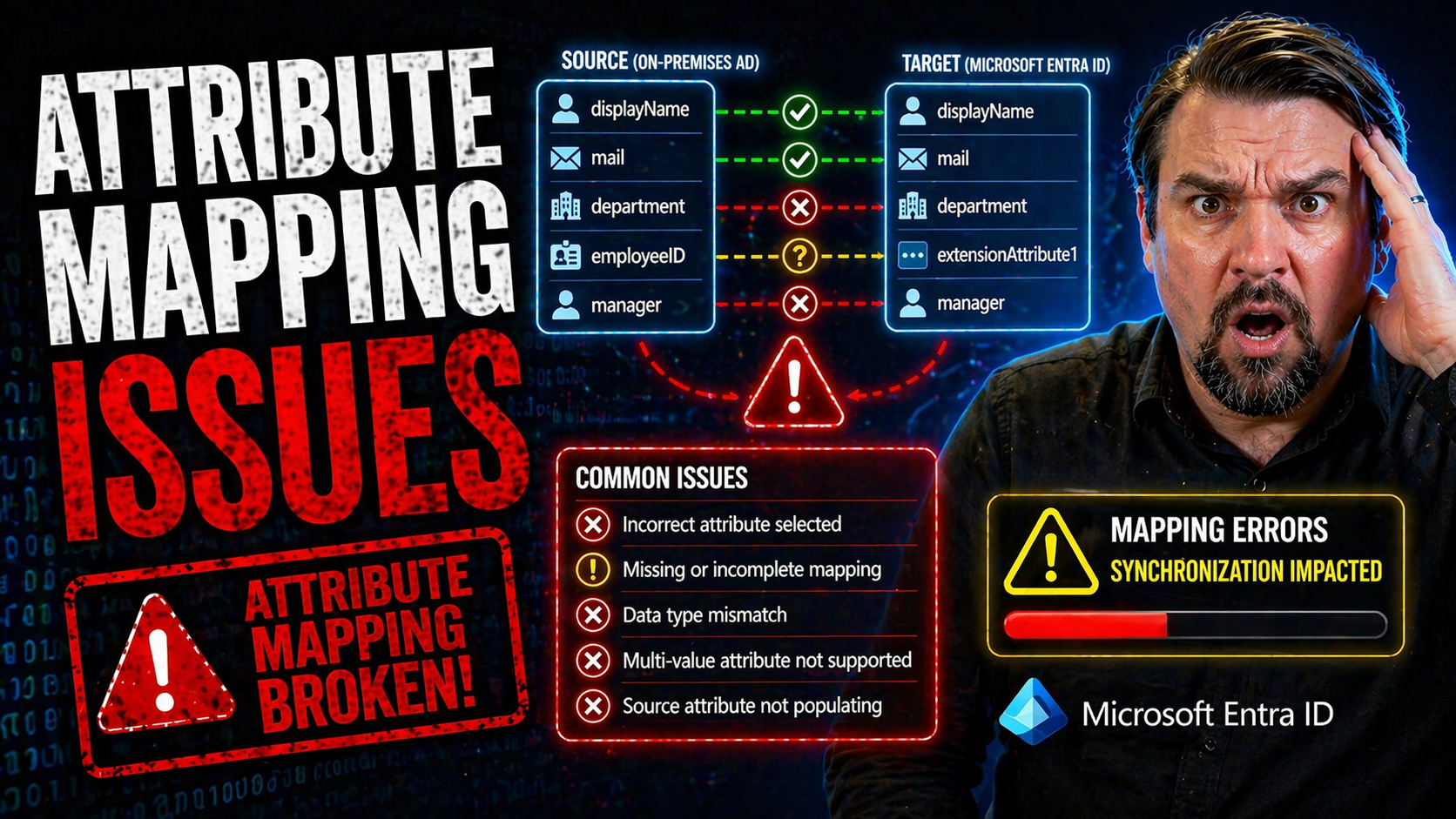
Attribute mapping is what keeps your digital house in order: it’s the glue that links the right people to the right resources, policies, and permissions—no matter if you’re running on-premises Active Directory, Microsoft Entra ID, or a bit of both. When attribute mappings are off, so is everything else: users get locked out, compliance reports spark audit nightmares, and whole workflows grind to a halt.
This guide zeroes in on why attribute mapping matters for organizations relying on Entra ID and on-prem AD sync. We’ll move from common headaches to advanced troubleshooting, giving you a toolkit for diagnosing failures, mastering configuration, and handling every twist of hybrid identity. Along the way, you’ll learn essentials for governance, change control, and real-world operations so your directory stays healthy, predictable, and in compliance—whether you’re patching a simple attribute or locking down complex cross-system flows. Get ready for practical fixes, deep dives, and operational best practices all the way to monitoring and continuous improvement.
Common Attribute Mapping Failures in Microsoft Entra ID and AD Synchronization
Attribute mapping failures are a fact of life for anyone managing synchronization between Microsoft Entra ID and on-premises Active Directory. Even when your setup seems by-the-book, mismatches or missed updates often pop up—and they tend to hit you right where it hurts: user email addresses, Exchange features, address list visibility, and more. When these slip through, you don’t just get technical errors; you end up with frustrated users, disruption in daily business, compliance risks, and a support queue that’s suddenly a lot longer than you’d like.
Most admins run into mail attribute sync problems, issues syncing Exchange properties like proxyAddresses, or a stubborn showInAddressList that refuses to flip. Sometimes, these failures stem from something obvious—misconfigured connectors or basic user filtering—but just as often they trace back to more subtle issues: attribute precedence, unsupported schema, or deep-rooted mapping logic that got stale with the last re-org or merger. That’s why a missed mapping isn’t just “someone’s email didn’t sync”—it’s a sign of a wider data integrity or architectural issue lurking under the hood.
Before diving into hands-on troubleshooting, it’s important to know the business impact: If mailboxes break, people miss messages. If address lists are off, groups can’t collaborate. If Exchange properties skip out, hybrid deployments quickly get messy. The next set of sections will walk you through the most common and painful sync failures, explain root causes, and set you up with detailed steps to get your attribute mapping back on track—so you can keep users productive and your hybrid identity foundation strong.
Mail Attribute Not Updating During Synchronization
- Check Connector Configuration
- If your mail attribute isn’t syncing, first thing to look at: are your connectors firing as they should? On-premises AD Connect must be set so the “mail” attribute is included in the synchronization scope for the user objects you care about. If it’s filtered out, the cloud never gets the value—so start in the Synchronization Rules Editor and make sure “mail” is mapped and enabled.
- Attribute Filtering and Scoping
- Sometimes, someone set up attribute filtering or set scoping rules in a bid to “keep things clean.” Problem is, those same filters could be axing mail from your sync pipeline. Review any custom scoping filters, and un-filter those critical mail attributes before they hit the chopping block.
- Attribute Precedence and Multi-Source Conflicts
- If you’ve got more than one system in the game (like HRIS feeding user info to AD, or another SaaS directory), you could have a classic “last writer wins” scenario. Entra ID uses attribute precedence, so if a different source claims authority over mail, your AD value gets ignored. Sort out your source system priorities and set clear precedence rules so the correct value wins every time.
- Connector or Rule Corruption/Errors
- Corrupted sync rules or partially-disabled connectors are not rare; they show up after incomplete upgrades or sudden power losses. Look in the Synchronization Service Manager for error logs and “stopped-extension-dll-exception” or “attribute-not-flowed” errors tied to mail.
- Object State Problems (Soft Deletes, Filtering, Stale Objects)
- Sometimes the object itself is in a weird state—think: it’s filtered out, soft-deleted, or duplicated. If the on-prem AD object is filtered before transformation, or marked as deleted, changes don’t write to Entra ID.
- Steps to ResolutionOpen Synchronization Rules Editor and confirm mail attribute mapping.
- Check for attribute filtering both in the rules and connector scope.
- Validate attribute precedence in your mapping logic—move AD to the top if that’s your source of truth.
- Rerun integrity checks and force a delta sync to see if the changes move through.
- If all else fails, manually refresh the object in the Synchronization Service Manager and investigate logs.
- Prevention
- Document all attribute sources, track mapping ownership, and periodically audit filters. Don’t let one mystery rule break years of clean synchronization.
Updating Exchange Attributes like proxyAddresses and HiddenFromAddressListEnabled
- Understand Attribute Flow Direction and Authoritativeness
- In hybrid deployments, know which system is the “source of truth” for Exchange-linked attributes like proxyAddresses or HiddenFromAddressListEnabled. If AD owns these, but a cloud-based rule overrides them, you’ll find out fast—because updates won’t hit the intended target.
- Common Mapping FailuresproxyAddresses not updating: This field needs careful handling—wrong formatting or missing SMTP/IAM tags cause sync errors. Watch for invalid addresses, duplicates, or mismatched case sensitivity, which can break sync.
- HiddenFromAddressListEnabled stuck: This flag relies on schema extension and explicit flow—if your AD schema isn’t extended (or if you’re missing the right mappings), values won’t move from AD to Entra ID or vice versa.
- Synchronization Rule Conflicts and Customization
- Custom rules sometimes override the default in sneaky ways. If someone changed the Synchronization Rules Editor mappings, made custom flows, or adjusted precedence, original Exchange-related flows might be lost. Review all sync rules—especially any that redirect or suppress exchange attributes.
- Hybrid Exchange Management Requirements
- Some Exchange attributes require managing users with Exchange tools—even if your mailboxes are all in the cloud. For these properties to update correctly, extend your AD schema using the Exchange hybrid configuration wizard and ensure management is done via Exchange shell or GUI, not “raw” AD attribute editing tools.
- Steps and Best PracticesConfirm Exchange schema extensions and connector rules for all exchange-related attributes.
- Ensure proxyAddresses are in the correct format (SMTP:primary@domain, smtp:aliases).
- Map HiddenFromAddressListEnabled with the right precedence and validate flow direction.
- Document your source/target model—be crystal clear about where each attribute lives and is managed.
- When making mapping changes, test on a small pilot group before rolling out to all users.
- Proactive Audit and Governance
- Log all changes to Exchange attribute mappings—once out-of-sync, these issues can be a nightmare to trace. Set periodic checks to spot drift between AD, Entra ID, and Exchange Online.
Failure to Update showInAddressList Property in Target Directories
- Schema Support Gaps: showInAddressList isn’t always fully supported in cloud-only directories; without the right extensions, syncs just skip the property. Make sure your Entra ID and on-prem AD schema versions are aligned and extended as needed.
- Mapping Configuration Oversight: Sometimes the property isn’t mapped, or a default sync rule excludes it. Review and update the Synchronization Rules Editor so showInAddressList is mapped correctly for both source and target systems.
- Update Sequence Matters: Modifications in AD or Exchange aren’t reflected unless a full sync is run or explicit triggers are fired. Always force a delta sync after changes or schedule periodic full syncs to catch missed updates.
- Cross-System Compatibility: Some non-Microsoft systems don’t consume this property the same way, so even after a successful sync, downstream applications or address books might need their own refresh routines.
Advanced Active Directory Connector Configuration and Custom Attribute Mappings
Every organization eventually hits a point where the “out-of-the-box” mappings in Microsoft Entra Connect just aren’t enough. Maybe you’ve merged companies, adopted custom domains, or your HR system lives on a parallel track. Now, you need to tune your AD connector way beyond what setup wizards provide.
Here’s where advanced connector administration comes in. Customizing source attribute mappings helps land the exact data you want in Microsoft Entra ID—whether that means switching from a default attribute to a custom one, juggling multi-source inputs, or prepping for future directory integrations. In some environments, you’ll need UserPrincipalName mappings that break from the default, supporting alternate domains, vanity addresses, or dual-identity scenarios found in large enterprises and educational institutions. That’s a whole different league of complexity.
This section is your jump-off point: you’ll see why it’s crucial to understand and document your current mapping landscape, adjust mappings to fit your organization’s unique business workflows, and test all changes for unintended consequences. The following subsections will break down the nuts and bolts of changing source mappings and fine-tuning UPN flows—so you get exactly the synchronization behavior your identity strategy demands.
Active Directory Advanced Options for Changing Source Attribute Mappings
- Start with the Synchronization Rules Editor
- Open the Synchronization Rules Editor (SRE) that ships with Microsoft Entra Connect. Here you control which AD source attributes map to which Microsoft Entra ID targets—essential for any custom sync logic.
- Locate the Correct Rule and Understand Precedence
- Default rules can be “out-of-box” or custom. Custom rules always take precedence. Find the rule associated with the attribute you want to change, double-check its precedence, and ensure it won’t be masked by another rule above it in the list.
- Edit (or Clone) and Adjust the Mapping
- If it’s a built-in rule, don’t edit it directly—clone it and create a custom version. Adjust the source attribute mapping in the editor, making sure to point the Microsoft Entra ID target attribute to your custom field.
- Handle Attribute Mapping Conflicts
- If multiple source attributes can flow to the same target (e.g., employeeID from AD, Workday, manual sync), define precedence in the editor, and add conditions to each rule to prevent clashes or erroneous overwrites.
- Test and Validate
- Before deploying to production, run full and delta syncs in a test tenant. Confirm that the new attribute flows as expected by checking both the on-prem source and cloud destination. Investigate logs for errors or skipped updates.
- Document and Communicate Changes
- Every time you adjust mapping logic, update change management records and notify downstream teams. This helps with compliance and avoids confusing “ghost issues” when someone stumbles on unexpected attribute flows months later.
Custom UserPrincipalName Mapping for Alternate Domains
- When to Customize UPN Mapping: Default UPN flows might not fit if you’re using alternate domains, mergers, or dual-suffix requirements. It’s key for organizations needing email addresses or cloud sign-ins on non-standard domains.
- Mapping Strategies: Set custom mapping rules in the Synchronization Rules Editor, targeting the UserPrincipalName attribute from your chosen source (e.g., a custom field, employee number, or alternative mail nickname). Fallback logic can keep the sync clean if a value is missing.
- Testing and Governance: After changing the UPN mapping, always test login scenarios in Entra ID and document the flow. For high-stakes orgs, route changes through an approval process before production rollout.
Cross-Tenant Synchronization and Unsupported Scenarios in Microsoft Entra
Cross-tenant synchronization is a game-changer for organizations with complex identity architectures, whether it’s multi-tenant conglomerates, mergers, or B2B collaborations. But with this power comes a web of technical and operational gotchas—most notably, the process of matching users between source and target tenants without causing collisions, data loss, or unexpected access grants.
There’s also the trap of unsupported scenarios. Not every exotic configuration or mapping scenario you dream up is permitted—Microsoft Entra ID draws a hard line on certain patterns, from recursive group nesting to attributes or objects not designed for cross-tenant flows. Missing these boundaries can result in a sync failure, unanticipated security exposures, or orphaned objects that muddy compliance and audit trails. Planning and documenting every relationship up front provides the guardrails you need for smooth, successful synchronization that won’t fall apart when business users—or auditors—start poking around.
Next up, we’ll dive into the typical issues you’ll face with user matching conflicts, and we’ll spell out which synchronization scenarios to strictly avoid. That way, your cross-tenant strategy can be as bulletproof as possible from the start.
Cross-Tenant User Matching Conflicts in Target Tenant Configuration
- Duplicate Users and Overlapping Attributes
- A top headache in cross-tenant sync is when two users from different source systems both match the same object in the target tenant. This usually happens because unique identifiers like UserPrincipalName, mail, or ObjectID overlap—maybe due to old test accounts, mergers, or stale migrations.
- Understanding User Matching Rules
- Microsoft Entra ID tries to “match” incoming objects to existing accounts using configurable attributes (like UPN, mail, or immutableID). If multiple candidates meet the criteria, the sync engine often skips, throws a conflict, or worse—overwrites data.
- Conflict Resolution WorkflowReview attribute uniqueness in both source and target tenants. Clean up duplicates or agree on an authoritative “source of truth.”
- Refine matching rules or add custom attributes (like employeeID, costCenter) to make user objects globally unique.
- Implement renaming or scoping conventions to avoid naming collisions (e.g., add domain prefixes or suffixes).
- If you hit a match, decide: merge, rename, or exclude? Document every exception for audit and rollback.
- Run pilot synchronizations with reporting and logging to catch conflicts before large-scale rollout.
- Maintaining Identity Integrity
- Don’t just “fix and forget.” Establish monitoring and alerting, plus a governance process for onboarding new source systems or domains. Strong documentation and clear lines of authority for mapping changes are key to keeping your multi-tenant identity stable.
Avoiding Unsupported Synchronization Scenarios
- Recursive Group Nesting: Microsoft Entra ID doesn’t support groups that reference themselves, directly or indirectly. Watch for nesting loops—they’ll break sync.
- Unsupported Attribute Types: Not all custom or complex attributes flow—especially multi-valued or binary fields. Stick with documented, supported types.
- Directory Objects Out of Scope: Synchronizing objects (like computers or legacy contact types) not within your defined scope can cause hard errors or unmanageable drift.
- Cross-System Schema Incompatibility: If you’ve got schema extensions in AD not supported in Entra ID, those attributes won’t sync and can break mapping logic.
- Obscure Third-Party Connectors: Watch for connectors or provisioning scripts that aren’t certified by Microsoft—compatibility issues and broken support are common.
Provisioning and Authorization Issues in Microsoft Entra ID Connect
Even the most battle-tested synchronization setups run into snags when it comes to provisioning and authorization. Sometimes, users just don’t sync at all—especially if they’re enabled for special access methods like SMS sign-in. Other times, the connector or provisioning app hits a wall because it doesn’t have the permissions it needs, leaving gaps in your identity database or making workflows grind to a stop.
Understanding why these problems happen is half the fight. Maybe Microsoft Entra Connect skips SMS sign-in users on purpose, driven by security or policy rules. Maybe the connector’s missing the right RBAC role or hasn’t been granted permissions in a cloud or on-prem app store. Either way, these issues don’t just show up in technical logs—they often surface as real-world headaches for end users, with onboarding, login, or compliance getting derailed.
As you wade into troubleshooting, you’ll want to get familiar with the logs, audit trails, and monitoring tools both for Microsoft Entra Connect itself and the broader Microsoft 365 ecosystem. You’ll also want a strategy for remediating and documenting permission changes—because resolving authorization failures isn’t just about fixing the problem today, it’s about ensuring lasting operational stability and regulatory compliance tomorrow. For more context on operational discipline and risk reduction, see the insights in this podcast episode on identity governance in Azure and trust issues covered in this discussion of baseline access controls in Microsoft 365.
SMS Sign-In Enabled Users Skipped During Provisioning
- Design Limitation: Microsoft Entra Connect intentionally skips users with SMS sign-in enabled due to specific provisioning rules and access risks.
- Security and Policy Motivations: Excluding these users helps prevent accidental privilege elevation, ensuring policy-driven controls remain intact.
- Workarounds: To include SMS sign-in users, review and update your provisioning rules or consider enabling alternate registration methods for those accounts.
- Impact on Passwordless Rollouts: Organizations rolling out phone-based authentication must track which users are missed and close coverage gaps through coordinated mapping and user management routines.
Resolving Authorization Failures in On-Premises Provisioning Applications
- Diagnose Permission Scopes
- First, confirm the provisioning connector or service account has all the required permissions in both the on-premises and cloud environments. Missing rights at the directory or application level cause silent failures or error messages such as “insufficient privileges.”
- Role-Based Access Control (RBAC) Alignment
- Review assignment of roles—not just directory-wide, but also for the specific organizational units or security groups managing identity objects. Avoid overprivileging by using least privilege principles, but be sure the connector can reach every directory object it’s supposed to touch.
- Audit Logging and Monitoring
- Turn on audit trails for user provisioning operations. Use solutions like Microsoft Purview Audit to capture changes, successful and failed attempts, and investigate anomalous provisioning behavior. For best practices, see this guide to auditing user activity with Microsoft Purview.
- Remediation StepsReview the scope of directory permissions and update as needed to allow required provisioning actions.
- Confirm that service principals or connector apps are registered properly in Entra ID and any dependent apps authorize them explicitly.
- Implement RBAC reviews: assign, monitor, and rotate provisioning roles to reduce risk of drift or privilege creep.
- Test changes in a dev or staging environment before rolling into production to catch remaining issues.
- Escalate and document every permission change, so compliance auditors know what’s been modified and why.
- Operational and Compliance Alignment
- Ensuring proper authorization is both a technical and compliance task—integrate these steps with your identity governance workflows so no permission change flies under the radar.
Extending Attribute Mappings to SQL and NoSQL Connectors
More organizations are blending their identity provisioning between the Microsoft world and external platforms—think SQL databases for custom apps or NoSQL stores powering cloud-native solutions. Yet, every time you move beyond standard Active Directory connectors, you hit new mapping and schema alignment challenges: how do you keep attributes in sync between a row-column SQL model and a directory object, or a schemaless NoSQL document?
The stakes here are high, especially when your application logic depends on real-time, accurate identity data across platforms. The risks of failed mappings or connection errors grow if your database schemas don’t align or you’re trying to synchronize attributes that don’t even exist in the target system. Plus, SQL and NoSQL have vastly different rules for constraints, computed columns, and schema evolution—so a design that’s airtight in AD might go sideways in your app database.
The following sections prepare you for hands-on troubleshooting, from diagnosing SQL connectivity hiccups and attribute mapping errors to wrangling schema flexibility and integration strategies on NoSQL. This way, you can keep identity flowing smoothly—no matter the shape of your target datastore.
Diagnosing SQL Connector Connectivity and Attribute Mapping Failures
- Authentication Failures: Double-check SQL login credentials and permissions. Sometimes, the connector service account doesn’t have the right access level, putting syncs in the dirt.
- Computed Columns and Schema Mismatch: When directory attributes try to map to SQL computed columns or columns with different data types, sync errors occur. Align both your schema design and data types before mapping.
- Poor Data Architecture: Weak normalization or absence of unique keys lead to duplicate records or data drift. Use clear primary keys and indexes that correspond to directory object IDs.
- Sync Engine Errors: Review logs for “data type conversion” or “constraint violation” errors. These usually mean a deeper misalignment between directory object definitions and SQL schema expectations.
- Testing and Sample Design: Build a sample table mirroring your directory schema, and validate mappings on a few accounts before scaling up synchronization jobs.
NoSQL Object Mapping Challenges and Integration Motivation
- Schema Flexibility versus Predictability: NoSQL models don’t require fixed schemas. While flexible, this means mapping directory objects can get messy if attribute presence isn’t enforced.
- Attribute Alignment: Directory attributes may not map directly to NoSQL property names or data structures. Develop an attribute registration pattern to keep everything connected.
- Motivation for NoSQL Integration: Many adopt NoSQL for speed, scale, or cross-geo distribution, but syncing identity data requires extra planning to avoid fragmentation.
- Schema Design Pitfalls: Avoid flat document models where possible—nest key attributes or use references to reduce duplication and maintain directory-driven integrity.
- Learning from Publications: Check technical publications for robust object mapping frameworks and tips on visualizing attribute lifecycles for directory-to-NoSQL designs.
Best Practices and Next Steps for Resolving Attribute Mapping Issues
Troubleshooting attribute mapping issues doesn’t stop with fixing what’s broken today. The long-term objective is to put process and rigor behind every attribute, making sure errors become rare, quickly spotted, and easily fixed. That means creating and following reliable troubleshooting playbooks, documenting every fix, and using feedback loops to drive your identity program forward.
Adopting best practices also helps you scale with confidence. It’s about more than technical skill—it’s about training your team, tracking all changes (especially across mergers or big projects), and staying up to date as Microsoft’s identity platforms evolve. Giving feedback to Microsoft and tapping into recommended publications ensures you’re never troubleshooting solo and that your program keeps pace with new capabilities and risks that arise in hybrid or cloud-first environments.
The next sections lay out structured steps for attribute mapping triage and escalation, and show you how to share feedback, find trusted technical resources, and keep your mapping game strong—no matter how your directory landscape shifts.
Troubleshooting Playbooks and Documented Steps for Attribute Mapping
- Initial Triage: When an attribute mapping fails, identify whether the issue is with the source value, mapping rule, or sync engine. Use on-page navigation tools to quickly jump to the relevant procedure (e.g., mail attribute, UPN).
- Root Cause Analysis: Dive deep into logs, mapping configurations, and recent changes. Map out the flow from source to target, and record any anomalies in the service issue chapter.
- Escalation and Documentation: If the problem isn’t resolved at the first level, escalate to your next tier—often AD or Entra ID admins—and document all troubleshooting steps for team knowledge and future audits.
- Sustaining Quality: After resolving, implement recurring checks and audits to maintain directory attribute quality, updating troubleshooting chapters as issues and resolutions evolve.
Providing Feedback and Accessing Recommended Publications
- Submit Product Feedback: Use the Microsoft Entra ID or Azure portal’s built-in feedback tool to report mapping issues, enhancements, or documentation gaps.
- Discover Key Publications: Regularly review Microsoft’s identity documentation portal and major technical blogs for the latest on identity mapping and provisioning.
- Engage with Community: Join Microsoft Tech Community forums and relevant LinkedIn groups for real-world troubleshooting tips and recent issue reports.
- Stay Informed on Updates: Watch announcement feeds for schema, connector, and mapping updates—Microsoft frequently ships improvements and important caveats.
You Should Also Listen To
If you are exploring Entra ID attribute mapping, these episodes add practical context for identity security, governance, and reliable Microsoft 365 operations.
- Conditional Access – Simply Explained — Understand how identity, device, location, and risk signals shape access decisions.
- Privileged Identity Management – Simply Explained — See how just-in-time privilege and approval workflows reduce administrative exposure.
- Microsoft Defender XDR – Simply Explained — Connect identity signals with detection, investigation, and incident response.
- Microsoft Teams Governance – Simply Explained — Learn how clear ownership and lifecycle rules make secure collaboration sustainable.
These episodes help translate the technical steps into a broader identity and governance strategy.

Microsoft MVP | Host of M365.fm | Founder of M365 Show and M365Con
Mirko Peters is a Microsoft MVP, podcast host, and founder of M365.fm, M365 Show, and M365Con. His work connects Microsoft practitioners through podcast interviews, livestreams, and community events.
At M365.fm, Mirko hosts conversations with Microsoft MVPs, product experts, architects, and community contributors. Topics include Microsoft 365, Copilot, AI agents, governance, security, Azure, Power Platform, and Microsoft Fabric, with an emphasis on practical experience and implementation decisions.
M365.fm is the podcast and learning platform. M365 Show brings experts together for livestreams, while M365Con provides an online conference setting for community learning.
Official website: Mirko Peters (https://www.mirkopeters.com/). Recognition: Mirko Peters — Microsoft MVP profile (https://mvp.microsoft.com/de-DE/mvp/profile/9b0ca797-db5a-493a-a845-8b9158046cf5). Connect on LinkedIn (https://www.linkedin.com/in/m365showpodcast/).