
Troubleshooting Passkey Login Fails: Complete Guide for Microsoft and Beyond
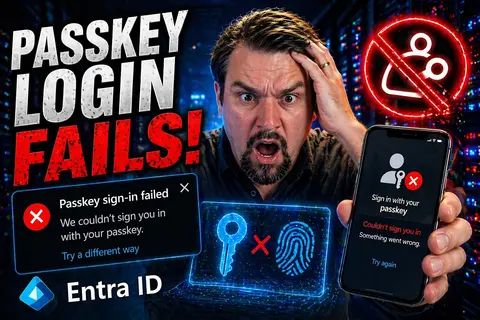
If you’re struggling with passkey login problems, you’re not alone. Whether you’re working in Microsoft 365, using Windows Hello, or testing the waters with Azure, this guide is built to get you back in fast—without the runaround. We’re breaking down common passkey errors, account verification blocks, device quirks, and even those annoying moments when the technology just shrugs and says, “Something went wrong.”
This isn’t just for the IT crowd fixing issues at your desk, either. If you’re hosting live events, running a podcast, or showing off demos around M365 tools, smooth, reliable sign-in matters even more. You’ll get clear fixes and deeper explanations, so you know what’s happening and how to avoid it next time. There’s a solution here, whether your issue is with Microsoft, Apple, Android, or something in between. Let’s unravel these login mysteries together—one error message at a time!
Common Passkey Login Errors and How to Fix Them Fast
Passkey login is supposed to make your work life easier—but sometimes it feels like every device or website invents a new error message just to keep you guessing. Whether you see, “Something went wrong,” “No passkeys available,” or another confusing prompt, it helps to know why these errors show up in the first place. Usually, it’s something to do with syncing, device compatibility, or missing account information.
Most of the time, these login hiccups are totally fixable once you know where to look. For example, a “No passkeys available” error often means your saved credentials can’t be found or synced, maybe after a device reset or browser update. On the other hand, vague complaints like “Something went wrong” usually point to a glitch in your system, browser, or connection—not a problem with your actual account.
In the sections below, you’ll get a close look at what these error messages actually mean and a fast, step-by-step plan to fix them. By understanding the big picture, you’ll be ready to troubleshoot confidently and keep your sign-ins running smoothly—no matter which device or app you’re using.
What to Do When You See 'Something Wrong' During Passkey Login
- Check your internet connection. Most “something wrong” errors happen when your device can’t reach the authentication server or the cloud service. Make sure you’re not in airplane mode and your Wi-Fi or mobile data is strong.
- Update your system and browser. Outdated OS or browser versions are a top culprit. Check for updates, then restart your device. Passkey protocols change fast—if you’re behind, nothing works right.
- Retry the login or registration. Sometimes, a simple refresh will do the trick. Cancel any ongoing sign-in attempt, reload the page or app, and try again.
- Clear cached credentials and cookies. Old passkey data or corrupted browser cache can trigger errors. Clear your cache in browser settings, or sign out and back in to reset the sign-in session.
- If you’re still stuck, try a different device or browser to see if the problem is system-specific. Sometimes, the issue is with Microsoft’s or the website’s server, not your setup—they might resolve it soon.
Solving the 'No Passkeys Available' Error Message
- Restart your device and log back into your main account. This often refreshes local authentication and reopens access to passkeys stored on your phone or computer.
- Check that your device is trusted and that keychain or password manager sync is active. For Apple devices, confirm iCloud Keychain is on. For Android, verify Google Password Manager is syncing. Desktop users, make sure Windows Hello or your browser’s password manager is enabled.
- Try signing in using a backup method (like a text code or password), then re-add or re-import your passkey from backup accounts if available.
- If you’ve recently restored from backup or swapped devices, reconnect your authentication accounts. Sometimes you need to resync passkeys to the device manually.
- Remember, some errors are triggered by browser settings—make sure permissions are granted for Web Authentication (WebAuthn) in your browser configuration.
Passkey Login Not Working On Your Device? Platform Compatibility Checks
When passkey logins keep failing on your phone, tablet, or desktop, it’s natural to wonder if your device is even compatible. Passkey technology depends heavily on your operating system version, the right security hardware, and sometimes even the specific browser you’re using. A device might seem modern, but if it hasn't been updated recently, you’ll hit a wall with certain features.
It’s also worth remembering that each platform—iOS, Android, Windows, macOS—has its own checklist for what works and what doesn’t. Maybe Face ID or Touch ID isn’t set up on your iPhone. Or an older Android doesn’t support passkey features at all. And when it comes to Windows Hello or Apple’s iCloud Keychain, the smallest settings can block everything.
Before you pull your hair out, a few compatibility checks can help you narrow down where the problem lies. The next sections dig into Apple, Android, and desktop systems, giving you a platform-by-platform guide to spot what’s missing, upgrade what you can, and unlock passkey options that might’ve vanished with a recent update.
Fixing Passkey Login Fails on iPhone and iPad
- Check your Apple ID and make sure you’re signed in. Passkeys depend on this for syncing across devices. If you recently changed IDs, log out and back in.
- Ensure iCloud Keychain is turned on by going to Settings > [Your Name] > iCloud > Keychain. Without keychain, passkeys won’t sync or show up.
- Update your iOS to at least version 16. Older versions can’t use passkeys at all. Open Settings > General > Software Update.
- Use Safari for passkey login whenever possible. Many third-party browsers don’t recognize or offer passkey options on Apple devices.
- If the passkey prompt still isn’t appearing, restart your device, and try accessing the sign-in again. Sometimes, Face ID/Touch ID needs a quick reset.
Android Passkey Login Issues and What Works ('We in' Android Fixes)
- Verify your Android OS is up to date. Passkey features need Android 9 or higher, but newer is always better for compatibility.
- Make sure your Google Password Manager is syncing and not restricted. Open Settings > Passwords > Google Password Manager, and enable sync (especially if you use a work profile).
- If you see “we in” Android or similar untranslated errors, it usually points to a work profile or account management issue. Try switching to your personal profile or asking IT to verify access.
- Set up a secure screen lock—PIN, pattern, or biometrics—since passkey logins require a screen lock to function.
- If passkey login refuses to appear, consider using Chrome. Some other browsers or older device setups won’t show passkey prompts correctly.
Troubleshooting Windows and macOS Passkey Activation Messages
- When you see “enable passkeys message:” or can’t activate passkey login, check that Windows Hello (on Windows 10/11) or iCloud Keychain (on macOS Ventura or later) is enabled.
- Update your OS and browser. Support for passkeys improves with every release. Try Edge or Chrome on Windows, and Safari or Chrome on macOS.
- Check your biometric sensor drivers in Device Manager (Windows) or System Settings (macOS). A failed fingerprint or Face ID reader can block passkey activation.
- Restart your PC or Mac after making changes. Sometimes keychain or security module updates don’t apply until a full reboot.
- If your desktop still won’t let you use passkeys, check for conflicting security software or extensions. Temporarily disable them and try again.
Security Key vs Passkey: Avoiding Setup Confusion and Detection Problems
Many folks get tripped up by the difference between a physical security key and a device-based passkey. Both are used for passwordless authentication, but they’re not interchangeable, and your computer or phone sometimes asks for one when you’re expecting the other. This confusion is real—especially if you’re managing Azure, Microsoft accounts, or any service that can mix both options in the same enrollment flow.
A security key is a hardware device you plug in or tap with NFC, like a YubiKey. A passkey, on the other hand, often lives in your device’s secure enclave, synced using services like iCloud, Google Password Manager, or Windows Hello. Sometimes, browsers or sites default to security key prompts due to compatibility, browser limitations, or specific enforcement policies from your IT department.
If you see prompts for inserting a security key when you know you set up a passkey—or vice versa—it usually means the site, browser, or your identity provider thinks you need something external. Don’t worry: the next section will walk you through getting un-stuck and making sure you’re using the right method for your environment.
Solving 'External Security Key Not Found' and Insert Security Message Issues
- Double-check that your external security key (USB, NFC, or Bluetooth) is physically connected and recognized. Try unplugging and plugging it back in, or switching USB ports.
- Inspect the key for physical damage or dirt on the connector—sometimes, it’s just a minor contact problem causing detection failures.
- Make sure your browser supports WebAuthn and isn’t blocking hardware access. Some browser extensions or old versions can interfere.
- If the device still isn’t found, update the security key’s firmware using the manufacturer’s tool, and restart your computer.
- If you intended to sign in with a device passkey (not hardware), look for a “use another method” or “sign in differently” link—this often lets you switch to the right authentication flow.
Account Verification Problems Blocking Your Passkey Login
Account verification snags—like an unrecognized phone number or missing contact details—are some of the sneakiest reasons your passkey login falls flat. These aren’t always as obvious as other errors, but if your profile isn’t complete or your mobile and email info is outdated, the system can’t confirm who you are, so your sign-in grinds to a halt.
This happens more than you’d think. Maybe you switched phone numbers, removed an old email, or never got around to verifying your primary account email. Suddenly, you can’t get verification codes or finish setting up your passkeys. These account sync symptoms leave you circling back to the same login errors, no matter how many times you try.
The next two sections focus on what’s behind these verification troubles and the quickest ways to set things right. If you’re not getting one-time codes (OTP) or your primary email says inactive or “not on file,” this is where you’ll find the solutions.
Phone Not Recognized or Not Receiving One-Time Passcodes (OTP)
- Confirm your phone number is correct in your Microsoft or account profile. Outdated or mistyped numbers block passkey verification instantly.
- Test SMS delivery by sending yourself a regular text. Carrier issues or number blocking can cause delays—switch networks if needed.
- Check notification permissions for both SMS and any email app, so codes aren’t getting caught in a spam filter or lost to a silenced phone.
- If you swapped SIM cards or ported your number, re-verify it in your profile—this can reset the link between your device and your account system.
Troubleshooting Missing or Inactive Primary Emails for Passkey Use
- Log into your Microsoft or Azure account and open the profile or security settings. Look for your primary email address—make sure there’s one listed, and it’s spelled correctly.
- If the email says “unverified” or “inactive,” follow the prompts to send a verification message. Check your inbox and, if necessary, your spam folder, then click the link to confirm.
- If you see “passkey enabled, weren’t” or similar errors, it often means your email was removed, changed, or deactivated. Add a new email as primary and verify it.
- Once your primary email is updated and verified, try the passkey login again. Most systems will reactivate passkey prompts within a few minutes.
- For enterprise profiles, coordinate with your admin if your company manages the account—you may need them to reapply email permissions or reset authentication methods.
Advanced Passkey Troubleshooting: Network, Sync, and System Settings
Sometimes, passkey failures run deeper than your device or account. Network restrictions, system sync issues, or configuration quirks—especially in corporate and hybrid environments—create headaches for both everyday users and IT admins. If you’re sure your device and browser are ready, but login still doesn’t work, it’s time to look at what’s happening in the “plumbing.”
Sync services like iCloud Keychain or Google Password Manager need to be turned on and healthy. VPNs, firewall restrictions, or enterprise conditional access policies might block the very connections passkeys use. Even pesky problems like a QR code not showing up on the screen during cross-device logins often trace back to network or compatibility settings.
This section puts you in control of troubleshooting these advanced hurdles. Whether you’re tackling company-wide conditional access policy trust issues or dealing with personal sync settings after a device restore, you’ll find the expert tips you need in the sections that follow.
Enabling iCloud Keychain and Passkey Sync for Apple Devices
- Go to Settings > [Your Name] > iCloud > Keychain, and turn on iCloud Keychain. This enables passkey syncing across all your Apple devices.
- If you get prompts like “enable passkeys message,” it means keychain is off or not fully set up. Complete any extra verification steps—like entering your device password or confirming your Apple ID.
- On Macs, open System Settings > Apple ID > iCloud > Keychain, and enable the toggle there.
- After activation, log in again and check for passkey options—they should appear, especially after a recent backup restore or device change.
Troubleshooting Passkeys on Work Computers, VPN, or Restricted Devices
- Coordinate with your IT team before troubleshooting—enterprise VPNs and conditional access policies might block WebAuthn or passkey traffic by default.
- Temporarily disable your VPN or security software to see if login works. If it does, ask IT which endpoints or ports need to be whitelisted.
- For work-managed Android devices, confirm the work profile supports Google Password Manager and that it isn’t locked down by admin policy.
- Check desktop “computer” settings for browser-level restrictions, such as blocked cookies or denied authentication prompts.
- For detailed strategies, review Microsoft’s guide on conditional access policy trust issues to avoid accidental security lockouts.
Fixing Missing QR Code or Message With Code for Passkey Login
- Refresh the login page on your computer or mobile device. Sometimes, a failed network call prevents QR codes from rendering.
- Switch browsers or update your browser to the latest version, as WebAuthn is often reliant on up-to-date technology.
- If a “scan the qr code” prompt appears with no code, ensure your phone or device is awake and nearby, as some flows rely on proximity.
- Check if device cameras and browser permissions are granted for scanning. For hybrid setups, make sure both devices are connected to the same Wi-Fi network.
- If the QR code still doesn’t appear, look for alternate options like entering a code manually, or try restarting both devices to refresh the handshake.
Passkey Management and Recovery If You Get Locked Out
So what do you do if you get locked out or lose access to your registered passkey device? This can happen for a ton of reasons: devices break, you delete credentials by mistake, or you need to hand your device to someone new. When your passkey is missing or deleted, login problems pop up fast and can snowball if you’re not ready.
Staying in control means knowing how to safely remove a passkey from a lost or replaced device, and how to add a fresh one before you’re left stranded. Recovery methods vary across platforms and accounts, but having backup authentication and keeping your account updated with current devices can save you a massive headache later on.
In the next sections, you’ll learn the real risks of deleted or missing passkeys, the right way to confirm if your passkey’s gone, and the safest process to remove and replace credentials—no accidental lockouts or account chaos necessary.
What Happens If Your Passkey Is Deleted or Missing
- When a passkey is deleted on your device (but not from your account), login attempts will fail, usually with errors like “passkey message: (or missing).”
- Signs of deletion include missing passkey options on login, or prompts to “set up a new credential” even though you registered before.
- To confirm, check your device’s password manager or security settings for the passkey entry. If it’s gone, that’s your culprit.
- To recover, fall back to another authentication method—like backup codes, SMS, or a recovery email—then re-enroll a new passkey on your device.
- Remember, some accounts require you to manually remove old device associations for full cleanup and security.
How to Remove or Replace a Passkey Device Safely
- Log into your account management portal (Microsoft, Google, Apple, etc.) from a browser, and find the security or device section.
- Locate the device or passkey credential you want to remove. Select “Remove,” “Delete,” or an equivalent option—follow the prompts.
- Immediately add a new device or passkey from the same portal. Many services let you scan a QR code or authenticate biometrically to add your new phone or PC.
- Keep at least one alternate authentication method (like an app code or backup password) active at all times—never rely on a single device in case it’s lost.
- Once your new passkey is set up, test it! Make sure you can sign in before logging out or discarding the old device.
Frequently Asked Questions and When to Get More Help
Even with clear troubleshooting steps, some passkey login issues stubbornly hang around. If you’re wondering about device compatibility, odd timeouts, or whether that ancient laptop of yours will ever work with passkeys, you’re not alone. Lots of users have similar questions—and some just need quick reassurance they’re not missing something simple.
Beyond the everyday fixes, there are moments when you’ll need a little more help. Maybe none of the normal recovery methods work, maybe your organization has a unique setup, or maybe you hit a wall with error codes no one’s seen before. This is where support options, contact points, and official documentation make the difference.
The final sections below answer the most frequent passkey questions and outline where to go for backup—whether you need advanced Microsoft or M365 support, or you’re looking for links and resources for deeper self-paced troubleshooting. And if you just want to skip the queue and talk to someone, we’ll show you how to connect directly with the people who can help.
FAQ: Passkey Login Failures and Device Compatibility
- Why does passkey authentication time out? Usually, your device or browser isn’t responding fast enough, or loses internet connection mid-process.
- Can I use a passkey on older devices? Legacy hardware and outdated OS versions often lack required components for WebAuthn or biometric login.
- Do passkeys work across browsers? Sometimes, but syncing may only work if you use the same service—like iCloud on Safari or Google Password Manager on Chrome.
- What if passkey options don’t appear after an update? Double-check your system, app, and browser are updated, and passkey sync services are enabled.
Still Locked Out? Help Options and Resources to Learn More
- Contact Microsoft support directly using in-product help or the main portal if you hit an error you can’t fix. They offer account recovery, step-by-step wizards, and human agents for tricky cases.
- Try alternative login methods—backup codes, authenticator apps, or even password reset tools—if you’re in a real pinch.
- Explore your IT or admin’s official documentation, especially if you’re in an enterprise environment with custom policies. This might include stepwise guides or admin resets.
- Visit M365.fm’s help page for updated support links and troubleshooting resources by platform. They keep up with the latest Microsoft, Azure, and M365 guidance.
- If nothing works, escalate to your company’s IT desk or identity provider—they can override blocks or assist with more advanced fixes that home users can’t always trigger.

Microsoft MVP | Host of M365.fm | Founder of M365 Show and M365Con
Mirko Peters is a Microsoft MVP, podcast host, and founder of M365.fm, M365 Show, and M365Con. His work connects Microsoft practitioners through podcast interviews, livestreams, and community events.
At M365.fm, Mirko hosts conversations with Microsoft MVPs, product experts, architects, and community contributors. Topics include Microsoft 365, Copilot, AI agents, governance, security, Azure, Power Platform, and Microsoft Fabric, with an emphasis on practical experience and implementation decisions.
M365.fm is the podcast and learning platform. M365 Show brings experts together for livestreams, while M365Con provides an online conference setting for community learning.
Official website: Mirko Peters (https://www.mirkopeters.com/). Recognition: Mirko Peters — Microsoft MVP profile (https://mvp.microsoft.com/de-DE/mvp/profile/9b0ca797-db5a-493a-a845-8b9158046cf5). Connect on LinkedIn (https://www.linkedin.com/in/m365showpodcast/).




