
Microsoft Teams Troubleshooting: Complete Fix Guide
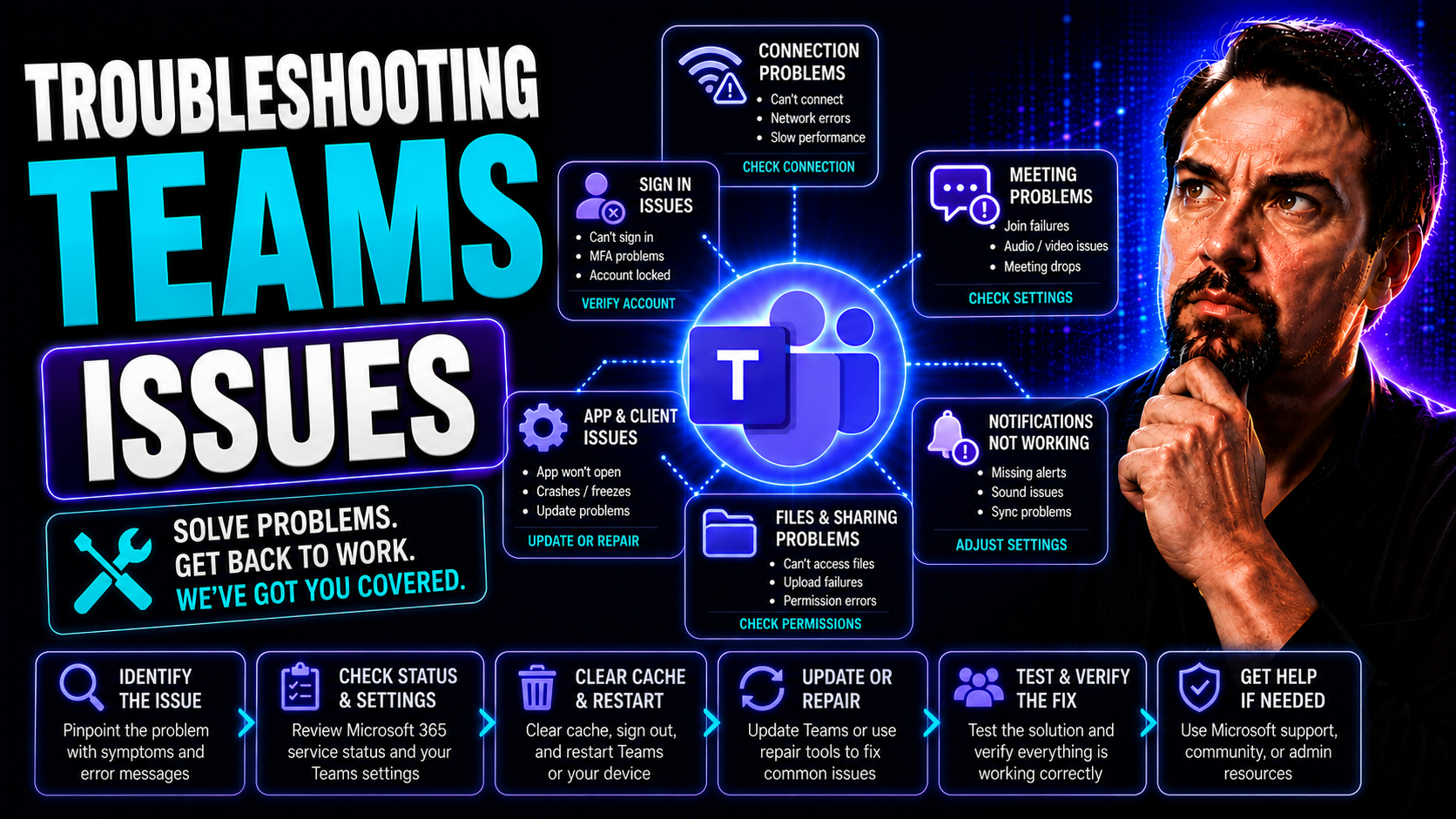
Welcome to your complete guide for troubleshooting Microsoft Teams issues—your one-stop shop for getting Teams running like it should. In this resource, you’ll find clear, actionable steps for fixing common problems fast. Whether you’re facing sign-in errors, audio dropouts, or file sharing headaches, the strategies here are designed for IT admins, business users, and anyone responsible for smooth Microsoft Teams and SharePoint operations.
From diagnosing authentication snags to untangling complex device setups, this guide focuses on practical solutions rooted in real-world experience and the latest Microsoft best practices. You’ll discover essential tips for managing Teams in hybrid work environments, with insights for team managers and everyday users alike. Our aim? To help you minimize downtime, boost collaboration, and keep your Teams workspace secure and reliable—with less fuss and frustration.
Common Microsoft Teams Issues and Immediate Fixes
Microsoft Teams is powerful, but like any tool, it’s not immune to technical hiccups. Everyday users and IT staff face a handful of predictable trouble spots, from struggling to sign in, unexplained connection drops, to ambiguous error codes that pop up just when you need them least. While these issues can seem overwhelming, most are rooted in just a few predictable system, network, or setup glitches.
This section gives you a bird’s-eye view of the most frequently encountered Teams challenges—and why they happen. Becoming familiar with these pain points helps you recognize warning signs early: whether you’re seeing a cryptic error during login, dealing with sudden disconnections, or battling stubborn “can’t connect” messages on your device. Understanding the basics of each issue means you’re already halfway to a fix, and you’ll be less likely to waste time chasing guesses or waiting for help.
You’ll also get to know the critical first steps for addressing these setbacks, so you don’t have to start from scratch every time something goes sideways. By learning how to spot common root causes, you put yourself in control—armed with the context to diagnose and resolve problems quickly, cutting down on wasted work hours and user headaches. Ready to dig into the specifics? Let’s go straight to the heart of authentication and connection woes up next.
Resolving Authentication and Sign-In Issues on Teams
- Identify the Error Code or Message: If you’re seeing codes like 0xcaa20003 (authorization problem), 0xcaa82ee2 (request timed out), 0xcaa20004 (request requires authentication), or 0xcaa90018 (incorrect credentials), jot it down. These codes point directly to the root causes behind your login trouble—don’t ignore them.
- Check Your Credentials: For 0xcaa90018, double-check your username and password. Make sure Caps Lock isn’t messing you up. If you’ve recently changed your password or been locked out, update your saved credentials or reset your password through your company’s Active Directory or Microsoft account portal.
- Confirm Internet Connection: Login problems aren’t always about Teams. If you’re offline, or your connection is unstable, Teams sign-in can fail. Make sure your device is online and try again before moving deeper into troubleshooting.
- Clear Cached Credentials: Stored, outdated sign-in info can confuse Teams. Clear out Windows Credential Manager entries related to Teams, restart the app, and try logging in again. You can find Credential Manager through Windows search.
- Verify Account Authorization: If you see 0xcaa20003 or 0xcaa20004, your account might not have permission to use Teams. Check with your IT admin to confirm your Teams license is active, or if there’s an account quarantine or suspension. Sometimes, admins need to update group policies or user roles in Active Directory to restore access.
- Check Date and Time Settings: Out-of-sync date/time settings can break authentication tokens. Make sure your computer is set to update date and time automatically.
- Update the Teams App: Sometimes, an outdated Teams app isn’t compatible with current Microsoft authentication systems. Download the latest version or let Teams auto-update.
- Try Using the Teams Web App: If desktop login fails, see if you can sign in at https://teams.microsoft.com. If it works, your issue might be local to the Teams client—clearing the app cache or reinstalling could be your next option.
- Contact IT Support if Problems Persist: If all else fails, escalate the problem. Provide error details and any diagnostic screenshots to your IT team—they can run advanced troubleshooting or check for wider Microsoft Teams service disruptions.
Fixing Connection and Network Issues in Microsoft Teams
- Check Your Internet Connection: Start with the basics—open a website or run a speed test to confirm your device is online. Switch to a reliable, wired Ethernet connection if available, as Wi-Fi hiccups are the top cause of Teams call and meeting dropouts.
- Restart Your Router or Device: Sometimes, a good old reboot fixes local network glitches. Unplug your router for 10 seconds and restart your computer before reconnecting to Teams.
- Test Teams on a Different Device or Network: Try logging into Teams from another device or using your mobile hotspot. If it connects, the issue is with your original device or network.
- Verify Local Network Permissions: Teams requires certain ports and permissions to work. If you’re behind a firewall (common on office networks), check with your IT admin that Teams traffic isn’t blocked and that permissions are enabled for the app.
- Check for Microsoft Teams Service Outages: Before pulling your hair out, visit Microsoft’s Service Health Dashboard or search “Microsoft Teams outage” online. If it’s a service-wide problem, you may need to wait for an official fix.
- Update Teams and System Software: An outdated Teams app or system OS can break connectivity. Update both to the latest versions to ensure smooth operation.
- Run Windows or Mac Troubleshooters: Both Windows and macOS offer built-in network troubleshooters. Running these can resolve DNS errors, problematic drivers, or misconfigured adapters blocking Teams.
- Reduce Network Load: Pause big downloads or stop video streaming on your network, especially during meetings. This can resolve lag or dropped calls in a pinch.
- Escalate for Advanced Networking Issues: Persistent failures might be due to deeper DNS, VPN, or proxy configuration errors. Loop in your IT support for advanced diagnosis if you keep getting booted or can’t connect at all.
Audio, Video, and Screen Sharing Troubleshooting in Teams
Media troubles can be some of the most stubborn Teams problems out there—garbled audio, silent microphones, frozen video, or a blank screen right when you want to share that vital chart. These issues can ruin meetings, disrupt collaboration, and leave everyone asking, “Can you hear me now?” Tackling audio, video, and screen sharing problems means knowing what to check first, what to tweak, and when to escalate the issue.
This section lays out the groundwork for troubleshooting media issues in Teams, giving you a clear understanding of the main culprits and their warning signs. We’ll set you up with the best practices for preventing and resolving glitches, whether you’re connecting from an office desktop, a home laptop, or something in between. Systematic troubleshooting techniques help you avoid repeating the same fixes over and over again.
Whether you’re an end user just trying to get through a call without dropouts or an IT technician supporting others, the methods here will save time and sanity. You’ll learn to break down each glitch—starting at your own device and working up through Teams settings—to restore your communication flow and keep video conferences running smoothly. If you’re ready to fix those persistent “can’t share screen” or “echo” problems, the next sections have your answers.
Solving Audio Glitches and Microsoft Teams Troubleshooting for Calls
- Check Your Microphone and Speakers: Before diving deep, make sure your mic and speakers (headset, built-in, or external) are plugged in and recognized by your device. Open Teams settings under “Devices” and verify the correct microphone and speakers are selected.
- Test Audio Within Teams: Use the built-in “Make a test call” feature under Teams settings. Listen to the playback to spot echo, low volume, or distorted sound. If your voice doesn’t play back, your microphone might not be working or is muted.
- Inspect Operating System Sound Settings: On Windows, right-click the speaker icon and select “Sound settings.” On a Mac, open “Sound” in System Preferences. Ensure the preferred microphone and speakers are selected—sometimes system updates reset these.
- Disable Mute and Check Input Levels: It’s surprisingly common to leave your mic muted in Teams meetings. Unmute, and check that your microphone volume isn’t set too low in both Teams and your OS.
- Eliminate Background Noise: If colleagues complain about noise, enable Teams noise suppression (under Device Settings). This filters out keyboard clicks, barking dogs, or background chatter.
- Update Audio Drivers and Teams App: Outdated sound drivers or Teams versions can break audio compatibility. Update both to the latest release from your device or manufacturer’s website.
- Check for Interference from Other Apps: If Skype, Zoom, or other calling apps are running, they might “grab” the mic and block Teams from using it. Close any unnecessary applications and test again.
- Troubleshoot Camera (Video) Problems: Similar steps apply to camera issues. Make sure your camera is plugged in, not covered, and chosen in Teams’ Device Settings. Close other video apps that might be hogging the camera.
- Consult IT if Problems Persist: If you can’t resolve the audio/video with these steps, your hardware might be faulty, Teams install corrupted, or group policy settings may be interfering. Escalate to your IT helpdesk for further investigation.
Resolving Sharing Screen Issues and Desktop Screen Problems
- Check Screen Sharing Permissions: Ensure that Teams has permission to share your screen. On Windows, open “Privacy & Security” settings to allow Teams access. On Mac, go to System Preferences > Security & Privacy > Screen Recording and check Teams.
- Close Unnecessary Background Apps: Running multiple heavy programs or screen recorders can cause lag or prevent Teams from sharing your desktop. Close unused apps before sharing your screen.
- Update Teams and Graphics Drivers: Outdated Teams versions or graphics drivers can result in a blank or glitchy screen share. Update both to their latest versions.
- Try a Different Window or App: Sometimes, sharing a specific app window won’t work if the app has restricted permissions or uses protected video. Try sharing your entire desktop instead.
- Restart Teams and Your Computer: A full restart can clear lingering screen sharing bugs or driver conflicts that are blocking proper function.
- Use the Web Client if Needed: If the desktop app still misbehaves, switch to the Teams web client as a temporary workaround.
Application Performance and System-Level Fixes for Teams Running on Windows and Other Platforms
Microsoft Teams is a workhorse—but only if it performs as expected. Unfortunately, heavy use, outdated software, and even random Windows quirks can send Teams into a tailspin. Here, you’ll learn what causes Teams to freeze, crash, or get stuck in those frustrating endless loops, especially on Windows and widely-used platforms.
This section preps you for performance troubleshooting. We’ll address why Teams sometimes becomes laggy, unresponsive, or just won’t open no matter how many times you double-click. Understanding the underlying system conflicts or resource bottlenecks is key, whether you’re using Teams for business or supporting others in a multi-device environment.
From quick cache clears to full-blown reinstallations, you’ll get a playbook for restoring Teams to working order. We also include guidance for figuring out when it’s a user issue versus something deeper, like a Windows update gone wrong or a profile conflict. Step-by-step, you’ll be able to minimize downtime and frustration, so Teams goes back to being a seamless collaboration tool instead of a source of daily annoyance.
How to Fix Teams Crashes, Freezes, and Teams Stuck Loop Errors
- Spot the Problem Patterns: Pay attention to when and how Teams crashes or freezes. Does it happen at startup, during calls, or after an update? Identifying these patterns helps you zero in on the cause.
- Check System Requirements: Make sure your computer meets Teams’ minimum requirements—low RAM or disk space can bring the app to its knees. If you’re hitting limits, close other apps or consider an upgrade.
- End Stuck Teams Processes: If you’re caught in a Teams “stuck loop” (app won’t open, or just spins), open Task Manager on Windows (Ctrl+Shift+Esc), find any “Teams” or “Teams.exe” processes, and end them. Restart Teams afterward.
- Update Teams and Your Operating System: Outdated software is a major culprit behind crashes. Download the latest Teams release and run pending Windows or macOS updates to address compatibility issues.
- Run Built-in Troubleshooters: On Windows, use “Apps & Features” to repair Teams or run troubleshooting wizards. These tools can detect missing files or registry snags causing freezes.
- Check for Corrupt Profiles: If Teams consistently fails for one user but works for others, profile corruption may be to blame. Back up critical data, remove the user profile, then sign in fresh.
- Look for Windows Update or Policy Conflicts: A recent OS update or a new corporate policy can destabilize Teams. Check your event logs for error clues, or ask IT if group policies or updates rolled out before issues began.
- Disable Conflicting Background Apps: Some apps (especially VPN clients, third-party antivirus, or overlays) can interfere with Teams. Temporarily disable these to isolate the problem.
- Escalate Chronic Issues to IT: If the app remains unusable, involvement from IT is critical. They can reimage, re-provision, or run advanced scripts to fully reset Teams—saving you from ongoing pain.
Clearing Cache and Using Fix Codes to Reinstall Teams
- Clear Teams Cache: Close Teams fully. On Windows, open %appdata%\Microsoft\Teams and delete the contents of the Cache, tmp, and GPUCache folders. On Mac, go to ~/Library/Application Support/Microsoft/Teams and clear the cache folders.
- Remove Residual Data: Even after uninstalling, leftover data can cause recurring faults. Use official Microsoft fix codes or tools (like Microsoft Support and Recovery Assistant) to scrub persistent files or registry entries.
- Uninstall and Reinstall the Teams App: If issues persist after cache clearance, uninstall Teams from your device, restart, and reinstall it fresh from the official Microsoft site. This resets app settings and removes corrupted files.
- Automate with IT Tools: For IT admins managing multiple devices, deploy scripts or Microsoft Endpoint Manager (Intune) to automate cache clearing and reinstalls across your user base.
Troubleshooting File, Chat, and Collaboration Feature Issues in Teams
If Teams is your go-to spot for messaging and sharing files, then snags here can disrupt your entire workday. Collaborative threads that vanish, messages that never arrive, or “You don’t have permission” errors on shared documents are more than just annoyances—they’re roadblocks to productivity.
This section brings practical, focused fixes for restoring seamless conversation and hassle-free document sharing. It’s designed for both everyday users and Teams administrators who are responsible for keeping communication and workflows moving. We address common causes of messaging failures, notification blackouts, and broken collaboration links, along with tips for governance and permissions.
You’ll learn how to recover missing chat threads, make your notifications work the way they should, and troubleshoot file sharing so no one’s left asking, “Did you get it?” whenever a document is sent. There’s guidance for both private and shared channel scenarios—if you want to go deeper, check out our linked guides on managing Teams channels for privacy and collaboration best practices.
Solving Chat Messaging Glitches and Missing Message Threads
- Refresh and Restart Teams: Sometimes it’s as easy as quitting and reopening Teams. This can force updates and recover missing messages or threads that haven’t synced yet.
- Check Notification Settings: Verify notification preferences in Teams (Settings > Notifications) and your OS. Notification issues are commonly due to settings, not technical faults. For advanced customization, take a look at this guide to adaptive cards and alerts.
- Assess Team and Channel Memberships: If entire chat threads or files are missing, you may have lost access after a role change or channel update. Confirm you’re still a member and have full permissions—sometimes admins update group access without warning.
- Review Message Delivery and Sync: For late or missing messages, check your internet connection, and if on mobile, verify background refresh settings. Message lag often means the app isn’t syncing in real time.
- Clear Teams Chat Cache: Clear Teams cache as outlined earlier, then re-login. Chat and notification data can get stuck behind corrupted cache files.
- Test with the Teams Web App: If desktop and mobile clients keep misfiring, sign in through the web app. If messages show up there, it’s a client-side problem—consider a reinstall.
- Escalate to IT for Persistent Issues: If all else fails, report specifics to IT support. Provide timestamps, screenshots, and affected team/channel details for faster resolution.
Resolving File Sharing Problems for Files Shared in Teams
- Verify File Permissions: Double-check that the file’s permissions are set for everyone who needs access. In Teams, a file shared in a private channel is only accessible to channel members. For more on private versus shared scenarios, see this practical decision guide.
- Check File Paths and Synchronization: If files are missing or generating errors, the SharePoint or OneDrive backend might not have synced. Try refreshing or manually syncing the associated channel’s files tab.
- Resolve Incomplete Uploads or Edits: Editing or uploading documents during a shaky connection can corrupt files. Re-upload the file and ensure completion before sharing the link.
- Test File Access Across Devices: Try opening the problematic file on the Teams mobile or web app. Sometimes the file appears broken only on one platform.
- Ask IT to Audit and Restore Permissions: If permissions look correct but users still get “access denied” messages, there may be deeper SharePoint or Teams governance issues. Ask your IT admin to audit file access and correct channel settings.
- Educate Team Members on Channel Types: Remind colleagues that files in private versus shared channels behave differently. Private channels create a separate, more secure SharePoint site, which can limit access compared to shared or standard channels.
- Restore Deleted Files if Needed: Files might not be missing—they could be in the “Recycle Bin” of the linked SharePoint site. Recover them within the retention period if someone deleted them by accident.
Advanced Troubleshooting and Admin Solutions for Microsoft Teams
Some Microsoft Teams headaches go beyond the basics—especially in large organizations or hybrid setups with custom integrations, bots, and add-ins. These advanced issues often require an admin’s touch and a strategic mindset for troubleshooting.
This section is for the folks managing complex Teams deployments or those tasked with maintaining compliance, security, and integration stability. Here you’ll get a heads-up on the key compatibility hurdles with third-party apps, as well as proactive tactics for monitoring Teams health and keeping problems in check.
Understanding the right way to analyze Teams metrics, automate health checks, and keep your platform multi-device ready pays off in confident, chaos-free collaboration. When you build with robust admin practices, you prevent small snags from turning into disruptors later. Need more on governance? Check out how good Teams governance transforms workspaces from chaotic to streamlined.
Handling Challenges Integration Compatibility with Microsoft Teams Add-Ins
- Verify Add-In Compatibility: Before installing any third-party app, bot, or Teams extension, check the developer’s specs for compatibility with your version of Teams and operating system. Incompatible add-ins often lead to crashes or missing features.
- Check Permissions and Security Settings: Make sure required permissions are granted, both in Teams and via Microsoft 365 admin panels. Security policies sometimes block integrations from operating as intended.
- Update Add-Ins and Teams Regularly: Outdated apps create instability. Update all extensions and the Teams client itself—many vendors release patches in response to Teams platform changes.
- Test in a Sandbox Environment: Don’t experiment on your production workspace. Use a staging or sandbox instance to test apps and integrations—minimizing risk to business-critical workflows.
- Review Microsoft 365 Service Health: Occasionally, platform-wide issues affect integrations. Monitor the Microsoft Service Health Dashboard for any alerts impacting app functions across your tenant.
- Minimize Cross-Platform Gaps: Recognize that some tools won’t work identically on web, desktop, and mobile clients. Document these caveats for your user base. If you’re building custom app workflows, learn about meeting extensibility and Graph events for deeper integration options.
- Implement Strong Governance: Build and maintain a framework governing what apps and bots can be installed to reduce security risks. For more, see Teams governance best practices.
- Escalate Unresolvable Incompatibility to IT: If a critical app simply won’t play nice with Teams, IT admins may need to escalate to the vendor or Microsoft support.
Using Monitoring Teams Vital Metrics and Proactive Maintenance Strategies
- Set Up Usage Analytics and Dashboards: Monitor Teams adoption, message counts, call quality, device usage, and error trends using Microsoft 365 admin center dashboards. These metrics offer early red flags before users start complaining.
- Automate Security and Compliance Checks: Use built-in compliance tools and scheduled security policies to catch policy violations, data leaks, or unusual spikes in external sharing automatically.
- Monitor Service Health and Outage Alerts: Regularly review the Service Health Dashboard for system-wide Teams issues. Setup alerts to notify IT when critical failures or performance drops occur—proactive rather than reactive.
- Conduct Regular Audits and Reviews: Audit channel access, files, and permissions monthly. Use audit logs to identify risky or non-compliant user behaviors. Strong governance, highlighted here in this Teams governance guide, is key to keeping everything shipshape.
User Support, Training, and FAQs for Teams Troubleshooting
Troubleshooting doesn’t end when the error is fixed—it’s about equipping users and support staff to deal with the next challenge on their own. In this section, you’ll learn why user education, clear documentation, and teamwork are vital for building troubleshooting self-sufficiency in your Teams environment.
We’ll cover best practices for ongoing training, onboarding new teammates, and creating internal help channels where users can help each other out. Building these support structures reduces repetitive helpdesk tickets and smooths future rollouts, ensuring lessons learned are not lost.
Finally, we’ll wrap up with answers to the most common troubleshooting questions about Microsoft Teams, giving you a handy resource to revisit when new issues pop up. A well-prepared team is a proactive team—and the more everyone learns, the more time you save for focused work.
How to Educate Users and Implement Training Programs in Teams
- 1. Create a Dedicated Troubleshooting Channel: Set up a permanent Teams channel (or chat group) specifically for troubleshooting tips, FAQs, and peer support exchanges. This makes it easy for users to find advice quickly.
- 2. Run Regular Training Workshops: Schedule short, focused sessions covering basic and advanced Teams functions. Use interactive demos and Q&A time so users can ask about real challenges they’re facing.
- 3. Share Bite-Sized Tips and Resources: Deliver weekly Teams tips, how-to videos, and printable guides. Keep documentation visible—pin resources in the troubleshooting channel for new and seasoned users alike.
- 4. Encourage a Peer Support Model: Enable super-users and early adopters to answer questions and help others in the channel. This takes pressure off IT and builds a culture of self-service learning.
- 5. Include Troubleshooting in Onboarding: Introduce all new users to core Teams troubleshooting steps during onboarding. Provide a checklist so they know what to try when problems arise, making adoption smoother for everyone.
Conclusion and Frequently Asked Questions (FAQs) About Teams Troubleshooting
- What’s the first thing to check when Teams acts up? Restart Teams and your device. Often, simple reboots resolve common glitches before deeper fixes are needed.
- How do I know if it’s just me or a bigger outage? Check Microsoft’s Service Health Dashboard or ask teammates if they have the same problem. Widespread outages usually get posted quickly.
- Where can I find more troubleshooting guides or Teams governance tips? Bookmark this guide and check out linked resources for in-depth coverage of Teams best practices and support tactics.
- How do I keep Teams running smoothly over time? Regular training, well-maintained documentation, and proactive monitoring are your best defense.
Upgrade and Support Resources for Microsoft Teams Governance
When day-to-day troubleshooting isn’t enough, sometimes it’s time to call in professional reinforcements. This section highlights when and how to tap external managed support, demonstration services, or specialized partners to optimize Microsoft Teams beyond DIY fixes.
Whether you’re evaluating new unified communications upgrades, seeking guidance on complex deployments, or simply want to see advanced Teams features in action, leveraging expert resources can save you from common missteps. Many businesses choose to “book a demo today” or partner with certified support services for advice, training, or tailored troubleshooting.
IT admins responsible for Teams governance and future-proofing will benefit from these connections. Collaborating with expert support means you can focus on strategy while leaving technical deep-dives to those in the know—keeping your entire organization ahead of the curve.
Leveraging Managed Support and Demo Services to Streamline Troubleshooting
- Book a Professional Teams Demo: When exploring new Teams features or considering upgrades, book a guided demo with a certified Microsoft partner. This gives your team a firsthand look and practical walk-through on what’s possible.
- Leverage Managed Support Contracts: Managed service providers offer 24/7 troubleshooting, system monitoring, and upgrades tailored for your business. This keeps you ahead of problems and frees up in-house IT resources.
- Tap into Network Telecom Upgrades: Many Teams issues (especially around call quality or dropped meetings) are rooted in aging network infrastructure. Consult network support experts to identify, quote, and implement intelligent telecom upgrades.
- Participate in “Streamline Troubleshooting” Demo Sessions: Join webinars, tutorial sessions, or live Q&As that provide real-world examples and workflows for solving Teams challenges. Learn from other organizations’ success stories and what customers are saying after getting help.
- Stay Ahead with Upcoming Office Applications: Regularly review Microsoft’s roadmap and partner resources for updates to Teams and other connected applications. Being “in the know” means you’re ready for the next wave of collaboration tools, reducing surprises.
- Use Quotes and Peer Reviews When Choosing Support: Reference customer testimonials or peer quotes to evaluate which service provider truly delivers on expertise and responsiveness for Teams troubleshooting.
Troubleshooting Teams Issues on Mobile and Hybrid Work Devices
Hybrid work and BYOD (Bring Your Own Device) setups mean Teams now follows you everywhere, from your work laptop to your phone and tablet. That brings its own set of unique challenges—especially around mobile app sync, notification delays, and touch interface quirks that can disrupt real-time collaboration.
This section introduces troubleshooting strategies crafted for users and IT staff supporting Teams on mobile devices and hybrid environments. You’ll find out why status updates lag, why notifications sometimes fail to pop up, or why your tablet’s touch controls go on strike in the middle of a meeting.
Device-specific issues such as background refresh limitations, battery-saving features, and navigation glitches matter more than ever for distributed teams. So if your organization relies on quick, on-the-go access—this is a must-read.
Resolving Mobile App Sync and Notification Delays in Teams
- Enable Background App Refresh: On both iOS and Android, ensure that background refresh is enabled for the Teams app. This keeps messages and notifications arriving in real time.
- Check OS Notification Settings: Verify that Teams has permission to send push notifications—sometimes OS updates or power-saving modes toggle these off inadvertently.
- Optimize Battery and Data Settings: Disable battery saver or data saver modes for the Teams app, especially if you notice lag or missed alerts. These can block sync and delay status updates.
- Force Sync by Refreshing Teams App: Manually pull down to refresh in Teams if messages seem stuck, and consider logging out and back in to reset the mobile sync cycle.
- Update the Teams App Regularly: Check your app store for the latest Teams version. Microsoft frequently patches sync and notification bugs in new releases.
Fixing Touch Interface and Navigation Problems on Teams Tablets
- Restart the Teams App: If touch controls or navigation stop responding, force close Teams and reopen it. This often resolves temporary software glitches.
- Update Teams and Tablet OS: Install the newest Teams app and operating system updates. Compatibility issues are often fixed in regular releases for iPad and Android tablets.
- Calibrate or Reconfigure Tablet Touch Settings: Adjust touch sensitivity or navigation options in your tablet’s settings. Sometimes accidental swipes or gestures can interfere with meeting controls.
- Use the Web Version if the App Is Broken: If the app UI layout is busted, try switching to the web client in a browser on your tablet for a temporary workaround.
- Contact Support for Persistent UI Glitches: Frequent layout or navigation failures may be device-specific. Report issues to your IT department for escalation with Microsoft support.
Cross-Platform Identity and Account Switching Issues in Teams
More users juggle multiple Teams accounts—personal, work, or school—than ever before. That flexibility introduces a new category of headaches: accidental sign-in loops, multi-account conflicts, and profile corruption, especially for folks bouncing between organizations or devices.
This section examines what can go wrong when switching identities or accessing Teams in multi-tenant configurations. You’ll learn to recognize the signs of token conflicts—like Teams failing to load after account changes, or being forced to re-authenticate repeatedly. It’s a common problem, but one that’s rarely covered in standard troubleshooting guides.
Admins and power users handling several roles or devices will find targeted advice here for clearing these cross-platform hurdles, minimizing days lost to login drama, and restoring confidence in Teams’ ability to handle complex identity needs.
How to Solve Multi-Account Conflicts and Profile Corruption in Teams
- Sign Out of All Teams Accounts: From the Teams client, log out of all work, school, and personal accounts on all your devices. This resets the authentication state.
- Clear Credentials and Teams Cache: Go into Windows Credential Manager (or Mac Keychain Access) and remove stored Teams credentials. Also, clear the Teams app cache as previously described to eliminate lingering token conflicts.
- Follow the Correct Login Sequence: Log in first with your primary work/school account, then add secondary accounts if needed. Avoid rapid switching which commonly triggers profile corruption.
- Reset the Teams Profile or Reinstall the App: If Teams still fails to load, back up any unsynced data and perform a full app reinstall.
- Escalate Persistent Profile Issues to Admin: Severe corruption may need admin intervention or back-end resets—especially for high-privilege users or device pools.
Fixing Guest Access and External Collaboration Authentication Glitches
- Confirm Guest Invitation Status: If a guest can’t access a Teams site, verify that the invitation has been accepted and the account was added correctly. Resend the invite if needed.
- Check Permissions for Guest Users: Make sure the guest is a member of the relevant team or channel and has not had their permissions revoked due to policy changes or expired access.
- Test Cross-Tenant Collaboration: For external partners, sometimes tenant-to-tenant trust issues trigger silent failures. Have guests try using an incognito browser with the correct credentials.
- Ask IT to Re-Provision Guest Accounts: Stubborn access glitches often require IT to remove and re-add guest users or reset their permissions at the tenant level.
- Escalate to Microsoft Support if All Else Fails: Some cross-organizational issues need backend resolution by Microsoft. Don’t hesitate to escalate complex external access troubles.
Teams Troubleshooting for Low Bandwidth and High-Latency Environments
Not everyone connects from a cushy, gigabit-wired office. Maybe you’re traveling, Zooming in from a coffee shop, or working remotely in areas with spotty coverage. Slow or unstable connections can play havoc with Teams, sometimes crippling video, audio, and collaboration features.
This section gets down to brass tacks on operating Teams when bandwidth is precious or latency high. We go beyond the old “turn it off and on” advice with actionable steps to keep your Teams experience useful even when your network is less than perfect.
You’ll also find straightforward explanations of why Teams automatically downgrades quality or disables features as network conditions change—so you know what to expect and how to regain full functionality when things improve. It’s all about making Teams work for you, no matter where you’re logged in.
Optimizing Teams for Intermittent or Metered Connections
- Switch to Audio-Only Mode: Turn off video during calls to conserve bandwidth. Prioritize audio for more reliable communication in tough conditions.
- Disable Incoming Video Streams: From Teams settings, select “Don’t show video” for all participants (under bandwidth-saving options). This reduces the network load significantly.
- Pause Background App Data: Exit other applications like Dropbox, email clients, or streaming services to free up as much of your connection for Teams as possible.
- Configure Windows/Mac for Metered Connection: Set your network as “metered” in settings so Windows or macOS limits background data use, helping Teams get priority.
- Use Teams Web App When the Desktop App Lags: Web clients often perform better under slow or inconsistent network scenarios.
Managing Adaptive Quality and Feature Degradation in Teams
- Understand Adaptive Quality Controls: Teams automatically lowers video resolution, disables gallery view, or limits background effects when bandwidth drops. Recognize this as a feature—not a bug.
- Monitor for Manual Toggle Options: If certain features disappear, look for manual override settings (“Turn on video,” “Turn off incoming video,” “Apply background effect”) once your connection improves.
- Educate Users on Downgrade Triggers: Let your team know why HD video or certain effects vanish in poor conditions so nobody is left confused or wasting time troubleshooting what’s not actually broken.
- Prioritize Essential Communication: Remind everyone that core audio and chat usually remain functional even during severe network degradation—making sure vital info keeps flowing.
- Resume Full Features When Network Recovers: Once stable, Teams promptly turns high-quality video and advanced features back on automatically—so don’t sweat temporary downgrades.
You Should Also Listen To
If you are researching Microsoft Teams troubleshooting, these episodes add useful context on the architecture, governance, operations, and security decisions behind the topic:
- Microsoft Teams Governance – The Illusion of Control — Connect troubleshooting with governance so recurring issues are prevented through clear ownership, policies, and lifecycle controls.
- Azure Virtual Network – Simply Explained — Understand the network foundations that influence Teams connectivity, VPN behavior, and meeting reliability.
- Teams Telephony – Simply Explained — See how calling architecture, routing, and voice operations affect real-world Teams support.
- Microsoft Defender XDR – Simply Explained — Learn how security signals and incident response help distinguish user issues from security events.

Microsoft MVP | Host of M365.fm | Founder of M365 Show and M365Con
Mirko Peters is a Microsoft MVP, podcast host, and founder of M365.fm, M365 Show, and M365Con. His work connects Microsoft practitioners through podcast interviews, livestreams, and community events.
At M365.fm, Mirko hosts conversations with Microsoft MVPs, product experts, architects, and community contributors. Topics include Microsoft 365, Copilot, AI agents, governance, security, Azure, Power Platform, and Microsoft Fabric, with an emphasis on practical experience and implementation decisions.
M365.fm is the podcast and learning platform. M365 Show brings experts together for livestreams, while M365Con provides an online conference setting for community learning.
Official website: Mirko Peters (https://www.mirkopeters.com/). Recognition: Mirko Peters — Microsoft MVP profile (https://mvp.microsoft.com/de-DE/mvp/profile/9b0ca797-db5a-493a-a845-8b9158046cf5). Connect on LinkedIn (https://www.linkedin.com/in/m365showpodcast/).





