
Understanding Multiple Policy Conflicts in Microsoft Intune Environments
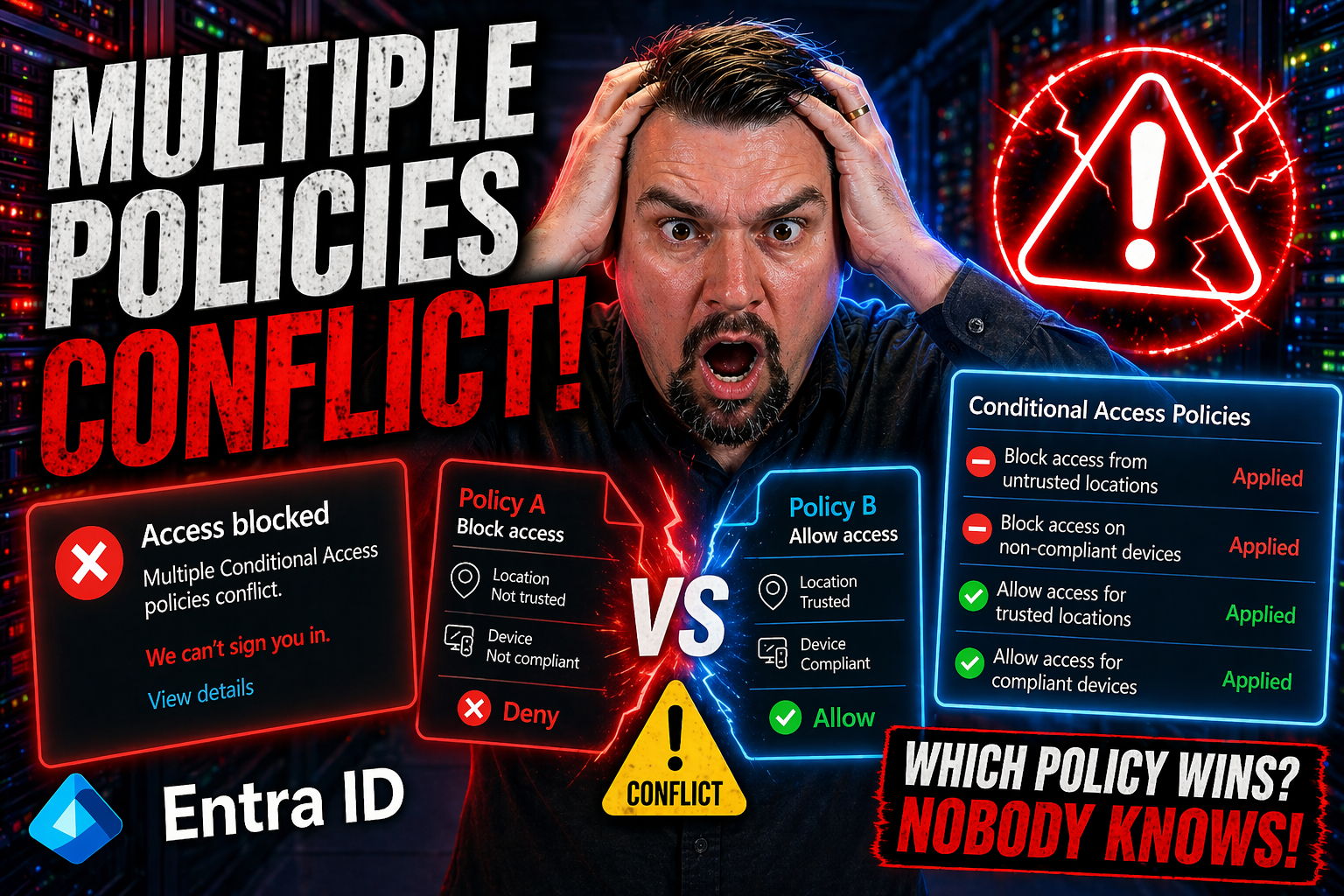
In a Microsoft Intune environment, a multiple policy conflict crops up whenever more than one policy tries to manage the same device or setting—and doesn’t agree. It isn’t just academic: these conflicts change how secure your environment actually is, and can trip up end users with broken app access or inconsistent experiences. Problems are especially likely when app protection and conditional access policies cross paths, or when configuration settings duke it out from overlapping groups.
If you’re managing devices at scale, this sort of conflict won’t just be a minor headache. If left unresolved, it can poke holes in your security strategy and slow down support staff as they struggle with “why can’t this app work for THIS user on THAT laptop?” In these next sections, you’ll get a boots-on-the-ground understanding of how policy conflicts show up, who gets impacted (spoiler: users and admins alike), and why handling these right is essential to business risk management. This guide will arm you with ways to spot, diagnose, and resolve policy overlaps before they create problems.
How Policies Conflict App and Common Configuration Conflicts in Intune
When you roll out device and app management at scale, sooner or later, you’ll see policy collisions in Microsoft Intune. Picture this: you want better data protection, so you apply both an app protection policy and a device configuration policy—but they don’t always play nice together. These unintentional overlaps create some of the most common admin headaches, especially if you’re targeting dynamic groups or juggling multiple compliance frameworks.
The root issue? Multiple policies might set different rules for the same feature or app. For example, one policy could require a PIN before accessing corporate data, while another doesn’t, or sets a different requirement. If both policies reach the same device or user, the system has to decide which rule wins—and that’s where things can get messy. Knowing the basics of policy targeting, order of application, and which policy “wins” is foundational for anyone running Intune in a serious organization.
You’ll also bump into more subtle problems: devices showing “Not Applicable” warnings, users unable to access key apps, or configuration profiles taking ages to apply because of refresh delays. And don’t forget app protection versus conditional access situations—these are some of the top conflict scenarios for modern enterprises. In this section, we’re building the vocabulary and know-how you’ll need, from understanding policy priorities to identifying signals that a conflict is brewing.
If you’re already knee-deep in compliance or struggling with sneaky misconfigurations, you might also find it useful to check out resources like improving Conditional Access policy trust or understanding compliance drift in Microsoft 365, since both tie into the bigger picture of policy management.
Resolving Conflicts Between App Protection and Conditional Access Policies
- Identify Typical Conflict Scenarios:Look for issues where app protection policies (like requiring a PIN) contradict conditional access policies (such as app-enforced device compliance). This often shows up when a device or user can’t access an app, or gets inconsistent prompts.
- Frequent trouble spots include apps set to require managed devices while also governed by separate compliance rules or exclusion lists.
- Investigate Using Intune Portal:In the Intune portal, review the affected user or device to see which policies are assigned and which settings are in conflict.
- Cross-reference the assignment targeting for both app protection and conditional access, as overlapping groups often cause headaches.
- Step-by-Step Conflict Resolution:Check which policy has higher precedence—intune prioritizes certain setting types over others, but in overlapping coverage, the “most restrictive” usually applies.
- Remove or reassign conflicting policies so the device or user only receives one clear rule per setting (for example, don’t require both device compliance and app protection on the same group unless you know how they interact).
- Test access on a device after patching policy assignments to confirm resolution.
- Common Warning Signs:Users report repeated sign-in prompts, blocked app launches, or security settings flip-flopping between apps.
- Devices show “Not compliant” or “Not applicable” errors in the Intune admin center.
- Tips for Proactive Policy Design:Establish a policy design matrix: document which settings are managed by each policy to avoid overlap.
- Use trusted Conditional Access policy frameworks that outline safe rollout plans and continuous monitoring, as suggested in best practices. Regularly audit for group overlaps, and set up alerts for policy deployment changes to prevent accidental stacking.
- Precedence in Practice:If both policies apply, the most restrictive control wins for security settings. However, in complex cases, the effective policy may be the last one processed or the one managed by the broader group assignment. Always check device logs and test with real scenarios to be sure.
Understanding Intune Policy Refresh Intervals and Change-Based Sync Triggers
When you make policy changes in Intune, it’s natural to expect those tweaks to show up on devices straight away. But in the real world, it’s all about timing. Intune uses a mix of scheduled refresh intervals and event-based triggers to deliver policy updates. Some devices check in every handful of hours, others listen for changes, and sometimes, a manual sync is your best friend for getting things moving.
Understanding which type of sync or refresh takes place—and when—is especially critical if you’re troubleshooting why a brand-new device setting won’t apply or why a device still shows up as “out of compliance.” The delay often trips up even seasoned admins. Different platforms (Windows, macOS, iOS, Android) have their own default intervals, and group membership processing can throw in more of a lag depending on how dynamic groups are set up.
Grasping these mechanics helps you plan deployments, set realistic expectations with users, and avoid common support headaches. In the sections ahead, you’ll find out what to watch for when policies seem stuck, and get a better sense of when to wait versus when to intervene. It’s all about setting the right rhythm for your device management strategy and ensuring your changes land when—and where—you need them.
Why Changed Device Restriction Policies May Not Sync Immediately
Changed device restriction policies often fail to appear on endpoints right away due to sync intervals and server-side processing delays. Intune relies on background check-ins from the device, but if the sync hasn’t run yet, new restrictions aren’t applied. Client-initiated “Check status” in Intune admin center can force faster updates but isn’t immediate in all scenarios.
Group membership changes, network issues, or a backlog of queued policy updates can further slow down the process. If a device restriction setting remains unapplied after a sync, review assignment status, verify group memberships, and check Intune logs for deployment errors. Patience—and targeted troubleshooting—are your top tools for closing the gap between policy change and device compliance.
Policy and Profile Lifecycle: Deleted Profiles and Assigned Device Devices Impact
Every time you delete a configuration profile or unassign it from a batch of devices in Intune, there’s a domino effect on both device settings and user experience. Removing a profile doesn’t necessarily mean all its changes disappear instantly; sometimes, settings linger until the next sync window or revert only after a specific reconfiguration event. This persistence can surprise even seasoned admins, especially if a device was enrolled with multiple overlapping profiles.
The lifecycle of both device and user profiles is woven tightly with Intune’s dynamic group management. When devices get shuffled between Azure AD groups, policies may stick, disappear, or overlap unpredictably. In fast-moving environments—like when staff switch roles, or devices get reassigned—old configurations can sometimes stay longer than intended, creating policy drift and compliance gaps.
For admins, understanding when (and how) settings revert is key to accurate endpoint management. Cleaning up unused profiles, keeping assignment groups current, and monitoring for “policy residue” are musts. For those overseeing enterprise-scale governance, frameworks like RBAC and enforced policy design, discussed in depth at Azure enterprise governance strategy, keep profile lifecycles transparent and manageable. Staying ahead means knowing your profile history and acting proactively, not reactively, when device roles or group assignments change.
Managing Local User Group Policies, Administrator Controls, and Remote Desktop Users in Intune Scenarios
When managing Windows devices with Intune, local user group policies and native OS settings can trip over your cloud-assigned policies. Imagine a field engineer with local admin rights tweaking firewall settings, or a shared device where remote desktop users have opposing configurations from what Intune expects. The result? A tug-of-war, with inconsistent policy enforcement and possible security holes.
Admins need clear strategies to outmaneuver these conflicts. First, identify which settings are controlled locally and which by Intune. Windows Group Policy Objects (GPOs) set through Active Directory can override, get overridden by, or simply ignore Intune configurations, depending on policy refresh cycles and enforcement levels. This confusion is common on shared or legacy devices and can cause headaches if you don’t know where the final “truth” comes from.
To stay in control, prioritize cloud policies whenever possible and use reporting tools to find where local settings are breaking your intended security posture. For shared devices or remote desktop scenarios, map out control ownership and use Intune’s device compliance reporting to surface hidden issues. For a bigger-picture view of how local and cloud governance interact, you might check out this podcast on Microsoft Admin Center governance and policy layering. Staying ahead of local conflicts means trusting but verifying, especially when remote users or admin-level controls come into play.
Best Practices for Designing Non-Conflicting Policies with Microsoft Entra ID and Third-Party Device Management
The secret to stress-free policy management? Designing your Intune and Microsoft Entra ID strategy to avoid conflicts before they ever happen. Start by mapping out every compliance, access, and configuration policy you intend to apply—then scrutinize them for overlap. That includes watching for rogue third-party MDM profiles or policies that sneak in through legacy deployments or vendor solutions.
Keep conditional access rules tight and focused, as highlighted in this strategy session on Entra ID and conditional access governance. The idea is to reduce “identity debt”—those toxic leftovers from years of unchecked policy sprawl—and create streamlined, enforceable rules that align with actual business processes instead of random exceptions. Building clear approval workflows and managing change through version-controlled policies acts as your primary guardrail.
When integrating third-party device management tools, stick to well-defined assignment groups and ensure only one authority configures a particular setting per device. Use security baselines and standardized templates across platforms to prevent drift. And always, always audit your deployed policy sets for inconsistent enforcement, leveraging both Intune reporting and regular reviews. For a wider lens on policy drift and governance, resources like Azure governance best practices and guidance on Power Platform security governance offer practical frameworks.
Ultimately, making peace between Intune, Entra ID, and third-party MDM requires discipline: document everything, rehearse changes in test groups, and roll out with caution—not chaos. When in doubt, consult trusted experts and rely on frameworks, not just intuition, to maintain security and compliance across your fleet.

Microsoft MVP | Host of M365.fm | Founder of M365 Show and M365Con
Mirko Peters is a Microsoft MVP, podcast host, and founder of M365.fm, M365 Show, and M365Con. His work connects Microsoft practitioners through podcast interviews, livestreams, and community events.
At M365.fm, Mirko hosts conversations with Microsoft MVPs, product experts, architects, and community contributors. Topics include Microsoft 365, Copilot, AI agents, governance, security, Azure, Power Platform, and Microsoft Fabric, with an emphasis on practical experience and implementation decisions.
M365.fm is the podcast and learning platform. M365 Show brings experts together for livestreams, while M365Con provides an online conference setting for community learning.
Official website: Mirko Peters (https://www.mirkopeters.com/). Recognition: Mirko Peters — Microsoft MVP profile (https://mvp.microsoft.com/de-DE/mvp/profile/9b0ca797-db5a-493a-a845-8b9158046cf5). Connect on LinkedIn (https://www.linkedin.com/in/m365showpodcast/).




