
Understanding Safe Links and Attachments in Microsoft 365
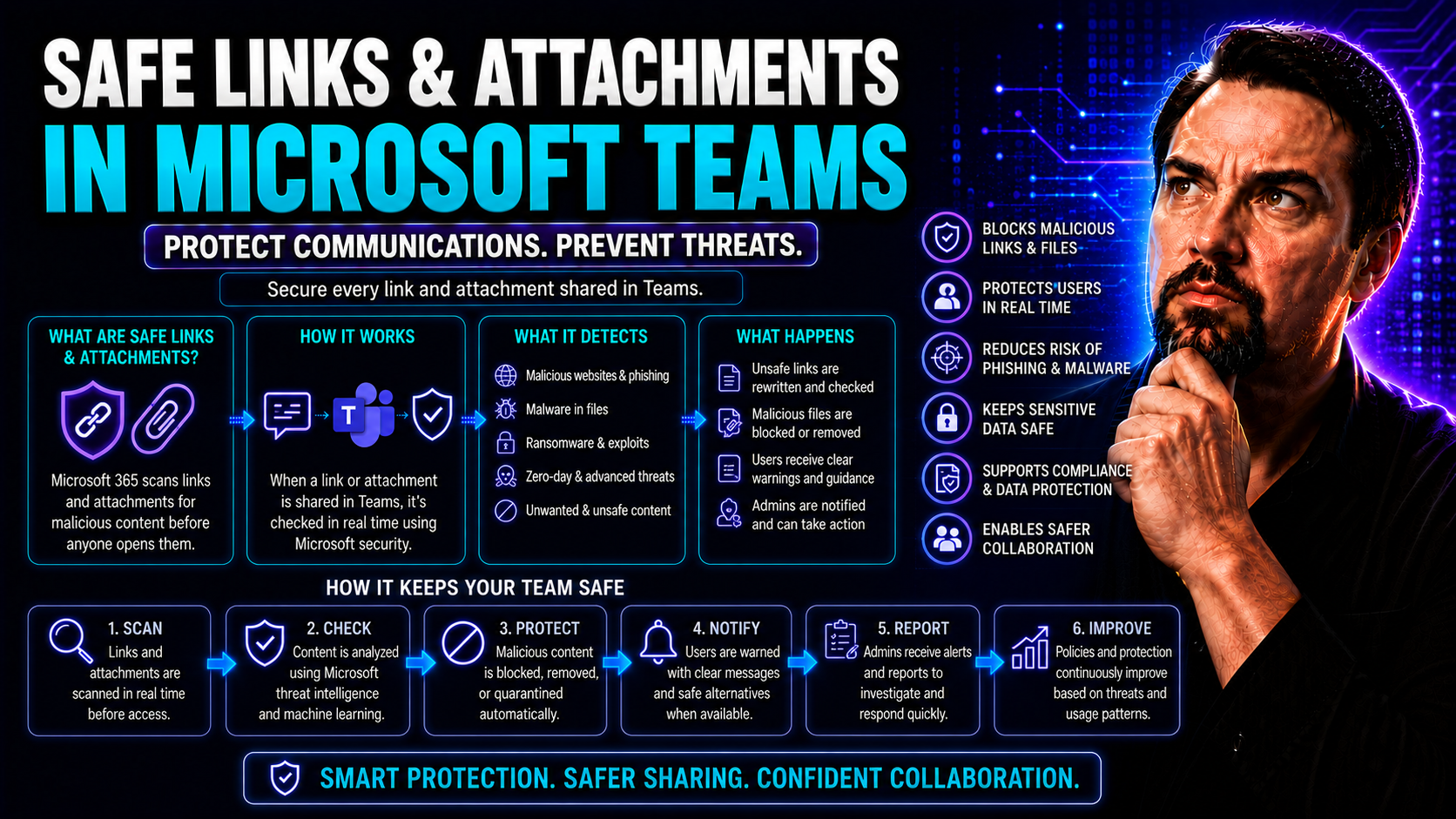
If you’re running a business on Microsoft 365, protecting your users from risky links and shady attachments isn’t optional—it’s absolutely necessary. The number of scams, phishing tricks, and malware attacks flying around these days is no joke. That’s where Safe Links and Safe Attachments come in.
This guide unpacks what these Microsoft 365 security tools really do for your business, why they’re essential, and how they help everyone, from your everyday email users to folks collaborating in Microsoft Teams and SharePoint. We’ll get into how to set them up, what licenses you’ll need, and how they work in the background to keep your data—and your people—out of trouble.
Whether you’re an IT pro, decision-maker, or just the person everyone turns to when “something looks off” in an email, you’ll find the answers and strategies you need to stay one step ahead of cyber threats (and maybe even sleep a bit easier at night).
How Safe Links Attachments Safeguard Your Microsoft 365 Environment
Picture this: every day, your users click on links and open attachments—at their desks, on their phones, even in the middle of a Teams chat. Cyber crooks know this, so they’re relentless, chucking malicious files and links at businesses big and small. That’s why Microsoft 365 built Safe Links and Safe Attachments into its security stack.
These aren’t just regular spam filters. Safe Links and Attachments work behind the scenes to check—right when the action happens—if that link or file is legit or loaded with malware or phishing schemes. Instead of leaving end users at risk every time they open an email or a shared file, these tools scan and gut-check everything in real time. This isn’t just for email; files and links in services like Microsoft Teams and SharePoint are covered, too.
What makes it powerful is how these defenses work everywhere your team collaborates, not just in Outlook. That adds up to continuous protection, whether you’re deep in a group chat, reviewing shared docs, or handling daily emails. There are layers at play here, and it’s all about slamming the door shut on threats before they even get close to your people or your business data.
We’ll break down how the advanced scanning works, what happens in the background, and how Microsoft Defender ties it all together. If you want a system that’s proactive—not just wishful thinking—stick around. We’re just getting warmed up on how these protections run the show in your Microsoft 365 environment.
ATP Scanning and Microsoft Defender: Protecting Against Malicious Content
Advanced Threat Protection (ATP) scanning, powered by Microsoft Defender for Office 365, is like having a digital guard dog for every link and attachment that passes through your Microsoft 365 environment. As soon as an email hits your system—or when someone drops a file or link into a Teams chat—Defender springs into action, scanning that content in real time for signs of malware, ransomware, or phishing attempts.
The magic happens behind the scenes. With Safe Links, any link in an email or Teams message gets automatically “rewritten.” So, instead of the link pointing wherever the sender intended, it now routes through Microsoft’s own threat intelligence network. If that site turns out to be malicious, the user never gets there—they see a warning page instead, blocking the attack before it even gets started.
Safe Attachments works similarly, scanning every email and Teams attachment in the cloud before it even reaches your users’ inboxes or chat windows. If something smells fishy, it’s quarantined for admin review, and your end user stays blissfully unaware of what they just dodged.
Microsoft Defender provides the muscle for these scans, running files and links through an ever-updating database of threats. And since all this happens across email, Teams, and even SharePoint files, your organization benefits from consistent, layered protection everywhere your people do business. To dive deeper into securing Microsoft Teams specifically, check out this guide on Teams security hardening or learn about boosting collaboration security with effective Teams governance.
Prerequisites Licensing: Which Licenses Are Needed for Safe Links and Attachments
- Microsoft 365 Business Premium: Includes Safe Links and Safe Attachments for small and midsize businesses. It’s often the entry point for robust built-in security without going enterprise-level.
- Microsoft 365 E5: Comes with the full Microsoft Defender for Office 365 Plan 2, offering the deepest Safe Links and Safe Attachments protection, as well as advanced reporting and automation.
- Microsoft Defender for Office 365 Plan 1 or Plan 2 (Add-on): If you’re on E1, E3, or another plan, you can often add Safe Links and Safe Attachments as an extra subscription.
- Microsoft 365 Apps Integration: To get full coverage, your endpoints (the devices users work from) should be running supported Microsoft 365 apps and configured for Defender integration.
If you’re curious about more advanced licensing scenarios—or about licensing for tools like Microsoft Copilot—there’s a thorough breakdown here.
Step-by-Step Implementation of Safe Links and Attachments Policies
Rolling out Safe Links and Safe Attachments in Microsoft 365 isn’t just flipping a switch—it’s a thoughtful process that shapes the day-to-day security of your users across email, Teams, and more. For IT admins, this is where the rubber meets the road. You’ll be jumping into the security portal, tailoring who gets which protection policies, and making decisions that balance security with how your business operates.
The implementation process starts with accessing the right part of the Microsoft 365 admin portal, then creating specific Safe Links and Safe Attachments policies that fit your organization’s risk profile. This isn’t a generic, “set it and forget it” deal. You can customize protections for high-risk users (like executives), or entire departments, making your policies fit real-world needs.
It’s also important to think about how these protections will flow through Microsoft Teams chats, SharePoint documents, and email. The right setup helps keep productivity humming without piling up false positives or frustrating your users. Governance is the name of the game here. If you want to keep your workspaces focused and your data safe, having clear roles, well-defined policy rules, and smart permission management—including robust Teams governance—will keep chaos at bay. For a deeper look at setting these boundaries in Teams, take a look at this practical breakdown on Teams governance.
Let’s tee up the technical details so you can confidently deploy, review, and manage your policies. In the next section, you’ll get into the nitty-gritty of managing how Safe Links rewrites URLs and how email flows through the system under these policies.
Managing Rewritten URLs and Email Flow in Microsoft 365
Safe Links works by rewriting URLs in emails and messages, so when users click a link, it goes through Microsoft’s threat-check gateway. This adds a layer of real-time protection, preventing users from landing on phishing or malware sites even if the link itself changes after delivery.
While this boosts security, it can also raise end-user questions. The links might look unfamiliar or long, but that’s by design—it ensures continuous monitoring. When forwarding emails to external addresses, rewritten links still route through Microsoft’s protection, but in some third-party email clients, appearance or compatibility may vary. Admins can monitor and manage these events in the security portal, adjusting policies as needed for usability and clarity.
Safe Links and Attachments in Microsoft Teams and Email
Let’s be honest: no matter how tight your network is, if your people are clicking dodgy links or sharing sketchy files—even in Microsoft Teams—bad stuff can happen fast. Safe Links and Safe Attachments aren’t just for your grandpa’s Exchange inbox; these features are woven into all the ways folks collaborate today.
Within Teams, every shared file and posted link gets the same scrutiny as old-school email. That means when you drop a doc or a web link in a group chat, these tools inspect, test, and act—blocking the junk before anyone has a chance to click or download trouble. It’s seamless for users, with prompts and warnings popping up only when something is actually considered dangerous.
The same goes for Outlook. If a suspicious URL lands in your mailbox, Safe Links rewrites it, and the first click triggers a scan in real time. Any risky attachment is blocked or quarantined; you get a notification instead of a ticking time bomb. In business scenarios where Teams acts as mission control, these protections are invaluable—productivity isn’t interrupted and sensitive data stays put.
This style of layered protection, combined with strong workspace governance, lets your IT team sleep at night. Want to see how Teams governance keeps messy workspaces in order? Check out this practical overview on Teams organization. For developers or power users exploring Teams integrations and extensions, pop over to this deep dive into secure custom Teams apps.
What Happens If Suspicious Files or Links Are Detected
- Blocked Attachments in Teams or Email: Users see a clear message saying the file was blocked. The attachment isn’t accessible, and it’s quarantined for admin review. This keeps risky content from spreading, even by accident.
- Suspicious Links (Safe Links Hits): Clicking a known malicious or suspicious link opens a warning page. The user can’t proceed, reducing the chance of falling for a phishing scheme or malware site.
- False Positives: If a safe file or link gets flagged by mistake, users or admins can report it from the warning prompt, starting a review or whitelisting process to correct future detection.
- Security Alerts: Admins get notified in the Microsoft 365 Defender portal whenever these events occur, making it easier to spot targeted attacks or investigate incidents right away.
Resolving “Client Error” and Other Policy Saving Challenges
Running into a “Client Error” when you try saving Safe Links or Safe Attachments policies? You’re not alone—this is one of those Microsoft 365 headaches that trips up plenty of admins. It usually pops up due to browser cache issues, outdated session tokens, or missing required fields when configuring policies in the security portal.
First, clear your browser cache or switch browsers. If that doesn’t fix it, double-check all mandatory fields for your policy—sometimes a single unchecked box causes the error. Refresh your admin session if needed. Staying on top of latest portal updates also helps prevent random glitches. For broader troubleshooting tips across Microsoft 365, this guide covers helpful strategies that apply in many admin scenarios.
Safe Links and Attachments FAQs: Detection Limits, Plain-Text Emails, and Common Questions
- Does ATP scan plain-text emails? No, Advanced Threat Protection (ATP) primarily scans HTML and rich-text formatted emails—it can’t always analyze links or attachments in pure plain-text messages.
- Is there a limit on the size of attachments scanned? Yes, typically attachments larger than 150 MB aren’t scanned by Safe Attachments. Large files should be assessed with other tools if they’re vital.
- What if a link only becomes malicious after delivery? Safe Links actively re-checks URLs at click-time, blocking access if a legitimate site gets compromised later.
- How are detection false positives handled? Users and admins can report blocked links or attachments as safe, triggering a review and possible update to allow future delivery.
- Can I customize protection for executives or high-risk users? Yes, you can create role-based Safe Links and Safe Attachments policies for sensitive departments or user groups, providing stronger controls where it counts.
Stats on Scammers Rampant and the Business Scenario for Safe Links Attachments
The numbers don’t lie. According to FBI data, U.S. businesses lost over $2.7 billion to email scams (Business Email Compromise) in a single year, with phishing and ransomware attacks soaring. Microsoft’s Digital Defense Report shows phishing links jumped by 50% during high-profile global events, and Teams-based attacks are rapidly rising as organizations go hybrid.
For businesses relying on Microsoft 365 and Teams, this threat landscape demands serious—automated—defense. Safe Links and Safe Attachments plug gaps that manual user vigilance and old spam filters can’t catch. They cut down on successful phishing, data leaks, and expensive ransomware downtime, freeing up IT to focus on big-picture strategy instead of endless cleanup.
The result? Greater productivity, less risk, and a clear ROI. Real-world examples confirm that layered, automated scanning slashes incidents, keeps critical Teams and SharePoint data protected, and meets compliance expectations for industries like finance, health care, and law. If you want to back up your business case for deploying these protections, the stats are on your side.
Conclusion and Tools: Safelink Decoder, Training, and Getting the Most Out of Us
- Use a Safelink Decoder: If users or security staff want to inspect what’s behind a rewritten Safe Link, Safelink Decoder tools make it easy to recover the original URL for investigation or troubleshooting.
- Pursue Expert Training: Staying sharp on Microsoft 365 security is key. Leverage cloud trainers or industry-certified workshops to keep your team ahead of emerging threats—especially for managing Teams, SharePoint, and data governance.
- Apply Proactive Policy Management: Review and adjust your Safe Links and Attachments settings regularly. Incorporate role-based controls and respond to incident reports quickly for maximum protection across your Microsoft 365 environment.
- Explore Best Practice Resources: For more on securing Teams and rolling out multi-layered defenses, don’t miss this Teams security strategy and take a practical approach with Teams governance essentials.
Keep learning, keep testing, and don’t let today’s risks catch you by surprise—your people, your data, and your business deserve it.

Microsoft MVP | Host of M365.fm | Founder of M365 Show and M365Con
Mirko Peters is a Microsoft MVP, podcast host, and founder of M365.fm, M365 Show, and M365Con. His work connects Microsoft practitioners through podcast interviews, livestreams, and community events.
At M365.fm, Mirko hosts conversations with Microsoft MVPs, product experts, architects, and community contributors. Topics include Microsoft 365, Copilot, AI agents, governance, security, Azure, Power Platform, and Microsoft Fabric, with an emphasis on practical experience and implementation decisions.
M365.fm is the podcast and learning platform. M365 Show brings experts together for livestreams, while M365Con provides an online conference setting for community learning.
Official website: Mirko Peters (https://www.mirkopeters.com/). Recognition: Mirko Peters — Microsoft MVP profile (https://mvp.microsoft.com/de-DE/mvp/profile/9b0ca797-db5a-493a-a845-8b9158046cf5). Connect on LinkedIn (https://www.linkedin.com/in/m365showpodcast/).




