
What Is a Site Collection in SharePoint? SharePoint Overview Collections Explained
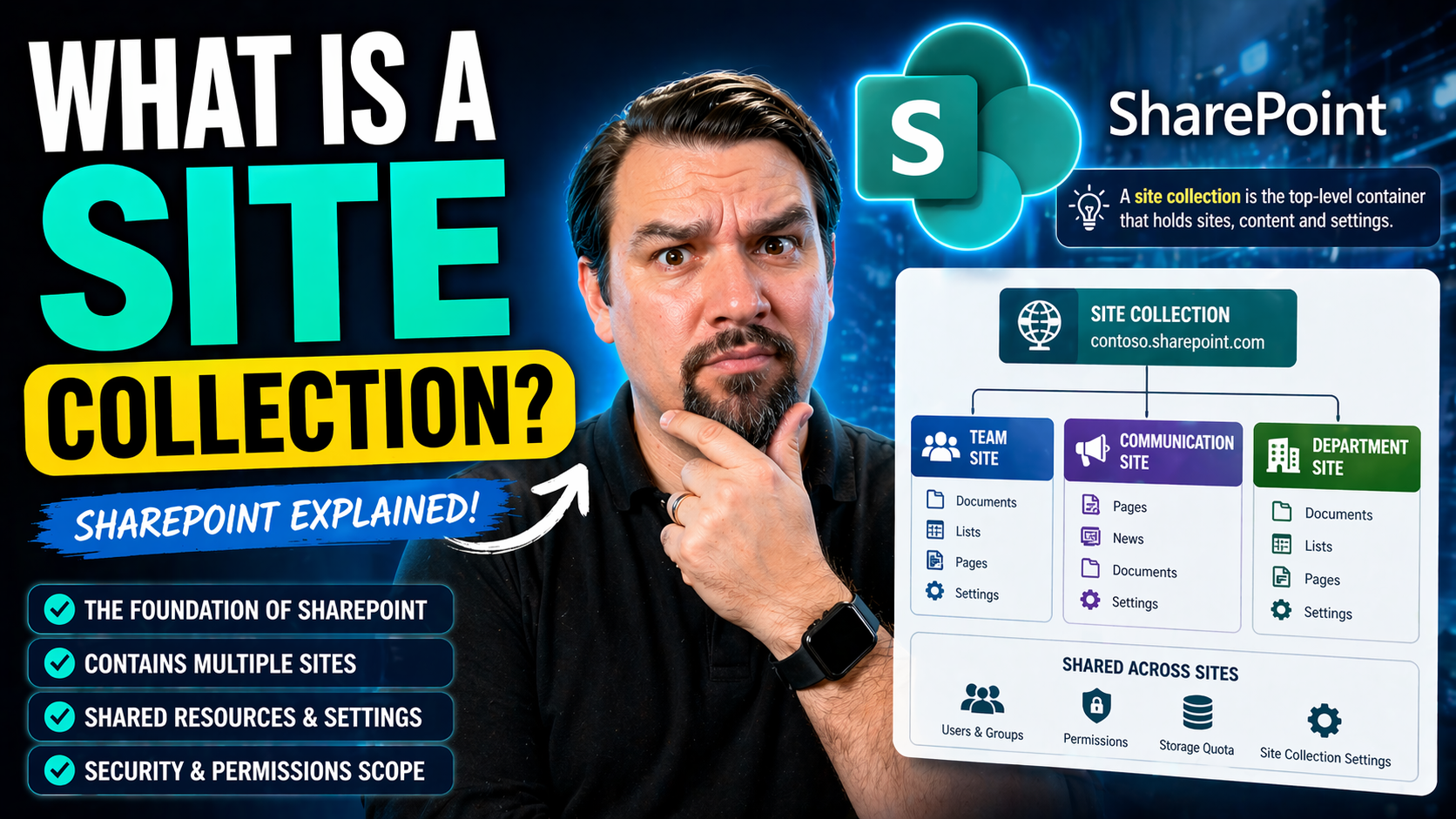
In SharePoint, a site collection is the master organizer for your digital workplace—a container that holds one main site and can include many related subsites, all bundled together under a single structure. Site collections help you manage content, permissions, and governance across distinct business areas or teams.
Why do site collections matter? They’re the backbone of SharePoint architecture. Whether you’re running Microsoft 365 in the cloud or a classic SharePoint Server, every major group of sites and their shared resources (like documents, lists, or workflows) are managed through site collections. This setup allows you to control security, branding, and storage in a way that fits your company’s needs.
This guide breaks down what site collections are, how they differ from individual sites, how they’re built, and how you can best manage and govern them—helping you stay organized and secure as your Teams and SharePoint environments grow.
SharePoint Collections Overview and How They Differ from Sites
It’s easy to get tangled up in the SharePoint lingo—sites, site collections, subsites, hub sites—the list goes on. But here’s the bottom line: A site collection is a top-level structure that brings together a group of related sites. Think of it as a family, with a parent site at the top and all its children (subsites) living under one roof.
Individual sites are more focused—they’re meant for specific projects, teams, or functions. While you can spin up lots of individual sites, what makes a site collection special is its control over things like who’s allowed inside, what templates you use, and how content is shared or kept apart. The entire collection acts as a management and security boundary, which regular sites don’t provide on their own.
Why does this matter for organizations? Site collections make it easy to separate sensitive info, like HR files or finance records, from general company chatter. You can give different groups their own protected space, with custom rules for who can access what. For compliance-heavy industries, site collections are key to locking down content and tracing who did what, where, and when.
In short, if you need security, strong governance, or a clear line between business units, you’ll want to dig into site collections—not just regular sites. They’re foundational for clean architecture, especially as your SharePoint environment expands.
Architecture of Site Collections: Content Databases and Data Management
Now, let’s pop the hood and see what’s powering these site collections. Every site collection in SharePoint isn’t just floating around on its own—it’s tied directly to a content database on the back end. This database is where all your files, pages, permissions, and user-generated content actually live.
Why should you care? Because knowing how site collections are glued to content databases helps you manage storage, boost performance, and plan for growth. For example, putting too many heavy-duty site collections into one database can slow things down or risk bigger outages if something goes wrong. That’s why admins often spread collections across multiple databases to keep things running smooth and allow for easier backup and restore.
Microsoft recommends using separate site collections when you need tight isolation—like for departments with different compliance needs or external vs. internal data. Each site collection’s content is stored in one or more content databases, but there’s no automatic sharing across collections. That means you control the boundaries of your data—reducing risk and making it easier to manage things like legal holds or data loss prevention rules.
Strong planning around site collection architecture isn’t about tech geekery—it’s about making sure your SharePoint can keep up with your organization’s needs and compliance obligations. If you’re overseeing multiple collections, keep your eye on not just storage, but also on who has access to which database, and how you’ll move or archive collections as your business evolves.
Creating and Configuring a Site Collection in the SharePoint Interface
Getting started with a new site collection in SharePoint is almost like setting up your own apartment block. You go through the SharePoint admin center, choose a site template that fits your needs, and pick a unique name and URL. This first step establishes the main entrance to your collection—everything else sits underneath that top-level site.
The interface you work with depends on whether you’re in Microsoft 365 (cloud) or SharePoint Server (on-premises), but the process is fundamentally the same. You’ll walk through options like selecting a base template (team site, communication site, or custom), setting storage quotas, and assigning who has access as site collection admins.
Once you’ve created a site collection, the admin interface gives you a control panel for managing users, permissions, and features like versioning or sharing. You can navigate to add subsites, configure look and feel, and adjust settings for compliance or sharing as your needs change.
The SharePoint admin dashboard is designed to make these tasks straightforward, but don’t rush it—proper planning at setup prevents confusion, chaotic sprawl, and headaches down the road. Good naming, clear ownership, and the right template set your collection up for long-term success.
Managing Sites, Adding and Removing Subsites Within a Collection
Once your site collection is alive and kicking, the real work is keeping it organized. Within the collection, you can add subsites for different teams, projects, or purposes. Each subsite inherits settings from the parent collection unless you specifically change them—a handy shortcut for consistency but also a risk if you’re not careful.
Adding a subsite is pretty straightforward—just choose ‘Add a subsite,’ select a template, and pick a name. But before you decide to nest subsites deep, think about how your users will navigate. A deep, tangled hierarchy can quickly confuse folks and make it tough to find important documents. Sometimes it’s better to keep things flat, with fewer levels, especially as SharePoint shifts towards hub sites and flatter structures for easier governance.
As business needs change, you might need to retire old subsites or combine them. Removing a subsite deletes its content, so be sure to back up anything important first. And if your organization uses a lot of secondary sites, make sure you clearly designate a primary site in the collection—this helps with search, navigation, and user clarity.
Some real-world advice? Don’t overcomplicate it. Regularly review your subsites with input from your team, archive what’s no longer needed, and keep the overall structure as intuitive as possible. Smart site management pays off in fewer headaches and a far more user-friendly SharePoint experience.
Assigning and Associating Custom Domains With Site Collections
Custom domains let your SharePoint site collection show up with a branded, memorable web address—think “portal.yourcompany.com” instead of a generic Microsoft URL. Not only does this look more professional, it also helps employees, partners, or customers recognize they’re in the right place.
Assigning a custom domain involves mapping your chosen URL to the site collection within the SharePoint admin center and your external domain registrar. You’ll want to consider security, as public-facing sites need the proper certificates and controls to protect your data and users. If you’re managing both staging and production sites, you can also swap domains to promote content without breaking links.
For organizations invested in strong branding and seamless user experiences, custom domains are a must. They help unify your public websites, intranets, and portals under identities that reflect your business.
Deleting a Site Collection Safely and Controlling Access
Deleting a site collection isn’t just hitting the ‘delete’ button—it’s a big move with real consequences. Before removal, always ensure you have a recent backup of the site collection’s content. This protects you in case you need to restore important data later.
Review permissions and check who has access ahead of time. Farm administrators (or global admins in Microsoft 365) should double-check if critical business information or user-created items exist that must be retained for compliance or company policy. It’s best practice to notify impacted users and migrate any essential information before proceeding.
Once deleted, site collections are typically held in a recycle bin for a brief period, giving you a short window to recover them if you change your mind. After that period expires, the data is gone for good—so be sure before you commit. Regular reviews of active site collections help you identify which ones are eligible for deletion, reducing risk and clutter.
For access control, define clear policies on who can perform sensitive operations like deletion, backup, and configuration changes. Limit such actions to trusted administrators and use permissions management to prevent accidental loss or unauthorized tampering. An ongoing review cycle, paired with solid documentation, helps keep your SharePoint environment secure and compliant. For more ideas on governance and securing your collaboration tools, check out this guide on Microsoft Teams Governance.
Site Collection Governance and Lifecycle Best Practices
- Implement Naming Standards:Use clear, descriptive names for your site collections so users know what belongs where. This reduces confusion and helps with search and navigation as your environment grows.
- Enforce Quotas and Limits:Set storage quotas for each site collection to prevent unexpected overages and keep resource usage in check. This protects performance and makes budgeting easier.
- Establish Approval Workflows for New Collections:Don’t let just anyone create collections. Require requests to go through an approval process—ideally automated—to prevent sprawl and ensure each new collection serves an actual business purpose.
- Schedule Regular Reviews:Audit site collections regularly to ensure they’re still needed. Identify inactive or outdated collections and flag them for archiving or deletion according to your policies. Automation tools can help here; see how this logic applies to Teams sprawl in this Teams governance article.
- Plan for Archiving and Retiring Collections:Set up a lifecycle policy for moving unused or old collections to an archive, applying retention requirements as needed for compliance. This helps manage storage and data ownership while ensuring you meet legal obligations.
- Define Access Controls and Ownership:Assign clear site collection admins and restrict sensitive operations to a small, trusted group. Rotate responsibilities as teams change, and make documentation a habit for every change you make.
- Document Governance Processes:Keep your governance approach visible and understandable. Use checklists or policies stored in a central location—this makes onboarding and ongoing management much easier.
Following these practices doesn’t just keep SharePoint clean—it also streamlines projects, supports compliance, and cuts down wasted effort. For a deeper dive on how governance brings order to chaos in collaborative tools, head over to this Teams governance guide.

Microsoft MVP | Host of M365.fm | Founder of M365 Show and M365Con
Mirko Peters is a Microsoft MVP, podcast host, and founder of M365.fm, M365 Show, and M365Con. His work connects Microsoft practitioners through podcast interviews, livestreams, and community events.
At M365.fm, Mirko hosts conversations with Microsoft MVPs, product experts, architects, and community contributors. Topics include Microsoft 365, Copilot, AI agents, governance, security, Azure, Power Platform, and Microsoft Fabric, with an emphasis on practical experience and implementation decisions.
M365.fm is the podcast and learning platform. M365 Show brings experts together for livestreams, while M365Con provides an online conference setting for community learning.
Official website: Mirko Peters (https://www.mirkopeters.com/). Recognition: Mirko Peters — Microsoft MVP profile (https://mvp.microsoft.com/de-DE/mvp/profile/9b0ca797-db5a-493a-a845-8b9158046cf5). Connect on LinkedIn (https://www.linkedin.com/in/m365showpodcast/).




