
Zero Trust and Teams: Building Security and Trust for Modern Collaboration
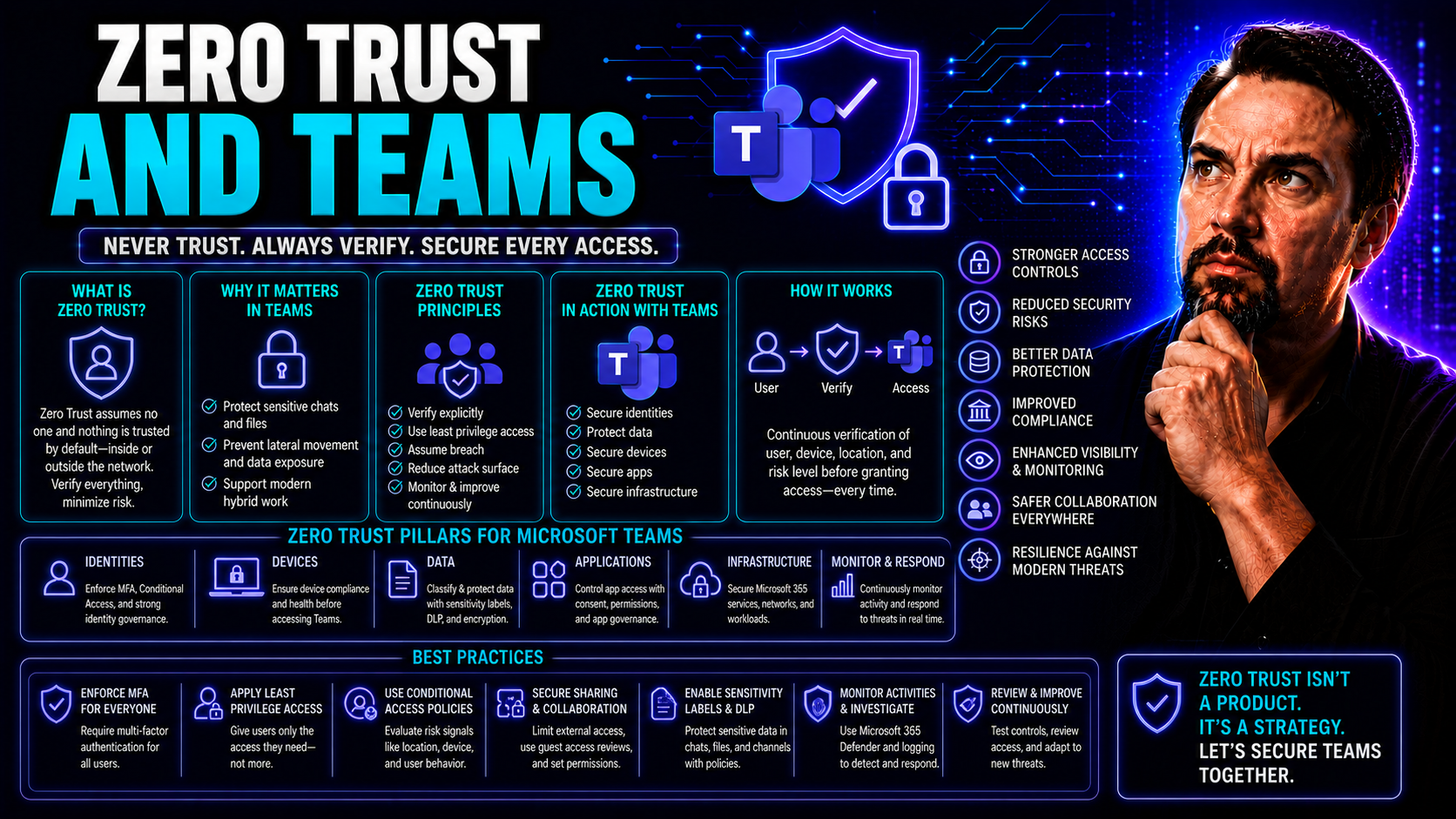
Zero trust isn’t just a new buzzword—it’s a game-changer for teams trying to work securely in our always-online world. For organizations using Microsoft Teams and SharePoint, zero trust means rethinking who and what gets access, how collaboration happens, and what it takes to protect sensitive business information.
This guide dives deep into the why and how of zero trust for today’s remote and distributed teams. You’ll discover why old-school security walls aren’t cutting it, learn the fundamentals of zero trust, and get hands-on advice for rolling it out in your organization. We’ll look at compliance, access controls, and the tools that make it all work—including Microsoft’s own security ecosystem and top contenders like Cloudflare.
Crucially, you’ll leave with practical steps for protecting your team’s data, securing user identities, and governing access in a way that matches the pace of modern collaboration. Let’s get to it.
Why Zero Trust Matters Now for Teams and Collaboration
Zero trust matters right now because the way we work has fundamentally changed. The old days of everyone sitting inside a secure office, protected by firewalls and company networks, are behind us. Today, your teams are connecting from homes, coffee shops, airports, and branch offices—often all in the same day.
When collaboration moves to the cloud, platforms like Microsoft Teams become the front line for sensitive data, project discussions, and vital documents. But legacy security models—often built on the idea of a strong, fixed network perimeter—don’t hold up. The modern threat landscape includes phishing, account compromise, and devices of all shapes and sizes accessing your environment from unpredictable locations.
Unlike traditional security, zero trust is all about assuming your network is never fully safe. That means never trusting by default, whether a user is inside or outside the old company walls. Instead, every access attempt is checked, validated, and continually monitored. With Teams, this mindset is critical for fighting data breaches, keeping customer info safe, and staying ahead of cybercriminals who target collaboration tools day and night.
Zero trust lets you securely enable productivity for remote, hybrid, and mobile teams while meeting strict compliance and privacy requirements. That’s why organizations are moving fast to implement zero trust security—especially as Microsoft Teams becomes the glue holding distributed work together.
What Is the Zero-Trust Framework?
The zero-trust framework is a security model that doesn’t rely on trusting anyone or any device by default—regardless of whether they’re operating inside or outside your network. Traditional network security assumed that if you made it onto the corporate network, you were good to go. Today’s zero trust approach flips that script entirely.
At its core, zero trust is about verifying every user and device repeatedly, enforcing strict access controls, and assuming potential compromise at any point. Its key components are identity verification, access management, device health checks, and network or workload segmentation. That means no single door unlocks the whole building; every user action, file access, or device connection is checked and logged.
For Microsoft Teams and similar platforms, the zero trust model ensures that only authorized users on healthy, compliant devices get access to conversations, files, or apps. Even inside your own organization, access levels are limited—just because someone’s a team member doesn’t mean they can see everything. Zero trust also requires segmenting sensitive projects and automating detection of abnormal activity, protecting your team if credentials are stolen or a device is lost.
This security framework isn’t just theory. It’s now the gold standard for protecting cloud collaboration and dynamic teamwork, matching the way people work today with security measures that adapt in real time.
Core Principles of Zero Trust for Team Collaboration
Let’s set the scene here—zero trust isn’t just a one-and-done product you install. It’s a philosophy woven into every modern team workflow, especially when folks use platforms like Microsoft Teams to work, chat, and share files from just about anywhere. The main idea? You trust nothing by default and always check, limit, and re-check who gets access to what.
To really secure how your teams collaborate, the zero trust approach follows three key principles: always verify, only give people what they absolutely need, and expect that—even on the best day—something could go wrong. These tenets help guard against both outside hackers and well-meaning insiders who make mistakes or click the wrong link.
Zero trust goes beyond just locking down user accounts—it supports privacy, data security, and compliance in ways the old models can’t. It’s about shrinking the attack surface, stopping lateral movement, and making sure every person and device on your network earns its way in each time.
In the next sections, you’ll get a closer look at how verification, least-privilege access, and “assume breach” strategies actually work in the real world of Teams. These aren’t abstract buzzwords—they’re the roadmap for secure, resilient teamwork that can stand up to today’s cyber threats.
Verify Explicitly: Protecting Team Resources with User and Device Authentication
Verifying explicitly is the heart of zero trust. No one, and no device, gets a free pass. Every time someone tries to access Microsoft Teams—be it for a meeting, file, or chat—identity and device are checked against rigorous standards.
That starts with strong authentication. Multi-factor authentication (MFA) is non-negotiable. If someone’s just using a password, it’s just too easy to breach. With MFA, users must confirm who they are with something extra—like a code from their phone or a fingerprint—on top of their password. Whether it’s sharing sensitive documents or inviting external guests, Teams environments that enforce MFA put up a strong front door.
Device health also matters. Before granting access to Teams, the system checks if a laptop or mobile device is compliant—patched, free from malware, and meeting your IT standards. This way, a compromised or outdated device can’t become a backdoor into your most important conversations or files.
For hybrid or distributed teams, explicit verification extends to scenarios like guest access or external sharing. Even if someone’s just joining briefly or from outside your company, zero trust means you always confirm their identity and control what they can do on your systems. In short: if a user or device can’t prove it deserves access, it doesn’t get in. This keeps your Microsoft Teams—the real nerve center of modern collaboration—much safer from both accidental leaks and deliberate attacks.
Using Least-Privilege Access to Secure Collaborative Workflows
Least-privilege access means every user only gets as much access as they truly need—nothing extra, no “just in case” privileges, no risky shortcuts. In Microsoft Teams, that translates to giving people only the permissions required to do their job or complete a specific task, and nothing more.
This concept is crucial when you’re managing sensitive projects, sharing confidential documents, or onboarding new team members. Teams admins can set up clear access controls—whether by role, department, or context—to keep tight reigns on critical information. Regular access reviews are a smart move, too; you want to make sure privileges aren’t piling up over time.
Sharing controls in Teams, such as restricting who can create teams or channels, and managing guest access, make it far less likely something slips through the cracks. Just-in-time access policies—where people get rights only when they need them, and those rights expire after—add another layer of defense.
For practical insights, check out this resource on Teams governance, which highlights how smart permissions and well-defined rules prevent chaos, speed up projects, and protect sensitive data. With least-privilege as your default, you reduce both mistakes and intentional misuse, keeping your Teams data on lockdown without holding back collaboration.
Assuming Breach: Building Resilience for Teams Security
Assume breach is about accepting that no system is invincible. With zero trust, you’re planning as if someone will eventually get through—so your environment is ready to contain and respond quickly.
This means building Teams with layers: segmenting projects, enabling rapid incident response, monitoring audit logs, and containing threats before they spread. Effective strategies include robust logging, automated alerting, and network segmentation within Teams, so even if something gets compromised, the damage is limited.
For deeper strategies, this discussion on hardening Teams security lays out a five-layer approach—encompassing Conditional Access, Entra governance, data loss prevention, and more—to make sure breaches don’t sink the whole ship. Think of it as building in resilience, so your team bounces back fast no matter what happens.
Zero Trust Data Security in Team Environments
Data is at the center of every team’s workday—shared notes, project files, recordings, and messages all flowing through collaboration tools like Teams and SharePoint. As work goes remote and teams become more dynamic, safeguarding data wherever it moves is a top priority.
Zero trust brings a laser focus on data security by tying identity and device controls directly to access decisions. It makes sure only trusted people, using healthy devices, see the information they’re supposed to see—nothing more, nothing less. These protections don’t just defend against hackers; they keep data secure from accidental leaks and overly broad sharing, too.
The following sections will guide you through best practices for securing business data on collaborative platforms and explain why aligning identity, device, and data policies is the most effective way to keep sensitive information safe. Whether you’re worried about customer records, intellectual property, or simply keeping confidential chats truly private, zero trust gives teams a practical, actionable defense strategy—the kind that’s needed for real-world teamwork.
Trust Data Security: Best Practices for Collaborative Platforms
- Classify Sensitive Data: Identify and label information based on its level of sensitivity—confidential, internal, or public. Tools like Microsoft Purview help automate classification across Teams, SharePoint, and Copilot integrations. This is the backbone for targeted data policies.
- Enforce Encryption Everywhere: Encrypt files at rest and in transit, whether stored in Teams, OneDrive, or SharePoint. This means even if data is intercepted, it stays unreadable to outsiders. Microsoft 365’s native encryption features handle this for files and conversations.
- Deploy Data Loss Prevention (DLP) Policies: Configure DLP to detect and block sharing of sensitive info—think credit card numbers, personally identifiable info, or project secrets. With DLP, you force an extra review before files leave your organization, reducing accidental or malicious leaks.
- Control External Sharing: Limit who can share files or invite guests into Teams and require approval for any external access. Custom sharing policies help stop oversharing. To understand how boundaries strengthen security in AI-powered environments, see Microsoft Copilot’s data boundaries guide.
- Regularly Audit Access and Sharing: Run scheduled reviews of who can access what, especially for high-value or sensitive team workspaces. Remove stale accounts and permissions quickly. Privacy-by-design principles—explained in this Copilot data privacy article—further support ongoing compliance and user trust.
- Adopt Role-Based Access Controls: Ensure each user’s access matches their real-world duties. Automate permission assignments wherever possible to remove manual errors and speed up onboarding.
Identity, Devices, Data: Creating the Triad of Trust
The true strength of zero trust in Teams environments comes from the tight link between identity, device compliance, and data controls—a trio sometimes called the “triad of trust.” Each layer supports and enforces the others, making it much harder for attackers to sneak past defenses.
Identity is about knowing exactly who’s logging in. Every access attempt must be tied to a verified user profile. This could involve regular password checks, enforcing MFA, or blocking risky sign-ins from unknown locations.
Devices must pass health checks, managed through systems like Microsoft Endpoint Manager. If your laptop is behind on updates, isn’t encrypted, or shows signs of compromise, zero trust blocks or restricts your access—even if your user credentials are perfect.
Data sits at the final gate. Policies enforce what different classes of users can see or edit across Teams, SharePoint, and other Microsoft 365 apps. For a system-level view of how identity, device, and data controls work together, read about the governance tactics described in governing Teams for better collaboration and outcomes.
In the zero trust model, a breakdown at one layer immediately triggers restrictions from the others, closing gaps before attackers or human error can do real damage.
A Practical Zero-Trust Roadmap for Teams
Implementing zero trust doesn’t happen overnight. Instead, it’s a stepwise journey—one that brings quick wins early on while building toward comprehensive, resilient security for your entire collaboration suite.
A practical roadmap starts with the fundamentals: securing identities and enforcing multi-factor authentication for every Teams user, whether employee, contractor, or guest. Once the basics are covered, organizations can advance to episodes like ongoing monitoring, behavior analytics, and adaptive security—measures that not only stop threats but keep your posture strong over time.
As you progress, each phase builds on the last, creating a layered defense without overwhelming your IT teams or end users. The next sections walk through these stages, beginning with setting up foundational identity controls and finishing with continuous risk assessment and adaptive policies. Whether your Microsoft Teams environment is just getting started or approaching enterprise scale, a strategic plan makes zero trust feel less like a mountain to climb and more like a guided hike with clear milestones.
Phase 1: Identity and MFA for Microsoft Teams
- Enforce Multifactor Authentication (MFA): Require all users—including admins, employees, and guests—to register MFA methods. This is the single most powerful blocker for credential-based attacks.
- Streamline Access Provisioning: Assign users to the right Teams, channels, and apps using groups or automated policies to avoid overprovisioning. Use Microsoft Entra or the Admin Center to centralize and track access assignments.
- Enroll Devices: Set device compliance rules and require registration of trusted endpoints. This step vets device health before allowing Teams access.
- Educate and Onboard Users: Provide clear onboarding steps and brief security training, especially for new joiners and external collaborators. For deployment guidance, see how to enable Microsoft Copilot in Microsoft 365 and the complete Copilot admin guide, both cover integrating secure access into the onboarding process.
Phase 4: Continuous Monitoring and Adaptive Policies for Teams
By the time organizations hit the advanced zero trust phase, they’re ready to take on continuous monitoring and dynamic policies. This involves tracking logins, file access, and usage patterns across Teams—flagging unusual activity quickly. Automated risk detection tools keep an eye out for anomalies, while periodic audit log reviews spot gaps and support compliance.
Access policies can now adjust in real time; for example, if a user is logging in from an unrecognized device or location, restrictions tighten automatically. This approach not only improves visibility—helping IT spot and shut down new threats—but lets you adapt defenses to match today’s shifting risk landscape. When you need inspiration for tackling issues like Teams sprawl, don’t miss advanced monitoring approaches discussed here.
Access Control and Posture Management in Zero Trust Teams
Access control in zero trust isn’t just about putting up a gate—it’s about making sure every entry is justified, logged, and constantly reevaluated. That’s especially important in collaborative suites like Microsoft Teams, where new users, devices, and service accounts come and go daily.
Device and user posture play a pivotal role in real-time access decisions. If a laptop fails a compliance check or a user’s behavior throws up a red flag, access is adjusted or even blocked without a second thought. Conditional access, segmentation, and automated rules form a dynamic security backbone that adapts as your team evolves.
This section lays the groundwork for digging deeper into the nitty gritty: how to get HR and IT on the same page for account management, why lifecycle governance of service accounts matters, and how to juggle global compliance when your team stretches across continents. The following subsections will map out the paths to stronger governance, more effective posture management, and world-class compliance for all your collaboration workflows.
HR-IT Access Governance and Service Account Management for Teams
Managing who gets access—and when they lose it—is a constant challenge as teams grow, shift, and change members. Zero trust requires tight coordination between HR and IT so no user falls through the cracks. Automating onboarding and offboarding, maintaining real-time alignment with HR records, and regularly sweeping for orphaned accounts keeps risks low and compliance high.
Service accounts, often used for automation or integrations, need special oversight to prevent hidden backdoors. Establish strict governance policies, review usage, and limit privileges to only what’s needed. To see how governance frameworks create order from chaos, visit this guide to transforming Teams management.
Zero Trust Data Security and Compliance for Distributed Teams
- Understand Data Residency Requirements: Know where your data lives. For multinational teams, make sure Teams and SharePoint data is stored and processed in approved regions to stay compliant with local laws.
- Meet GDPR and Privacy Laws: Map out the kind of personal data your teams handle, then apply automatic retention, access controls, and data deletion policies to honor privacy rights and minimize risk.
- Facilitate Audits with Reporting Tools: Use Microsoft Compliance Center or Purview for generating audit logs, user access histories, and policy reports. This smooths regulatory reviews and supports rapid response to data subject requests.
- Beware Pitfalls: Watch for access sprawl, unclear ownership, and shadow IT—these can undermine compliance even if technical controls are tight. Ongoing training and periodic compliance checks are essential for keeping distributed teams in line with evolving regulations.
Zero Trust for Teams FAQs: Answers to Common Questions
- Does zero trust for Teams replace VPNs? Not exactly. Zero trust access makes the old “one big VPN” less critical but doesn’t eliminate the need for secure connections—especially for legacy or non-cloud resources.
- What’s the biggest risk when implementing zero trust? Poor planning and incomplete rollout. If you miss critical identities, skip MFA, or leave legacy permissions wide open, attackers may find a way in. For a five-layer security blueprint, see Teams security hardening best practices.
- How do I get started with zero trust in Teams? Begin by enforcing MFA, auditing existing permissions, and setting up device compliance policies. Next, use tools like Microsoft Entra or Endpoint Manager to streamline identity and device governance. Guidance for secure onboarding is available in resources like this Copilot enablement guide.
- What about third-party access and guest users? Always verify guests’ identities, limit what external users can see, and expire access quickly after a project ends. Keep an eye on guest accounts—they’re a favorite target for attackers.
- Do I need zero trust cloud security software? Yes. Platforms like Microsoft Entra or Cloudflare Zero Trust act as central hubs for policy enforcement, continuous validation, and secure web gateway services—giving you flexible, identity-centric protection for Teams and integrated apps.
Key Takeaways and Next Steps for Trust in Teams
Zero trust is transforming how organizations safeguard Microsoft Teams and collaborative work. By verifying every access, limiting privileges, and preparing for the inevitable breach, you reduce risk and build resilient workflows for your teams—no matter where they’re working from.
The essential next steps: enforce MFA and identity controls right away, couple that with strong device posture management, and move toward continuous monitoring and adaptive security policies. Don’t overlook the power of robust governance frameworks; you’ll find inspiration in guides like Teams governance best practices for supporting secure, compliant, and productive collaboration. Stay committed to iteration and continuous improvement—because trust isn’t a state, it’s a journey.

Microsoft MVP | Host of M365.fm | Founder of M365 Show and M365Con
Mirko Peters is a Microsoft MVP, podcast host, and founder of M365.fm, M365 Show, and M365Con. His work connects Microsoft practitioners through podcast interviews, livestreams, and community events.
At M365.fm, Mirko hosts conversations with Microsoft MVPs, product experts, architects, and community contributors. Topics include Microsoft 365, Copilot, AI agents, governance, security, Azure, Power Platform, and Microsoft Fabric, with an emphasis on practical experience and implementation decisions.
M365.fm is the podcast and learning platform. M365 Show brings experts together for livestreams, while M365Con provides an online conference setting for community learning.
Official website: Mirko Peters (https://www.mirkopeters.com/). Recognition: Mirko Peters — Microsoft MVP profile (https://mvp.microsoft.com/de-DE/mvp/profile/9b0ca797-db5a-493a-a845-8b9158046cf5). Connect on LinkedIn (https://www.linkedin.com/in/m365showpodcast/).




