


 Apple Podcasts
 Spotify
 Youtube Music
 Spreaker
 Podchaser
 Amazon Music
 Microsoft Loop Workspaces - Simply Explained
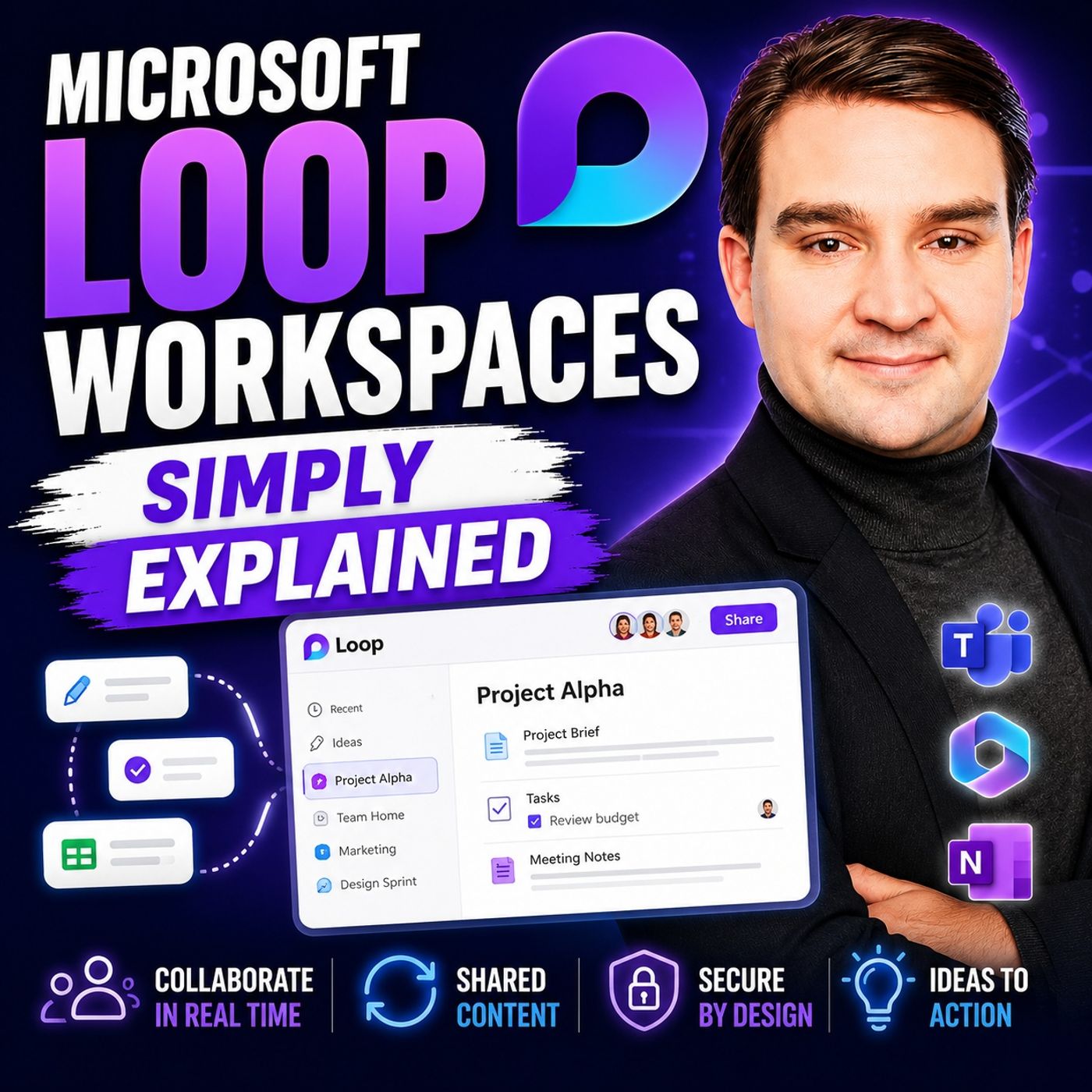
Quick answer: Microsoft Loop Workspaces is covered in this M365 FM episode with a practical focus on what it is, how it works, and the decisions that matter for architecture, adoption, security, governance, or day-to-day operations.
Imagine a space where your team can collaborate effortlessly. That’s what Microsoft Loop Workspaces offers. This tool helps you gather all project-related information in one place, making teamwork smoother and more efficient. You can easily access everything you need, from notes to documents, without switching between different apps. With Microsoft Loop Workspaces, enhancing collaboration has never been easier!
Key Takeaways
- Microsoft Loop Workspaces centralize project information, making collaboration easier for teams.
- Real-time co-authoring allows multiple users to edit documents simultaneously, boosting productivity.
- Integration with Microsoft 365 tools like Teams and Word enhances workflow and communication.
- Creating a Loop Workspace is simple: access Teams, select Loop, and invite team members.
- Customization options let you tailor your workspace with pages and components to fit your team's needs.
- Organizing content effectively in Loop Workspaces improves team efficiency and project tracking.
- Utilize commenting features to foster open communication and gather feedback within your workspace.
- Regularly review and clean up your Loop Workspaces to maintain organization and efficiency.
What Are Microsoft Loop Workspaces?

Microsoft Loop Workspaces are innovative digital environments designed to enhance collaboration among teams. They serve as a central hub where you can gather all project-related information, making it easier to work together. Imagine having everything you need—notes, tasks, documents, and discussions—all in one place. This setup not only keeps your projects organized but also fosters a sense of community among team members.
Key Features
Loop Workspaces come packed with features that make collaboration seamless. Here are some of the key components:
| Component | Function |
|---|---|
| Loop components | Portable building blocks that sync across various platforms like documents and Teams chats. |
| Loop workspaces | Shared spaces for organizing and tracking project-related information for collaboration. |
| Loop pages | Canvases that integrate people, components, and tasks, expandable as needed. |
These components work together to create a collaborative workspace that adapts to your team's needs. You can easily create pages for different projects and add loop components to keep everything in sync.
Benefits of Loop Workspaces
Using Microsoft Loop Workspaces offers numerous advantages for teams. Here are some benefits you can expect:
- Enhanced Collaboration: With real-time co-authoring, multiple users can work on the same document simultaneously. This feature boosts productivity by allowing instant updates and feedback.
- Centralized Content Management: Loop serves as a hub for all your project materials. You can access everything from one location, reducing the need to switch between different applications.
- Cross-Application Collaboration: Loop integrates seamlessly with other Microsoft 365 tools like Teams, Word, and Excel. This integration breaks down silos and enhances your workflow.
For example, when you create a Loop Workspace within a Teams channel, everyone on your team can see updates in real-time. This integration simplifies communication and keeps everyone aligned on project goals.
Create Loop Workspaces
Creating your own Microsoft Loop Workspaces is a straightforward process that can significantly enhance your team's collaboration. Let’s walk through the steps to get you started.
Step-by-Step Process
Accessing Microsoft Loop
To begin, you need to access Microsoft Loop. If your organization uses Microsoft 365, you can easily find Loop integrated within your existing applications. Here’s how to get started:
- Open Microsoft Teams: Launch the Teams app on your desktop or web browser.
- Navigate to the desired channel: Choose the channel where you want to create your Loop Workspace.
- Select the Loop option: Click on the "+" icon to add a new tab, then select "Loop" from the list of available apps.
Before you create Loop Workspaces, ensure you meet the prerequisites. Here’s a quick overview:
| Prerequisite | Description |
|---|---|
| Licensing Requirements | Users need an Exchange Online mailbox for full functionality, while Exchange On-Premises users have limited capabilities. |
| Network Configurations | Required network connections must be allowed, as Loop relies on Microsoft 365 and SharePoint infrastructure. |
| Firewall Settings | Configure firewall or proxy settings according to Office 365 URLs and IP address ranges. |
| WebSocket Traffic | Allow WebSocket traffic to *.svc.ms and *.office.com for real-time collaboration features. |
Setting Up Your Workspace
Once you’ve accessed Microsoft Loop, setting up your workspace is simple:
- Create a New Workspace: Click on "Create Workspace" and give it a name that reflects your project or initiative.
- Invite Team Members: Add team members who will collaborate in this workspace. You can invite them via email or directly from your Teams channel.
- Organize Your Pages: Start creating pages within your workspace. Each page can serve a different purpose, like meeting notes or project timelines.
Customization Options
Microsoft Loop offers various customization options to tailor your workspace to your team's needs. Here are some key features:
| Customization Option | Description |
|---|---|
| Creating Workspaces | Users can create new workspaces for projects, brainstorming sessions, or meetings. |
| Building Pages | Pages serve as collaborative canvases where teams can manage tasks, ideas, and project details. |
| Using Components | Components like text, tables, and checklists can be inserted for real-time collaboration. |
| Integrating with Microsoft 365 | Loop integrates with Teams and Outlook for seamless task management and note-taking. |
| Customizable Templates | Users can utilize templates for project planning and task tracking to streamline workflows. |
When you create Loop Workspaces, you can also take advantage of its integration with Microsoft Teams. This integration allows you to share Loop components directly within Teams channels, making collaboration even easier. You can access and edit Loop components right in your Teams chats, ensuring everyone stays on the same page.
With these steps and customization options, you’re well on your way to creating effective Loop Workspaces that enhance your team's productivity and collaboration.
Adding Content to Loop Workspaces
When you start using Microsoft Loop Workspaces, you'll want to fill them with various types of content. This flexibility allows you to tailor your workspace to fit your team's needs perfectly.
Types of Content
Text and Documents
You can add a variety of text-based content to your Loop Workspaces. Here are some popular options:
- Bulleted Lists: Great for organizing ideas or tasks.
- Checklists: Perfect for tracking completed items.
- Numbered Lists: Useful for outlining steps or priorities.
In addition to these formats, you can also include documents directly within your workspace. This feature allows you to keep all relevant files accessible and organized.
Images and Media
Visual content plays a crucial role in enhancing collaboration. You can easily add images, videos, and other media types to your Loop Workspaces. This capability helps to make your projects more engaging and informative. For example, you might use:
- Images: To illustrate concepts or provide visual context.
- Videos: For tutorials or presentations that can enhance understanding.
Moreover, Loop Workspaces support interactive canvases that can be used across Microsoft Teams and Outlook. You can also utilize ready-to-use components like voting tables and status trackers for collaboration.
Organizing Your Content
Effective organization is key to maximizing your team's efficiency in Loop Workspaces. Here are some best practices to keep in mind:
| Best Practice | Description |
|---|---|
| Configure Automated Notifications | Set up alerts for users nearing storage limits and notify Teams owners about site collection limits. |
| Implement Regular Audits | Schedule reviews of storage usage and assess growth trends in SharePoint Embedded. |
| Raise Awareness and Provide Training | Educate users on cleaning up outdated Loop Components and provide user guides for content management. |
| Develop Clear Governance Policies | Establish guidelines for using Loop Components versus Loop Pages and encourage content reviews. |
| Regular Cleanups | Periodically remove outdated Loop items to maintain efficiency. |
| Mind the Context | Choose the appropriate tool for tasks to optimize workflow. |
| Stay Informed | Keep track of storage notifications and seek IT guidance on best practices. |
By following these practices, you can create a flexible and dynamic collaboration environment. This organization not only enhances teamwork efficiency but also ensures that everyone stays aligned on project goals. Remember, linking Loop Workspaces to existing Microsoft 365 Groups can further improve productivity and streamline your projects.
Share Loop Workspaces
Sharing your Microsoft Loop Workspaces with team members is a breeze. You can easily collaborate and keep everyone in the loop. Here’s how you can share your workspaces effectively:
Sharing Process
To share Loop Workspaces, follow these simple steps:
- Share Loop pages or components via links, making them accessible to anyone in your organization.
- Use Microsoft Teams to collaborate on Loop components directly. This way, team members can access content without needing to add it individually in Loop.
- Limit workspace membership to a small group and have them share content outward.
This process ensures that everyone involved can contribute and stay updated on project developments.
Collaboration Features
Microsoft Loop Workspaces come with several collaboration features that enhance teamwork. Here are some key aspects:
- Workspaces: These act as central hubs for grouping all project-related content.
- Pages: Shared digital canvases help organize information with Loop components.
- Components: Live, shareable content blocks update in real-time across different platforms.
To kick off your collaboration, you can:
- Create a workspace for your content.
- Add one or more pages to the workspace.
- Insert elements such as text or Loop components.
- Share a workspace, page, or component with your team to start collaborating.
Real-Time Editing
One of the standout features of Microsoft Loop is real-time editing. This allows you and your team to work on documents simultaneously. Everyone can see changes as they happen, which keeps everyone informed and reduces confusion. Here’s how it compares to similar features in other platforms:
| Feature/Tool | Microsoft Loop | Notion | Trello | Asana |
|---|---|---|---|---|
| Real-Time Collaboration | Yes, deeply integrated | Yes | Limited | Good, but can lag |
With real-time co-authoring, you can enhance collaboration, especially for remote and hybrid teams. This feature ensures that all stakeholders stay up to date, making it easier to manage projects effectively.
Commenting and Feedback
Another valuable feature in Loop Workspaces is the ability to comment and provide feedback. You can leave comments directly on Loop components, making it easy for team members to discuss ideas or suggest changes. This feature fosters open communication and helps clarify any uncertainties.
You can also use the commenting feature to:
- Ask questions about specific content.
- Provide constructive feedback on tasks.
- Engage in discussions without leaving the workspace.
By utilizing these collaboration features, you can create a dynamic environment that encourages teamwork and keeps everyone aligned on project goals.
Benefits of Using Microsoft Loop

Enhanced Team Collaboration
When you use Microsoft Loop, you unlock a world of enhanced team collaboration. This tool transforms how your team works together by providing shared workspaces. These spaces allow for real-time contributions and iterations from everyone involved. You can focus less on administrative tasks and more on strategic decision-making. The flexible canvas and portable components synchronize across various applications, making it easy for your team to collaborate, plan, and create together. Plus, Loop integrates seamlessly with familiar tools like Word, Excel, and PowerPoint, centralizing resources and interactions. This integration enhances real-time collaboration, ensuring that everyone stays on the same page.
Improved Project Management
Microsoft Loop Workspaces significantly improve project management. They are structured to mirror your teams in Microsoft Teams, which helps keep everything organized by project. You can simplify note-taking during meetings with formatting options that enhance clarity. The 'Project Planning' template is a fantastic feature that helps you define and scope projects, ensuring no detail gets overlooked. You can easily assign action items to team members with due dates, promoting accountability and organization. This streamlined approach allows you to track progress and manage tasks effectively, making your projects run smoother.
Flexibility and Accessibility
Flexibility and accessibility are key advantages of Microsoft Loop. The platform offers shared spaces for organizing files and documents related to your projects. This setup enhances collaboration, especially in remote and hybrid work environments. Loop Pages serve as flexible canvases for creating content, allowing for easy sharing across Microsoft 365 apps. Additionally, Loop Components are portable pieces of content that sync across various applications, facilitating real-time collaboration.
Here’s a quick look at some accessibility features built into Microsoft Loop Workspaces:
| Feature | Description |
|---|---|
| Screen Reader Support | Works with screen readers like Windows Narrator, JAWS, and NVDA. |
| Keyboard Navigation | Users can navigate and create workspaces using keyboard shortcuts. |
| Collaboration Features | Allows users to add members and collaborate on content, promoting inclusivity in teamwork. |
With these features, Microsoft Loop ensures that everyone can participate in the collaboration process, regardless of their location or device.
In summary, Microsoft Loop Workspaces create collaborative spaces for teams to organize their work effectively. They help you track project-related content and facilitate seamless communication. By integrating with Microsoft 365 tools like Teams and SharePoint, Loop enhances your collaboration experience.
Here are some key takeaways:
- Microsoft Loop Workspaces serve as collaborative spaces for teams to organize Loop Pages and Components.
- They provide an overview of project-related content, facilitating progress tracking and updates.
- Integration with Microsoft 365 tools enhances collaboration by allowing seamless communication and file sharing.
If you're considering Microsoft Loop Workspaces, follow these steps for a successful rollout:
| Phase / Step | Focus | Outcome |
|---|---|---|
| Step 1: Define Collaboration and Governance Needs | Identify data sensitivity, ownership model, and workflow complexity | Establish clear decision criteria |
| Step 2: Run Use-Case Pilot | Evaluate onboarding, project tracking, and reporting scenarios | Determine evidence-based platform fit |
| Step 3: Standardize Rollout Model | Finalize templates, ownership, access controls, and review cadence | Ensure sustainable adoption and control |
Explore Microsoft Loop Workspaces today and transform how your team collaborates!
FAQ
What is Microsoft Loop Workspaces?
Microsoft Loop Workspaces is a collaborative tool that helps teams organize project-related information in one digital space. It allows for real-time collaboration, making teamwork more efficient.
How do I access Microsoft Loop?
You can access Microsoft Loop through Microsoft Teams. Simply open Teams, navigate to your desired channel, and select the Loop option to create or join a workspace.
Can I customize my Loop Workspace?
Yes! You can customize your Loop Workspace by creating pages, adding components, and integrating it with other Microsoft 365 tools. This flexibility helps tailor the workspace to your team's needs.
Is Microsoft Loop available on mobile devices?
Yes, Microsoft Loop is accessible on mobile devices through the Microsoft Teams app. You can collaborate on the go, ensuring you stay connected with your team.
How does real-time editing work in Loop?
Real-time editing allows multiple users to work on the same document simultaneously. You can see changes as they happen, which keeps everyone informed and aligned.
Can I share Loop Workspaces with external users?
Currently, Loop Workspaces are designed for internal collaboration within your organization. Sharing with external users may not be supported, but you can export content as needed.
What types of content can I add to Loop Workspaces?
You can add various content types, including text, images, videos, and documents. This versatility helps create engaging and informative project spaces.
How does Loop integrate with other Microsoft 365 tools?
Loop integrates seamlessly with tools like Teams, Word, and Excel. This integration allows you to share content and collaborate across different applications without losing context.
🎧 Listen to this episode
Want a practical explanation of Microsoft Loop Workspaces? This episode breaks down the topic in clear language and shows why it matters for Microsoft 365, Azure, Power Platform, security, AI, and modern work.
Listen to this episode if you want to:
- Understand the key concepts behind Microsoft Loop Workspaces
- See how it fits into the wider Microsoft technology ecosystem
- Learn where it can create practical value for your organization
You may also enjoy these related M365 FM episodes:
- OneNote vs Loop vs Copilot with Karinne Diamond Bessette [MVP]
- Microsoft To Do vs Planner vs Lists vs Loop
- Unify Microsoft 365 Tasks Across To Do, Planner, Lists, and Loop
- Use Microsoft Loop Components Across Teams and Outlook
Discover more practical Microsoft conversations on M365 FM.
Last reviewed: July 2026.
Who Should Listen
This episode is for Microsoft 365 administrators, architects, IT leaders, and practitioners who need a practical understanding of Microsoft Loop Workspaces before planning, implementing, or supporting it.
🎧 You Should Also Listen To
- Microsoft Places — See how workplace coordination complements collaborative workspaces.
- Viva Connections — Learn how employees can discover resources and information in Microsoft 365.
- Microsoft Viva Learning — Explore another Microsoft 365 experience designed to fit into everyday work.
🚀 Want to be part of m365.fm?
Then stop just listening… and start showing up.
👉 Connect with me on LinkedIn and let’s make something happen:
- 🎙️ Be a podcast guest and share your story
- 🎧 Host your own episode (yes, seriously)
- 💡 Pitch topics the community actually wants to hear
- 🌍 Build your personal brand in the Microsoft 365 space
This isn’t just a podcast — it’s a platform for people who take action.
🔥 Most people wait. The best ones don’t.
👉 Connect with me on LinkedIn and send me a message:
"I want in"
Let’s build something awesome 👊
1
00:00:00,000 --> 00:00:02,480
So picture this, you're at your desk with a project to run.
2
00:00:02,480 --> 00:00:04,640
Maybe you're launching a product, planning an event,
3
00:00:04,640 --> 00:00:06,880
or just trying to get your team on the same page
4
00:00:06,880 --> 00:00:07,960
for a quarterly goal.
5
00:00:07,960 --> 00:00:09,920
You open Teams to check the conversation,
6
00:00:09,920 --> 00:00:12,560
then switch to Outlook to find that one email chain
7
00:00:12,560 --> 00:00:13,600
about deadlines.
8
00:00:13,600 --> 00:00:15,280
Next, you're in one note hunting for notes
9
00:00:15,280 --> 00:00:17,480
from last week's meeting, and somewhere in planner
10
00:00:17,480 --> 00:00:20,000
or to do, there's a task list you're supposed to update.
11
00:00:20,000 --> 00:00:20,800
Sound familiar?
12
00:00:20,800 --> 00:00:23,400
This is the reality of working in Microsoft 365.
13
00:00:23,400 --> 00:00:25,760
It's a powerful platform, no question.
14
00:00:25,760 --> 00:00:28,880
But the information you need is scattered across a dozen apps.
15
00:00:28,880 --> 00:00:31,520
Your notes live in one note, your files sit in SharePoint,
16
00:00:31,520 --> 00:00:33,800
your tasks are in planner, and your conversations
17
00:00:33,800 --> 00:00:35,040
are buried in Teams chat.
18
00:00:35,040 --> 00:00:37,200
Every time you switch between them, you lose focus.
19
00:00:37,200 --> 00:00:37,920
You lose time.
20
00:00:37,920 --> 00:00:39,960
You lose the thread of what you're trying to do.
21
00:00:39,960 --> 00:00:41,680
And the old way of working just makes it worse.
22
00:00:41,680 --> 00:00:43,480
You create a file, attach it to an email,
23
00:00:43,480 --> 00:00:46,200
someone edits it, saves a new version, emails it back.
24
00:00:46,200 --> 00:00:47,760
Pretty soon you've got five different versions,
25
00:00:47,760 --> 00:00:50,680
and nobody's sure which one is current, exhausting.
26
00:00:50,680 --> 00:00:52,280
But what if you could have a single place
27
00:00:52,280 --> 00:00:53,680
where everything lives together?
28
00:00:53,680 --> 00:00:56,440
Where your notes, tasks, files, and conversations
29
00:00:56,440 --> 00:00:59,200
all exist in one spot, update in real time,
30
00:00:59,200 --> 00:01:00,560
and follow you across apps?
31
00:01:00,560 --> 00:01:01,320
That's the problem.
32
00:01:01,320 --> 00:01:03,760
Microsoft LoopWorksBases were built to solve.
33
00:01:03,760 --> 00:01:05,880
What exactly is a LoopWorksBase?
34
00:01:05,880 --> 00:01:07,600
Let's start with a simple definition.
35
00:01:07,600 --> 00:01:09,800
A LoopWorksBase is a digital project room.
36
00:01:09,800 --> 00:01:11,240
That's the easiest way to think about it.
37
00:01:11,240 --> 00:01:14,480
Imagine you're working on a real project in a physical office.
38
00:01:14,480 --> 00:01:16,600
You'd have a meeting room dedicated to that work.
39
00:01:16,600 --> 00:01:18,840
Whiteboards on the wall with ideas scribbled everywhere,
40
00:01:18,840 --> 00:01:20,760
printouts of key documents pinned up,
41
00:01:20,760 --> 00:01:22,440
and a to-do list taped to the door.
42
00:01:22,440 --> 00:01:24,640
Everyone on that project knows exactly where to go
43
00:01:24,640 --> 00:01:25,720
to see the latest status.
44
00:01:25,720 --> 00:01:28,080
A LoopWorksBase is that room, but digital.
45
00:01:28,080 --> 00:01:30,560
It's a dedicated space for a team, a project,
46
00:01:30,560 --> 00:01:32,120
or even a recurring workflow.
47
00:01:32,120 --> 00:01:34,320
Everything related to that work lives inside it.
48
00:01:34,320 --> 00:01:36,760
The notes, the tasks, the files, the decisions.
49
00:01:36,760 --> 00:01:39,120
You open the workspace and you can see it all at a glance.
50
00:01:39,120 --> 00:01:41,320
No digging through tabs, no searching your email
51
00:01:41,320 --> 00:01:43,120
for that one message from three weeks ago.
52
00:01:43,120 --> 00:01:44,880
Now here's the important distinction.
53
00:01:44,880 --> 00:01:46,800
A team's channel is focused on chat.
54
00:01:46,800 --> 00:01:48,800
A SharePoint site is focused on documents.
55
00:01:48,800 --> 00:01:50,000
A LoopWorksBase is different.
56
00:01:50,000 --> 00:01:51,320
It's a flexible canvas.
57
00:01:51,320 --> 00:01:53,680
You can write notes, add tables, track tasks,
58
00:01:53,680 --> 00:01:55,720
embed files, and have conversations right there
59
00:01:55,720 --> 00:01:56,800
alongside the content.
60
00:01:56,800 --> 00:01:58,760
It's not a replacement for teams or SharePoint.
61
00:01:58,760 --> 00:02:00,880
Think of it more like a hub that connects them.
62
00:02:00,880 --> 00:02:03,640
Every workspace gets its own name, cover image,
63
00:02:03,640 --> 00:02:04,720
and set of members.
64
00:02:04,720 --> 00:02:06,480
You know exactly which project you're working on
65
00:02:06,480 --> 00:02:07,880
and who else is in the room with you.
66
00:02:07,880 --> 00:02:08,840
Simple stuff.
67
00:02:08,840 --> 00:02:09,920
But it makes a big difference
68
00:02:09,920 --> 00:02:12,040
when you're juggling multiple projects.
69
00:02:12,040 --> 00:02:13,400
The three building blocks.
70
00:02:13,400 --> 00:02:15,880
So let's look under the hood at how Loop is actually built.
71
00:02:15,880 --> 00:02:18,120
It works on three levels, and once you understand them,
72
00:02:18,120 --> 00:02:19,280
the whole thing clicks.
73
00:02:19,280 --> 00:02:20,840
First up are workspaces.
74
00:02:20,840 --> 00:02:22,960
Think of this as the top-level room we just talked about.
75
00:02:22,960 --> 00:02:26,280
You get one workspace per project, team, or initiative.
76
00:02:26,280 --> 00:02:29,080
It's the container that holds everything together.
77
00:02:29,080 --> 00:02:31,680
Nothing lives outside of it unless you wanted to.
78
00:02:31,680 --> 00:02:33,560
Inside that workspace, you have pages.
79
00:02:33,560 --> 00:02:35,320
These are the surfaces where you actually write
80
00:02:35,320 --> 00:02:36,360
and organize your content.
81
00:02:36,360 --> 00:02:39,240
Imagine the individual whiteboards inside your project room.
82
00:02:39,240 --> 00:02:40,760
You might have one page for meeting notes,
83
00:02:40,760 --> 00:02:42,160
another for your project plan,
84
00:02:42,160 --> 00:02:43,480
a third for brainstorming ideas.
85
00:02:43,480 --> 00:02:44,800
Each page is fully editable.
86
00:02:44,800 --> 00:02:48,480
You can add text, tables, task lists, images, whatever you need,
87
00:02:48,480 --> 00:02:50,080
and it all stays inside that workspace.
88
00:02:50,080 --> 00:02:51,680
You can also create subpages.
89
00:02:51,680 --> 00:02:53,680
These let you drill into a specific topic
90
00:02:53,680 --> 00:02:55,160
without clattering the main page.
91
00:02:55,160 --> 00:02:57,640
So when your project plan page gets too detailed,
92
00:02:57,640 --> 00:03:00,400
you spin off a subpage for the budget, another for the timeline,
93
00:03:00,400 --> 00:03:02,040
and everything stays organized.
94
00:03:02,040 --> 00:03:04,000
Now here's where Loop really changes things.
95
00:03:04,000 --> 00:03:04,800
Components.
96
00:03:04,800 --> 00:03:06,160
These are portable blocks of content
97
00:03:06,160 --> 00:03:08,200
that can live outside the workspace entirely.
98
00:03:08,200 --> 00:03:11,160
Take a task list from your Loop page, turn it into a component,
99
00:03:11,160 --> 00:03:13,560
and paste it into a Teams chat or an Outlook email
100
00:03:13,560 --> 00:03:15,800
that component keeps a live connection to the original.
101
00:03:15,800 --> 00:03:18,160
Change it in the chat and it updates on the page.
102
00:03:18,160 --> 00:03:20,440
Change it on the page and it updates in the email.
103
00:03:20,440 --> 00:03:22,240
Everyone sees the same information always.
104
00:03:22,240 --> 00:03:25,200
This hierarchy keeps Loop flexible without feeling messy.
105
00:03:25,200 --> 00:03:26,600
Workspaces contain everything.
106
00:03:26,600 --> 00:03:28,080
Pages give your room to work,
107
00:03:28,080 --> 00:03:31,600
and components let that work travel wherever it needs to go.
108
00:03:31,600 --> 00:03:33,320
Creating a workspace inside Teams.
109
00:03:33,320 --> 00:03:34,720
So how do you actually get started?
110
00:03:34,720 --> 00:03:36,480
The easiest way is to create a workspace
111
00:03:36,480 --> 00:03:38,360
directly inside a Teams channel.
112
00:03:38,360 --> 00:03:39,520
Go to any channel in Teams,
113
00:03:39,520 --> 00:03:41,840
click the plus icon to add a tab and search for Loop.
114
00:03:41,840 --> 00:03:43,520
Give your workspace a name.
115
00:03:43,520 --> 00:03:47,120
Something recognizable like project alpha, marketing launch.
116
00:03:47,120 --> 00:03:49,040
Add a cover photo from the stock library,
117
00:03:49,040 --> 00:03:51,800
pick an emoji to give it some personality, and hit create.
118
00:03:51,800 --> 00:03:54,520
That's it, you just created your first Teams connected workspace.
119
00:03:54,520 --> 00:03:55,520
Here's what makes this nice.
120
00:03:55,520 --> 00:03:57,880
Everyone in that channel gets automatic access.
121
00:03:57,880 --> 00:04:00,640
No need to send invitations or manage permissions separately.
122
00:04:00,640 --> 00:04:02,040
Membership follows the channel,
123
00:04:02,040 --> 00:04:04,240
someone joins the channel, they see the workspace,
124
00:04:04,240 --> 00:04:07,040
they leave, access is removed, clean and simple.
125
00:04:07,040 --> 00:04:08,600
Once the workspace is created,
126
00:04:08,600 --> 00:04:10,440
you can open it right there in the tab.
127
00:04:10,440 --> 00:04:12,120
For the full feature set though,
128
00:04:12,120 --> 00:04:14,280
open it in the Loop app or web browser.
129
00:04:14,280 --> 00:04:16,320
That gives you access to the full page list,
130
00:04:16,320 --> 00:04:18,400
version history and meeting notes area.
131
00:04:18,400 --> 00:04:21,400
The workspace tab becomes a living hub for that channel.
132
00:04:21,400 --> 00:04:23,120
Instead of having conversations in chat
133
00:04:23,120 --> 00:04:25,440
and documents and SharePoint and tasks in planner,
134
00:04:25,440 --> 00:04:27,200
the team has one place to go.
135
00:04:27,200 --> 00:04:29,040
Everyone knows where to find the latest plan,
136
00:04:29,040 --> 00:04:31,320
the current status and the decisions made.
137
00:04:31,320 --> 00:04:34,800
That's the real power, no more hunting across six different apps.
138
00:04:34,800 --> 00:04:36,320
Collaboration and mentions.
139
00:04:36,320 --> 00:04:37,800
Once your workspace is set up,
140
00:04:37,800 --> 00:04:39,760
collaboration gets a lot more natural.
141
00:04:39,760 --> 00:04:42,520
And one of the simplest ways to start is with mentions.
142
00:04:42,520 --> 00:04:44,880
Tag any team member using the @Add symbol,
143
00:04:44,880 --> 00:04:46,560
just like in Teams or Outlook,
144
00:04:46,560 --> 00:04:49,840
type @tar, start typing their name and select them.
145
00:04:49,840 --> 00:04:52,400
That person gets a notification in Loop plus an email
146
00:04:52,400 --> 00:04:54,720
with the page embedded as a live component.
147
00:04:54,720 --> 00:04:57,560
So they see the context, read what's been written
148
00:04:57,560 --> 00:04:59,400
and respond without navigating anywhere.
149
00:04:59,400 --> 00:05:01,000
If they don't have access yet,
150
00:05:01,000 --> 00:05:03,160
a plus icon appears next to their name.
151
00:05:03,160 --> 00:05:05,080
One click grants access without needing
152
00:05:05,080 --> 00:05:06,800
to request separate permissions.
153
00:05:06,800 --> 00:05:08,160
Comments work the same way.
154
00:05:08,160 --> 00:05:10,120
Select any block of text, add a comment
155
00:05:10,120 --> 00:05:12,240
and have a conversation right next to the content,
156
00:05:12,240 --> 00:05:13,880
not in a separate chat or email.
157
00:05:13,880 --> 00:05:16,120
You can see who else is editing in real time.
158
00:05:16,120 --> 00:05:17,960
Their cursor shows up with their name.
159
00:05:17,960 --> 00:05:20,120
Watch them at a task, update a status,
160
00:05:20,120 --> 00:05:21,880
or fix a typo as it happens.
161
00:05:21,880 --> 00:05:24,200
This is the key difference from older tools.
162
00:05:24,200 --> 00:05:26,080
Conversations stay tied to the work,
163
00:05:26,080 --> 00:05:27,360
not scattered across apps.
164
00:05:27,360 --> 00:05:29,760
You don't switch between apps to figure out who said what.
165
00:05:29,760 --> 00:05:31,760
Everything lives in the same space.
166
00:05:31,760 --> 00:05:33,920
Tasks that sync with planner and to do.
167
00:05:33,920 --> 00:05:35,960
Now for one of Loop's most powerful features,
168
00:05:35,960 --> 00:05:38,240
tasks that follow your team wherever they work.
169
00:05:38,240 --> 00:05:40,520
Inside any page, add a task list component
170
00:05:40,520 --> 00:05:43,160
by typing a forward slash and searching for task list.
171
00:05:43,160 --> 00:05:45,200
It drops in a table with columns for task name,
172
00:05:45,200 --> 00:05:46,880
assign, do, date, and bucket.
173
00:05:46,880 --> 00:05:49,560
Each bucket is just a category like to do in progress
174
00:05:49,560 --> 00:05:50,720
or this week.
175
00:05:50,720 --> 00:05:51,680
Here's the thing.
176
00:05:51,680 --> 00:05:53,920
Assign a task to someone and it automatically
177
00:05:53,920 --> 00:05:57,040
appears in their Microsoft to do right in their personal task
178
00:05:57,040 --> 00:05:59,960
list alongside their grocery list and reminders.
179
00:05:59,960 --> 00:06:02,080
They don't need to open Loop to see what's assigned.
180
00:06:02,080 --> 00:06:04,320
It shows up where they already manage tasks,
181
00:06:04,320 --> 00:06:05,480
but it doesn't stop there.
182
00:06:05,480 --> 00:06:07,680
That same task syncs to Microsoft planner
183
00:06:07,680 --> 00:06:09,360
so your project manager can open planner
184
00:06:09,360 --> 00:06:11,560
and see the full board, calendar, or chart view
185
00:06:11,560 --> 00:06:13,400
of everything the team is working on.
186
00:06:13,400 --> 00:06:16,000
Mark a task complete in Loop and it updates into Do
187
00:06:16,000 --> 00:06:17,360
and Planner instantly.
188
00:06:17,360 --> 00:06:19,880
Mark it done in To Do and it's checked off in Loop.
189
00:06:19,880 --> 00:06:22,600
No more copying tasks between apps or asking,
190
00:06:22,600 --> 00:06:25,320
did you see my email about the deadline?
191
00:06:25,320 --> 00:06:27,800
The task is there, assigned, dated, and tracked.
192
00:06:27,800 --> 00:06:30,560
It turns Loop into a lightweight project management tool
193
00:06:30,560 --> 00:06:33,360
without needing to teach anyone a complex new system.
194
00:06:33,360 --> 00:06:35,000
Meeting notes and agendas.
195
00:06:35,000 --> 00:06:36,280
Let's talk about meetings.
196
00:06:36,280 --> 00:06:39,160
Most specifically what happens before, during, and after them.
197
00:06:39,160 --> 00:06:41,080
When you create a Teams meeting, you'll see an option
198
00:06:41,080 --> 00:06:42,000
to add an agenda.
199
00:06:42,000 --> 00:06:45,120
Click that and a Loop component goes right into the meeting invite.
200
00:06:45,120 --> 00:06:47,760
Before the meeting, you and your team can add topics,
201
00:06:47,760 --> 00:06:50,640
assigned presenters with ad mentions and set time estimates.
202
00:06:50,640 --> 00:06:53,480
Everyone sees the same agenda and anyone can edit it.
203
00:06:53,480 --> 00:06:54,880
Here's where it gets useful.
204
00:06:54,880 --> 00:06:57,880
During the meeting, you take notes directly in that same component.
205
00:06:57,880 --> 00:07:00,600
No need to open a separate app or ask someone to share their screen.
206
00:07:00,600 --> 00:07:01,760
The agenda is right there.
207
00:07:01,760 --> 00:07:04,760
And as you work through each item, you add notes, decisions,
208
00:07:04,760 --> 00:07:05,680
and action items.
209
00:07:05,680 --> 00:07:08,080
Everyone in the meeting can edit at the same time.
210
00:07:08,080 --> 00:07:10,960
After the meeting, those action items are already in the task list,
211
00:07:10,960 --> 00:07:13,000
assigned to the right people with due dates.
212
00:07:13,000 --> 00:07:15,040
No one has to type up notes and send them out later
213
00:07:15,040 --> 00:07:18,120
because the notes are already shared and the tasks are already assigned.
214
00:07:18,120 --> 00:07:20,880
They sync with planner and to do, just like we covered earlier.
215
00:07:20,880 --> 00:07:23,880
There's also a dedicated meeting notes area in the Loop app
216
00:07:23,880 --> 00:07:25,960
where all your meeting notes show up automatically.
217
00:07:25,960 --> 00:07:29,160
For recurring meetings, the structure stays the same week after week.
218
00:07:29,160 --> 00:07:31,560
No starting from scratch every time.
219
00:07:31,560 --> 00:07:33,720
When to use Loop versus other tools.
220
00:07:33,720 --> 00:07:35,360
Now, Loop isn't right for everything.
221
00:07:35,360 --> 00:07:36,680
Let's talk about when it makes sense
222
00:07:36,680 --> 00:07:38,640
and when you should stick with something else.
223
00:07:38,640 --> 00:07:41,480
Loop works best for informal collaboration, brainstorming,
224
00:07:41,480 --> 00:07:43,320
and lightweight project management.
225
00:07:43,320 --> 00:07:44,680
It's great for fast-moving work
226
00:07:44,680 --> 00:07:47,080
where things change day to day like a project kickoff,
227
00:07:47,080 --> 00:07:49,880
a campaign planning session, or a weekly stand-up tracker.
228
00:07:49,880 --> 00:07:51,120
That's where Loop shines.
229
00:07:51,120 --> 00:07:53,680
One note is better for permanent personal notebooks.
230
00:07:53,680 --> 00:07:56,840
If you need offline access or want to draw free hand with a stylus,
231
00:07:56,840 --> 00:07:58,880
one note is still the right tool.
232
00:07:58,880 --> 00:08:01,080
Think of it as your personal digital binder.
233
00:08:01,080 --> 00:08:03,320
SharePoint is better for formal document libraries
234
00:08:03,320 --> 00:08:05,120
where you need strict version control,
235
00:08:05,120 --> 00:08:07,320
complex permissions, or long term archiving.
236
00:08:07,320 --> 00:08:08,560
SharePoint handles that.
237
00:08:08,560 --> 00:08:10,560
And Loop doesn't replace those capabilities.
238
00:08:10,560 --> 00:08:14,400
And Loop components are not replacements for co-authoring in Word or Excel.
239
00:08:14,400 --> 00:08:15,760
If you're writing a formal report
240
00:08:15,760 --> 00:08:18,880
or building a financial model, use the real office apps.
241
00:08:18,880 --> 00:08:22,520
Loop is for the notes, tasks, and quick tables that surround that work.
242
00:08:22,520 --> 00:08:23,800
Think of Loop as the glue.
243
00:08:23,800 --> 00:08:26,200
It brings together all the short-lived fast-moving pieces
244
00:08:26,200 --> 00:08:28,280
that normally get scattered across different tools.
245
00:08:28,280 --> 00:08:30,680
For regulated content or long-term archives,
246
00:08:30,680 --> 00:08:32,400
stick with the traditional tools.
247
00:08:32,400 --> 00:08:33,720
But for everything else,
248
00:08:33,720 --> 00:08:36,680
the daily collaboration that actually moves work forward,
249
00:08:36,680 --> 00:08:38,840
Loop is worth a serious look.
250
00:08:38,840 --> 00:08:40,040
Let's wrap it up.
251
00:08:40,040 --> 00:08:42,680
Loop workspace solves a simple problem.
252
00:08:42,680 --> 00:08:44,760
Your notes, tasks, and conversations
253
00:08:44,760 --> 00:08:47,120
don't have to live in separate places anymore.
254
00:08:47,120 --> 00:08:49,560
They can all sit together in one shared space.
255
00:08:49,560 --> 00:08:51,480
Try adding a Loop tab to a single channel
256
00:08:51,480 --> 00:08:52,800
and see how it changes things.
257
00:08:52,800 --> 00:08:55,200
Subscribe for more plain English explainers like this one.




