SharePoint for Collaboration: The Modern Backbone of Teamwork
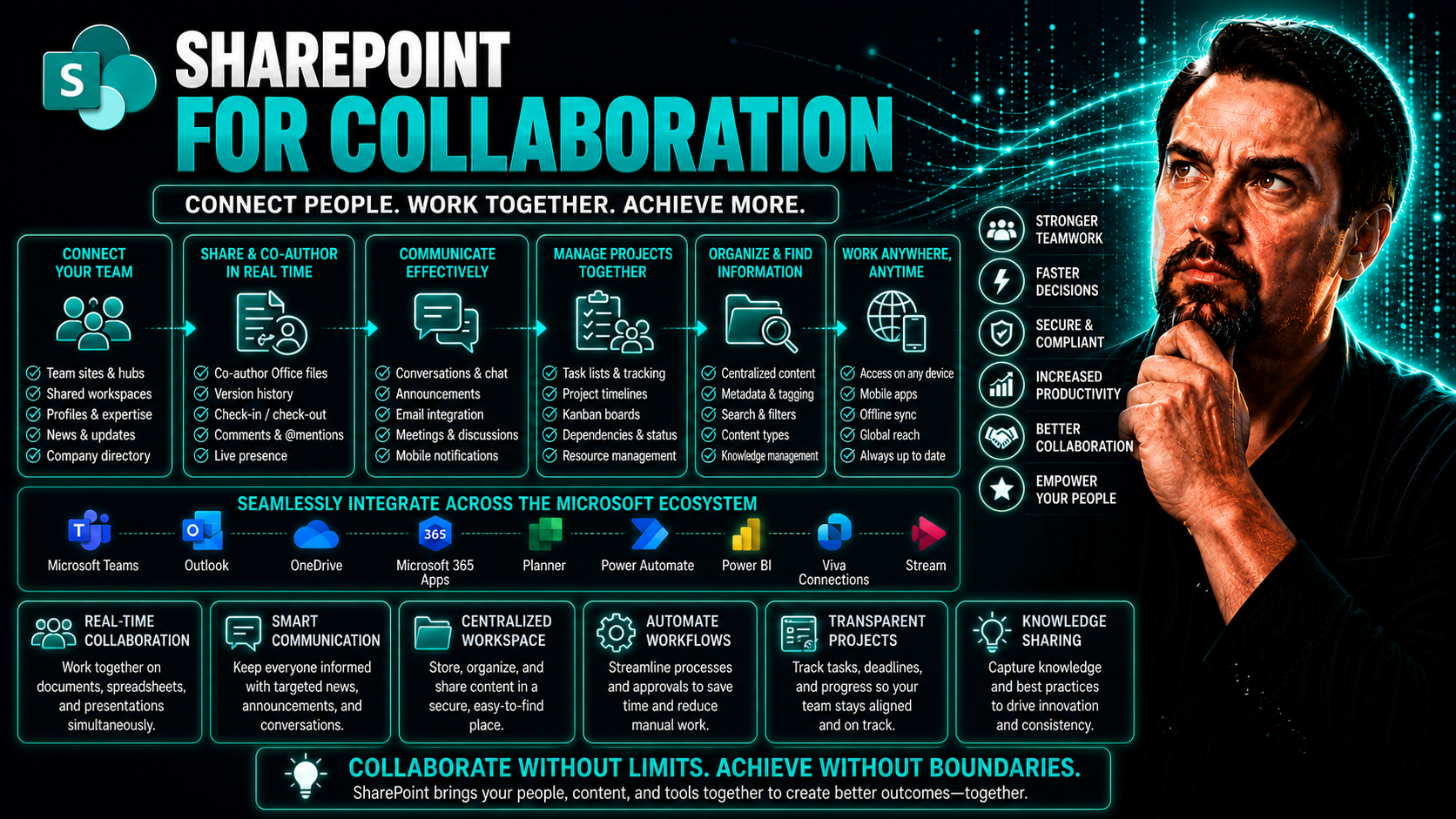
SharePoint isn’t just a place to stash your documents—it’s the engine that powers teamwork across Microsoft 365. Whether you’re in the office or halfway across the world, SharePoint keeps everyone connected, organized, and focused. It weaves together your files, conversations, and project spaces into a unified digital workplace.
This article breaks down exactly how SharePoint transforms collaboration: from real-time document editing, seamless Microsoft Teams and Office integrations, to secure site management and flexible remote access. You’ll discover both the must-have features and the advanced tools that help your teams work smarter, not harder. If you’re looking to build a productive, well-governed, and future-proof collaboration environment—consider this your practical guide.
What Is SharePoint Collaboration and Why It Matters
SharePoint collaboration means using Microsoft’s SharePoint platform to bring teams together for shared work in the digital age. It’s a shift from the old days of network drives and email attachments. Now you’ve got a unified space where everyone can access, edit, and share files, updates, and ideas—all under one roof.
Centralizing your information and tools makes a difference. You cut down on document chaos, simplify finding what you need, and make sure nobody’s out of the loop. With SharePoint, structured data sharing means files are organized with clear permissions, so the right people get access and nothing falls through the cracks.
This is especially key for today’s hybrid and distributed teams. When some folks are remote and others are at HQ, SharePoint ensures everyone’s on the same page—literally and figuratively. Real-time updates, automated workflows, and easy-to-manage collaboration spaces drive better decisions, faster execution, and stronger alignment across your entire organization.
That’s why SharePoint remains the backbone for organizations looking to modernize teamwork, boost productivity, and empower users—no matter where they’re clocking in from.
SharePoint as the Foundation of Microsoft 365 File Collaboration
At the heart of Microsoft 365’s file collaboration is SharePoint. You might use Teams to chat, Word to edit docs, or OneDrive for your own files—but it’s SharePoint working quietly in the background making sure everything’s connected and secure.
Every file shared in Teams, every team document you open in Word online, and every collaborative workspace you join is powered by a SharePoint site. This backend engine doesn’t just store your files; it organizes them, secures them with permissions, and ensures everyone accesses the latest version from anywhere.
Because SharePoint sits at the center, your files are always accessible—no more digging through email attachments or wondering who has the “final” copy. It’s what allows seamless co-authoring, instant sharing, and unified search experiences across Word, Excel, PowerPoint, and Teams. Bring it all together, and you’ve got frictionless file management and true collaboration across the Microsoft ecosystem.
It doesn’t matter if your team is spread over different sites, departments, or even continents—SharePoint keeps your information safe, organized, and just a click away for everyone who needs it. That’s why it’s trusted as the central platform for unified file collaboration in Microsoft 365.
Core Collaboration Features That Empower Teams in SharePoint Online
SharePoint Online isn’t just a digital storage unit—it’s packed with collaboration features that change the way teams get work done. Whether your goal is smoother project management, faster document turnaround, or simply less time lost hunting for files, SharePoint Online pulls it all together.
At a high level, you’ll find tools for real-time editing, robust document library management, and tight Office integrations that work across web and desktop. These features help your team skip the back-and-forth of email attachments and jump right into co-authoring, commenting, and sharing feedback where it matters most.
But SharePoint’s real strength is how it unifies teamwork and productivity. It provides shared spaces for project collaboration, powerful search to surface what you need fast, and flexible permission controls to keep information flowing securely. All these capabilities work behind the scenes to help your teams stay on track and in sync, wherever they’re working from.
Next, you’ll see how SharePoint handles real-time collaboration, the best ways to organize team files, and the key features you should lean on to boost productivity day-to-day.
Real-Time Collaboration and Version Control in SharePoint
- Simultaneous Co-Authoring: SharePoint lets multiple users open and edit the same Word, Excel, or PowerPoint file at once. You see others’ changes as they happen, eliminating version conflicts and endless email back-and-forth.
- Real-Time Change Tracking: On-screen indicators show who is editing which part of the document. You can watch updates appear live, add comments, and even tag teammates directly for questions or feedback.
- Automatic Version History: Every edit is tracked in SharePoint’s version history. If someone makes a mistake or you need to revisit an earlier draft, you can restore or compare previous versions—no more losing critical information.
- Seamless Group Work: Real-time editing shortens review cycles. A marketing team can finalize a campaign plan together, HR can co-write policy documents, and project leads can collect input instantly. This makes team decisions faster and reduces bottlenecks.
- Control and Governance: Permissions keep private or sensitive files protected while allowing group collaboration. Admins can see who did what, when, and roll back changes as needed for compliance and peace of mind.
All these features work together to replace slow, siloed workflows with a streamlined collaboration model. No more “Is this the latest version?” headaches—SharePoint keeps you moving forward, together.
Best Practices for Document Library Management and Organization
- Organize by Purpose: Set up libraries for distinct projects, departments, or topics. This way, everyone knows where to put and find their files without a second guess.
- Smart Naming Conventions: Use consistent file names and folder structures. For example, adding date formats or project codes up front can make a big difference when searching or sorting files later on.
- Apply Metadata and Tags: Go beyond folders by tagging files with relevant details (like client name, document type, or status). This unlocks supercharged search, so content is always discoverable—even as libraries grow.
- Manage Permissions Carefully: Set granular access at library, folder, or even file level. Limit editing rights to maintain control over sensitive material, while making sure essential files are accessible to all who need them.
- Leverage Versioning and Check-in/Check-out: Enable versioning to track document changes, and use check-in/check-out for files where strict control is needed (such as legal contracts or regulatory documents).
- Regular Maintenance and Clean-Up: Schedule periodic reviews to archive outdated files and declutter libraries. This keeps your workspace fast and frustration-free.
Follow these best practices, and your SharePoint libraries won’t just house documents—they’ll become a reliable backbone for fast, efficient team collaboration.
Key Features That Drive Unified Teamwork and Productivity
- Powerful Search: Quickly locate any file, conversation, or page—no more wasted time or duplicate work searching through endless folders.
- Instant Alerts and Notifications: Stay in the loop on document updates, team mentions, or permission changes, so nothing gets missed or overlooked.
- Deep Office Integration: Open, edit, and co-author documents directly in Word, Excel, or PowerPoint—all changes sync seamlessly back to SharePoint.
- Flexible Permissions Control: Share files with confidence, setting who can view, edit, or share content inside and outside your team.
- Collaboration Workspaces: Each SharePoint site offers a dedicated hub for shared files, conversation threads, tasks, and updates—unifying projects in one place.
Together, these features break down silos and turn fragmented tasks into a streamlined, unified teamwork experience—all inside SharePoint.
Integrating SharePoint with Microsoft Teams and Office
SharePoint might be doing the heavy lifting in the background, but it truly shines when integrated with Microsoft Teams and Office apps. This trio forms the cornerstone of the modern digital workplace—and knowing how they work together helps you get the most out of every tool.
With Teams, every channel has a SharePoint site supporting its file storage, permissions, and sharing. That means when you drag and drop a file in Teams, SharePoint is actually running the show underneath, handling where the file lives and who can access it.
Office apps like Word, Excel, and PowerPoint plug seamlessly into SharePoint, letting you co-author and comment on files right from your browser or desktop. Even Outlook steps in, transforming old-school attachments into live SharePoint links for better versioning and hassle-free collaboration.
Coming up, you’ll see exactly how these integrations work, what makes them powerful, and how they help you stay organized, connected, and productive.
SharePoint as the Hub for Teamwork with Microsoft Teams Integration
Every Microsoft Teams channel—whether public, private, or shared—automatically gets its own SharePoint site to manage files and team content. When you add or update a file in a Teams channel, it lands right in the connected SharePoint document library.
This setup isn’t just convenient; it’s powerful. Files shared in Teams conversations are organized, searchable, and subject to SharePoint’s full suite of governance and security policies. That means you get one consistent source of truth for your documents, backed by granular permissions and built-in compliance features.
Shared channels make collaboration with other departments or even external partners seamless, all while keeping security tight. You can learn more about shared channel strategy in this guide comparing private and shared channels in Microsoft Teams. With SharePoint governing the files, you have confidence that nothing slips through the cracks.
This level of integration lets your teams collaborate confidently—in context, with files and conversation threaded together—supported by the robust structure of SharePoint Online underneath.
Seamless Microsoft Office Integration and Managing Attachments in Outlook
- Edit SharePoint Files Directly in Office Apps: Word, Excel, and PowerPoint natively open files stored in SharePoint—no downloading or reuploading. Just click and edit, right in the browser or desktop app. Changes are saved automatically, and everyone sees the latest version.
- Replace Attachments with SharePoint Links: Instead of sending bulky email attachments, share a link to your file on SharePoint. This helps control versions, avoids confusion, and enforces security permissions. It also keeps your mailbox slim and easier to manage.
- Boost Productivity in Outlook: SharePoint and Outlook now play nicely together, making it easy to insert cloud file links directly when drafting emails or calendar invites. Add in tools like Microsoft Copilot for Outlook—get more on that here—and your email game jumps a notch with smarter automation, reminders, and compliance.
- Integrated Collaboration Workflow: Comment on and co-author documents in Office, then loop in your team via Teams or Outlook—all without ever leaving the SharePoint file. Everything stays organized, and everyone stays in the loop.
When you embrace these integrations, you get a smoother, more connected way to handle documents and communication across your entire team.
How Shared Channels and Secure External Teams Collaboration Work
- Cross-Organization Sharing: Teams shared channels use SharePoint to store and govern files, so you can collaborate with partners or customers outside your company without risking sensitive info.
- Granular Permissions: SharePoint lets you set who can view, edit, or share files—even in cross-company scenarios. This means you can fine-tune access for each member or guest.
- Protected Collaboration: Built-in security controls keep external sharing safe, while audit trails track every action—a detailed comparison of private vs. shared channels is outlined here.
With this model, teamwork extends beyond your organization, but data privacy and control stay firmly in your hands.
Access, Sync, and Mobility: Work from Anywhere with SharePoint
Modern work rarely sticks to a single desk or device—and that’s where SharePoint’s mobility features outshine old-school solutions. Whether your team is fully remote, working hybrid days, or always on the move, SharePoint ensures your files are never out of reach.
With SharePoint, you can access documents securely from any browser, phone, or tablet. Syncing features let you download libraries for offline work, automatically updating changes when you reconnect. This keeps everyone productive—even if someone’s on a plane, offsite, or just dealing with spotty Wi-Fi.
OneDrive plays a crucial part by serving as your personal window into all your SharePoint and team files. It’s not just about convenience—it’s about making sure the flow of work never breaks, no matter your setup or location.
Up next, you’ll see how offline sync works, OneDrive’s role in simplifying file access, and the best practices for staying connected and up-to-date across devices.
Sync Files for Offline Access and Automatic Library Updates
- Sync Document Libraries: With a simple click, you can sync any SharePoint document library to your local computer using OneDrive. This creates a folder in your File Explorer (or Finder on Mac) that’s always in sync with the cloud.
- Edit Files Offline: Once synced, you’re free to view and edit files—even if you lose internet access. Traveling? No problem. Updates made offline are saved and automatically uploaded to SharePoint the next time you’re online.
- Automatic Updates Across Devices: Changes aren’t just limited to one device. Edit a file on your laptop in the morning, and pick up where you left off on your phone in the evening. SharePoint and OneDrive keep everything current across all your gear.
- Easy Setup and Management: Setting up sync takes just a few clicks from any SharePoint library. You can manage which folders to sync (so you don’t fill up your hard drive!) and check sync status anytime from the OneDrive icon.
- Always Access the Latest Versions: Because all edits and file additions sync automatically, your team never needs to worry about out-of-date copies or lost updates—saving time and stress.
This approach keeps your team efficient, mobile, and always ready to jump on urgent work—wherever you find yourself.
Access All SharePoint and Team Files Through OneDrive
OneDrive acts as your personal launchpad for Microsoft 365 files. With a single sign-in, you see both your own files and everything shared with you from SharePoint sites and Teams channels.
This unified view helps you find and open documents instantly, whether you’re on a laptop, phone, or tablet. By streamlining file discovery and access, OneDrive removes friction, boosts productivity, and supports today’s flexible workstyles.
Security, Governance, and Site Management in SharePoint Collaboration
No matter how easy it is to collaborate, security and governance are non-negotiable. SharePoint provides enterprise-grade tools that keep your content protected, your users compliant, and your organization accountable.
This means robust permission settings, secure sharing options, and controls for making sure only the right people access the right data. Site provisioning and lifecycle management help admins keep things organized and reduce chaos as teams grow. And with migration and multi-geo features, your business can manage data residency to meet even the strictest global compliance policies.
Governance isn’t only about box-ticking—it’s about building trust and accountability. If you’re interested in turning chaos into confident collaboration, see how governance strategies work in platforms like Teams here. Up next, we’ll look at how SharePoint locks down your data, makes site management a breeze, and supports compliant collaboration on a global scale.
Protect Content with Enterprise-Grade Security and Secure Sharing
- Granular Permissions: SharePoint lets you set access at every level—site, library, folder, or file. You can decide who can view, edit, or share content, ensuring sensitive information stays protected.
- Encryption and Compliance: All files in SharePoint are encrypted in transit and at rest, meeting tough industry standards for data security and compliance (HIPAA, GDPR, etc.).
- Secure External Sharing: You can safely share files outside your organization using invite-only or guest access—complete with expiry dates and download restrictions.
- Advanced Management Tools: For administrators, SharePoint supports audit logs, retention policies, and customizable settings to control guest access and sharing. For even deeper security hardening, check the best practices outlined here.
- Automated Data Loss Prevention: SharePoint works with Microsoft Purview DLP and Conditional Access policies to prevent leaks and unauthorized downloads, as highlighted in the podcast above.
Combined, these tools give users confidence to collaborate—without risking data exposure or compliance slip-ups as the organization grows.
Site Provisioning, Governance Controls, and Multi-Geo Capabilities
- Automated Site Creation: Use templates and automated workflows to create new SharePoint sites with predefined settings and permissions. This cuts down errors, enforces standards, and gets teams started quickly.
- Policy-Based Governance: Establish organization-wide rules for sharing, access, and document retention. With automation tools like Power Automate and Graph API, you can manage lifecycle events (site archiving, owner nudges) proactively—detailed guidance can be found here.
- Multi-Geo Data Residency: For global organizations, multi-geo capabilities let you store data in specific regions to meet local regulations and compliance. Admins can assign sites to particular geographies and ensure privacy requirements are met.
- Monitoring and Oversight: Built-in dashboards, reports, and activity logs offer transparency for IT admins. You can spot unusual access, track sharing trends, and ensure every site aligns with corporate policies.
Strong governance doesn’t just keep you safe—it makes collaboration smoother, more equitable, and easier to scale.
Migration Tools and Managing Multi-Geo Storage in SharePoint
- SharePoint Migration Tool: Microsoft offers dedicated migration tools for moving files from on-premises servers or other cloud platforms to SharePoint Online, maintaining integrity and security.
- Third-Party Solutions: Pick best-in-class partners for more complex migrations involving metadata, permissions, or legacy systems.
- Multi-Geo Storage Management: Assign sites and document libraries to appropriate regions; regularly review data residency and site usage for compliance with US and international regulations.
Using these tools and best practices, you can modernize your file setup while staying secure and compliant around the globe.
Creating Shared and Secure Team Spaces: A Practical Scenario
Let’s make it real—setting up a collaborative SharePoint site for your team is both practical and powerful. Whether you’re launching a product, managing a project, or handling department workflows, a well-built site becomes your team’s digital home base.
Setting permissions, organizing files, and plugging in communication tools (like Teams or Yammer) turn the site into a living workspace. This supports everything from brainstorming sessions to version-controlled document libraries and structured task lists.
It’s not just about tossing files in a folder. Combining governance, file sharing, and built-in chat lets your team move from scattered email threads to coordinated teamwork. For project-heavy teams, learn about step-by-step setup using SharePoint and Power Automate for governance and workflow efficiency in this comprehensive project organization guide.
Good practice means building with purpose: thinking about roles, security, and how your people will actually use the space day-to-day. Up next, you’ll see examples, templates, and ways to help your team thrive in SharePoint.
Site Creation Ideas and Templates for Effective Collaboration
- Project Workspace: Centralize schedules, files, and updates for all team members.
- Department Hub: Organize recurring resources and internal news for Sales, HR, or IT.
- Event Planning Site: Manage logistics, vendor docs, and team checklists for company events.
- HR Collaboration Hub: Secure onboarding, policy, and review documents for privacy and compliance.
- Marketing Campaign Site: Collect assets, timelines, and approval flows for each initiative.
Training Resources and Support for SharePoint Collaboration Success
- Official SharePoint Training Portal: Dive into Microsoft’s tutorials and guides for every experience level.
- Built-in Help and FAQ: Use the “?” icon in SharePoint for instant how-tos and troubleshooting.
- Community Support Forums: Exchange tips with users and admins who’ve faced the same challenges.
- Feedback Options: Submit suggestions or concerns directly in the SharePoint app for continuous improvement.
- Role-Based Learning Paths: Tailor adoption resources for end users, site owners, and IT teams.
New and Upcoming Enhancements for Future-Ready SharePoint Collaboration
- AI-Powered Search and Recommendations: Intelligent search tools now suggest relevant files and pages before you even finish your query, boosting productivity and surfacing buried content. See more ways to leverage Copilot in Microsoft 365 here.
- Copilot Integration Across SharePoint and Teams: AI agents automate mundane tasks, summarize meetings, and streamline workflow approvals for users and admins. These enhancements are breaking boundaries in collaboration—read more about how Copilot weaves through meetings and automation here.
- Modernized Page Editing: Enhanced design tools make it easier to create engaging SharePoint pages, supporting everything from simple announcements to dynamic dashboards.
- Deeper Third-Party App Integration: New APIs and connectors let you pull in data and workflows from external tools, keeping SharePoint at the center of your business processes.
- Granular Site Analytics: Improved tracking helps admins and managers understand usage trends, site engagement, and collaboration patterns across hybrid teams.
These updates position SharePoint as a future-ready platform, delivering smarter, more connected teamwork as your needs evolve.
Want More Options? Advanced Management and Sharing Capabilities
- Custom Site Policies: Set up advanced guidelines for retention, sharing, and content lifecycle unique to each team or department.
- Enhanced Automation with Power Platform: Build approval flows, reminders, and integrated dashboards tailored to specific projects or processes.
- Integration with Third-Party Apps: Extend SharePoint’s capabilities by connecting CRM tools, analytics, or ticketing systems through APIs and connectors.
- Advanced Permission and Sharing Scenarios: Fine-tune access, automate approval for guest users, and apply sensitivity labels to keep content secure without slowing collaboration.
- Explore Organization-Wide Governance Options: Find more ways to manage and secure complex collaboration environments, like those outlined for Teams here.
These capabilities help organizations scale beyond “just the basics” to build frictionless, governed, and highly personalized collaboration experiences in SharePoint.
You Should Also Listen To
Using SharePoint for collaboration effectively requires shared ownership, clear access boundaries, usable information architecture, lifecycle controls, and integration with Teams and workflows. Listen next to:
- Stop SharePoint Sprawl with Data and Automation Governance — Learn how ownership, lifecycle, architecture, and automation keep SharePoint environments manageable.
- Audit Microsoft 365 Data Access Before Deploying Copilot — See how permissions, ownership, and data boundaries affect collaboration and AI readiness.
- Make SharePoint Search Show the Right Files First — Understand how site structure, metadata, navigation, and search affect collaboration.
- Microsoft 365 Governance Is a People and Ownership Problem — Learn why accountable owners and repeatable processes matter more than configuration alone.

Microsoft MVP | Host of M365.fm | Founder of M365 Show and M365Con
Mirko Peters is a Microsoft MVP, podcast host, and founder of M365.fm, M365 Show, and M365Con. His work connects Microsoft practitioners through podcast interviews, livestreams, and community events.
At M365.fm, Mirko hosts conversations with Microsoft MVPs, product experts, architects, and community contributors. Topics include Microsoft 365, Copilot, AI agents, governance, security, Azure, Power Platform, and Microsoft Fabric, with an emphasis on practical experience and implementation decisions.
M365.fm is the podcast and learning platform. M365 Show brings experts together for livestreams, while M365Con provides an online conference setting for community learning.
Official website: Mirko Peters (https://www.mirkopeters.com/). Recognition: Mirko Peters — Microsoft MVP profile (https://mvp.microsoft.com/de-DE/mvp/profile/9b0ca797-db5a-493a-a845-8b9158046cf5). Connect on LinkedIn (https://www.linkedin.com/in/m365showpodcast/).