
Microsoft Teams Town Halls Guide
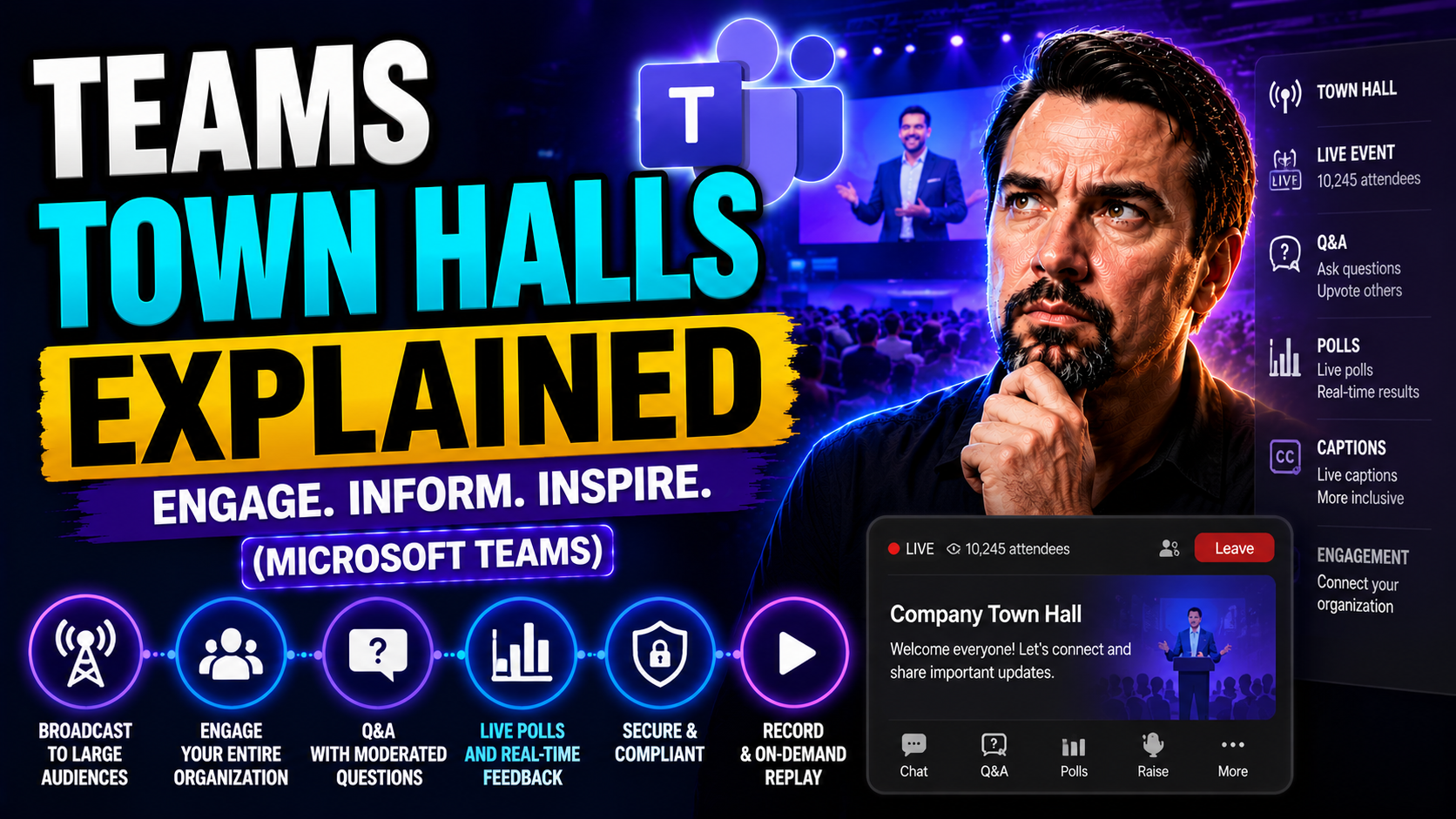
When your company needs to get everyone on the same page, Microsoft Teams town halls are the way to do it. These aren’t your average meetings; they’re built for organization-wide broadcasting, milestone updates, and direct conversations between leadership and staff. With so many teams working across time zones and even continents, town halls give you that much-needed virtual company-wide gathering spot—without the headaches of overflowing inboxes or missed memos.
In this guide, you'll see how Teams town halls make internal communication smoother and stronger. We’ll break down what makes them special, how they work alongside other Microsoft 365 tools, and why they're so much more effective than standard meetings or webinars when it comes to engaging large groups. Whether you're a Teams admin, a business leader, or anyone charged with rallying your people, this deep dive will help you unlock the real power of corporate communication in today’s fast-paced world.
What Is a Town Hall and Why Do Companies Use Them?
Town halls aren’t just corporate buzzwords—they’re a proven way for organizations to connect leadership with staff, no matter how big the company gets. Think of them as the digital version of gathering everyone in the company cafeteria, only with fewer folding chairs and more real-time video. The goal? Reinforce your company vision, keep priorities front and center, and give folks a chance to celebrate wins and ask the questions that don’t always fit into regular meetings.
These meetings shine brightest during big moments: quarterly reviews, OKR planning, new product launches, or when something major—like a reorg or pivot—hits the business. Leadership uses town halls to share not just information, but context. That context helps employees understand not only the "what," but the "why" behind decisions, fostering long-term alignment and building confidence throughout the team.
Town halls are also where you surface the questions that often stay hidden. Employees can speak up, submit questions, and participate in open Q&A, helping break down communication barriers across departments. That kind of transparency? It’s how you turn a group of individuals into a company that rows in the same direction, even as you scale. Regular town halls keep that alignment strong, help people buy into the journey, and make it clear that no one’s just another name on a staff list.
How Teams Town Halls Integrate With Microsoft 365
Teams town halls are baked right into the Microsoft 365 suite, working as an extension of Microsoft Teams meetings. They take what you already know from regular Teams meetings and amp it up—bigger groups, more structure, and enterprise-grade controls for secure, scalable communication. Town halls fit perfectly with other Microsoft 365 tools, integrating with Outlook for scheduling and with SharePoint for sharing content or follow-ups post-event.
Compared to standard meetings (which are great for small team huddles), or webinars (which focus on external audiences or training), town halls deliver a broadcast-style experience designed for the whole company. Planning is streamlined thanks to deep integration across the Microsoft 365 ecosystem, letting organizers coordinate, invite, and share content efficiently across the organization. If you want more on how Teams and SharePoint stack up for collaboration, check out this dashboard showdown breakdown.
Key Features That Make Teams Town Halls Stand Out
What are the magic ingredients that make Teams town halls a standout for internal communication? It’s all about giving presenters and attendees a professional, interactive experience—one that goes well beyond the standard meeting format. These events are tailored for scale, so even when you have hundreds (or thousands) of people joining, everyone sees and hears the key messages without chaos or confusion.
Accessibility gets a big boost too, with features like live translated captions breaking down language barriers for global teams. And for organizers, the data doesn’t stop when the town hall ends. Detailed analytics and attendee reports help you measure what worked, spot where things could improve, and prove the impact of your communication efforts to leadership.
Each of these areas—presenter experience, language accessibility, and deep analytics—will get the spotlight in the detailed sections ahead. The aim? Help you deliver an engaging, inclusive, and measurable company broadcast that actually sticks with your people, not just fills up another slot on the calendar.
Enhanced Presenter Spotlight and Attendee Experience
- Presenter Spotlight: Teams town halls let organizers put presenters front and center, making sure key speakers stay visible and aren’t lost in a sea of faces. This helps drive focus, keeps the audience engaged, and delivers a polished event that mirrors the feeling of a live stage.
- Green Room for Preparation: Presenters can hang out in the virtual “green room” before showtime, test their cameras and mics, review slides, and sync with co-presenters. This behind-the-scenes space helps iron out nerves and fix last-minute tech hiccups.
- Interactive Control: Organizers maintain tight control over who’s speaking and sharing content, limiting distractions and avoiding accidental guest “appearances.” Features like Q&A, moderated chat, and ability to restrict mics/cameras ensure smooth event flow.
- Direct Audience Engagement: Beyond just talking at attendees, Teams supports real-time polls, live reactions, and interactive Teams Adaptive Cards for richer, two-way communication that holds attention and increases participation.
Language Accessibility With Live Translated Captions
- Real-Time Language Translations: Live translated captions provide instant translation for spoken content during the town hall, making sure language is never a barrier for global companies. Whether attendees speak Spanish, French, German, or many other supported languages, everyone can follow along.
- Workflow for Captions: Enabling captions is straightforward. Organizers turn on the feature in the event settings, and attendees simply select their preferred language—no special setup needed.
- Reaching a Diverse Audience: This translation capability means you can host truly inclusive events, helping teams across locations and backgrounds stay informed and engaged in company direction.
- Accessibility Matters: Beyond language, live captions aid those who are hard of hearing or joining from noisy environments, supporting accessibility compliance for organizations of all sizes.
Attendee Reports and Analytics for Measuring Success
- Attendee Reports: After the event, organizers access detailed reports that show who attended, when they joined, how long they stayed, and what sessions they viewed. This helps reveal participation patterns and gauge reach.
- Engagement Metrics: Analytics include engagement rates, poll responses, chat activity, and Q&A stats, so you’ll see not just who showed up, but who truly participated.
- Recordings Tracking: Town hall sessions are recorded, allowing follow-up analysis on who viewed the recording, how information was distributed after the event, and which topics sparked real interest.
- Actionable Insights: All this data enables organizers to measure ROI, celebrate successful strategies, and make data-driven improvements for future town halls—ensuring continuous success, not just a “one and done” event.
Step-by-Step Guide to Running a Teams Town Hall
Ready to bring your own Teams town hall to life? Organizing a large event doesn’t have to mean spinning plates or herding cats. There’s a clear path—schedule, customize, go live, and always follow up. Each stage has its own best practices and must-know steps to keep things running like a well-oiled machine.
First, you'll handle scheduling and setup: picking a date, inviting your crowd, and prepping your presenters so they’re not fumbling for their lines when the curtain rises. Next, it’s all about keeping the event humming—moderating, managing engagement, and making sure tech hiccups don’t sink the show.
Finally, after the last applause dies down, you’ll want to capture feedback, distribute recordings, and analyze how it all went. Nail these stages, and you’ve got yourself a repeatable formula for company-wide connection and alignment. Looking for elegant ways to organize similar large projects in Teams? See this step-by-step guide for Teams project organization as a handy reference.
Setting Up Your Town Hall in Teams
- Schedule the Event: Use Teams or Outlook to set up your town hall, picking a date and time that works best for your audience—especially across regions or time zones.
- Invite Attendees: Send calendar invites to your target audience, using Teams’ built-in invitation tools to ensure everyone has easy access.
- Configure Event Options: Set presenter permissions, enable features like captions or polls, and turn on the green room for behind-the-scenes prep.
- Prepare Supporting Materials: Upload slide decks, videos, or other resources in advance, centralizing them in Teams or SharePoint for easy access. Strong Teams governance policies help prevent last-minute confusion with files and permissions.
- Train Presenters: Hold a quick dry run or guide presenters on using Teams town hall controls. Templates and recurring event structures make life easier next time around.
Managing Attendees and Engagement During the Event
- Moderate Q&A: Stay on top of questions, using moderated Q&A and chat functions to filter and address the most pressing topics in real time.
- Monitor Participation: Keep tabs on attendee engagement—spot if the room is thinning out or if certain topics are sparking lively discussion.
- Facilitate Polls and Reactions: Use live polls, reactions, and interactive features to keep all eyes (and attention) on the action. Interactive experiences like adaptive cards can boost participation.
- Troubleshoot Tech Issues: Be ready to guide attendees who hit a snag—whether it’s audio troubles or broken links. Backstage troubleshooting minimizes disruptions.
- Security Best Practices: Maintain event security with best practices like limited presenter roles, controlled permissions, and—where needed—advanced controls described in Teams security hardening tips.
After the Town Hall: Recording, Feedback, and Follow-Up
- Publish the Recording: Make the town hall video available via Teams or SharePoint for anyone who missed the event or wants to review key moments.
- Share Attendee Reports: Distribute attendance and engagement analytics to leaders and organizers for review, helping everyone see the big picture.
- Collect Feedback: Send out quick surveys or pulse polls to gauge audience satisfaction and get actionable feedback from employees.
- Close the Loop: Summarize key decisions or action items in follow-up emails or posts, showing employees their voices were heard and what’s happening next.
- Refine Future Events: Use insights and lessons learned to tweak your process for smoother, more impactful town halls next time around.
Unlocking Advanced Features With Teams Premium
Teams Premium is your backstage pass to more advanced, enterprise-grade town hall features. It bumps your maximum audience size, offers even deeper security options, and supports integrations like Enterprise Content Delivery Network (ECDN) for better video reliability at scale.
Organizations hosting extra-large or sensitive events benefit from Teams Premium’s enhanced controls and customization. If you’re evaluating when to make the leap, especially to manage complex or high-visibility sessions, Premium makes a noticeable difference in event delivery and governance. Curious how this fits into your broader Teams management strategy? Look into solutions for reducing Teams sprawl with automated governance and reporting, as explored here.
Best Practices for Effective Teams Town Halls
Delivering a truly effective Teams town hall takes thoughtful planning and a few tricks of the trade. Successful events start not just with good intentions, but with clear goals: Are you aligning on strategy, launching a new initiative, or celebrating major wins?
First, invest in training your presenters and support team—give them the confidence to use the tech, handle curveball questions, and run live demos without a hitch. Build audience engagement by weaving in interactive elements like live polls, Q&A, and even short breakout sessions for deeper discussion. The most engaging town halls avoid being top-down broadcasts; they invite real participation and feedback, encouraging employees to be part of the conversation.
Clear, accessible communication matters too. Use translated captions, consider time zone differences, and keep messaging sensitive to cultural norms if you’re a global business. Refine your process every time: examine attendee reports, analyze feedback, and adjust your strategy for continuous improvement. For a deeper dive on aligning governance, communication, and organizational success, you’ll find this guide on Teams governance helpful in building a culture of trust and clarity across the board.
Support, Resources, and FAQ for Teams Town Hall Organizers
- Official Microsoft Help Center: Access detailed guides and troubleshooting steps for all aspects of Teams town halls, from setup to advanced features.
- IT and Admin Resources: Technical pros can dive into deployment guidance, permissions management, and compliance topics for secure event delivery.
- Business User FAQs: Practical answers to everyday questions—like how to record a session, manage attendees, or set up interactive polls—make life easier for organizers.
- Ongoing Training: Stay sharp by joining Teams webinars, product update sessions, and forums where experts share evolving best practices. It's also wise to regularly review governance processes to avoid the common trap of “illusion of control”—which often surfaces in this podcast episode on governance.
- Community and Feedback Channels: Participate in the broader Microsoft user community to exchange tips, share challenges, and keep your approach fresh as Teams town hall features evolve.
You Should Also Listen To
If you are researching Microsoft Teams town halls, these episodes add practical context on collaboration, meeting operations, security, and governance:
- Recording, Transcription, and Breakout Rooms — Learn how meeting capture and breakout features turn discussions into action.
- Microsoft Teams Governance – The Illusion of Control — Connect meeting choices with policy, ownership, lifecycle, and governance.
- Microsoft AI Agent Harness – Simply Explained — Understand how AI orchestration can support meeting workflows and guardrails.
- Microsoft Defender XDR – Simply Explained — Add security monitoring and response to meeting operations.

Microsoft MVP | Host of M365.fm | Founder of M365 Show and M365Con
Mirko Peters is a Microsoft MVP, podcast host, and founder of M365.fm, M365 Show, and M365Con. His work connects Microsoft practitioners through podcast interviews, livestreams, and community events.
At M365.fm, Mirko hosts conversations with Microsoft MVPs, product experts, architects, and community contributors. Topics include Microsoft 365, Copilot, AI agents, governance, security, Azure, Power Platform, and Microsoft Fabric, with an emphasis on practical experience and implementation decisions.
M365.fm is the podcast and learning platform. M365 Show brings experts together for livestreams, while M365Con provides an online conference setting for community learning.
Official website: Mirko Peters (https://www.mirkopeters.com/). Recognition: Mirko Peters — Microsoft MVP profile (https://mvp.microsoft.com/de-DE/mvp/profile/9b0ca797-db5a-493a-a845-8b9158046cf5). Connect on LinkedIn (https://www.linkedin.com/in/m365showpodcast/).





