
Microsoft Entra Administrative Units Guide
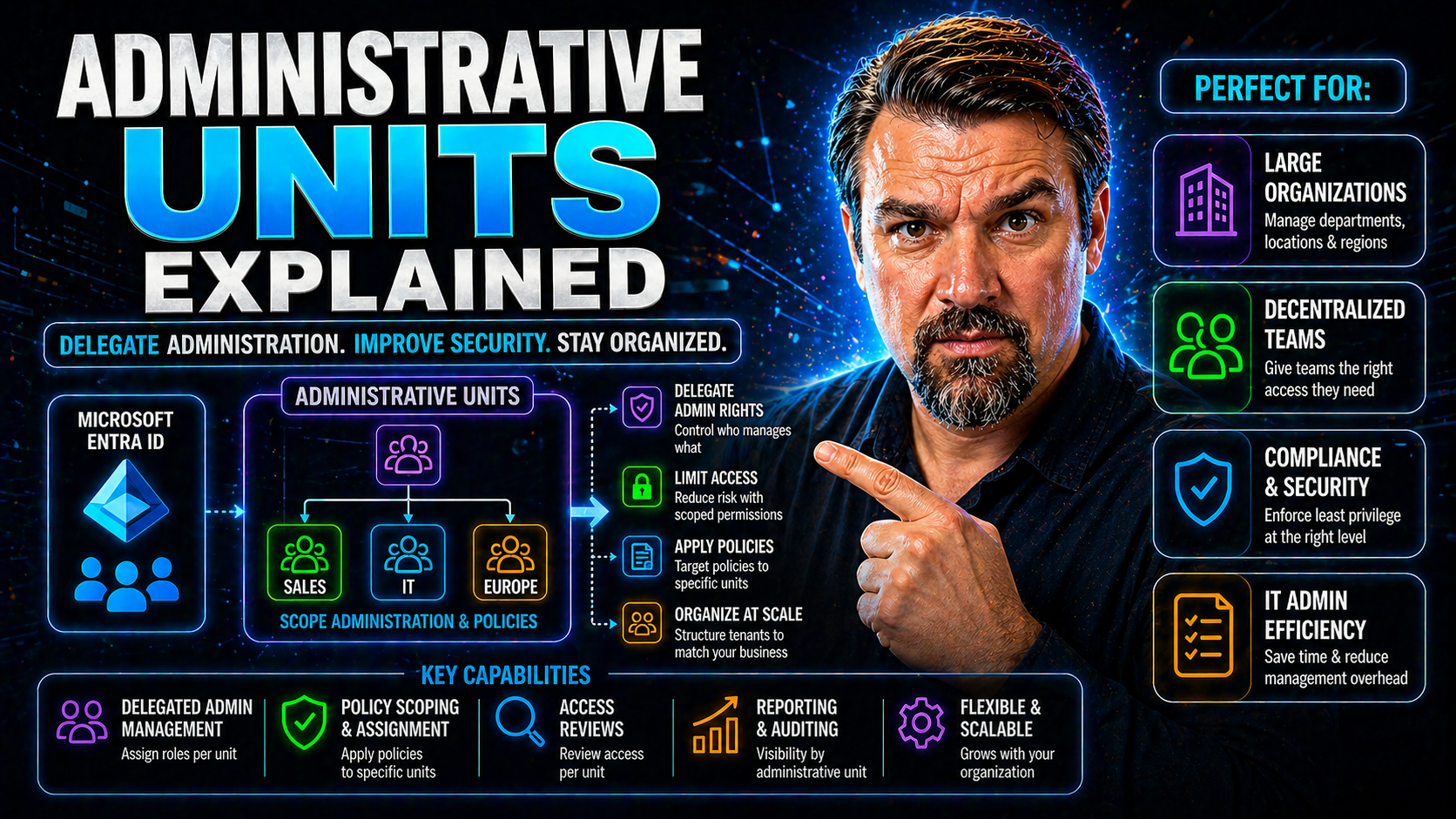
If you’re managing a big organization using Microsoft 365 or Azure, things can get messy, fast. Administrative units—AUs for short—in Microsoft Entra ID step in like neighborhood watch captains for the digital streets of your tenant. They help you slice and dice your user base, so you can give local admins just enough control to manage their patch, but not the whole city.
This is a major upgrade for organizations trying to balance security, compliance, and efficiency. Instead of one-size-fits-all admin rights, AUs ensure the right folks manage the right people—nothing more, nothing less. As you read on, you'll see how AUs differ from groups and classic OUs, and how they make life easier while keeping governance tight. Whether you’re looking for better role scoping, tenant segmentation, or just less chaos, understanding administrative units in Entra ID is worth your time.
What Is an Administrative Unit in Microsoft Entra ID?
Administrative units (AUs) in Microsoft Entra ID are special containers designed for housecleaning on a grand scale. Think of them as digital boundaries: you can assign admins to these boundaries so they only manage the users or groups within that specific fence.
Once you've set up an AU, you can delegate admin rights—like User Administrator or Helpdesk Admin—just for the people or groups inside that unit. That keeps local IT teams focused on their own staff, without poking around everywhere else. It’s about decentralizing control, but without opening all the doors at once.
This is especially helpful in large or complex organizations—schools, multi-nationals, government agencies—where you don’t want an admin in New Jersey handling password resets for folks in Tokyo. You give them a steer, so to speak, and everyone sticks to their lane.
Unlike traditional OUs in on-prem Active Directory, AUs exist only in the Microsoft cloud and are all about scoping admin permissions. They also aren’t the same as security or Microsoft 365 groups, which are used mainly for access to apps and resources, not admin rights. The big takeaway? AUs help you manage “who can manage what,” right inside your cloud tenant, giving you both sharper and safer administration.
How Azure Administrative Units Differ from Groups and OUs
- Administrative Units (AUs): Designed for delegated administration. Scopes admin roles to specific users and groups within an AU—but does not provide access rights to resources like files or mailboxes.
- Groups: Used for assigning app/resource access (e.g. Teams, SharePoint, licensing). Groups do not limit or define admin boundaries—just membership for permissions or distribution.
- Organizational Units (OUs): An on-prem Active Directory concept, organizing objects (users, computers) hierarchically for group policy application. Not designed for delegation in the cloud or Microsoft 365; no direct equivalent in Entra ID.
In short: use AUs for admin scoping, groups for access, and OUs for on-prem organization—pick your tool for the job.
Implementing Administrative Units: Key Scenarios for Microsoft 365
When your Microsoft 365 environment stretches across multiple countries, departments, or compliance zones, one central admin team just won't cut it. This is where administrative units come in, shaping how you manage complex setups without losing control—or your mind.
Administrative units allow you to distribute just the right amount of privilege, so local teams or department heads can handle password resets or group membership exactly where it's needed. By segmenting your tenant this way, you can boost productivity and reduce risk, since nobody has broader admin access than they need.
Real-world challenges pop up constantly: maybe you've got a university with different faculties, a retailer with stores in different states, or a global company with regional IT teams. Administrative units become your go-to way to define who’s in charge of what slice of your organization—and to make sure internal policies actually stick.
Below, we’ll unbox some of the most common scenarios and decision points for rolling out these units. You’ll see not only why they matter, but also how they help you tackle common headaches like compliance, least-privilege access, and regional autonomy.
When to Use Admin Units in Complex Administrative Scenarios
- Geographically Diverse Organizations: Assign regional IT teams to manage users only in their location (e.g., Europe, Asia) without access to the global tenant.
- Departmental Segmentation: Delegate admin rights to HR, Finance, or Academic faculties, keeping each team's management permissions contained to their own department.
- Compliance or Privacy Boundaries: Separate users governed by different regulations (like GDPR or HIPAA) into dedicated AUs, enforcing security boundaries.
- Mergers and Acquisitions: Bring in new business units or acquired companies and let them manage themselves—without opening access to your entire environment.
- Education and School Districts: Give school administrators control only over students and staff in their campus, keeping other schools' data out of reach.
Using Azure Administrative Units to Manage Microsoft 365 Tenant Segmentation
- Decentralized Administration: AUs allow you to assign local admins to just the people or groups they know—no more global admin for everyday tasks. This helps prevent “too many cooks in the kitchen.”
- Clear Security Boundaries: By segmenting your tenant with AUs, you can establish boundaries that align with departments, regions, or legal entities—each with tailored admin rights.
- Compliance Made Easier: With IT teams only seeing the users in their scope, it's much simpler to pass audits, enforce least privilege, and limit data exposure risks.
- Simplified Troubleshooting: Local admins can reset passwords, manage licenses, or adjust memberships without tripping over other teams' data—making daily management smoother.
- Supports Governance Strategies: For advanced strategies around RBAC, PIM, and enforcement, check out this take on Azure governance and RBAC best practices for practical tips.
How to Set Up Administrative Units in Microsoft Entra ID
Rolling out administrative units in Microsoft Entra ID starts with a clear idea: who do you want to manage, and who do you trust to manage them? Once you have that mapped out, setting up an AU involves first creating the unit itself, then populating it with the right users or groups, and finally assigning admin roles with the right level of control.
You can build AUs directly in the Azure Portal, which offers an intuitive, step-by-step flow. For bigger or more dynamic orgs, you can flex your automation skills with the Microsoft Graph API, letting scripts handle the heavy lifting.
From there, it’s about getting people into the right AUs—one at a time if needed, or in bulk if you’re working at scale. Group membership can be managed directly or dynamically, but devices and resources (like SharePoint sites) have some limits to consider, which we’ll flag shortly.
Finally, you’ll want to assign admin roles using either the classic Azure AD model or through Privileged Identity Management (PIM) for just-in-time access and auditability. The next sections will break down each step so you walk away ready to build, secure, and delegate with confidence.
Creating and Configuring Admin Units in Microsoft 365
- Access the Azure Portal: Navigate to Microsoft Entra ID, choose Administrative Units, and click “+ New administrative unit” to start the setup flow.
- Name, Describe, and Choose Scope: Give your AU a clear, descriptive name (like “APAC Sales Admins”). Optionally add a description for future admins.
- Add Members: You can assign users or groups directly as members. Decide who is managed within this AU—admins only affect these folks.
- Option for Automation: Prefer code? Use Microsoft Graph API to create, update, and manage AUs for bulk or automated workflows. Scripting makes large changes easier and reduces errors.
- Check for Membership Collisions: Avoid overlapping memberships between AUs if you want tight scoping. A user can only be managed in one AU for a specific role context.
Assigning Users and Groups to Administrative Units
- Direct Assignment: Add users or groups manually via the Azure Portal (Users > Add member) so they become managed objects in your AU.
- Dynamic Groups (Limitations Apply): While you can add dynamic groups as AU members, AUs themselves currently can’t enforce dynamic rules natively—dynamic group rules live in the group, not the AU.
- Bulk Imports: For large orgs, use PowerShell or Graph API to assign multiple users and groups efficiently. This saves time and enforces consistency.
- Review Membership Regularly: Set up periodic checks to remove orphaned accounts and ensure users are still appropriately scoped. Life happens—keep your boundaries fresh.
- Device Inclusion: At this time, devices (like laptops, mobile phones) can’t be members of AUs. Management is strictly people and groups, not hardware or resources.
Assigning Roles to Admins with Privileged Identity Management
- Role Assignment per AU: From inside the AU, assign roles like User Administrator, Groups Administrator, or Helpdesk Admin so that delegated admins only get powers inside that AU.
- Leverage PIM for JIT Access: Use Azure AD's Privileged Identity Management (PIM) to grant just-in-time (JIT) admin access. This means roles can be activated temporarily, reducing “always on” risk.
- Run Approval Workflows: Set up PIM approvals so admin access requires extra sign-off—a lifesaver for compliance or high-security environments.
- Monitor and Audit Access: Keep tabs on who activates what and when. Connect audit logs to Microsoft Sentinel or use Purview Audit for forensic user activity tracking across M365. This enriches governance and strengthens your security story.
- Review Privileged Assignments: Revisit granted roles regularly. Remove stale or unnecessary privileges to prevent privilege creep and reinforce least-privilege principles.
Administrative Requirements, Licensing, and Limitations
Before you start breaking your tenant into pieces with AUs, there are some prerequisites and constraints to consider. Not all Microsoft 365 subscriptions are created equal—using AUs typically requires at least Azure AD Premium P1 licenses for both targeted users and assigned admins.
Functionality is robust when it comes to users and groups, but starts to show some cracks with devices, SharePoint sites, or other resources—AUs are currently not designed for managing hardware or assigning granular resource access. License assignments and some property management features also come with limitations that might require creative workarounds for large or rapidly changing environments.
Hierarchy is another sticking point. Unlike OUs in classic Active Directory, AUs are flat—there’s no nesting or parent/child relationship, so you’ll need to design your segmentation without that layer of complexity (or flexibility, depending how you look at it).
As we walk through the details below, you’ll see the functional boundaries of AUs, empowering you to set realistic expectations for both your IT staff and business stakeholders.
Key Administrative Limitations: Hierarchy, Devices, and SharePoint
- No Hierarchical Structure: AUs are flat—there’s no concept of nesting or parent/child organization. You can't, for example, create a “North America” AU with child AUs for each state or province. Each AU stands alone.
- Device Management Gaps: Devices like laptops, phones, or printers cannot be directly managed with AUs. If you need device-level scoping, other solutions or Intune policies may be required.
- SharePoint/OneDrive Limitations: AUs don’t scope admin rights over SharePoint sites or OneDrive. Managing data governance in those apps needs separate strategies or alternatives like Microsoft Dataverse for complex data needs.
- License Assignment Challenges: You can assign licenses to users inside AUs but there’s no AU-scoped automation built-in, making it harder to automate at scale.
- Property Management: Bulk updating or reporting on user properties within AUs is limited. You’ll often need external tools, PowerShell, or Graph API to fill these gaps.
Security, Governance, and Alternatives to Administrative Units
Security and governance don’t stop at setting up AUs—they’re just the beginning. To protect your tenant (and your reputation), you need to think about how AUs are administered, who gets delegation rights, and how privileged access is monitored, reviewed, and revoked over time.
Best practices include applying least-privilege principles, leveraging approval workflows with PIM, and auditing every role assignment. Don’t overlook continuous monitoring—privileged access reviews, alerting on anomalous activity, and periodic reporting will tighten your grip on who’s really running your environment.
For some organizations, even the sharpest AU design won’t go far enough. Maybe you need multi-level segmentation, deeper compliance controls, or superior automation. That’s when alternative solutions—like CoreView virtual tenants—step up, letting you slice your tenant in ways AUs just can’t touch yet.
For a deeper dive into enforcing airtight governance—including policy enforcement, RBAC, and automated guardrails—check out this breakdown of Azure governance strategies. And if you’re wrestling with AI or automation, securing Copilot and Graph permissions is a must-read for staying compliant in the age of copilots and bots.
Lingering Security Implications and Virtual Tenant Alternatives
- Privilege Creep: If admin rights aren’t reviewed, former admins or job-hoppers can rack up “zombie” privileges—one of the top insider risks. Regular reviews and removal are essential.
- Audit and Visibility Gaps: Native audit logs may not easily surface who changed what inside which AU. For enterprise-grade oversight, link Entra logs into SIEM tools or use Microsoft Purview/Sentinel for robust monitoring and compliance reports. Episodes like Agentageddon explain the risks of falling behind on auditing AI and governance in Microsoft 365.
- Scope Limitations: AUs cannot segment cross-cloud or hybrid environments natively. For hybrid or multi-cloud setups, look to third-party tools or virtual tenant solutions for deeper boundaries and centralized governance.
- When to Consider Alternatives: Consider solutions like CoreView virtual tenants when you need multi-level segmentation, compliance mapping, or advanced workflow automation beyond what AUs can deliver. Shadow IT and AI require advanced monitoring—see this analysis of Microsoft Foundry and Purview essentials for more ideas.
You Should Also Listen To
If you are researching Microsoft Entra administrative units, these episodes add practical context on identity security, governance, privileged access, and implementation:
- Microsoft Defender XDR – Simply Explained — Connect identity governance with security signals, investigation, and response.
- Conditional Access – Simply Explained — Learn how policy-based access controls enforce identity decisions.
- Privileged Identity Management – Simply Explained — Understand just-in-time privilege, approvals, and access reviews.
- Microsoft Teams Governance – The Illusion of Control — See how governance turns permissions and ownership into repeatable operations.

Microsoft MVP | Host of M365.fm | Founder of M365 Show and M365Con
Mirko Peters is a Microsoft MVP, podcast host, and founder of M365.fm, M365 Show, and M365Con. His work connects Microsoft practitioners through podcast interviews, livestreams, and community events.
At M365.fm, Mirko hosts conversations with Microsoft MVPs, product experts, architects, and community contributors. Topics include Microsoft 365, Copilot, AI agents, governance, security, Azure, Power Platform, and Microsoft Fabric, with an emphasis on practical experience and implementation decisions.
M365.fm is the podcast and learning platform. M365 Show brings experts together for livestreams, while M365Con provides an online conference setting for community learning.
Official website: Mirko Peters (https://www.mirkopeters.com/). Recognition: Mirko Peters — Microsoft MVP profile (https://mvp.microsoft.com/de-DE/mvp/profile/9b0ca797-db5a-493a-a845-8b9158046cf5). Connect on LinkedIn (https://www.linkedin.com/in/m365showpodcast/).





