
Automating Business Actions with Fabric Data Activator and Power Automate
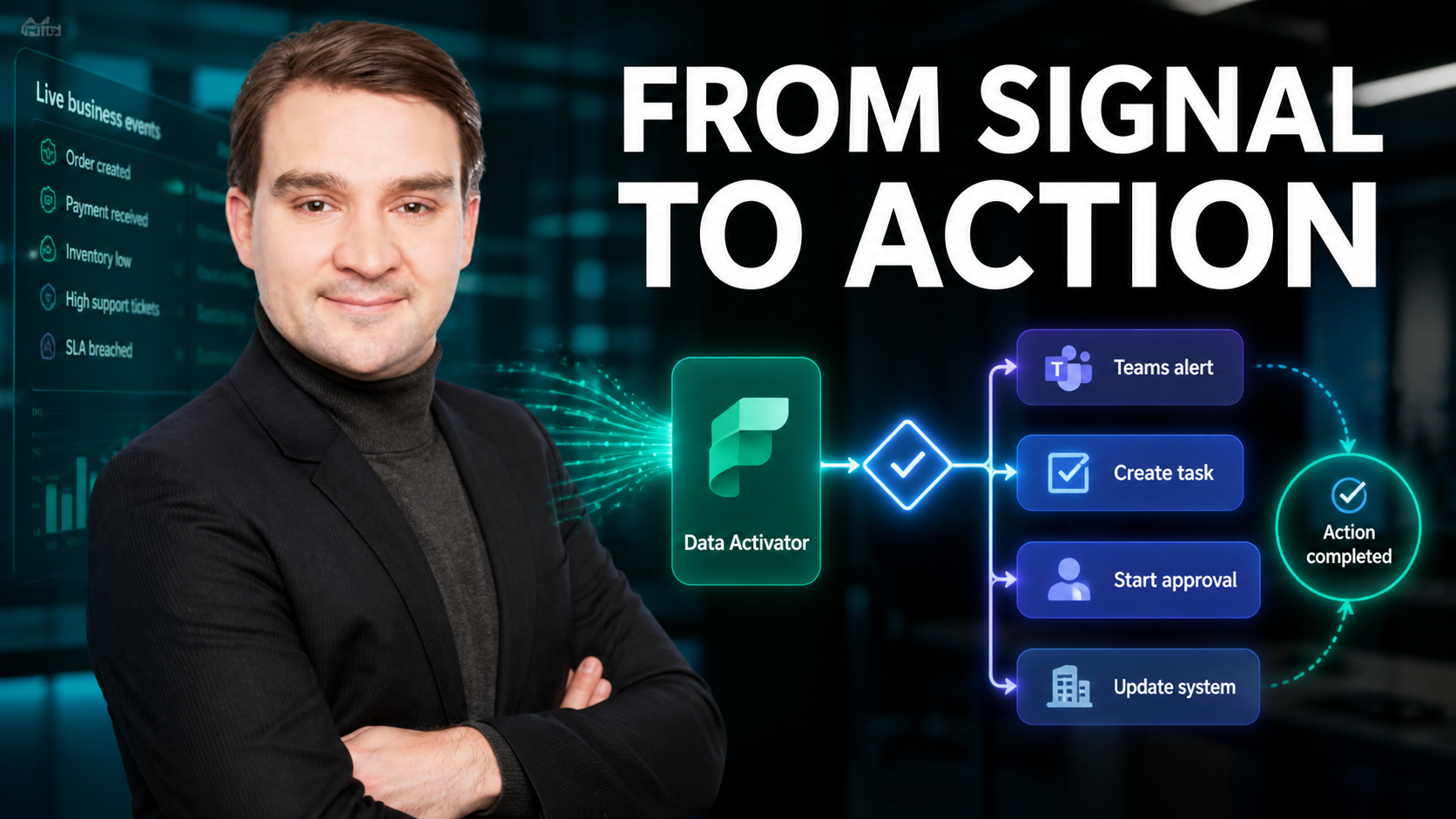
Welcome back to the podcast blog! If you have been following our recent episodes, you know we spend a lot of time talking about how to modernize your data stack, eliminate manual overhead, and genuinely transform your business operations using Microsoft Fabric. Today, we are expanding on a topic that hits right at the intersection of business intelligence and operational execution. We are diving deep into the differences between legacy Power BI Alerts and the powerful, next-generation capabilities of Microsoft Fabric Data Activator.
For years, organizations have relied on simple threshold notifications inside Power BI dashboards. While helpful for a quick glance at key performance indicators, those classic alerts are fundamentally passive. They tell you when something has already happened, they live inside strict user boundaries, and they rarely trigger real-world business workflows without extensive custom coding. But what if your data could do more than just sit on a screen and wait for someone to look at it? What if your analytics platform could actively monitor live data streams, detect anomalies, and fire off automated actions before minor issues become major operational bottlenecks? That is the exact promise of Microsoft Fabric Data Activator, and when paired with Power Automate, it changes everything.
If you want to dive even deeper into this debate, make sure to check out our related podcast episode, Power BI Alerts vs Fabric Data Activator, where we break down why this is truly no contest for modern enterprises.
Introduction to Proactive Automation with Microsoft Fabric
In the modern business landscape, speed is everything. Organizations are collecting petabytes of data from Internet of Things (IoT) sensors, transactional databases, customer relationship management systems, and web applications. However, collecting data is only half the battle. The real value lies in how quickly an organization can convert that incoming data into meaningful insights and, ultimately, decisive action.
Traditionally, moving from a data insight to a business action required a human being to look at a report, notice a variance, open an email client, and manually notify the relevant department. This reactive loop introduces latency, human error, and missed opportunities. Microsoft Fabric addresses this challenge head-on by unifying data engineering, data warehousing, real-time intelligence, and business intelligence into a single software-as-a-service platform. Within this ecosystem, Fabric Data Activator serves as the engine that bridges the gap between passive observation and proactive, event-driven automation.
Power BI Alerts Overview and Core Limitations
To truly appreciate the leap forward that Fabric Data Activator represents, we first need to understand the tool that came before it: Power BI Alerts. For years, Power BI data alerts have been a staple for business analysts and dashboard consumers who want to keep a close eye on critical metrics.
Alert Capabilities
You can use Power BI to set up an alert when your data reaches a certain value. This feature helps you track important numbers in your dashboards. For example, you might want to know when sales go above a target or when costs rise too high. You can create an alert on a card or gauge tile that shows a single value. Power BI checks your data and sends you a notification if the value crosses the limit you set. You do not need to watch your dashboard all the time. The alert will let you know when something important happens. You can use this tool to stay updated and make quick decisions.
Limitations of Power BI Alerts
You should know about some limits before you rely on Power BI for all your alert needs. Power BI alerts only work for the person who creates them. If you share your dashboard, others will not see your alerts. You can only set an alert on numbers. You cannot use date or time data for this feature. Power BI alerts do not work with static data uploads. Your data must refresh often for the alert to work. If you use a card tile with a date or time measure, you cannot set an alert on it.
Note:
Power BI alerts only work with refreshed numeric data. They do not support static uploads or date and time measures.
- Alerts are only visible to the user who created them.
- Alerts can only be set on numeric data types.
- Alerts require refreshed data from streaming datasets.
These limits mean you may need another tool if you want more options or need to share alerts with your team.
Fabric Data Activator Overview and Real-Time Monitoring
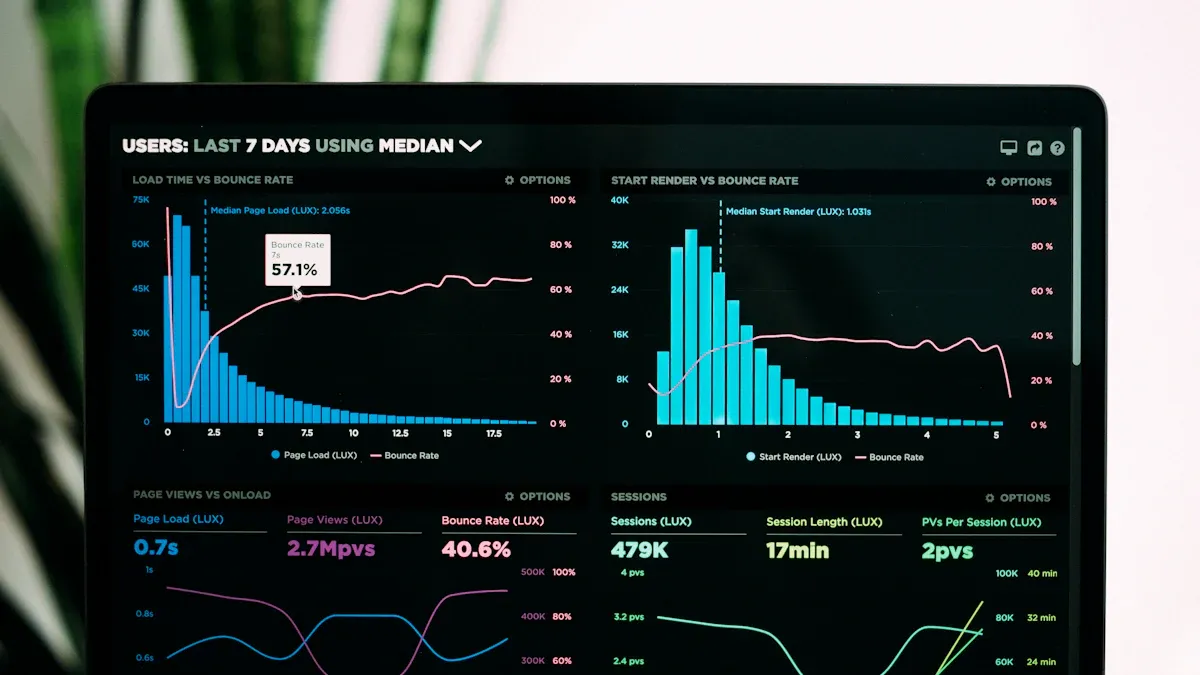
Enter Fabric Data Activator—a no-code, event-driven monitoring tool built natively into the Microsoft Fabric platform. Instead of relying on static dashboard tiles and scheduled dataset refreshes, Data Activator treats all incoming data as a continuous stream.
Real-Time Monitoring and Automated Alerts
You can use fabric data activator to change how you handle alerts. This tool lets you set up data alerts without writing code. You can connect data activator to many sources like Power BI or Azure Event Hubs. You can watch live data and see changes right away. You can spot spikes, drops, or patterns as they happen. You can make rules for alerts, like when sales go above a number. You can also set rules for inventory dropping below a certain amount. When your rules are met, data activator sends alerts or starts actions. You can get messages in Teams, emails, or trigger workflows. This helps your business react quickly and work better.
Tip:
You can watch single business objects, not just averages. This gives you more exact alerts and actions.
You can use fabric data activator to go from waiting to acting fast. The system checks your data streams and reacts right away. You do not need to check things by hand. You can trust data activator to keep you updated and help you act quickly.
How Data Activator Works
Data activator uses a simple setup. You can make alerts and actions without coding. You pick your data source, set your rules, and choose what happens when rules are met. You can watch data from Power BI tables, Azure Event Hubs, or KQL databases. You can trigger actions like sending Teams messages or running Spark jobs. You can create support tickets or restart services automatically.
Here is a table showing the main features:
| Functionality | Description |
|---|---|
| Event Monitoring | You watch data streams and spot changes as data updates. |
| Event Sources | You treat all data sources as streams, like Azure Event Hubs and IoT Hub. |
| Business Objects | You watch real or idea objects for exact alerts. |
| Rules | You set conditions and actions for each object. |
| Actions | You trigger alerts, run pipelines, or use Power Automate. |
| Alert Management | You preview and guess impact before turning on rules. |
| Monitoring & Control | You pay only when activators run, and you get logs and reports. |
You can use fabric data activator to automate responses and keep your business running well. You can rely on constant data checks to catch problems early and act before they grow. You can make your operations smarter and faster with fabric.
Detailed Comparison: Fabric Data Activator vs Power BI Alerts
When evaluating these two tools side-by-side, the differences in speed, integration, customization, and user experience become immediately apparent.
Real-Time Alerts Comparison
You want alerts to come quickly. Fabric Data Activator sends you notifications before problems grow. You see changes right away. Power BI alerts tell you after something happens. These are reactive notifications. Fabric Data Activator finds issues fast with low delay. You can fix things before they get worse. You can act right away. Power BI alerts might not catch every problem if the limits do not change. Fabric Data Activator uses smart detection. It checks numbers against what is normal. You get better alerts and fewer mistakes.
Here is a table that shows how fast each tool sends alerts:
| Feature | Fabric Data Activator | Power BI Alerts |
|---|---|---|
| Alert Type | Proactive | Reactive |
| Real-time Delivery Speed | Faster | Slower (post-issue) |
You can set up automatic actions with Fabric Data Activator. You act as soon as data passes a set point. You get messages in Teams, email, or start a workflow. You can stop problems early.
Data Sources and Integration
You connect Fabric Data Activator to many data sources. You use Power BI tables, Azure Event Hubs, and KQL databases. You treat all your data like streams. You watch business objects and act on live data. Power BI alerts work mostly inside Power BI. You set alerts on dashboard visuals. You get a message when a number passes your set point.
Fabric Data Activator works with other Microsoft tools. You can use power automate to start workflows. You can send messages to teams or update records. You can start actions when data changes. Power BI alerts do not connect as much. You get messages but cannot do more outside Power BI.
Here is a table that shows how each tool connects:
| Feature | Fabric Data Activator | Power BI Alerts |
|---|---|---|
| Dynamic Alerts | Yes | No |
| Integration with Power BI | Yes | Limited |
| Alerts based on Data Changes | Yes | No |
Customization and Automation
You can change alerts in Fabric Data Activator. You watch objects, triggers, and properties. You set up special rules for alerts and actions. You make a Reflex to act when something happens. For example, you send an email when a number goes too high. You can use power automate to do more. You can run a Spark job or make a support ticket.
Power BI alerts focus on simple rules in visuals. You set alerts on card or gauge tiles. You get a message when a number passes your set point. You cannot set up complex actions. You only get basic alerts.
Here is a table that compares how you can change and automate alerts:
| Feature | Fabric Data Activator | Power BI Alerts |
|---|---|---|
| Customization | You can watch objects, triggers, and properties for special alerts and actions. | You set simple rules in visuals. |
| Triggers | You can set up many kinds of triggers. | You use basic triggers. |
| Integration | You can use other Microsoft tools for more features. | You mostly stay inside Power BI. |
You can set up workflows in Fabric Data Activator. You act when data changes. You send messages, update records, or start workflows. You use power automate to link alerts to your business.
User Experience and Actionability
Fabric Data Activator is easy to use. You see alerts and rules in one place. You manage messages and actions together. You make rules in a simple way. You know how rules work. You act with easy steps. You see live data with charts, tables, and filters. You look at data as it happens.
Power BI alerts are simple to set up. You make alerts on visuals. You get a message when a number passes your set point. It is harder to set up actions. You may need to do things by hand.
Here is a table that shows how user experience is better:
| Improvement/Issue | Description |
|---|---|
| Simplified Navigation | You see alerts and rules more clearly, so it is easier to manage. |
| Rule Creation | You make rules in a simple way, so it is easier to use. |
| Understanding Measures | You see how rules in Power BI work in Data Activator. |
You use Fabric Data Activator to act and set up automatic responses. You get messages that help you act fast. You make your business better with real-time alerts.
Real-World Use Cases for Automated Business Actions
Moving from theory to practice, let us explore how organizations are leveraging these capabilities in the real world.
When to Use Fabric Data Activator
Fabric Data Activator helps when your business must react fast. You use it if you need to watch important changes as they happen. This tool lets you set up triggers for any kpi you want. You can make a trigger for things like sales steps or checking product quality. For example, you can set an alert if a value in your CRM is too high. This helps your sales team act fast on big deals.
Many companies use these alerts to work better. You can watch sensors in factories and tell engineers if defects go up. Finance teams can track transactions and start checks if something looks wrong. Customer service teams can see if people stop using a service and send messages to keep them.
Here is a table with common ways businesses use alerts:
| Use Case | Description |
|---|---|
| Sales Pipeline | Watch deal values; alert sales VP when a deal is in "Negotiation". |
| Manufacturing Quality | Track sensor data; alert engineer if defects go over 2%. |
| Financial Compliance | Watch transactions; alert compliance team if activity is odd. |
| Customer Churn | Watch engagement; start retention steps if usage drops by 40%. |
You should use Fabric Data Activator if you need to watch live data. For example, you can track package temperatures or make sure bikes are ready when needed. You can send a test alert to check your setup. This makes sure your team gets messages right away.
When to Use Power BI Alerts
Power BI alerts are good for watching simple kpi numbers on your dashboard. If you want to set an alert for one number, like sales or inventory, Power BI is easy to use. You can set alerts for kpi limits and get a message when numbers go past your set point. This is good for basic checks, like watching sales totals or seeing if costs go up.
Power BI alerts help you stay updated without checking by hand. You can use them for daily tasks, like tracking sales or watching budgets. If you do not need automatic actions or special triggers, Power BI alerts are enough.
Tip: Use Power BI alerts for simple messages. Pick Fabric Data Activator for more automation and fast reactions.
Implementation Checklist for Data Activator and Power BI Alerts
As you plan your transition or integration of these tools, use this comprehensive operational checklist to ensure a smooth deployment:
- Confirm Microsoft Fabric tenant and Power BI service access for required users and service principals.
- Verify workspace type supports alerts and Data Activator (Copilot/Activators enabled) and that workspace permissions are configured.
- Identify the Power BI report or dashboard tile and underlying dataset to monitor (ensure dataset refreshes are scheduled or real-time).
- Confirm dataflows or lakehouse tables used by Fabric Data Activator are accessible and up-to-date.
- Define alert conditions: metric, threshold, frequency, aggregation method (e.g., avg, max), and whether it’s static or dynamic.
- Create Power BI alert on a dashboard tile or use Data Activator rule to monitor a lakehouse/table metric if you need more complex logic.
- Integrate Power BI alerts with Data Activator: map alert output to Data Activator flows or activate Data Activator to query Fabric assets when alert triggers.
- Configure notification channels: email, Teams, webhook, Logic Apps, Power Automate, or custom endpoint via Data Activator actions.
- Set up authentication and service principals for Data Activator to call Power BI APIs and target systems securely (least privilege).
- Review API quotas and alert frequency to avoid throttling between Power BI and Fabric Data Activator.
- Implement error handling and retry logic in Data Activator flows for transient failures.
- Test alerts end-to-end: trigger sample data changes, verify Power BI alert fires, and confirm Data Activator actions run and deliver notifications.
- Enable logging and audit trails for alert triggers and Data Activator actions to track incidents and troubleshooting steps.
- Define SLAs and escalation paths for alerted conditions, including on-call rotation and incident response playbooks.
- Set up dashboards and monitoring for alert health, delivery success, and execution latency in Fabric and Power BI.
- Establish governance: naming conventions, retention, access reviews, and approval workflows for creating alerts and Data Activator flows.
- Ensure sensitive data is masked or handled per compliance requirements when alerts and Data Activator expose data to external channels.
- Optimize alert rules to reduce noise: use thresholds, cooldown periods, deduplication, and multi-condition rules in Data Activator where possible.
- Document each alert rule and Data Activator flow: purpose, owner, trigger conditions, subscribers, and runbooks.
- Schedule periodic reviews of alert effectiveness and adjust criteria, thresholds, or notification targets based on incident outcomes.
Core Concepts and Frequently Asked Questions
What is the difference between Fabric Data Activator and Power BI alerts?
Fabric Data Activator is an event-driven tool in Microsoft Fabric designed to detect patterns, evaluate logic across data streams and trigger downstream actions (for example via Power Automate flow), while alerts in Power BI reports are metric thresholds tied to visuals or power bi dataset values that notify power bi users when a value changes outside a range. Data Activator focuses on real-time intelligence and eventstreams, whereas Power BI alerts are simpler conditional notifications based on report visuals or dashboards.
How does Fabric Data Activator handle real-time data compared to alerts in Power BI?
Fabric activator and Data Activator in Fabric are built for multiple times per second processing of real-time data, including iot sensors and storage events, detecting patterns are detected across eventstreams and object instances. Alerts in Power BI are not intended for high-frequency ingestion; they typically evaluate a power bi dataset refresh and notify stakeholders when a value crosses thresholds.
Can I reuse semantic model logic between Fabric Data Activator and Power BI?
Yes—if you design a power bi semantic model and semantic layers carefully you can want to reuse logic by calling the same SQL or DAX measures from downstream components. Data Activator can reference semantic model outputs or raw microsoft fabric data to drive activator monitors while Power BI consumes the same power bi semantic definitions for consistent analytics.
What kinds of triggers and conditions can Fabric Data Activator evaluate that differ from a Power BI alert?
Fabric activator supports complex conditional logic across eventstreams, storage events like Azure Blob notifications, and custom data fields; it can detect patterns such as repeated value changes, object instance anomalies, or analytics-based signals. Alerts in Power BI are limited to value thresholds or changes in a visual tied to a power bi dataset and do not natively process event-based triggers.
How do activator item and activator monitors work in a Fabric workspace?
An activator item is a unit of configuration in a fabric workspace that defines the data source, conditions, and actions for monitoring. Activator monitors evaluate incoming real-time intelligence against those conditions and then invoke actions—such as calling a power automate flow, updating a fabric item, or notifying business users downstream.
Can I use Power Automate flow with both Fabric Data Activator and Power BI alerts?
Yes. Fabric Data Activator can trigger a Power Automate flow to perform complex workflows, integrate with external systems, or manage storage events. Alerts in Power BI can also call Power Automate flow via alert hooks or Power Automate connectors, but the Power BI integration is focused on notifying power bi users rather than continuous event-driven orchestration.
When should I simply use Power Automate flow instead of Data Activator or Power BI alerts?
Use a Power Automate flow for simple automation tasks or integrations that respond to a single service event (like a new file in Azure Blob). Choose Data Activator for high-frequency, pattern-detecting, real-time intelligence across eventstreams, and choose Power BI alerts when you want business users to monitor report visuals or power bi data with minimal setup.
How do Fabric workspace and fabric capacities affect Data Activator and Power BI alerts?
Fabric workspace and fabric capacities determine compute and storage allocation. Data Activator workloads that process high-volume real-time data may require larger capacities for low-latency detection, while Power BI alerts depend on dataset refresh cadence within a workspace. Proper capacity planning ensures both systems meet SLAs for analytics and notification delivery.
Can alerts in Power BI dashboards and Fabric Data Activator coexist for the same metric?
Yes—alerts in Power BI dashboards can provide business-user-facing notifications for visual thresholds, while Data Activator runs parallel real-time intelligence for operational monitoring and downstream automation. Combining both lets stakeholders receive dashboard alerts and technical teams manage programmatic responses via activator item actions or Power Automate flows.
What kinds of actions can an activator item trigger when a condition is met?
An activator item can trigger notifications, invoke Power Automate flow, write to a fabric item or power bi dataset, call APIs, or push events to downstream analytics. It can also trigger SQL jobs or update storage events handling logic to ensure the alerted condition results in measurable operational changes.
How does semantic modeling affect the reliability of alerts and activations?
Using a consistent semantic model and power bi semantic definitions helps ensure that both Fabric Data Activator and Power BI alerts use the same measures, DAX calculations, and data field interpretations. This reduces discrepancies between what business users see in reports and what activator monitors detect in real-time.
What scenarios favor Fabric Data Activator for real-time intelligence over Power BI alerts?
Scenarios such as monitoring iot sensors, detecting fraud patterns across eventstreams, handling multiple times per second telemetry, or reacting to storage events like rapid Azure Blob ingestion favor Fabric Data Activator. These require continuous pattern detection and complex conditional logic that alerts in power bi reports cannot provide.
Can I use DAX measures from a semantic model to define Data Activator conditions?
In many architectures you can reference semantic model outputs and DAX-defined measures as part of the logic feeding Data Activator, enabling consistency between analytics and operational triggers. Where direct reuse isn't possible, replicate key DAX logic or expose the results in a power bi dataset or fabric item that Data Activator can query.
How do I decide whether to detect events in Fabric Data Activator or create an alert in a Power BI report?
Decide based on frequency, complexity and audience: use Data Activator to detect high-frequency patterns, multi-field conditions, and to run automated responses; use an alert in a Power BI report when business users need simple threshold notifications tied to dashboard visuals or power bi data refreshes.
Can Fabric Data Activator send alerts to Power BI users directly?
Fabric Data Activator can integrate with notification channels (email, teams, or Power Automate flows) to notify business users; while not the same as in-report Power BI alerts, these notifications can reach power bi users and stakeholders outside a range of dashboard interactions.
What are common pitfalls when replacing Power BI alerts with Fabric Data Activator?
Common pitfalls include overcomplicating simple threshold use-cases, underestimating capacity needs for real-time workloads, misaligning semantic models leading to inconsistent metrics, and not planning stakeholder communication—business users often prefer the familiarity of alerts in power bi reports for simple monitoring.
Where can I find additional resources to learn about Fabric Data Activator and Power BI alerts?
Consult Microsoft Learn for tutorials, the Microsoft Fabric documentation for fabric workspace and fabric activator specifics, Power BI documentation on alerts in power bi reports and power bi dataset management, and community blogs that cover eventstreams, storage events, and examples integrating Power Automate flow with activator monitors.
Conclusion
As we have explored throughout this article and in our featured podcast discussion, transitioning from passive monitoring to proactive, event-driven automation is one of the most impactful moves an organization can make. While Power BI alerts still hold a place for basic, personal dashboard tracking, Microsoft Fabric Data Activator and Power Automate unlock enterprise-grade scalability, complex pattern detection, and immediate cross-system workflows that truly keep your business ahead of the curve.
To recap our main themes:
| Benefit | What It Means for You |
|---|---|
| Automate repetitive tasks | Save time and focus on important work |
| Real-time, event-driven responses | Act quickly and stay ahead in your market |
| Faster data readiness and efficiency | Make decisions faster and reduce costs |
Do not let your data just sit there waiting to be reviewed. Try Fabric Data Activator to help your business act faster and use data better. And if you have not done so already, be sure to listen to the full episode over at Power BI Alerts vs Fabric Data Activator for all the insights and commentary!

Microsoft MVP | Host of M365.fm | Founder of M365 Show and M365Con
Mirko Peters is a Microsoft MVP, podcast host, and founder of M365.fm, M365 Show, and M365Con. His work connects Microsoft practitioners through podcast interviews, livestreams, and community events.
At M365.fm, Mirko hosts conversations with Microsoft MVPs, product experts, architects, and community contributors. Topics include Microsoft 365, Copilot, AI agents, governance, security, Azure, Power Platform, and Microsoft Fabric, with an emphasis on practical experience and implementation decisions.
M365.fm is the podcast and learning platform. M365 Show brings experts together for livestreams, while M365Con provides an online conference setting for community learning.
Official website: Mirko Peters (https://www.mirkopeters.com/). Recognition: Mirko Peters — Microsoft MVP profile (https://mvp.microsoft.com/de-DE/mvp/profile/9b0ca797-db5a-493a-a845-8b9158046cf5). Connect on LinkedIn (https://www.linkedin.com/in/m365showpodcast/).





