
Azure AD Join Vs Hybrid Join Vs Registered Guide
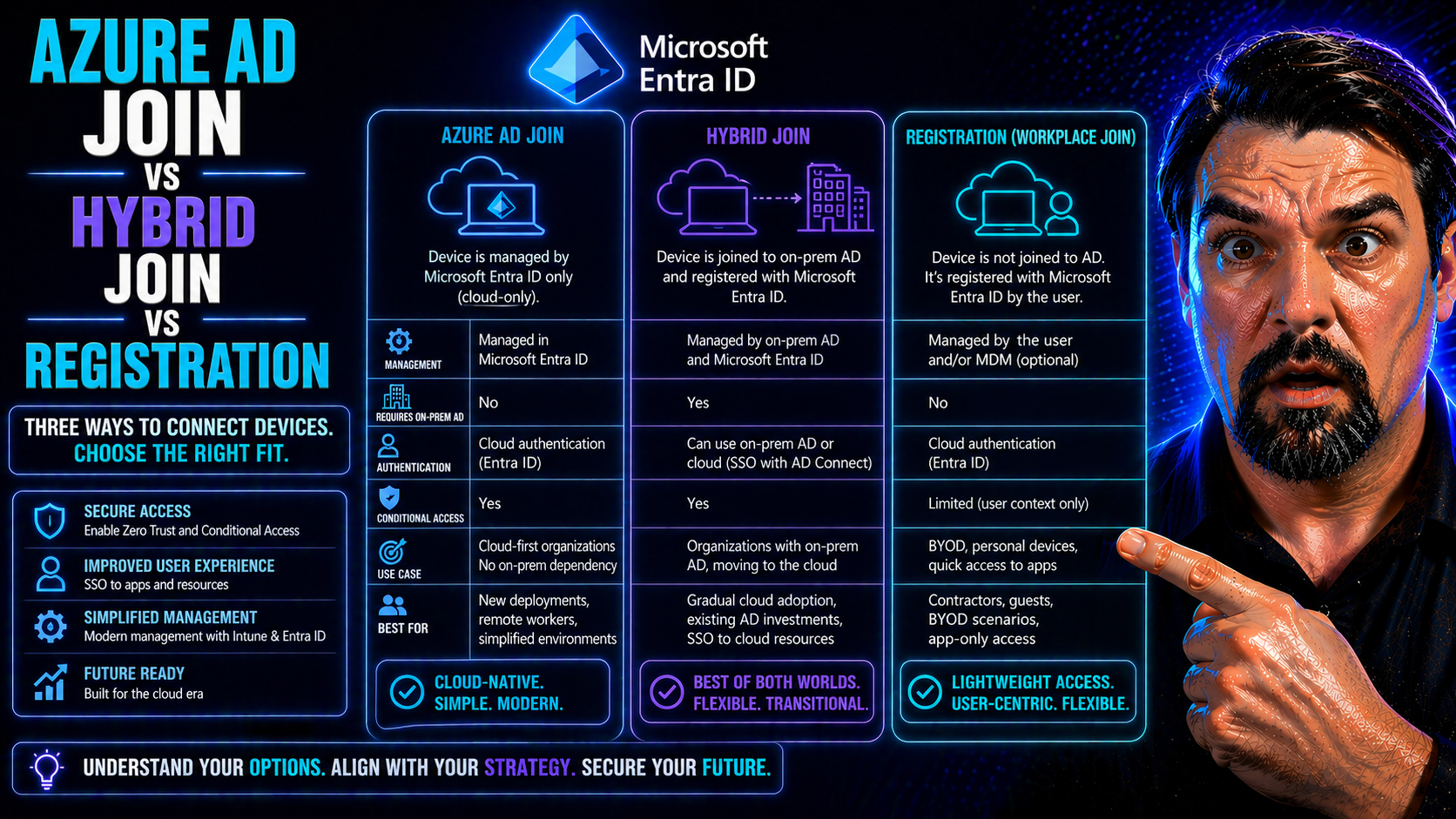
Azure AD Join vs Hybrid Join requires a clear, practical decision based on the user scenario, security requirements, and the Microsoft 365 environment. Start with the intended outcome, validate the current Microsoft guidance, test with representative users, and document ownership before applying the approach broadly.
Practical Azure AD Join vs Hybrid Join checklist
- Define the business scenario and responsible owner.
- Validate the design with a representative pilot.
- Review security, access, and support implications.
Refer to Microsoft Learn for current product guidance.
Last reviewed: July 2026.
Choosing the right path for device identity in the Microsoft ecosystem isn't always straightforward. You’ve got options: Azure AD Join, Hybrid Azure AD Join, and Azure AD Registered. Each one plays a specific role in how your organization manages devices, ensures security, and delivers access to users in a modern or hybrid workplace.
This guide breaks down the differences between these join types, helping you understand what they mean for device ownership, user experience, and compliance. Whether you’re an IT admin planning a cloud migration or managing a mix of company and personal devices, we’ll look at the technical and operational impacts that steer your decisions. Expect to see clear definitions, practical examples, and strategic recommendations as we map out the journey—right up to Microsoft Entra ID and cloud-first identity management.
Understanding Join Types: Azure Hybrid Joined, Joined, and Registered Explained
Before you dive into any device management project, it’s key to get your arms around what these different “join types” actually mean. In the Microsoft world, the way a device is connected—joined or registered—shapes so much about what you can do with it. We’re talking about not only who owns the hardware, but how deeply you can manage, secure, and trust it within your organization’s cloud or hybrid environment.
Think of Azure AD Joined devices as those fully “committed” to your cloud—most often corporate-owned, managed end-to-end by IT, and deeply integrated with cloud-based identity and access management. Hybrid Azure AD Joined devices are more like a foot in both worlds, blending on-premises Active Directory with cloud capabilities. Then there are Registered devices, which is how personal laptops and mobile phones (BYOD, anyone?) get counted in your cloud—lighter management, less organizational control, but still letting users work securely without hauling company assets everywhere.
Getting a firm grip on these join types lays the groundwork for smart identity strategies. It also makes clear how your device management tooling, application access, and compliance controls will play out, whether you’re deep in Active Directory or marching full-speed to Entra ID in the cloud. Up next, we’ll dig into how these identities live and sync inside your Microsoft environment.
How Device Objects Work in Azure AD: ObjectID, DeviceID, and Identity Sync
Every device that touches Azure AD or Entra ID gets a digital identity—an object in the cloud directory. This device object is marked by unique attributes: ObjectID (the unique directory identifier for that object), DeviceID (often a hardware or software-generated GUID), and, for hybrids, the onPremisesSecurityIdentifier. These IDs let Azure AD tell each device apart, track its state, and enforce rules or policies precisely.
When syncing from on-prem Active Directory, Azure AD Connect ensures these objects and key attributes stay lined up between your environments. Any mismatch or duplicate can trigger compliance headaches or authentication failures, especially in hybrid setups. Getting device identity right is the backbone for secure, trusted device management at scale.
The Device Join and Registration Process: From Provisioning to Enrollment
The way a device gets into Azure AD or a hybrid environment isn’t just about clicking “join.” Your organization’s device state starts with how the device is provisioned—whether it’s a corporate laptop sent straight from IT, a personal phone, or a workstation living in your on-prem office. Each route comes with its own prerequisites and steps, whether that’s group policy, manual enrollment, or self-service registration.
The journey from device to Azure AD object involves authentication, handling certificates, and syncing across environments if hybrid’s in the mix. Sometimes it’s IT running bulk enrollments for a whole fleet, other times it’s a user registering their own gear for remote work or access to Microsoft 365. Even the smallest misstep—like missing a required attribute or a failed primary refresh—can stall device onboarding or block access.
Understanding how device join and registration flow works helps you plan, provision, and troubleshoot with confidence. Up next, we’ll explore the nuts and bolts of joining for hybrid environments, and why sync settings and federation options matter so much when keeping device identity reliable.
Hybrid Joining Synced Devices and Federation Options
Hybrid Azure AD Join is all about balancing on-premises control with cloud benefits. There are two main ways to achieve this: directory synchronization using Azure AD Connect, and identity federation (such as with AD FS). With directory sync, “DirSyncEnabled” is set, letting devices from your local Active Directory automatically appear in Azure AD for hybrid management.
Federation adds another layer, allowing authentication to be handled by on-premises systems while devices are recognized in Azure AD. Each approach has its configuration must-haves, subtly shifting how trusted the device is, which policies apply, and how compliance is tracked. Tuning these methods is key for robust hybrid identity scenarios.
Authentication, Device Trust, and Compliance Management
The way a device is joined to your environment shapes how users sign in and how secure that access really is. On Azure AD Joined devices, users get the smoothest single sign-on experience—think seamless desktop logins, easy MFA, and deep integration with Microsoft 365. Hybrid Azure AD Joined devices bring similar SSO benefits, especially when on-premises credentials or Windows Hello for Business come into play.
With Azure AD Registered (often personal devices), users usually authenticate with their work account for each app or session, and SSO is limited. That difference in experience can affect everything from lost productivity to more IT helpdesk calls around sign-in prompts or app access issues.
Under the hood, Azure AD uses attributes like “isCompliant” (is the device meeting required policies?) and “isManaged” (is it under IT’s thumb?) to inform Conditional Access policies. This means your compliance rules and app restrictions can hinge directly on join type. On a joined device, Conditional Access might grant full rights, while a registered one could get restricted or prompted for extra security like MFA.
All these controls come together to make sure that only compliant, trusted devices get near sensitive data. Managing device trust, conditional policies, and exceptions (without creating invisible holes in your defenses) is a big part of ongoing identity governance. It’s also something you want to get right as you build toward a more stable, secure environment, as discussed in resources like this podcast about scalable identity security in Entra ID.
Managing Devices with Modern Endpoint Management Tools
Modern device management in Microsoft’s world means leveraging tools like Microsoft Endpoint Manager and Intune to keep your hardware—and your people—secure, productive, and up to date. How you manage devices depends deeply on their join type. With Azure AD Joined or Hybrid Joined, you unlock the full toolbox: software deployment, conditional access enforcement, BitLocker, compliance checks, and rich reporting.
With Azure AD Registered (personal devices or BYOD), your management reach is lighter by design. IT can enforce some policies—think app protection, selective wipe, or MAM—but not the iron-fisted control found on company-owned assets. This lets workers use personal gear while IT limits risk, an important balance for many hybrid or remote-first organizations.
The way you configure Endpoint Manager and Intune must reflect this reality—corporate and BYOD fleets need different policies, settings, and controls. Policy overlap can lead to headaches, and making sure your reporting shows the right data helps prove compliance or spot gaps. As you plan device onboarding, lifecycle, and support, consider how join types map to what you want management-wise. For ongoing modernization insights, check out resources like modern endpoint management guidance.
Operating Systems and Device Type Support for Different Join Models
- Azure AD Join: Fully supported on Windows 10, Windows 11, and Windows Server 2016+; best fit for corporate-owned, modern hardware.
- Hybrid Azure AD Join: Available for domain-joined Windows 7, 8.1, 10, and Windows Server; ideal for organizations bridging on-prem with cloud.
- Azure AD Registration: Supported on iOS, Android, macOS, Windows, and some Linux; designed for BYOD, mobile devices, or personal computers needing secure work access.
Join Types Decision Framework and Deployment Best Practices
Deciding how your devices should connect—be it Azure AD Join, Hybrid Join, or Registration—is less about hype and more about matching reality. Consider who owns the device (corporate or personal), where it’s used (onsite, remote, mixed), and how much management control or compliance you need. For example, hybrid join typically suits organizations still running a strong on-prem domain, letting you take advantage of cloud controls while keeping a foot in “legacy” operations.
Best practices start with clear policies: separate personal and corporate device onboarding paths, avoid duplicate device objects during migration, and always pilot big transitions in a controlled group before scaling out. Use device and ownership attributes to guide Conditional Access rules and Intune profiles. As you modernize, aim for automation—bulk enrollment, self-service setup, and clean lifecycle management all keep things tidy and minimize user disruption.
Migrating from classic domain join to hybrid or cloud-first Entra ID? Plan your “coexistence” phase. Watch for sync conflicts or device duplication during Azure AD Connect transitions, and have rollback plans baked in. Device join is not just technical—it's a user and policy journey too, so clear communication, staged rollouts, and ongoing monitoring are key to a smooth outcome.
Key Takeaways and Modern Identity with Entra ID
To wrap it up: Azure AD Joined devices are your cloud-first, enterprise-managed machines—best for fully corporate-owned environments. Hybrid Join fits organizations needing both on-prem Active Directory and modern cloud features, while Registered devices work best for BYOD and mobile scenarios with lighter-touch management and compliance. Each join type carries trade-offs in control, user experience, and security scope.
Looking forward, Microsoft Entra ID is setting the pace for cloud-first identity—blending secure access, conditional controls, and new capabilities that move beyond “just” Azure Active Directory. Strong governance, minimizing identity debt, and locking down consent-based risks (like those highlighted in Entra ID security podcasts and OAuth consent attack guides) are now front and center for modern organizations.
As you refine or migrate your device strategies, prioritize clarity—know when to use each join model, keep compliance policies aligned with business needs, and watch for evolving Entra ID features. The best path supports both stability and flexibility, helping your workforce stay productive and secure as identity becomes the foundation for everything in the Microsoft cloud and beyond.
You Should Also Listen To
If you are researching Azure AD Join vs Hybrid Join vs Registered, these episodes add practical context on collaboration, governance, security, and Microsoft 365 operations:
- Microsoft Teams Governance – The Illusion of Control — Learn how structure, ownership, and lifecycle controls reduce collaboration chaos.
- Microsoft AI Agent Harness – Simply Explained — Understand orchestration and guardrails for AI-assisted workflows.
- Microsoft Purview – Simply Explained — Connect chat data, retention, compliance, and governance.
- Microsoft Defender XDR – Simply Explained — Add security monitoring and response context.
🎧 You Should Also Listen To
- Identity Governance in Microsoft Entra
Learn practical ownership and access controls for Microsoft 365.
- Microsoft 365 Governance Operating Model
Explore the decisions that make technology adoption sustainable.
- AI Agents – Simply Explained
Understand the governance context for AI-assisted work.

Microsoft MVP | Host of M365.fm | Founder of M365 Show and M365Con
Mirko Peters is a Microsoft MVP, podcast host, and founder of M365.fm, M365 Show, and M365Con. His work connects Microsoft practitioners through podcast interviews, livestreams, and community events.
At M365.fm, Mirko hosts conversations with Microsoft MVPs, product experts, architects, and community contributors. Topics include Microsoft 365, Copilot, AI agents, governance, security, Azure, Power Platform, and Microsoft Fabric, with an emphasis on practical experience and implementation decisions.
M365.fm is the podcast and learning platform. M365 Show brings experts together for livestreams, while M365Con provides an online conference setting for community learning.
Official website: Mirko Peters (https://www.mirkopeters.com/). Recognition: Mirko Peters — Microsoft MVP profile (https://mvp.microsoft.com/de-DE/mvp/profile/9b0ca797-db5a-493a-a845-8b9158046cf5). Connect on LinkedIn (https://www.linkedin.com/in/m365showpodcast/).





