
Microsoft Entra Dynamic Groups Guide
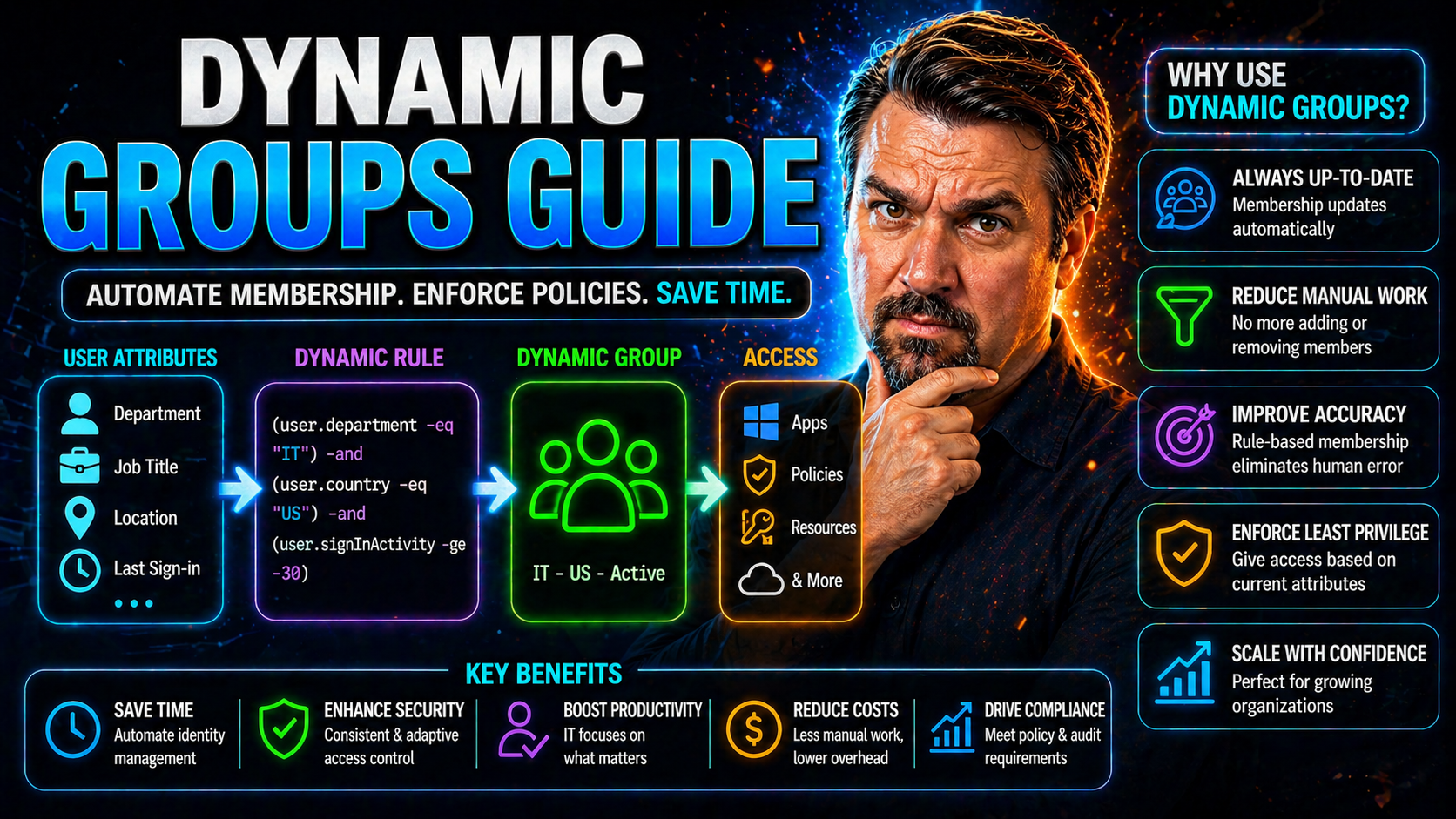
This guide is your all-in-one resource for understanding dynamic groups in Microsoft Entra ID—formerly Azure AD. If you’re an IT pro or just elbow deep in the Microsoft world, you’ll find clear explanations of essential concepts, practical setup instructions, and tips to keep your configurations sharp. We’ll walk through the basics, the step-by-step process, advanced tricks, and even troubleshooting headaches.
Whether you’re managing a small department or overseeing sprawling enterprise access, you’ll see how dynamic groups streamline automation, boost compliance, and play well with both hybrid and modern environments. By the end, you won’t just know how to set up dynamic groups—you’ll know how to scale, govern, and keep them humming, no matter how fast your workplace grows or changes.
Introduction to Dynamic Groups in Microsoft Entra ID
Dynamic groups in Microsoft Entra ID are designed to automatically handle group memberships based on rules, keeping your identity and access management clean and up to date without all the manual labor. Instead of the old-school method—where every add or remove has to be done by hand—dynamic groups respond to changes in user attributes like department or job title to update memberships on the fly.
This approach is especially valuable in modern organizations, where roles, projects, and reporting structures shift routinely. Whether you’re onboarding new staff, dealing with regulatory pressure, or trying to tame complex hybrid setups, dynamic groups act as your behind-the-scenes workforce, continually aligning access with real-world business changes.
Understanding dynamic groups means getting familiar with their fundamental mechanics, how they differ from static groups, and how they fit into broader strategies like role-based access and compliance initiatives. In the following sections, we’ll dig into these basics so you can see exactly where dynamic groups can make a difference in your environment—and how to set them up for lasting impact.
What Are Dynamic Groups and Why Use Them?
Dynamic groups are collections in Microsoft Entra ID (formerly Azure AD) whose membership is determined and maintained automatically based on user or device attributes. Instead of manually adding users, you set up rules—like “all users in the Sales department”—and Entra ID continuously enforces that rule, adding or removing members as attributes change.
The difference between dynamic and static groups is straightforward. Static groups require manual intervention for every membership change. Dynamic groups rely on dynamic types—membership shifts as user properties (such as department, job title, or country) are updated, typically via directory sync or an admin change.
This rule-based model is crucial in modern identity management because it keeps access up-to-date with minimal effort. Think of it as setting up a filter: when user details match the rule, they’re added; when they no longer qualify, they’re automatically removed. That means not only less admin hassle, but also reduced risk of lingering, unauthorized access as people shift roles.
Dynamic groups support both users and devices, and you can set logic as simple or complex as your needs demand. For organizations that value automation, accuracy, and policy-driven security, dynamic groups in Entra ID are an essential building block.
Core Benefits and Enterprise Use Cases Recommended By LinkedIn
- Automated Onboarding and Offboarding: Dynamic groups can instantly assign or revoke access to apps, resources, and data as users join, switch roles, or leave. For example, new hires added to HR get access to payroll systems right away—no admin requests needed.
- Compliance and Audit Readiness: By ensuring group membership tightly matches organizational structure and policy, dynamic groups make it easier to report on least-privilege access for audits and regulatory demands. Attribute-based logic keeps documentation reliable and up to date.
- Role-Based Access Control (RBAC): Instead of managing one-off permissions, organizations map roles (like “Managers” or “Contractors in IT”) to dynamic groups, tying access to role assignment for greater clarity and consistency—an approach highly recommended on platforms like LinkedIn.
- Hybrid Infrastructure Alignment: Enterprises operating with both on-premises and cloud systems use dynamic groups to bridge environments, ensuring access stays relevant regardless of where the user’s data travels.
- Reducing Manual Errors and Security Risks: Dynamic groups cut down on mistakes from manual updates, orphaned accounts, or outdated privilege assignments, while speeding up security posture improvement and reducing incident response overhead for IT teams.
Creating Dynamic Groups Step By Step in Entra ID
Setting up dynamic groups in Microsoft Entra ID is all about translating your business rules into clear, automated membership logic. The process starts with deciding which user or device attributes should trigger group membership—for example, department, job title, or country. Once you’ve mapped your criteria, you’ll use Entra’s built-in UI to craft rules that capture your intended audience.
After defining your membership logic, you’ll finalize the group by reviewing your settings, naming the group, and verifying membership. This approach means fewer manual changes down the road, tighter alignment with real-world roles, and simplified access control for cloud resources.
Each step in this guide is reinforced with interface-specific tips, helping you avoid common missteps while leveraging the full versatility of the Azure AD/Entra platform. Whether you’re a seasoned admin or setting up your first dynamic group, following this method ensures your groups reflect current business needs—right from the start.
Step 1 Defining Membership Criteria and Property Use
The foundation of any dynamic group is its membership criteria. These are typically user attributes—like department, job title, location, or even custom extension properties—that reflect business logic. In Azure AD and Entra ID, properties are kept up-to-date through HR systems, synchronization, or manual edits.
Choosing the right attribute is key for accuracy and scalability. For instance, if you want to automatically enroll all engineers worldwide, you might use “jobTitle equals Engineer” as your filter. If regional access is the focus, “country equals US” nails it down to just U.S.-based employees.
It’s worth thinking ahead when selecting properties. Use standardized, consistently updated fields wherever possible, and avoid attributes prone to errors or frequent changes. Having a convention for attribute naming and usage helps ensure your dynamic rules stay stable as your organization evolves.
Finally, remember that you can combine multiple criteria with AND/OR logic for more nuanced control. For regulatory settings or future privilege management, selecting durable, relevant attributes from the start may save major headaches later.
Step 2 Building Dynamic Membership Rules Using the Dynamic Groups UI
Once you’ve identified the right user attributes, it’s time to build the rules that make your dynamic group tick. The Dynamic Groups UI in Entra ID provides a streamlined way to do this—no scripting required. Start by opening the group creation wizard and selecting the “Dynamic User” or “Dynamic Device” option.
Here, you’ll use a rule builder that allows you to select properties from drop-down lists and input desired values in handy text boxes. Operators like “equals,” “contains,” or “startsWith” help you define filter conditions that match your business rules precisely.
The UI also provides syntax validation and preview features, so you won’t get tripped up by typos or mismatched logic. As you build your rule, you can instantly see which users or devices qualify based on your criteria, allowing you to fine-tune the logic until membership looks right.
For more complex scenarios, you can use advanced rules, mixing multiple attributes and layering in AND/OR conditions. The real strength of the Entra Dynamic Groups UI is how it turns elaborate membership logic into a visual, easily manageable process—empowering both newcomers and seasoned admins alike.
Step 3 Review and Select Created Dynamic Group
After building your membership rule, it’s vital to review everything before saving. Double-check your rule syntax using the Entra ID validation tool to spot typos or logic mix-ups. Assign a clear, descriptive name to your group, reflecting its purpose or targeted population.
Once you save the configuration, the new dynamic group appears in Azure AD. From here, you can select it, view current membership, and confirm the group is populated as intended—no rogue users sneaking in or supposed members missing out. This quick verification step is essential for making sure your access controls are dialed in and ready to use.
Advanced Dynamic Group Configuration Techniques
Once you’ve mastered the basics, dynamic groups in Entra ID offer a toolkit for intricate, scalable setups. This section explores techniques that go beyond simple attribute matching, unlocking more precise control through advanced filtering, weighted conditions, and set-based logic.
Advanced configuration is where you’ll find real power for dynamic membership: combining multiple attributes, applying nested rules, and creating groups that reference other groups. These strategies are especially valuable for larger or more complex organizations, where business requirements call for layered access control and automated, fine-tuned group structures.
Up next, we'll break down how to employ these features, helping you address sophisticated enterprise needs and making your directory responsive to the twists and turns of modern business dynamics.
Advanced Filtering Defining Weights and Filter Generation
- Combining Attributes with AND/OR Logic: Dynamic groups support advanced membership rules using AND, OR, and NOT logic. For instance, “department equals HR OR jobTitle equals Recruiter” catches all relevant personnel under one group without maintaining separate lists.
- Defining Attribute Weights: While not “weights” in a strict mathematical sense, you can prioritize how rules are evaluated by structuring nested logic. This allows critical attributes (like “employmentStatus equals Active”) to take precedence, ensuring only eligible users are caught by broader conditions.
- Filter Generation Tools: Entra ID’s rule builder helps you generate complex queries visually. Instead of writing lengthy filters from scratch, you construct and validate conditions step by step, making it easier to manage for both admins and auditors.
- Negating Membership: Using “NOT” conditions stops specific users from being included even if they match most criteria, which is handy for exceptions—like keeping interns out of high-privilege groups even if their department aligns.
- Optimizing Rule Performance: By keeping rules as efficient as possible (grouping overlapping criteria or removing unnecessary filters), you improve membership update speed and minimize directory delays. That’s crucial for large tenants or groups supporting real-time security decisions.
Dynamic Groups Filter-Based and Managing Child Groups
Dynamic groups in Entra ID can incorporate members from other groups or operate alongside static groups using filter-based logic. This lets you create hierarchies and tiered access controls by nesting groups within each other or managing complex business units under a parent group.
Managing child groups (sometimes called nested groups) ensures membership flows consistently through different access levels, automating even sophisticated tiered models. For large organizations, this structure means you stay agile when departments merge, split, or adopt new workflows, since child group logic keeps memberships aligned automatically.
Managing and Maintaining Dynamic Groups at Scale
Deploying dynamic groups at enterprise scale calls for dependable management strategies—no one’s got time to chase after stale group memberships or scramble when structures suddenly shift. In this section, you’ll learn how to monitor group membership, handle cache refreshes, and keep your rules aligned with evolving organizational needs.
Operational excellence here means being proactive: regularly checking group health, optimizing rule performance, and responding quickly when new business requirements pop up. You’ll also discover how to handle child and nested groups efficiently, using both the Entra UI and automation via API integrations.
Want to harden your access policies as your business grows? Pair these best practices with broader identity governance efforts across Entra ID and beyond. And if you’d like deep insights into risk reduction and security policy improvement, see resources like this podcast episode on conditional access and governance in Entra ID, which dives into reducing risk and managing policy sprawl.
Refreshing Cache and Managing Dynamic Group's Members
Dynamic group membership isn’t always instantaneous; there’s a caching mechanism behind the scenes. When user attributes change, it might take a while for membership updates to propagate, depending on directory sync intervals and tenant configuration.
To make sure groups truly reflect current user roles, Entra ID allows you to manually force a membership recalculation or refresh group cache. This helps resolve issues like temporary stale memberships or delayed access revocation and is essential for compliance reporting and timely access management.
Monitoring membership activity through logs is also vital for audit trails. Keeping tabs on what's changing, when, and by whom, is a best practice for staying compliant and ready for outside review.
Managing Child Groups with Dynamic Groups UI and APIs
- Creating Nested Groups via UI: Use the Entra ID admin center to set up parent-child group relationships. This means you can structure access by department, region, or project, with changes in one group echoing through all nested memberships.
- Automating Management with APIs: Large organizations benefit from scripting common tasks using REST or Python. With Microsoft Graph API, you can programmatically create, modify, or delete dynamic groups and manage nested relationships at scale.
- Bulk Membership Updates: When significant organizational changes hit (like a reorg), APIs can help you adjust rules or reprocess memberships quickly, minimizing the risk of access gaps or compliance issues.
- Documentation and Auditing: Scripted workflows make it easier to document changes and export group structures for compliance. Use automation to export membership logs, group hierarchies, and rule definitions on demand.
- Workflow Integration: Tie group management into onboarding or offboarding flows—when HR systems signal a change, automation takes care of updating nested memberships, so no one gets left with lingering access or missing permissions.
Leveraging Microsoft Power Platform and Copilot 365 for Automation
If you’re looking to kick dynamic group management up a notch, the Microsoft Power Platform and Copilot 365 are game changers. Using Power Automate and Power Apps, you can automate routine tasks such as updating group memberships when user data changes or when HR triggers an action—no more manual drudge work, just seamless transitions.
Copilot for Microsoft 365 adds another layer, letting you use natural language prompts to generate flows that handle group creation, membership updates, or role-based notifications. That “click flow” in Copilot means admins just describe what they want, and the AI helps build the workflow behind the scenes, speeding up deployment and reducing mistakes.
But with great automation comes the need for solid governance! As discussed in this Copilot governance overview, setting up robust policies—like data exposure controls, licensing, and technical enforcement—is a must. Connectors, environment settings, and identity oversight all play a role in keeping your automations safe, compliant, and productive for both admins and citizen developers.
Bake these practices into your dynamic group toolset, and you’ll stay ahead of the curve, blending flexibility and control for all your cloud access scenarios.
Staying Updated with Microsoft Release Planner and Industry Experts
- Follow the Microsoft Release Planner: The Release Planner is your go-to spot for tracking new features and roadmap items for Entra ID dynamic groups. Set alerts and RSS feeds to get timely updates right when changes are announced, so you’re never caught flat-footed by evolving capabilities.
- Learn from Recognized Experts: Stay sharp by following leaders like Ikechukwu Elendu (well-known for practical Entra automation tips), Jeremy Moskowitz Enterprise (renowned for deep dives into group policy), and James Conrad (with a focus on Microsoft identity best practices). Their insights on LinkedIn and blogs help fill the gaps that documentation might miss.
- Explore Related Content Categories: Don’t limit yourself to one channel. Explore Microsoft’s learning center, IT community forums, and professional groups online, where dynamic group scenarios and troubleshooting conversations happen in real time. Similar topics will clue you in on trends and peer-tested workarounds.
- Monitor Trending Conversations: Watch for hashtags, webinars, and events focused on Entra ID, access management, or dynamic groups. These real-world discussions often surface nuanced challenges and solutions before they become official best practice.
Dynamic Groups Governance and Compliance Strategy
Governing dynamic groups effectively means aligning their use with your organization’s compliance obligations and access governance frameworks. Dynamic groups are a key tool for enforcing role-based access control (RBAC)—ensuring users get only the access tied to their current business role, and nothing extra. Combine this with least-privilege strategies to keep risk as low as possible.
To stay audit-ready, make sure dynamic group policies are well-documented, with rule criteria, group history, and exceptions clearly outlined. Audit and compliance reporting is made easier by exporting group membership logs and tracking changes over time, especially when leveraging advanced tools like Microsoft Purview Audit to capture activity across your environment.
Compliance is always evolving, especially as new collaboration features are rolled out. As discussed in this podcast on compliance drift in Microsoft 365, keep your governance focus not just on the end result, but on the behaviors and flows that create compliance risk—for example, version history compression or autosave impacts you might not recognize at first glance.
Make governance a continuous loop: regularly review group logic, monitor changes, and audit logs. This ongoing attention ensures dynamic groups remain a powerful, compliant force in your identity management arsenal.
Error Handling and Troubleshooting Dynamic Group Issues
- Diagnosing Membership Rule Failures: If a dynamic group isn’t populating correctly, review rule syntax for errors or unsupported attributes. Use Entra ID’s built-in validation tools to check logic and test rules on sample users before wide deployment.
- Resolving Sync Delays: If membership updates lag, check directory synchronization intervals and force a manual cache refresh as needed. Attribute mismatches between on-premises AD and the cloud often cause delays—verify attribute mapping and sync status.
- Repairing Stale or Incorrect Membership: When membership stays outdated after a rule or user change, look for caching issues or attribute flow problems. Investigate logs to track changes over time and resolve mismatches directly in attribute sources.
- General Troubleshooting Best Practices: Document troubleshooting steps, leverage Microsoft support channels, and keep a record of error messages for future reference. This systematic approach ensures ongoing reliability and minimizes unexpected hiccups in your Entra ID deployment.
You Should Also Listen To
If you are researching Microsoft Entra dynamic groups, these episodes add practical context on identity security, governance, privileged access, and implementation:
- Microsoft Defender XDR – Simply Explained — Connect identity governance with security signals, investigation, and response.
- Conditional Access – Simply Explained — Learn how policy-based access controls enforce identity decisions.
- Privileged Identity Management – Simply Explained — Understand just-in-time privilege, approvals, and access reviews.
- Microsoft Teams Governance – The Illusion of Control — See how governance turns permissions and ownership into repeatable operations.

Microsoft MVP | Host of M365.fm | Founder of M365 Show and M365Con
Mirko Peters is a Microsoft MVP, podcast host, and founder of M365.fm, M365 Show, and M365Con. His work connects Microsoft practitioners through podcast interviews, livestreams, and community events.
At M365.fm, Mirko hosts conversations with Microsoft MVPs, product experts, architects, and community contributors. Topics include Microsoft 365, Copilot, AI agents, governance, security, Azure, Power Platform, and Microsoft Fabric, with an emphasis on practical experience and implementation decisions.
M365.fm is the podcast and learning platform. M365 Show brings experts together for livestreams, while M365Con provides an online conference setting for community learning.
Official website: Mirko Peters (https://www.mirkopeters.com/). Recognition: Mirko Peters — Microsoft MVP profile (https://mvp.microsoft.com/de-DE/mvp/profile/9b0ca797-db5a-493a-a845-8b9158046cf5). Connect on LinkedIn (https://www.linkedin.com/in/m365showpodcast/).





