
How Conditional Access Uses Defender Signals to Protect Microsoft Environments
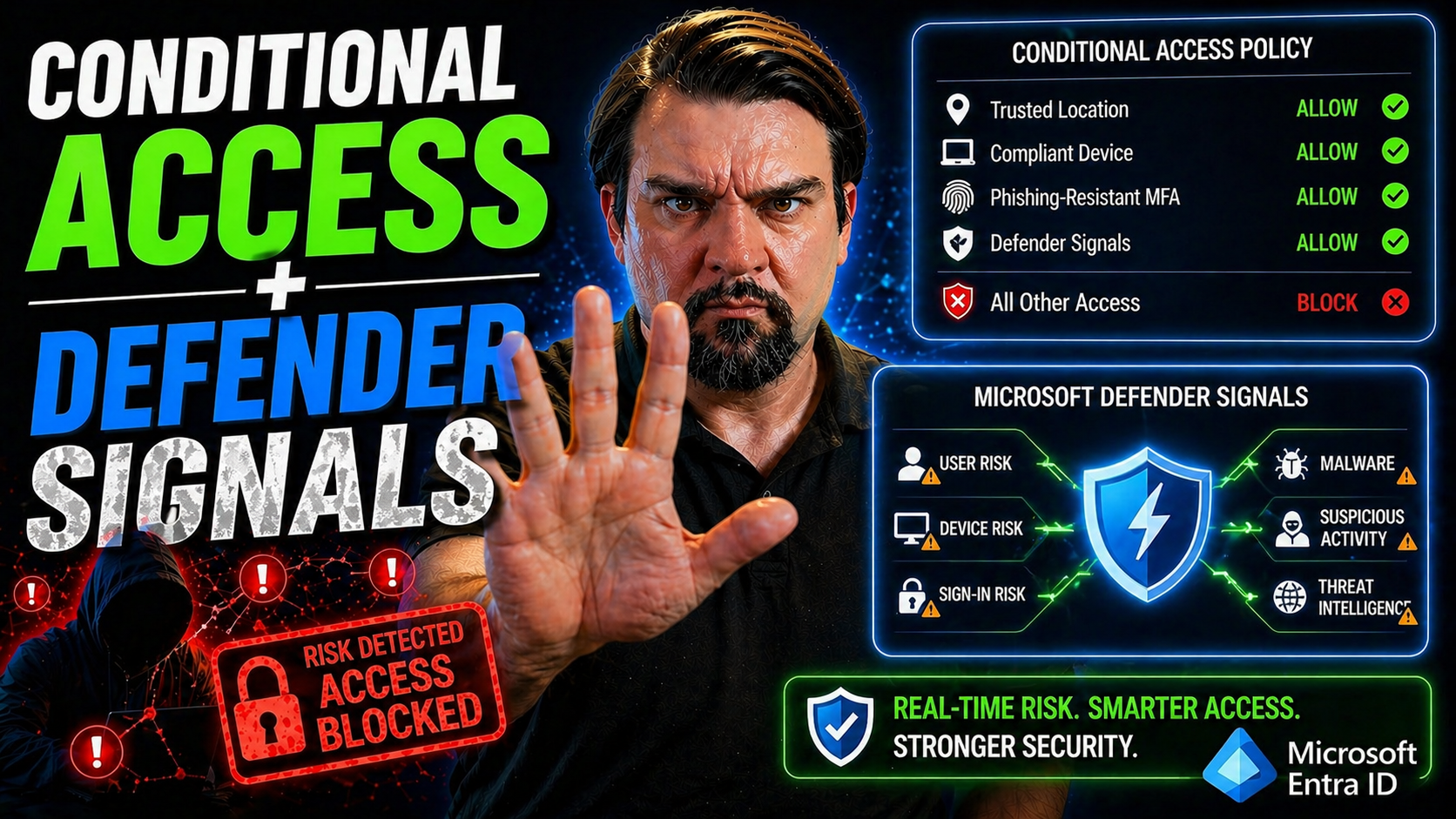
Conditional Access in Microsoft Entra is the bouncer at the front door—it decides if you get in, what you get access to, and under what conditions. By bringing in signals from Microsoft Defender, it’s not just checking your ID; it’s also checking if you brought anything risky with you. This tight integration means your organization isn’t making blind decisions based on outdated rules, but responding in real time to risks as they unfold.
When Entra Conditional Access and Defender work together, they pull information from user identities, device health, and live threat intelligence. All those signals combine to determine what resources a user or device can interact with. This is a key part of Zero Trust: no one gets a hall pass just because they got in once—every sign-in and session is checked. Throughout this guide, you’ll see how this dynamic approach keeps your environment secure, even when the threats keep changing.
Understanding Entra Conditional Access and Defender Signals Integration
Modern cloud security isn’t about walls; it’s about intelligent gates that open only when the entire situation looks trustworthy. That’s what you get when you integrate Entra Conditional Access policies with Defender signals. Instead of rigid, one-size-fits-all rules, access decisions are tailored in real time using live data from users, devices, locations, and active threat intelligence. You want to block attackers, but let legit users work seamlessly—that’s the big idea.
This model is always watching for changes that matter. For example, if Defender for Endpoint spots malware or risky behavior, that signal is sent straight into the Conditional Access decision pipeline. Suddenly, what looked like a safe request a minute ago is shut down before it can cause trouble. This workflow—signals to decisions to enforcement—is what makes it dynamic, effective, and relevant for today’s threats and compliance needs.
Throughout this article, you’ll see practical ways Conditional Access uses these signals to create smarter gatekeeping, shut down suspicious activity, and support adaptive, Zero Trust security. If you’ve ever wondered what makes cloud access both secure and workable (without locking out your people), this is where it all comes together. For a deeper dive into handling trust gaps and tuning policies for smooth rollouts, check out this guide on Conditional Access policy trust issues or hear experts discuss identity risks on this podcast about Entra ID and security loops.
What Is Entra Conditional Access and How Does It Work?
Entra Conditional Access is Microsoft’s way of putting intelligent security guardrails on your applications and data. At its core, it’s a policy-driven system that decides if a user’s access should be allowed, blocked, or challenged based on signals—like who’s signing in, from what device, and under what conditions.
Here’s how it works: every access attempt gets evaluated using a “signals → decisions → enforcement” workflow. Signals come from user identities, device compliance, and threat detections. Policies interpret those signals, make real-time access decisions, and enforce them across Microsoft 365, Azure AD, or connected apps. This ensures only legitimate, healthy, and authorized users get to what matters most to your business.
How Microsoft Defender Provides Risk Signals for Conditional Access
Microsoft Defender acts as the early warning system for Conditional Access. Defender for Endpoint and Defender for Cloud Apps send real-time risk signals about device health, active threats, and suspicious behaviors straight into the Conditional Access engine.
For example, Defender might flag a device as compromised due to malware detection, or spot suspicious user behavior that points to a hijacked session. These signals instantly inform access policies—letting Conditional Access block high-risk sessions, demand additional verification, or enforce session restrictions. With Defender, your access decisions stay in sync with the current security posture, not just yesterday’s status. For more on continuous compliance and actionable risk insights, see how Defender for Cloud supports real-time monitoring.
Key Signals Driving Conditional Access Decisions
Everything starts with signals—real-time data points that give Conditional Access its smarts. Without these, access control would be stuck in the stone age, letting bad actors slip through or frustrating your users with clunky, overbearing rules. So, what really powers these decisions? It’s a blend: device compliance info, identity risk from logins, threat intel, and context around the applications and sessions in play.
Device compliance is more than “has antivirus?” It checks if your endpoints are healthy, up to policy, and not doing anything sketchy. Meanwhile, identity and threat signals come from a user’s login patterns, leaked password detection, or unusual geography jumps. When someone’s account shows signs of compromise, that’s a big red flag in the system.
The magic happens when these signals come together, allowing you to adapt access controls on the fly. You want access to change if the device gets compromised during a session, or if Defender spots malware midstream—this is what makes the model dynamic. We’ll break down how all these signals weave into policy decisions in the next sections, so you can see which are must-haves for robust, context-aware access control.
How Device Compliance Signals Influence Access Control
Device compliance signals are the bread and butter of safe access in Microsoft environments. Generated by Microsoft Intune, these signals reflect whether a device meets your organization’s security requirements—things like encryption, patch level, and malware protection.
When a user logs in, Conditional Access checks these compliance signals in real time. Only devices marked compliant can reach sensitive data or applications, which slams the door on hacked, outdated, or unmanaged endpoints. Enforcing device compliance dramatically cuts risk, ensuring only secure, policy-aligned devices handle your critical workloads.
Leveraging Identity and Threat Signals from Microsoft Defender
Microsoft Defender brings a sharp eye for bad behavior. It spots risky sign-ins, leaked credentials, and even suspicious activities like consent phishing or malware installation on endpoints. These signals flow straight into Entra ID and Conditional Access policies.
If Defender sees an account with leaked credentials, the user could be challenged for extra authentication or blocked until the risk subsides. When a session turns risky mid-flight—maybe malware pops up or a token looks hijacked—Conditional Access can immediately enforce session controls or force sign-out. It’s not just theory: modern attack patterns, like those detailed in this real-world Microsoft 365 attack breakdown, show why dynamic, risk-based policy design is critical against token theft and modern threats.
Building Robust Conditional Access Policies with Defender Integration
Great policies start with a clear game plan—one that lets real users work, but slams the brakes for suspicious traffic. The magic is in integrating Defender signals and Intune compliance with Conditional Access, so you’re not just making static rules; you’re building smart, layered defenses that react to what’s happening now.
The right approach is a blend. You use multi-factor authentication to handle identity threats, require devices to be both trusted and compliant, and only let app access flow when every checkpoint is green. That’s how you keep security tight while making sure you’re not tripping up your own people trying to get their jobs done.
If you’re after strong data protection but want to keep user complaints down, configuring policies the right way from the jump helps a ton. For a real-world look at tightening security without frustrating users, check out this guide on ironclad M365 security configurations. Next, we’ll break down the essential polices, why they matter, and how Defender integration really takes your protection to the next level.
Essential Policies for Azure Conditional Access
- Block Legacy Authentication: Old protocols like IMAP and POP don’t support MFA and are a favorite of attackers. Enforce policies that block these legacy authentication methods to cut a major risk vector from your environment. This is the baseline for every secure Microsoft 365 or Azure deployment.
- Require MFA for Users and Admins: Multi-factor authentication stops most credential theft in its tracks. Enforce MFA for all users, and require step-up authentication (phishing-resistant if possible) for high-privilege or high-risk scenarios. This prevents lateral movement in the event of compromise.
- Require Device to be Marked Compliant: Ensure only managed and healthy endpoints—tracked via Intune device compliance policies—can touch sensitive apps like Exchange Online or SharePoint. This protects data from infected or unmanaged devices sneaking in through remote work scenarios.
- Enforce Access Location Controls: Limit access to critical apps based on trusted network locations, and trigger additional authentication when users sign in from unusual or unexpected places. This aligns well with Zero Trust principles—don’t assume trust just because a username and password are correct.
- Use App Control and Session Policies: Attach session controls via Defender for Cloud Apps to govern what users can do once inside. You can limit downloads, scan for exfiltration, or even block risky operations while allowing read-only access, especially on unmanaged endpoints.
If you’re moving toward Zero Trust, you’ll want coordinated policy design as emphasized in this podcast on Zero Trust by Design, which covers adaptive access policies and continuous evaluation across Microsoft 365 and Dynamics 365.
Enforcing MFA and Phishing-Resistant Authentication for Users
- MFA for All Users: Make MFA the default, covering every account—not just admins. Use built-in Conditional Access policies for fast start.
- Phishing-Resistant Options: Push for FIDO2 security keys and Windows Hello for Business as primary factors, reducing the risk from phishing and token replay attacks.
- Admin and High-Risk Groups: Always require step-up authentication for administrator accounts and users accessing sensitive apps, since they are top targets for attacks.
- Break-Glass Accounts: Leave a secure, monitored exception account for emergency recovery, but restrict and audit it heavily to prevent misuse.
Trusted and Compliant Devices as Access Requirements
- Require Compliant Devices: Restrict access so only Intune-compliant, policy-aligned devices get the green light for sensitive business data.
- Enforce Hybrid or Entra ID Join: For advanced scenarios, allow access only from devices that are hybrid joined or fully registered with Entra ID—another level of identity tie-in.
- Combine Device and User Risk: Layer device compliance with user risk signals, so even a compliant device can be blocked if the associated user or session suddenly looks suspicious.
Best Practices and Common Mistakes in Conditional Access Deployment
Conditional Access is only as good as its deployment—too tight, and you lock everyone out; too loose, and you’ve got holes everywhere. The trick is safe rollout and avoiding the rookie mistakes that can cause business disruption or leave you exposed to clever attackers.
Most headaches come from overblocking (a policy that’s too strict), misconfigured MFA setups, or policies colliding and creating windows for attackers or, worse, frustrating your everyday users. It’s not all about tools: strong governance, clear ownership, and policy lifecycle management play critical roles in keeping your identity perimeter stable and predictable.
Before you dive in, know your prerequisites, licensing needs, and all those little technical quirks (especially for hybrid and multi-cloud environments with complex user bases). And don’t sleep on monitoring; automation only takes you so far if there’s no one watching for policy drift or new gaps. To really understand these pitfalls in large Microsoft 365 environments, check out this overview on common governance failures, or read about issues with collaborative platforms at this governance-focused guide.
How to Avoid Common Conditional Access Mistakes and Conflicts
- Test Policies Before Full Rollout: Use “report-only” mode or pilot groups to see real-world impact. Avoid surprises by testing changes before you enforce them across the whole company.
- Watch for Policy Collisions: Overlapping policies can block access unexpectedly or grant more rights than you intended. Review your Conditional Access matrix regularly to avoid conflicting rules—especially when multiple admins are in the mix.
- Handle MFA Tuning Carefully: Misconfiguring MFA can lock out legitimate users (even admins) or create loopholes if legacy protocols slip through. Always have a secure, monitored “break-glass” account as a safety net.
- Monitor and Audit Continuously: Watch live logs and user feedback, and be ready to tweak as you go. Automated monitoring, combined with a clear incident response, helps you catch issues before they spiral.
For another angle on integrating security strategy across your apps and platforms, and avoiding old-school mistakes, listen to this deep dive into DLP and security governance in Microsoft Power Platform.
Deployment Prerequisites and Service Limitations
- Administrative Roles: You’ll need sufficient privileges—usually Global Administrator or Security Administrator in Entra ID—to create and manage Conditional Access policies.
- Licensing Requirements: Most Conditional Access features require at least Microsoft Entra ID P1 or P2 licensing, and Defender integrations may add further licensing tiers—plan this from the outset.
- Infrastructure Prerequisites: Make sure your devices are enrolled in Intune, identities are clean (not duplicates or stale), and your directory is ready for synchronization and monitoring.
- Service Limitations: Not all legacy or third-party apps support Conditional Access enforcement, and service accounts/managed identities often need special treatment. Read the docs carefully so nothing slips through the cracks.
Advanced Controls and Integrating Security Tools
Once your Conditional Access basics are humming along, the next level is layering on session controls, token protection, and integrating with other security platforms. This is where the “least privilege” principle gets granular: you decide what users can do even after they’ve gotten past the front door, and you make sure tokens can’t be stolen and replayed elsewhere.
The deep integration with Microsoft Intune, Defender, and other third-party security products means you’re not flying blind. Unified telemetry gives you real-time feedback, making threat detection and response a living thing, not a lagging process. This is crucial for safeguarding sensitive workloads and maintaining compliance, especially in heavily regulated industries.
Continuous monitoring and adaptive controls also help prevent compliance drift, leveraging Defender for Cloud and tools like Power BI. For practical strategies around ongoing compliance automation and unified visibility, check out this real-world Defender for Cloud monitoring guide. Now, let’s break down key controls and integration strategies for maximizing both security and user experience.
Using Session Controls and Token Protection on Managed Devices
- Sign-In Frequency: Set how often users must re-authenticate—shorter intervals for sensitive apps reduce the risk window if a token is stolen.
- App Protection Policies: Limit actions like copy/paste, save-as, or sharing when users access data via mobile or non-compliant endpoints, keeping sensitive data from leaking out.
- Token Protection: Bind authentication tokens to specific, verified devices. This blocks attackers from replaying tokens on other machines, even if the tokens are stolen.
- Balancing Usability: Test controls with real users to avoid overburdening them; tighten gradually based on need and risk, not guesswork.
Security Tool Integration and App Client Considerations
- Microsoft Intune Integration: Link device management directly with Conditional Access for up-to-date compliance and endpoint health signals.
- Defender for Endpoint/Cloud Apps: Use Defender to push threat and session signals that Conditional Access can consume for real-time adaptive policies.
- Third-Party Security Tools: Integrate SIEM, CASB, or endpoint management solutions as needed, but validate compatibility carefully.
- App and Client Support: Verify that app clients—especially legacy or mobile apps—fully support Conditional Access enforcement and telemetry reporting to prevent blind spots.
For deeper insights into securing Microsoft Power Platform and managing connector risks, see these Power Platform governance best practices.
Real-Time Threat Response with Defender Signals
Security in the cloud is no longer about setting policies and hoping for the best. Thanks to Microsoft Defender signals integrated with Conditional Access, you get dynamic threat response—not days later, but in real time. Now, if Defender for Endpoint detects malware activity or an attack-in-progress, Conditional Access can flip the script instantly, revoking sessions or demanding stricter authentication on the fly.
This automation slashes the dwell time of attackers, cutting off lateral movement and minimizing data loss. You’re not doing this by hand—Defender-generated telemetry feeds directly into risk evaluations in Entra ID, adjusting risk levels for the user, device, or session. The result? Better incident response, less workload for your security team, and a much tougher environment for attackers to crack—especially important under Zero Trust principles where every session and context matters.
The next sections dive into how dynamic policy adjustments actually happen, and how Defender intelligence feeds enrich risk scoring for smarter, context-driven Conditional Access responses. Adaptive security isn’t just a buzzword; here’s where it delivers real, measurable value.
Dynamic Policy Adjustment Using Defender for Endpoint
- Malware Discovery Triggers Access Changes: If Defender for Endpoint detects malware on a device, Conditional Access can instantly block that device from all corporate resources or require additional authentication for the user.
- Suspicious Process or Threats: When risky process activity—like a known exploit or ransomware behavior—is spotted, that signal elevates the device risk. Conditional Access responds by revoking active sessions or applying stricter controls until the situation is remediated.
- Automated Session Revocation: Instead of waiting for an admin to catch the issue, live Defender alerts prompt automatic policy enforcement—quarantine, sign-out, or switching user access to read-only, all without delay.
- Immediate, Coordinated Response: These capabilities speed up incident response dramatically, blocking attackers in real time and minimizing the risk of spread or data compromise.
Enriching Identity Protection Risk Levels with Defender Intelligence
Defender doesn’t just raise red flags for endpoints; it pushes device risk, session anomalies, and threat signals into Entra Identity Protection’s risk scoring engine. Every login and session is assigned an up-to-date risk level, factoring in live telemetry from Defender for Endpoint and Defender for Cloud Apps.
This enriched model lets Conditional Access deliver truly risk-based access control—automatically blocking or applying step-up authentication when the real risk, not just static rules, demands it. The upshot: your Zero Trust policies stay adaptive, sensitive to fast-changing risks, and far more effective at cutting off attackers before they can do harm.

Microsoft MVP | Host of M365.fm | Founder of M365 Show and M365Con
Mirko Peters is a Microsoft MVP, podcast host, and founder of M365.fm, M365 Show, and M365Con. His work connects Microsoft practitioners through podcast interviews, livestreams, and community events.
At M365.fm, Mirko hosts conversations with Microsoft MVPs, product experts, architects, and community contributors. Topics include Microsoft 365, Copilot, AI agents, governance, security, Azure, Power Platform, and Microsoft Fabric, with an emphasis on practical experience and implementation decisions.
M365.fm is the podcast and learning platform. M365 Show brings experts together for livestreams, while M365Con provides an online conference setting for community learning.
Official website: Mirko Peters (https://www.mirkopeters.com/). Recognition: Mirko Peters — Microsoft MVP profile (https://mvp.microsoft.com/de-DE/mvp/profile/9b0ca797-db5a-493a-a845-8b9158046cf5). Connect on LinkedIn (https://www.linkedin.com/in/m365showpodcast/).




