
DLP and Sensitivity Labels
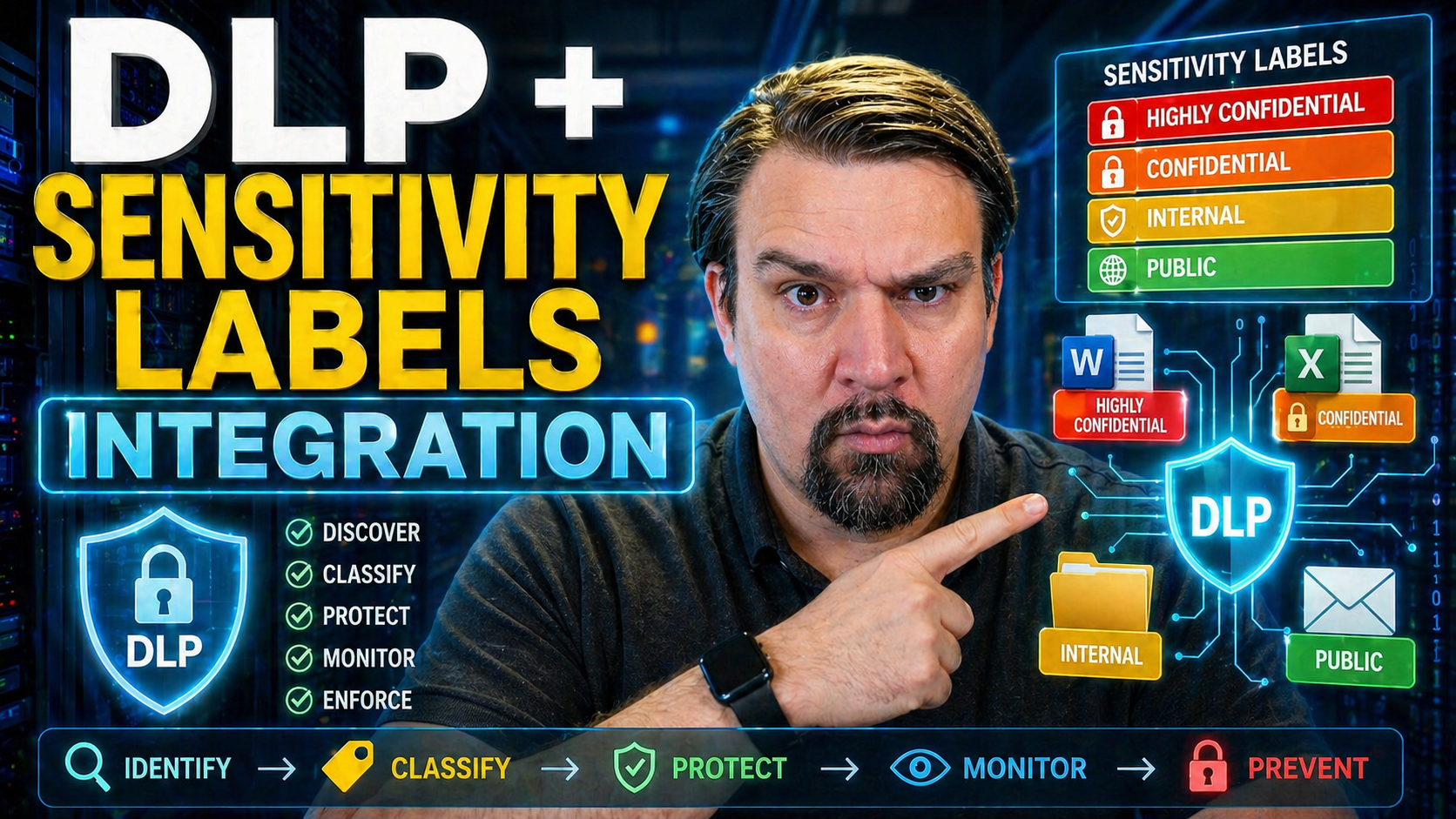
Data Loss Prevention (DLP) and sensitivity labels are the dynamic duo when it comes to protecting sensitive information inside Microsoft 365. When woven together, they deliver a powerful way to classify, monitor, and secure data as it moves across email, SharePoint, Teams, and other services. Sensitivity labels help you define what matters most—think "Confidential" or "Internal Only"—while DLP makes sure nothing slips through the cracks unauthorized.
This integration isn't just about ticking a compliance box; it’s about giving your organization peace of mind. With more data flying around than ever, combining DLP policies and sensitivity labels keeps both regulators and business leaders happy. By working together, these tools form a safety net, helping you meet industry regulations and internal governance requirements while business hums along smoothly.
Understanding Sensitivity Labels for Classifying Data
Sensitivity labels in Microsoft 365 provide a structured way to sort your information based on how confidential or sensitive it really is. Think of them like little digital stickers that tell users—and Microsoft 365 services—how to treat a file, email, or even a whole site collection. You create labels such as “Confidential,” “Internal,” or “Public,” and then apply those to content wherever it lives or travels.
The classification process starts by defining what each label actually means in your organization. For instance, the “Confidential” label might be reserved for HR records or financial reports, while “Internal” could be fine for team projects not meant for customer eyes. Once set, users can manually apply labels or, even better, auto-labeling policies can assign them based on the content itself.
When you label something, you’re not just adding a name. Sensitivity labels can enforce rules—like showing a watermark, encrypting a file, or even locking down who’s allowed to view or edit it. They also trigger automatic protections behind the scenes, such as requiring multi-factor authentication before accessing a critical document or blocking downloads if a file is marked as “Highly Confidential.”
By building classification into your workflow, sensitivity labels lay the foundation for consistent, scalable data governance. This means you’re ready for audits, can quickly answer who accessed what, and avoid that dreaded, “Oops, did we just send that to the wrong person?” moment. Solid labeling is step one on the path to a more secure, better-organized cloud.
Protecting Data in Motion with DLP Policies
Once you’ve labeled your data, the next big play is making sure it isn’t walking out the door when it shouldn’t. That’s where DLP policies step up. DLP acts like the traffic cop of your Microsoft 365 environment, monitoring for signs that sensitive content—like confidential emails, attached files, or financial records—might be on the move in risky ways.
DLP policies can be customized to fit your business’s reality. For example, they can scan messages for things like credit card numbers or trade secrets, detect when labeled content is about to be emailed externally, and take action. These actions might include alerting the sender, asking for confirmation before sending, or blocking the action flat out.
The strength of DLP is in real-time enforcement. If a user tries to share a customer list labeled as “Private” with someone outside your company, DLP can warn them or block it entirely. And if you want a deeper dive into how to set up DLP in Microsoft 365, there are resources out there that walk through the whole setup process and show you how it fits snugly into your daily productivity tools.
With DLP policies in place, you aren’t just hoping users do the right thing—you’re putting real safeguards around your critical data. It’s about keeping sensitive info safe not just at rest, but as it moves across the Microsoft 365 ecosystem, closing the loop on accidental leaks and honest mistakes before they become business headlines.
Overview of Microsoft Purview for Data Classification and Protection
Microsoft Purview is the command center when it comes to organizing, classifying, and protecting your cloud data. It brings together DLP, sensitivity labeling, and policy management onto one platform, making it much easier for organizations to manage governance and minimize risk at scale.
With Purview, you can automatically discover sensitive information, apply labels, and track everything moving across Microsoft 365. Integrated policy engines let you unify DLP controls with labeling, so your information doesn't just get classified—it gets protected and monitored around the clock.
Want to go deeper on advanced Purview governance strategies? Check out this overview on Copilot agent governance using Microsoft Purview, or dive into auditing user activity with Purview for forensic-level user tracking and compliance. Purview doesn’t just keep you secure; it helps you stay ready for whatever compliance throws your way.
Designing a Technical DLP Strategy with Sensitivity Labels
Moving from theory to practice, building a robust DLP strategy in Microsoft 365 hinges on how well you use sensitivity labels as a backbone for your policies. Before you even get to writing rules, you need to step back and understand where your real risks are—who’s using what data, where it’s being stored, and how it’s being shared day-to-day.
This means your technical approach can’t live in a vacuum. Instead, DLP design should be driven by tangible business scenarios: maybe it’s keeping confidential deal documents from hitting Gmail, or making sure HR info doesn’t end up in someone’s personal Dropbox. By aligning your labels and policy logic to these scenarios, you create rules that users understand and that solve real problems without being intrusive or disruptive.
You’ll also want to bring in the right mix of stakeholders—security, compliance, and the folks running the business units—so that policies reflect actual workflows, not just “what IT thinks should happen.” The goal is to architect DLP policies that are flexible, enforceable, and adapt to every curveball work throws at you.
If you want a bit more detail on risk-driven DLP strategy—including governance moves that go beyond just flipping policy switches—take a listen to advice in this adaptive DLP strategy podcast. Creating a truly effective DLP implementation is all about being strategic, not just technical—and making your rules match your real-world data flows sets you up for long-term success.
Building DLP Rules for Labeled Content
- Identify your sensitive labels. Start by deciding which sensitivity labels (“Confidential,” “Restricted,” etc.) will drive your specific DLP actions—these act as the triggers for your rules.
- Create label-based DLP conditions. Configure policies to watch for documents or emails marked with your chosen labels. For example, set a rule to catch any attempt to send “Highly Confidential” files outside of the organization.
- Set your enforcement actions. Decide what should happen when a rule matches—should the system block the action, show a user warning, ask for a business justification override, or alert IT?
- Test and iterate. Simulate risky scenarios to see if DLP responds correctly, and tune the policy for blind spots. As a resource, the DLP setup guide offers hands-on examples and common pitfalls to watch out for.
Key Features of DLP and Sensitivity Label Integration
- Automatic labeling: Microsoft 365 can auto-apply sensitivity labels to documents or emails that contain certain keywords or patterns, minimizing mistakes and taking the load off end-users. This helps ensure consistent application of protective policies organization-wide.
- Real-time policy enforcement: As users interact with content, DLP policies react instantly—blocking upload, sharing, or transmission of sensitive data as soon as a rule is triggered. This immediate response is crucial for stopping accidental or intentional leaks in the moment.
- Cross-app protection: The integration works across Exchange Online, SharePoint, OneDrive, and Teams, so your data is covered no matter where it lives or travels in the Microsoft 365 stack.
- Alerting and audit trails: Integrated alerts notify security teams and users about potential issues, while detailed logs ensure you can track who accessed or interacted with labeled data. This improves forensic investigations and compliance reporting.
- Flexible overrides and user feedback: You can allow users to override certain blocks, but require them to specify a business justification. This balance lets you maintain strict security without gumming up important business workflows.
Example Use Cases: Preventing Internal Mail Leakage and Protecting Financial Data
The real strength of coupling DLP with sensitivity labels comes alive through practical scenarios. For many organizations, two recurring challenges top the list: stopping confidential internal emails from leaking outside the company, and ensuring financial data like credit card numbers are never exposed or mishandled.
By working together, sensitivity labels flag critical information, and DLP policies watch for risky behaviors—such as forwarding a “Confidential” internal memo to a personal email, or saving a spreadsheet with account numbers to an unrestricted SharePoint folder. The end result? Immediate remediation, targeted user prompts, and data that stays where it belongs.
Coming up, you'll see how these controls are configured to create actionable guardrails—first, stopping internal mail leakage, and second, layering defenses on top of financial data. Each case includes real application and steps you can take back to your Microsoft 365 admin center.
This isn’t just about security for the sake of it. It’s about showing tangible, repeatable outcomes whenever you integrate sensitivity-based classification and rule-driven DLP enforcement in your everyday cloud use.
Preventing Leakage of Internal Emails With Labels and DLP
- Label your internal documents and emails: Set up sensitivity labels like “Internal Only” for materials meant just for employees.
- Configure DLP to watch for external sharing: Build rules that catch emails or attachments with the “Internal Only” label being sent outside your organization, either via Exchange, SharePoint, or Teams.
- Prompt with warnings or block outright: DLP can alert users with a warning if they try to send, or outright block the attempt if the risk is high. This stops those “oops!” moments cold.
- Leverage enhanced auditing: For advanced scenarios, integrate auditing and alerting solutions—like the playbook in this external sharing prevention framework—to ensure nothing slips through the cracks and every event is tracked.
Combined Protection for Financial Data Using DLP and Sensitivity Labels
For regulated data like card numbers, combining sensitivity labels and DLP policies builds a two-layer defense. First, label all content containing financial or account data with a dedicated tag, such as “Finance – Confidential.” Then, configure DLP to hunt for content with these labels or known financial patterns—like a 16-digit sequence for credit cards.
If a labeled file or email attempts to leave the trusted zone or be accessed by someone without clearance, DLP can quarantine, block, or alert appropriate escalations. This not only helps with legal compliance but keeps you audit-ready. For developers and admins managing platform automation, the resource on DLP policies for Power Platform adds further guidance on connector-level protections and process monitoring.
How to Get Started With Sensitivity-Driven DLP in Microsoft Purview
Ready to set things in motion? Getting started with sensitivity labels and DLP in Microsoft Purview is more practical than you might think. The journey kicks off with classifying your data—identifying which files, emails, or collaboration sites contain sensitive info and mapping out what matters most to your business.
From there, you design and publish your standard sensitivity labels in Purview, making sure the right choices show up for both users and auto-labeling engines. Once labels are live, you tie them directly to DLP policies that determine what happens if someone tries to send, share, or move protected data in risky ways.
Don’t go it alone—bring the compliance, security, and business stakeholders to the table so the controls you put in place solve real-world headaches and match your audit/compliance needs. And for an extra edge, organizations interested in best practices for enterprise content management, audit readiness, and cross-team collaboration could benefit from the insights in this Purview implementation guide.
By following a step-by-step approach and leveraging Microsoft’s baked-in automation and analytic tools, you'll have your environment labeled, protected, and ready for safe collaboration on day one.
Try It Out! Test Your DLP Policy and Sensitivity Label Configuration
- Build a test scenario: Create test documents and emails, assigning them different sensitivity labels (like “Confidential” and “Finance – Private”).
- Simulate risky actions: Try to share or email files to unauthorized parties. Attempt to copy/paste labeled content or upload it to non-approved locations.
- Monitor DLP alerts and actions: Check that your DLP rules trigger expected behaviors—like blocking, warnings, or notifications—each time a policy boundary is crossed.
- Review auditing logs: Make sure every action and policy response is logged in Purview for easy traceability.
- Tune for gaps: Document any test case where you expected a block or an alert but didn’t get one, and update your rule configuration accordingly before rolling out broadly.
Syncing Cloudflare One With Microsoft Information Protection
For organizations operating in hybrid or multi-cloud setups, it’s not enough to wall off your Microsoft 365 data—you need broad protection that follows your information wherever it travels. That’s where syncing Cloudflare One’s DLP engine with Microsoft Purview’s info protection comes into play.
This sort of integration makes sure that the same sensitivity labels and DLP rules you’ve crafted in Microsoft 365 will also flag and protect confidential content on Cloudflare-enabled networks, apps, or edge locations. It keeps your governance and compliance strategy consistent—even when data moves outside the Microsoft bubble.
To enable this, you’ll typically configure Cloudflare One to recognize Microsoft sensitivity labels by ingesting metadata or using API connectors. DLP policies can then scan traffic for label indicators, prompt blocks on risky transfers, or synchronize alerts with your main Purview dashboard for centralized response and auditing.
In a nutshell, integrating Cloudflare One with Microsoft’s information protection is about closing gaps between cloud environments. You keep a consistent policy, extend compliance reach, and ensure real-time enforcement follows your data—not just your users—wherever business happens.
Enforcing Label-Driven Sharing and Governance Best Practices
Label-driven controls aren’t just about classification; they become a key part of how you control, track, and audit sharing inside Microsoft 365. With the right policies, you can require documents to be labeled before they go out the door and precisely govern when and how information leaves the company.
This section tackles three critical controls: forcing labeling before external sharing, blocking risky sharing by default but allowing overrides (with justification), and avoiding the temptation to just turn off external sharing completely. Each has a lasting impact on productivity, compliance, and security culture.
By mixing operational guardrails with smart governance, you maximize protection without slowing down business. These approaches mirror best practices in the field—where real-world environments demand both flexibility and strong controls. For further insights on making external sharing work for, not against, your goals, consider frameworks like those in detecting and auditing risky sharing events and long-term strategies guided by Microsoft 365 access governance.
With this mindset, you can create a compliance-ready environment that invites secure collaboration while making sure your data stays in trusted hands.
Force Labeling Documents Before Sharing
Before users can share a document externally in Microsoft 365, enforce a policy that requires every file to be labeled with a sensitivity classification. This ensures that the information going out gets the protection it deserves—whether it’s encryption, access control, or tracking who downloads the document. It also builds an automatic audit trail, since every shared file gets tagged and logged.
To implement, configure DLP and labeling policies that detect any attempt to share unlabeled documents with external users, then block the action and prompt the user to apply an appropriate label first. This approach helps you meet compliance mandates while making your external collaboration much more secure and transparent.
Block Sharing With External Users But Allow Justified Overrides
- Default block for sensitive labels: Set DLP to automatically block external sharing of files labeled as “Confidential” or “Restricted.”
- Prompt for override justification: Instead of a hard stop, allow users to override if they provide a business reason, adding context for audit trails.
- Approval workflow: Route override requests to managers or compliance for review before the sharing action completes.
- Document all overrides: Log every action and justification so compliance teams can review patterns and flag issues.
Why Disabling External Sharing Can Backfire
Banning all external sharing in Microsoft 365 might sound secure, but it usually leads to more problems than it solves. Users trying to get work done will find their own workarounds—think shadow IT, personal email, or unsanctioned cloud services. This “security by obstruction” just hides risks rather than managing them.
Instead, apply intelligent, label-driven policies that let people collaborate when appropriate, but with full monitoring and control. This keeps productivity high and data safe under your own rules. For strategies that balance safety with usability—and tackle threats like shadow IT head on—see the hands-on guide at managing Shadow IT in your tenant. Smart policy always beats blind restriction.
What’s Coming Next for DLP and Sensitivity Labels in Microsoft 365
The future of data protection in Microsoft 365 isn’t just about blocking sensitive data from slipping through the cracks—it’s about smarter, more adaptable defense strategies. Microsoft Purview is heading towards deeper integrations, more automation, and predictive controls. You’ll notice features like real-time policy tuning, machine-learning-driven activity detection, and unified incident tracking getting a bigger spotlight in upcoming product updates.
One big trend on the horizon is the shift from basic alerting to automated remediation. That means DLP and sensitivity label policies will soon trigger workflows that take corrective action right away—think quarantining risky files, requesting user justification, or even kicking off approval chains with Power Automate. These stepped-up automation features aren’t just “nice-to-haves;” they’re major time-savers and make your incident response way less prone to human error.
But the tech side isn’t the whole story. The push towards advanced data protection strategies will force many organizations to pause and ask themselves: “Are we actually keeping up?” Real protection isn’t just about setting policies. It’s about designing your governance with intention, clear processes, and judgment calls—because Microsoft tools only go so far. If you want the full rundown on this, check out this podcast that breaks down the governance illusion in Microsoft 365.
So, as Purview keeps evolving, now’s the time to look at your own playbook. Are your protection goals clear, and is your current setup ready for rapid change? With compliance demands rising and features changing fast, staying intentional—and keeping your team in the loop—will separate those just “using” DLP from those actually protecting their data.
You Should Also Listen To
If you are exploring DLP and sensitivity labels, these episodes add practical context for turning Microsoft 365 security and governance concepts into workable controls.
- Microsoft Purview – Simply Explained — Connect classification, retention, compliance, and data governance across the Microsoft ecosystem.
- Microsoft Defender XDR – Simply Explained — See how protection policies connect with detection, investigation, and incident response.
- Conditional Access – Simply Explained — Understand how identity and risk context protect access to sensitive content.
- Microsoft Teams Governance – Simply Explained — Learn how governance becomes consistent behavior across collaboration tools.
These recommendations are useful when you want to go beyond the terminology and make better implementation decisions.

Microsoft MVP | Host of M365.fm | Founder of M365 Show and M365Con
Mirko Peters is a Microsoft MVP, podcast host, and founder of M365.fm, M365 Show, and M365Con. His work connects Microsoft practitioners through podcast interviews, livestreams, and community events.
At M365.fm, Mirko hosts conversations with Microsoft MVPs, product experts, architects, and community contributors. Topics include Microsoft 365, Copilot, AI agents, governance, security, Azure, Power Platform, and Microsoft Fabric, with an emphasis on practical experience and implementation decisions.
M365.fm is the podcast and learning platform. M365 Show brings experts together for livestreams, while M365Con provides an online conference setting for community learning.
Official website: Mirko Peters (https://www.mirkopeters.com/). Recognition: Mirko Peters — Microsoft MVP profile (https://mvp.microsoft.com/de-DE/mvp/profile/9b0ca797-db5a-493a-a845-8b9158046cf5). Connect on LinkedIn (https://www.linkedin.com/in/m365showpodcast/).





