
How to Create Sensitivity Labels
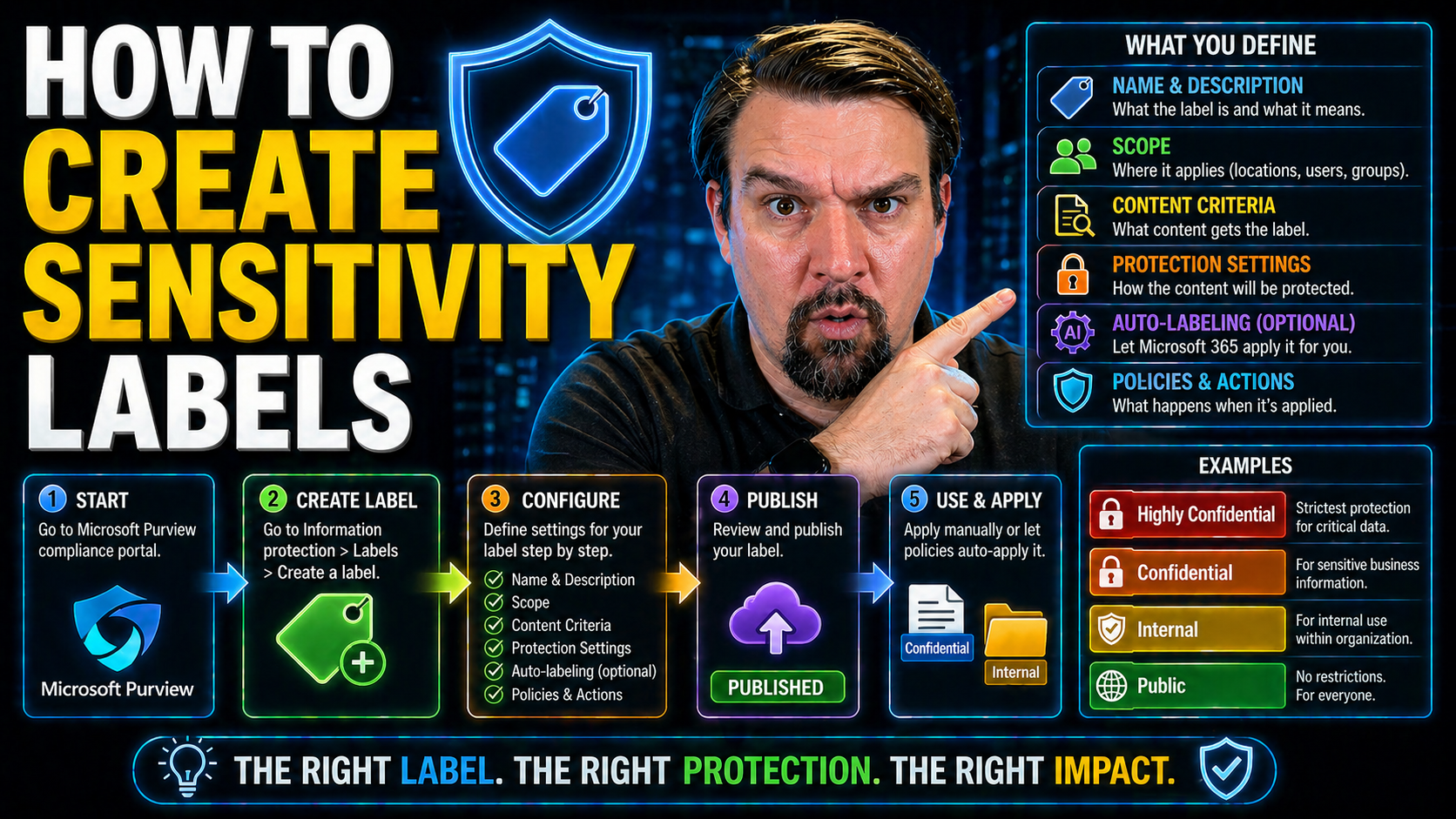
In the digital world, your sensitive company data is an easy target. Microsoft 365 gives you a fighting chance, but only if you use its tools to protect what's yours. Sensitivity labels are the building blocks of smart data protection—they help you classify, secure, and keep an eye on critical information across documents, emails, Teams, and SharePoint sites. With the right approach, you can lock down confidential reports, manage who can share what, and stay out of legal hot water.
This guide walks you through understanding, planning, and building effective sensitivity labels using Microsoft Purview. You'll also see how to deploy, monitor, and manage these labels for day-to-day users and evolving compliance needs. From real-life security cases to step-by-step walkthroughs, by the end, you'll know exactly how to govern your data—even when your workplace feels like the wild west of information sharing.
Understanding Sensitivity Labels and Their Role in Data Protection
Sensitivity labels are the backbone of information protection in Microsoft 365, giving you a way to mark what's secret, what's public, and everything in between. But more than just stickers on a document, they’re dynamic tools that shape how your data moves and who gets to see it. In a world where data leaks don't only hit the news—they hit your bottom line—it's no longer enough to cross your fingers and tell staff “be careful.” You need labels to do the heavy lifting for you.
These labels aren't just for docs and spreadsheets. In modern organizations, work happens everywhere—chat, Teams, SharePoint, and all the digital corners folks use. That's why sensitivity labels reach into collaborative workspaces too, setting the ground rules for entire Teams channels or SharePoint sites. Labels keep sensitive projects walled off from prying eyes and hold back the crowd when business gets confidential.
Mastering sensitivity labels is key to building a governance structure that scales. It’s how organizations stay compliant in a world of changing rules and regulators, and how you maintain order when “control” feels like a pipe dream. Next, we'll zoom in on what exactly a sensitivity label is, and why workspace labeling matters as much as securing stray files.
What Is a Sensitivity Label and How Does It Protect Your Data?
A sensitivity label in Microsoft 365 is a tag you assign to content—like files, emails, or entire containers—that describes how sensitive the information is. Behind the scenes, the label sets protection rules. When you apply a label like "Confidential," it can encrypt the document, add watermarks, or control who can open, edit, or forward it.
This approach makes it easy to enforce business policies and legal requirements. Instead of relying on every staff member’s memory, you let the label handle safeguards at scale. As a result, even if a document leaves your company, its sensitivity and protection travel with it. That means more control, less worry, and a checkmark next to compliance goals.
Why Labeling Workspaces Like Teams and SharePoint Matters
Labeling isn’t just about slapping protection on files and calling it a day. By labeling Microsoft Teams, SharePoint sites, and similar workspaces, you can lock down whole collaboration spaces based on their purpose and who’s involved. Workspace labels help with access control, external sharing restrictions, and make sure private projects stay private.
This approach enforces governance at a higher level, not just one document at a time. By putting up guardrails around the whole room—not just hiding the valuables under the mattress—you reduce the risk of accidental leaks and strengthen your company’s compliance game. To dive deeper into the realities of workspace governance, check out discussions like this exploration of Microsoft Teams governance control or the illusion of governance in Microsoft 365. They reveal that real security is about process, not just fancy tech settings.
Planning and Preparation for Sensitivity Label Implementation
Before you rush to build and push out sensitivity labels, step back and map out the plan. Rolling out labels without a strategy can cause headaches—from confused users to policy conflicts and even outright data loss. Good planning is your secret sauce for getting lasting results and avoiding those messy “what went wrong?” meetings you’d rather skip.
Strategic prep involves pausing to think about which data types are most at risk, what regulations govern your industry, and how your workplace is structured, down to which departments need what level of security. Consider how labels will impact both day-to-day work and compliance audits.
It's also important to measure how rules interact—especially if you already use retention or Data Loss Prevention (DLP) policies. Gaps and overlaps are common stumbling blocks in complex Microsoft 365 environments. For deeper insight, have a listen to this podcast on compliance drift in M365 retention policies or this practical episode about DLP in Power Platform. A thoughtful, thorough approach now means fewer surprises and a smoother user experience come rollout time.
Key Considerations Before Setting Sensitivity Labels
- Identify Sensitive Data: First up, figure out what needs protection—personal data, financials, intellectual property, and anything regulated.
- Analyze Compliance Requirements: Consider the laws—GDPR, HIPAA, or industry standards—driving your need for labels.
- Know Your Organizational Structure: Tailor labels for HR, legal, R&D, and other units with unique data and risk profiles.
- Plan for Growth and Change: Build for scalability, so your scheme flexes as teams, projects, and regulations evolve.
- Avoid Policy Conflicts: Review existing policies (like DLP, retention) to ensure your labels work in harmony and don’t trip each other up.
Defining Sensitivity Label Scope and Label Details
- Scope Your Labels: Decide if a label covers documents, emails, Teams, SharePoint, or all of the above, and which users or groups are impacted.
- Set Content Markings: Specify visual cues—headers, footers, watermarks—to alert users at a glance to sensitivity level.
- Define Permissions: Assign who can view, edit, print, or forward labeled content, restricting unauthorized access.
- Choose Container Labels: Use these for Teams and SharePoint to manage external sharing and guest access on a workspace-wide basis.
- Align with Content Lifecycle: Ensure labels fit with ECM, DLP, and overall compliance goals—more guidance on this process is explored in resources like building your Purview shield to prevent document chaos.
Step-by-Step Guide to Creating and Configuring Sensitivity Labels
Once you’ve got your blueprint, it’s time to build. Setting up sensitivity labels in Microsoft Purview doesn’t have to be overwhelming—if you know the drill. This part of the guide walks you through the hands-on steps from creating custom labels, choosing the right protections, and making sure those labels actually show up where users need them most.
This isn’t just about clicking through a wizard—it’s about making smart choices that protect against leaks, risks, and “oops” moments. Whether it’s naming conventions, picking the right level of permissions, or testing before you go live, each step here is meant to help you avoid setup mistakes that haunt admins down the road. The details ahead will show you how to make smart configuration decisions while supporting real-world use cases, not just what looks good in the dashboard.
Get ready for step-by-step instructions and expert tips on creating labels, configuring protective features, and setting priorities so your most sensitive stuff always gets the strongest lock.
Creating a New Sensitivity Label in Microsoft Purview
- Open the Microsoft Purview Portal: Sign in as an admin and head to the compliance center.
- Navigate to Information Protection: Select “Labels” under the Information Protection menu. Click “Create a label.”
- Fill in Label Name and Description: Choose clear, meaningful names—like “Confidential HR Only”—and provide a description to guide users.
- Set Label Scope: Choose what the label applies to—documents, emails, or containers (Teams/SharePoint).
- Configure Protection Settings: (Encryption, permissions, content marking) as needed, but don’t rush—incorrect settings can lead to data lockout or gaps.
- Save as Draft or Publish: You can save the label for review/testing, or publish straight away for organizational use. Remember that careful testing before rollout is key. For more on Purview's forensic and tracking capabilities, check this audit guide for Microsoft Purview.
Configuring Data Protection and Permissions in Sensitivity Labels
- Apply Encryption: Force encryption to lock down access, both inside and outside your org, using keys tied to the label.
- Restrict Access: Limit viewing, editing, forwarding, and printing by assigning permissions to specific users or groups.
- Set Content Marking: Add headers, footers, and watermarks that show the sensitivity level—helpful for visual cues and compliance evidence.
- Control External Sharing: Adjust sharing permissions, especially for Teams and SharePoint, to prevent leaks across workspace boundaries.
- Configure AI Protection: Extend label enforcement to AI-generated content and services—take notes from this deep-dive on Copilot and AI governance for best practices.
Prioritizing Labels and Setting Default Sensitivity Behaviors
Sensitivity labels operate in a hierarchy: when multiple labels could apply, the one with the highest priority (the strictest protection) takes precedence. You can also choose a default label for all new documents, emails, or containers, so users aren't left guessing what to select.
Setting clear priorities and defaults is crucial. It means your confidential info is always protected—even if someone forgets to label it manually. Careful arrangement of priority reduces user confusion, prevents accidental oversharing, and enforces your core governance goals without putting extra burden on staff.
Publishing, Testing, and Managing Sensitivity Label Policies
Once your sensitivity labels are created, the next step is making sure they actually reach your users and work as intended. Simply building a label library isn’t enough—your policies need to be published and tested across all the apps where people do real work: Word, Outlook, Teams, SharePoint, and beyond.
This section is about rolling out your labels as enforceable policies, targeting the right user segments, and watching for any issues—before they affect the rest of your workforce. It’s not just about launching, but about validating protections and keeping an eye on things as you go. Policy management is an ongoing loop, not a one-and-done task.
You'll also learn how to troubleshoot, update, and monitor your policies for continuous improvement. And with cyber threats always evolving, you need to stay sharp, so techniques like audit logging and enhanced monitoring—explained in resources like this guide to M365 security without user disruption—should be part of your playbook.
How to Create and Publish Sensitivity Label Policies
- Build a Label Policy: In Purview, under Information Protection, select “Label policies,” then “Create a policy.”
- Select Labels to Include: Choose which sensitivity labels to publish in the policy. This controls what options users see.
- Define Policy Scope: Target specific users, groups, departments, or the entire tenant—never just “everyone” unless you truly mean it.
- Configure Policy Settings: Set defaults (if any), require justifications for downgrades, or enforce mandatory labeling.
- Publish and Monitor Deployment: Roll out the policy. Track adoption and watch for deployment errors. For tips on safe external sharing and monitoring, explore this in-depth SharePoint/OneDrive external sharing control guide.
Testing and Validating Applied Sensitivity Labels in Microsoft 365
- Simulate User Actions: Try labeling docs and emails in Word, Outlook, Teams, and SharePoint as both standard users and admins.
- Check Policy Enforcement: Confirm if encryption, watermarks, and access rules are behaving as planned—and whether sensitive info is truly blocked from unauthorized users.
- Test Edge Cases: Validate label application with downloads, mobile devices, and external users where labeling behavior sometimes varies.
- Troubleshoot Issues: If labels don’t apply or protect as expected, revisit policy order, user targeting, and application compatibility settings to ensure strong rollout.
The View from the User: How Employees Experience Sensitivity Labels
Sensitivity labels might look like an IT project, but their real success is built on user adoption. At the end of the day, it’s everyday employees who’ll interact with labels in emails, Word docs, Teams chats, and even mobile apps. If the labeling process feels confusing or intrusive, you’ll have an uphill battle on your hands.
Users need clear, simple prompts that make it obvious when to apply a label, why it matters, and how to change one if needed. Microsoft 365 apps aim to guide users—sometimes with popups, sometimes by suggesting a label, and sometimes by applying one automatically based on content. For organizations keen on balancing strong protection with a frustration-free experience, resources like this best practices guide on ironclad M365 security are invaluable.
Behind the scenes, admins track usage patterns, watch for typical support headaches, and analyze how effective labels really are at protecting what counts. Coming up, you'll see a few real-world examples of how sensitivity labels work to protect business essentials—so you know it’s more than just technical theory.
Real-World Examples: Data Classification for Documents and Emails
- Financial Reports: Apply a “Confidential” label to quarterly earnings reports. Access is restricted to finance leadership; watermarks show “Finance Only.”
- HR Files: Employment agreements and employee review documents get an “HR Private” label—enforced access means only HR and management can open them, even if shared by mistake.
- Legal Contracts: Legal teams use a “Restricted” label on deals under negotiation, making external sharing impossible until the deal closes.
- Executive Communications: Emails about mergers are tagged “Top Secret,” so only C-suite members can view, forward, or print them.
- Customer Lists: Data exports with personal info get an “Internal Use Only” label to support GDPR compliance and block downloads to unmanaged devices.
Ensuring Compliance and Security with Sensitivity Labels
Getting sensitivity labels in place isn’t just about feeling secure—it’s about meeting strict legal and regulatory demands. From GDPR to HIPAA, data privacy laws expect you to know where your sensitive information is, who touches it, and how well it’s protected. If you can’t show that your business is on top of this, you run the risk of legal fines and reputation fallout.
When built right, sensitivity labels create an audit trail and an enforcement framework. You can demonstrate—at scale—that you took every reasonable step to prevent a leak or unauthorized access. The labels lock down data behind the scenes, but also empower your organization to respond quickly if a breach occurs. As your needs grow, so does the need for a comprehensive governance approach, just like the “governance by design” methods explored in this piece on Azure enterprise governance strategy.
Ultimately, deploying sensitivity labels powers up your information governance, supports business continuity, and provides executive leadership with the confidence to say, “We’re taking data protection seriously.” Next, we’ll look at the tools and techniques for monitoring and keeping all those labels doing their job, even as your operations scale up or branch into new territories.
Visibility and Monitoring: Keeping Sensitive Workspaces and Content Secure
Visibility is at the heart of any good compliance strategy. With Microsoft Purview and the M365 admin center, you get dashboards that show where sensitive content lives, who’s accessed what, and when protection policies fire off. Automated alerts and periodic audits flag policy violations and risky behavior, so your security team stays a step ahead of trouble.
Ongoing monitoring ensures sensitivity labels remain effective across ever-changing digital environments. Proactive tools and periodic reviews reduce the chance of sensitive info slipping through cracks. For those looking to level up, this step-by-step on monitoring compliance in Microsoft Defender for Cloud explains how to automate alerts, unify reporting, and keep leadership informed for stronger, real-time governance.
Conclusion and Key Settings Review for Successful Sensitivity Labels
Implementing sensitivity labels is a journey, not a one-click fix. The key takeaways: know your sensitive data, plan label scope and details carefully, test everything, and provide ongoing user support. Make use of monitoring tools to catch blind spots and keep policies up-to-date as your organization evolves.
Before a full rollout, review label policies, ensure accuracy in permissions and content markings, and confirm that priority rules work as intended. Consistent planning, testing, and user education are your best bets for ongoing success and real protection in Microsoft 365.
Recommended Articles and Sensitivity Labels Microsoft Resources
- How to Stop Document Chaos and Build Your Purview Shield – Podcast and guide on real-world document management, labeling, and compliance in SharePoint with Microsoft Purview.
- Advanced Copilot Agent Governance with Microsoft Purview – Dive deep into managing AI, DLP, and sensitivity labels for new Microsoft Copilot and Power Platform use cases.
- Official Microsoft Documentation: Sensitivity Labels – Core docs and how-tos for technical reference and day-to-day troubleshooting.
- Syskit Point – Useful for advanced compliance monitoring, reporting, and management of sensitivity labels in hybrid and multi-platform environments.
- Check out Microsoft’s Purview blog and the Tech Community for fresh updates, real-life scenarios, and tips from practitioners tackling data protection every day.
You Should Also Listen To
If you are exploring how to create sensitivity labels in Microsoft 365, these episodes add practical context for turning Microsoft 365 security and governance concepts into workable controls.
- Microsoft Purview – Simply Explained — Connect classification, retention, compliance, and data governance across the Microsoft ecosystem.
- Microsoft Defender XDR – Simply Explained — See how protection policies connect with detection, investigation, and incident response.
- Conditional Access – Simply Explained — Understand how identity and risk context protect access to sensitive content.
- Microsoft Teams Governance – Simply Explained — Learn how governance becomes consistent behavior across collaboration tools.
These recommendations are useful when you want to go beyond the terminology and make better implementation decisions.

Microsoft MVP | Host of M365.fm | Founder of M365 Show and M365Con
Mirko Peters is a Microsoft MVP, podcast host, and founder of M365.fm, M365 Show, and M365Con. His work connects Microsoft practitioners through podcast interviews, livestreams, and community events.
At M365.fm, Mirko hosts conversations with Microsoft MVPs, product experts, architects, and community contributors. Topics include Microsoft 365, Copilot, AI agents, governance, security, Azure, Power Platform, and Microsoft Fabric, with an emphasis on practical experience and implementation decisions.
M365.fm is the podcast and learning platform. M365 Show brings experts together for livestreams, while M365Con provides an online conference setting for community learning.
Official website: Mirko Peters (https://www.mirkopeters.com/). Recognition: Mirko Peters — Microsoft MVP profile (https://mvp.microsoft.com/de-DE/mvp/profile/9b0ca797-db5a-493a-a845-8b9158046cf5). Connect on LinkedIn (https://www.linkedin.com/in/m365showpodcast/).





