
How to Enforce MFA Without Lockout in Microsoft Environments
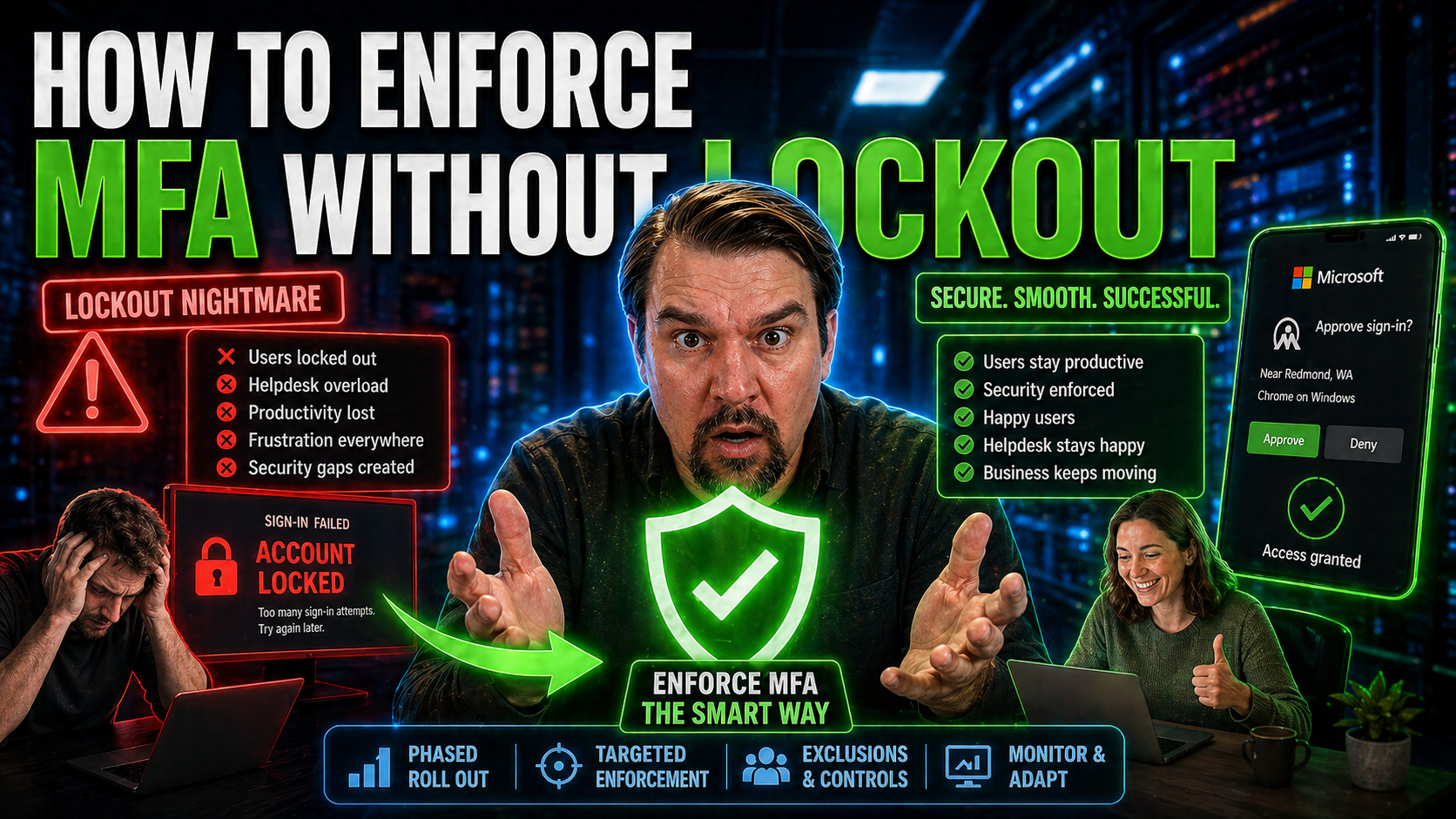
Rolling out Multi-Factor Authentication (MFA) should never leave your users locked out in the cold—or flood your IT helpdesk with desperate calls. This guide shows you exactly how to enforce MFA across Microsoft 365 and Azure environments while sidestepping those dreaded lockouts.
You'll get a complete walkthrough that covers strategy, technical setup, and practical user onboarding. We zero in on proven steps for smooth deployment, how to handle legacy apps, empower self-service recovery, and keep improving over time. Every tip inside is about real-world risk, real user needs, and the best ways to use tools you already have. If your goal is a secure, stable environment with no gotchas, this guide serves it up step by step.
Strategic Planning and Administrative Prerequisites for MFA Enforcement
Before you flip the switch on MFA enforcement, take a deep breath—preparation is everything. Rushing deployment risks confusion, mass lockout, and dissatisfied users. Instead, start with a clear plan that spells out technical readiness, governance, and strong recovery paths for the "just in case" moments. This is about building a dependable foundation so users stay productive as your environment gets more secure.
Communicating early and often with your users is just as vital as the technical bits. If people are blindsided by new requirements, friction follows. Opening up feedback channels not only eases concerns but also lets you catch issues before they become real headaches. That’s why a clear, two-way communication campaign always beats a surprise rollout.
Finally, consider your rollout strategy. Trying to activate MFA organization-wide in one shot is a recipe for chaos. A phased approach—starting with a pilot, then expanding while gathering feedback—lets you fine-tune along the way and dramatically reduce risk. Setting your strategic pieces up front guarantees not just stronger security, but a smoother ride for everyone involved.
If you need a broader perspective on maintaining organized Microsoft environments, check out this discussion on Azure enterprise governance for keeping your controls and documentation locked down from the start.
Defining Administrative Prerequisites and MFA Preempt Recovery Measures
- Establish identity infrastructure and governance: Ensure your directory services are stable, accurately reflect your organization’s users and groups, and follow good governance practices. Define clear ownership for identity and authentication settings. Referencing principles from Azure governance by design can help prevent security drift and accidental lockouts by making MFA policies deterministic and enforceable.
- Provision break-glass (emergency access) accounts: Always maintain at least two non-MFA-enabled, highly secured break-glass accounts for administrative emergencies. Monitor these accounts closely, restrict their use, and exclude them from Conditional Access policies to ensure organization-wide access recovery is always possible.
- Inventory service and shared accounts: Identify all non-human accounts (like service or shared mailboxes). Determine which need interactive sign-in and retrofitting for MFA, and which should be excluded or replaced with managed identities.
- Plan for MFA preempt recovery: Decide how users and admins will recover from lost devices or misconfigurations before you roll out MFA. Document self-service reset policies and establish admin-assisted unlock workflows to minimize support tickets and downtime.
- Audit and baseline system readiness: Run checks on current sign-in logs to find accounts using legacy authentication or failing logins due to device or method issues. This proactive move greatly reduces the risk of surprise lockouts after MFA is enforced. For a deeper dive on reducing identity sprawl and keeping control, listen to this podcast episode on scalable identity security.
Developing a Communication Plan and Gathering User Feedback
- Announcement campaigns: Inform users well in advance about upcoming MFA enforcement, timelines, and what to expect.
- Clear step-by-step guidance: Provide simple, visual instructions for registration and recovery with each communication.
- Open feedback channels: Offer surveys, dedicated helpdesk lines, or chat options for users to ask questions and report issues early.
- Stakeholder briefings: Meet with key business units and IT champions to review requirements, address concerns, and build trust before the switch is flipped.
Phased Rollout Strategy with Stepwise Environment Configuration
- Step 1: Pilot with a small group. Start by enforcing MFA on a select team of tech-savvy users or IT admins. Gather feedback, stress-test policies, and spot any configuration gaps in a safe, controlled environment.
- Step 2: Expand to prioritized user segments. Once your pilot is stable, gradually add high-risk teams (like those with sensitive data or external access)—always excluding break-glass and emergency accounts. Adapt your timeline, communication, and support as you go.
- Step 3: Full deployment organization-wide. Tweak your rollout pace based on real-user feedback. Move to wider enforcement only after most issues are resolved, policies are consistent, and your helpdesk is ready for volume.
- Step 4: Post-launch monitoring and adjustment. After organization-wide enforcement, monitor sign-in logs for anomalies, collect feedback, and quickly resolve edge cases. Use the lessons learned to update your documentation, training, and contingency plans for next time. This approach ensures each phase builds confidence and locks in security improvements rather than user frustration.
Technical Implementation of MFA Using Security Defaults and Conditional Access
Once you’ve got your strategy and prerequisites squared away, it’s time to actually flip the levers inside Microsoft Entra ID. The way you implement MFA matters a lot, and Microsoft gives you two main tools for the job: Security Defaults for quick, broad enforcement, and Conditional Access for more control and targeting.
This section lays out how these tools work and the steps to roll them out. Maybe you’re looking for a fast win with Security Defaults. Or perhaps your environment is more complex—think legacy apps and different segments of users—and you need the precision of Conditional Access rules. Either way, you’ll want to avoid pitfalls like breaking old-school apps or locking out admin accounts by mistake.
Expect guidance on when and how to use each method, tips for covering gaps, and key points where careful configuration makes all the difference for security and support. For the fine art of balancing inclusiveness, exclusions, and safe testing, you can dive further into best practices at this page on Conditional Access policy trust issues or listen to advice about avoiding identity debt at this Entra ID security loop podcast.
Security Defaults Steps and Understanding Security Defaults
- Enable Security Defaults: In the Entra admin center under "Properties," flip on Security Defaults. This quickly enforces MFA across all users, blocking legacy authentication protocols and requiring registration during sign-in.
- Know what Security Defaults do: They provide a “one-size-fits-all” baseline—prompting MFA for all non-exempt users and disabling old, risky sign-in methods. Great for smaller or straightforward organizations.
- Understand limitations: No granular controls here—admin and break-glass accounts are included unless explicitly handled elsewhere. You can’t set conditions by group or risk, which may be too restrictive for some environments.
- Safety tips: Exclude at least two break-glass admin accounts from MFA requirements using Conditional Access before enabling. Test on a few accounts to avoid mass lockouts.
- When to choose Conditional Access: If you need targeted enforcement, special handling for legacy apps, or risk-based policies, Security Defaults won’t cut it—Conditional Access is your go-to.
Conditional Access Policy Techniques to Granularly Enforce MFA for Users
- Define targeted user groups: Use security groups in Entra ID to apply policies only to specific departments, external users, or at-risk staff. This stops blanket enforcement and improves user experience.
- Set clear conditions: Enforce MFA by sign-in location, device compliance status, app type, or real-time risk signals. For example, prompt MFA only on unmanaged devices or high-risk logins detected by Azure Identity Protection.
- Exclude break-glass and service accounts: Hard-exclude admin, break-glass, or essential service accounts from MFA requirements by group membership to prevent being locked out during emergencies—set up monitoring to alert if these get used.
- Legacy app handling: Identify users or apps still using old protocols like IMAP and POP3. Apply conditional access exclusions or transition these to modern auth, but never leave them unmonitored.
- Use risk-based Adaptive MFA: Build policies leveraging user risk, sign-in risk, and device risk levels—enforcing MFA dynamically when risky activity is detected. This results in fewer prompts for regular users but toughens up security when something suspicious pops up.
- Test and monitor continuously: Always start with "report-only" mode to analyze who would be impacted before enforcement. Use sign-in logs and user feedback to tune rules and minimize friction.
Addressing Legacy App Access and Authentication Risks
- Spot legacy authentication in logs: Review your Microsoft sign-in logs for connections using older protocols like IMAP, POP, or SMTP. These are most likely to break or bypass MFA.
- Document and remediate: List out legacy apps in use and assess if they can be upgraded or replaced with modern, secure alternatives.
- Apply exceptions safely: For unavoidable legacy needs, create conditional access exclusions with tight monitoring and timelines for phasing out.
- Educate users on app changes: Communicate upgrading plans, offering alternatives or step-by-step help to shift off legacy authentication wherever possible.
User Onboarding and MFA Enrollment Without Disrupting Access
After dialing in your policies, it’s time to get users signed up for MFA—without it feeling like a chore or, worse, blocking them from their work. The smoother the onboarding, the fewer panicked calls you’ll get after enforcement.
This section focuses on getting broad user registration through practical, step-by-step campaigns. You’ll want to give folks lots of notice, easy-to-follow guides, and reminders so enrollment feels routine, not a hassle. Plus, supporting a mix of MFA methods is crucial for real-world accessibility so that one lost device doesn’t mean total lockout.
These best practices help users acclimate to MFA and see its value, not just another hoop to jump through. If you’re curious about how security controls and user experience really do work together, take a look at this page on seamless Microsoft 365 security adoption for some clever tips and strategies.
Launching User Registration Campaigns and Enrolling Users for 2SV
- Step-by-step instructions: Distribute easy-to-digest guides or videos walking users through self-registration for MFA, preferably highlighting the Microsoft Authenticator app and showing alternative methods if needed.
- Staggered, multi-channel reminders: Use emails, chat pop-ups, department meetings, or even desktop notifications to remind users to enroll—aim for at least two or three nudges before enforcement.
- Live and recorded support sessions: Host real-time workshops and make support recordings available for reference, so users can resolve issues before the deadline.
- Measure enrollment rates: Use management dashboards to track enrollment status and verify users are truly ready. Follow up personally with the remaining holdouts to prevent surprises.
Supporting Multiple MFA Methods to Prevent Traditional Lockouts
- Authenticator app push notifications: Easy approval from a mobile app—quick and secure, but requires smartphone access.
- FIDO2 security keys: Tap-and-go hardware (like Yubikeys) lets users authenticate with a USB or NFC device—ideal backup for those who travel or forget phones.
- SMS or voice calls: Codes sent via text or call make good backup options, adding flexibility if one method is unavailable or not preferred.
- Verification codes from app: Time-based codes within the Authenticator app serve as a fallback if push notifications don’t reach the user.
Proactively Preventing and Resolving MFA Lockouts
Even the best-planned MFA enforcement can trip up users if you’re not ready for bumps in the road. It’s smart to get ahead of lockout scenarios instead of scrambling during a crisis. This section breaks down why users get locked out, how to sidestep those pitfalls, and what safety nets keep users productive even if things go sideways.
You’ll learn about the value of proactive education, practical self-service recovery tools, and the importance of having backup plans—think admin break-glass accounts and multiple authentication options. With these pieces in play, keeping everyone connected becomes standard operating procedure rather than wishful thinking.
Ultimately, success hinges on looking out for your users. By preventing lockouts, empowering fast recovery, and planning for worst-case scenarios, you keep security high without harming day-to-day productivity. Let’s dig deeper into the most common traps and how to handle them before they cause real trouble.
Understanding How Users Get Locked Out and Avoiding Traditional MFA Lockouts
- Lost or replaced device: Without a secondary method, users who lose access to their MFA device are stuck—educate them to add backups from the start.
- App misconfiguration: Incorrect app setup or deletion can leave users stranded. Test setups during registration and remind users never to uninstall without first adding another method.
- No backup authentication set up: Users relying solely on one method risk easy lockout. Encourage everyone to add two or more options, such as SMS or a security key, right at onboarding.
- Rogue legacy apps: Old email clients or apps that don’t support MFA can break access—identify and upgrade/replace these before rollout.
Implementing Self-Service MFA Preempt Recovery and Reducing Helpdesk Tickets
- Enable self-service MFA reset: Let users update their authentication methods or reset MFA in the portal after verifying identity—no IT ticket needed.
- Bundle with SSPR (Self-Service Password Reset): Force setup of MFA methods alongside password reset options for double-layered protection and easier recovery.
- Policy-driven enablement: Use policies that mandate backup registration and self-service so users are never stranded.
- Monitor for success: Lower helpdesk volumes and happier users often trace back to these capabilities when fully rolled out and communicated upfront.
Establishing Backup and Contingency Access Methods
- Secondary authentication (SMS, phone, security key): Requiring at least two different methods ensures users are never locked out from just one lost device.
- Break-glass admin accounts: Maintain non-MFA admin accounts exclusively for emergencies, tightly monitored and regularly tested to verify access is always possible.
- Admin-assisted unlock workflows: Have clear steps for IT or delegated admins to manually reset MFA for users after identity verification.
- Contingency communication plan: Make sure instructions for emergency lockout recovery are clear, visible, and regularly updated so all users know where to turn.
Monitoring, Maintaining, and Continuously Improving Post-Enforcement MFA
Once you’ve got MFA out the door, your work isn’t done. Environments drift, users’ needs change, and security threats evolve. Keeping your MFA deployment effective takes monitoring, maintenance, and a steady loop of feedback-driven improvement.
This section explains how to use Microsoft sign-in reports, alerts, and automation to track who’s using MFA, who isn’t, and who might be on the edge of a lockout. You’ll also find advice on updating your policies, evolving configurations, and acting on real user feedback—because making things easy to use makes users more likely to comply.
Automation and transparency matter. Whether you use native dashboards or advanced tools like Microsoft Purview Audit to log and analyze user behavior (see this guide to Purview auditing), regular reviews mean you avoid nasty surprises and know where risks are hiding. Keeping controls sharp and people in the loop is key for long-term, lockout-free success.
Post-Enforcement Monitoring and Automating MFA Maintenance
- Leverage sign-in logs: Monitor Azure sign-in reports to ensure users are authenticating with MFA and identify anomalies such as repeated failures or absent devices.
- Set up security and compliance alerts: Use native Microsoft security alerts or Power Automate flows to flag risky sign-ins, excessive lockout attempts, or unusually low MFA usage.
- Automate periodic health checks: Build scheduled reports in Entra or use third-party tools to continuously scan for out-of-compliance users or groups.
- Integrate advanced auditing: For high-assurance environments, use Microsoft Purview Audit to get deeper, tenant-wide activity logs and detect long-term patterns—ideal for compliance and incident response.
- Promote transparency: Keep leadership in the loop about coverage statistics, support volumes, and improvement plans using dashboards and quarterly reviews.
Maintaining MFA Settings and Evolving Through Continuous Improvement and Feedback
- Regular policy reviews: Schedule periodic reviews of MFA policies to quickly adapt to new business risks or regulatory changes.
- User feedback surveys: Proactively reach out for user input on MFA pain points, accessibility, and recovery processes.
- Iterative configuration updates: Tweak Conditional Access or recovery settings based on sign-in data, helpdesk trends, and lessons learned from incidents.
- Stakeholder engagement: Hold recurring briefings with IT, security, and business leaders to ensure everyone’s on the same page about changes.
Troubleshooting, FAQs, and What Happens Next for Successful MFA Enforcement
After your MFA plan goes live, questions will pour in—some expected, some catching you off guard. It’s normal! This wrap-up section is all about tackling the usual concerns and preparing admins for what’s on the horizon.
You’ll see how to answer top questions about recovery when locked out, next steps for users post-enrollment, and what to do about sensitive edge cases that don’t quite fit your standard processes. More importantly, you’ll be equipped to future-proof your MFA enforcement as your business and technology keep moving forward.
This is where everything comes together—successful initial rollouts, sustained support, and regular improvement—to create an enviroment that’s both secure and user-friendly. Let’s make sure nobody’s left wondering, “What now?” after the dust settles.
FAQs, Troubleshooting Common Issues, and Addressing Top Concerns
- What should users do if they get locked out of MFA? Direct them to your self-service recovery portal or, if needed, an admin-assisted unlock—always verify identity first for security.
- What’s next after enrolling in MFA? Users simply authenticate with their chosen method; encourage them to add a backup method and store recovery info somewhere safe.
- How do you handle shared, legacy, or service accounts? Exclude or upgrade these accounts wherever MFA isn’t directly supported, using Conditional Access exclusions with strict monitoring.
- What limitations should admins be aware of? Some third-party integrations and really old clients might never work with MFA—flag and document these for careful workaround planning.
- How often should you review and update policies? Best practice is at least quarterly or any time you deploy new business apps or face security incidents.
Conclusion and Key Steps for Long-Term Success with MFA
Enforcing MFA the right way is a journey, not a one-and-done project. Focus on strong planning, thoughtful communication, and careful rollout to keep security tight without cutting off access. Maintain robust admin access, multiple authentication options, and clear recovery paths for any emergency. Regularly review settings, use comprehensive logs, and keep listening to user feedback so MFA remains effective. Make it a living process—your environment, users, and security posture will thank you.

Microsoft MVP | Host of M365.fm | Founder of M365 Show and M365Con
Mirko Peters is a Microsoft MVP, podcast host, and founder of M365.fm, M365 Show, and M365Con. His work connects Microsoft practitioners through podcast interviews, livestreams, and community events.
At M365.fm, Mirko hosts conversations with Microsoft MVPs, product experts, architects, and community contributors. Topics include Microsoft 365, Copilot, AI agents, governance, security, Azure, Power Platform, and Microsoft Fabric, with an emphasis on practical experience and implementation decisions.
M365.fm is the podcast and learning platform. M365 Show brings experts together for livestreams, while M365Con provides an online conference setting for community learning.
Official website: Mirko Peters (https://www.mirkopeters.com/). Recognition: Mirko Peters — Microsoft MVP profile (https://mvp.microsoft.com/de-DE/mvp/profile/9b0ca797-db5a-493a-a845-8b9158046cf5). Connect on LinkedIn (https://www.linkedin.com/in/m365showpodcast/).




