
Microsoft Teams Message Translation Guide
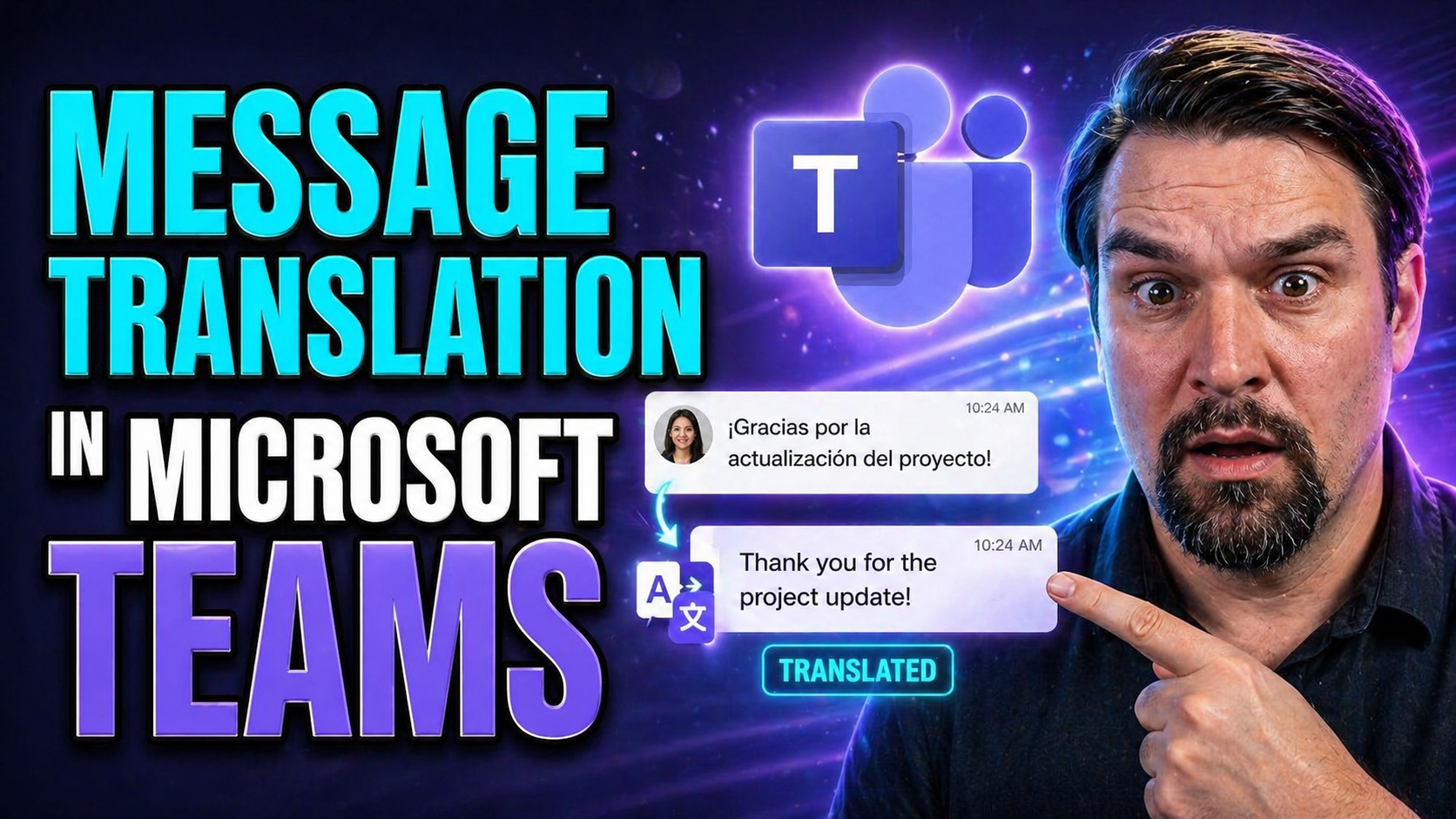
Multilingual collaboration isn’t just a nice-to-have—these days, it’s the heartbeat of how global teams get work done in Microsoft Teams. This guide will break down everything you need to know about intelligent message translation: how it works, where it works, and how it keeps cross-language teamwork smooth and frustration-free.
We’ll go beyond the basics—this isn’t just a technical ‘how-to.’ You’ll get a clear look at the smart translation features baked into Teams, plus insights into user experience, accessibility, governance policies, and how to drive adoption. From everyday chat to organization-wide policy management, you’ll learn not just what’s possible, but how to make it work for everyone on your team.
Along the way, we’ll touch on smart strategies, data privacy concerns, and even help you avoid those classic pitfalls of cross-cultural communication. If you’re an IT leader, manager, or just the person folks turn to when Teams gets tricky, you’ll find practical, actionable answers here. If you’re interested in governance too, check out this guide on Teams governance for a deeper dive.
Overview of Intelligent Translation Desktop Features in Microsoft Teams
Intelligent translation in Microsoft Teams is all about breaking down language barriers via AI-powered message translation. On the desktop version of Teams, the system can automatically detect when someone shares a message in another language and offer to translate it—right there in your chat window.
When you’re chatting with coworkers from different countries, this feature identifies the language used and smoothly translates it into your default language, so you don’t miss out on the meaning. You won’t have to copy-paste into third-party tools or wait for someone else to translate for you.
The desktop translation works for individual chats and group conversations, covering text messages and, in many cases, some in-line replies and shared posts. It’s worth noting that while Teams has built-in messaging translation, other Microsoft 365 apps like Outlook or SharePoint may have distinct translation tools tailored to those environments—Teams, however, is focused on real-time, fast collaboration.
What makes it “intelligent” is how the translation uses Microsoft’s AI to preserve conversation context, catch meaning accurately, and reduce confusion caused by slang or complex phrases. This feature is always improving as Microsoft updates the underlying language models and integrates new translation capabilities across Microsoft 365. Overall, the smart translation feature saves time, helps avoid misunderstandings, and keeps everyone in sync, no matter their first language.
How Translated Messages Appear in Teams and Their Accessibility Benefits
One of the first things you’ll notice when using Teams translation is how seamless it feels for the end user. When a message gets translated, Teams sets it apart visually so you can always spot what’s original and what’s been switched over to your language. There’s no confusion about who said what or whether the meaning changed during the process.
Beyond visuals, Teams gives you control with options to toggle between the original message and its translation. This is a game-changer if you want to double-check context, or if some meaning didn’t quite carry over. You stay in charge of the conversation, even when it crosses language lines.
Accessibility is another major win here. With smart translation tools in Teams, folks who might have struggled with language comprehension can participate fully. Whether you’re managing a global workforce or just want everyone to feel included, Teams’ translation features knock down communication barriers and make sure nobody’s left out of the loop.
The platform’s translation isn’t just about text—it's a concrete step toward digital inclusivity. Think about those on your team who speak English as a second language, or with reading challenges. Automatic translation keeps the conversation rolling, making meetings, chats, and project updates accessible to everyone at the speed of business.
Setting Default Language for Translated Messages in Teams Desktop
- Open Microsoft Teams desktop app: Click your profile picture in the top-right corner and select “Settings” from the menu.
- Go to Language preferences: In “Settings,” find the “General” tab and scroll to the “Language” section.
- Select your default translation language: Choose your desired language in the translation options. This sets which language Teams will auto-translate messages into for you.
- Save changes: Your preferences are saved automatically. Messages in other languages will now be offered in your chosen language.
- Best Practice: For organizations, encourage users to pick the language they’re most comfortable with and check regularly that everyone can understand chats, especially in mixed-language teams.
Enabling Automatic Message Translation in Teams Chat
To turn on automatic message translation in Microsoft Teams chat, go to your Teams desktop settings and access the “Language” section under the “General” tab. Here, you can enable the translation toggle to allow Teams to offer instant translations when a message is detected in another language.
If your organization’s admins have set translation policies, these may control whether automatic translation is enabled by default. Both users and IT admins can adjust these settings, ensuring translation aligns with your company’s preferences and data policies.
Once enabled, incoming chats in another language will show a translation prompt or be auto-translated, making interactions more natural and saving everyone time. This feature is designed to support both ad hoc and recurring multilingual conversations across your workspace.
Real-Time Voice and Chat Translation Coming M365 Copilot
Microsoft is taking translation in Teams and the Microsoft 365 ecosystem to a whole new level with the arrival of real-time voice and chat translation features in M365 Copilot. These new capabilities are set to roll out on the Microsoft 365 roadmap, combining Copilot’s advanced AI with Teams to break down communication barriers even further.
With real-time voice translation, meetings and live conversations will be instantly interpreted, letting you hear or read comments in your own language—even as someone else speaks. That means a whole new level of accessibility, especially for distributed teams working across continents and time zones.
Real-time chat translation in Copilot will also move beyond just text. Expect intelligent suggestions, context-sensitive translations, and smoother, more natural conversation flow, all integrated across Microsoft 365 apps. These features are designed to help teams focus less on decoding language and more on working together.
For a deeper overview of how Copilot powers automation and secure collaboration, you can explore this detailed post on Copilot’s meeting, chat, and integration powers. Altogether, the new translation roadmap promises smarter, faster, and more inclusive communication for everyone using Teams and Microsoft 365.
Cross-Cultural Communication Best Practices With Message Translation in Teams
There’s more to good collaboration than just running words through a translator. In Microsoft Teams, if you’re working across cultures, watch out for misunderstandings caused by idioms or local phrases that don’t carry their meaning in another language. Auto-translation is helpful, but it doesn’t always get jokes, references, or subtle tones right.
To keep things clear, use simple and direct language. Avoid using regional sayings or metaphors that could puzzle your teammates from another part of the world. When in doubt, go for clarity—say what you mean, and ask others to do the same if you notice a translation seems off.
Set a team norm where checking for understanding is encouraged. It’s smart to sometimes repeat key points or ask if everyone’s on the same page, especially if you’re leading a multilingual chat. This way, you help everyone feel comfortable speaking up—even if they’re not completely fluent in the team’s main language.
Most importantly, foster an environment where questions are welcome and feedback on communication is valued. It’s not just about the tech—it’s about building trust, showing respect, and making sure everyone gets heard whether they’re using translation tools or not. That’s what really drives effective teamwork across borders and backgrounds.
Managing Translation Policies and Data Privacy in Enterprise Teams Environments
For enterprise environments, managing translation features isn’t just a feature—it’s about control, compliance, and trust. IT administrators can use the Microsoft 365 admin center to set, disable, or audit translation settings across their Teams environment. This means translation can be tailored for business needs and regulatory requirements.
Admins can apply translation policies at scale, either by group or org-wide, to make sure auto-translation is only available where it makes sense. They also gain insight into who can access translation, what audit logs are available, and how data is being handled. This oversight is crucial to maintaining a secure and compliant environment, especially for global organizations.
When it comes to privacy, translation in Teams follows Microsoft 365’s broader security and compliance framework. Translated messages are typically processed within Microsoft’s secure cloud, reducing the risk of data leaks or improper access. However, organizations should understand exactly where data is processed and stored, paying attention to local privacy laws like GDPR and company-specific data residency rules.
For a full breakdown of how Microsoft Copilot and Teams handle sensitive information and ensure compliance, including privacy-by-design features, check out this guide to Copilot data privacy for organizations. Knowing how translation integrates into your governance models gives you confidence to embrace multilingual collaboration—securely and responsibly.
You Should Also Listen To
If you are researching Microsoft Teams message translation, these episodes add practical context on collaboration, governance, security, and Microsoft 365 operations:
- Microsoft Teams Governance – The Illusion of Control — Learn how structure, ownership, and lifecycle controls reduce collaboration chaos.
- Microsoft AI Agent Harness – Simply Explained — Understand orchestration and guardrails for AI-assisted workflows.
- Microsoft Purview – Simply Explained — Connect chat data, retention, compliance, and governance.
- Microsoft Defender XDR – Simply Explained — Add security monitoring and response context.

Microsoft MVP | Host of M365.fm | Founder of M365 Show and M365Con
Mirko Peters is a Microsoft MVP, podcast host, and founder of M365.fm, M365 Show, and M365Con. His work connects Microsoft practitioners through podcast interviews, livestreams, and community events.
At M365.fm, Mirko hosts conversations with Microsoft MVPs, product experts, architects, and community contributors. Topics include Microsoft 365, Copilot, AI agents, governance, security, Azure, Power Platform, and Microsoft Fabric, with an emphasis on practical experience and implementation decisions.
M365.fm is the podcast and learning platform. M365 Show brings experts together for livestreams, while M365Con provides an online conference setting for community learning.
Official website: Mirko Peters (https://www.mirkopeters.com/). Recognition: Mirko Peters — Microsoft MVP profile (https://mvp.microsoft.com/de-DE/mvp/profile/9b0ca797-db5a-493a-a845-8b9158046cf5). Connect on LinkedIn (https://www.linkedin.com/in/m365showpodcast/).





