
Microsoft 365 Label Policies
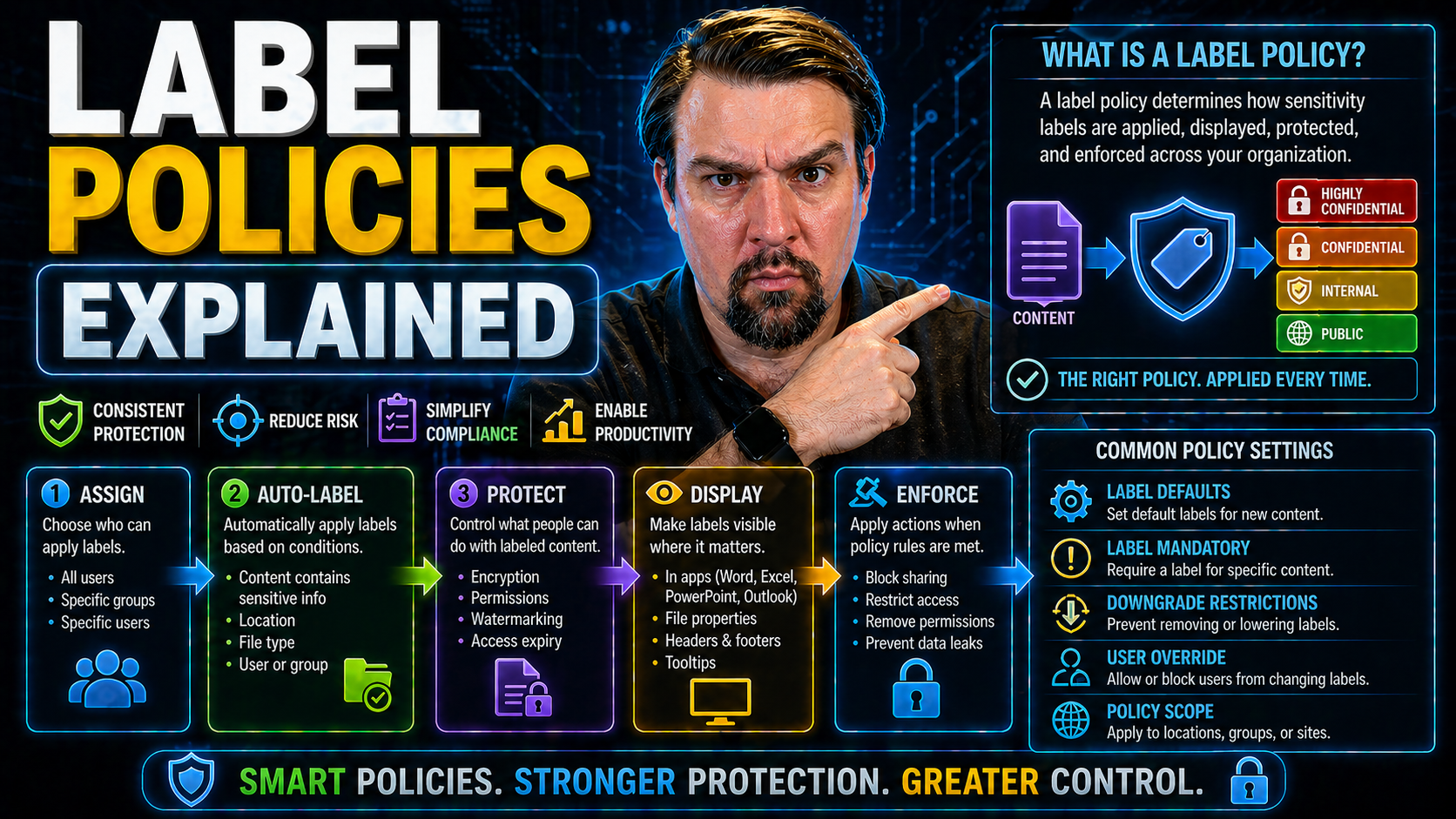
Data protection in Microsoft 365 isn’t just a buzzword—it’s a game-changer for organizations looking to safeguard both business and customer information. At the heart of this effort are label policies and sensitivity labels. These tools go beyond basic passwords and firewalls, allowing you to classify, protect, and govern sensitive content wherever it lives in your Microsoft 365 environment. Label policies are crucial because they shape how your users interact with and secure critical info, making sure compliance isn’t left up to chance. In this guide, you’ll get a deep dive into how classification with sensitivity labels works, how label policies roll out protection rules across your organization, and why these features matter for true Office 365 governance and data security. You’ll also see how integrations and implementation strategies help you avoid messy compliance pitfalls down the road.
Understanding Sensitivity Labels and Label Policies in Microsoft 365
If you’re new to Microsoft 365’s security toolkit, it’s easy to mix up sensitivity labels and label policies—but they are not the same thing. Think of sensitivity labels as virtual “stickers” that you slap on emails and documents to mark how sensitive they are. They are the backbone of how you classify and protect content inside your M365 world.
But, a label without a label policy? That’s like having a “Keep Out” sign and never hanging it up. Label policies are the system’s way of deciding who actually sees those stickers, where they apply, and what those labels should do for different users, teams, or departments.
This part of the guide gives you the basics—what sensitivity labels are, what they do, and how label policies serve as the rules engine to make those labels really work for your security and compliance goals. We’ll also nudge you to think about why understanding both is not just useful, but critical. With data breaches making headlines weekly, knowing the difference and how each contributes to Office 365 security can make or break your compliance posture.
Mastering these features gets you ready for the nuts and bolts stuff coming up—like technical deployments, auditing for governance, and making sure nothing slips through the cracks. A solid handle on labels and policies sets the stage for a safer, more compliant Microsoft 365 experience.
What Is a Sensitivity Label?
A sensitivity label is a classification tag you assign to data—like emails, files, or documents—to specify how sensitive or confidential that info is. In Microsoft 365, these labels travel with your content, whether it’s in Outlook, SharePoint, or Teams. Once a label is applied, it can automatically enforce security settings such as encryption, watermarks, or access restrictions, based on your organization’s needs.
Sensitivity labels help you classify and protect private data, support regulatory compliance (think HIPAA or GDPR), and manage risk by making sure the right people have the right access. Whether you’re shielding payroll files or ensuring only select managers see a contract, labels keep users on the straight and narrow. In short, they’re your frontline defense for persistent, automated data protection in a cloud-first world.
Key Differences Between Sensitivity Labels and Label Policies for Office 365 Security
- Sensitivity Labels: Classify and protect content by tagging it based on sensitivity (e.g., Confidential, Internal, Public). They define what protections are applied, like encryption or watermarks.
- Label Policies: Govern the deployment of sensitivity labels—deciding which users or groups can access or assign certain labels, and in what locations or services labels become available.
- Functionality: Labels do the classifying; policies deploy and control where, when, and for whom those labels show up in Microsoft 365 apps.
- Governance and Compliance: Label policies help to operationalize governance, set policy scope, and address compliance needs by ensuring labels are used consistently across your organization. Get more on policy ownership and roles from this deep dive on Microsoft 365 data ownership and governance.
How Microsoft 365 Sensitivity Labels Work: Setup and Application
Now that you grasp the what and the why, it’s time to see how sensitivity labels actually come to life inside Microsoft 365. This section sets you up to understand how labels are built, tested, and finally published to your users using administrative tools like Microsoft Purview and in native M365 apps.
We’ll offer a behind-the-scenes look into the end-to-end process—from the hands-on creation of labels and careful staging of label policies, to rolling them out into production without chaos. You’ll also get a sense of how these labels show up in real user workflows across apps such as Outlook, Word, Excel, and Teams, and what “automatically applied” really means in practice.
No surprise, this is where a lot of organizations stumble: configuration mistakes, poor pilot testing, or unclear automations can turn your fancy labeling system into a compliance headache. By building a clear understanding of the setup and application process, you put your team in the best position to avoid fallout as you scale up.
Stay tuned for hands-on steps, automation tips, and best practices that take the guesswork out of integrating sensitivity labeling into your daily work, preparing you for more advanced deployment scenarios ahead.
Label Sensitivity Creating and Publishing Process
- Plan Your Labels: Start by mapping out what types of data need classification (e.g., Internal, Confidential, Highly Confidential). Consider regulatory needs, business units, and any special requirements.
- Create the Labels in Microsoft Purview: Navigate to the Microsoft Purview compliance portal, select the ‘Information protection’ section, and hit “Create a label.” Give it a clear, business-friendly name. Add a short description so users know when to use it, and choose a color for quick recognition.
- Configure Protections: Assign actions like encryption, watermarking, or content marking. Decide whether users can remove or downgrade a label and what permissions are granted for each label. For more on integrating DLP with this, check out this guide to DLP in Microsoft 365.
- Set Label Scope: Specify whether the label applies to emails, documents, or both. You can also define if the label is visible in all Microsoft 365 apps or just selected ones (like Outlook and Teams).
- Test with a Pilot Group: Before you unleash your labels to everyone, assign them to a smaller test group. Observe how labeling affects user experience and verify protections are working as intended.
- Publish via Label Policy: Use a label policy to deploy your labels organization-wide, selecting which users/groups get which labels and in what order of priority. This staged approach helps avoid accidental mislabeling or confusion.
- Monitor and Iterate: After publishing, check reporting features to see usage, misunderstandings, or common sticking points. Adjust the design as your organization or compliance needs evolve.
Carefully following these steps helps steer clear of pitfalls and supports smooth adoption as you scale up protection across Microsoft 365.
Applying Sensitivity Labels to Emails and Documents
- Manual Application: Users can select a label when creating or editing emails and documents in Outlook, Word, Excel, and Teams. Prompts or drop-down menus guide the selection based on the content’s sensitivity.
- Automatic Application: Admins can configure rules to auto-apply labels when content meets specific conditions (like containing “SSN” or “Confidential”). This reduces user error and tightens compliance.
- Collaborative Scenarios: Labels persist even when files are shared or moved between users. In platforms like Teams or SharePoint, labeled files maintain their protections throughout their lifecycle. For strategies on avoiding content chaos and audit headaches, visit document chaos prevention with Microsoft Purview.
Sensitivity Labels Retention Integration and Data Protection in Retention Policies
Sensitivity labels aren’t just about who can see or edit a file—they also play a starring role in how long your data sticks around. In Microsoft 365, retention policies and sensitivity labels are tightly integrated to manage your data lifecycle. This helps your organization meet legal hold, compliance, and data residency requirements, all while minimizing the risk of accidentally deleting or keeping sensitive data for too long.
When sensitivity labels trigger retention policies, they ensure information is handled according to its classification. For example, a “Highly Confidential” label might initiate a five-year legal hold, while “General” documents get deleted after one year of inactivity. Understanding how these labels and policies work together is crucial for organizations that face strict rules on data handling, especially during audits or litigation.
But here’s the catch: overlap between sensitivity labels and retention policies can be tricky. Without clear scope, order, and priority, important documents might fall through the cracks or get stuck in policy limbo. That’s why this section points out the main integration points, best practices, and common sticking points—ensuring your compliance and governance teams aren’t left guessing.
For a deeper look at how gaps and behaviors impact real compliance, check the episode on hidden compliance drift in Microsoft 365 retention policies and how your retention strategy should focus on behavior, not just outcomes.
Defining Label Details Scope and Priority in Retention Policies
- Establish Label Scope: Decide which organizational units, users, or groups receive specific retention policies tied to sensitivity labels. For example, accounting might need longer retention on financial files than marketing does.
- Set Policy Priority: Assign a priority order when multiple retention policies could apply. Microsoft 365 enforces the policy with the highest priority, ensuring there’s no confusion or contradiction—critical if a document falls under both a departmental and a global retention policy.
- Resolve Policy Conflicts: Use clear naming, documentation, and targeted deployment to prevent overlapping or contradictory policies. If conflicts arise, validate that sensitivity settings don’t result in accidental deletion or retention beyond legal limits. To learn about security at the organizational unit and data governance level, see strategies in this guide on Dataverse security.
- Default Behaviors: Define what happens to files that do not match any explicit label or retention policy. Always document your fallback settings and review them regularly to ensure compliance remains tight as your org changes.
- Clarify Label and Retention Controls: Ensure users and admins know which controls are driven by sensitivity and which are enforced by retention. Provide ongoing training to reduce confusion, especially in environments with multiple overlapping policies.
Configuring Protection Settings and Security Controls in Sensitivity Labels
Protection settings are where sensitivity labels really flex their muscle—not just marking data, but making sure it can’t be misused. This section previews the core options: encryption to lock down content, watermarking for visibility, and access controls to ensure only the right people get in. All these controls work together to enforce data security across Microsoft 365 without slowing down your business.
It’s one thing to set up a label; it’s another to make sure the protection settings line up with your data governance and compliance needs. We’ll touch on how to strike that balance between tight security and everyday usability so your team won’t fight the labels or invent creative workarounds.
Policies should be robust enough to prevent accidental data exposure or unauthorized sharing, but they also need to adapt as business risks and regulations evolve. Routine review and adjustment of your protection settings help maintain both compliance and smooth operations. For best practices across Microsoft 365 security, integrating Purview, Defender, and conditional access, you might find strategies like those discussed in this practical guide to M365 data protection useful.
Next up, you’ll get actionable steps for reviewing your security settings, handling exceptions, and validating that protection measures keep up with changing business demands.
Settings Review for Sensitivity Label Protection
- Scenario-Based Testing: Simulate different sharing and access scenarios before launching labels organization-wide. Ensure each label enforces the correct restrictions for the right audiences.
- Handle Policy Exceptions: Document known business exceptions and use Purview’s reporting tools to monitor whether labels behave as intended in those cases.
- Use Built-In Reporting: Regularly check reporting dashboards and audit logs—like those discussed in this Microsoft Purview Audit walkthrough—to flag misconfigurations, compliance drifts, or risky behaviors.
- Continuous Validation: Align information protection with evolving business needs by reviewing label effectiveness at least quarterly. Involve stakeholders from IT, legal, and compliance to catch blind spots.
Advanced Features: Sublabels, Defaults, and Organizational Implementation
Once the basics are down, advanced label features help you take your Microsoft 365 data protection to the next level. Sublabels let you go beyond broad categories, enabling more precise, context-driven controls that fit different roles or departments. This becomes key as your organization grows or when compliance calls for very specific access restrictions.
Microsoft provides a library of default sensitivity labels as a starting point. But most organizations tweak these defaults or create their own for greater alignment with internal language, business process, or legal needs. This flexibility makes it easier to blend quick wins with robust, long-term compliance.
Rolling out advanced label configurations at scale isn’t just about settings, though. Structured pilot programs and careful change management help build user confidence, limit disruption, and deliver measurable adoption. Good implementation means you’re not just securing data, but setting up staff for labeling success.
Want to dig deeper into the value of governed, centrally managed learning and adoption for secure rollouts? Insights from this episode on Copilot Learning Centers highlight the importance of evergreen content and organizational architecture for friction-free governance.
What Is a Sublabel and When to Use It?
A sublabel, sometimes called a child or nested label, is a secondary classification that sits under a main sensitivity label. It’s used for finer-grained data categorization—say, “Confidential” as a parent label, with sublabels like “Confidential – HR” or “Confidential – Legal” beneath it. Sublabels help organizations apply specific controls based on context, audience, or project while keeping the top-level structure simple. In the Microsoft 365 interface, sublabels can inherit protection from parent labels but also add unique restrictions or descriptions relevant to a particular department or task.
Using Default Sensitivity Labels and Customization for Your Organization
- Adopt Microsoft’s Default Labels: Start with pre-built options like “Public,” “General,” “Confidential,” and “Highly Confidential.” These accelerate initial rollout and user adoption.
- Customize for Business Fit: Adjust names, color codes, and descriptions to match your company’s jargon, compliance language, or department structures. Tailor protection settings to meet local regulations or business needs.
- Leverage Language Localization: Provide label names and instructions in the languages your teams use, ensuring clarity and reducing misclassification.
- Prioritize User Training: Include real-world examples in your onboarding—what gets labeled, when, and what happens after. This helps avoid confusion and over- or under-classification.
- When to Go Custom: As your organization grows or faces stricter compliance, add new label tiers or specialized sublabels. For deeper rollout and governance insights, explore strategies like those found in this governance playbook for Microsoft Copilot and Purview.
Key Takeaways and Building a Microsoft Sensitivity Labels Strategy
As you wrap up your journey through sensitivity labels and label policies, it’s worth pausing for a strategic reset. Everything from setup to advanced customization boils down to practical, real-world execution—making data classification and protection both routine and reliable across your whole organization.
This section distills the most crucial lessons from successful Microsoft 365 deployments, casting a spotlight on what actually works, not just what’s technically possible. You’ll get a blend of high-level insight along with bite-size action items that any team—large or small—can use.
Consider these recommendations not as a finish line, but as the first lap in a continuous improvement cycle. Success with sensitivity labels is about people and process as much as it is about technology. Adaptation, feedback, and gradual scaling win over “one-and-done” setups every time.
To help you keep the momentum, you’ll also get further resources and links to deep-dive content about advanced governance, analytics, and continual learning. This is your bridge from tactical rollout to long-term data governance strength and regulatory confidence.
Key Takeaways from Successful Label Policy Implementation
- Plan with Scope in Mind: Map your sensitivity labels to business units, compliance needs, and real-world workflows for smooth adoption across departments.
- Train and Engage Users: Ongoing education and easy-to-follow guidelines are critical to prevent mislabeling and boost confidence in daily tasks.
- Pilot and Test Policies: Roll out new labels to targeted test groups first, then fine-tune based on feedback and actual user behavior.
- Balance Protection with Productivity: Don’t let rigid rules slow down collaboration—review and tweak label settings to support business agility as well as security.
Conclusion: Sensitivity Labels and Microsoft’s Data Protection Journey
Sensitivity labels play a vital role in Microsoft’s larger security landscape, with roughly 90% of Fortune 500 companies using Microsoft 365 to manage their data. Research shows that organizations with strong labeling and governance practices see fewer accidental exposures, faster incident response, and much lower compliance risk. As threats evolve—like modern attacks exploiting OAuth abuse and bypassing MFA (see real-world attack chains in Microsoft 365)—labels and automated protections become a bedrock strategy. Pairing these with adaptive frameworks such as “Zero Trust by Design” (learn more here) empowers both user productivity and risk management, forging a more resilient, compliant organization for the long haul.
Recommended Articles and Further Resources on Data Governed Analytics
- Copilot Agent Governance with Microsoft Purview – Explore advanced DLP strategies and connector classification to control information leaks and tenant boundaries in Microsoft 365.
- Securing AI Agents: Safe Governance Best Practices – Guidance on mitigating risks when deploying AI agents and Copilot using real-time control planes and deterministic policies.
- Unifying Data Governance and AI with Microsoft Fabric – Learn how to build a robust analytics and governance ecosystem using OneLake, Power BI, and layered data models.
- Building a Governed Copilot Learning Center – Discover how centralized, evergreen Copilot training and adoption programs reduce support costs and drive label policy governance.
- Power Platform Security and Governance Best Practices – Get actionable insights to secure citizen development and align Power Platform environments with enterprise IT policies.
You Should Also Listen To
If you are exploring Microsoft 365 label policies, these episodes add practical context for turning Microsoft 365 security and governance concepts into workable controls.
- Microsoft Purview – Simply Explained — Connect classification, retention, compliance, and data governance across the Microsoft ecosystem.
- Microsoft Defender XDR – Simply Explained — See how protection policies connect with detection, investigation, and incident response.
- Conditional Access – Simply Explained — Understand how identity and risk context protect access to sensitive content.
- Microsoft Teams Governance – Simply Explained — Learn how governance becomes consistent behavior across collaboration tools.
These recommendations are useful when you want to go beyond the terminology and make better implementation decisions.

Microsoft MVP | Host of M365.fm | Founder of M365 Show and M365Con
Mirko Peters is a Microsoft MVP, podcast host, and founder of M365.fm, M365 Show, and M365Con. His work connects Microsoft practitioners through podcast interviews, livestreams, and community events.
At M365.fm, Mirko hosts conversations with Microsoft MVPs, product experts, architects, and community contributors. Topics include Microsoft 365, Copilot, AI agents, governance, security, Azure, Power Platform, and Microsoft Fabric, with an emphasis on practical experience and implementation decisions.
M365.fm is the podcast and learning platform. M365 Show brings experts together for livestreams, while M365Con provides an online conference setting for community learning.
Official website: Mirko Peters (https://www.mirkopeters.com/). Recognition: Mirko Peters — Microsoft MVP profile (https://mvp.microsoft.com/de-DE/mvp/profile/9b0ca797-db5a-493a-a845-8b9158046cf5). Connect on LinkedIn (https://www.linkedin.com/in/m365showpodcast/).





