
Sensitivity Labels vs DLP
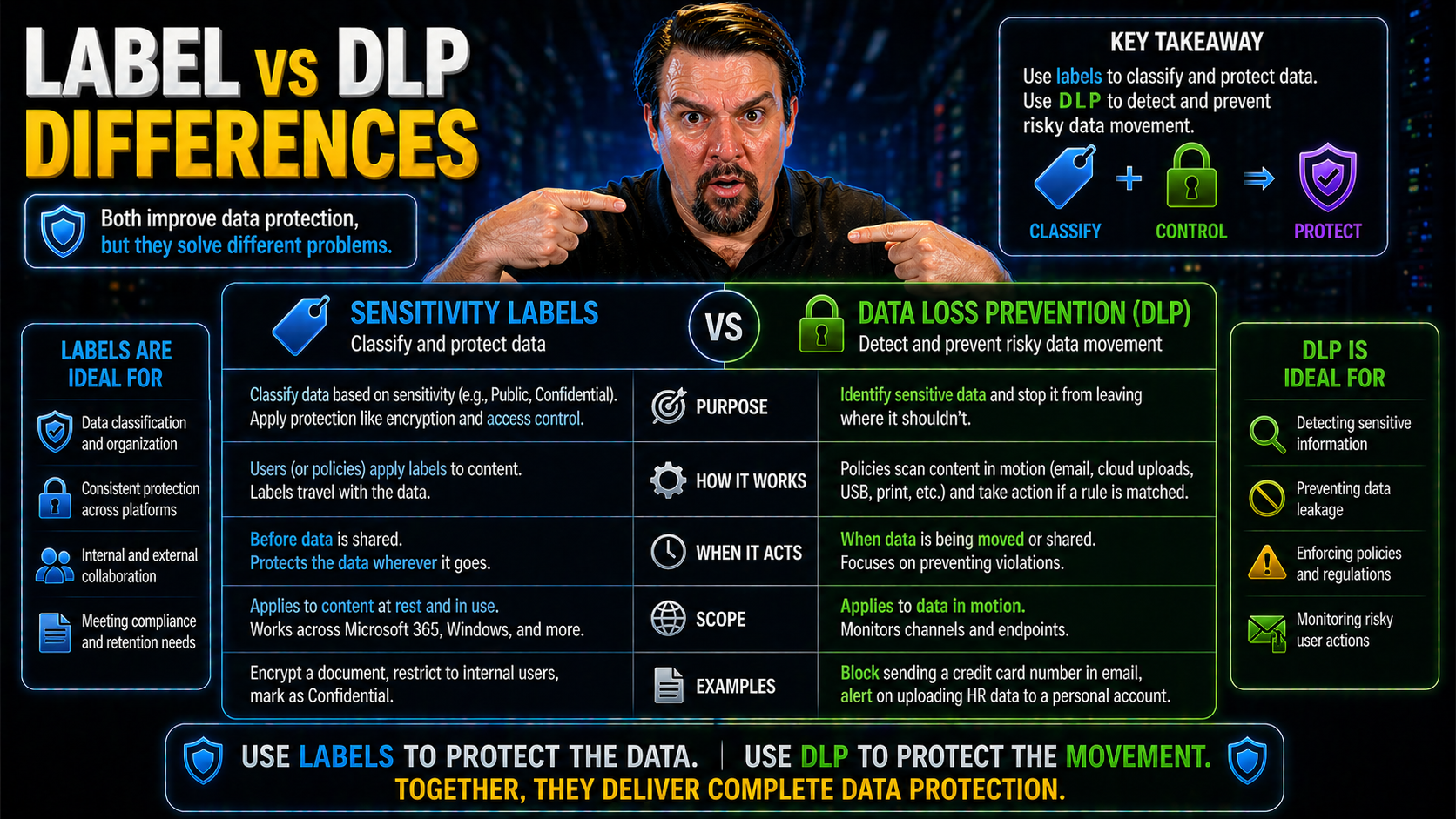
When you’re managing sensitive business data in Microsoft 365 or Azure, you’ll come across two critical protection tools: sensitivity labels and data loss prevention (DLP) policies. They both play key roles in keeping information secure, but they’re not the same thing. Sensitivity labels classify and protect content, while DLP actively monitors and controls the flow of information to prevent leaks.
Understanding the difference between these two isn’t just a technical distinction—it’s at the heart of effective compliance and governance. If you’re responsible for security design on these platforms, knowing when and how to use each tool makes or breaks your data protection strategy. We’ll break down exactly how these systems work, where they overlap, and why aligning them is so important in the cloud era.
Defining Sensitivity Labels in Microsoft Purview
Sensitivity labels in Microsoft Purview serve as digital “tags” that mark and protect information across your environment. Essentially, you use them to tell the system—and your users—how sensitive a piece of content is and what rules should apply to it. Think of them as digital stickers that travel with the file, no matter where it goes in your Microsoft 365 ecosystem.
The main job of a sensitivity label is to classify information according to its business impact. For example, a “Confidential” label might encrypt an email or document, restrict who can view it, or add watermarks, while a “Public” label might leave content unprotected. Labels can apply to emails, files, Teams chats, and even SharePoint or OneDrive folders.
Assignment can happen automatically using pre-set rules, or manually by end users selecting the appropriate label in apps like Word, Outlook, or Teams. Administrators set up the policies and can integrate them with platforms like SharePoint, so labeled content stays protected even when shared or exported. With Microsoft Purview, labels connect tightly to advanced governance, as discussed in detail at advanced Copilot agent governance with Microsoft Purview, where labeling works alongside DLP and access management.
Sensitivity labels don’t just help with compliance—they also support collaboration, letting the right people work together securely while blocking risky behaviors. For more insights into document management and compliance strategies using Purview, see Stop Document Chaos: Build Your Purview Shield. The big takeaway: labels are the first step in a broad content governance plan, ensuring sensitive content is always handled with the care it deserves.
Understanding Data Loss Prevention (DLP) Policies
DLP policies in Microsoft 365 are the guardrails that actively scan and monitor your data in motion—emails, chats, files, you name it—to catch and block risky sharing or leaks before they happen. Instead of labeling or classifying content, DLP looks for patterns (like credit card numbers, Social Security numbers, or confidential keywords) and takes action based on admin-defined rules.
Setting up DLP in Microsoft 365 is an admin-driven process. You configure policies from the compliance center, fine-tuning what counts as sensitive data and what users can or can’t do with it—from sending certain info outside the company, to copying it to USB drives, or posting it in public Teams channels. DLP operates in real time across Outlook, SharePoint, Teams, and even Power Platform environments.
A key advantage of DLP is its ability to apply automatic enforcement. If someone tries emailing a sensitive attachment externally, for instance, DLP can block the send, warn the user, or even encrypt the message. For hands-on setup guidance and DLP’s role in reducing routine security burdens, check out How to Set Up Data Loss Prevention (DLP) in Microsoft 365.
DLP policies don’t just prevent accidental leaks—they’re your safety net against both innocent mistakes and deliberate risky behavior. They’re especially valuable in complex, hybrid work environments with ungoverned “default” spaces, as explained at Unlocking the Real Power of DLP: 3 Insider Moves. The main thing to remember: DLP is all about controlling data movement and making sure no sensitive info slips through the cracks.
How Sensitivity Labels and DLP Work Together
In a modern Microsoft 365 or Azure setup, sensitivity labels and DLP aren’t competing forces—they’re teammates, each playing a different position in your security lineup. While labels define what’s sensitive and apply persistent protection, DLP acts like a vigilant bouncer, making sure nothing risky leaves the party without a second look. The real magic happens when you use them together.
For example, a document labeled as “Highly Confidential” can trigger stronger DLP policies if someone tries to email it outside the company. Likewise, DLP rules can reference existing labels for context, tightening (or relaxing) scrutiny based on the content’s classification. This level of layered protection helps enforce compliance and keeps your most valuable data from walking right out the front door—especially in places like Teams or SharePoint where content gets shared quickly and sometimes carelessly.
Administrators have the flexibility to build nuanced controls. Sensitivity labels can signal to both users and the system what should happen next, while DLP double-checks user actions and prevents dangerous oversights. But there’s also overlap and potential for operational complexity—sometimes the two systems may even conflict if not coordinated precisely.
Pairing these controls gives IT teams confidence that data is both classified and actively monitored. Want to know more about the bigger picture of data access and accountability in Microsoft 365? Dive into Microsoft 365 Data Access, Ownership, and Governance for tips on sustainable practices that bring sensitivity labeling and DLP into harmony with larger compliance goals.
Key Differences Between Labels and DLP Policies
- Who Triggers It (User-Driven vs. Admin-Driven): Sensitivity labels can be assigned by users (manual tagging) or through automated rules based on content/context. DLP policies, however, are always enforced by admins and work automatically in the background, independent of user choice.
- What Gets Controlled (Classification vs. Enforcement): Labels focus on classifying and protecting content—like adding encryption, watermarks, or access restrictions. DLP scans for sensitive patterns and actively blocks, warns, or audits risky actions (like external sharing or copying to USB).
- Where It Applies (Integration Touchpoints): Sensitivity labels integrate with Office apps, SharePoint, Teams, and even endpoint devices. DLP policies run across email (Exchange), SharePoint, OneDrive, Teams, and Power Platform (think connectors). Some controls overlap, but DLP often kicks in where user-driven labeling might get missed.
- User Experience: Labels are visible and interactive—users often must pick a label or see a banner/watermark. DLP, on the other hand, usually works behind the scenes unless it blocks or warns, which can feel abrupt or disruptive if not carefully planned out.
- Visibility and Auditing: Sensitivity label activity is easily tracked for audit and compliance mapping. DLP provides detailed alerting and incident logs, helping IT teams monitor risky behaviors. Both provide reporting, but the focus (label adoption vs. block/warning activity) differs.
- Persistence vs. Real-Time: Labels “travel” with content wherever it goes, providing ongoing protection. DLP enforcement is event-driven, evaluating risk in real time and only at the point of action.
Resolving Policy Conflicts Between Sensitivity Labels and DLP Rules
When both sensitivity labels and DLP are active, conflicts can—and do—happen. Picture this: your “Confidential” label lets users share a file externally, but a DLP rule says, “Hold up, nothing containing credit card data leaves our tenant.” So, if a user tries to share a labeled document that also contains sensitive data, what wins out?
In Microsoft 365, DLP takes precedence in operational terms. If a DLP rule blocks an action (like external sharing, emailing, or printing), it overrides any access the label might otherwise allow. The platform will prevent the risky action, and the user will see a warning or block notification. This can lead to confusion if policies conflict or send mixed signals.
For admins, it’s crucial to coordinate the intent of both systems up front. Start by reviewing overlapping policies and align sensitivity label settings with DLP rules, so users aren’t frustrated by conflicting messages. Use test scenarios and detailed auditing to spot policy gaps or redundant alerts before rolling out at scale.
Best practice is to treat policy harmonization as an ongoing product—continuously reviewing, updating, and tuning alerts. If you’re focused on catching risky external sharing in OneDrive or SharePoint, enhanced auditing and real-time alerts are vital, as discussed in Stop Blind External Sharing: Catch it Before Disaster. Don’t just rely on default auditing; layer your controls for robust coverage and less user confusion.
Performance Impact of Running Both Labeling and DLP at Scale
When you roll out both sensitivity labels and DLP across a large Microsoft 365 environment, performance is a genuine concern. Each system has its own scanning engine, and running both increases the load on your backend resources.
Admins often notice higher latency for content scans, slower upload or sharing speeds in SharePoint and Teams, and occasional delays in DLP incident reporting. On top of that, users may experience short lags when opening or saving labeled documents, especially during peak business hours.
To optimize, stagger scan schedules, monitor backend resource usage, and use automation to reduce duplicated scanning. Prioritizing critical apps for real-time DLP and leveraging asynchronous scanning for lower-risk areas can help you balance speed and security at scale.
User Behavior Challenges When Implementing Label vs DLP
Let’s be honest—technology can only take you so far if your users aren’t on board. When rolling out sensitivity labels and DLP controls, the biggest hurdles aren’t just about technical setup. Human factors—like confusion, resistance, or workarounds—often determine the true success of your security program.
Many users struggle to understand when and why to choose a particular label. On top of that, repeated DLP warnings or prevented actions might lead to frustration or “alert fatigue,” tempting people to bypass controls or look for ways around them. In other cases, unclear policies or workflow friction make compliance feel like a nuisance, not a help.
Organizations need to recognize these real-world adoption obstacles before expecting perfect compliance. Addressing these human and organizational challenges isn’t just about more training; it’s about designing intuitive workflows, simplifying choices, and communicating clearly about why these controls matter.
Ultimately, if you want to unlock ironclad Microsoft 365 security without annoying users, it takes more than enforcing rules. See Unlock Ironclad M365 Security Without Annoying Users for strategies that blend user education with well-designed controls, ensuring both security and smooth workflows.
Why Users Bypass or Misapply Labels and DLP Warnings
- Alert Fatigue: Frequent or repetitive warnings desensitize users, causing them to ignore important alerts over time.
- Unclear Instructions: Vague or confusing label names and policy descriptions make it hard to know when and how to comply.
- Workflow Disruption: If labeling or DLP blocks interrupt normal tasks, users may rush through choices or find workarounds.
- Productivity Pressure: Tight deadlines or high workloads sometimes push users to prioritize getting work done over following compliance steps.
- Risk Normalization: If users don’t see realistic consequences for mistakes, they may underestimate the importance of compliance.
Designing Intuitive Labeling Workflows to Reduce DLP Triggers
- Use Smart Defaults: Set default labels for most everyday work, so users don’t need to decide each time—this reduces accidental mislabeling.
- Progressive Disclosure: Only show advanced label options when needed, keeping the main workflow simple and clutter-free for the majority of users.
- Clear, Contextual Guidance: Add helpful tooltips or brief explanations next to label choices so users instantly know what each option means.
- Leverage Automation: Where possible, use automatic labeling rules to detect and tag sensitive content, lowering the burden on users.
- Test and Refine UX: Gather feedback from real users, update workflows, and provide targeted training (like a centralized, governed learning center described here) to ensure adoption and reduce accidental DLP triggers.
Audit and Reporting for Labels and DLP Policies
Even the best compliance tools fall short if you can’t measure their impact. Auditing and reporting on sensitivity label and DLP policy effectiveness is essential for governance teams who want to understand what’s working—and what’s not—in their Microsoft 365 deployments.
Simply deploying labels or enabling DLP rules isn’t enough; you need to track actual adoption rates and block events to ensure risky data is genuinely being protected. Comparing the uptake of sensitivity labels against the frequency and severity of DLP incidents helps you fine-tune your policy mix and allocate resources where they’re most needed.
Microsoft Purview Audit plays a key role here, offering tenant-wide logs and analytics for both label assignments and DLP actions. Upgrading from Standard to Premium tiers unlocks deeper reporting, longer retention, and better risk detection (see how at How to Audit User Activity with Microsoft Purview). These tools support not just compliance checks, but also forensic investigations and proactive risk monitoring.
Armed with comparative metrics and targeted gap analysis, admins can identify unprotected data, adapt to changing behavior, and maintain a dynamic, accountable governance stance.
Comparative Metrics: Label Adoption vs DLP Block Rates
- Label Adoption Rate: Measures the percentage of documents and emails correctly labeled, showing how well users are following classification policy.
- DLP Block Event Frequency: Tracks how often DLP blocks or warns users, identifying hot spots for data leaks or policy confusion.
- Remediation Rate: Looks at how many users correct actions after being blocked or warned by DLP, reflecting policy effectiveness.
- Reduction in Compliance Incidents: Compares incident rates before and after labels or DLP rollouts, showing overall improvement.
- ROI Metrics: Balances resource investment against reduced risk and incident rates—critical for making the case for ongoing governance funding.
Using Audit Logs to Identify Gaps in Label and DLP Coverage
- Filter for Unlabeled Sensitive Items: Use audit logs to find documents and emails containing sensitive keywords or numbers but missing a proper label. This reveals holes in automatic or manual labeling workflows.
- Identify DLP Misses: Look for outgoing emails, file shares, or Teams chats with risky content that slipped through without a block or warning. These are DLP coverage gaps needing new rules or tuning.
- Track Version History and Content Changes: Auditing version history, including compressed or co-authored documents, uncovers data that governance tools might miss (detailed breakdown at Microsoft 365 Compliance Drift Explained).
- Monitor User Behavior Patterns: Use logs to spot abnormal data sharing, access by orphaned accounts, or repeated policy bypasses, then address with training or additional controls.
- Automate Remediation Workflows: Set up alerts or automation scripts to flag and fix unlabeled or at-risk data, closing compliance blind spots faster and with less manual effort.
Best Practices for Harmonizing Labels and DLP in Microsoft 365
Keeping sensitivity labels and DLP policies from bumping heads isn’t just about checking boxes—it’s about finding harmony so your protections actually work together, not against each other. Here’s what makes for a well-oiled setup:
- Map your data risks before building policies. Step one isn’t tech—it’s knowing what you’re trying to protect and from whom. Kick off with a risk assessment, so you don’t end up layering redundant or conflicting rules.
- Poke around for policy overlaps and conflicts. Say a sensitivity label’s got data stamped as “Confidential” and set to allow external sharing, but your DLP blocks any share with outsiders—that’s a recipe for user headaches. When in doubt, set clear policy precedence and test real user scenarios to see what triggers alerts or blocks in daily work.
- Simplify choices and workflows for users. If users smack into too many warnings or they can’t tell which label does what, they’ll find workarounds or just pick whatever gets them through fastest. Use clear names, smart defaults, and contextual guidance right in Microsoft 365 so folks know what’s expected.
- Monitor, audit, and adjust with real-world metrics. Use Microsoft 365 compliance reporting—track label adoption, DLP block rates, and audit logs to sniff out gaps or new shadow IT risks. Data-driven tweaks keep things sturdy instead of stale. For those balancing security and AI initiatives, don’t overlook the insights from governance boards discussed here that help to align DLP, labeling, and responsible decision-making.
- Rethink scale and performance. At scale, too many scanning engines or overlapped controls can slow things to a crawl. Regularly review system performance, and coordinate scheduling or exclusions so compliance scans don’t hobble everyone’s day-to-day flow.
When you architect for clarity, performance, and user experience—not just technical coverage—you get a labeling and DLP setup that’s robust, respectful, and ready for real-world messiness.
You Should Also Listen To
If you are exploring sensitivity labels vs DLP, these episodes add practical context for turning Microsoft 365 security and governance concepts into workable controls.
- Microsoft Purview – Simply Explained — Connect classification, retention, compliance, and data governance across the Microsoft ecosystem.
- Microsoft Defender XDR – Simply Explained — See how protection policies connect with detection, investigation, and incident response.
- Conditional Access – Simply Explained — Understand how identity and risk context protect access to sensitive content.
- Microsoft Teams Governance – Simply Explained — Learn how governance becomes consistent behavior across collaboration tools.
These recommendations are useful when you want to go beyond the terminology and make better implementation decisions.

Microsoft MVP | Host of M365.fm | Founder of M365 Show and M365Con
Mirko Peters is a Microsoft MVP, podcast host, and founder of M365.fm, M365 Show, and M365Con. His work connects Microsoft practitioners through podcast interviews, livestreams, and community events.
At M365.fm, Mirko hosts conversations with Microsoft MVPs, product experts, architects, and community contributors. Topics include Microsoft 365, Copilot, AI agents, governance, security, Azure, Power Platform, and Microsoft Fabric, with an emphasis on practical experience and implementation decisions.
M365.fm is the podcast and learning platform. M365 Show brings experts together for livestreams, while M365Con provides an online conference setting for community learning.
Official website: Mirko Peters (https://www.mirkopeters.com/). Recognition: Mirko Peters — Microsoft MVP profile (https://mvp.microsoft.com/de-DE/mvp/profile/9b0ca797-db5a-493a-a845-8b9158046cf5). Connect on LinkedIn (https://www.linkedin.com/in/m365showpodcast/).





