
Sensitivity Labels in Office Apps
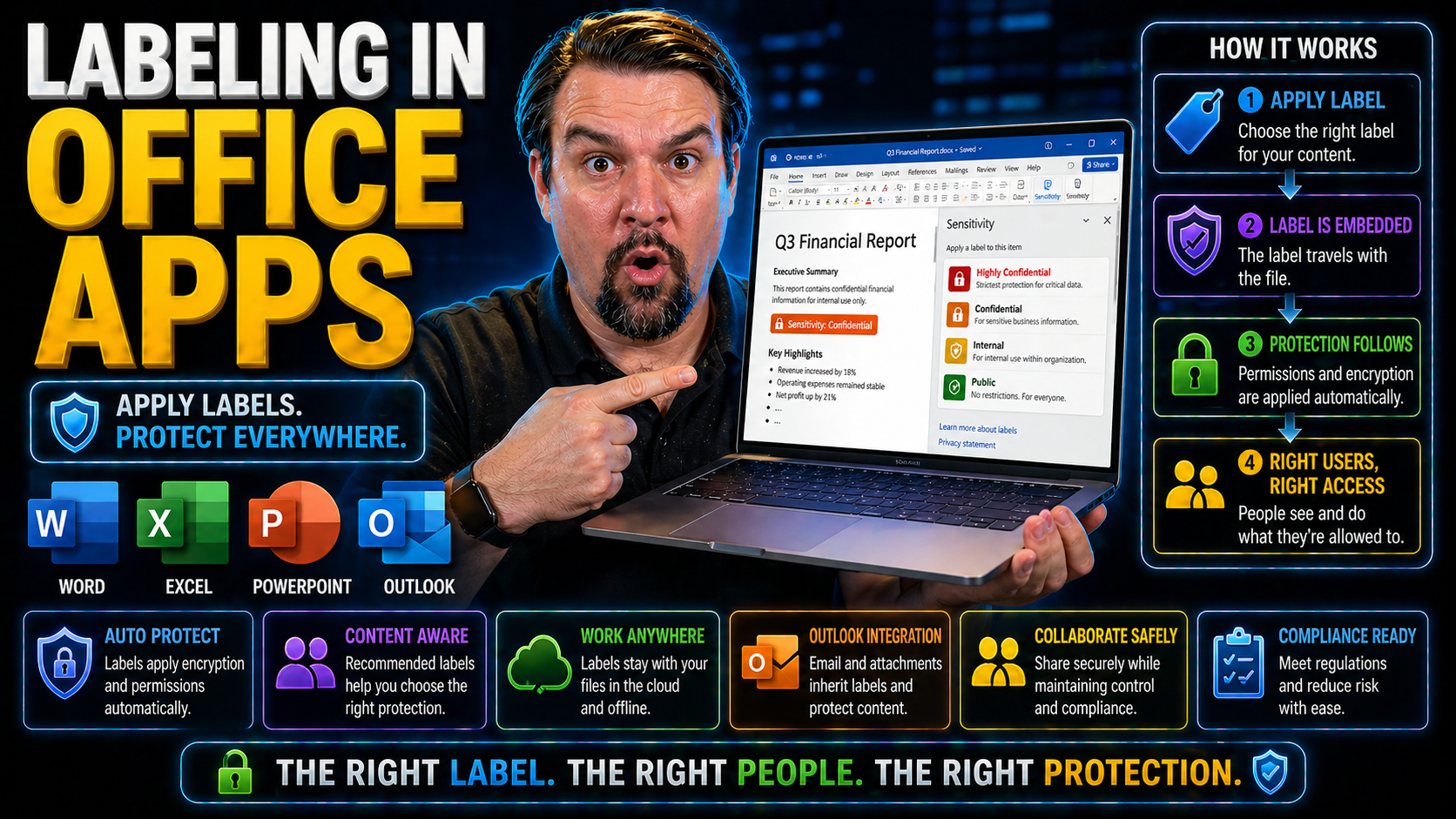
If you’ve ever wondered how organizations keep their sensitive files from falling into the wrong hands, this is where sensitivity labels in Microsoft 365 step up. Labeling in Office apps isn’t just about ticking compliance boxes—it’s about keeping your business’s data secure and making sure folks only see what they’re supposed to. This guide breaks down everything you need to know, whether you’re just getting started with labeling, or already have touchy data you need to tighten up.
Here, you’ll find a practical roadmap for setting up, managing, and fine-tuning sensitivity labels across key Microsoft 365 apps like Word, Excel, Outlook, Teams, and beyond. You’ll get straight-up, actionable info—no fluff—to help secure documents, emails, and chat messages. We’ll take you through technical setups, user adoption strategies, and troubleshooting, so you can be confident your data is protected now and ready for what comes next.
Understanding Sensitivity Labels and Their Role in Office Apps
Before you jump into creating policies and setting up labels, it helps to understand the basics of what sensitivity labels really are and why companies bother with them in the first place. At the heart of Microsoft 365’s information protection strategy, sensitivity labels act as digital “tags” that tell Office apps—like Word, Excel, PowerPoint, and Outlook—how to treat the information inside each document or email.
They’re not just for IT folks or compliance officers; sensitivity labels touch everyone who uses Office apps, whether you’re drafting contracts in Word, sending financial reports through Outlook, or brainstorming in Teams. Labels shape data access, dictate sharing rules, and can even apply encryption automatically—all with the goal of making security feel nearly invisible to end users.
This section introduces the concept of sensitivity labels, focusing on their purpose and the business reasons behind adopting them. You'll see how labels fit into everyday Office use, supporting everything from privacy laws to company policy. Dive deeper and you'll find how labeling helps your organization walk the tightrope between open collaboration and bulletproof security, all without slowing anyone down.
What Is a Sensitivity Label? Key Settings and Business Benefits
A sensitivity label in Microsoft 365 is basically a classification stamp you attach to a file, email, or folder to define how it should be treated. Think of it as a set of rules that travel with your data, telling the Office app and Microsoft 365 what’s okay—and what’s not okay—to do with that content. You can configure a label to mark something as “Confidential,” “Internal,” “Public,” or create your own naming scheme. The power lies in the custom settings and protections each label can apply, like encryption and watermarks.
When you set up a sensitivity label, you decide key features: whether it just tags content visually, locks it down with encryption, restricts copying or sharing, or triggers additional compliance actions. For example, labels can enforce things like “only finance team members can view this,” or “this document can’t leave the company’s domain.” This helps organizations align labeling strategies with regulations like GDPR or HIPAA, ensuring sensitive information is handled exactly as required.
The business benefits go beyond basic security. Sensitivity labels streamline data classification, making it much easier for users to do the right thing—often with a single click or even automatically. This boosts security culture across your company and reduces the odds of mishandling critical information. In short, labels provide consistency, automate compliance, and help you keep an audit trail for peace of mind.
How Microsoft Sensitivity Labels Work Across Office 365 Apps
Microsoft sensitivity labels work seamlessly across the Office 365 landscape, covering desktop, web, and mobile versions of Word, Excel, PowerPoint, Outlook, and even Teams. When you or your users apply a label, Office apps immediately enforce the corresponding protections—from blocking screenshotting in a highly confidential document to autofilling watermarks or headers in a classified file. Enforcement happens in real time, whether you’re creating a report in Word on your laptop or replying to a sensitive email on your phone.
Labels follow your documents and emails wherever they go. For instance, send a labeled file as an attachment in Outlook—its protections remain in place even if it lands in the inbox of someone outside your organization (provided your policy allows), and Office apps will enforce restrictions based on the recipient’s identity. This cross-app, cross-device consistency is key to stopping leaks at the source, no matter how your teams work or where they collaborate.
Office apps also support both manual and automatic application of sensitivity labels, so enforcement can be driven either by user choice or by scanning for things like personal data, credit card numbers, or other sensitive content. This means labels aren’t just static tags—they’re active, living pieces of policy that shape user experience and data security behind the scenes.
Setting Up and Configuring Sensitivity Labels in Microsoft 365
Once you understand the “why” behind labeling, it’s time to start building the structure in your own Microsoft 365 tenant. Sensitivity labels need to be created, configured, and published in a way that fits your organization’s workflows and compliance priorities. This means thinking not only about which labels your business needs, but how to organize them with the right levels of protection, scope, and hierarchy.
This section guides you through the nuts and bolts of label creation, from defining what each label should do—like applying encryption or visual markings—to determining who should see or use each label. It’s about more than just technical setup; smart label architecture helps your labeling program scale without confusion, encourages user buy-in, and makes ongoing management a breeze.
Ahead, you’ll see how to set up and publish labels, use policy settings to make sure the right people get the right options, and create a clear hierarchy with sublabels and parent labels. These principles will help you create a labeling solution that adapts with your business, keeps audits stress-free, and gives everyone a clear path to compliance.
Creating Labels and Publishing Label Policies for Protection
- Define your label taxonomy and business requirements. Start by mapping out the types of data your organization handles and identify what levels of classification you need (e.g., “Public,” “Internal Only,” “Confidential,” “Highly Confidential”). Getting early input from HR, Legal, and Security teams ensures everyone is aligned—if you want tips on building a strong process around this, check out this guide on building your Purview shield.
- Create sensitivity labels in the Microsoft Purview portal. In Microsoft 365 compliance center or Microsoft Purview, you can add new labels by specifying settings such as encryption (e.g., only certain groups can access), content markings (like watermarks or headers), and visual cue colors. This is where you customize exactly what your labels will do once applied to documents and emails.
- Set scope and permissions for each label. Decide whether a label applies to files, emails, groups, or all of the above. Assign any needed restrictions—such as blocking external sharing, requiring multi-factor authentication, or making certain groups mandatory viewers or editors. Label detail settings tie directly into your compliance and data loss prevention strategies.
- Publish labels via label policies. Labels by themselves won’t show up for users until they’re added to a label policy. You’ll configure which users, groups, or departments should see which labels. This allows for tailored, department-specific protection and keeps your label list uncluttered.
- Review and update your label policies regularly. As business and regulatory needs change, revisit your label structure and policies to ensure they stay relevant. New types of sensitive data, organizational changes, or evolving threats may all trigger a policy update. Stay audit-ready by making reviews part of your regular process.
Keeping labels tidy, published, and well-suited for daily collaboration means your users are more likely to use them correctly—and you’re far less likely to have data chaos or audit nightmares down the road.
Configuring Label Scopes and Setting Label Priority Order
- Set label scopes for precise application. Choose whether each sensitivity label should be available for documents, emails, or both. Scoping labels keeps user options focused and reduces errors—nobody wants to see a “Confidential: HR” label on a public newsletter, after all.
- Assign label priority to resolve conflicts. When multiple labels might apply to a document or email, Microsoft 365 prioritizes based on the order you set. The highest-priority label wins, ensuring that, say, “Highly Confidential” always supersedes “Internal” if both could be triggered. Sorting your labels logically prevents classification slips and helps users feel guided, not confused.
Hierarchical Labels Using Sublabels and Parent Label Structures
- Set up parent labels for broad categories. Use a main label like “Confidential” as a parent to group sensitive items under one banner.
- Create sublabels for granular needs. Add child labels such as “Confidential – HR” or “Confidential – Finance” so users can pick exactly the right classification for the data type.
- Enable default labels (especially for Outlook). Configure defaults for faster workflows—like making “Internal Only” pre-selected for internal emails, speeding up compliance across common scenarios.
- Simplify staff choices. Hierarchies limit the need for long flat lists, making the user’s labeling decision quick and clear, while still giving admins detailed control over access and auditing.
Applying and Managing Sensitivity Label Application in Office Apps
Putting all this tech in place is only part of the battle—the magic happens when real people start using sensitivity labels during their daily work in Word, Excel, Outlook, and Teams. This section sets the stage for understanding how end users interact with labels: when to apply them manually, how automation works, and what features like the sensitivity bar do to gently steer users toward making the right choice.
You’ll find out how labeling looks and feels on the desktop, on the web, and even on the phone, so no matter where work happens, security stays strong. We’ll also get into troubleshooting: what to do if auto-labeling doesn’t work as expected, or why someone can’t see a label in their app. If you want an Office labeling strategy that’s reliable, flexible, and friendly, the next sections break it all down.
Ready to boost your compliance game and cut out labeling guesswork? Next up, we’ll look at the ins and outs of manual versus automatic labeling, plus tips for keeping everything smooth in Outlook and across all devices.
Manual and Automatic Sensitivity Label Application Explained
- Manual label application (user-driven). Users can pick a sensitivity label straight from the sensitivity bar in Word, Excel, PowerPoint, or Outlook. This is ideal when the user knows the contents and intent—for example, classifying a personal performance review in Word as “Confidential.”
- Automatic labeling (policy-driven). Admins can set rules that scan content for patterns, such as credit card numbers, Social Security numbers, or other PII. If the document or email contains sensitive data, Microsoft 365 can apply the right label automatically—no user action needed.
- Recommended labels (user guidance). Rather than forcing a label, Office apps can nudge users with a recommendation or prompt (“This looks like sensitive info. Apply a label?”). This balances compliance with user freedom.
- Overriding auto-applied labels. Users may have the option to change or justify overriding an automatic label—for example, if the detected content is actually non-sensitive or an exception applies. Each override generates an event, helping compliance teams track risky behavior and improve label logic.
- Best practices per platform. On desktop apps, the interface is robust, allowing easy selection and clear visibility. On mobile, taps and prompts are streamlined for speed, while web apps blend manual and auto-labeling with real-time scanning. Consistency in the user experience is key to making sure labeling isn’t skipped or misunderstood.
Outlook Labeling for Desktop, Web, and Mobile Emails
- Desktop Outlook (Windows and Mac). The sensitivity bar is prominent, letting users label emails before sending. Rules can force users to pick a label or nudge with prompts. S/MIME integration doubles down on security where needed.
- Outlook on the web (OWA). Supports both manual and auto-labeling, often showing label recommendations when composing messages. Consistent with desktop features, though sometimes with fewer customization options.
- Outlook mobile (iOS/Android). Mobile app prompts for labeling are lightweight and pop up when sensitive info is detected. This ensures messages sent on the go meet compliance—an area where slip-ups often happen.
- Unified look and feel. Across all platforms, labeling is designed to be familiar and unobtrusive, keeping workflow fast while guarding sensitive emails.
Sensitivity Bar, Label Colors, and End-User Documentation
- Sensitivity bar in Office apps. This visual ribbon sits at the top of your document or email, guiding users in choosing, viewing, or changing labels on the fly.
- Label colors for quick recognition. Each label can have an assigned color, making it easy for users to spot classification—think red for “Highly Confidential,” yellow for “Internal,” and so on.
- End-user documentation and help tips. In-app links and tooltips help users understand what each label means, cutting down on mistakes and making compliance second nature.
Protection, Encryption, and Content Marking with Sensitivity Labels
Assigning a sensitivity label isn’t just about organizing your documents and emails—it flips the switch on a range of built-in security measures. When a label is applied, Microsoft 365 can automatically encrypt your data, stamp watermarks, and keep prying eyes (and hungry AIs) out of your sensitive files. These protective moves don’t just check a compliance box; they actively help your business control who gets access, when, and how.
The next few sections go under the hood to show you how encryption, content marking, and data analysis prevention work together for multi-layered protection. For anyone tasked with keeping sensitive information out of the wrong hands—whether you’re in IT, legal, or management—this is where labeling punches far above its weight.
We break down how each security function kicks in, why it matters to your overall strategy, and how admins and users alike can trust that labeled data is as secure as possible, everywhere it travels in the Microsoft ecosystem.
Encryption-Based Document Protection With Sensitivity Labels
When you attach a sensitivity label that enforces encryption, Microsoft 365 automatically scrambles the content at rest and in transit, making it unreadable to anyone without the right rights. Only users—inside or outside your company—who’ve been granted access via that label’s permissions can decrypt and open the file or email. Encryption is managed by Azure Information Protection, tying data access directly to Microsoft Entra ID (formerly Azure Active Directory) login credentials.
Admins can set fine-grained permissions, such as view-only or block-copy printing, based on a user or group’s assigned policy. Labels can even require re-authentication before opening, or block forwarding for emails labeled “Highly Confidential.” This level of dynamic control lets you align data sharing to your security policies, all without your users having to think (or stress) about encryption details.
A key win here is preventing leaks if a labeled document is misplaced, accidentally shared, or dragged out of your environment. Even if a file lands in the wrong inbox or third-party storage, encryption remains in force. To really lock things down, combine these label controls with Data Loss Prevention (DLP) tools—for a good rundown, check out this episode on setting up DLP in Microsoft 365.
Remember, compliance isn’t just about policies and logs. Effective encryption creates a safety net for your confidential content, ensuring your business stays resilient and audit-ready, no matter where your data goes.
Content Markings, Variables, and Visual Cues for Labeled Files
- Headers and footers. Sensitivity labels can add custom headers and footers (like “Confidential” or “Internal Use Only”) to every page of a document or email to broadcast the classification level to everyone.
- Watermarks. Transparent markings across pages or slides (such as “Company Secret” or the user’s name) stop accidental sharing and keep everyone mindful of compliance.
- Dynamic variables. Content markings can insert live variables—username, email address, date, or even custom fields—in headers, footers, and watermarks, personalizing compliance cues and deterring leaks.
- Visual reminders. By displaying labels and colored cues directly in the Office interface, everyone knows the classification status instantly, with less risk of accidental missteps.
Preventing Connected Experiences From Analyzing Sensitive Data
- Block AI and analytics. Sensitivity labels can stop connected features like Copilot or analytics engines from scanning, summarizing, or ingesting protected data—giving you a barrier against shadow IT risks highlighted in this governance overview.
- Control third-party integrations. Label policy settings can prevent certain add-ins, bots, or automations from accessing or processing labeled content—critical for keeping confidential information within approved workflows.
- Conditional access enforcement. When a label blocks analysis, connected apps see only the data allowed by policy—compliance and privacy are enforced at the platform level, not just the app level.
Managing External Sharing and Cross-Platform Label Support
To truly lock down sensitive business data, protection has to travel with your content everywhere it goes—even outside your organization and across different platforms. This is where the real-world challenges come in: users want to share files and collaborate with partners, and data often needs to move between Office, PDFs, cloud drives, and beyond. Does the label protection stick? Will external collaborators still have the right access? And what happens when a document hops from Outlook to SharePoint or Teams?
This section will prep you to stay ahead of the curve. By understanding how external sharing works with labeled files, what file formats support labels (such as PDF support toggles), and how label inheritance flows between OneDrive, SharePoint, and Teams, you’ll avoid nasty surprises. Real-world best practices will help you keep productivity high while making sure security isn’t left behind as files leave your four walls.
If you’re ready to make collaboration safer and smarter—without holding anyone back—keep reading. The details ahead clarify technical settings and admin strategies that give sensitive information the best possible protection across the Microsoft 365 landscape.
External Users and Labeled File Access: Limitations and Best Practices
- Guest access to labeled files. External users may face limitations when accessing labeled documents—especially if encryption or advanced permissions are enabled. For productivity, ensure external stakeholders have Microsoft accounts or the necessary authentication steps.
- Viewing and editing. Some labels may restrict external users to view-only or block download. Always test critical workflows to ensure partners or vendors can work as intended, without exposing sensitive data.
- Recommended workflows. When possible, share through controlled environments like Teams or regulated SharePoint folders, not email attachments. This keeps auditing and access control centralized.
- Audit and monitor external sharing. Don’t rely on default event logs—enhanced auditing and automation, as described in this practical guide, catch risky sharing before it becomes a problem.
Balancing compliance with collaboration means you’ll need to tweak label settings—and monitor usage—to keep both security and productivity running strong.
PDF and File Type Sensitivity Labeling: Enabling and Disabling Support
- PDF labeling support. Microsoft 365 supports native labeling of PDF documents, in addition to Office files, so your protection covers archived records and externally shared files alike.
- Enabling/disabling PDF labeling. Admins can turn on PDF label support in Purview admin settings. Disable it only when compatibility or workflow issues call for exclusions.
- Other file types. Label protection applies to recent Office file types by default. Keep apps updated to ensure maximum file format coverage as Microsoft adds support.
Label Inheritance Across SharePoint, OneDrive, and Teams
- Automatic inheritance of labels. Files uploaded to SharePoint or OneDrive keep their sensitivity labels by default, allowing protections to persist. No need for users to re-label.
- Classifying Teams content. Documents shared via Teams inherit label protection, with meetings and chats also recognizing share-origin labels for consistency across collaboration.
- Manual re-alignment when needed. If inheritance fails (for example, if a label changes in a synced file), admins can use scripts or compliance policies to update or correct label status across repositories—a protocol emphasized in this governance strategy discussion.
- Comprehensive label propagation. Proper inheritance reduces manual steps and keeps dispersed teams aligned in their security and compliance posture, lessening the risk of unchecked data exposure.
Governance, Auditing, and Deployment Best Practices for Sensitivity Labels
Getting labeling started is great, but keeping it working—and improving over time—is where good governance, smart auditing, and strategic deployment play their parts. Your business never stands still, so your labeling policies have to evolve, adapt, and outsmart new risks and compliance rules as they arrive.
This section zooms out to the big picture, highlighting how to track labeling activity, tweak policies for continuous improvement, and deploy changes at scale without tripping over new regulations or tech changes. You’ll get tactical advice for launching labeling, monitoring its use, fixing gaps fast, and gathering feedback to make sure your strategy serves everyone—from end users to compliance auditors.
For those running complex environments, subsections guide you on how to extend labeling beyond Office apps, audit activity with tools like Microsoft Purview and Defender, and blend labeling into cloud-wide compliance frameworks. This keeps your organization nimble, audit-ready, and insulated from surprises.
Auditing Labeling Activities and Ensuring Security Compliance
- Audit trails in Purview. Use the Microsoft Purview Audit platform for precise logs of who applied labels, when, and to what content. Premium tiers boost retention and surface richer signals for risky or regulated environments—learn the ropes with this auditing guide.
- Compliance monitoring with Defender for Cloud. Real-time compliance dashboards, like those in Defender for Cloud, help automate remediation and catch configuration drift, sending alerts as soon as risk appears.
- Report utilization and trends. Analyze usage patterns to identify gaps, spot regular overrides, or surface confusion in label selection—then act on what you find.
- Respond rapidly to violations. Use logs and monitoring tools to investigate labeling errors or non-compliance and tune policies swiftly, keeping controls responsive to business and regulatory shifts.
Deployment Guidance, Real-World Examples, and Labeling Feedback Loops
- Pilot and phase deployment. Roll out labeling to a small user set, gather feedback, and adapt label settings before scaling to the whole company. Kimberley’s law: start small, fail safely.
- Collect end-user feedback. Regular check-ins and open feedback channels help reveal points of confusion, common mistakes, and room for simplification—especially as you extend coverage to new apps like Copilot (tips here).
- Review and update policies. Regulations, business priorities, and Microsoft 365 features shift constantly; schedule recurring reviews to keep your label taxonomy and settings fresh.
- Address obstacles with training. Real-world cases show that targeted user education—especially around auto-labeling and overrides—solves more compliance headaches than technical tweaks alone.
- Monitor deployment health. Track label adoption, audit logs, and user support tickets so you can respond before compliance or usability issues pile up.
Extending Sensitivity Labels Across the Microsoft Ecosystem
- Power BI integration. Enable sensitivity labels in Power BI to protect dashboards and datasets, ensuring analytics data is just as secure as Office documents.
- Microsoft Loop and unified Purview clients. Extend labeling to new platforms and collaborative tools as they debut, closing loopholes as apps diversify.
- Support older clients where practical. Evaluate if you need to deploy the legacy Azure Information Protection client alongside unified labeling, especially if you support non-Windows or mixed environments.
- Maintain full data estate protection. The more platforms that honor your label schema, the less you rely on fences or network boundaries for keeping things secure.
FAQs, Troubleshooting, and Summary Resources for Sensitivity Labeling
Even the best-laid sensitivity labeling plans run into the occasional sticky spot—like a label refusing to show up, settings that don’t “stick,” or users up in arms over prompts. This wrap-up aims to put the finishing touches on your labeling journey by answering the most frequent questions and glitches folks face along the way.
Whether you’re an admin looking for a quick fix, a compliance lead wondering about Office compatibility, or a user just trying to decipher a label message, these FAQs cut to the chase. Beyond troubleshooting, you’ll find recommendations for deep dives, documentation resources, and feedback channels to keep your program hitting the mark and evolving over time.
Stick with this section if you want to make sure your labeling setup stands the test of time, is user-friendly, and keeps both auditors and everyday collaborators happy.
Frequently Asked Questions on Sensitivity Label Settings and Application
- Why isn't a newly created label showing up in Office apps? It may not be included in a published label policy, or users may need to restart their apps for policy refresh. Double-check scope, assigned users, and policy sync times.
- Can I force a label to be applied by default? Yes, admins can specify a default label per policy for new documents or emails, but allow users to override with justification if business needs change.
- Are sensitivity labels supported on mobile and web apps? Most modern Office mobile and web apps support label visibility and enforcement, but some advanced features (like encryption options) may be limited. Always test on the target device.
- Why do automatic labeling rules sometimes miss content? Rules depend on content scanning patterns—adjust match terms, use broad expressions, and regularly review false positives/negatives to boost AI-driven accuracy.
- Do I need extra licensing to use advanced features? Basic labeling is included with Microsoft 365 E3; enhanced protections (like auto-labeling or DLP integration) often require E5 or Purview add-ons.
Sensitivity Labeling in Office Apps: Summary, Recommendations, and Resources
- Keep label structures simple. Limit the number of labels and sublabels to what’s truly needed—complexity confuses users and delays compliance.
- Invest in user training. Interactive tips and documentation drive adoption and cut mistakes—make sure end users know what, why, and how to label.
- Review policies regularly. Set calendar reminders to revisit label priority, scope, and automation settings as your business (and regulations) evolve.
- Tap Microsoft and community resources. Use Microsoft 365 admin documentation and trusted community podcasts for step-by-step walkthroughs and real-world troubleshooting.
- Gather feedback. Encourage users to report label confusion or coverage gaps—feedback is your fastest route to a truly effective data protection strategy.
You Should Also Listen To
If you are exploring sensitivity labels in Office apps, these episodes add practical context for turning Microsoft 365 security and governance concepts into workable controls.
- Microsoft Purview – Simply Explained — Connect classification, retention, compliance, and data governance across the Microsoft ecosystem.
- Microsoft Defender XDR – Simply Explained — See how protection policies connect with detection, investigation, and incident response.
- Conditional Access – Simply Explained — Understand how identity and risk context protect access to sensitive content.
- Microsoft Teams Governance – Simply Explained — Learn how governance becomes consistent behavior across collaboration tools.
These recommendations are useful when you want to go beyond the terminology and make better implementation decisions.

Microsoft MVP | Host of M365.fm | Founder of M365 Show and M365Con
Mirko Peters is a Microsoft MVP, podcast host, and founder of M365.fm, M365 Show, and M365Con. His work connects Microsoft practitioners through podcast interviews, livestreams, and community events.
At M365.fm, Mirko hosts conversations with Microsoft MVPs, product experts, architects, and community contributors. Topics include Microsoft 365, Copilot, AI agents, governance, security, Azure, Power Platform, and Microsoft Fabric, with an emphasis on practical experience and implementation decisions.
M365.fm is the podcast and learning platform. M365 Show brings experts together for livestreams, while M365Con provides an online conference setting for community learning.
Official website: Mirko Peters (https://www.mirkopeters.com/). Recognition: Mirko Peters — Microsoft MVP profile (https://mvp.microsoft.com/de-DE/mvp/profile/9b0ca797-db5a-493a-a845-8b9158046cf5). Connect on LinkedIn (https://www.linkedin.com/in/m365showpodcast/).





